Navigationsmeny i butiker
Navigationsmeny-elementet i butiker lägger till en meny högst upp på sidan — för länkar till avsnitt eller andra butikssidor. Redigeringsalternativen finns i inställningarna till höger. Artikeln går igenom varje inställning.
Börja med att lägga till elementet.
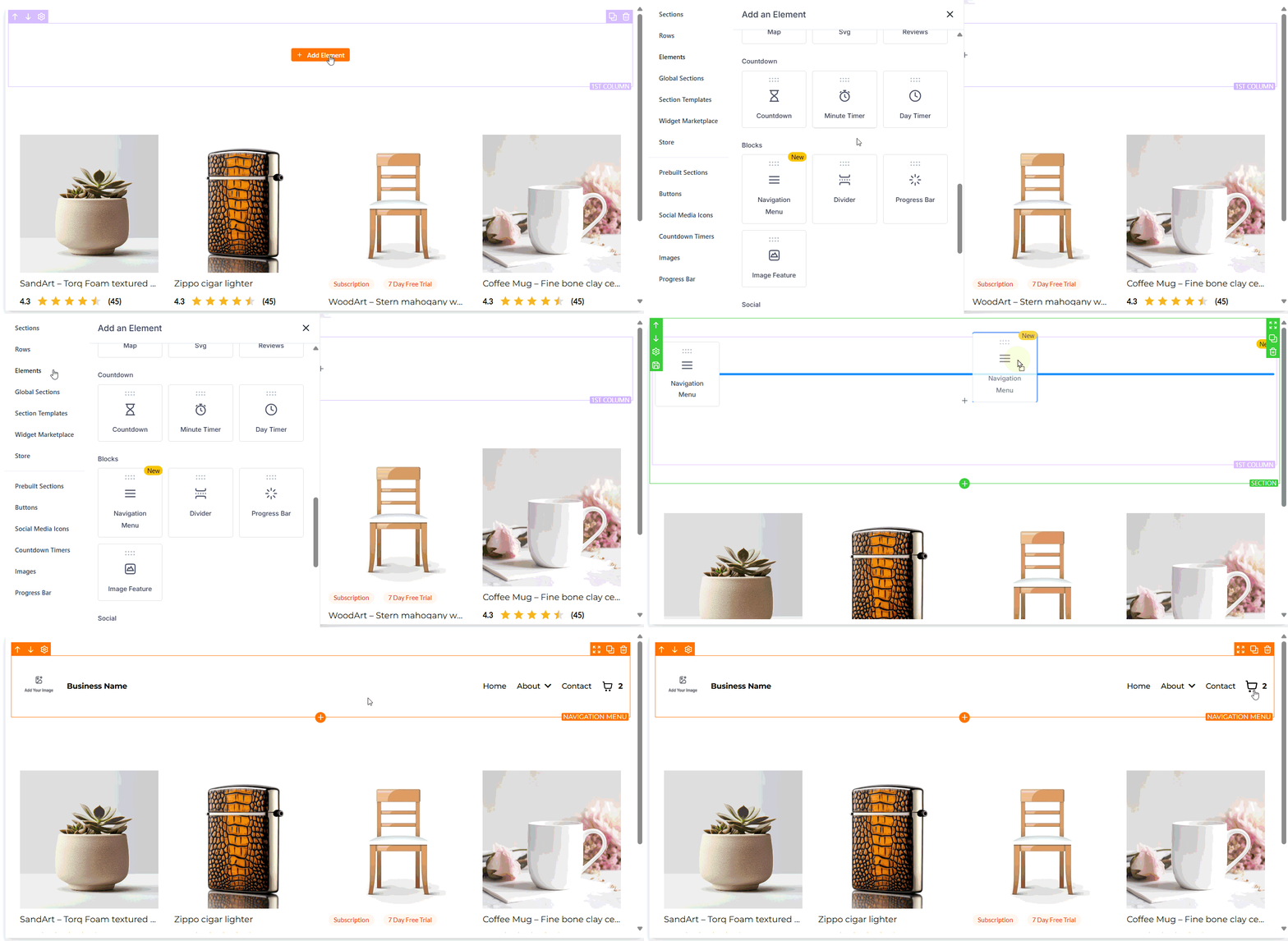
Allmänna inställningar
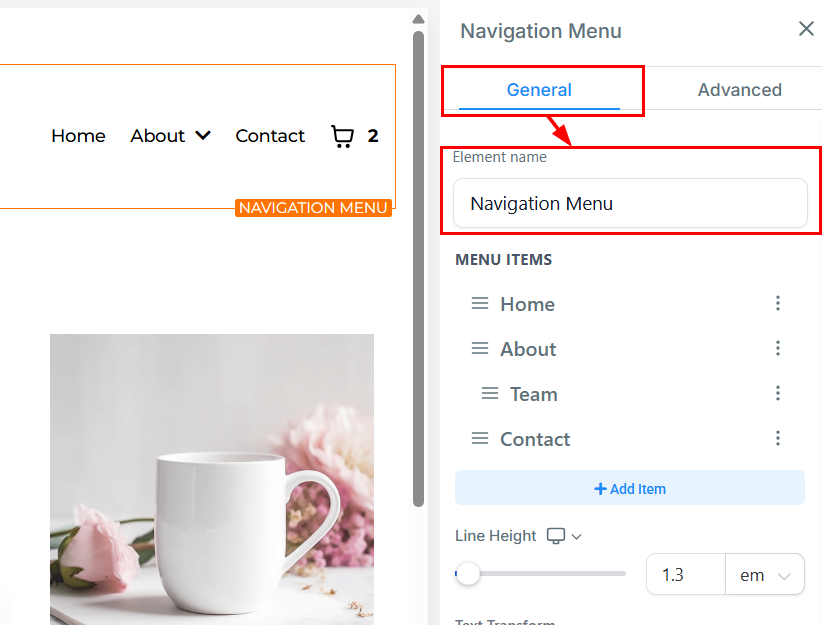
Elementnamn
Under General Settings ser du elementets standardnamn. Byt gärna till ett mer beskrivande namn för enklare identifiering i listan.
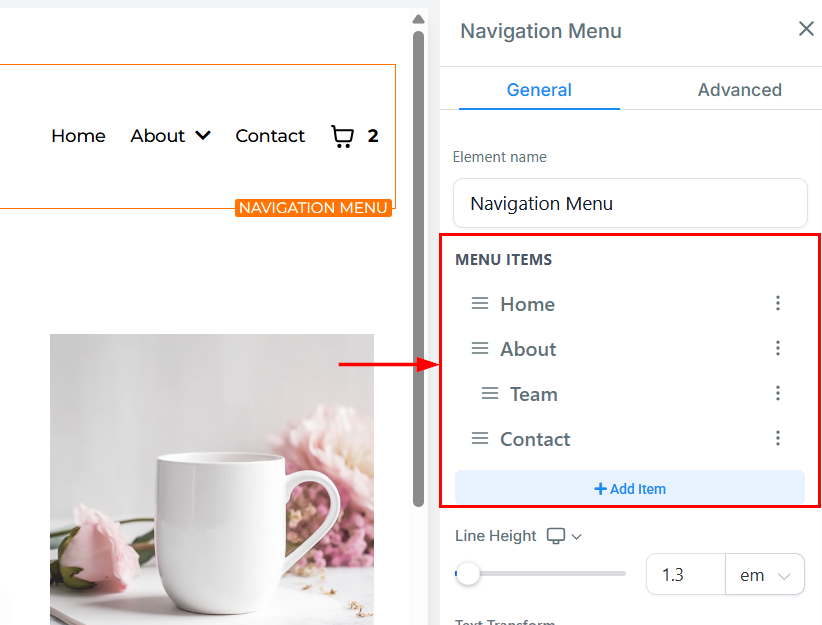
Menu Items
Med Menu Items lägger du till Home, About, Team och Contact i navigeringsfältet. Lägg till fler med ”+ Add Item”.
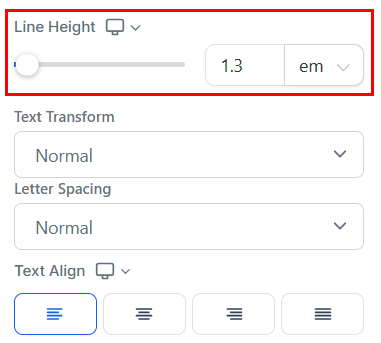
Line Height
Med Line Height ökar du avståndet mellan textrader via reglage eller genom att ange ett värde i fältet.
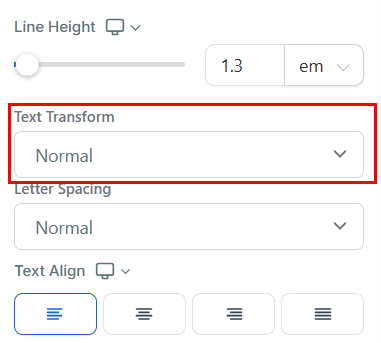
Text Transform
Med Text Transform ändrar du textformat till versaler, gemener eller versaler i varje ord.
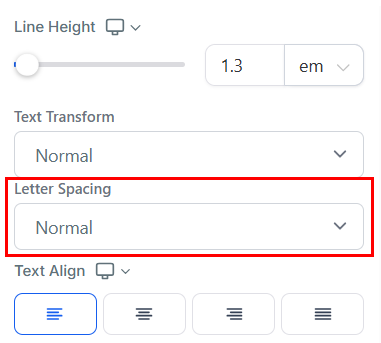
Letter Spacing
Letter Spacing låter dig justera avståndet mellan bokstäver.
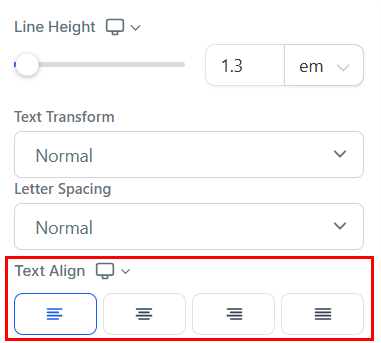
Text Align
Med Text Align placerar du text till vänster, i mitten, till höger eller som justified.
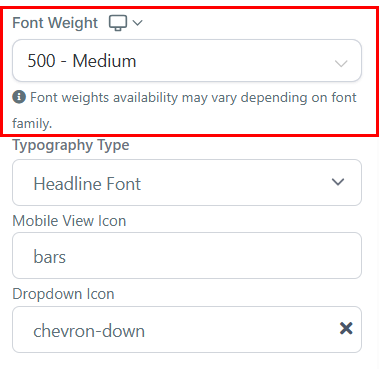
Font Weight
Justera textens tjocklek för desktop och mobil med Font Weight.
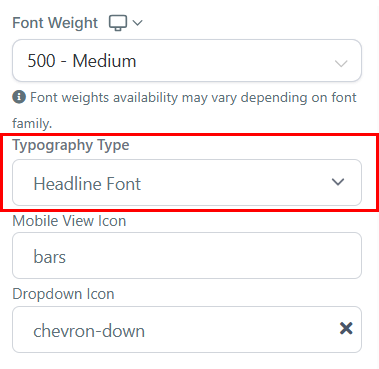
Typography Type
I Typography Type väljer du typsnitt för navigeringsfältet — headline, content eller custom font.
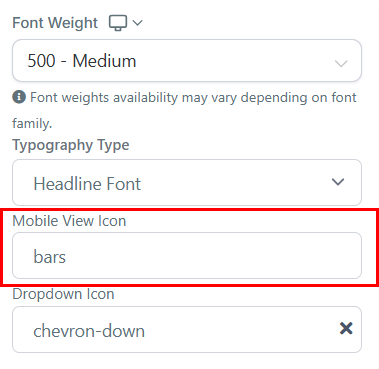
Mobile View Icon
Välj ikon från listan eller sök i sökfältet.
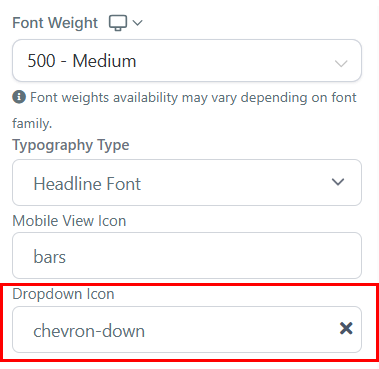
Dropdown Icon
Lägg till dropdown-ikon från style editor — ikonen visar expanderbara alternativ med mjuk rotationsanimation.
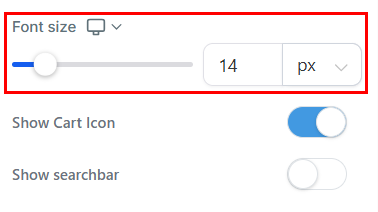
Font Size
Justera teckenstorlek för mobil och desktop med reglagen. Förhandsgranska mobilvy via menyn i byggaren.
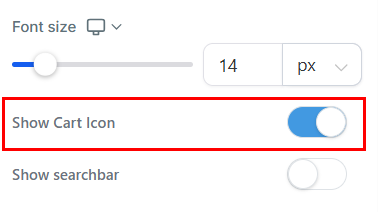
Visa varukorgsikon
Aktivera Show Cart Icon för att visa varukorgen i menyn med antal artiklar före checkout.
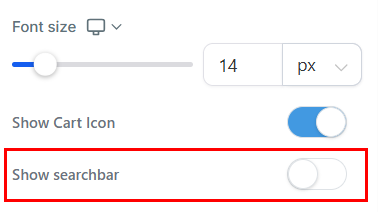
Visa sökfält
Aktivera Show Searchbar för sökning i navigationsfönstret och enkel produktletning.
Spacing Option
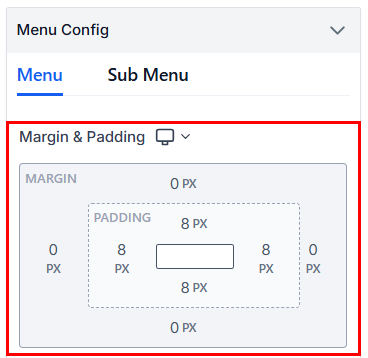
Spacing Option justerar innehåll i meny och undermeny.
- Padding Left, Right, Top, and Bottom: The Padding Left, Right, Top, and Bottom options include four toggle bars that allow you to move your content to the left, right, top, or bottom, depending on which toggle bar you click on. You can adjust the spacing by dragging the toggle bar to increase or decrease the space you want.
- Margin Top and Bottom: By toggling the bars available for Margin Top and Bottom, you can adjust the top or bottom margin of your content. Drag the toggle bar to increase or decrease the size of your margin. This will add negative space to the top or bottom of your element, depending on which margin you toggle.
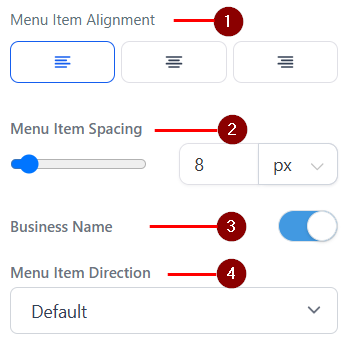
- Menu Item Alignment: Styr layouten för att menyn ska vara både snygg och funktionell.
- Menu Item Spacing: In the Menu Item Spacing Options, you can adjust the spacing of your menu items. To do this, simply move the bar to increase the number until you achieve the desired spacing. You can also input a desired number into the box to ensure your element is spaced accordingly.
- Business Name: Slå på för att visa företagsnamn i menyn.
- Menu Item Direction: Visa navigeringsfältet i standard- eller omvänd ordning.
Color Options
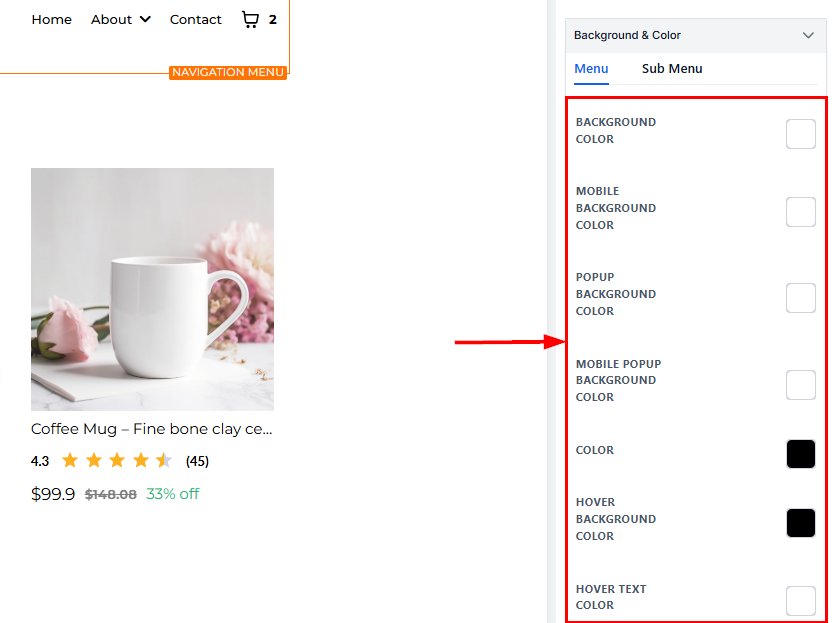
The Color Options feature enables you to adjust various text and icon colors to suit your preferences.
- Background Color: Allows you to change the background color of your navigation bar or section for desktop view. You can select a color from the palette.
- Mobile Background Color: Customizes the background color for your navigation menu specifically in mobile view, ensuring a cohesive design across devices.
- Popup Background Color: Adjust the background color of any popups linked to your navigation menu, such as dropdown menus.
- Mobile Popup Background Color: This lets you set the background color for popups displayed in mobile view, improving readability and style.
- Color: Controls the text color when it is in its default (non-bold, non-italicized) form. You can select any shade to match your branding.
- Hover Background Color: You can change the background color of the Hover here. This works only on the Desktop view.
- Hover Text Color: You can change the color of your Hover here.
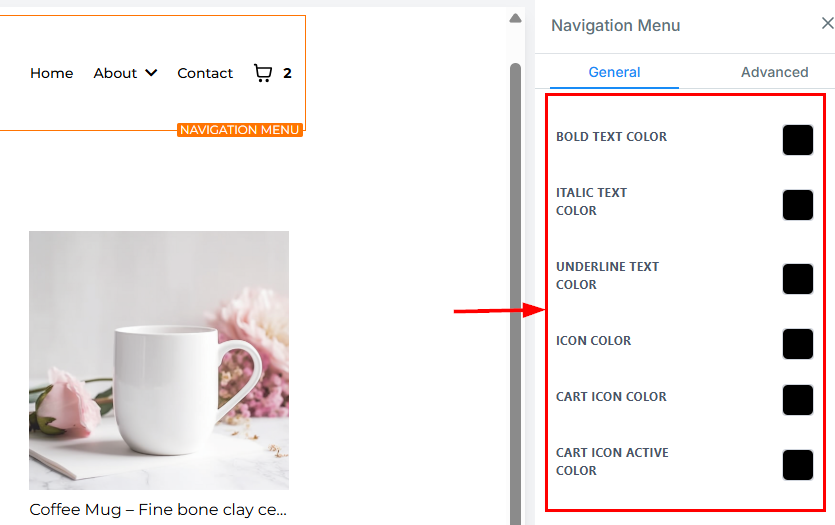
- Bold Text Color: Färg för fetstilt text — markera text och klicka på “B”-ikonen.
- Italic Text Color: You can only edit an italic text color here. To make an italic text, highlight the text and then click on the Slant “I” icon.
- Underline Text Color: You can only edit an underlined text color here. To underline your text, highlight the text and then click on the underlined “U” icon.
- Icon Color: If you have an icon added to this page, you can only edit the icon color here. Only the icon color will change, regardless of the position it’s placed.
- Cart Icon Color: Standardfärg för varukorgsikonen.
- Cart Icon Active Color: Färg när varukorgsikonen är aktiv/vald.
Konfiguration av varumärkeslogotyp
- By toggling on the “Logo in Menu” button, you can place your brand logo on the left corner of your navigation menu, enabling easier accessibility to your website. When you toggle on the button, editing options become available.
- Brand Logo: You can add your brand logo to the menu by clicking on the image icon located on the right side of the designated space. It will lead you to the import page, where you can upload your logo image. Afterward, click on the clipboard icon at the upper right corner of the page to copy the image URL. You can exit the import page and paste the URL into the Brand logo space provided.
- Optimize Image load: Ensure that your logo image is optimized for fast loading by compressing it to an appropriate size before uploading. This helps to enhance page speed and overall user experience.
- Width and Height: In this Width and Height section, you can adjust the width and height of your brand logo to the desired size to fit your menu. You may need to play around with different combinations of numbers to get the right fit.
- Alt Text (for SEO): Take advantage of the Alt Text feature to input SEO keywords relevant to your brand in the navigation bar section. It will enable your brand to show up in relevant search queries on search engines.
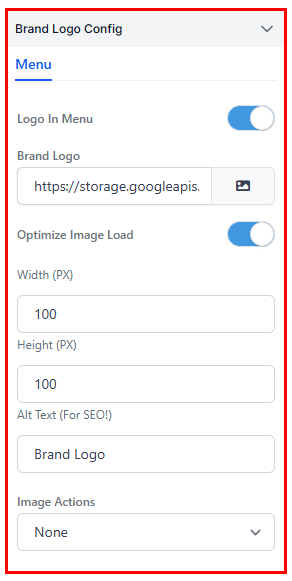
Image Actions
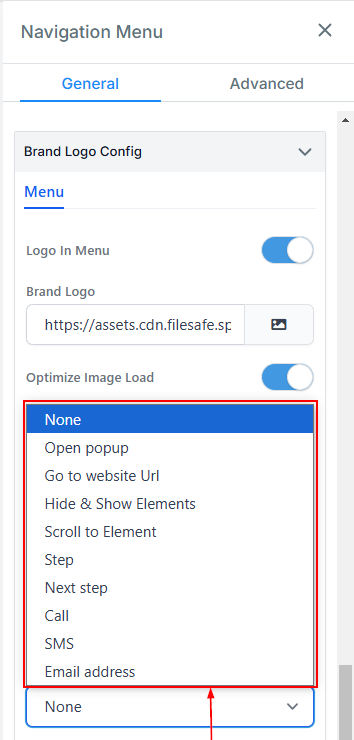
In the Actions feature, you have a variety of options to select from.
- Open pop-up: Visa pop-up vid klick.
- Go to Website URL: Upon selecting “Go to website URL” in the “Image Action” icon, you will be required to indicate which website page you want to direct your visitors.
- Hide & Show Elements: Use this action to toggle the visibility of specific elements on the page. You can set the image to either hide or reveal selected elements upon interaction.
- Scroll to Element: Selecting this action allows you to create a smooth scrolling effect that directs visitors to a specific section of the page when the image is clicked.
- Step: Gå till specifikt steg i butiken vid klick.
- Next Step: Gå automatiskt till nästa steg i butiken.
- Call: Set the image to initiate a phone call to a pre-defined number when clicked. This action is ideal for encouraging direct communication with your audience.
- SMS: Use this action to compose and send a text message to a pre-specified number when the image is clicked.
- Email address: Configure the image to open the user’s default email client with a pre-filled recipient email address, subject, or body content, making it easy for visitors to contact you.”
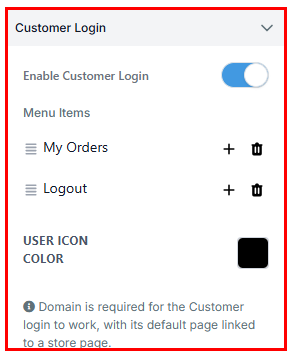
Kundinloggning
Aktivera Customer Login så att besökare kan logga in direkt från butiken för orderhistorik och kontoinnehåll — säkert, professionellt och med stöd för återköp.
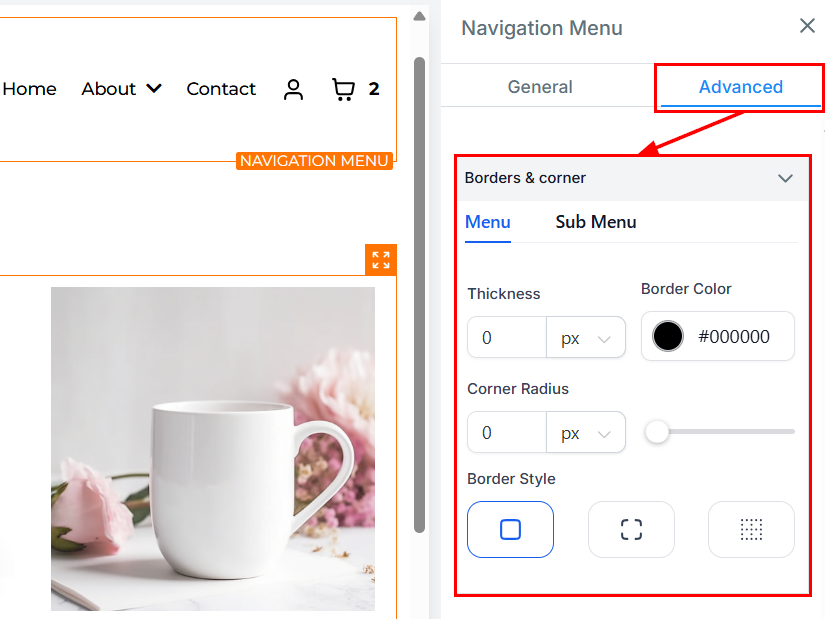
Advanced Settings
Under Advanced Settings, you will have additional customization options.
Borders & Corner låter dig välja kantstil och justera tjocklek, färg och radie.
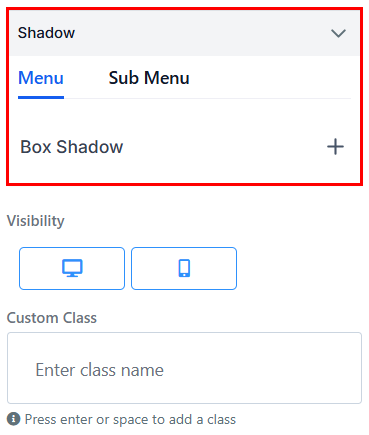
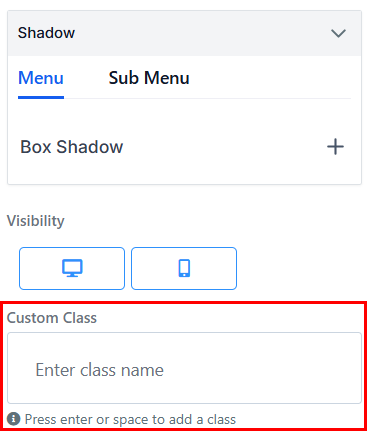
Shadow
This feature allows you to add a shadow behind an element, creating a sense of depth and making the navigation menu stand out more prominently against the background.
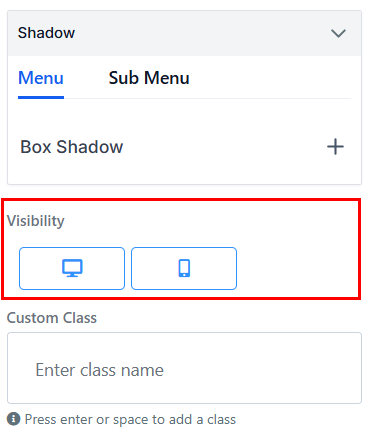
Visibility
To determine where a particular edit option will be visible, you can select either mobile devices, desktops, or both by clicking on the relevant icon. This feature lets you choose where your edits will be visible and enables greater control of your content.
Custom Class
Ange egen CSS-klass — tryck Enter eller mellanslag.
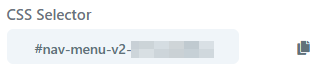
CSS Selector
When you’re completed with your navigation bar setup, you will have the option to copy the Custom CSS to use elsewhere. Simply click on the copy icon to the right of the reference code to copy the code.
Med Navigation Menu Element skapar du en snygg och användarvänlig navigation i butiken — full kontroll över utseende och funktion.
Inte kund hos Funnelbud ännu?
Prova vårt allt-i-ett CRM för sälj och marknadsföring — gratis i 7 dagar, ingen bindningstid.