Prospecting Tool
The Prospecting Tool allows you to search for and analyze potential clients based on their online presence and digital needs. It’s particularly useful for understanding what services you can offer to local business owners to enhance their digital footprint, and identifying local businesses that could benefit from the services your business offers.
How to Access the Prospecting Tool
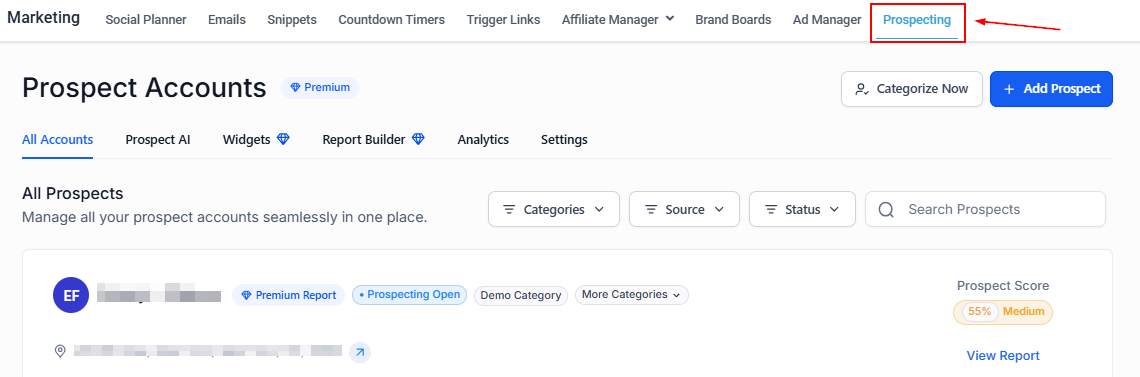
Navigate to the Marketing section in your account, then locate and click on the “Prospecting” option.
Performing Your First Search
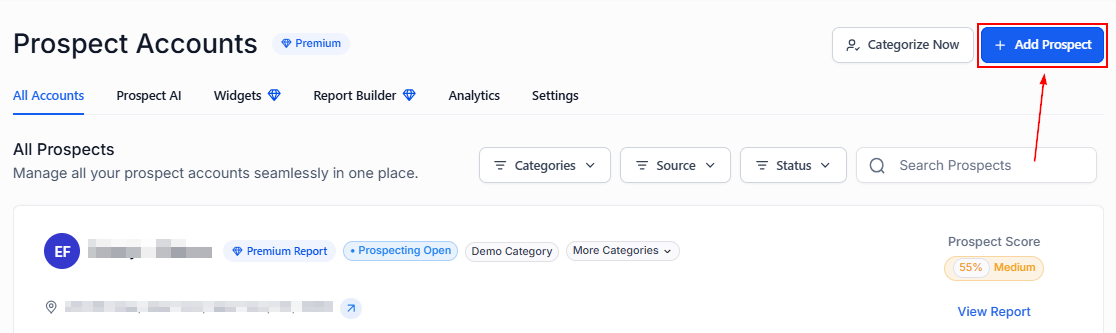
To begin, click the Add a Prospect button.
Enter a search term related to the type of businesses you’re targeting, then choose a location and radius. The tool will display a list of businesses, along with a map and various company details.
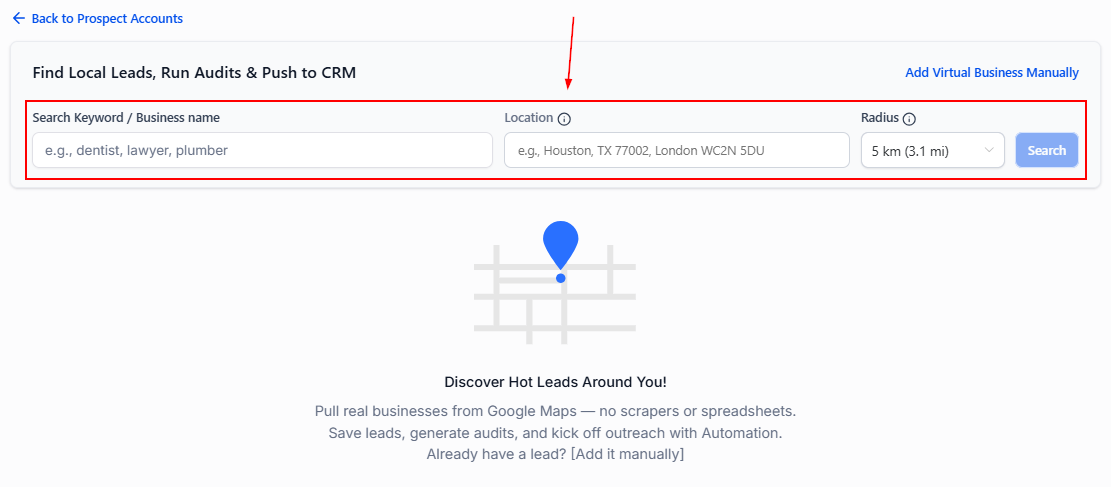
Alternatively, utilize virtual business’s Google Maps URLs to generate accurate prospecting reports by clicking the “Search for Virtual Businesses” option.

Understanding Search Results
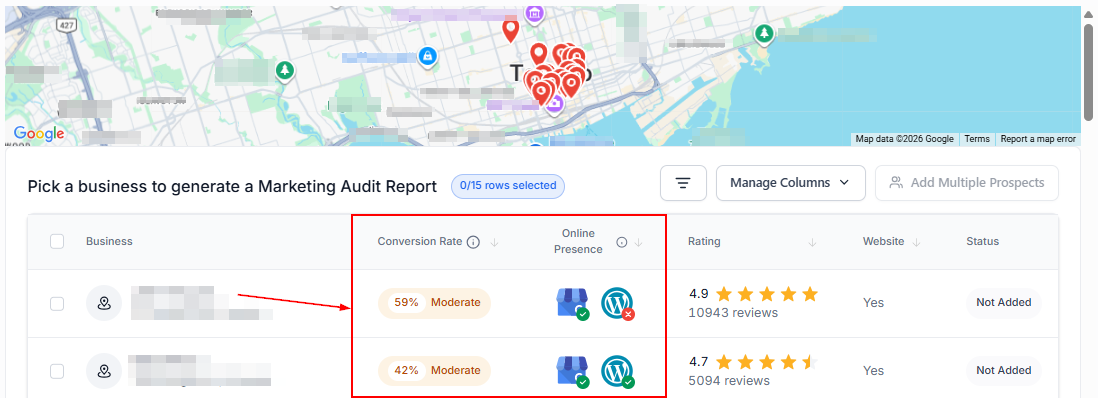
In the search results, you will find information such as whether the business has claimed its Google Business Profile, if its website is built on WordPress, and its conversion rate. This data is crucial for identifying how you can assist these businesses.
Adding Prospects
Once you have identified the prospects, click the “Add Multiple Prospects” button.
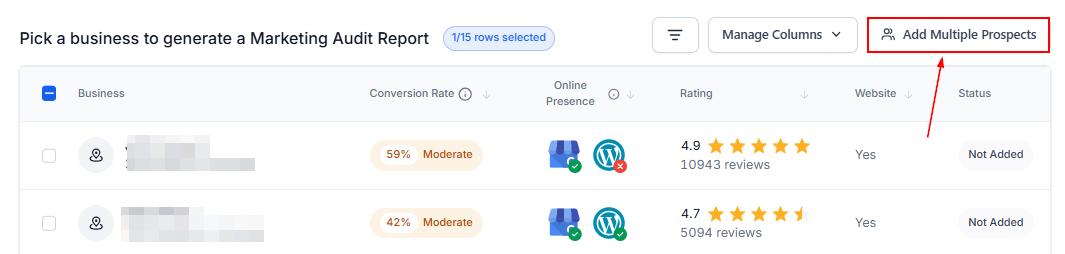
When adding a new prospect, you can assign relevant categories (1) and assign the prospect to your sales pipeline (2).
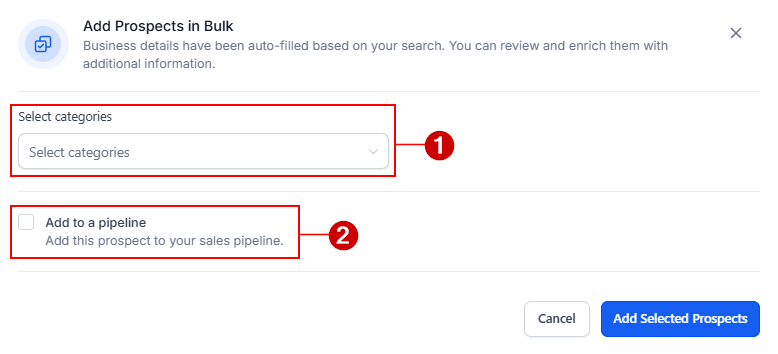
If you have selected the “Add to a pipeline” option, select an existing pipeline and choose the appropriate stage.
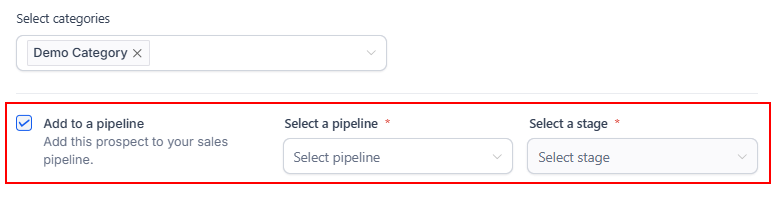
When a prospect is sent to a pipeline, an opportunity is automatically created with the source marked as “Prospecting,” which can be verified on the Opportunities page.
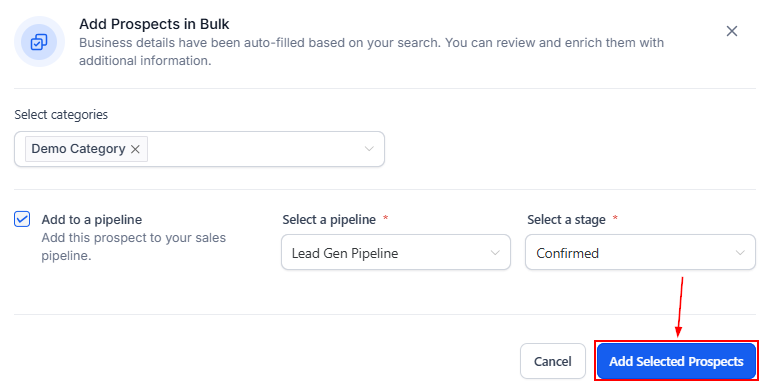
After configuring your categories and pipelines, click “Add Selected Prospects”.
Analyzing Company Details
Saving and Accessing Prospects
Upon finding a promising prospect, their prospect report will be generated for further analysis.
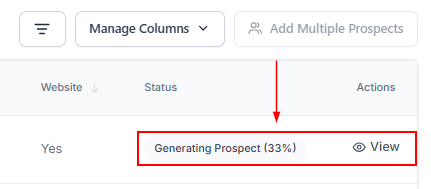
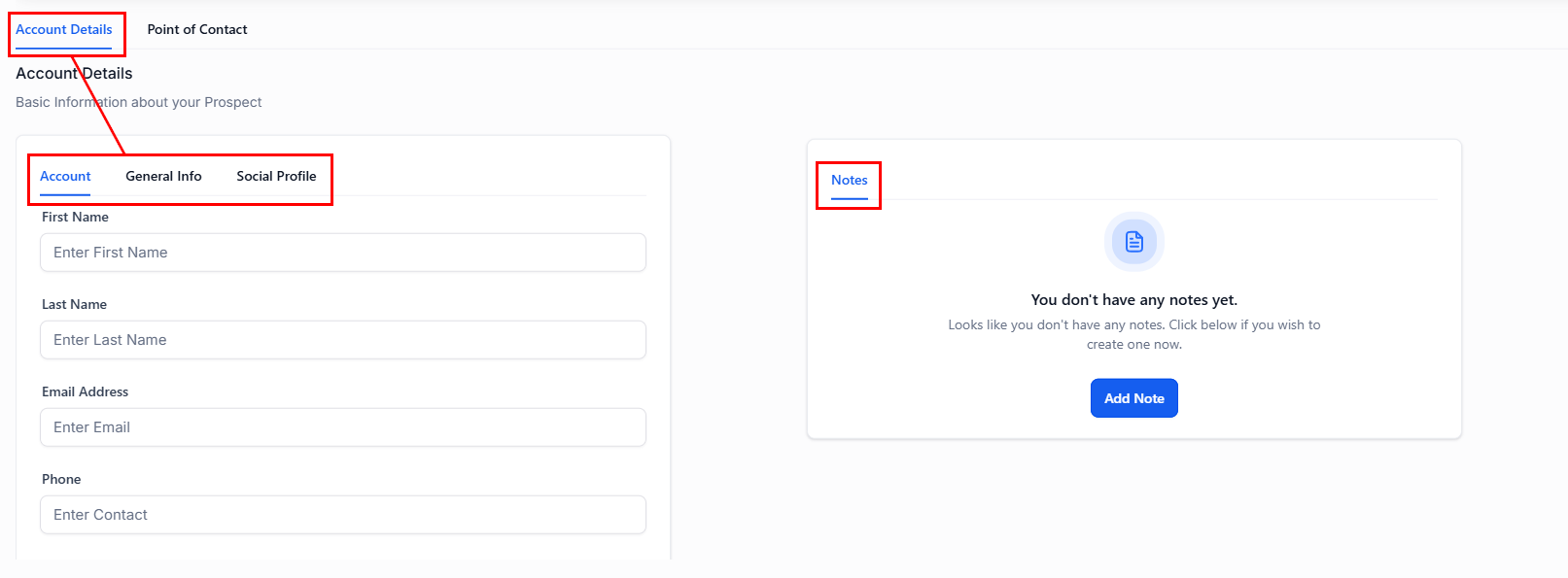
Head back to the Prospect Account to view information about their account, notes, and business details.

The Account Details section allows you to make informed decisions about the prospect by including an overview of the business, social profiles, and general information. You can also add notes on the prospect in this section.
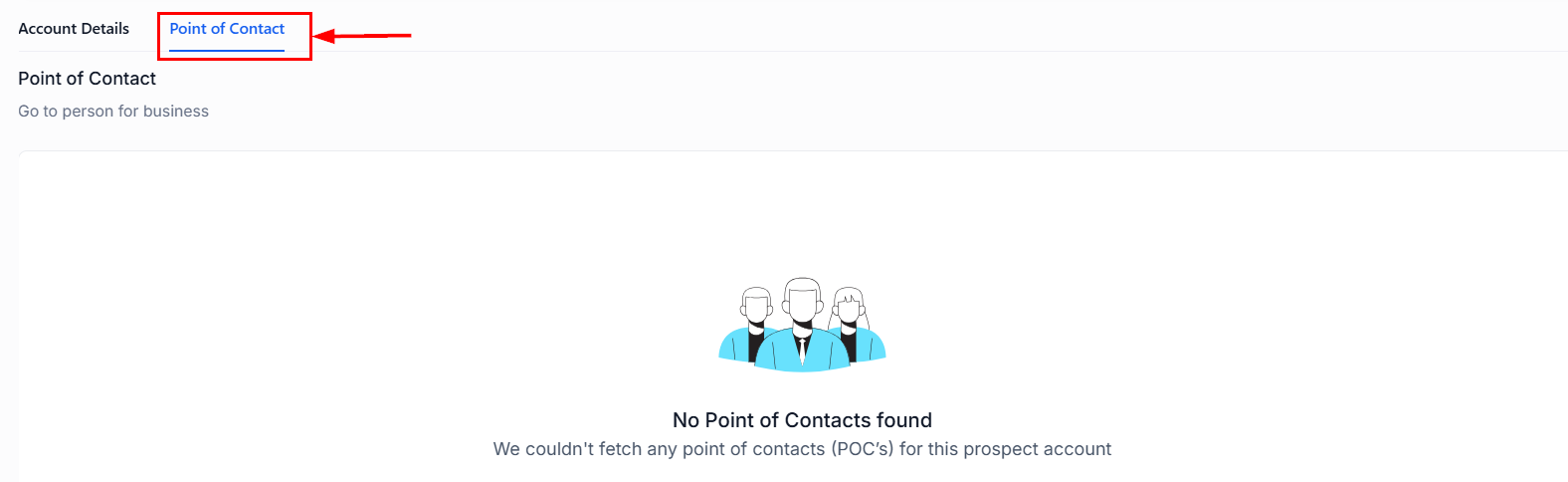
The Point of Contacts section displays information on the leads associated with the business. Navigate to the “Point of Contacts” tab to gain access to crucial contact information.
By leveraging this tool, you can gain valuable insights into local businesses, optimize your service offerings, and enhance your company’s efficiency.