Manually Importing Facebook Leads Into a Workflow
Within the Meta Business Suite, you can export a file containing the information submitted through your Instant Form. Additionally, you can download this data from Ads Manager or request it via the API. Follow the steps below to download your lead data directly from Business Suite.
Downloading Leads Data from Meta Business Suite
- Navigate to Business Suite.
- From the menu, select More Tools and click on Instant Forms.
- Locate the form with the leads you wish to export and click Download.
- Choose your preferred download method:
-
- Download New Leads: Exports only the leads received since your last download.
- Download by Date Range: Exports all leads received during a specified period. After selecting this option, choose the desired date range and click Download.
- A window will appear with your form information. Click CSV to download the lead data in your chosen file format.
📌Note: You have 90 days from the time a lead submits their form to download their information. After 90 days, the lead data expires. To ensure you retain your data, we recommend exporting your lead data regularly.
Importing Leads into Your CRM
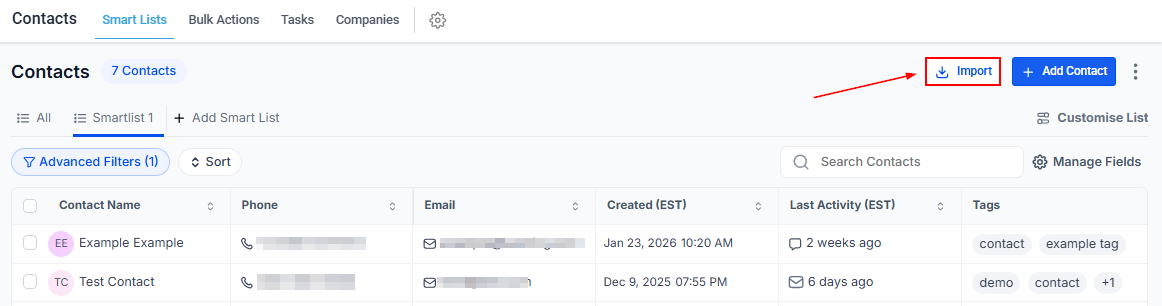
Now that you have obtained your list of leads, head to the Contacts tab and select Import from the upper right-hand menu.
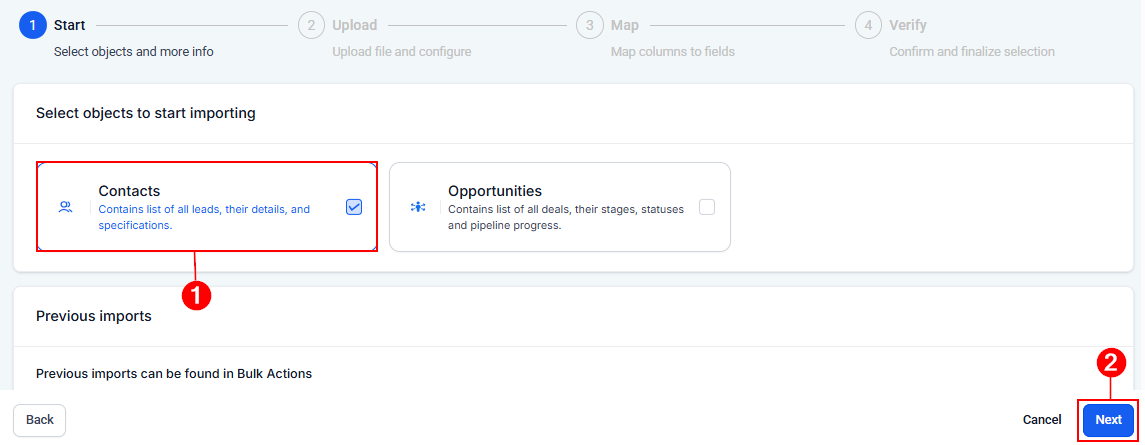
Choose the Contact object, then click Next.
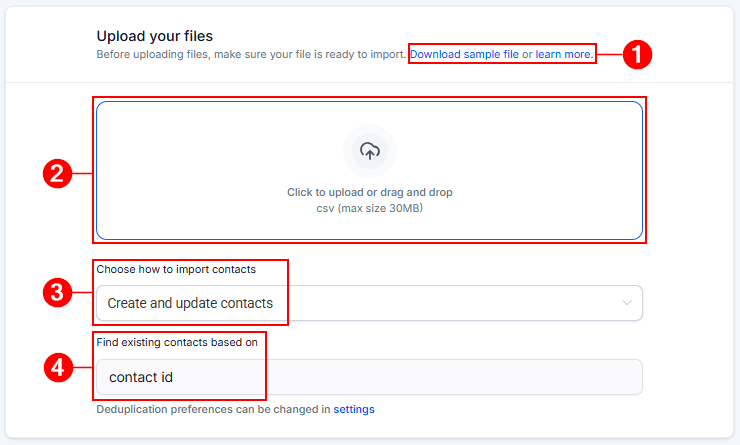
Download the sample file or click the learn more button to ensure your file is ready for upload (1). Once confirmed, click within the upload box or drag and drop the file from your device (2). Next, choose how contacts should be uploaded (3) and view deduplication preferences below (4). If you would like to change these preferences, navigate to your account settings.
After completing these steps, click Next.
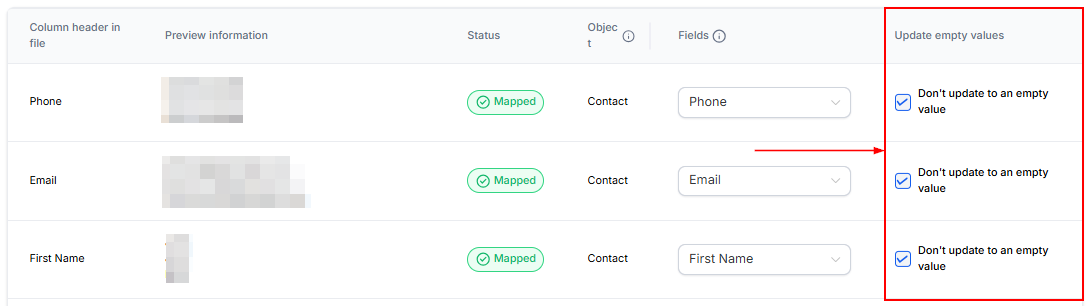
Map the fields from your Facebook Lead Form to the corresponding CRM fields, then click Next.
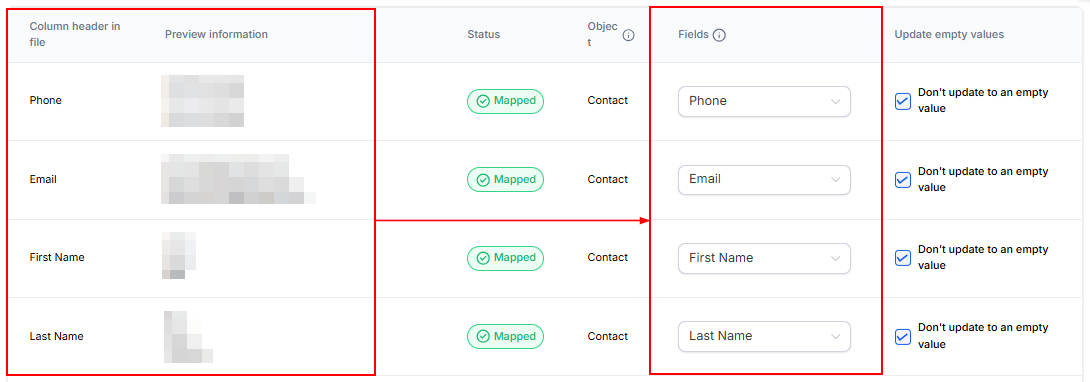
If you prefer not to import empty values, select the option to the far right of each field.
In the final tab, add a tag for these leads or create a new smart list (optional), select the “Add imported contacts to a workflow” option, and choose the workflow from the dropdown.
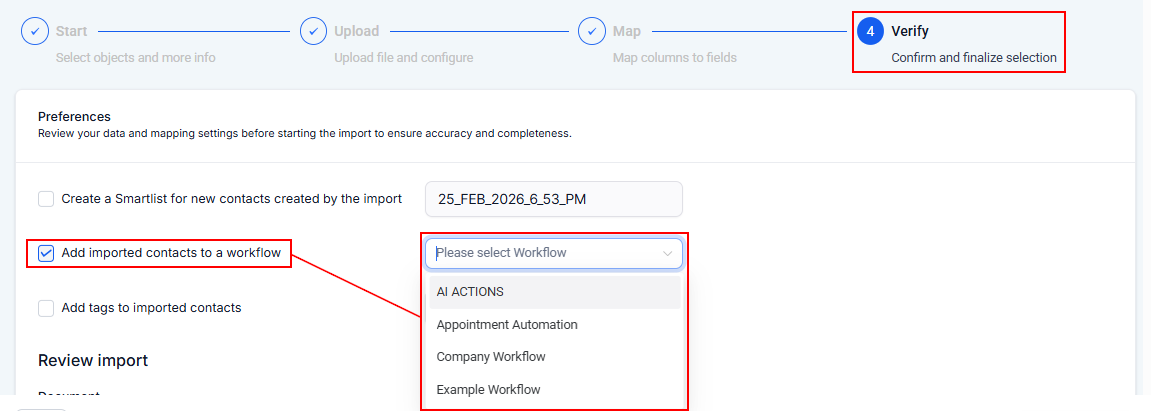
Review further configurations, then click “Start Bulk Import” to begin the import. This process will help you efficiently manage your lead data and ensure that it is properly imported into your CRM system for further action.
Troubleshooting Download Issues
If you encounter issues while downloading your leads file:
- Confirm with your Business Manager admin if they’ve customized access permissions in Leads Access Manager.
- If permissions have not been customized, contact your Meta Page admin to obtain the necessary access. Before customization, only Meta Page admins are permitted to download leads.
- If permissions have been customized, ensure you’ve been granted the correct access. Only individuals with assigned permissions can download leads after customization.
Not a Funnelbud customer yet?
Try our all-in-one CRM for sales and marketing — free for 7 days, no commitment.