Email Templates
Email Templates help you create standardized yet customizable communications with your contacts, making it easy to promote your business, reconnect after appointments, and increase sales. You can find them on the Emails tab of the Marketing section, nested under Templates.
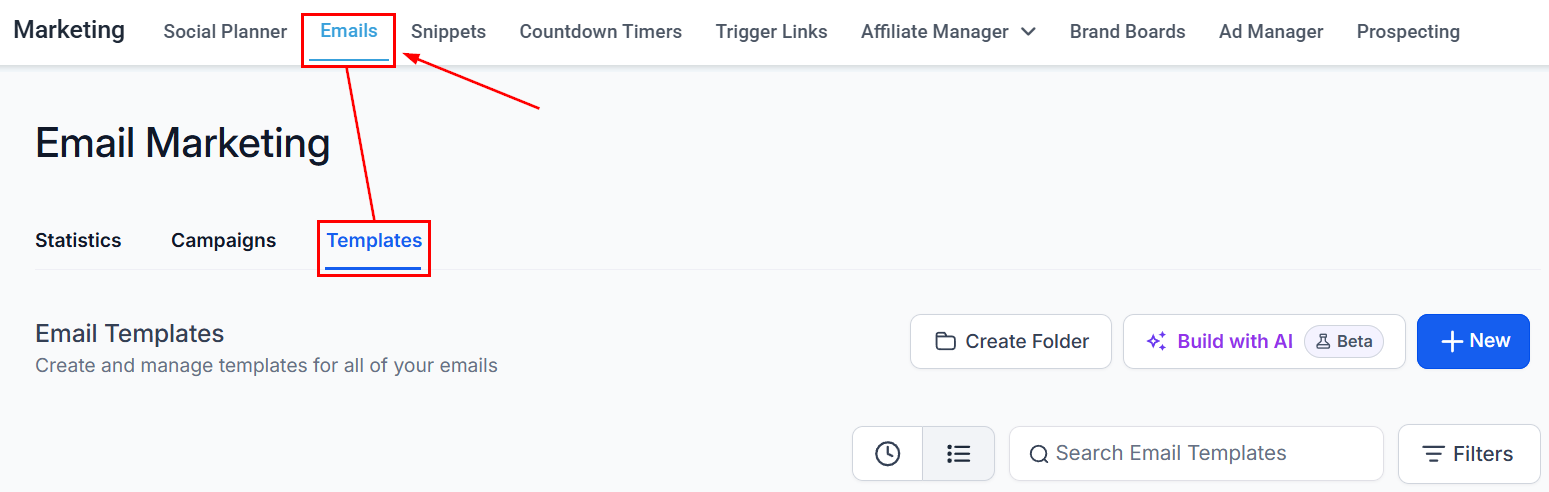
All existing email templates can be found here.
Creating Folders
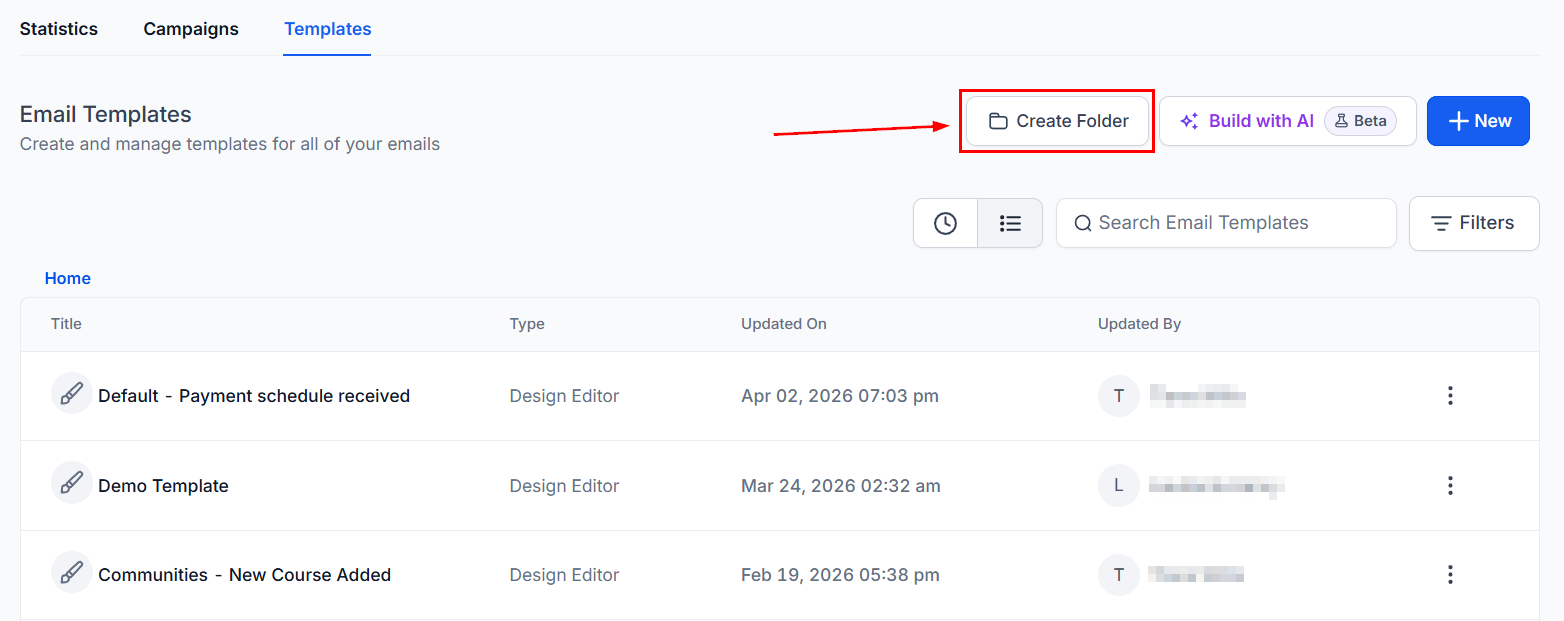
For improved organization, creating folders is highly effective. You can categorize email templates into specific folders related to marketing campaigns, product/service-specific emails, and more. Simply click this button and name your folder to begin organizing your templates.
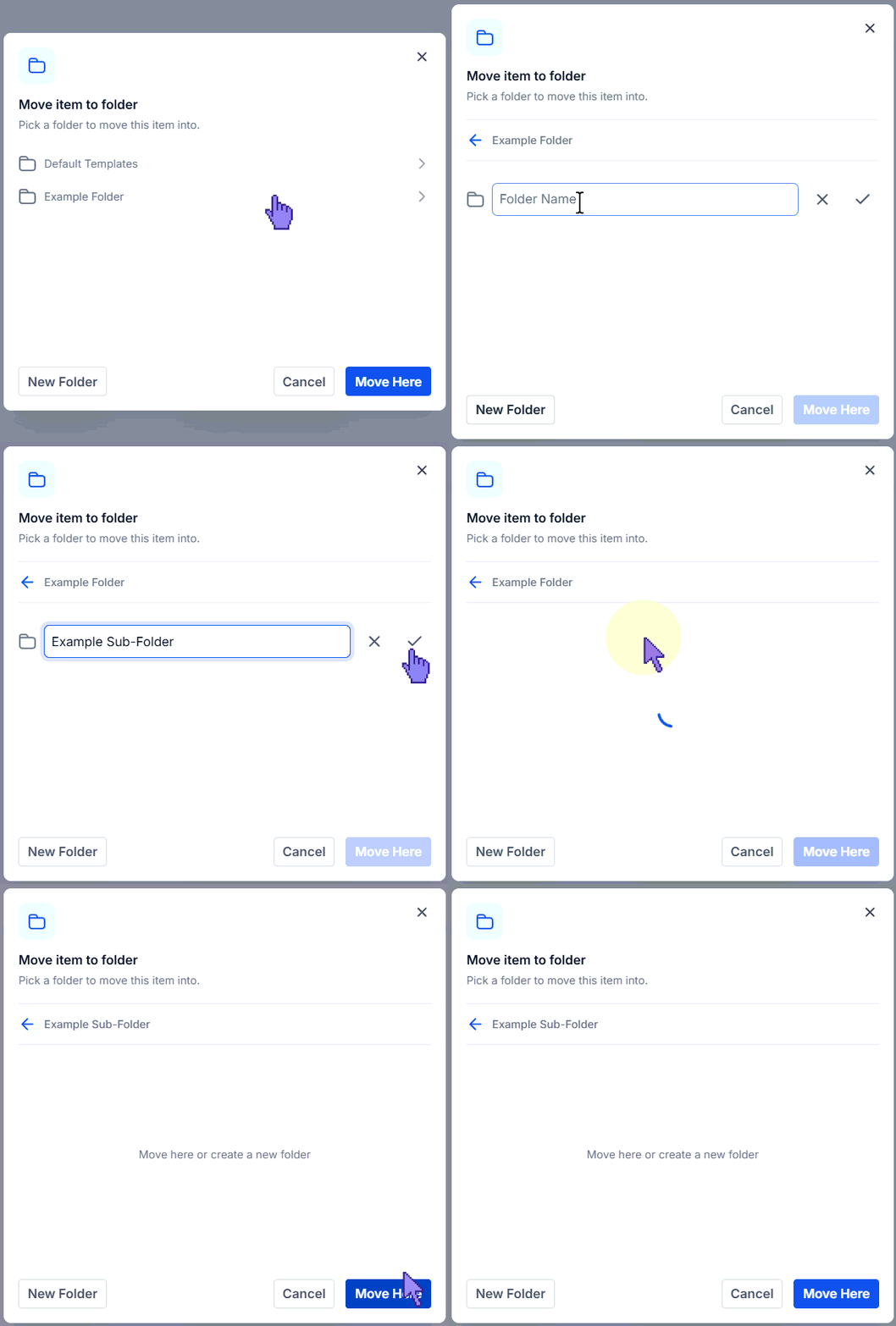
You can create nested folders by clicking the Create Folder button inside a Folder or when moving a template into a folder by clicking New Folder once the main folder has been selected.
Creating New Email Templates
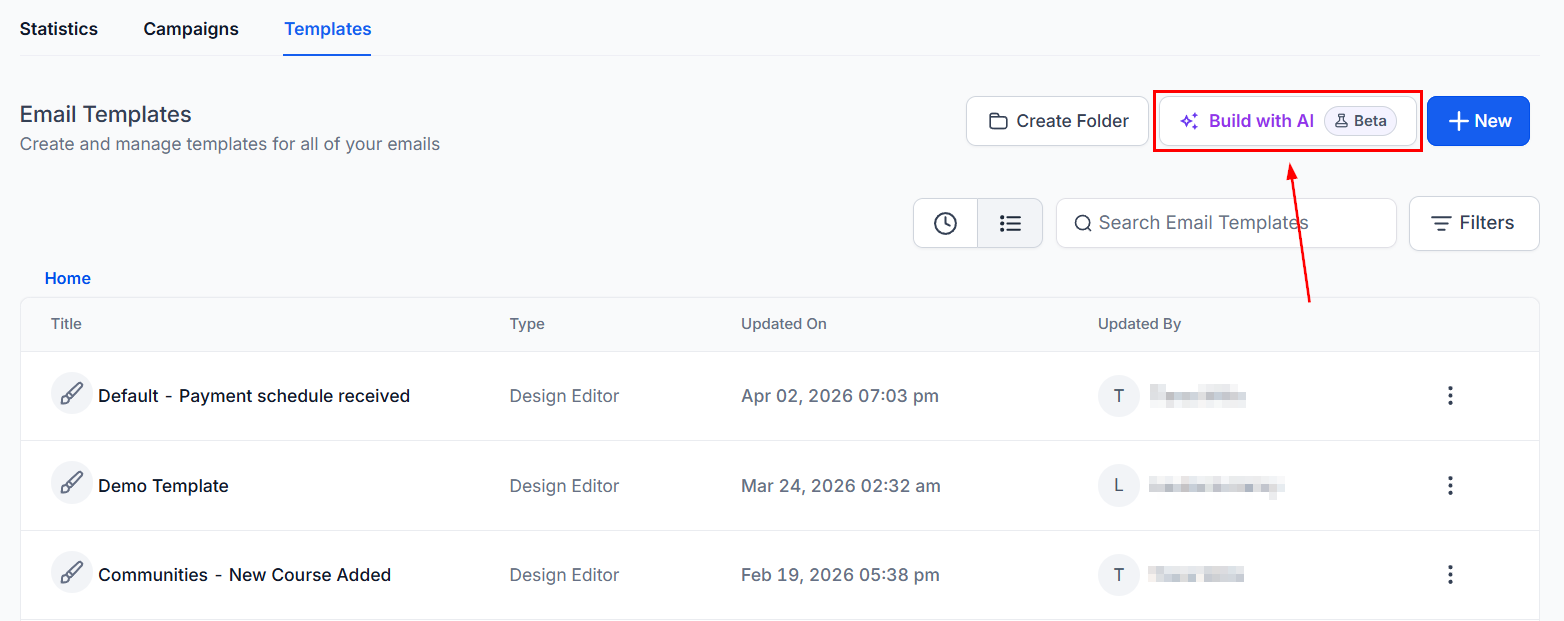
When you are ready to create a new email template, simply click this button.
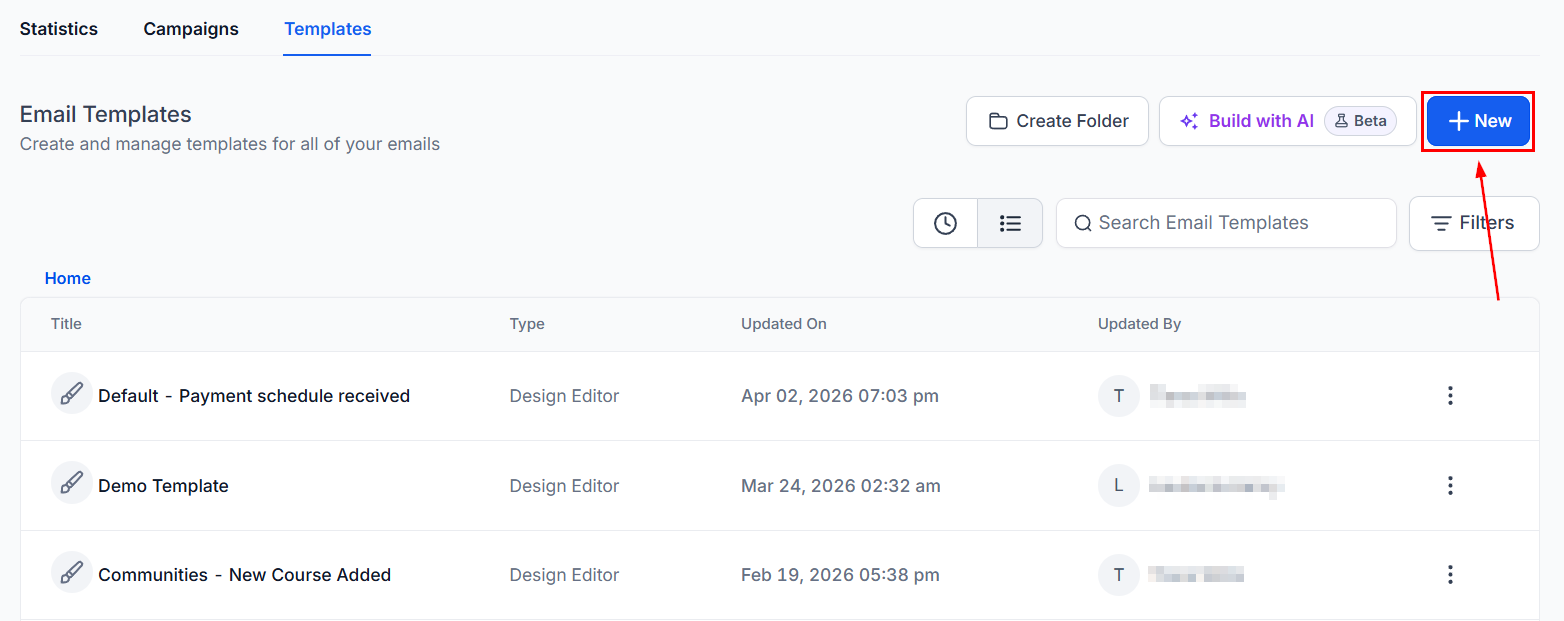
Or if you want to use AI to help you create your template, click “Build with AI.”
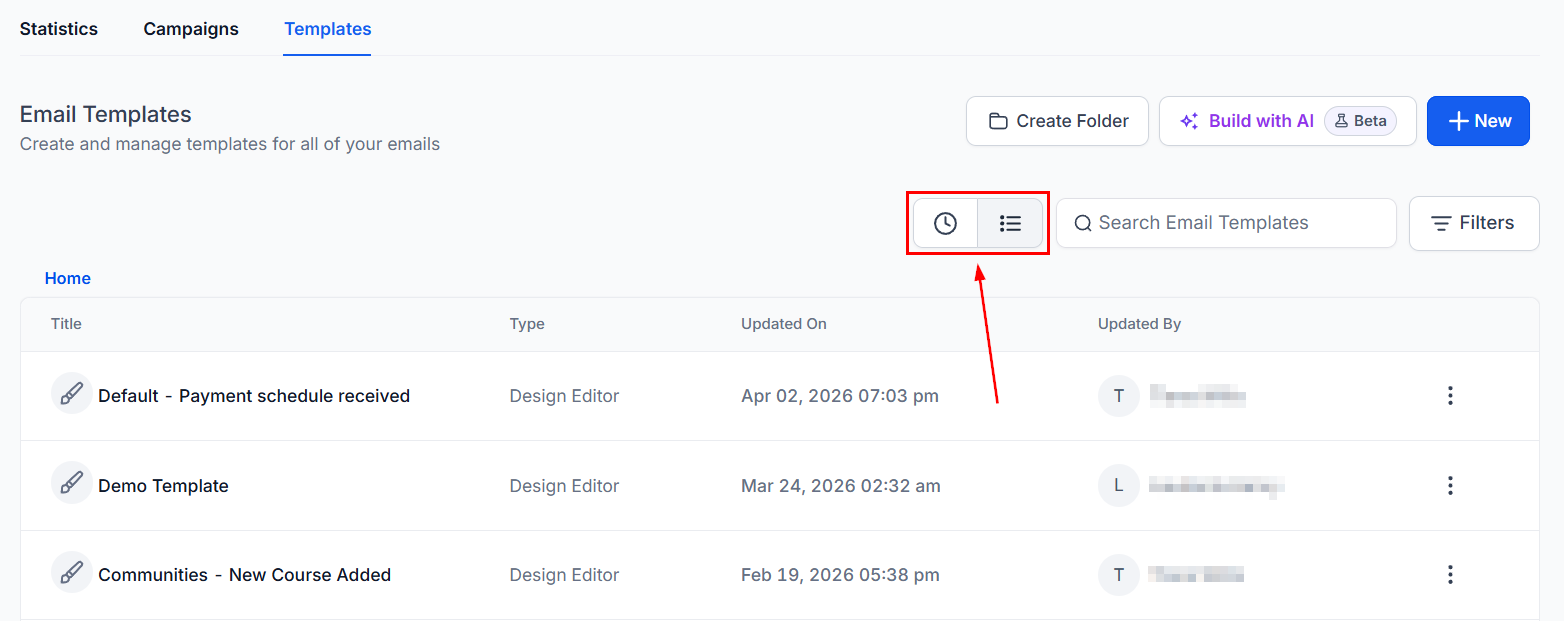
Views
Switch between the “Recent” and “List” views to manage and review your content more effectively. The “Recent” view displays the most recently accessed items, while the “List” view provides a comprehensive, organized listing of all items.
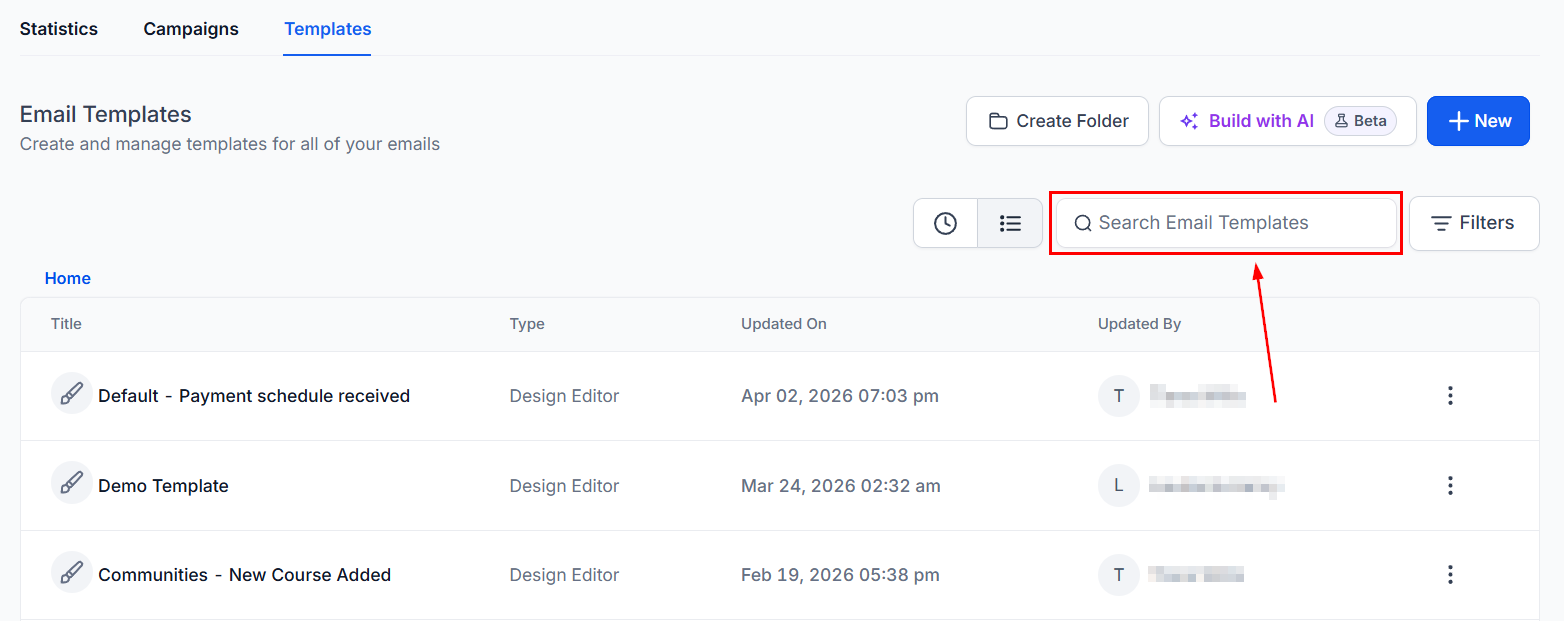
Search Bar
If you have an extensive list of email templates and need to locate a specific one for editing or management, use the search bar by typing the name of the email template.
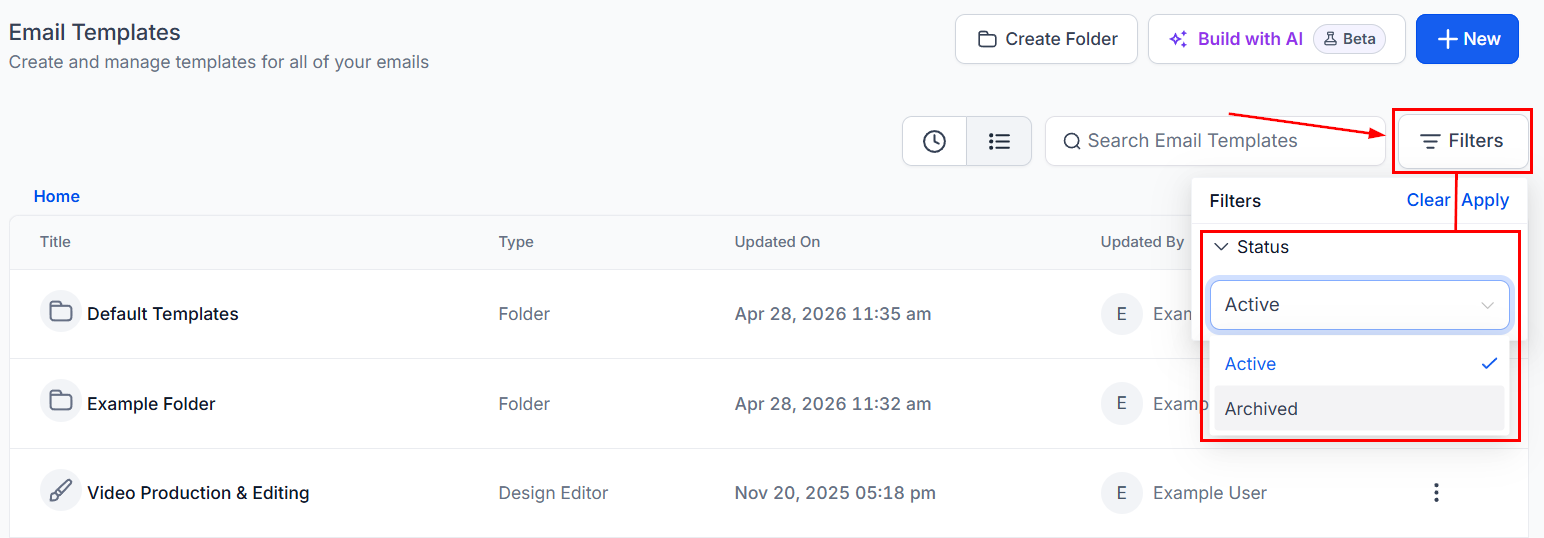
Filter By Active/Archive Status
Filter your email templates by status to view the active or archived templates together.
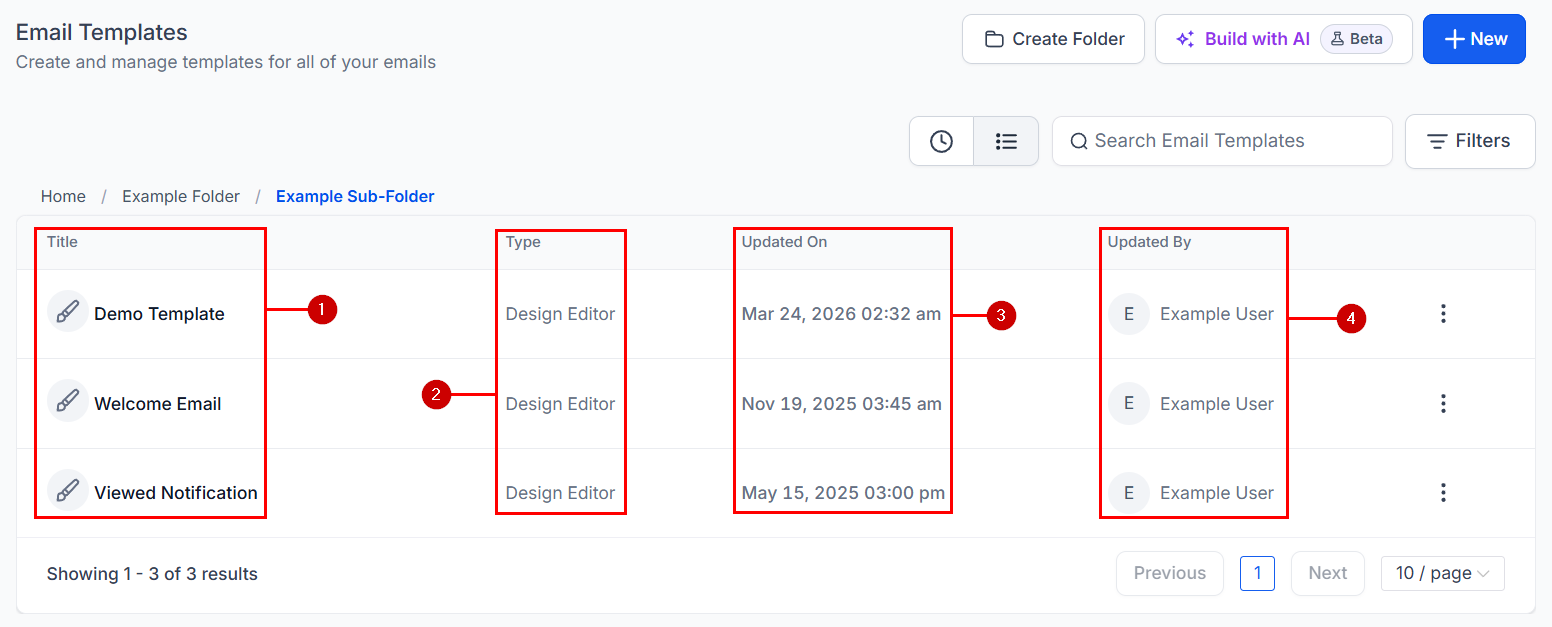
Email Templates Table
- Title: Here you will see the names of your email templates. Create unique, but memorable names for ease of identification.
- Type: This column indicates the type of email template that was created, whether there were created with a design editor, code editor, or plain text editor.
- Updated On: Once you save any changes made to an email template, the date and time the changes were made will be updated and seen here.
- Updated By: This column shows the name of the user who made the latest edits to the email template.
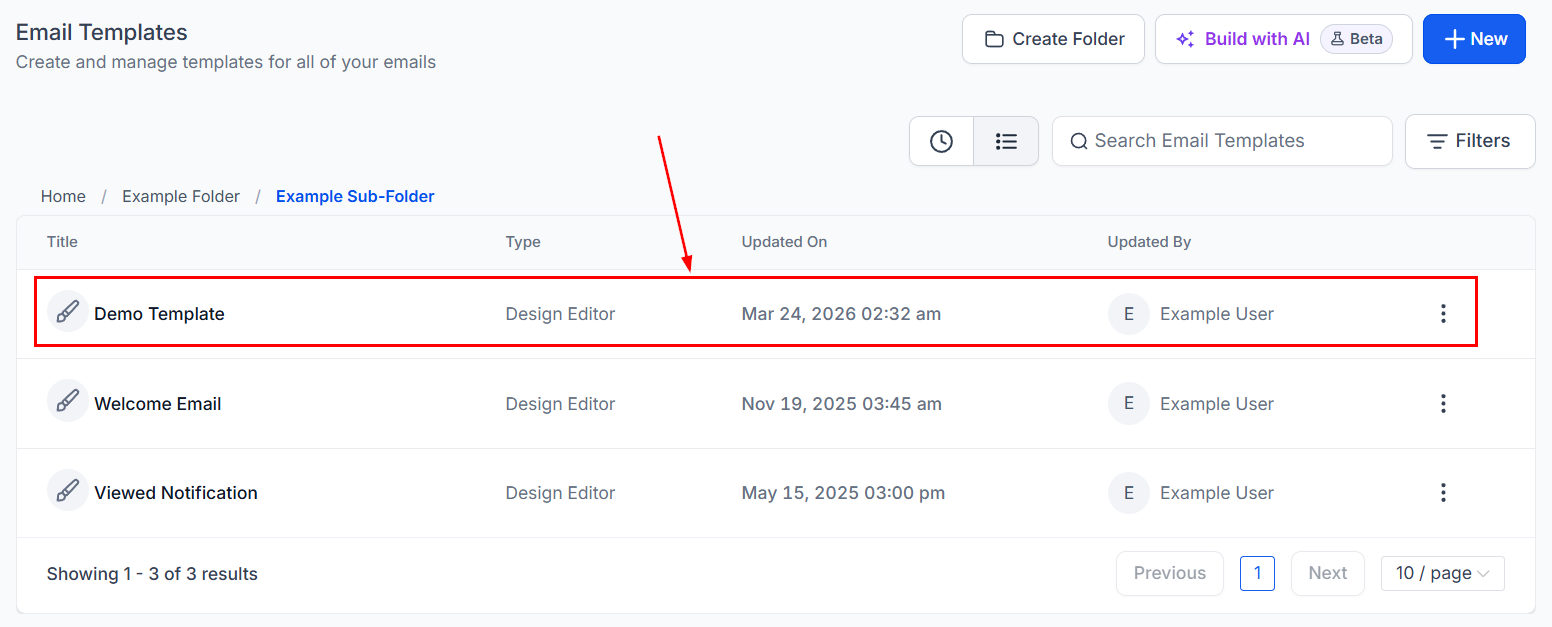
Edit Template
You can edit your existing email campaigns by selecting the name of the email template. Remember to save your template after making any changes!
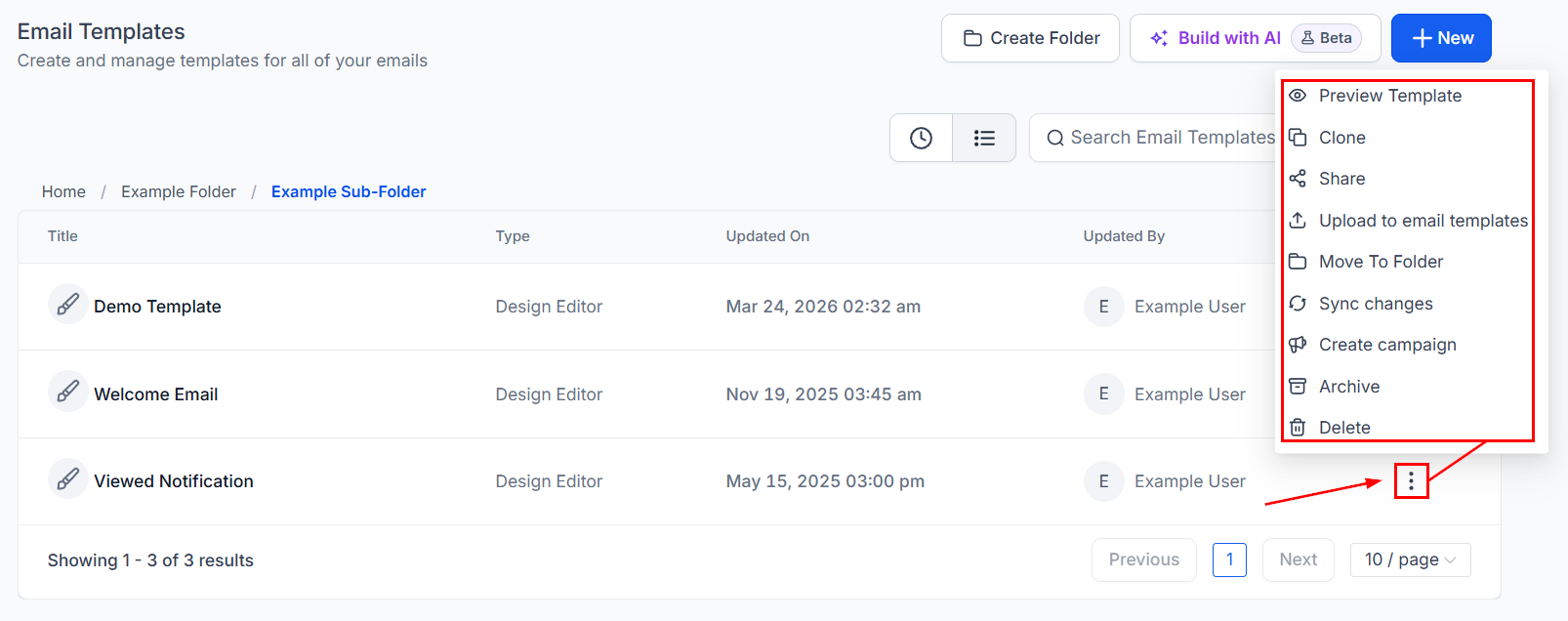
To perform additional tasks such as previewing or cloning a template, start by clicking the three dots next to the email template to reveal an actions dropdown.
- Preview Template: This will allow you to preview your email template. You will be directed to a page where you can see what the email will look like when it’s sent out.
- Clone: Duplicate an existing email template by clicking this button.
- Share: This will allow you to share your email template across your other CRM accounts.
- Upload To Email Templates: Upload a new email template directly into the CRM’s template library.
- Move to Folder: Seamlessly group templates in folders by utilizing the “Move to Folder” action.
- Sync Changes: If using the template in multiple campaigns, this option allows you to update the template across campaigns.
- Create Campaign: Convert your template into an email campaign with one click of this button! This allows you to reuse the same template for different campaigns, ensuring consistency in your branding and messaging.
- Archive: This will allow you to archive your email template. You can easily unarchive the email by clicking on the “action” drop-down of the archived email and selecting “unarchive”.
- Delete: This will allow you to delete your email template. When you hit delete, this email will be permanently removed from your account.
For further information on utilizing the Email Templates feature, please refer to the additional articles in this section.
Not a Funnelbud customer yet?
Try our all-in-one CRM for sales and marketing — free for 7 days, no commitment.