Canva Integration in Media Storage
Managing creative assets across teams can quickly become fragmented when designs live in separate platforms. By connecting Canva directly to Media Storage, you create a centralized space where designs can be browsed, downloaded, edited (when permitted), and imported.
Key Benefits
- Faster Creative Workflow: Access and manage Canva designs without switching tabs or manually downloading and re-uploading files.
- Centralized Asset Management: Import finalized graphics into My Media for long-term storage and reuse.
- Team Visibility: Once connected, all users in the location can browse available Canva designs.
- Cleaner Collaboration: Imported designs become independent files, eliminating confusion caused by shared links or outdated downloads.
How to Set Up Canva Integration
Open Media Storage within your account, then select the Connect Canva button.
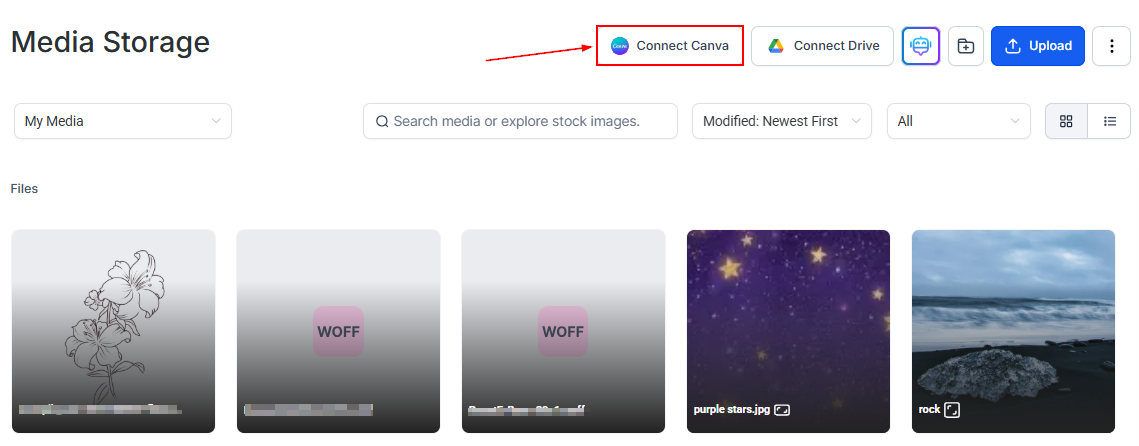
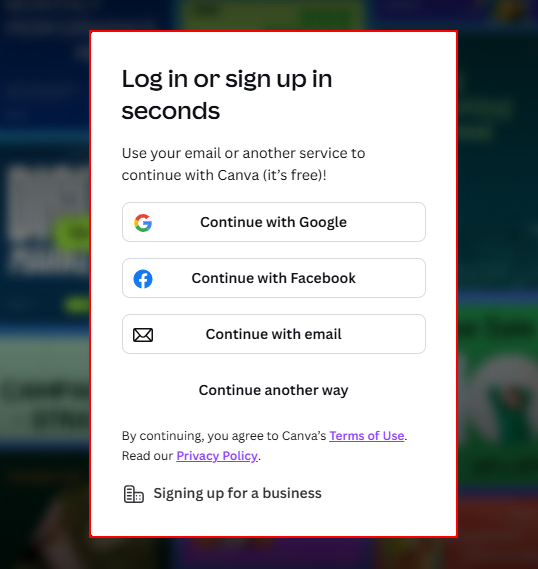
A new browser tab will open, prompting you to log in to Canva. Review the terms of use and privacy policy, then sign in to the correct Canva account.
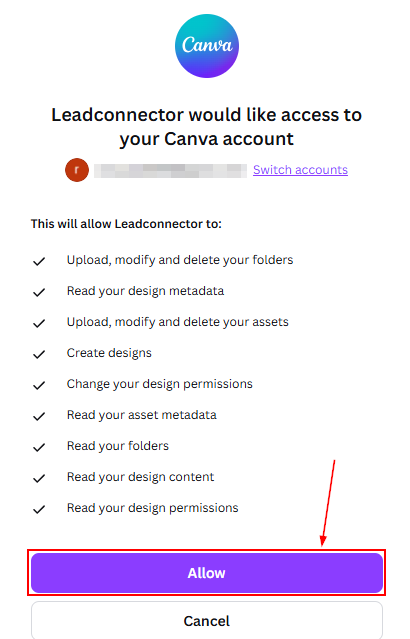
Click Allow to grant access.
Access Canva View
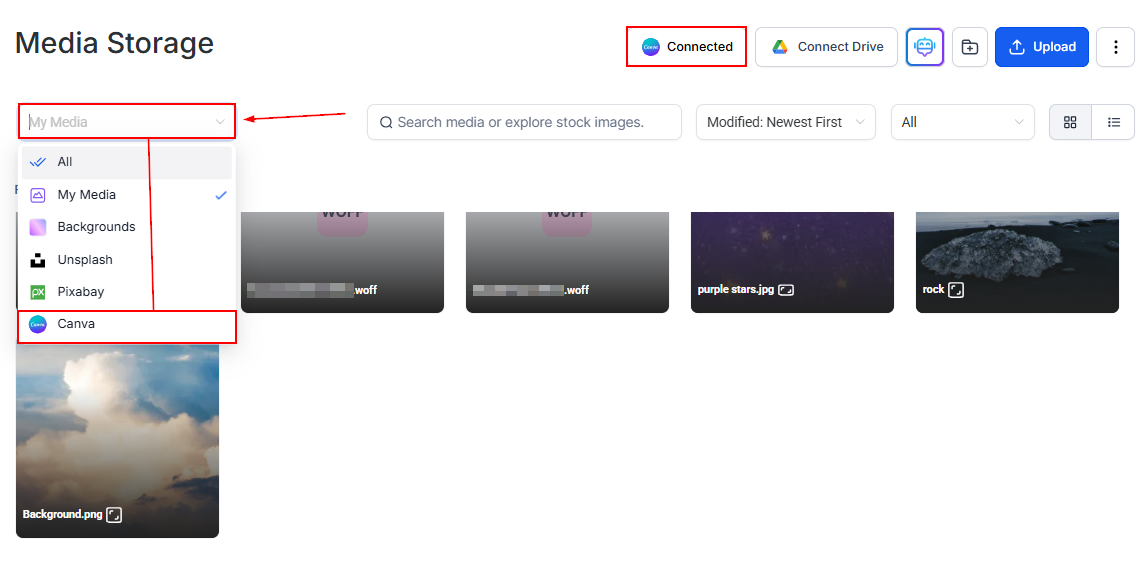
The Canva button should now display as Connected in your Media Storage.
From the My Media dropdown, select Canva to browse, edit (if permitted), download, or import designs.
Importing Canva Designs into Media Storage
Importing creates an independent asset in My Media.
It is important to understand that:
- Imported files are not linked to the original Canva design.
- Future edits in Canva will not update imported copies.
- The same Canva design can be imported multiple times.
To import a design, click the three dots in the top-right corner and select Import to Media Library.
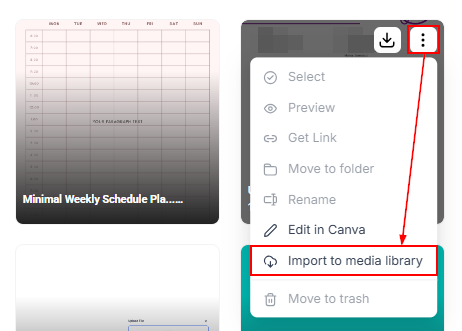
Once imported, the file can be used across your account.
How to Edit a Design
Click the three dots in the top-right corner of the design and select Edit in Canva.
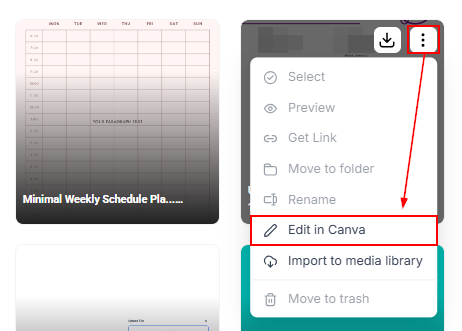
When you edit a design, it opens in the Canva editor in a new browser tab.
Editing is supported for Canva designs opened from the Canva view (if file permissions allow) and media files with these formats:
- PNG
- JPG
- JPEG
Editing Limitations
- Private Canva files cannot be edited.
- Only the user who connected Canva (the installer) has direct edit permissions. Other users attempting to edit will see: “You have view-only access to this media. To make changes, import it into your own storage or reach out to your admin for access.”
Downloading Canva Designs
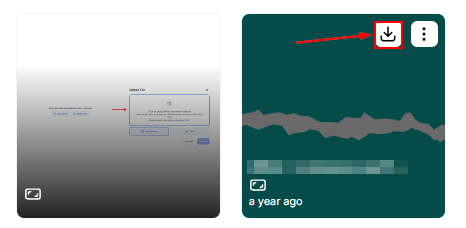
You can download Canva exports directly to your local device by hovering over the file and clicking the download button.
Export Format Rules
- 1-page design → PNG
- Multi-page design → PDF
Multi-User Access Behavior
Because the integration is installed at the account level, access differs by user role.
- Installer (User Who Connects Canva): Full edit access in Canva (if file permissions allow), can import designs, and controls the connected Canva account.
- Other Users in the Same Account: Can browse and search Canva designs, download designs, and import designs into their own My Media. Cannot connect a different Canva account or directly edit Canva designs (view-only access).
How to Disconnect Canva
Disconnecting removes the connection but does not delete previously imported files.
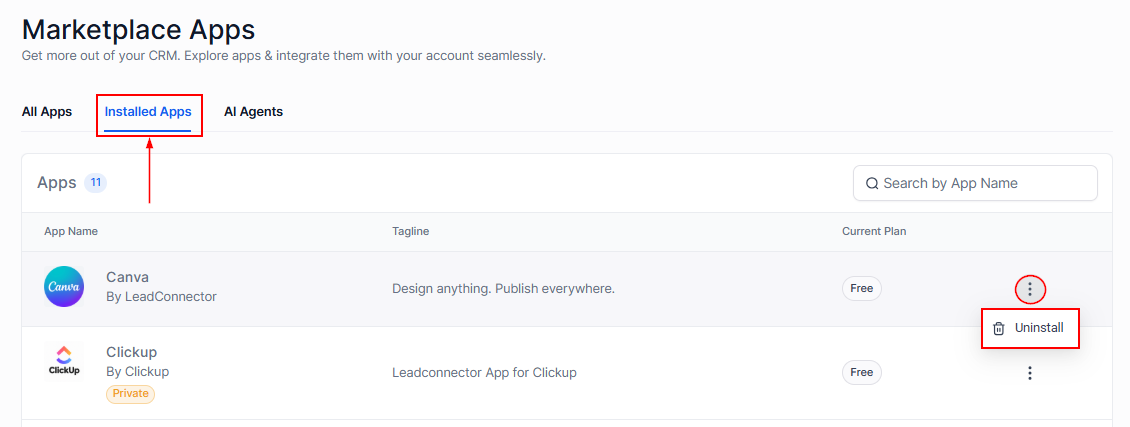
Go to App Marketplace → Installed Apps → Canva, then click Uninstall.
What Happens After Disconnecting?
- OAuth access is revoked
- Canva designs disappear from the Canva view
- Previously imported files remain in My Media
- A different Canva account can be connected afterward
Connecting Canva to Media Storage consolidates your design workflow, reduces manual file handling, and improves collaboration across teams. By understanding how importing, editing permissions, and account-level access work, you can avoid common confusion and maintain clean, organized creative assets.
Frequently Asked Questions
Can multiple Canva accounts be connected to the same location?
- No. Only one Canva account per location is supported.
Why can’t I edit Canva designs even though I can see them?
- Only the installer has direct edit permissions due to platform constraints. Other users can browse, download, and import
Why must I import a Canva design before using it?
- The Canva view is a content source. To use an asset across your account, it must first be imported into My Media.
Not a Funnelbud customer yet?
Try our all-in-one CRM for sales and marketing — free for 7 days, no commitment.