How to send a follow-up email when a contact opens another email
Scenario:
- Send Email #1 to a smart list.
- Send Email #2 to all the contacts in the list who opens Email #1.
How to build this workfklow:
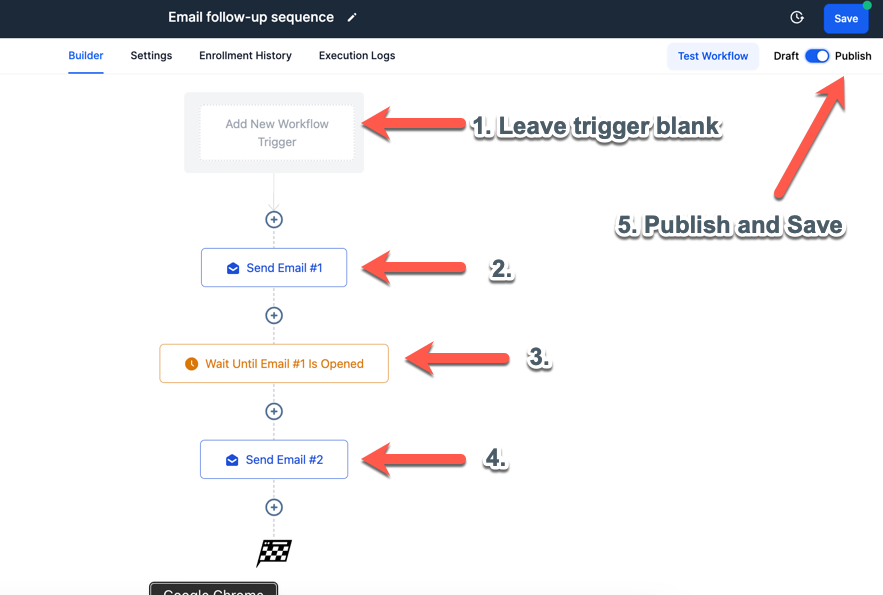
- Create your emails as email templates and build your smart list
- Go to Automations > Workflows and click ”+ Create Workflow”. Name it appropriately.
- Select Start from scratch
- Lead the Trigger blank
- Add first action: Send Email. Name it “Send Email #1”
- Select Email #1 from the Templates dropdown. Sender’s details and subject will be extracted from the email template automatically,
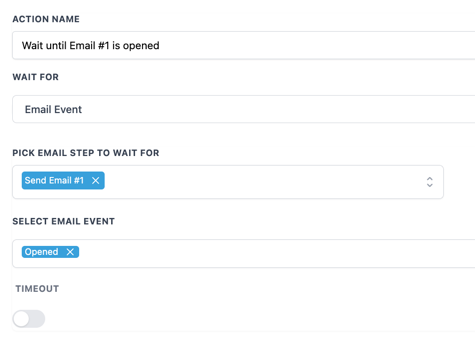
- Add second action: Wait. Name this action “Wait until Email #1 is opened”
- Select the following options:
- Add third action: Send Email. Name it “Send Email #2”
- Toggle to Publish and save workflow.
How to send Email #1 to smart list via Workflow:
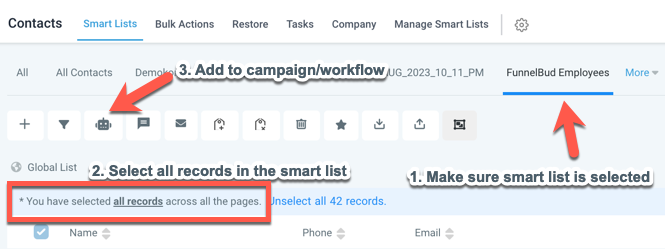
- Go to your smart list
- Select all records in the smart list
- Click Add to Campaign/Workflow icon and click Ok, proceed
- Select the Workflow you just created and tick “Add all at once”
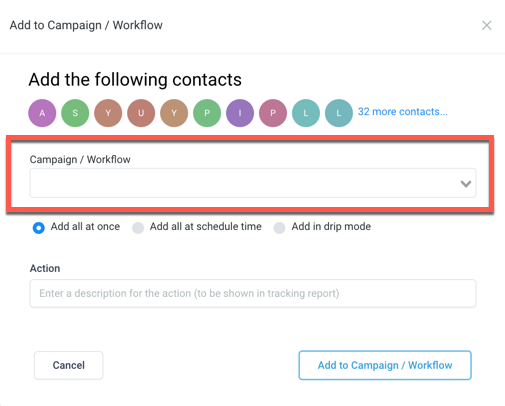
- Click Add to Campaign / Workflow
How it works:
- When you add the workflow to the smart list, the first action (Send Email #1) will be executed immediately.
- The Wait until Email #1 is opened step will wait until the recipients open Email #1.
- If they open, Email #2 will be sent.
- If they don’t open, Email #2 won’t be sent.
Not a Funnelbud customer yet?
Try our all-in-one CRM for sales and marketing — free for 7 days, no commitment.