How to Use Call Dispositions
Custom Dispositions enable agents to select one outcome—such as Follow Up, Requested Appointment, or Not Interested—as soon as a call ends. By using call dispositions, you can improve call documentation and gain clearer insights through reporting.
Creating and Managing Dispositions
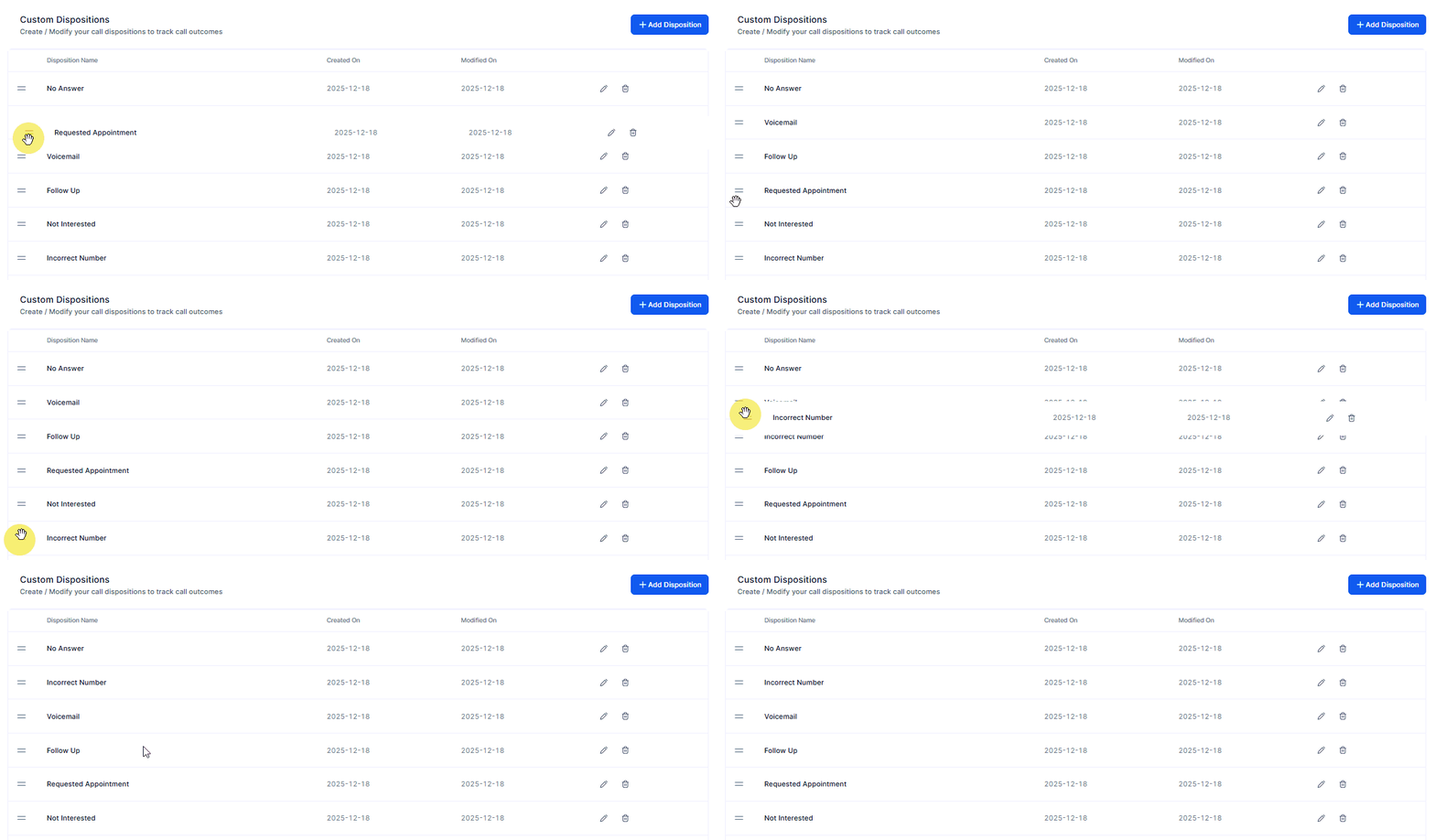
Each account starts with preset dispositions for immediate usability; however, admins may modify or add to these as needed. To do so, go to Sub-account Settings > Phone System > Voice > Call Dispositions.
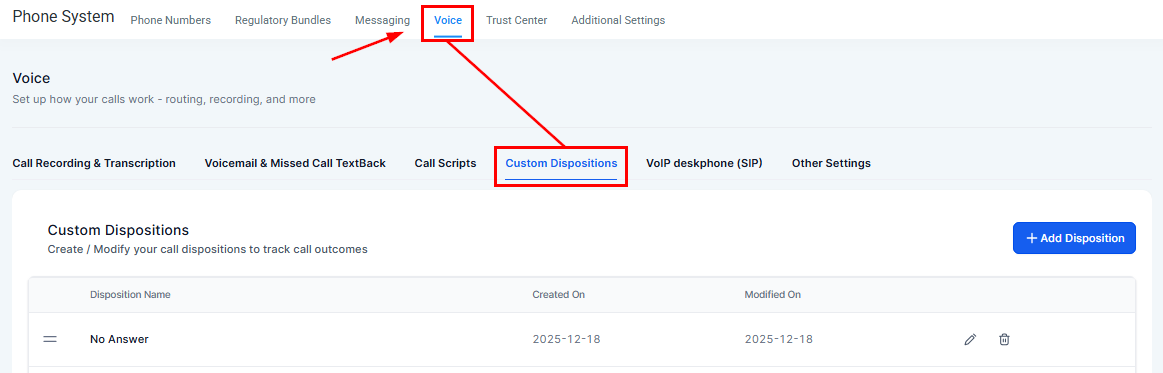
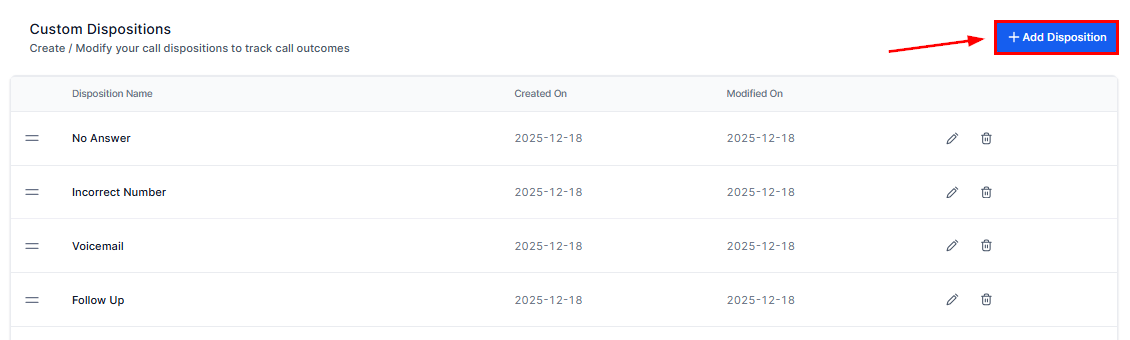
To add a new disposition, click the “+ Add Disposition” button on the upper right-hand section of the page.
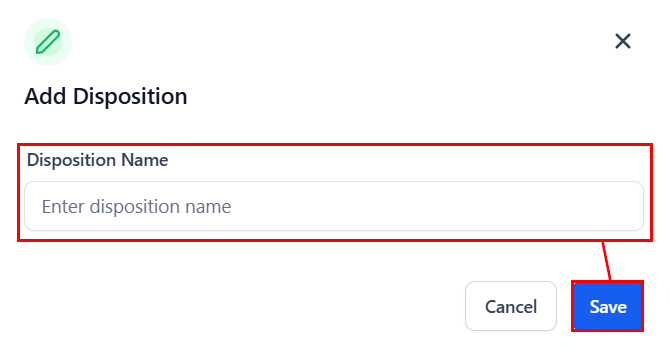
A new modal will appear, prompting you to enter a disposition name before saving. Best practices include creating concise, action-oriented outcomes that align with your pipeline stages.
Note: Each sub-account supports up to 10 dispositions.
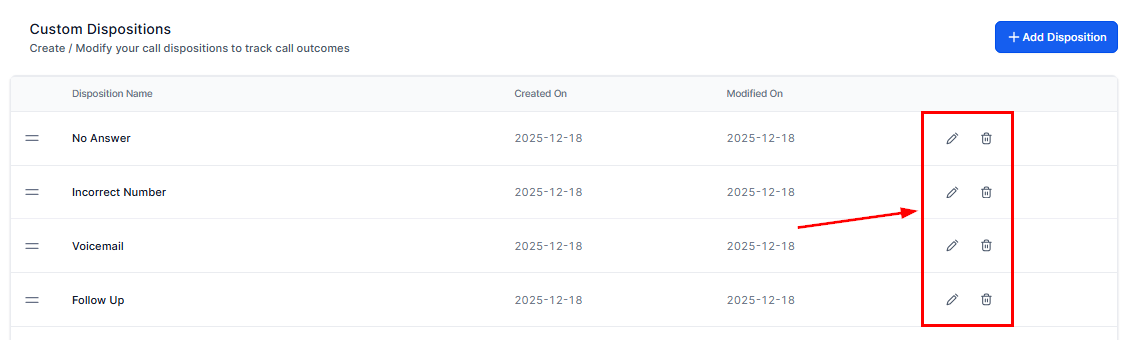
Account admins can also edit or delete dispositions by clicking the pencil or trash icon next to them, respectively. Existing workflows will continue to function even if a disposition is renamed.
Dispositions can also be reordered for convenience.
How Call Dispositions Work
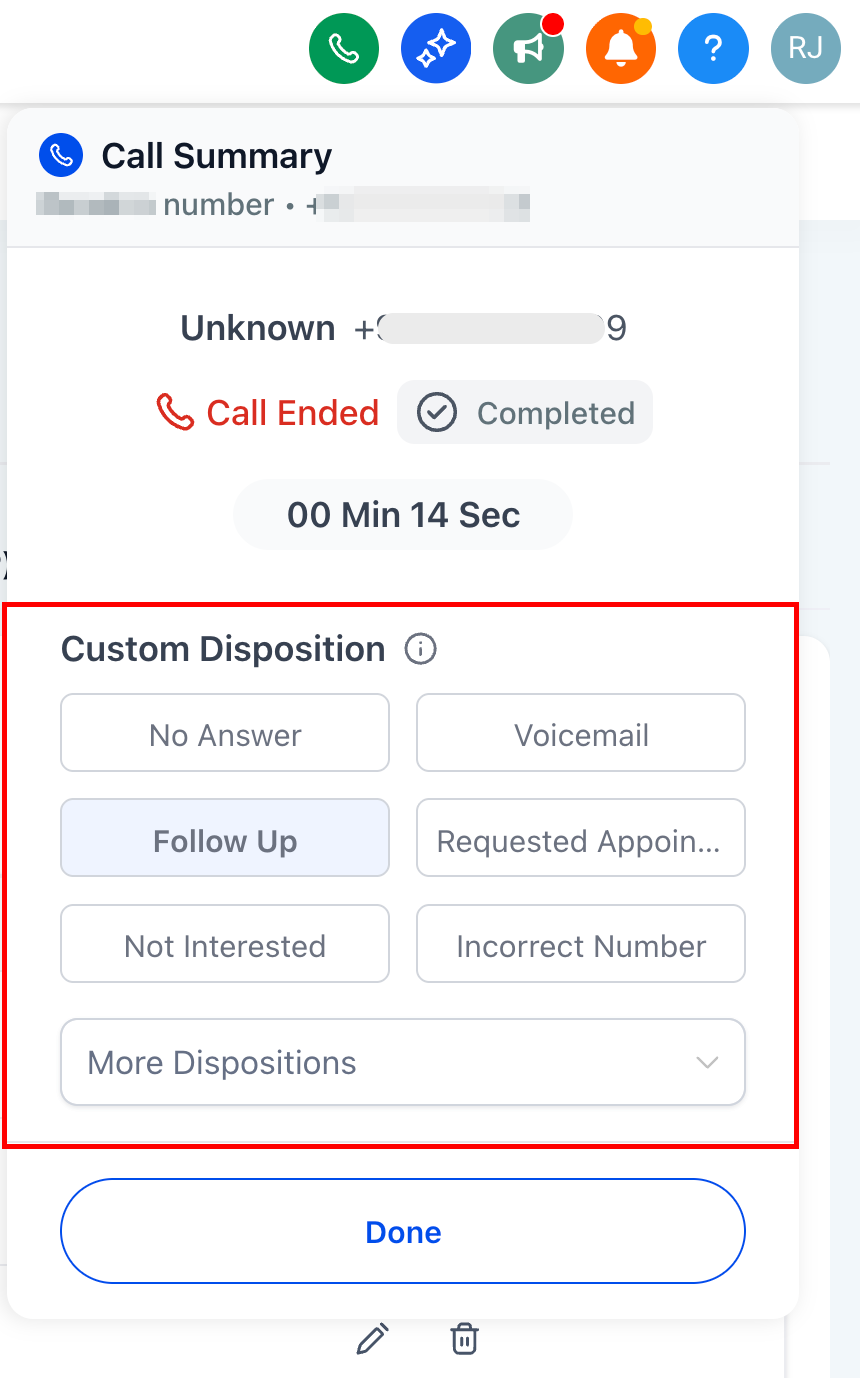
When a call ends in the web dialer, agents are presented with up to 10 disposition options (for example, Follow Up or Requested Appointment). Selecting one logs the call outcome instantly.
Using Custom Call Dispositions in Workflows
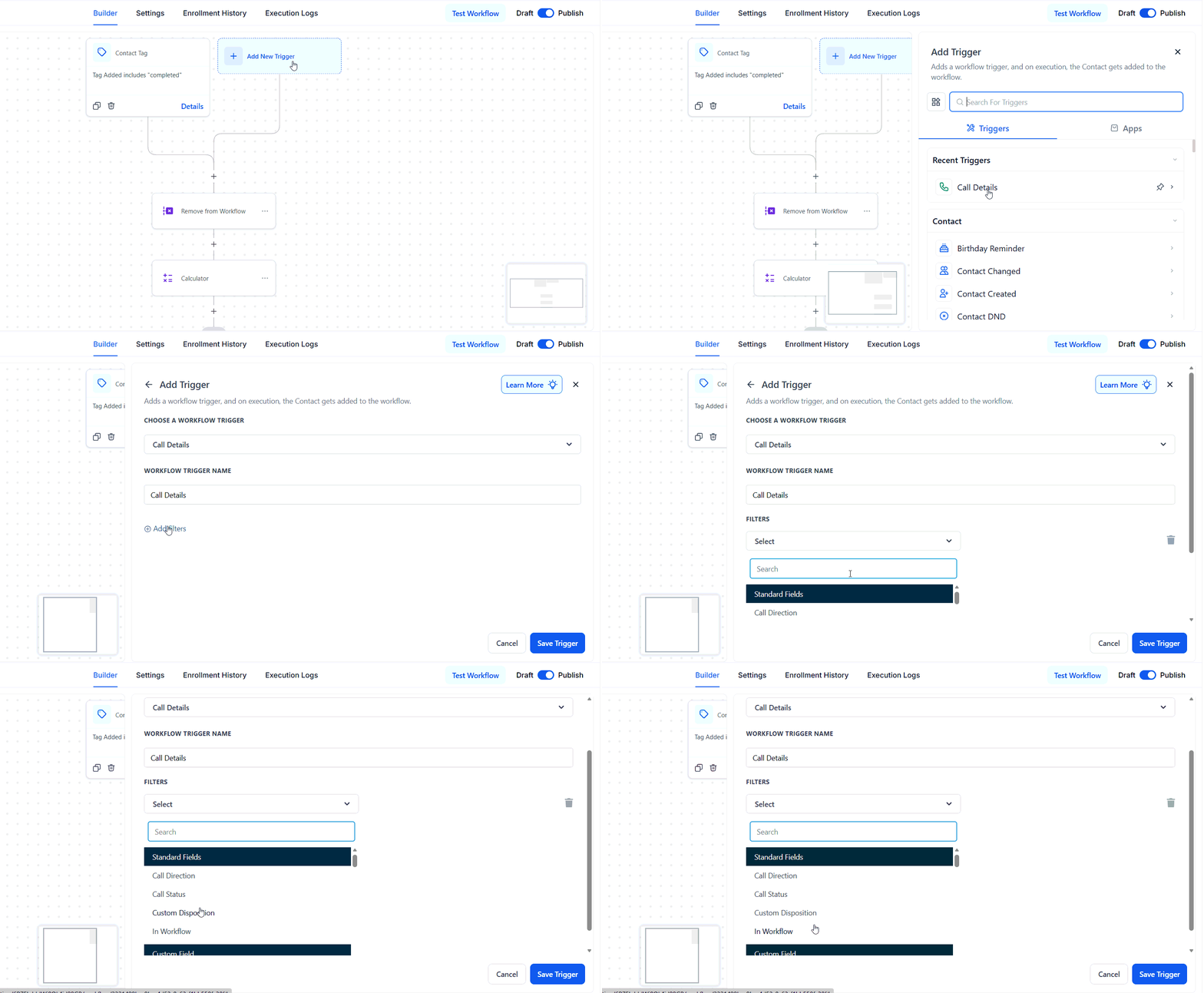
Dispositions integrate directly with workflows through the Call Details trigger using the Custom Disposition filter. When combined with additional filters, such as call direction, duration, or tags, you can automate actions including sending personalized SMS or email sequences, re-enqueuing leads in the Power Dialer, applying or removing tags, and creating tasks or opportunities
Custom Dispositions bring structure, speed, and clarity to voice call management. By standardizing call outcomes, enabling real-time automation, and enhancing reporting, they empower teams to act faster, analyze performance more effectively, and ensure no call outcome is overlooked.
Supported Call Types
- Supported: All calls made or received via the web application for LC Phone and Twilio sub-accounts.
- Not supported: Calls answered via a personal number or desk phone and calls via the mobile app.
Limitations
- One disposition per call
- Sub-dispositions (nested outcomes) are not supported
- Multiple selections are not supported
User Roles and Permissions
Role | Permissions |
|---|---|
Admin | Create, edit, and delete dispositions |
User | Select a disposition after a call |
Frequently Asked Questions
Q: Do agents have to select a disposition after every call?
- No. Selecting a disposition is optional but strongly recommended for accurate reporting and automation.
Q: What happens if a disposition used in workflows is renamed?
- Workflows continue to trigger as expected, the system tracks dispositions by internal ID.
Q: What happens if a disposition is deleted?
- Any workflows using that disposition will stop triggering until the filter is removed or replaced.
Not a Funnelbud customer yet?
Try our all-in-one CRM for sales and marketing — free for 7 days, no commitment.