How to Add Reviews Manually
The Reviews section displays all the feedback you get from customers on an integrated social account, but what about the other places you get reviews from? This article will show you how to add those reviews manually to your account, making managing your customer sentiment easier than ever.
Start by clicking the Add Reviews button in the Reputation > Reviews tab.
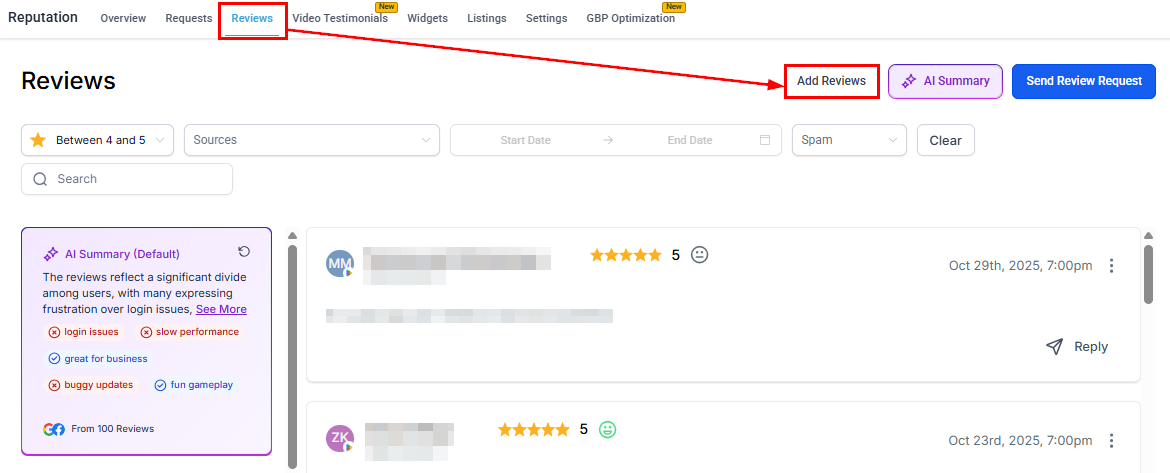
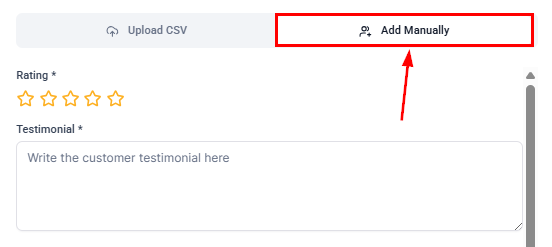
Here, you will see two options: Upload CSV and Add Manually. Let’s go through both options, starting with the CSV upload.
Upload CSV
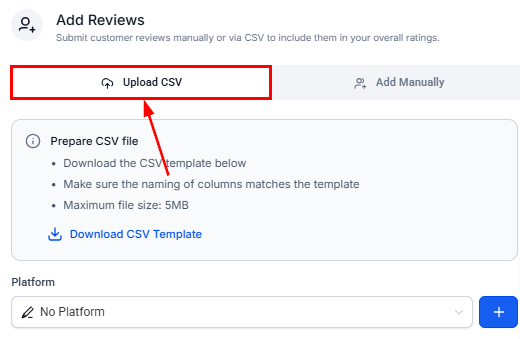
Before attempting your upload, review the file specifications and download the sample file for a visual guide on how your file should be formatted.
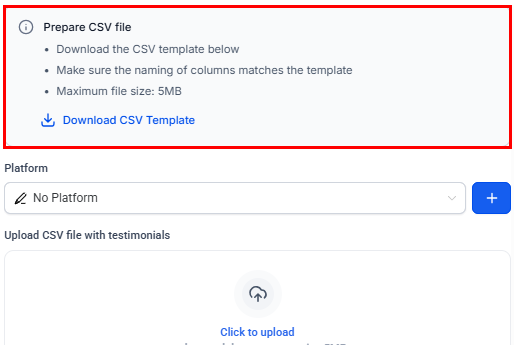
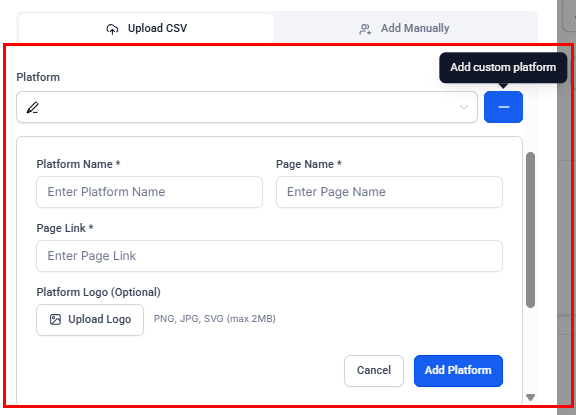
Next, choose the platform from the dropdown. You will have many options to choose from, such as Amazon, Goodreads, Yelp, and Zillow, but you can always add a custom platform if the desired platform is not listed.
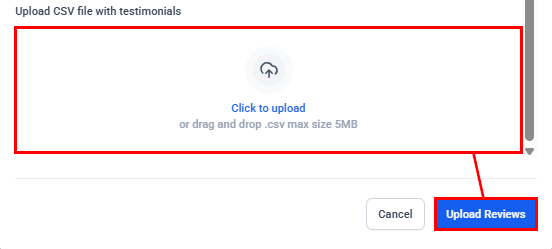
Finally, drag and drop your file with your testimonials, then click Upload Reviews to load the reviews into your review widgets.
Add Manually
If you don’t have a file prepared, you can always add reviews individually in the “Add Manually” section.
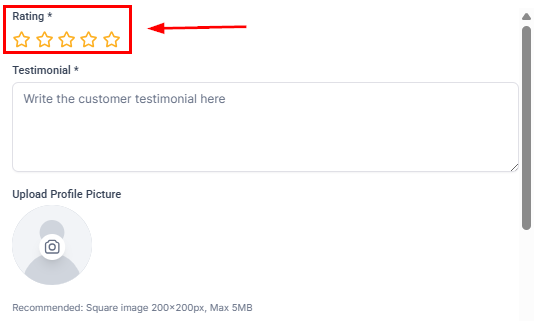
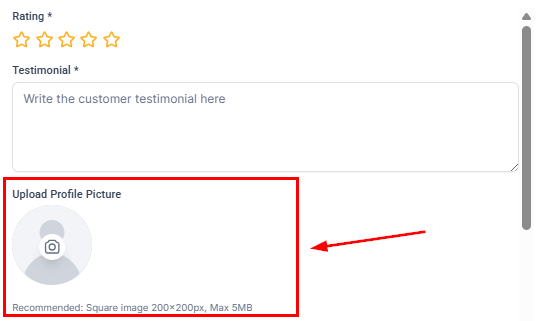
Highlight the number of stars the customer gave as their rating.
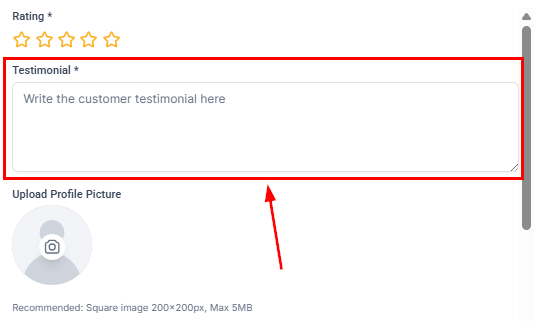
Then, copy and paste or write their review in the Testimonial field.
If the contact shared a photo with you and consented for it to be displayed publicly, you can upload it here. Just be sure to keep it between 200*200px and up to 5mb.
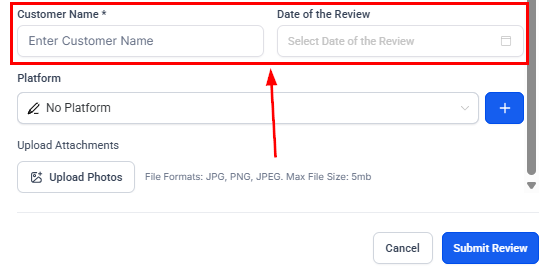
Enter the customer’s name and select the date of the review from the picker.
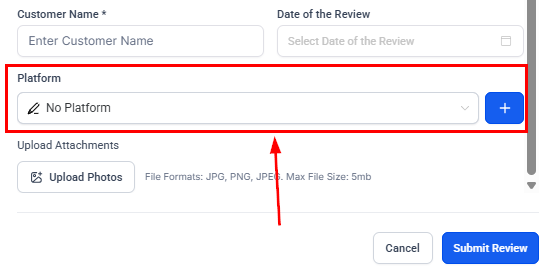
Like uploading a CSV, you can choose the platform the review should be linked to, or add a custom platform if the desired one is unavailable.
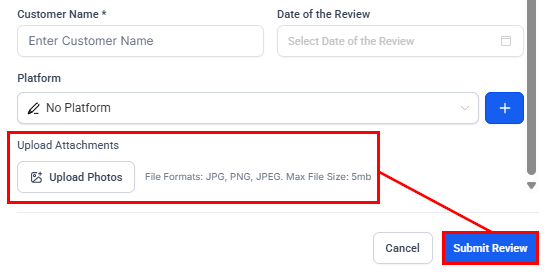
Upload any attachments, then submit the review.
With those simple steps, you can organize your offline and external platform reviews into one area. Managing customer reviews to get more insight into your product and service offerings has never been easier.
Not a Funnelbud customer yet?
Try our all-in-one CRM for sales and marketing — free for 7 days, no commitment.