Airtable Actions & Triggers in Workflows
The Airtable integration provides seamless automation between your CRM workflows and Airtable’s flexible database platform. Whether you are tracking client projects, syncing CRM records, or managing fulfillment pipelines, this integration reduces manual effort, improves data consistency, and enhances collaboration across teams.
Why It Matters
With this integration, you can:
- Automatically sync structured data into Airtable from CRM workflows.
- Create or update Airtable records based on specific events.
- Use Airtable as a dynamic project tracker that connects directly with automation and communication tools.
Triggers and Actions
Triggers (Airtable → CRM)
Events in Airtable that can initiate workflows:
Trigger Name | Description |
|---|---|
New Record | Fires when a new record is added to a table. |
Updated Record | Fires when a record is updated in a table. |
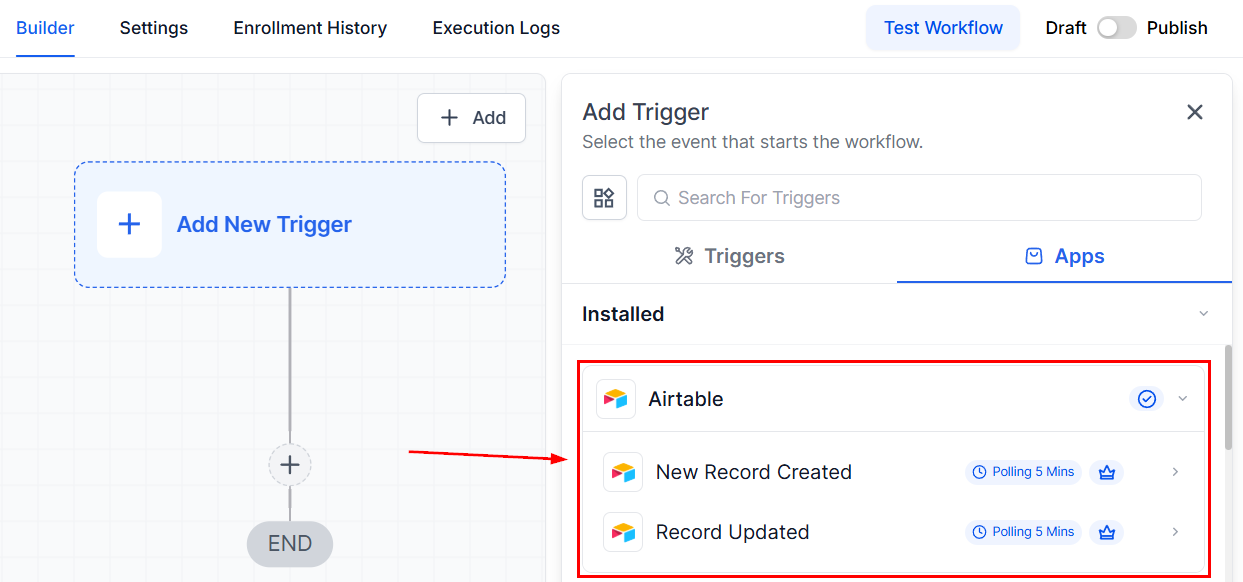
Airtable triggers work by checking for changes every few minutes (about every 5 minutes). If a new or updated record is found, the workflow starts automatically. The details from that record are then pulled in and can be used in later steps of your workflow.
Actions (CRM → Airtable)
Tasks your CRM can perform within Airtable:
Action Name | Description |
|---|---|
Create Record | Creates a new record in a specified table. |
Update Record | Updates fields in an existing record. |
Find Record | Finds a record using search fields (e.g., ID, email). |
Delete Record | Removes an existing record from a table. |
Getting Started with Airtable
Search in Workflows
In the workflow builder, search for Airtable triggers or actions (e.g., Find Record, Create Record).
Connect Your Account
If your Airtable account is already connected, configuration options will appear immediately.
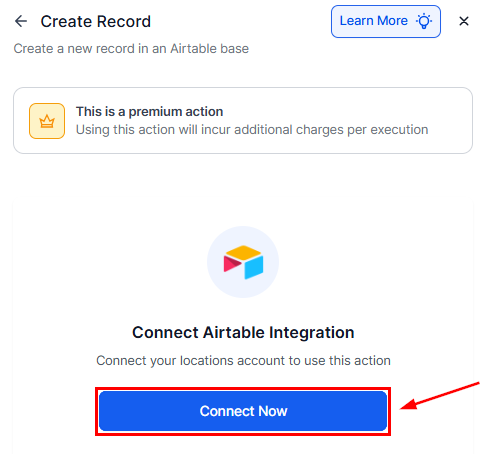
If not, click Connect Now and log in with your Airtable API key or OAuth (depending on your setup).
Otherwise, you can head to the Integrations section of your account and authorize access to Airtable by clicking the connect button.
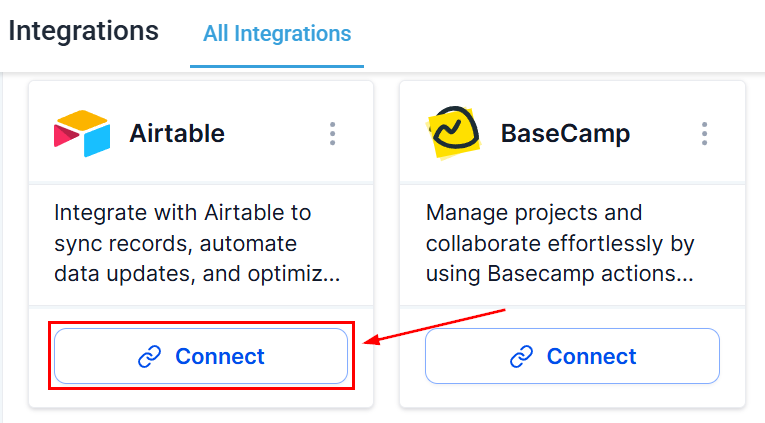
Once connected, you can fetch, create, or update records from Airtable tables directly in your workflows.
Common Use Cases
Send Internal Notifications
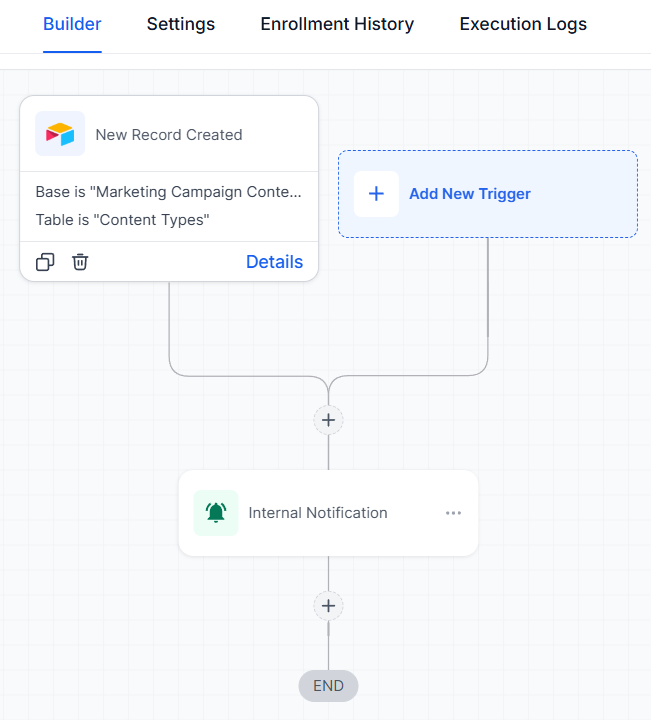
Goal: Alert teams when a new Airtable record is created or updated.
Workflow Example:
- Trigger: Airtable > New Record
- Actions: Find Record (Airtable) and Internal Notification (Email).
Scenario: A new client project is added in Airtable, then a workflow locates the record, and an email is sent to the project manager with project details.
Update Data in Multiple Places
Goal: Keep Airtable aligned with CRM contacts and external lead sources.
Workflow Example:
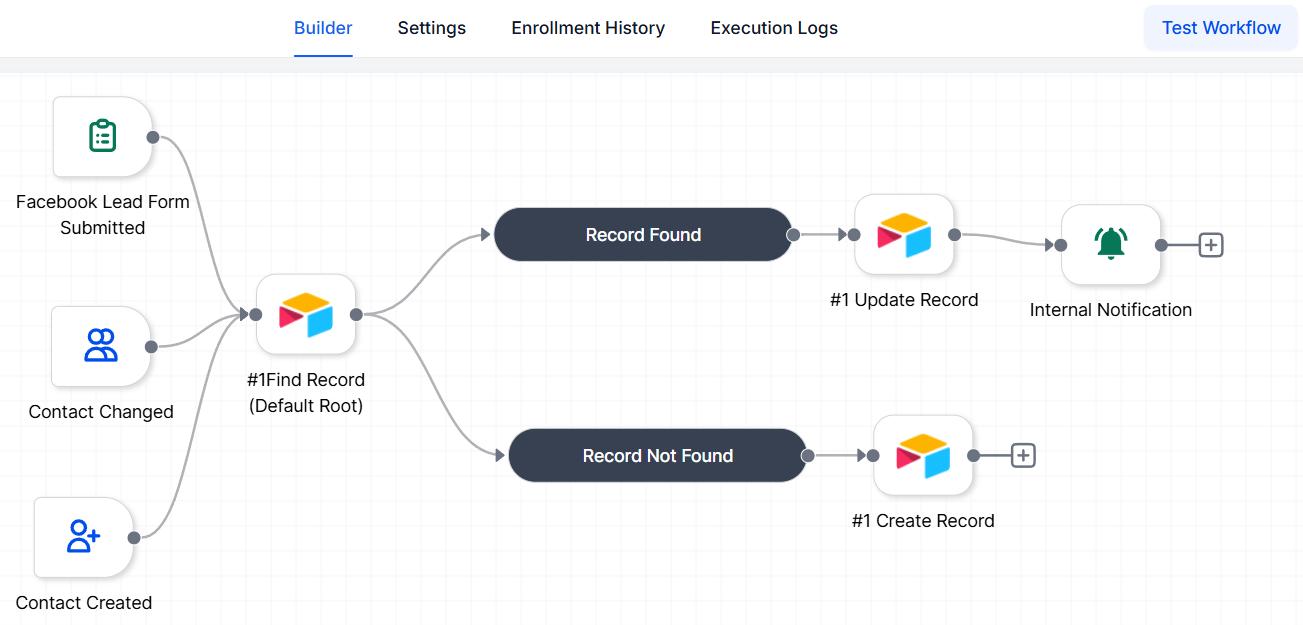
- Triggers: Contact Created, Contact Updated, or Facebook Lead Form Submitted
- Actions: Find Record (Airtable). If found, Update Record. If not, Create Record
Scenario: A Facebook lead form is submitted, which activates the workflow to check Airtable for the lead. If found, details are updated. If not, a new record is created.
Use AI to Create Tasks and Save to ClickUp
Goal: Turn Airtable data into task descriptions using AI, then store them in ClickUp.
Workflow Example:
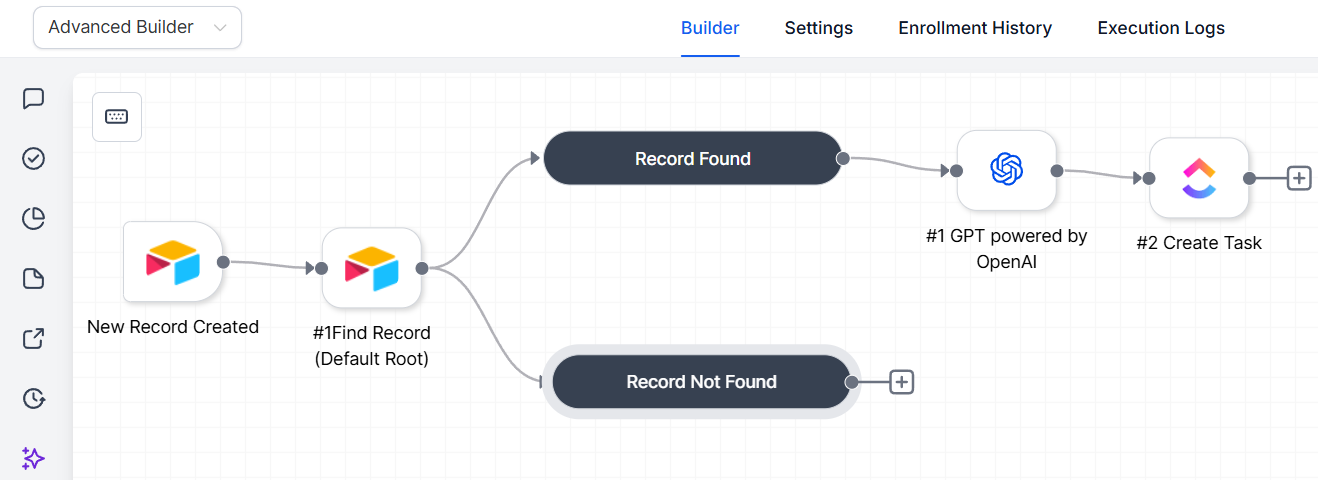
- Trigger: Airtable > New Record in Content Briefs table
- Actions: Find Record (Airtable), Generate Draft with AI, and Create Task in ClickUp
Scenario: A new record is added to Airtable. AI generates captions, then the workflow creates a ClickUp task with campaign details for the team.
By combining your CRM workflows with Airtable’s powerful database capabilities, you can eliminate repetitive tasks, improve accuracy, and streamline collaboration. Whether for tracking projects, syncing client information, or managing pipelines, this integration helps ensure your business operates more efficiently and effectively.
Frequently Asked Questions
Q: Can I sync data in both directions between Airtable and my CRM?
- A: No. The integration supports one-way sync. For two-way synchronization, use a third-party tool like Zapier or Make.
Q: How often does Airtable check for new records?
- A: Every 5 minutes. Workflows are triggered based on polling intervals.
Q: Do I need a paid Airtable plan to use this integration?
- A: No. It works with Airtable’s free plan, though advanced features such as record limits or automations may require a premium subscription.
Q: What happens if the same record exists in both Airtable and the CRM?
- A: Use the Find Record action to check first. If a match is found, it can be updated; if not, a new record is created—avoiding duplicates.
Not a Funnelbud customer yet?
Try our all-in-one CRM for sales and marketing — free for 7 days, no commitment.