Websites Overview
The Websites section of your CRM is a centralized hub for creating, managing, and organizing your online presence. This overview will guide you through the organizational tools available on this page, helping you streamline your workflow and maintain an efficient workspace.
📌NOTE: Depending on your user permissions, you may not have access to all of the components.
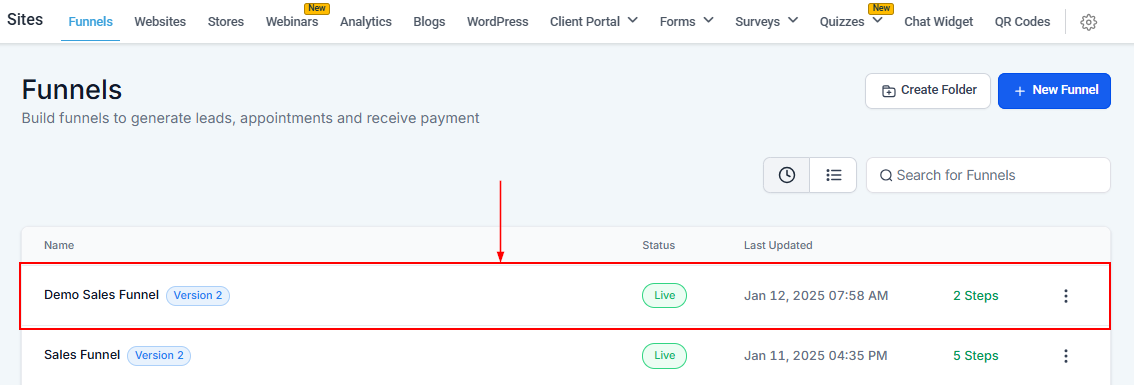
To get started, navigate to Sites > Websites in your CRM.
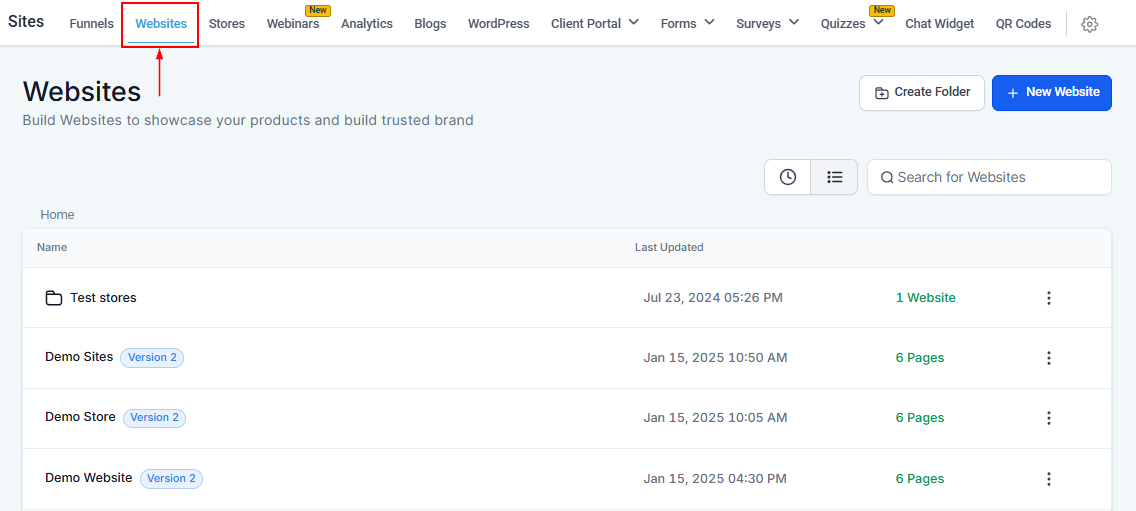
Create Folder
This feature allows you to create folders to save your websites to keep the space organized.

Create New Website
You can create a new website with this option. Once you click on “+ New Website”.

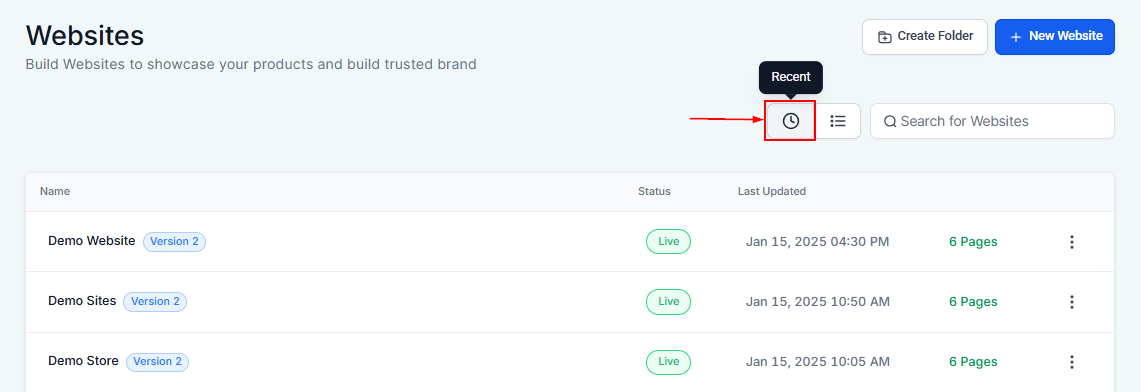
Recent
The “Recent” section displays the websites you’ve recently worked on, allowing you to quickly access them without searching through your entire list.
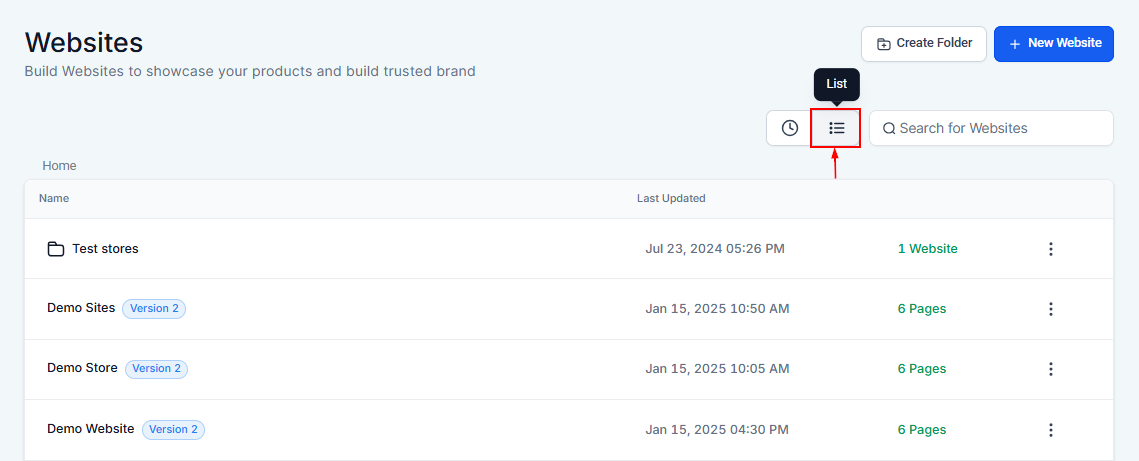
List
View all your websites in an organized list format. This helps you easily scan through names and statuses at a glance.
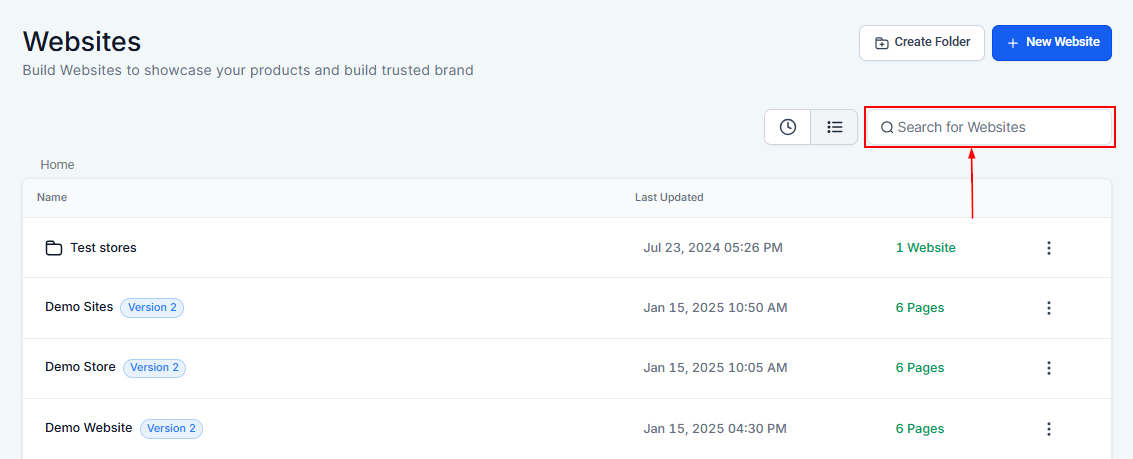
Search Websites By Name
Here you can quickly locate a specific website by typing its name into the search bar. This saves time and keeps navigation efficient.
Website Card
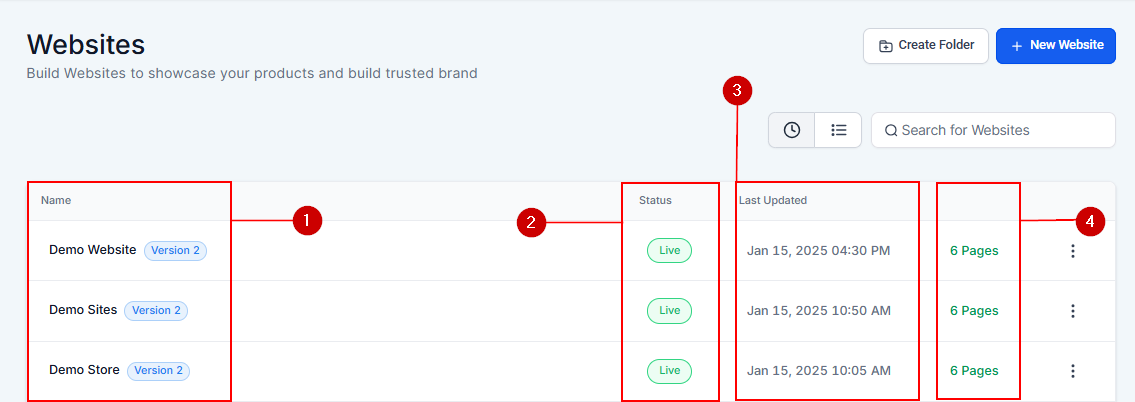
The website card shows the website’s name, whether it is live or in draft mode when the last edits were made, the number of pages within the website, and some more options to make changes to the existing websites.
- Website Name: This is the name of your website. It can be edited using the settings option.
- Status: This indicates if the website is live or still in draft mode.
- Last Updated: This shows the date and time of the most recent edits.
- Total website pages: Provides an overview of the website’s many pages.
Action
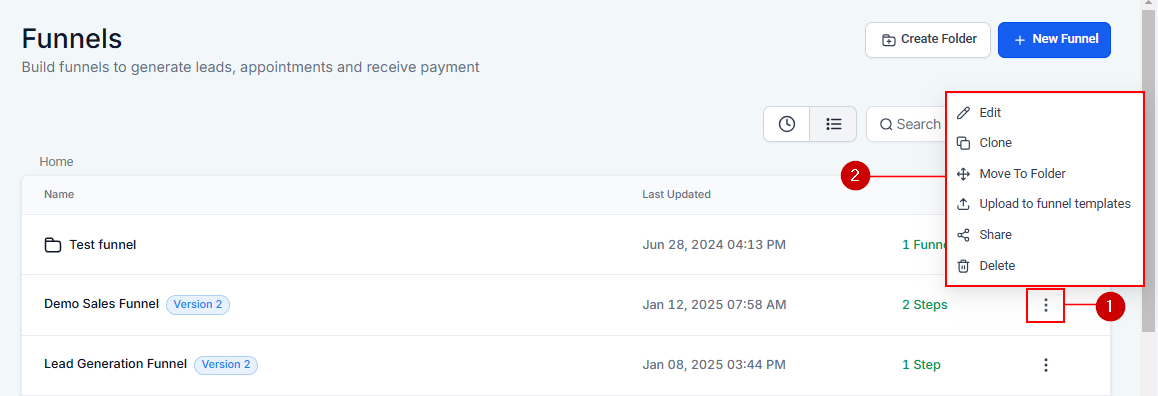
Access the Action menu by clicking on the three-dotted button next to a website. This menu provides several options to manage your website efficiently:
- Edit the website: This function effortlessly edits your site, such as adding, updating, or removing content on specific pages.
- Clone: This is useful when you want to use most of the content on one of your existing websites. You can copy the entire website and reproduce the content according to the requirements.
- Move to folder: If you have a folder to store the list of websites in one place, you can use this option to move it from its current location to the destination folder where you would like it to be moved.
- Upload to Website Templates: You can upload the new template you just created into your Website template library.
- Share: Share the link to this website by selecting this option.
- Delete: This option lets you delete the complete website. When you click on the delete button, the system will prompt you to type “DELETE” into the provided field. Remember the website once deleted can not be recovered later.
The website builder is designed to simplify the process of creating and managing your online presence. From organizing your workspace to customizing your site, every feature is tailored to enhance your productivity and creativity.
Not a Funnelbud customer yet?
Try our all-in-one CRM for sales and marketing — free for 7 days, no commitment.