Troubleshooting Upsell Products in Your Funnel
Before diving into troubleshooting, it is important to grasp the basic requirements for upsell products to function correctly in your funnel. To set up an upsell product within your funnel, follow these steps:
Choose Your Product Type
Decide whether your upsell product will be a one-time purchase or a subscription. This choice will affect how you set up the product in the Payments tab.
Integrate with Payment Processor
Ensure that relevant products are correctly set up in your account, which should be linked to the payment processor (e.g., Stripe).
Two-Step Order Form
Incorporate a two-step order form in your funnel. A two-step order form is an essential component for selling upsell or down-sell products. Without this, your upsell products will not work.
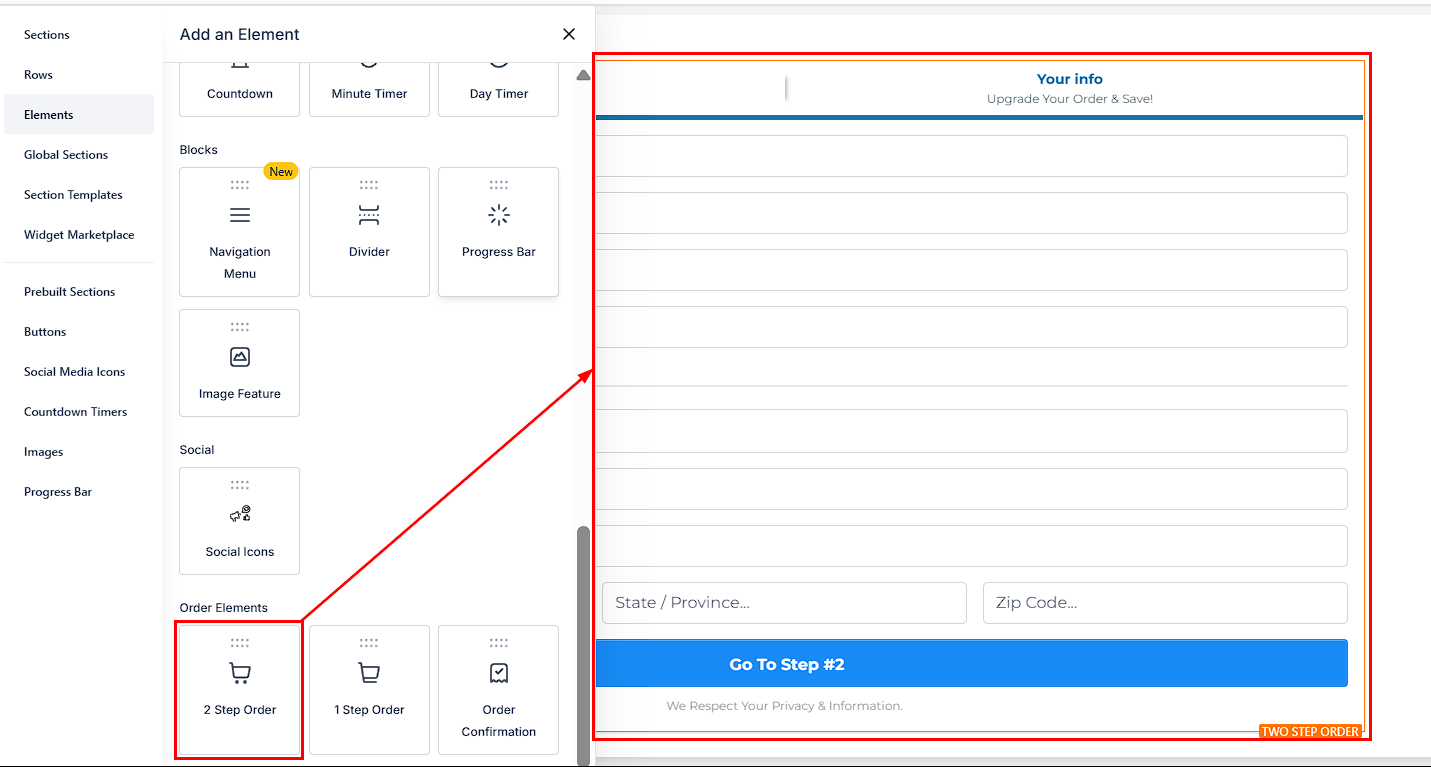
📌Note: Ensure that your funnel is correctly set up, with the two-step order form placed before any upsell products.
Add Product to Funnel Step
Next, add your upsell product to the funnel step that will host the button linked to the upsell. This step is essential to ensure the product is available as a one-click upsell option during the customer journey.
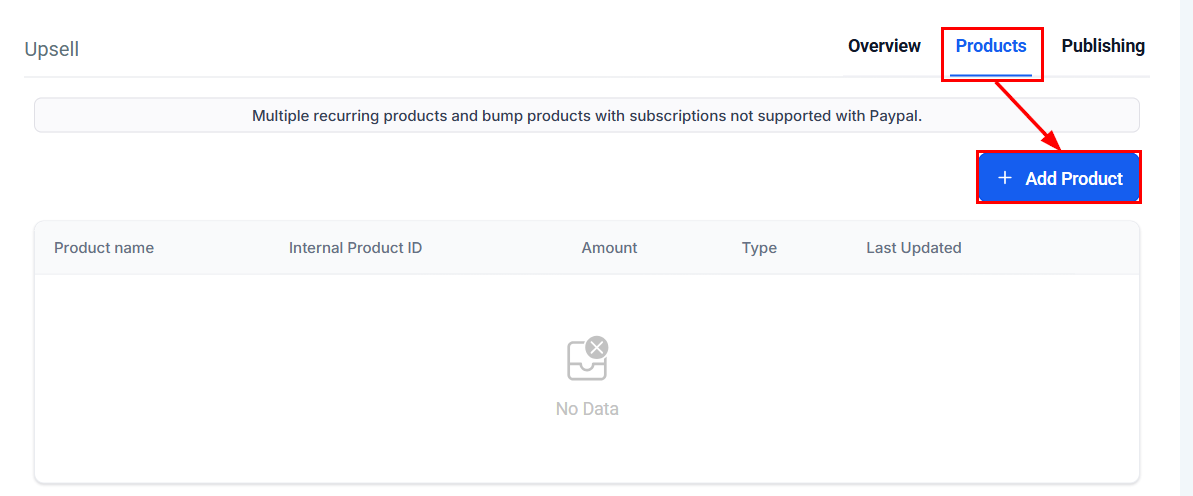
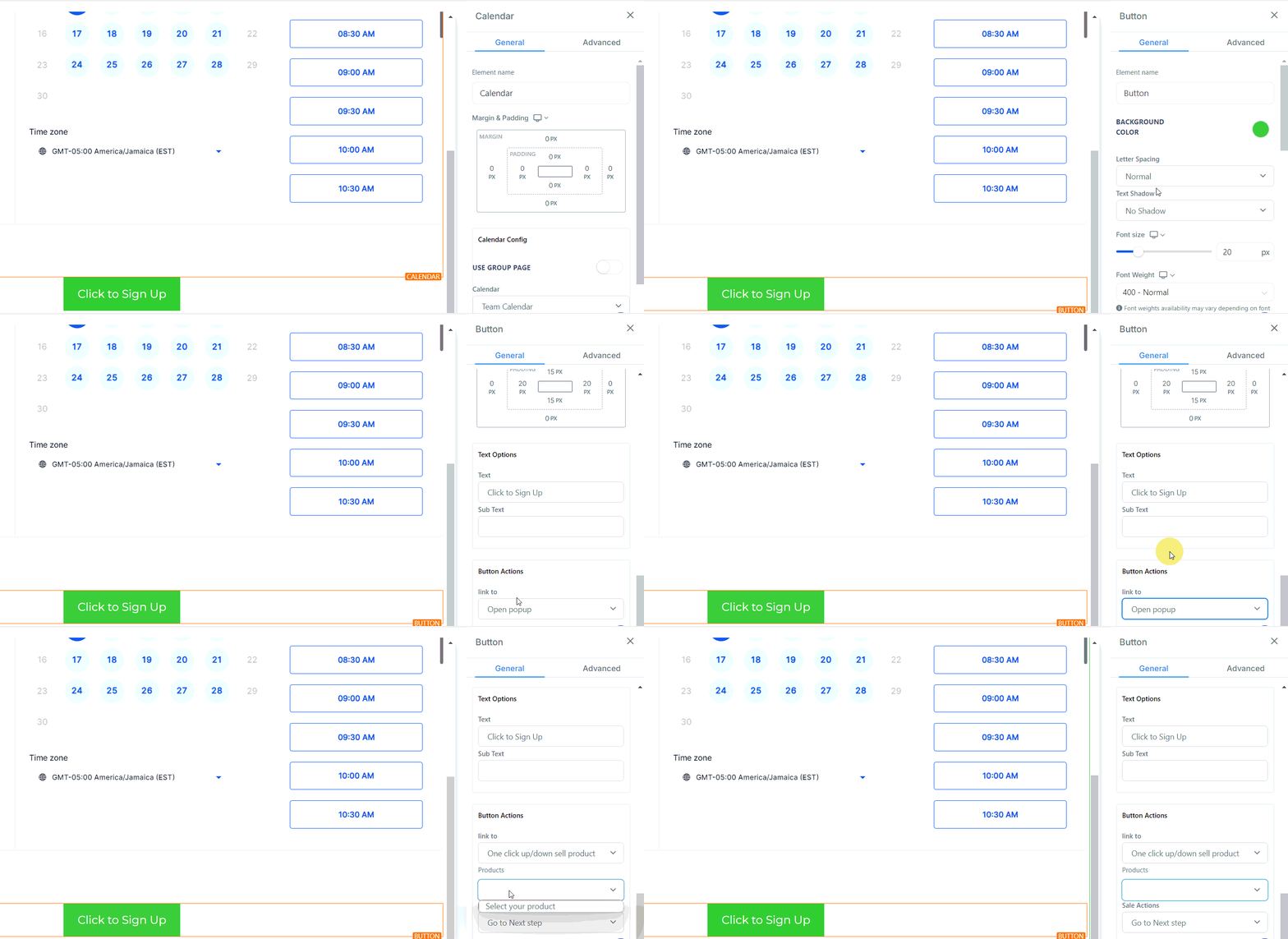
After adding your product, navigate to the page builder and insert a button. Then, link the upsell through the Button Actions settings.
Preview and Test
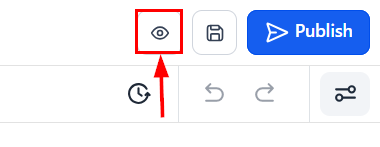
Once you have completed the setup, preview your funnel to test the upsell functionality. If you encounter an error message indicating a problem with the product purchase, it’s time to delve deeper into your setup.
📌Note: If you are using test APIs, input test card information to simulate a transaction. This allows you to test the functionality without processing real payments.
With the correct setup, hitting the upsell button after filling out the two-step order form should successfully take you to the next step without issues.
Troubleshooting Steps
If you’re encountering issues with your upsell products not working, follow these steps to diagnose and resolve the problem:
- Check Your Funnel Setup: A common mistake is not capturing the customer’s credit card information before presenting the upsell product. Ensure that your two-step order form is placed before the upsell product in your funnel. Rearrange the steps if necessary and test again.
- Configure Upsell Button Correctly: The button intended to trigger the upsell must be set up with the action “one-click up-down-sell”. You can choose any subsequent step after this action, but the initial setup is crucial for the upsell to work.
Not a Funnelbud customer yet?
Try our all-in-one CRM for sales and marketing — free for 7 days, no commitment.