How to Set Up a VoIP Deskphone
The Voice over Internet Protocol (VoIP) Deskphone feature allows you to directly register SIP-compatible hard phones to your sub-account, creating a stable, fully integrated link between your physical deskphone and your CRM. This ensures that all calls—whether placed or received via the handset—are automatically tracked, recorded, and connected to your workflows, providing a unified and efficient call management system.
Requirements & Recommended Deskphones
Network & Protocol Specifications
- SIP over UDP, TCP, or TLS
- Outbound ports 5060/5061 open for SIP signaling
- UDP ports 10000-20000 open for RTP audio
- Power over Ethernet (PoE) or external power adapter
Deskphone Purchasing Tips
- Look for “SIP” and “PoE” support
- Minimum of two programmable line keys
- Avoid carrier-locked devices or phones that require proprietary provisioning
Popular Compatible Models
- Yealink T54W / T58W
- Poly VVX 450
- Grandstream GXP 2170
- Snom D785
- Cisco 7841
📌Note: Any open-SIP handset is typically compatible, but these models are proven options.
Key Benefits of VoIP Deskphone Integration
- Direct CRM Connection: All inbound and outbound calls are automatically linked to the platform.
- Simplified Call Management: Handle calls efficiently from your deskphone while maintaining CRM records.
- Seamless Blind Transfers: Easily transfer calls to other team members.
- Call Recording & Transcription: Maintain detailed, searchable records for accountability and quality assurance.
How to Set Up VoIP Deskphones
Launch the Setup Wizard
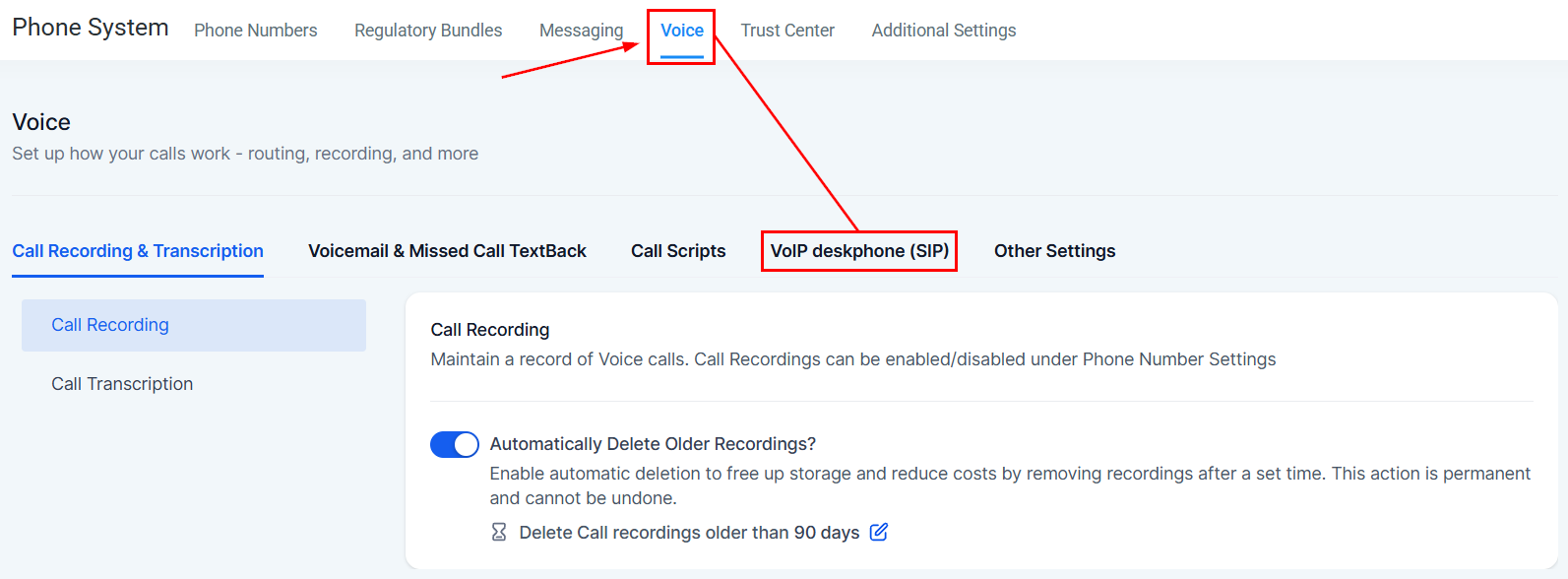
Navigate to your account settings and click the VoIP Deskphone (SIP) option within the Advanced Settings of your Phone System.
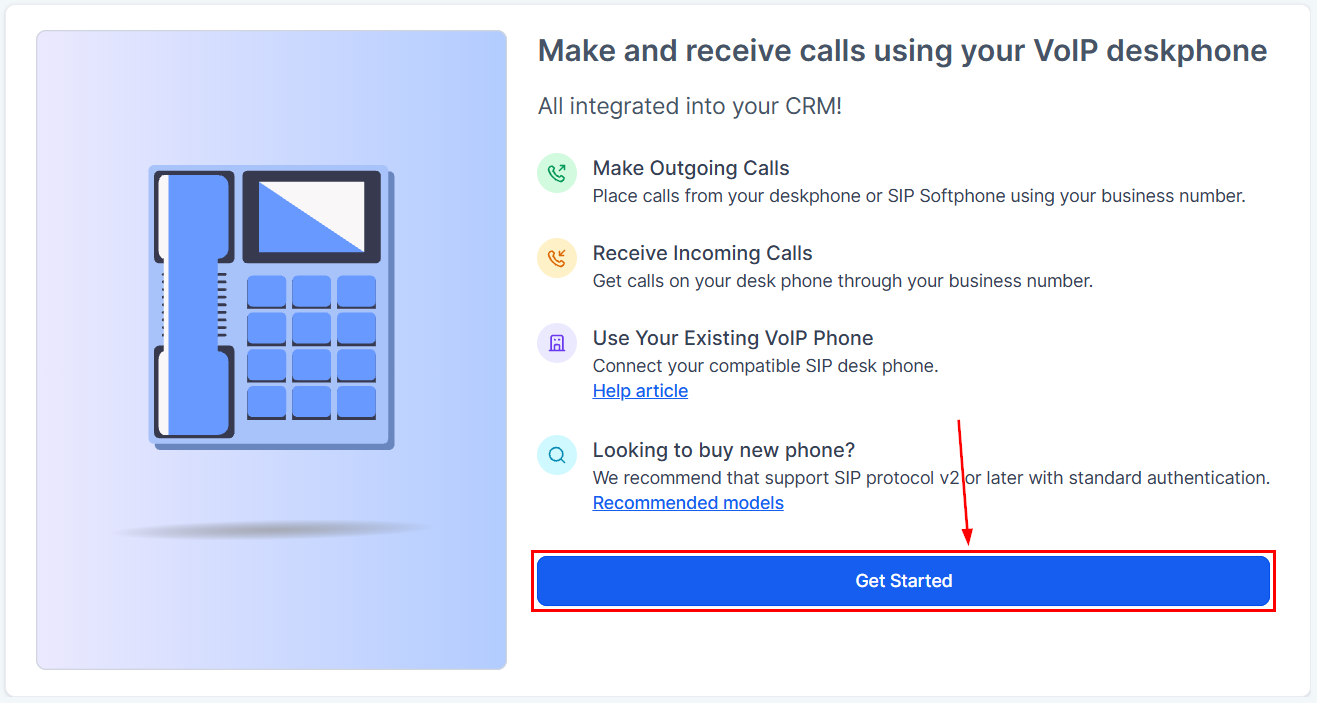
Next, click the Get Started button.
Configure the Physical Phone
Start by entering the SIP Domain. A default domain, LocationName.sip.ashburn.twilio.com, will be automatically suggested. You may modify this domain if needed, but it can only be changed once prior to saving.
Next, create and enter an extension number or username, along with a secure password. These credentials will be required to configure your deskphone and facilitate call transfers.
Finally, assign the deskphone to an existing user. Please note that each deskphone can only be linked to a single user account.
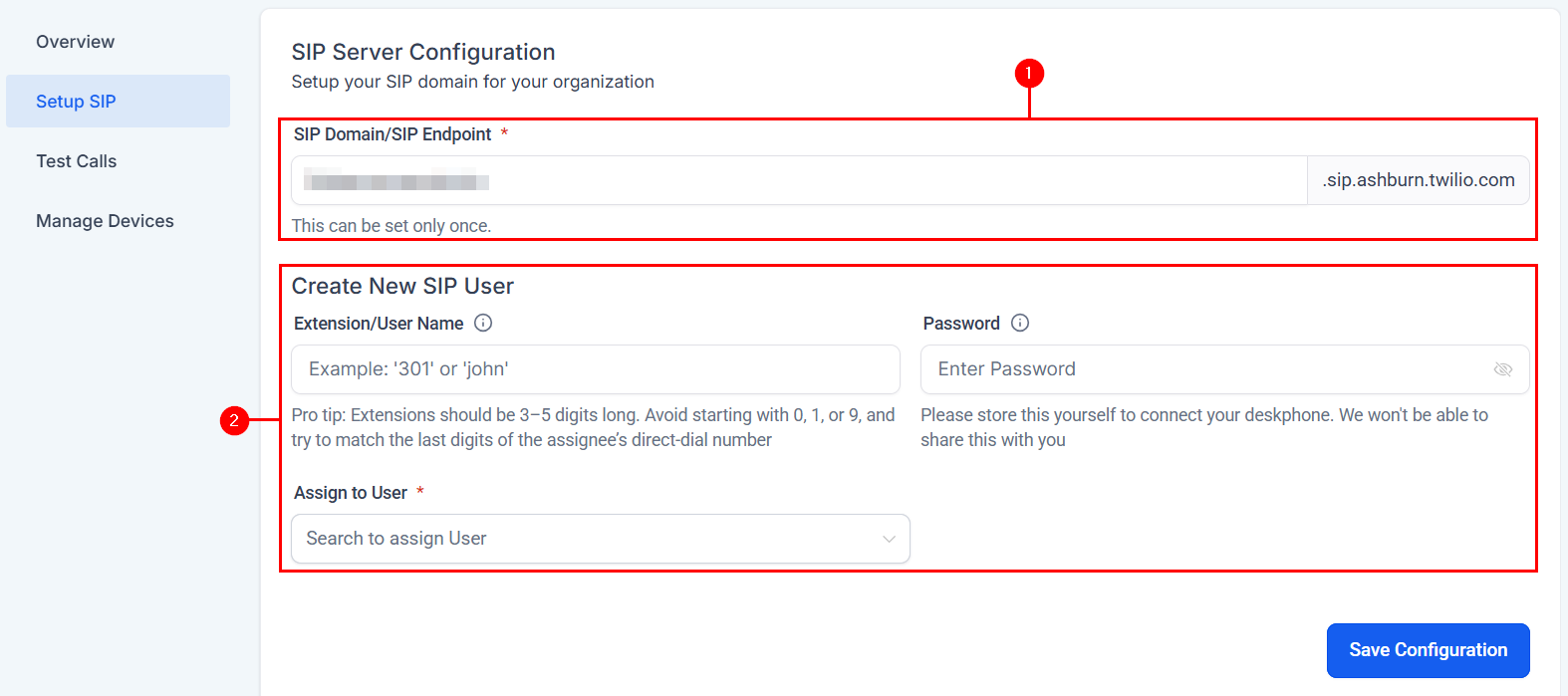
On your deskphone, paste those three values into the matching fields (often named Registrar, Server or Proxy, plus Username and Password). In case of issues on the deskphone, Hard Reset of the hardware phone may help.
Run Test Calls
- Outbound Test: Dial the on-screen number; a successful connection plays “This is a test call” three times.
- Inbound Test: Click the Inbound Test Call button to ring your deskphone and confirm audio.
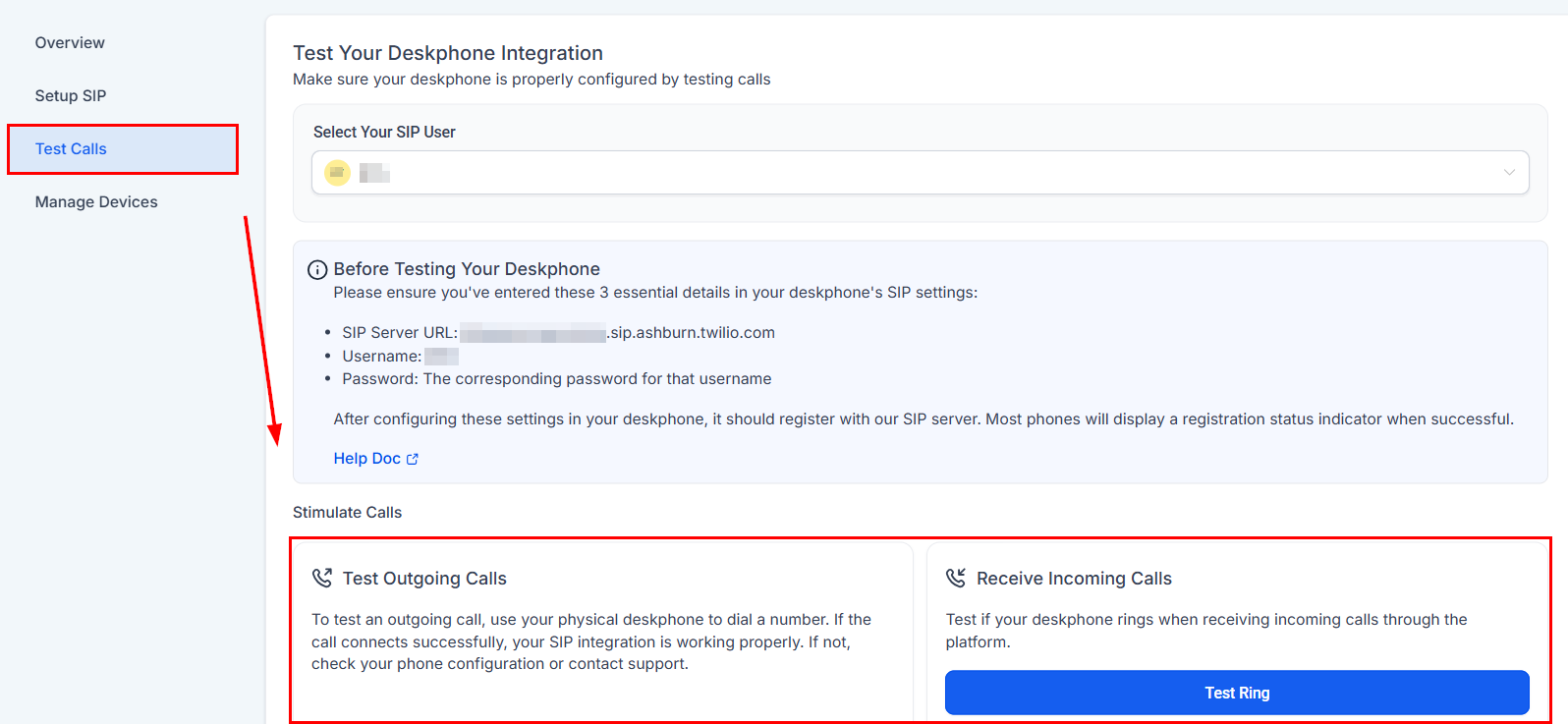
If tests pass, your deskphone is fully operational. If tests fail, click Details for troubleshooting or contact Support.
Managing Deskphones
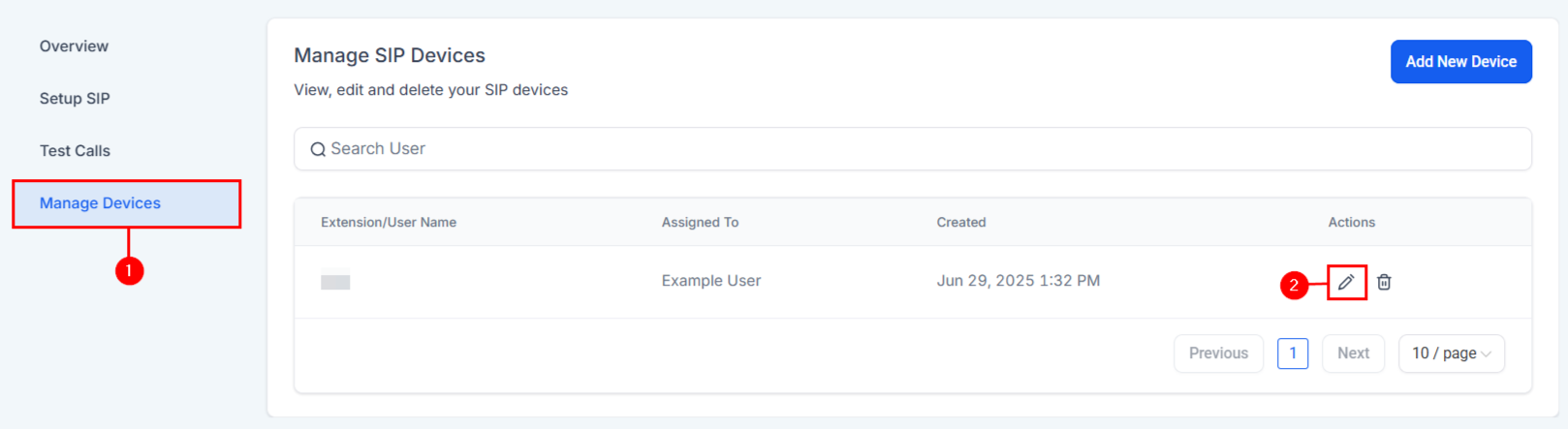
Reset SIP Password
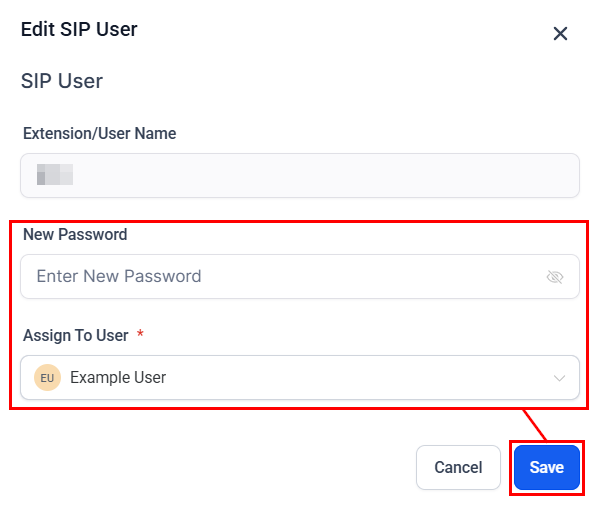
Go to Manage Devices → Edit within the VoIP Deskphone settings.
Here, you can update the password or assigned user before saving.
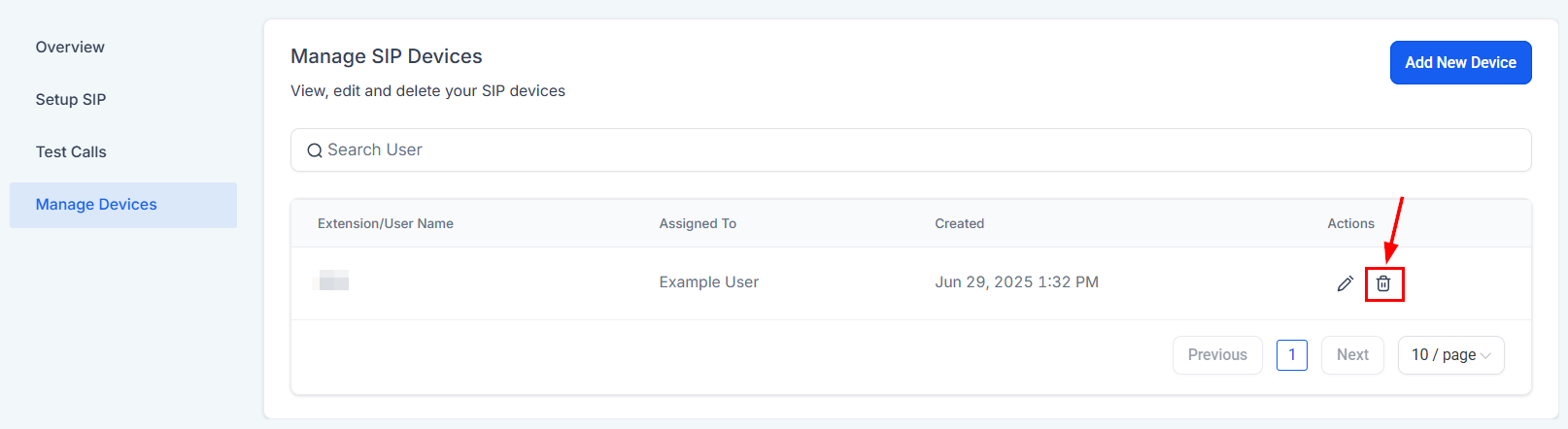
Delete a Deskphone
Use the delete option to immediately unregister the handset.
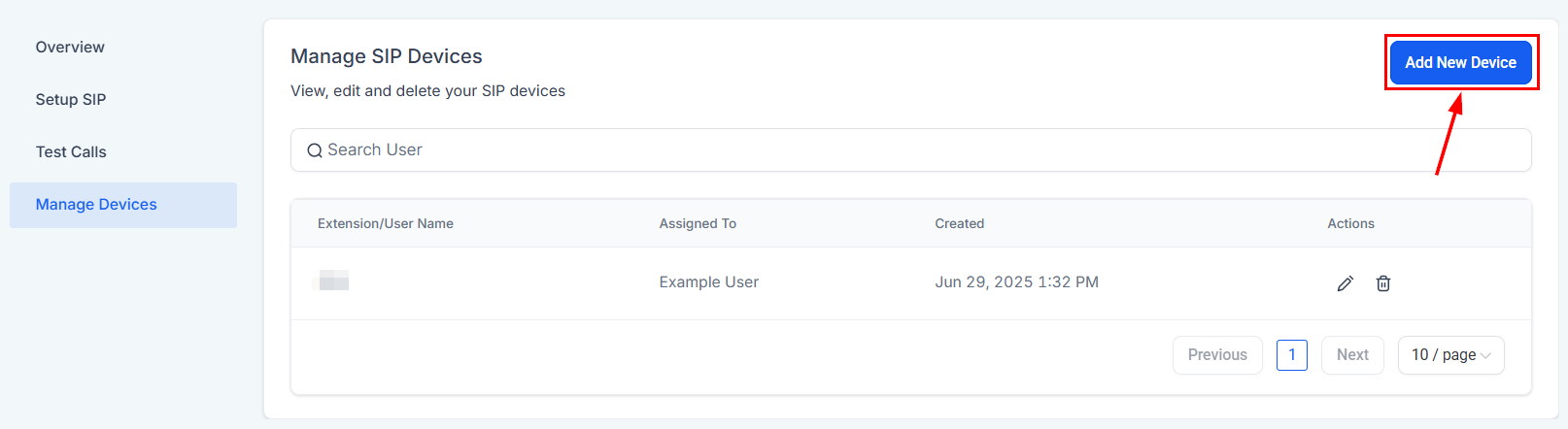
Add Another Phone
Click the “Add New Device” button to register a new SIP device. Repeat the setup process, noting that each device should be linked to a different user.
📌Note: If a linked user is deleted or transferred, SIP credentials are automatically disabled. Additionally, call logs and recordings may be accessed from the Conversations section of your account.
With seamless setup, direct CRM connectivity, and built-in call management tools, this feature enhances communication efficiency and provides the flexibility to manage calls from both deskphones and the platform. Whether you’re equipping a sales floor or a customer support team, this integration ensures your phone system works smarter, not harder.
Troubleshooting Quick Guide
Issue | Likely Cause | Solution |
|---|---|---|
401/403 Unauthorized | Incorrect username/password | Re-enter credentials (case-sensitive) |
No Audio | RTP ports blocked | Open UDP 10000-20000; disable SIP ALG |
Can’t Answer | NAT/SIP ALG interference | Disable SIP ALG on the router |
SIP Domain Save Failure | Domain name already in use | Edit or accept the suggested alternative |
Frequently Asked Questions
Q: Can I have multiple SIP domains per location?
- No. Each location supports a single SIP domain.
Q: Can two deskphones share the same user?
- No. Each handset requires a unique user profile.
Q: Is there an extra charge for using deskphones?
- No. Deskphone calls are billed at the same rate as web or mobile calls. Blind transfers cost an additional $0.10 per transfer.
Q: Why aren’t calls ringing on my deskphone?
- Ensure that the deskphone device type is enabled under Settings → My Staff → Edit Staff → Call & Voicemail Settings.
Q: Do IVR calls work with deskphones?
- IVR functionality is not currently supported on deskphones, but is planned for future development.
Not a Funnelbud customer yet?
Try our all-in-one CRM for sales and marketing — free for 7 days, no commitment.