How to Create a Prospecting Lead Widget
Prospecting widgets are fully customizable lead capture forms that can be embedded on your website to generate instant Marketing Audit Reports. From your Prospecting dashboard, you can create multiple widgets, configure field behavior, apply custom branding, and automate lead follow-up. These widgets are ideal for managing different websites, brands, or marketing campaigns.
📌Note: This functionality is available exclusively with the paid version of the Prospecting tool.
How It Works
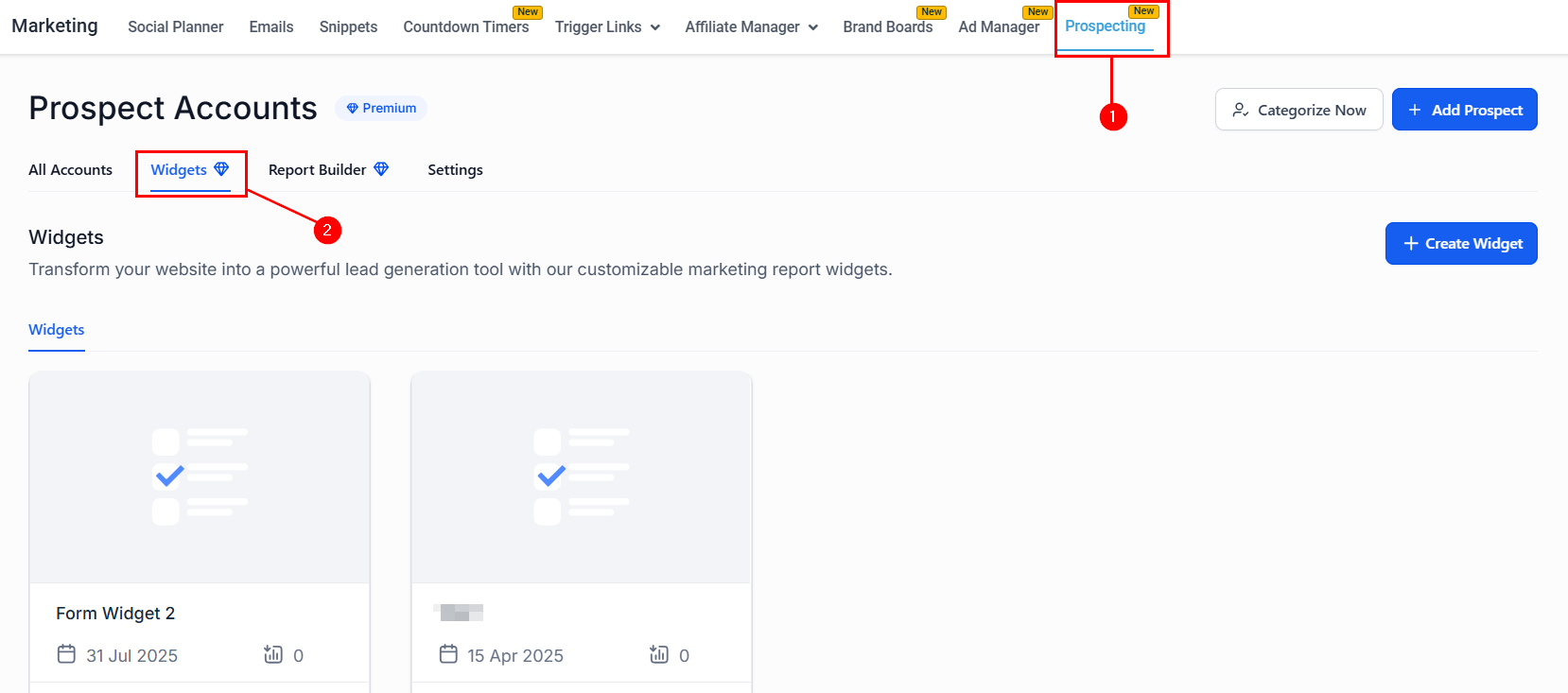
To get started, navigate to the Prospecting section of your account, then open the Widgets tab.
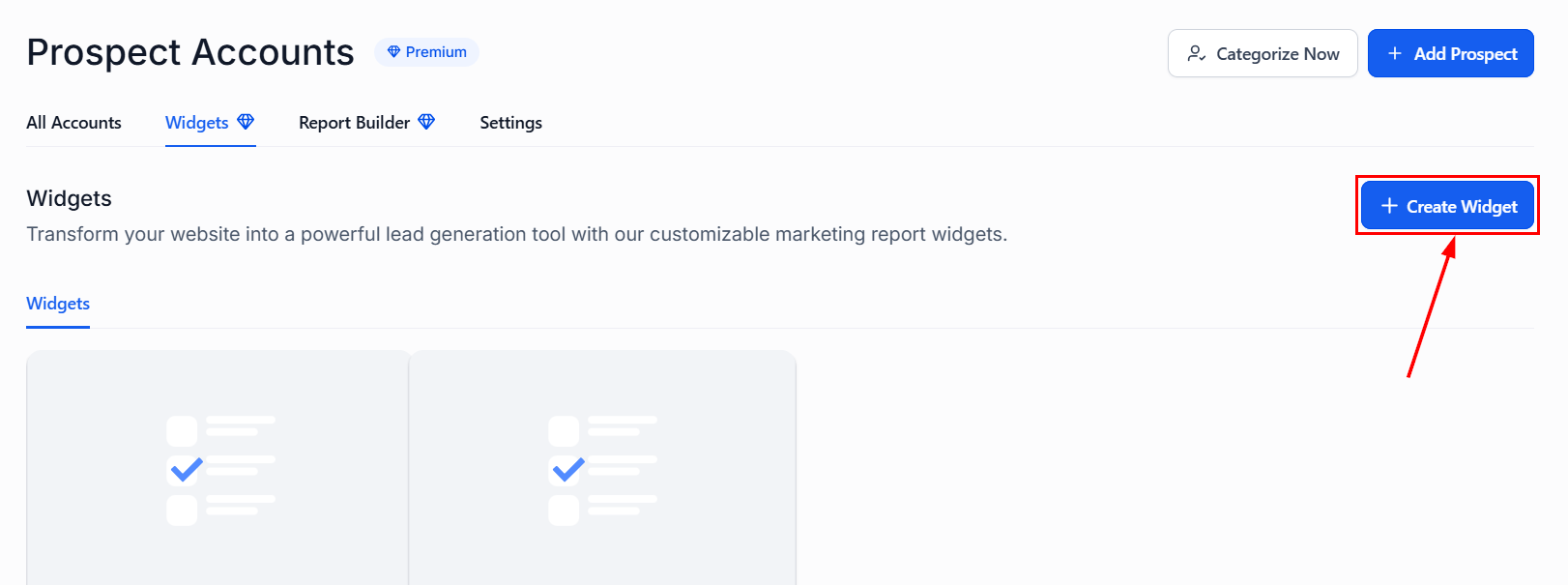
Once there, click the Create Widget button to begin crafting a new prospecting widget.
Styles
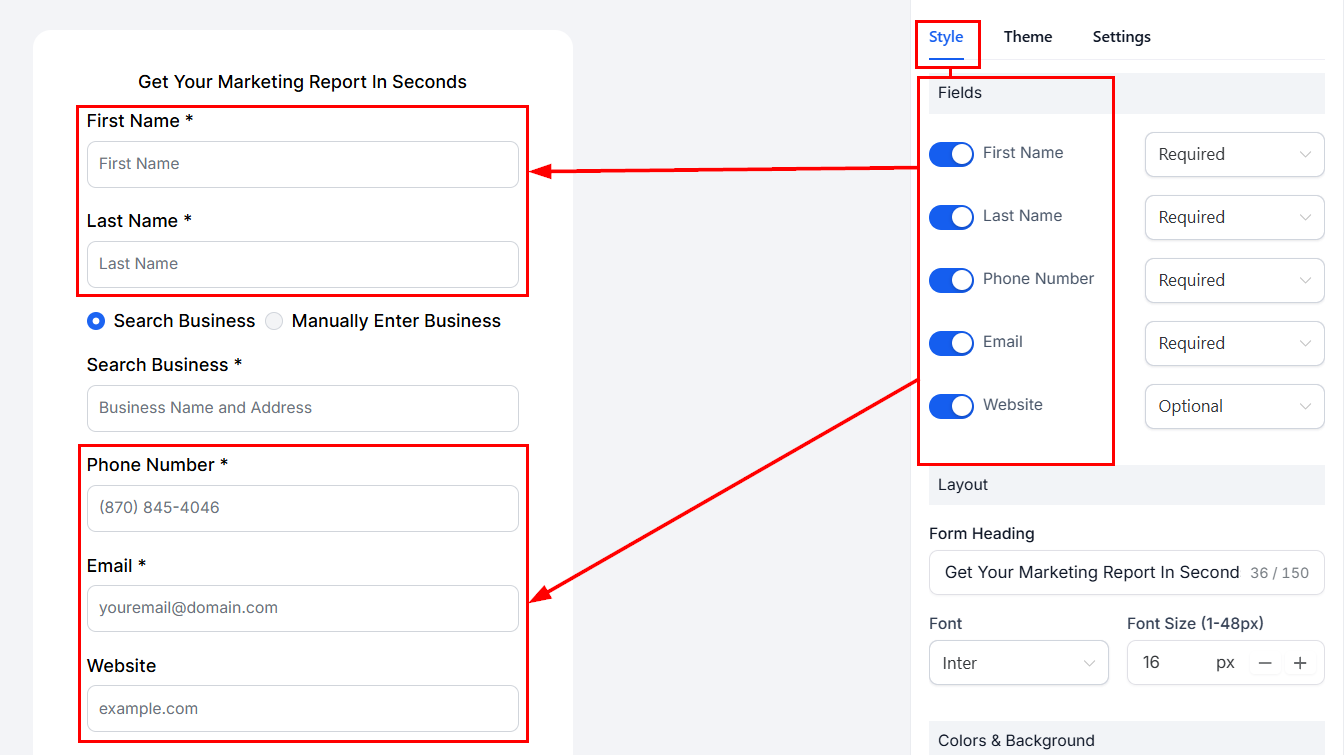
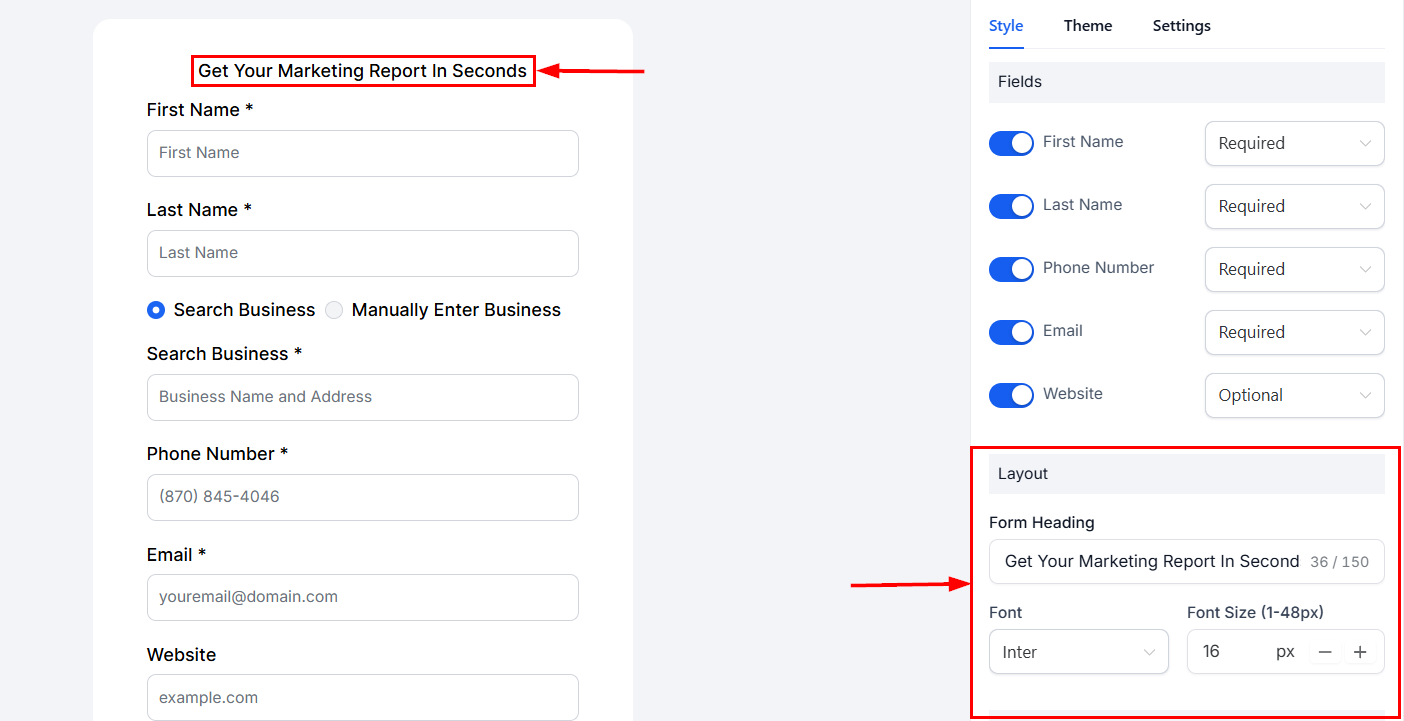
In the Styles view, you can enable or disable the available fields to ensure you are collecting the data you need. When enabled, the field will be displayed in the editor, allowing you to see how it will appear to customers.
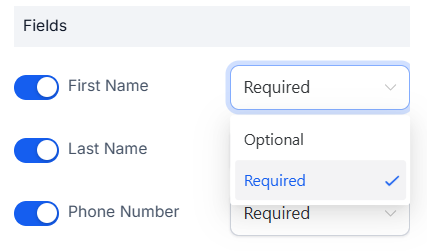
Each input field within the form can be designated as either required or optional, offering full flexibility to tailor forms to specific use cases.
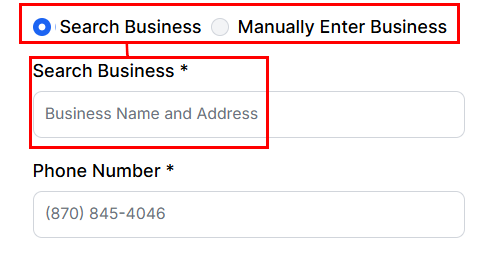
Businesses with an active Google listing can utilize the search business functionality, while businesses without can manually input their details by selecting the “Manually Enter Business” button.
If necessary, update the text, font, and size of the form heading to match your website’s design, ensuring visual consistency and a more polished experience.
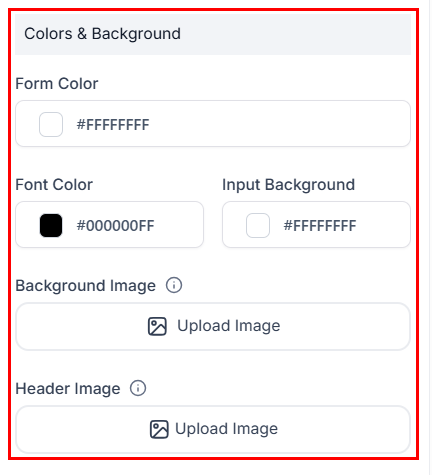
Additionally, adjust the form and font colors, and upload an image for the form header and background. For optimal display, follow the guidelines in the tooltip.
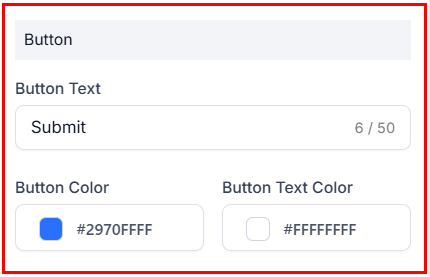
Next, style the submit button to match your brand’s color palette, supporting a cohesive visual identity across your lead generation assets.
Theme
Switch to the Theme tab to choose between light and dark modes for your form. This allows you to tailor the experience based on your chosen colors and overall brand identity.
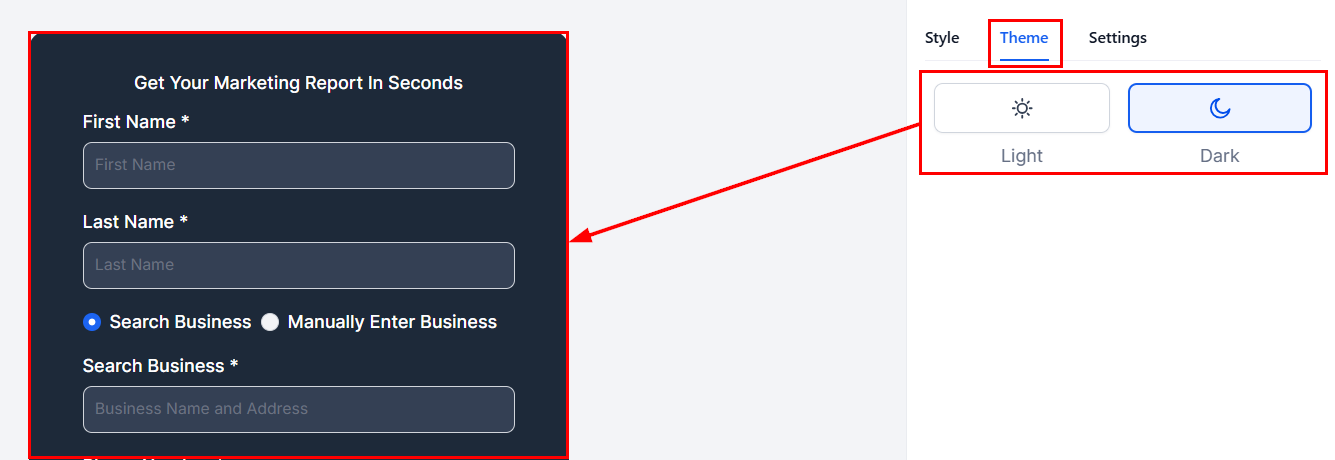
Settings
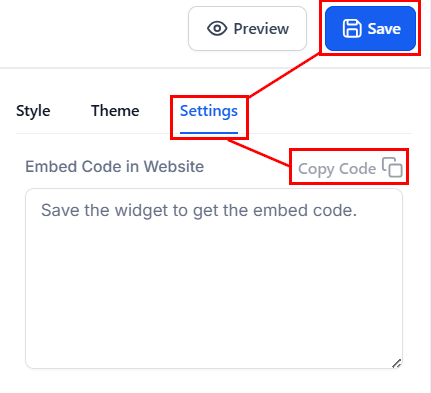
After saving your widget, head to the Settings tab to copy the embed code for your funnel or website to implement the widget in your pages.
These features are designed to help you capture leads more effectively — with forms that are not only functional, but fully aligned with your brand and operational workflows.
📌Note: You can create up to nine distinct widgets to support different websites, brands, or campaigns. This is ideal for users managing multiple clients or market segments.
Practical Examples and Use Cases
- Leads are automatically saved to Contacts, and can be used to trigger Workflows — sending welcome messages, creating tasks, tagging records (e.g., “New Prospect Received”), or adding leads to Opportunities and Pipelines. This streamlines the nurturing process and ensures that each submission becomes an actionable, pre-qualified contact.
- When a visitor submits a form, their information is automatically added to your CRM, tagged for segmentation, and can trigger workflows to send welcome messages, assign pipeline stages, and initiate nurture sequences — converting each submission into a qualified opportunity.
Not a Funnelbud customer yet?
Try our all-in-one CRM for sales and marketing — free for 7 days, no commitment.