Blog Post
A blog post is an essential part of any content marketing strategy. It’s typically written to cover a specific topic or answer a question, and it’s educational. Blog posts are an excellent way to share long-form articles related to your business and cover topics your target audience may want to read or learn about.
General Settings
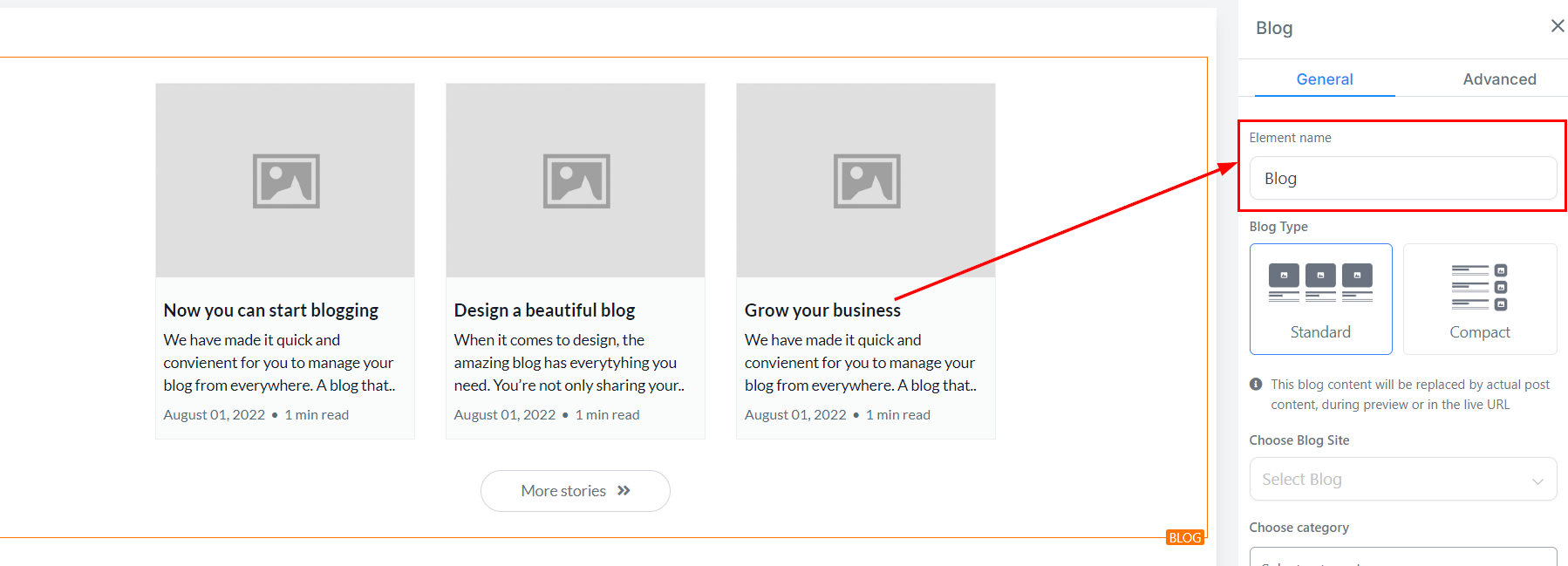
Element Name/Title
Under General Settings, you’ll see the Element Name/Title at the top. This field shows the default name/title of the edit option you’re working on, but you can rename it for easy identification as you build out your funnel page.
Blog Type
- Standard: You can decide to use the standard type which has the blogs in a Grid View.
- Compact: You can decide to use the compact blog type which has the blogs in a List View.
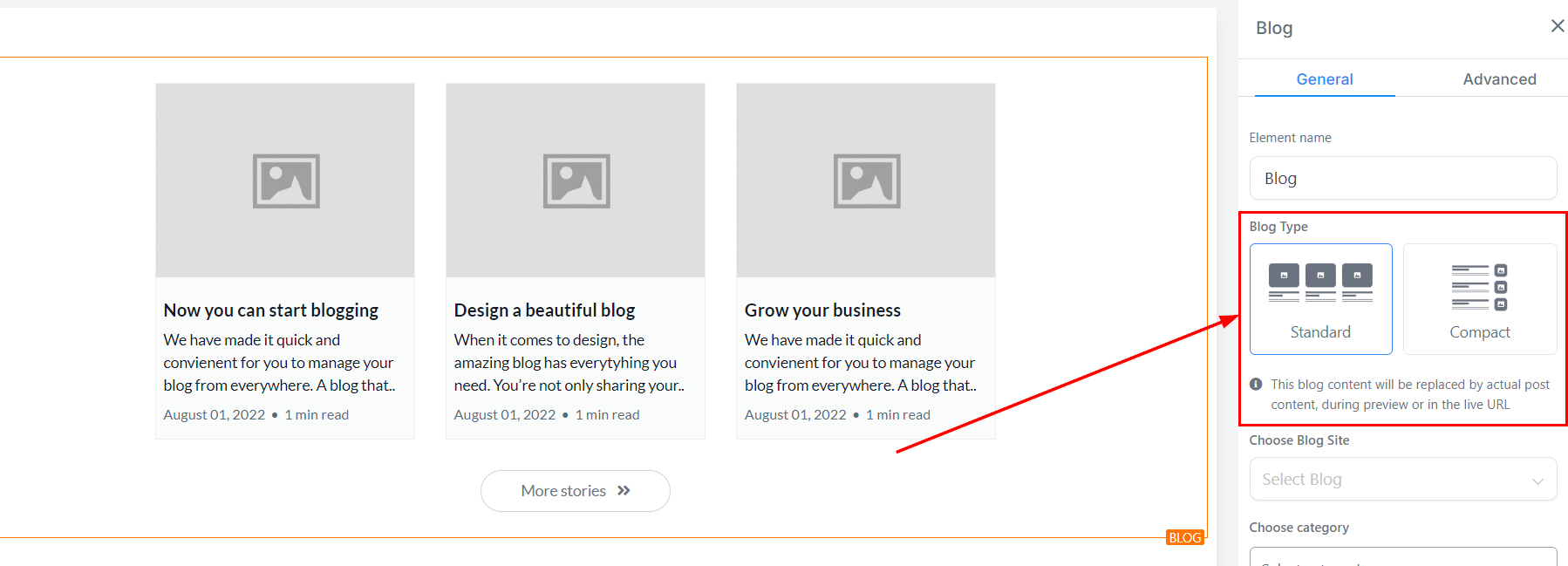
This blog content will be replaced by your post content, during previews or in the live URL.
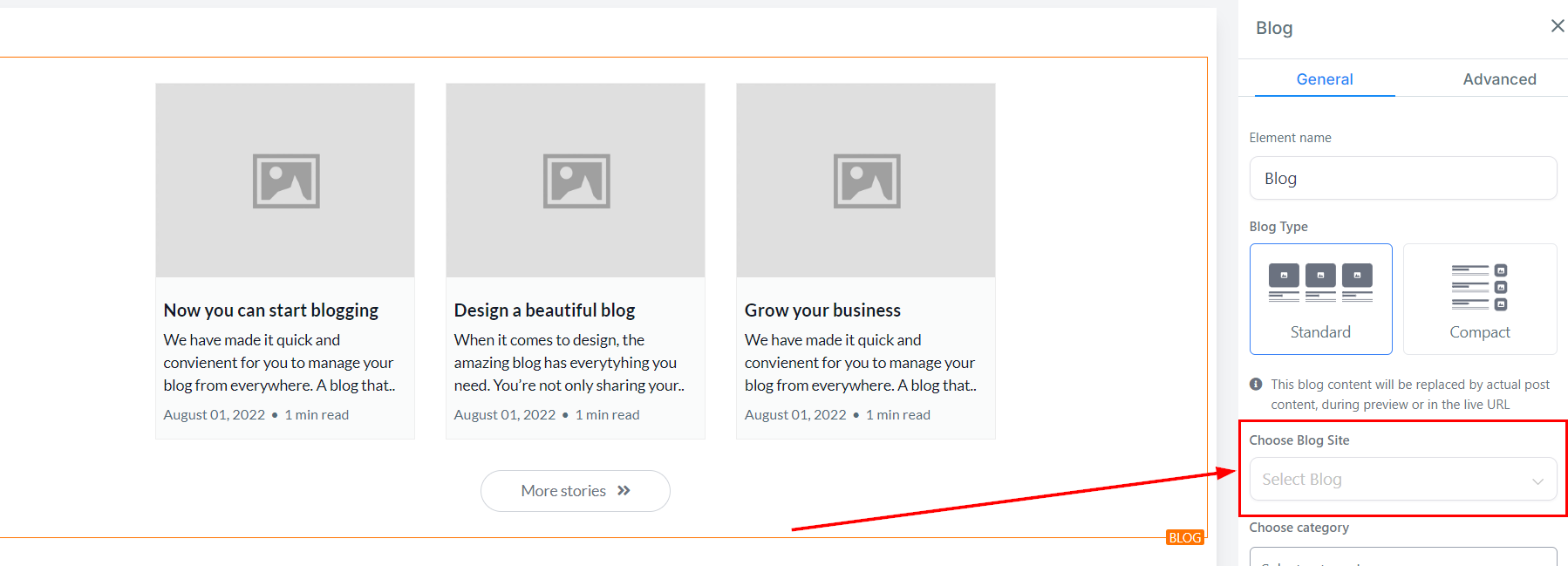
Choose Blog Site
Select the blog site you would like to display.
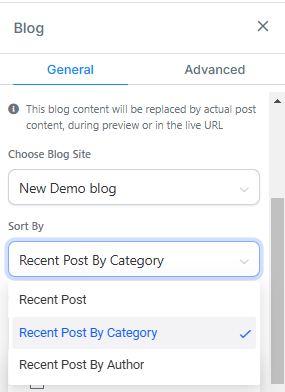
After selecting the desired site, you can configure the display of your posts using the “Sort By” feature.
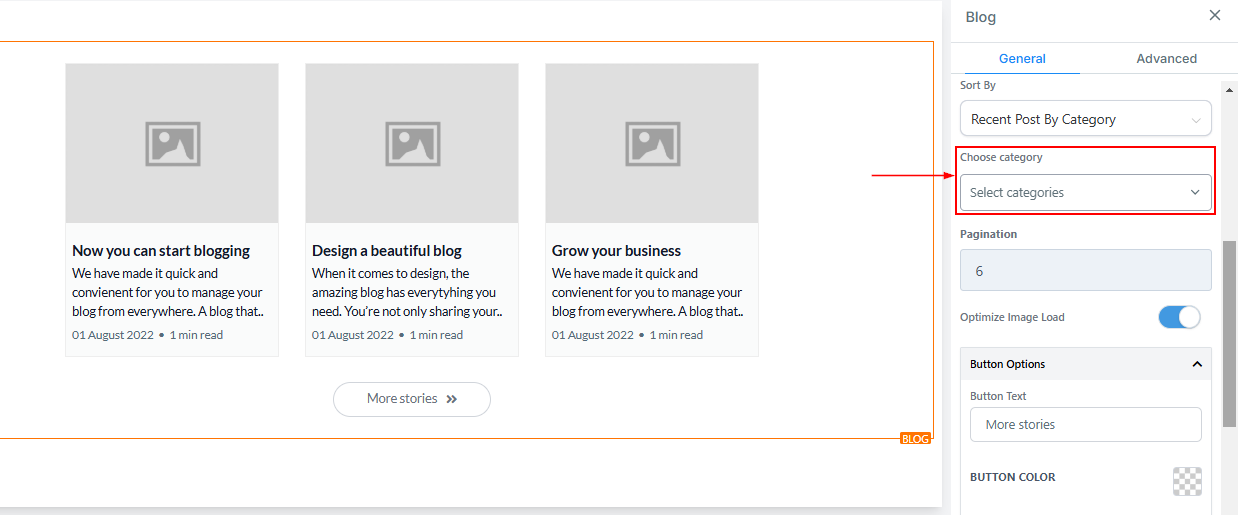
Choose Category
You can filter the category page using the options provided here.
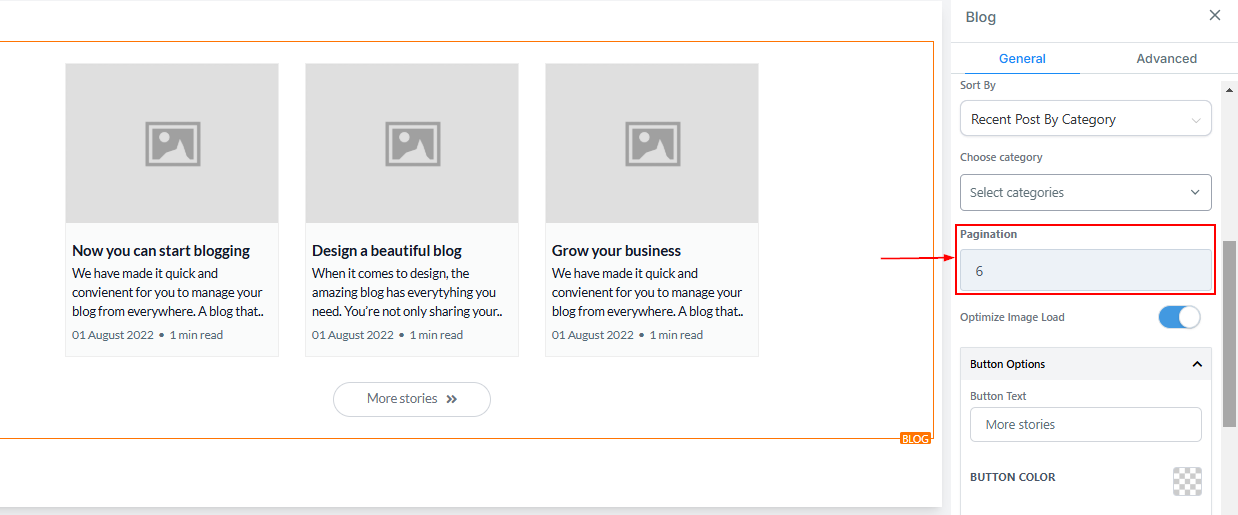
Pagination
In the Pagination settings, you can choose the number of blog posts to display on each page. While it is recommended to keep this number between six and nine posts, you may adjust it according to your preference.
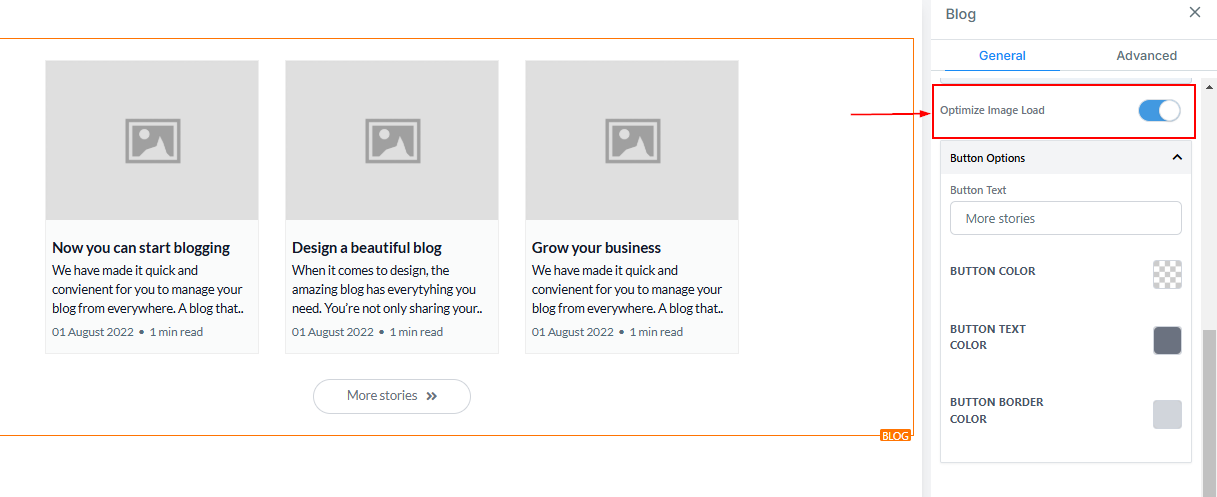
Optimize Image Load
Enhance your blog’s performance and speed by optimizing image loading. This feature reduces the file size of images without compromising quality, ensuring that your blog pages load faster. Faster loading times improve user experience, reduce bounce rates, and can positively impact search engine rankings.
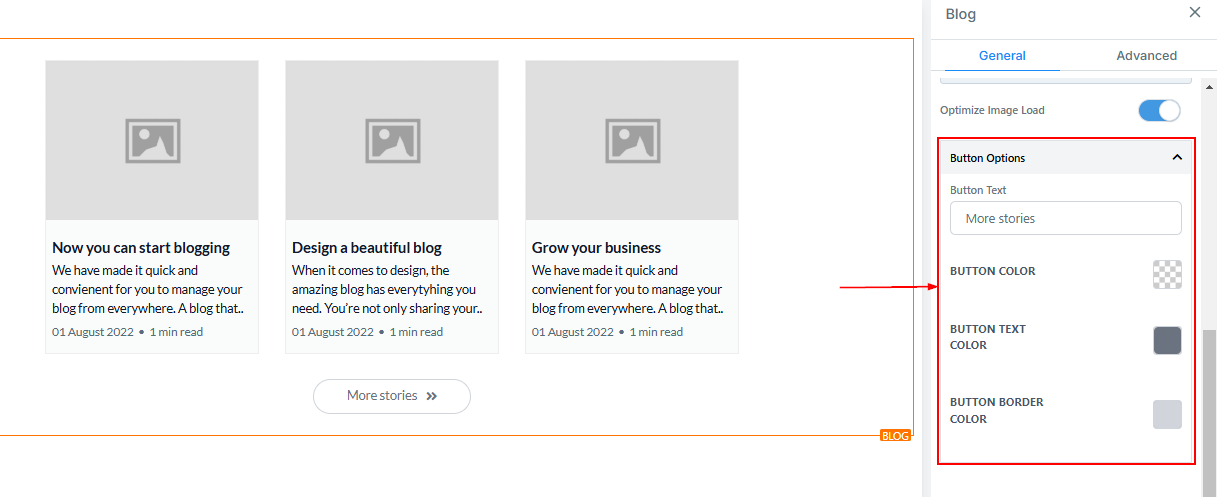
Button Options
- Button Color: Adjust the background color of the button here.
- Button Text Color: Modify the color of the button content using this selector.
- Button Border Color: Edit the color of the button border here.
Advanced Settings
Advanced Settings provides several options to customize your blog post element. Here you have spacing options, the ability to add borders and shadows, as well as adjust visibility and add Custom CSS.
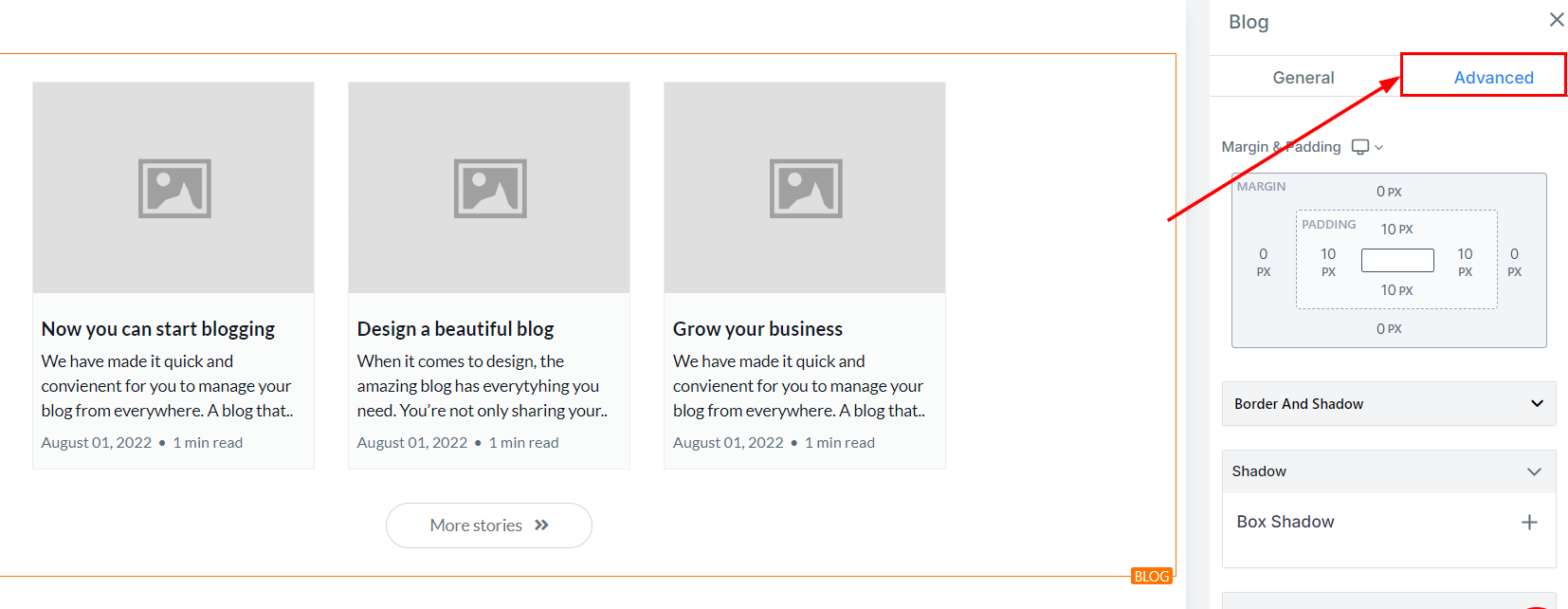
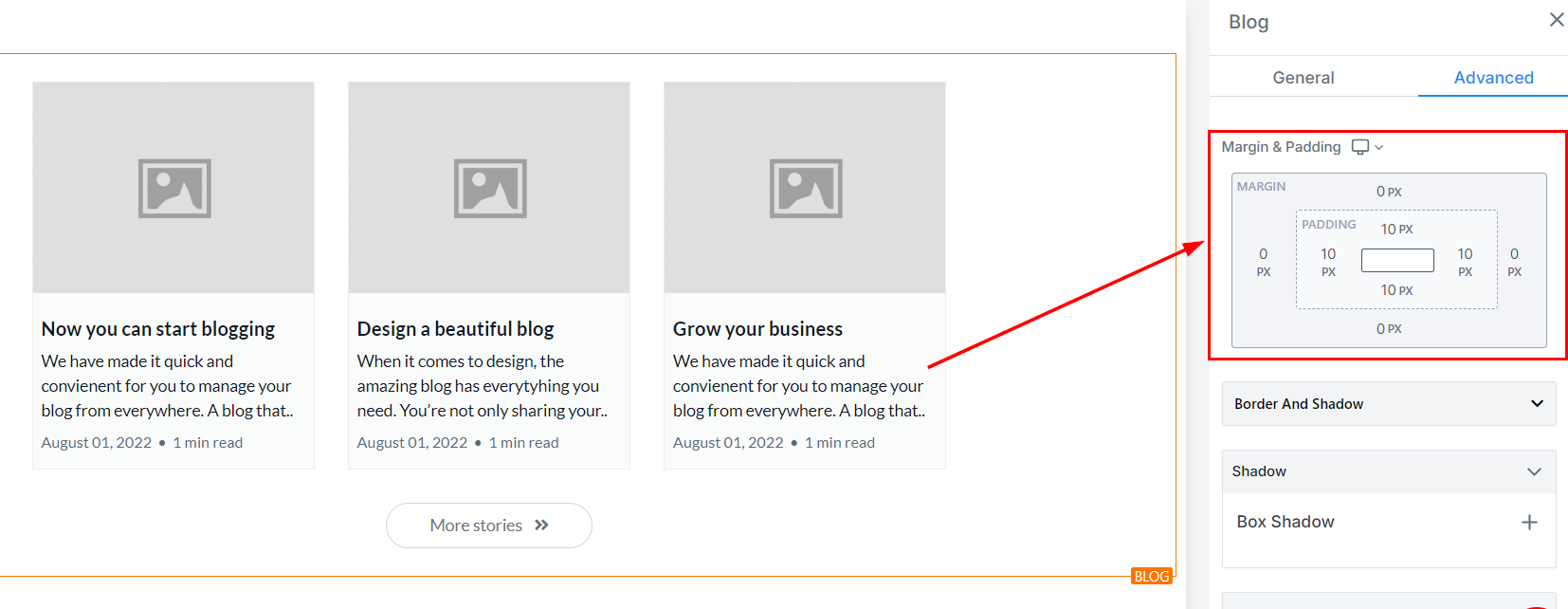
Margin & Padding
- Padding Left, Right, Top, and Bottom: These four (4) different toggle bars move the content to either the left, right, top, or bottom of the section
- Margin Top and Bottom: Adjust the top or bottom margin of your content by toggling its bars.
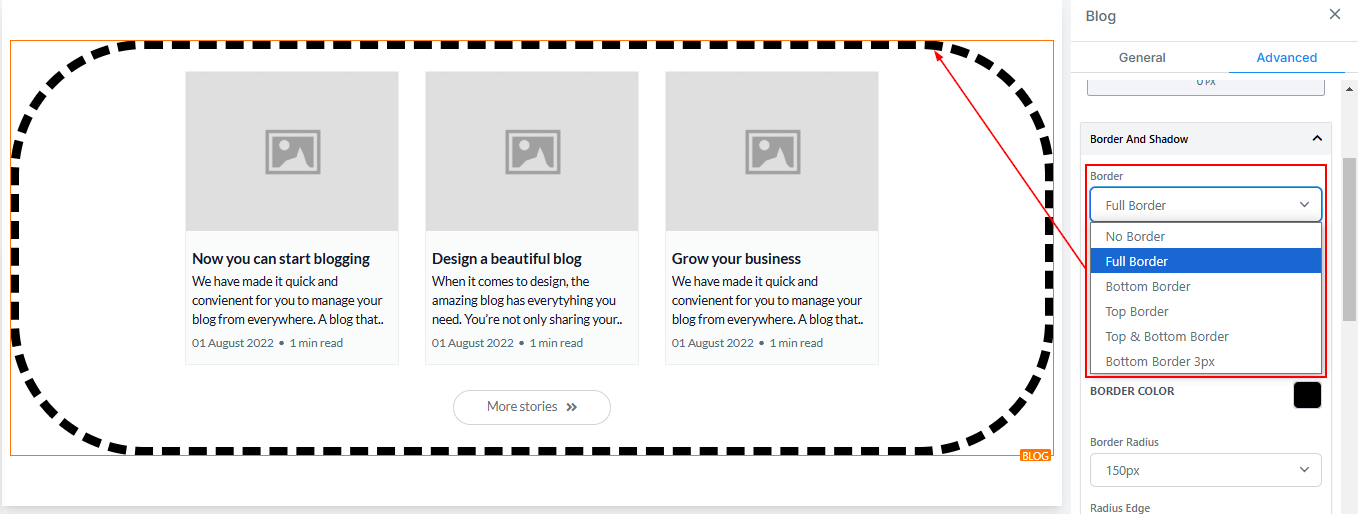
Border And Shadow
Select your preferred border type from the available options. Upon selection, the editor will adjust to display a preview of the chosen border style.
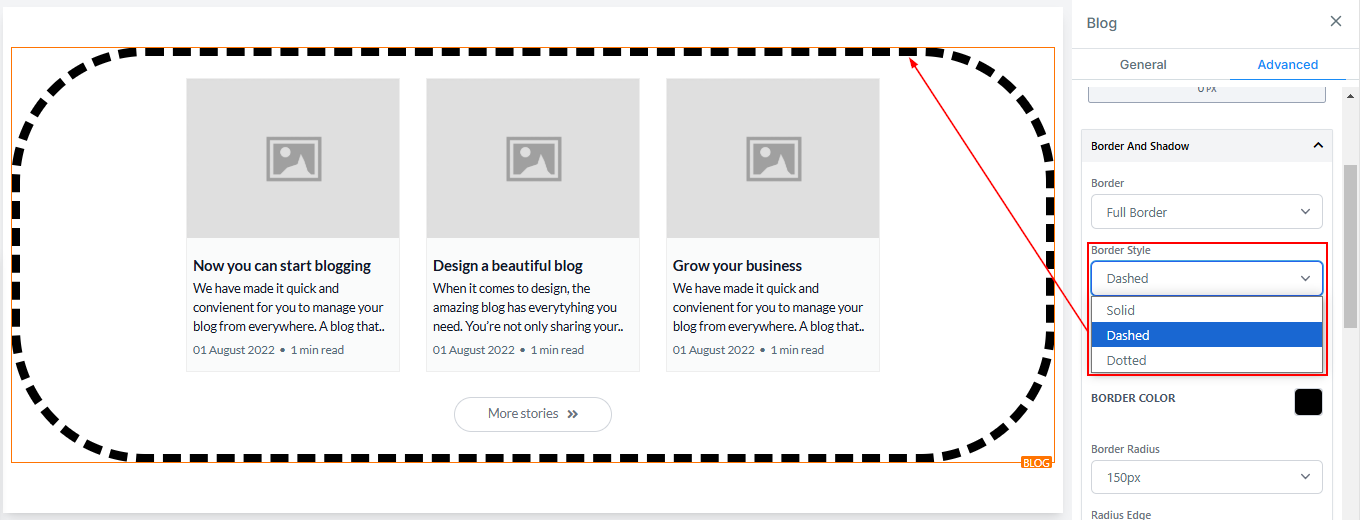
Style
If you select a border, you will have the option to apply one of three different styles: solid, dashed, or dotted.
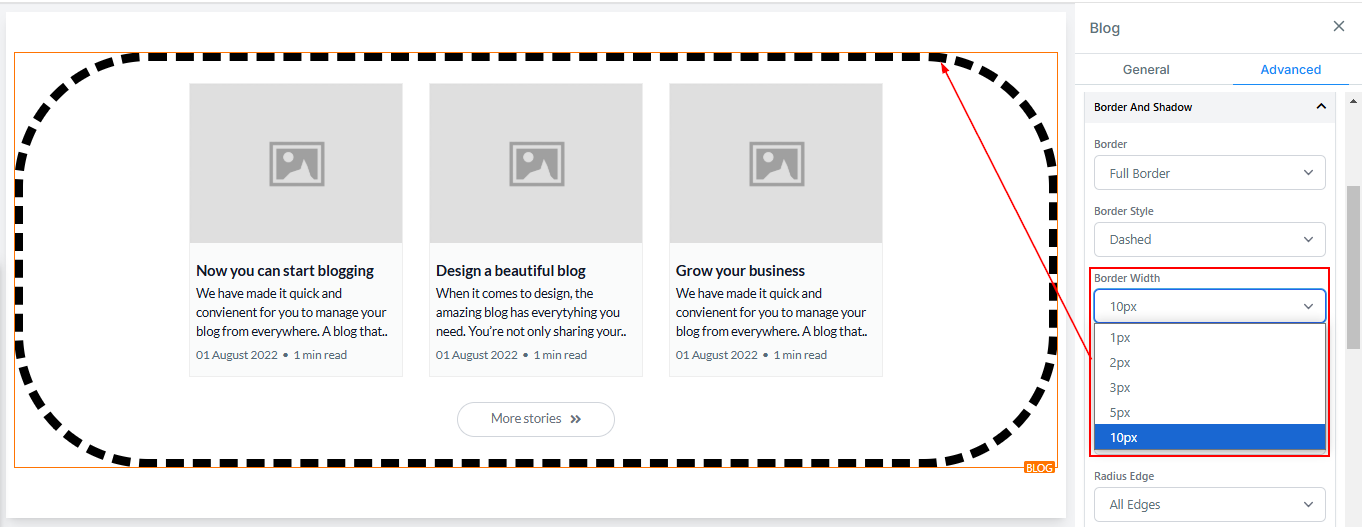
Width
Adjust the thickness of the border within the border width section.
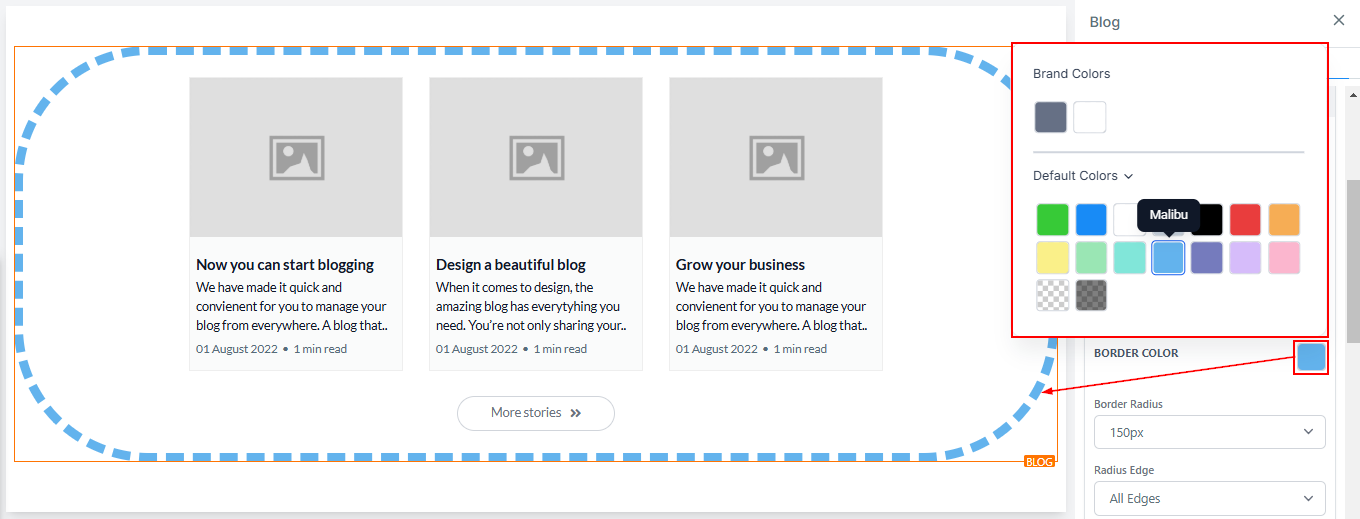
Color
To change the color of the border, click on this color icon.
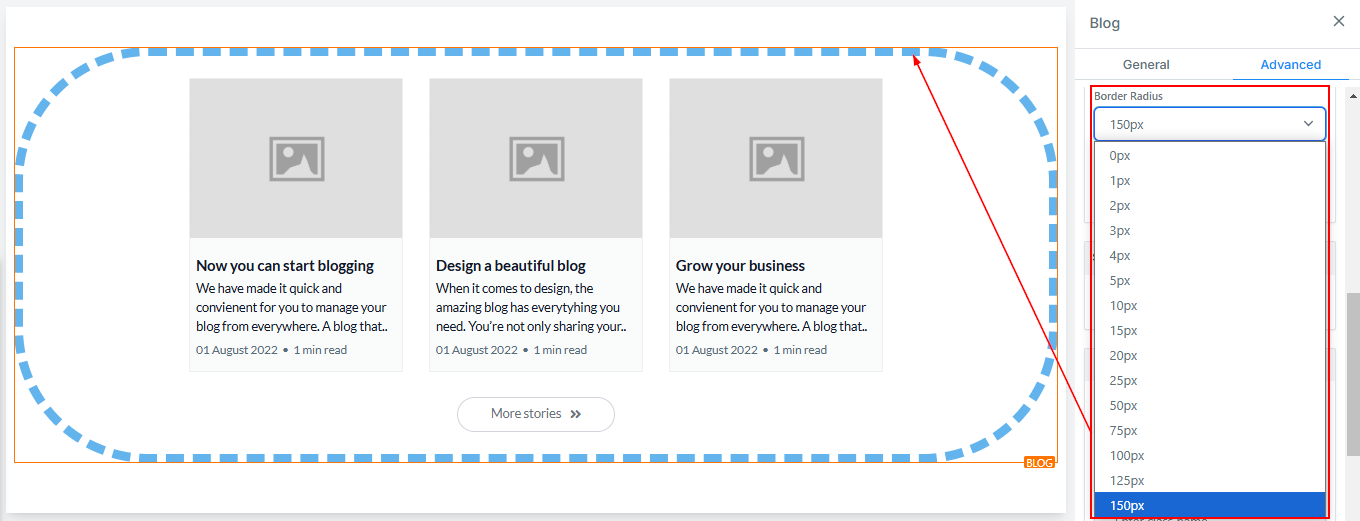
Border Radius
Adjusting the border-radius curves the edges of the border. The higher the value you select, the more pronounced the curvature becomes.
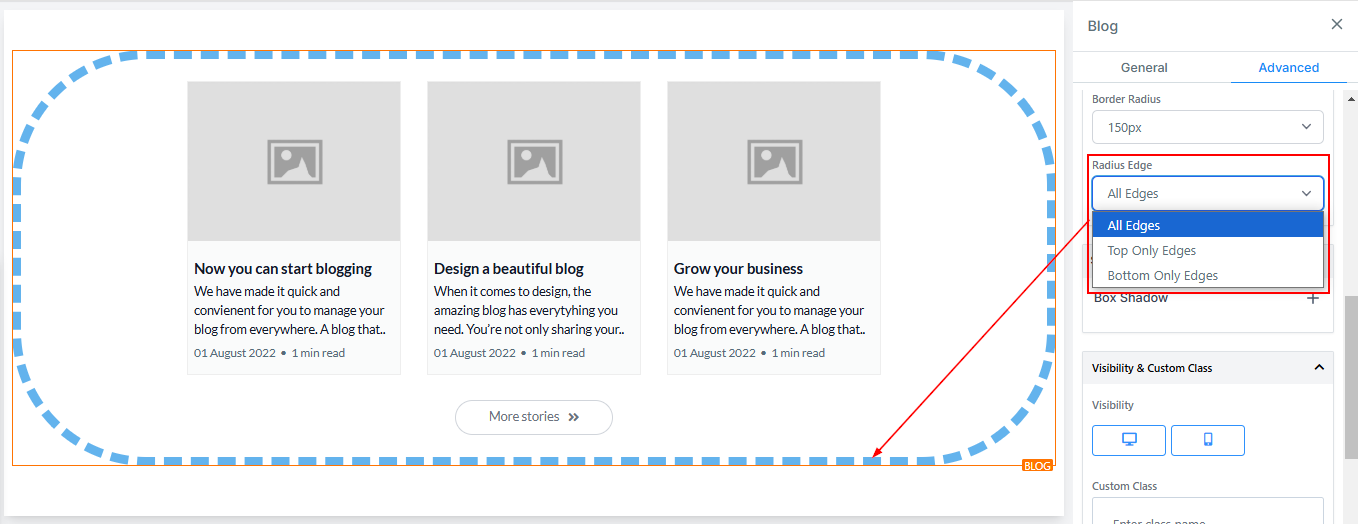
Radius Edge
You can decide the corner of the border you want to curve, either all edges, Top only, or Bottom edge only.
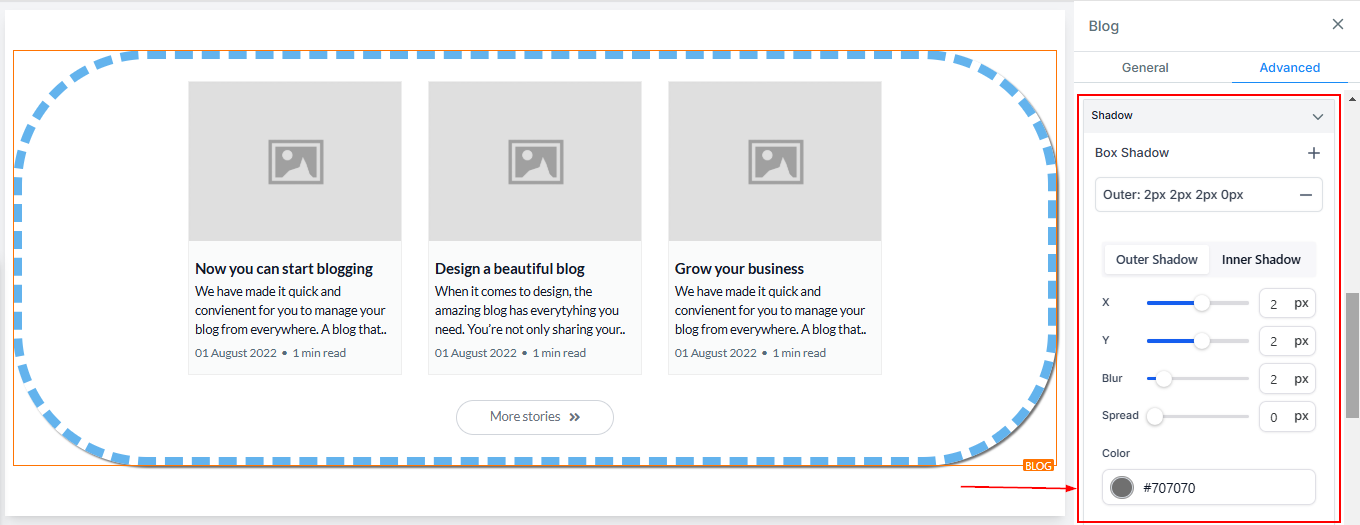
Box Shadow
If you want your box to have a shadow, simply select how strong or light you want the shadow to be.
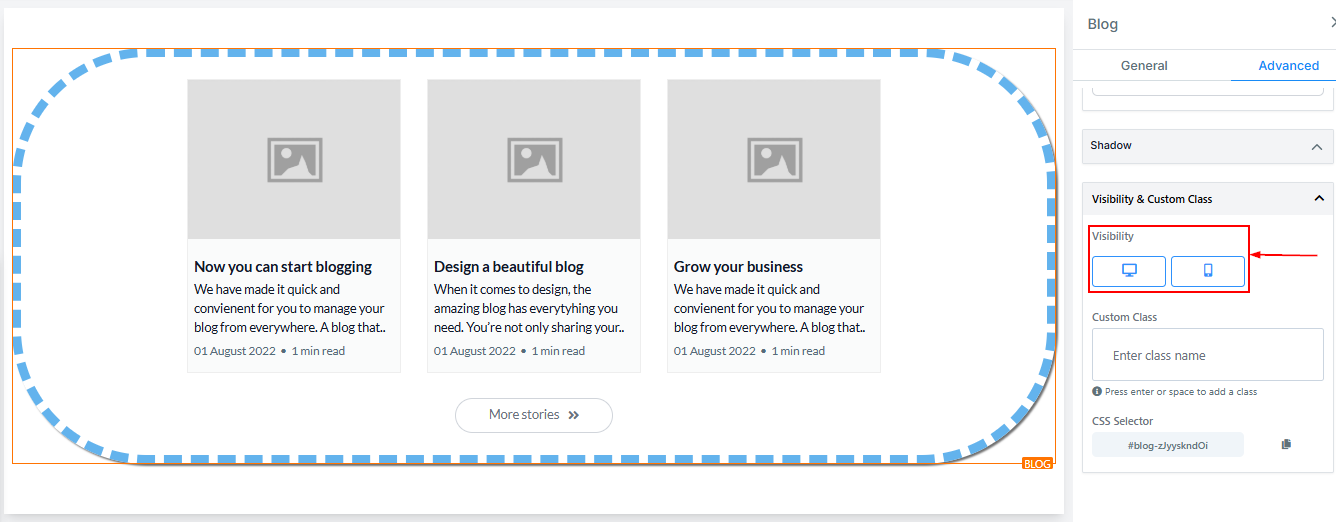
Visibility
The Visibility setting allows you to determine whether your blog post element should be displayed on mobile devices, desktops, or both. You can select your preferences by highlighting the corresponding icon.
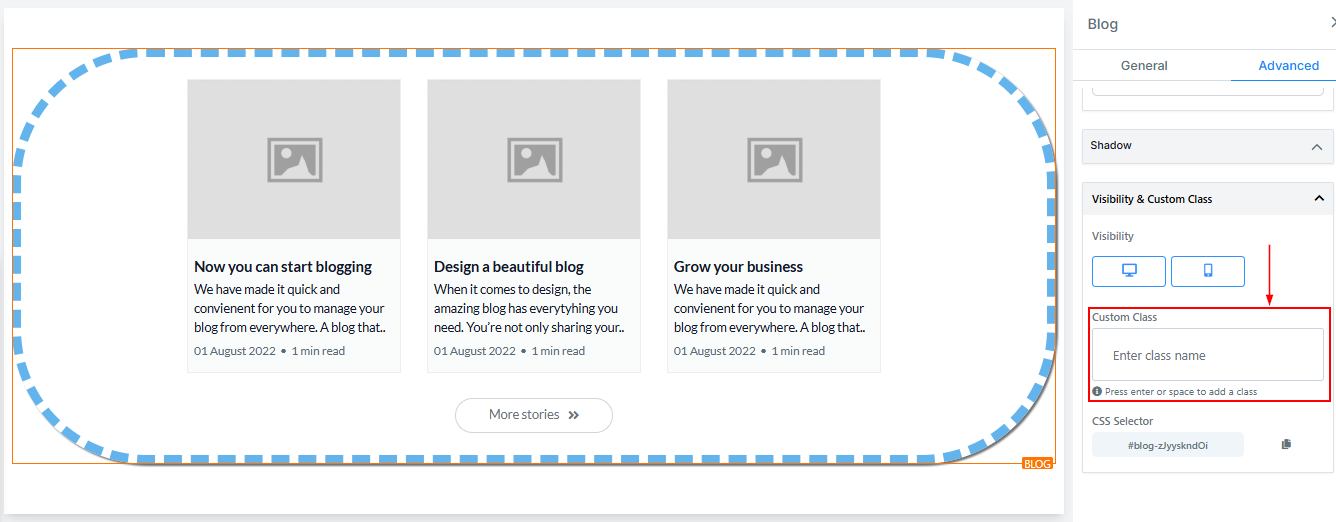
Custom Class
If you have a custom class, you can input it in the Custom Class field.
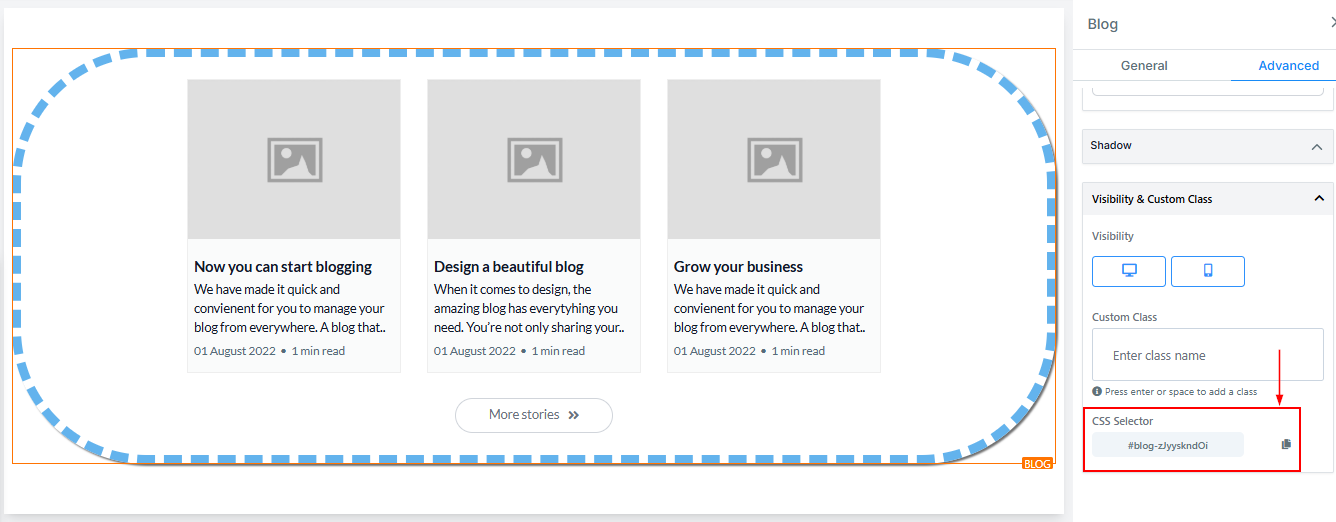
CSS Selector
If you need to copy the Custom CSS, click on the “Copy” icon on the right side of the reference code.
Blog posts are a key part of any content strategy, helping you connect with your audience and share valuable insights. With the right settings and customization, you can create a blog that’s both engaging and easy to navigate.
Not a Funnelbud customer yet?
Try our all-in-one CRM for sales and marketing — free for 7 days, no commitment.