Setting Up a Default Header for Dedicated Email Domain
A default header in email services is a set of metadata automatically included in every email, like From, To, Subject, and Date. These headers help route, identify, and format the message properly. Default headers are usually hidden from the average user but can be viewed by choosing “View Original,” “Show Source,” or “View Headers,” depending on your email service.
Why Default Headers Matter for Your Business
- Consistent Branding: By setting a default from name and email address for your dedicated sending domains, you ensure that every email sent reflects your brand consistently. This uniformity enhances professionalism and aids in building brand recognition among your recipients.
- Improved Deliverability: The Default Header feature helps prevent conflicts arising from inconsistent email headers, minimizing the risk of email failures, and increasing the chances of your messages landing in recipients’ inboxes.
- Compliance Alignment: With email providers like Gmail, Yahoo, and Outlook regularly updating their guidelines, it’s crucial to stay compliant to avoid your emails being flagged or filtered as spam. The Default Header feature helps align your email campaigns with these changes, enhancing compliance and deliverability.
Now that you understand the benefits, let’s walk through the steps to set up the Default Header feature in your CRM account:
Navigate to Email Services
Log in to your CRM account and navigate to the settings area.
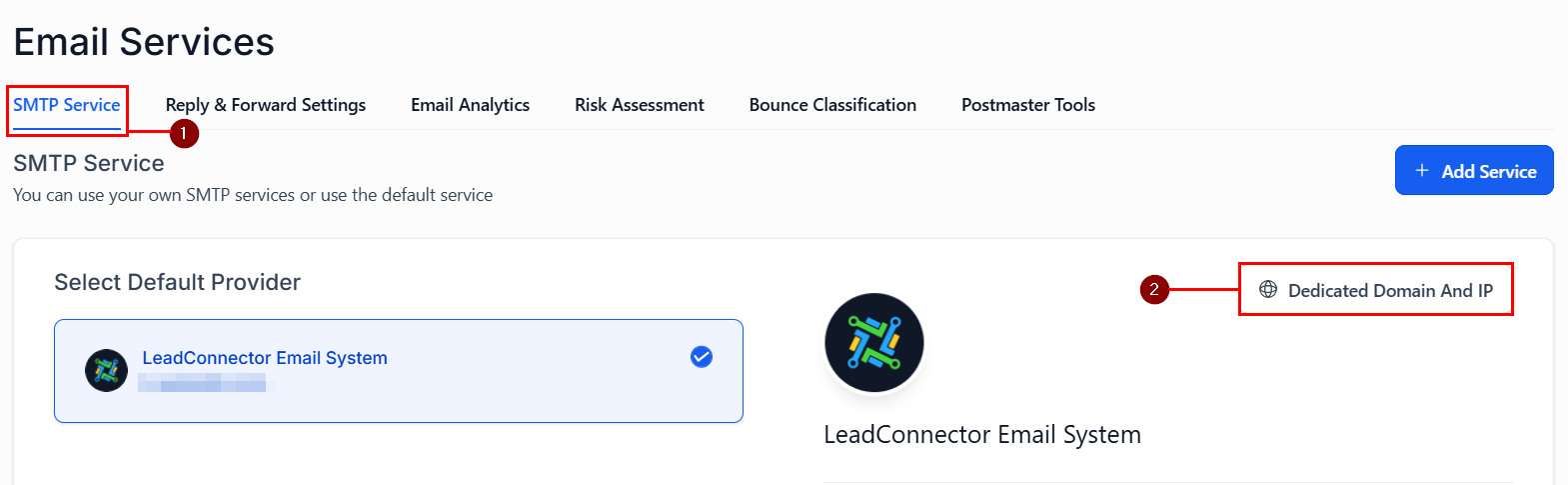
From the left navigation menu, select the “Email Services” tab, then click on “Dedicated Domain and IP” under the SMTP Services section.
Set Headers
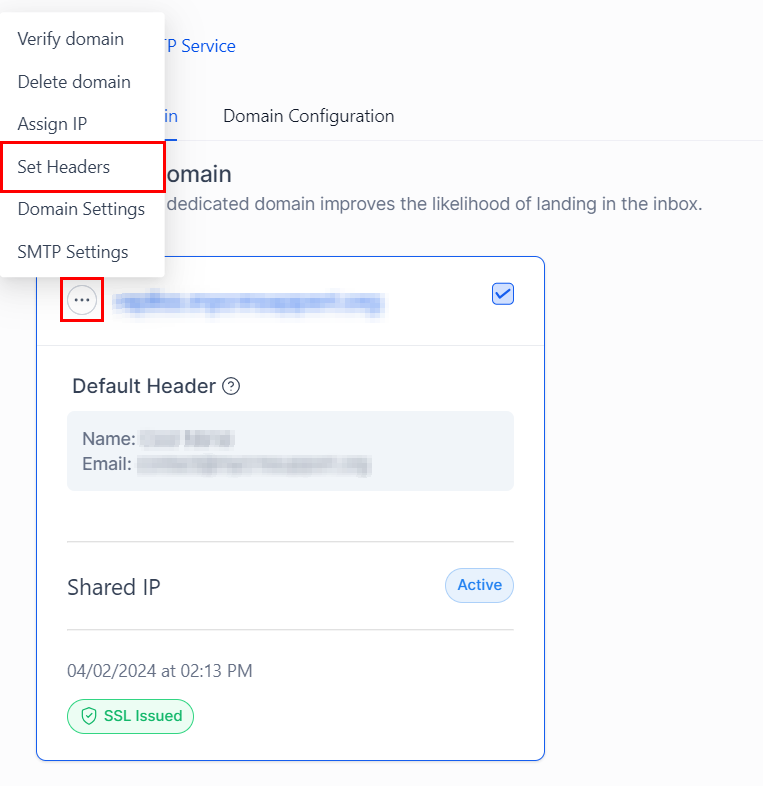
Find the dedicated domain you wish to configure and click on the three dots to access more options. Select “Set Headers” from the dropdown menu.
Enter Header Information
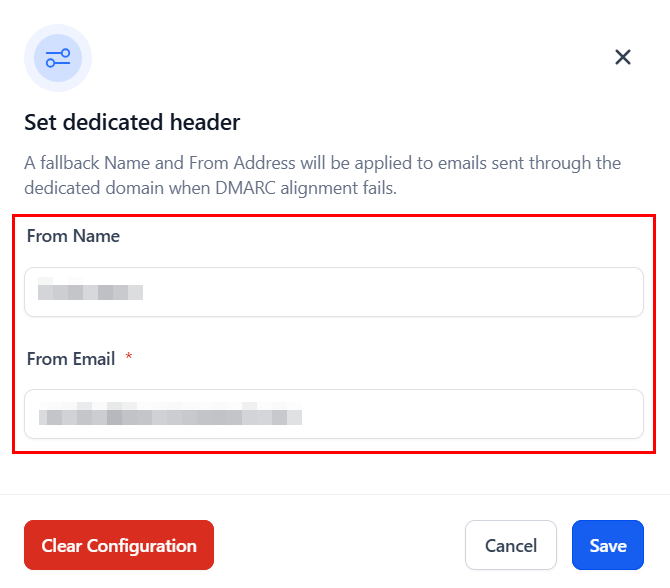
In the provided fields, enter the default from name and email address you wish to use for this domain. These will be applied to all outgoing emails sent through this domain.
Save Your Settings
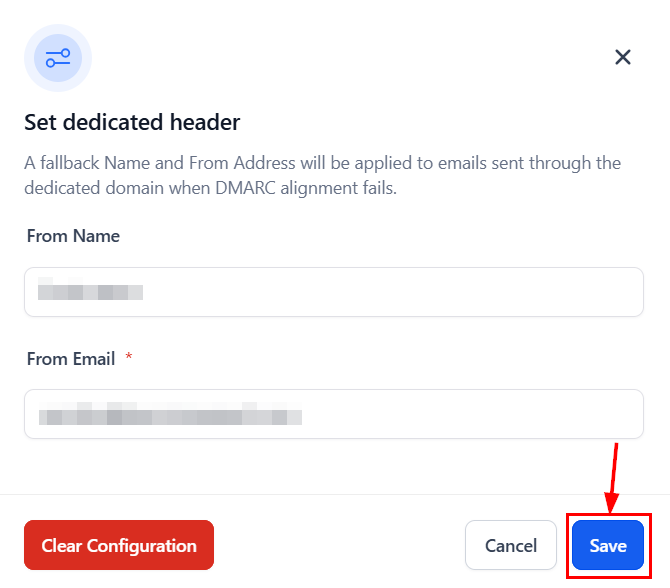
After entering the required information, click “Save” to apply the changes. You can verify the added name and email under the Default Header Section.
By following these steps, you can ensure that your email campaigns are set up for success, with consistent branding and optimized deliverability.
✍️ Important Notes
- The dedicated header will be applied exclusively in cases where DMARC alignment fails, as determined by SPF and DKIM validation logic.
- If you do not specify a custom “From Name” or “From Email,” and a DMARC check fails, the system will automatically apply the default header to ensure successful message delivery.
Frequently Asked Questions
Q: What if I have multiple sending domains?
- You can repeat the process for each domain, setting a unique default from name and email address that aligns with the specific branding of each domain.
Q: How do I know if my settings are working?
- Conduct a test by sending an email campaign to a controlled group or your own email address. Check the from name and email address to ensure they match your default settings.
Q: Can I change the default header settings?
- Yes, you can update the default from name and email address at any time by revisiting the “Set Headers” option for your dedicated domain.
Not a Funnelbud customer yet?
Try our all-in-one CRM for sales and marketing — free for 7 days, no commitment.