Verifying Synchronization Between Google Calendar and CRM
Before verifying calendar synchronization, it’s important to understand its benefits. Integrating Google Calendar with your CRM keeps schedules updated across platforms, reducing double bookings and ensuring accurate availability. You can connect your calendar through the Calendars section or My Profile, making scheduling more efficient and organized.
Key Features of Calendar Synchronization
- Automatic Updates: Changes made in one calendar are reflected in the other in real time.
- Conflict Avoidance: The system checks for scheduling conflicts to prevent double bookings.
- User-Specific Synchronization: Each user can connect their individual Google Calendar to their CRM calendar for personalized scheduling.
To check if your Google Calendar and the CRM are properly synced, follow these simple steps:
Connect Your Google Calendar to the CRM
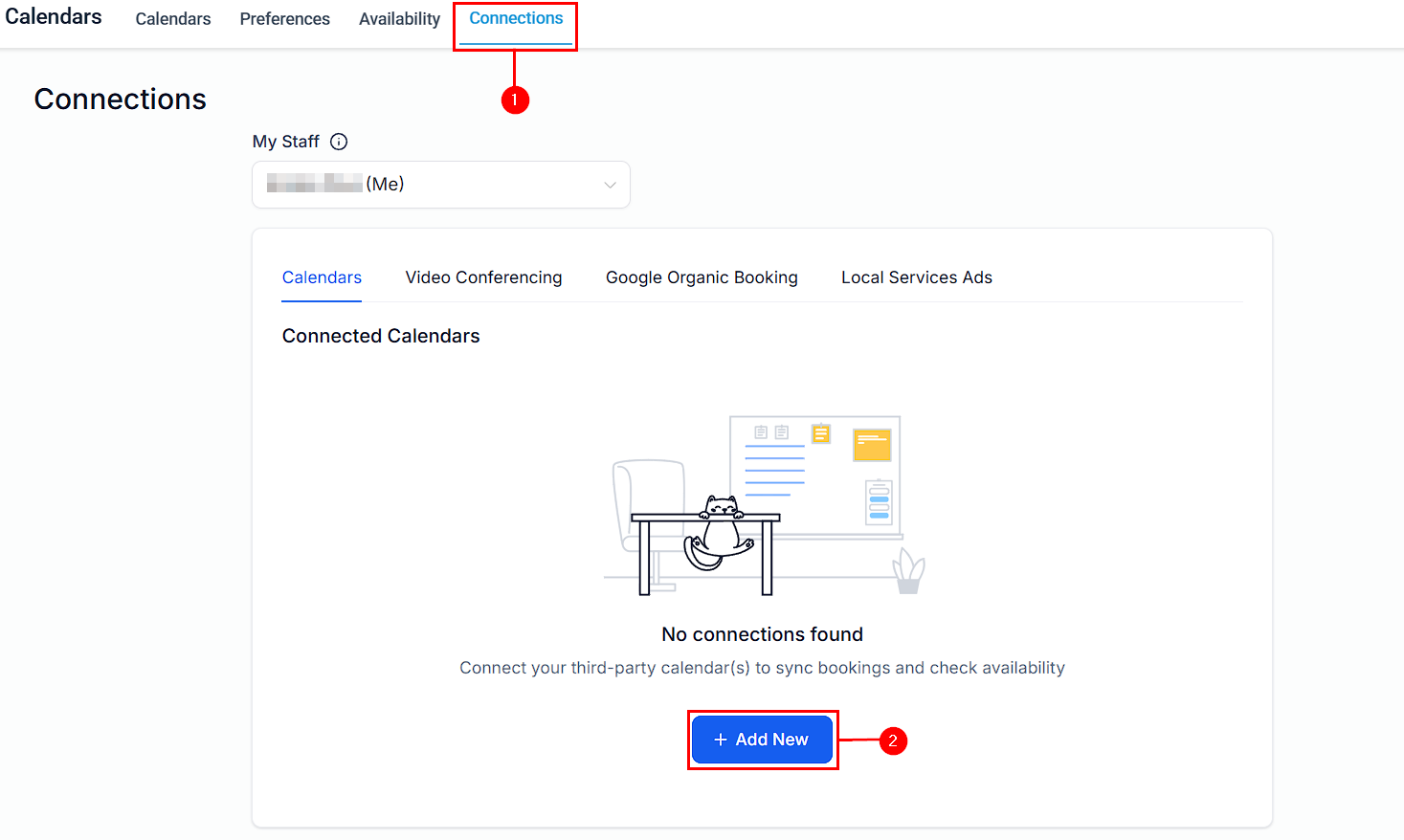
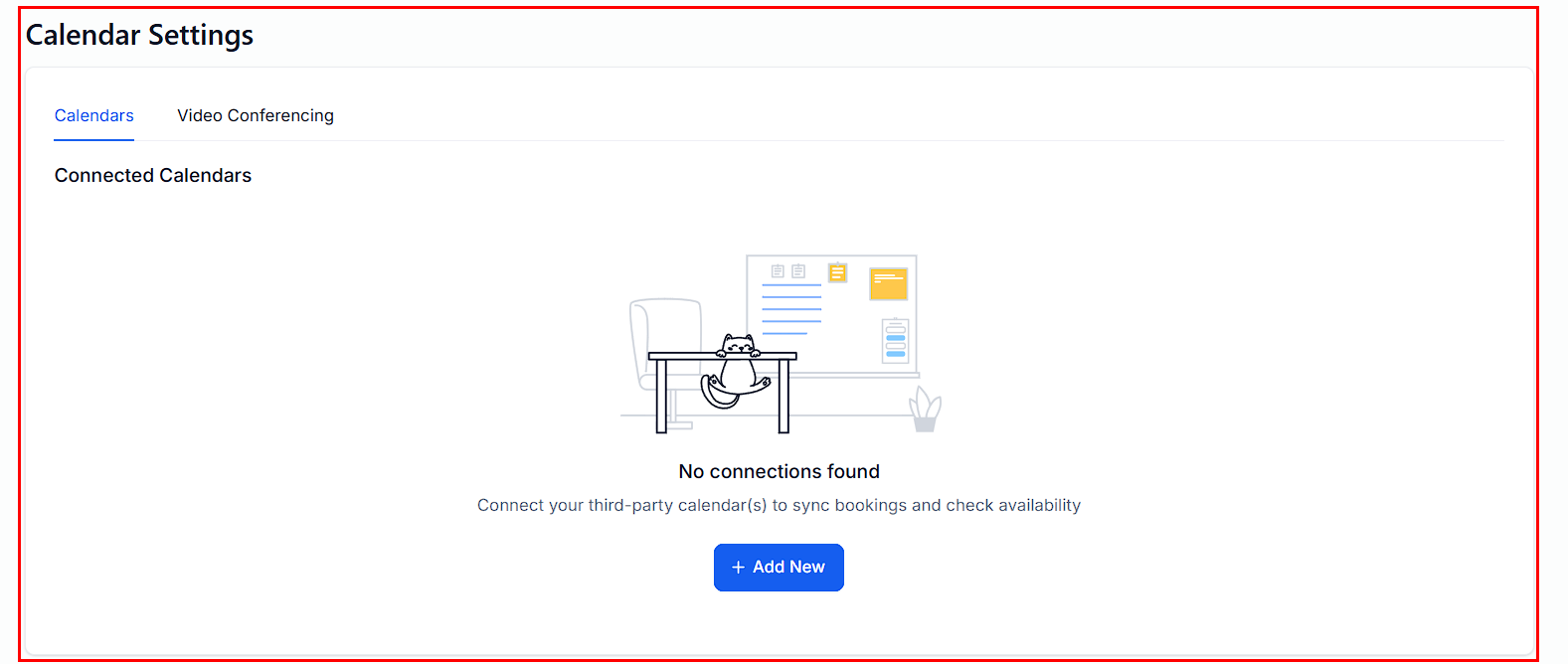
To connect your Google Calendar directly without integrating your entire Google account, go to Settings > Calendars > Connections > Add New.
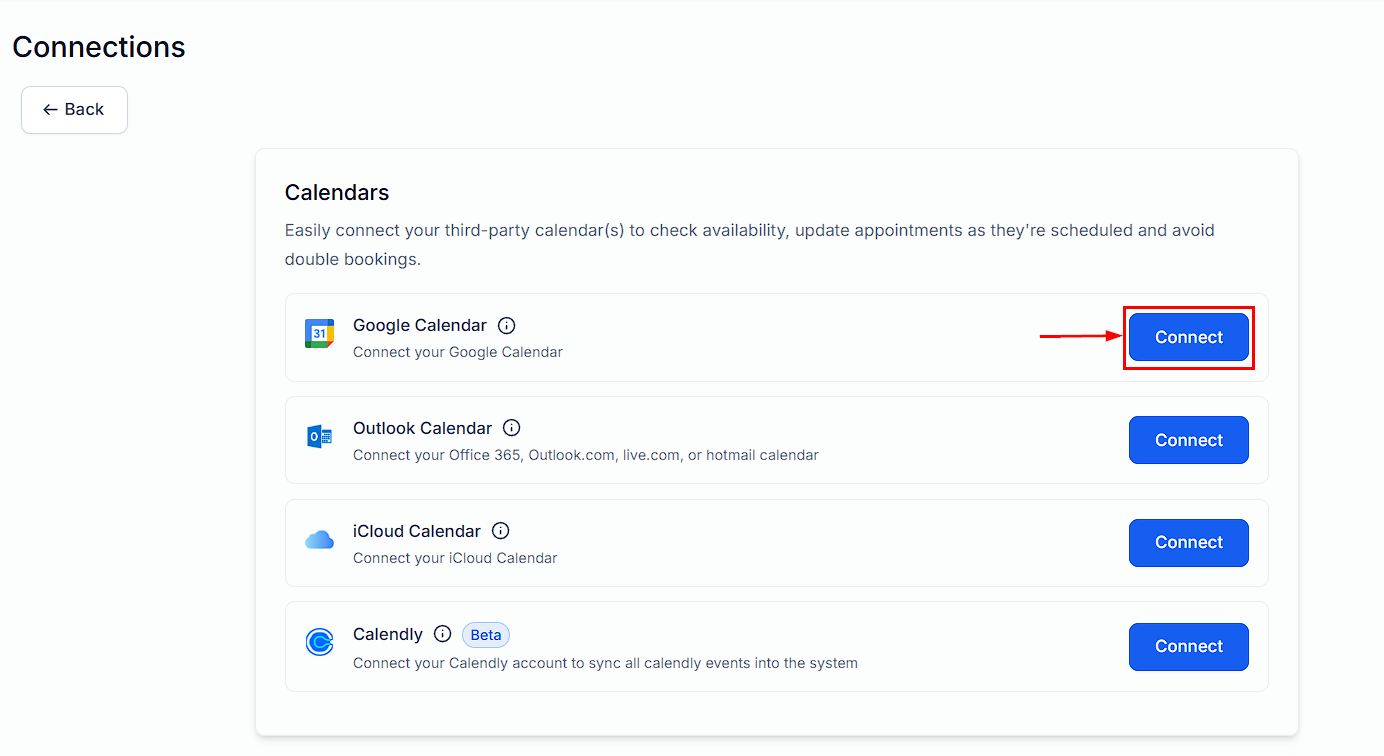
On the Google Calendar option, select Connect.
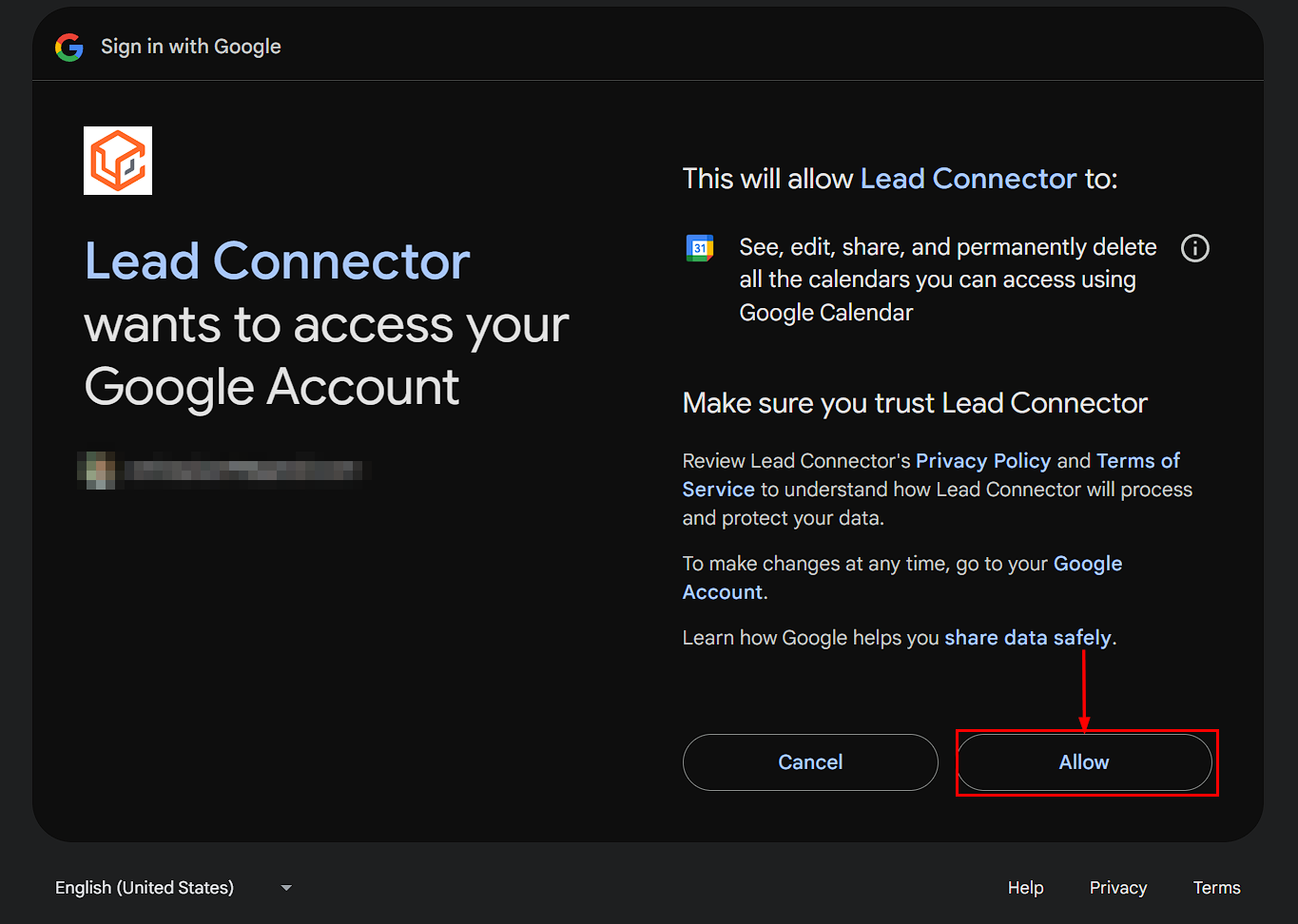
Authenticate by choosing your Google account and clicking “Allow” to grant access. This process ensures minimal permissions, requesting access only for Google Calendar and Google Meet.
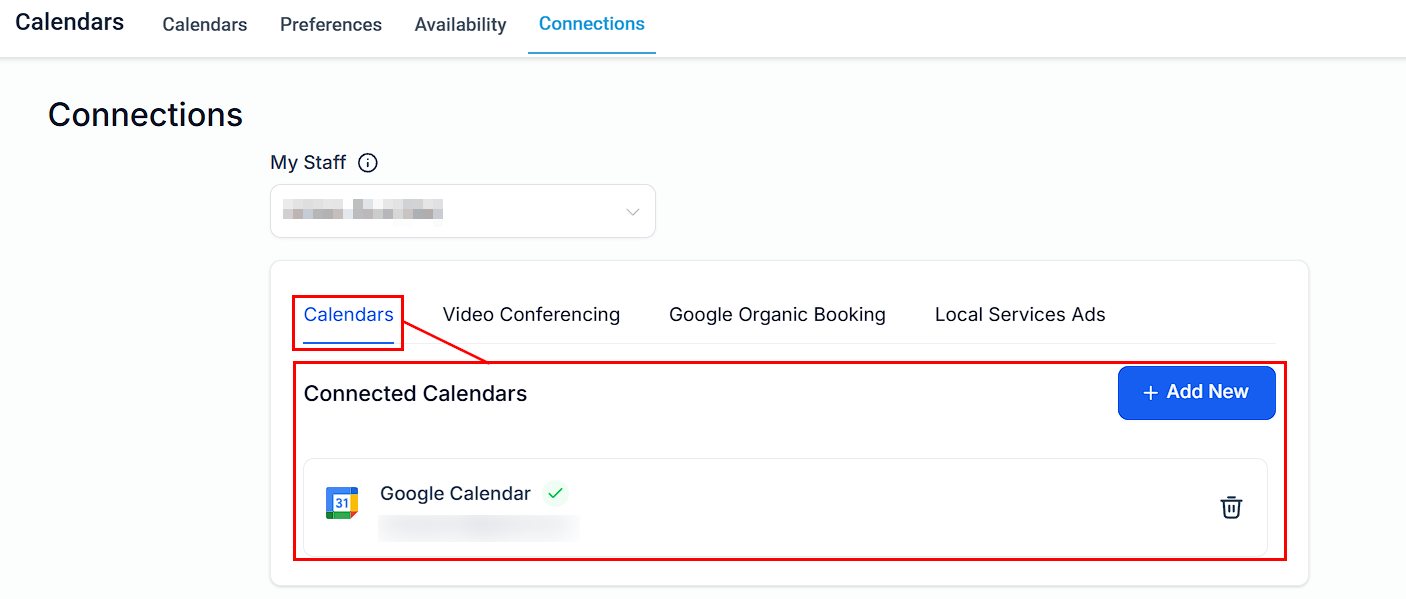
You can find your connected Google Calendar under the Calendars tab.
Connect Your Google Calendar via My Profile
If you prefer, you can also navigate to My Profile > Calendar Settings and follow the same steps to connect your Google account. Once connected in either section, your schedule will be synchronized across the system, ensuring all updates are accurate.
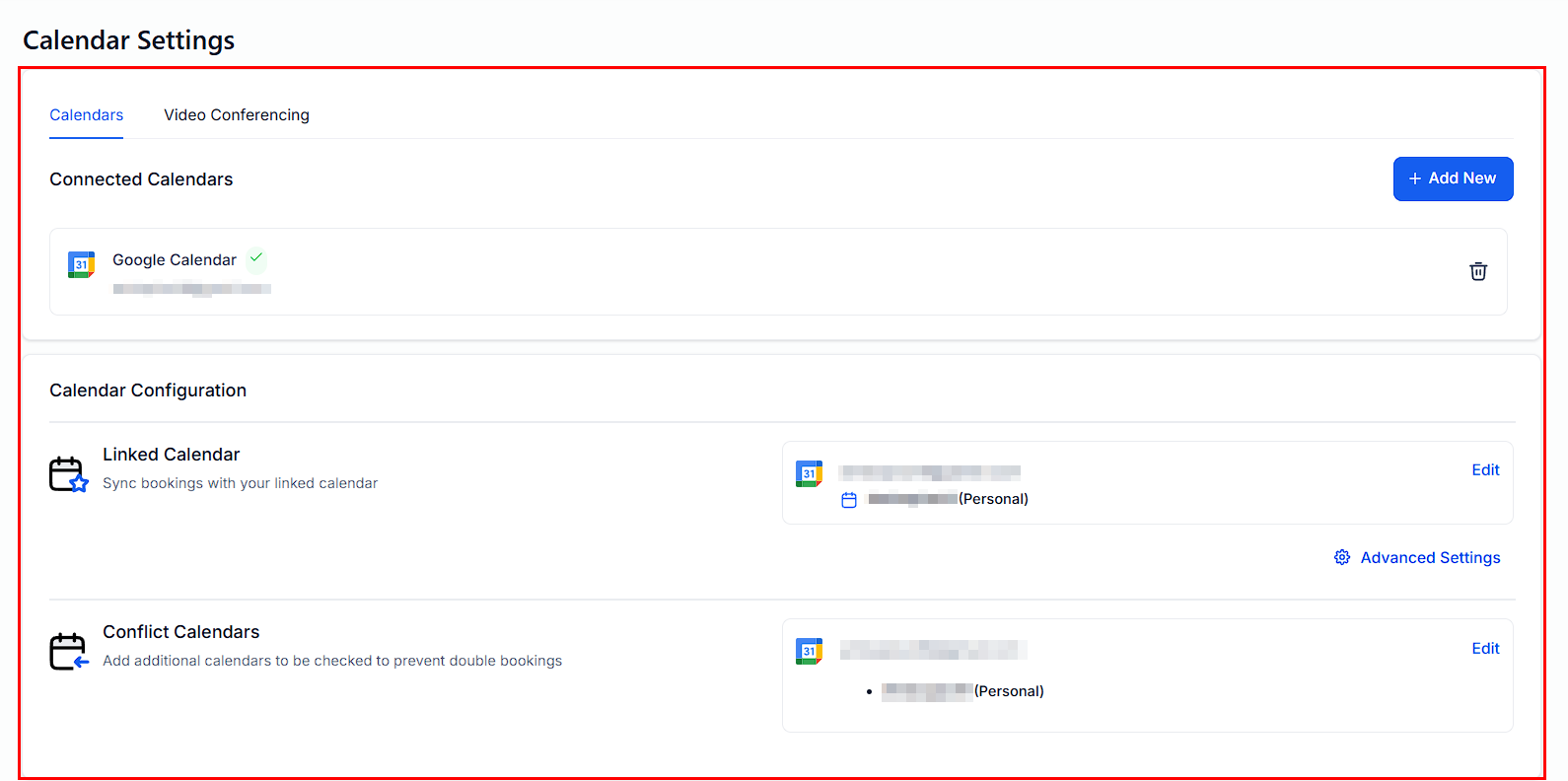
Next, review your calendar configuration within the My Profile or the Calendars section to confirm that a calendar has been selected for synchronization.
Create a Test Event in Google Calendar
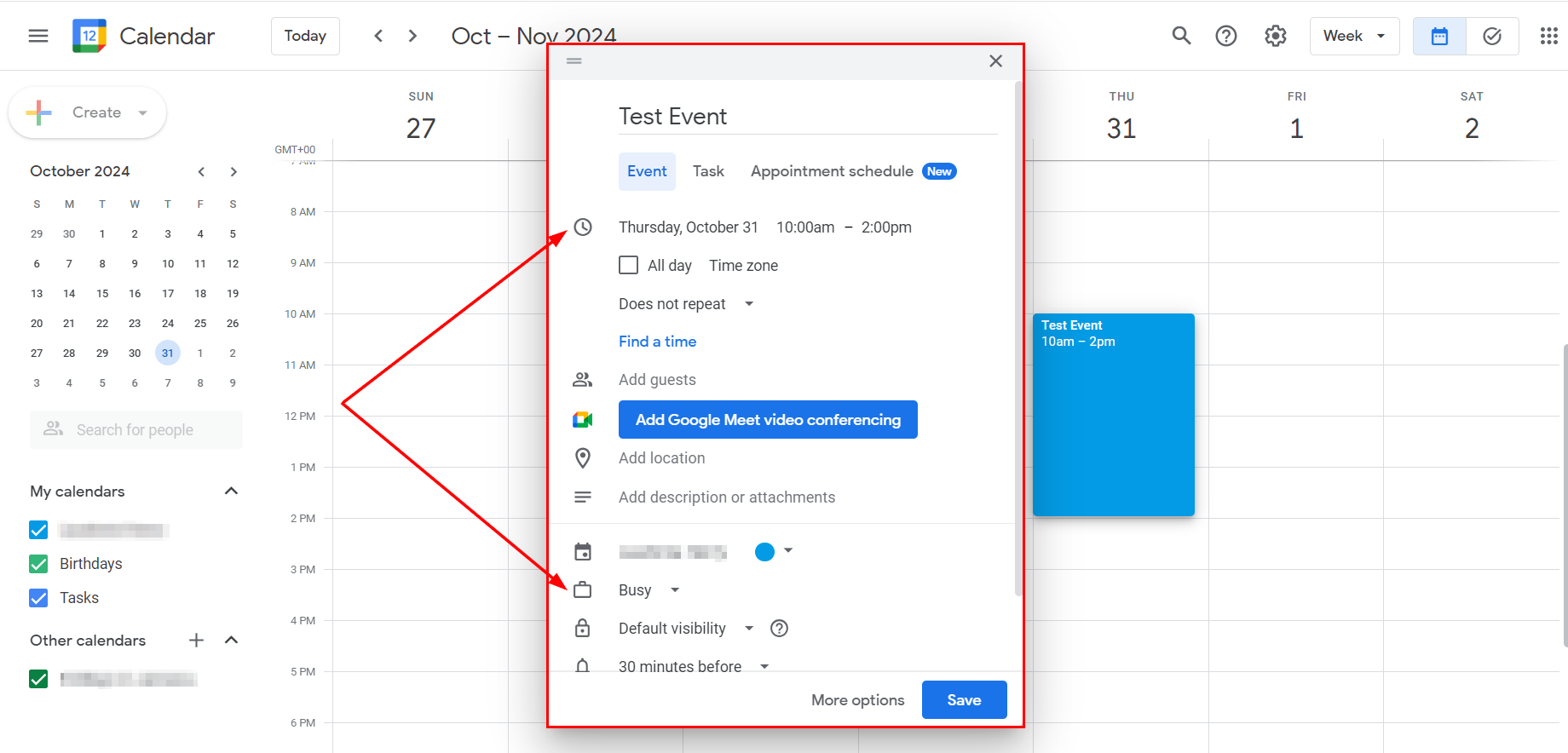
Open your Google Calendar and select a date for your test event. For this example, let’s use October 31st. Create an event from 10 a.m. to 2 p.m. and mark yourself as busy. This will be our test event to check for synchronization.
Verify the Synchronization
After setting up the test event, go to your CRM calendar. If you’re part of a group calendar, ensure you’re viewing the correct one. Adjust the calendar view to match the date and time zone of your test event.
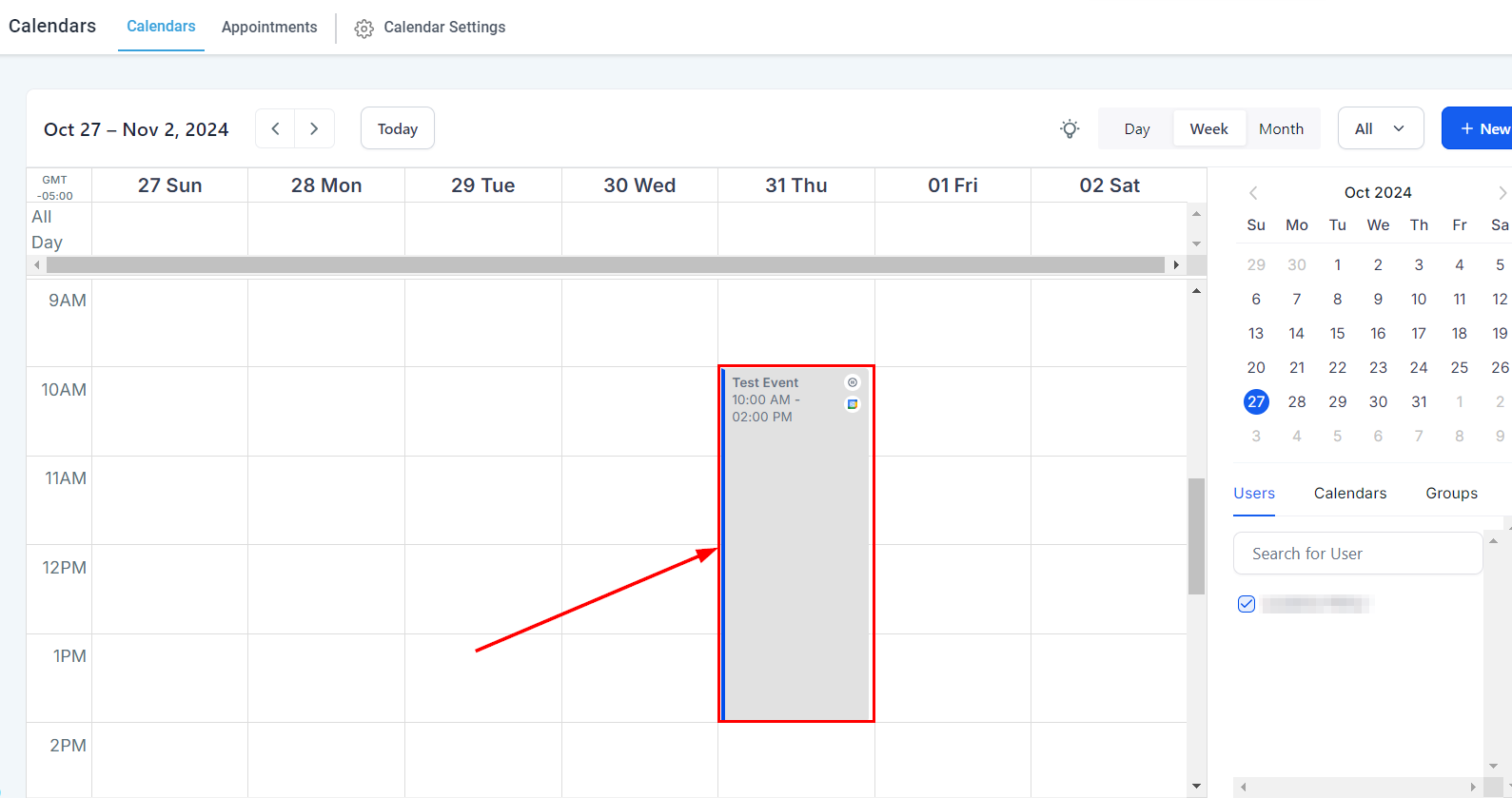
The live calendar should now reflect available time slots, excluding the period of your test event, with the 10 a.m. to 2 p.m. window marked as busy. The display of your calendar will vary based on the configured meeting intervals and durations.
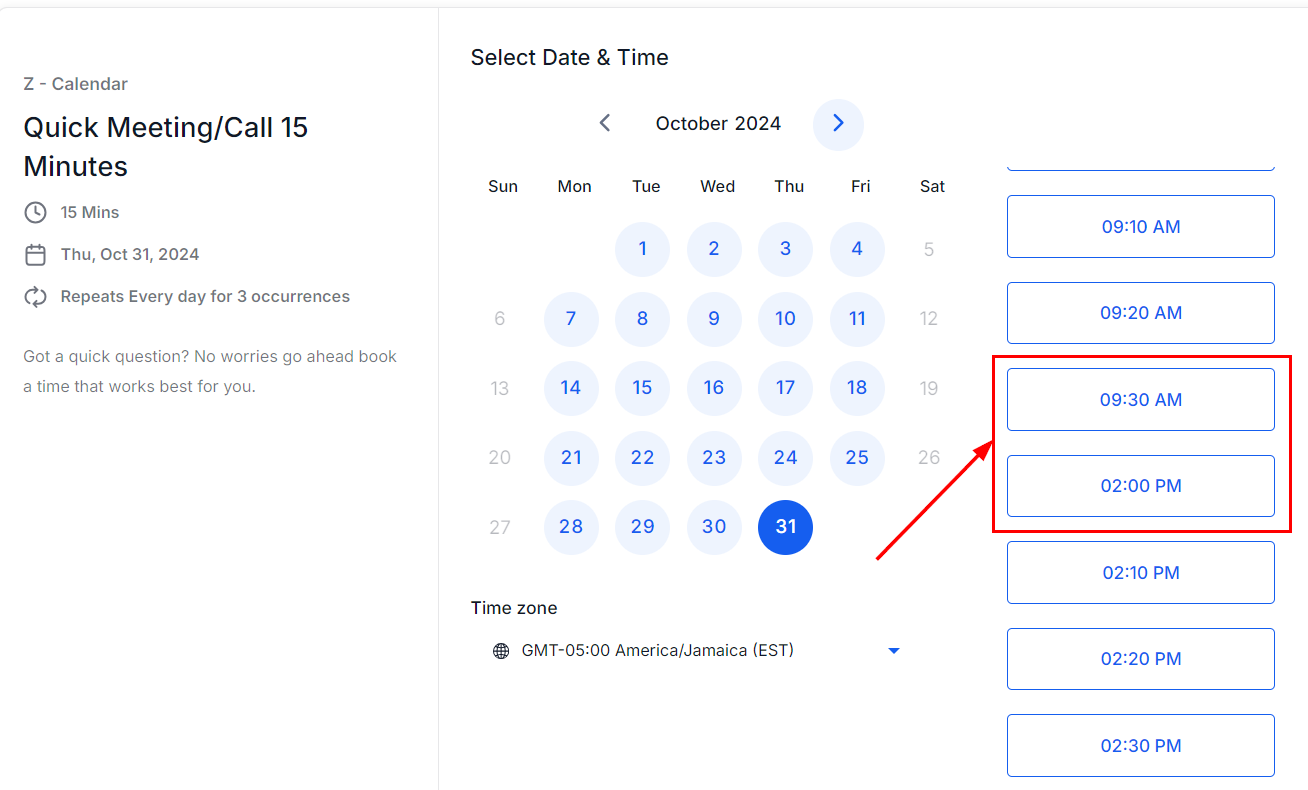
Refresh the CRM calendar view if necessary to ensure it’s updated.
By following the outlined steps for connecting your calendars, you can effectively manage your time and enhance your workflow.
Troubleshooting Tips
If the synchronization doesn’t seem to be working, consider the following tips:
- Check Your Internet Connection: Ensure you have a stable internet connection for the changes to sync properly.
- Review Calendar Settings: Double-check that the correct Google Calendar is connected to the Calendar tab.
- Wait a Few Minutes: Sometimes, synchronization may take a few minutes. Give it some time, and then check again.
Frequently Asked Questions
Q: What if I delete an event in Google Calendar?
- Deleted events should also be removed from the CRM calendar upon the next synchronization.
Not a Funnelbud customer yet?
Try our all-in-one CRM for sales and marketing — free for 7 days, no commitment.