Product List Element
Your e-commerce store bridges the gap between customers and your products. This is the front of your business, displaying everything you offer.
Whenever you create a store, it will automatically add the Product List, think about it like virtual product shelves, where everything is displayed. It keeps a view of all products you’ve created, with the option to add to store toggled on.
How It Works
General
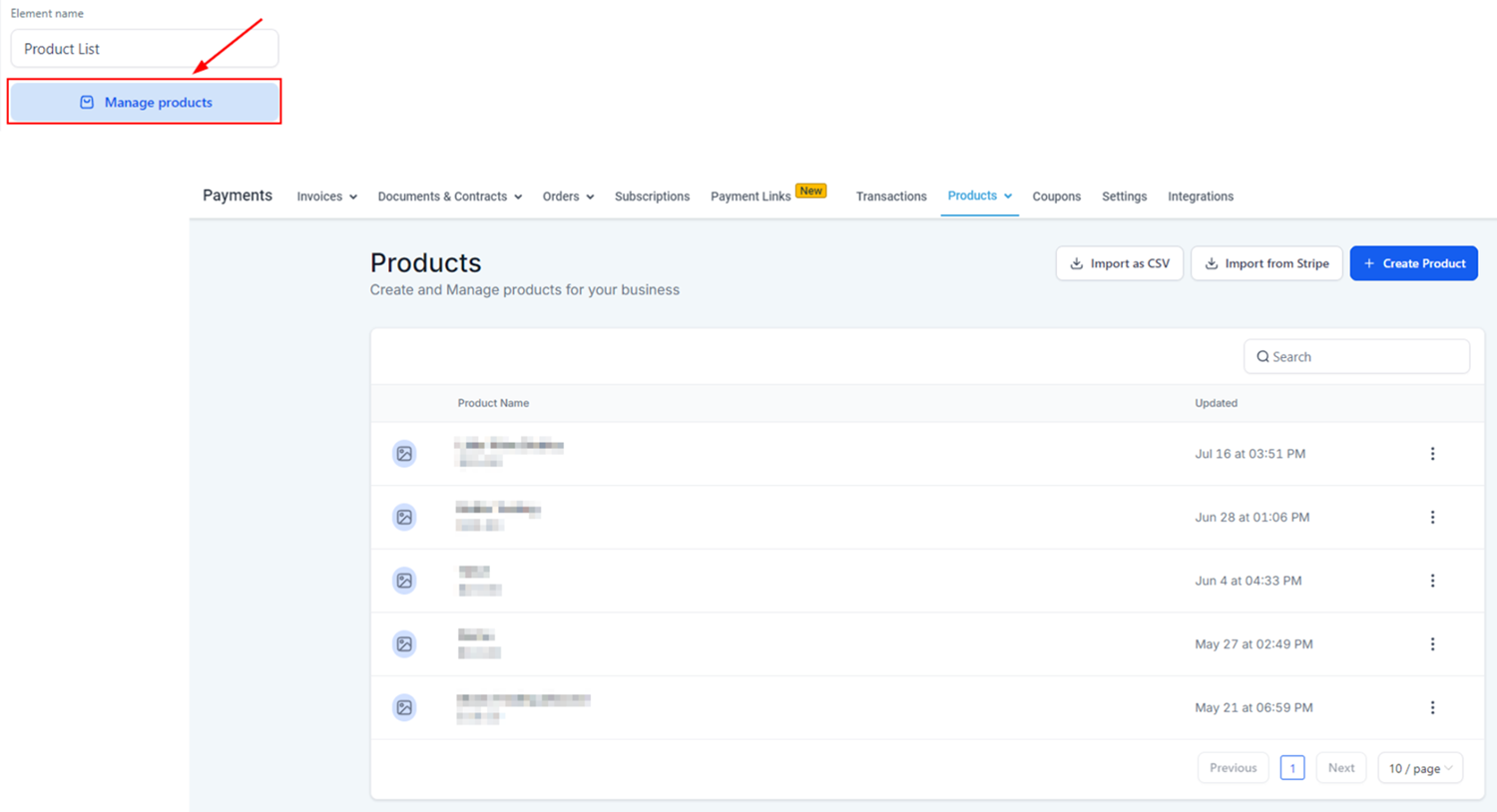
Open the settings on the right side, by clicking on Manage Products, you will be redirected to the products tab to edit or create more.
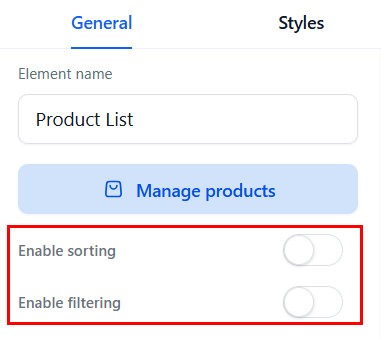
You can enable Filter and Sort to give clients more control over the results they see.
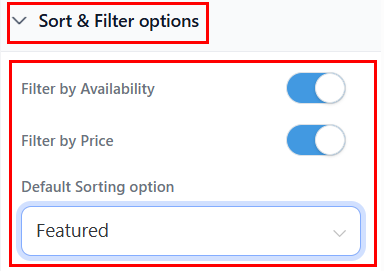
Expand the Sort & Filter options to limit the filtering to only do so based on Availability or Price, and set the default sorting option.
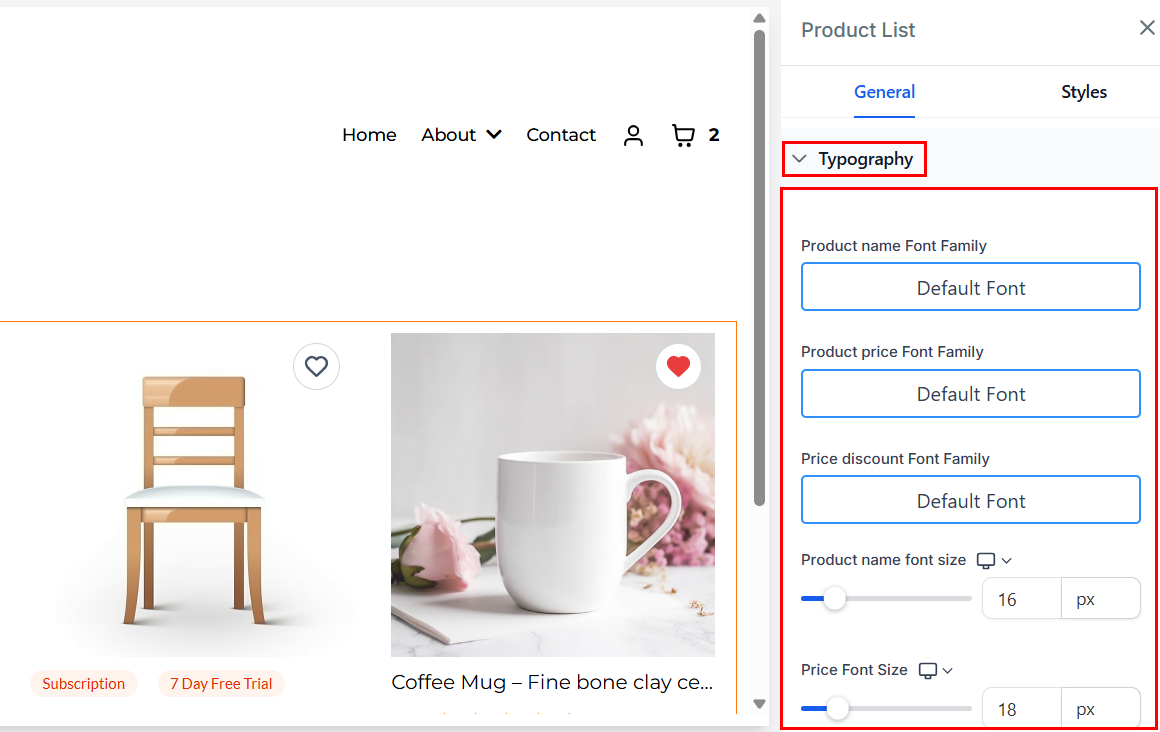
Typography options let you control the look of the text related to products, you can use Google Fonts to personalize this.
With Layout Options, you can control how many products show per page (1) and the number of columns they are organized in (2).
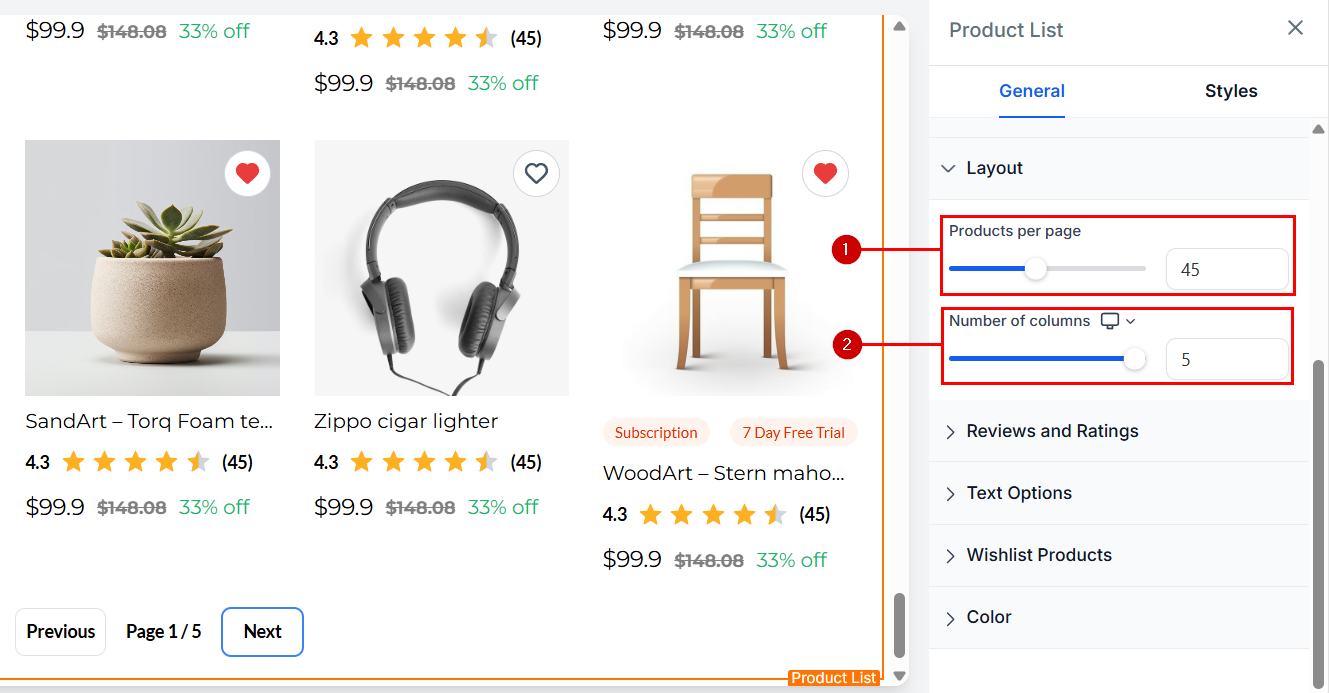
📌Note: You can add up to 100 products per page.
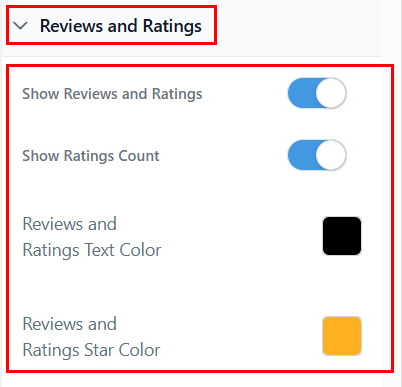
The Reviews and Ratings section allows you to choose whether to display the number of ratings you have received for each product, as well as the detailed reviews. You can also customize the color of the ratings text and stars here.
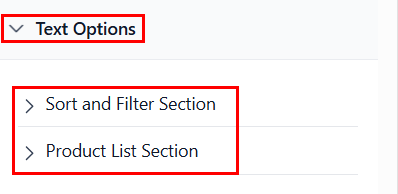
With Text Options, you can update the display labels to better align with your brand identity.
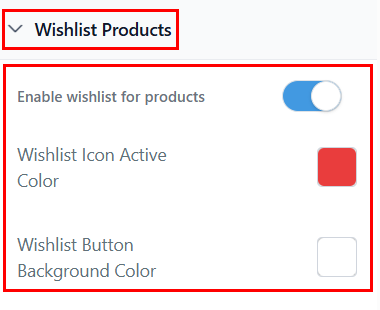
Enable the wishlist for products so logged-in clients can save the products they love to checkout at a later time.
Need to make any other color adjustments? Scroll to the bottom of the General settings to make your changes.
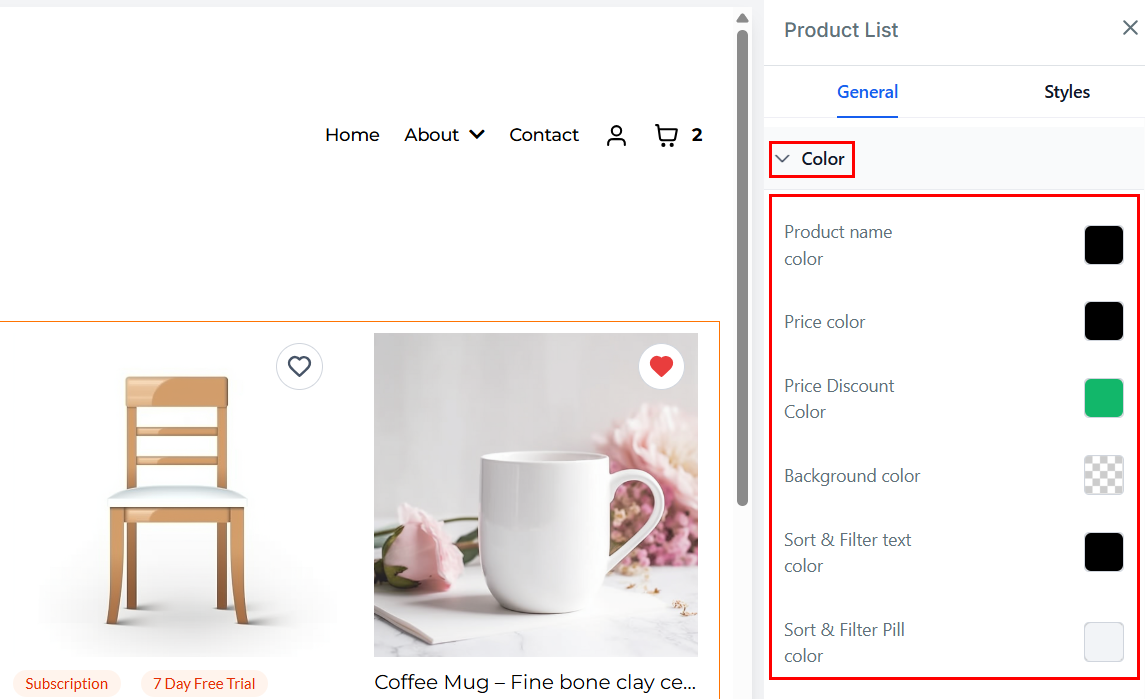
Styles
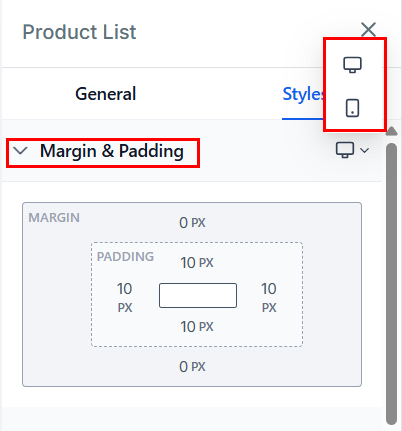
Switch to the Styles tab to customize the Margin & Padding of the element for both desktop and mobile views.
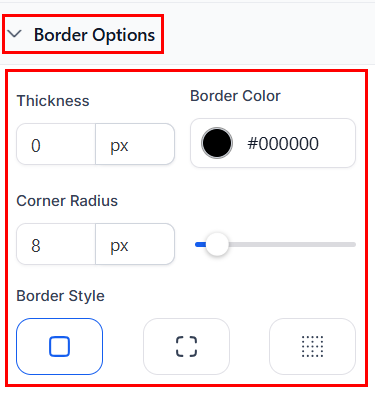
You can also adjust the appearance of the border, including its color, thickness, radius, and style.
Apply box shadows to fit your design needs. Click the plus button to apply a default outer shadow with preset values, which can be further customized with specific settings.
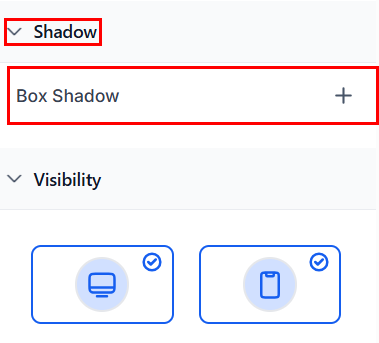
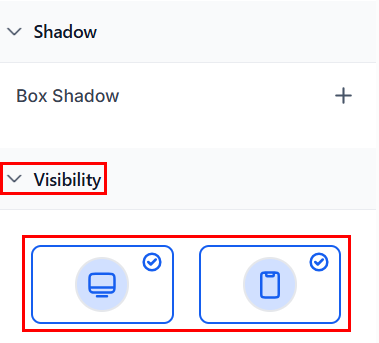
Changing the Visibility you can make the element unavailable on desktop or mobile view.
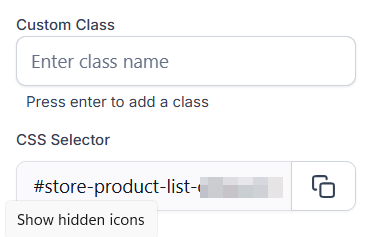
Enter or paste your custom class code in the provided field and copy the CSS Selector if needed.
The Product List element will be the driving force for sales in your e-commerce store, and being able to customize it will give you an edge over other stores to promote your business and products and drive traffic over to your website!
📌Important Notes
- If you don’t see a product listed, verify that you’ve toggled Include in Online store.
- The default sort order is Date - Old to new
- All products will be shown without any filters by default.
Not a Funnelbud customer yet?
Try our all-in-one CRM for sales and marketing — free for 7 days, no commitment.