Facebook Integration and Lead Management
Integrating Facebook with your CRM can significantly enhance your capabilities by streamlining lead capture and management from Facebook ads. By following these instructions, you will ensure a seamless connection to Facebook, leading to more efficient lead tracking and follow-up.
How it Works
Creating a Facebook Ad
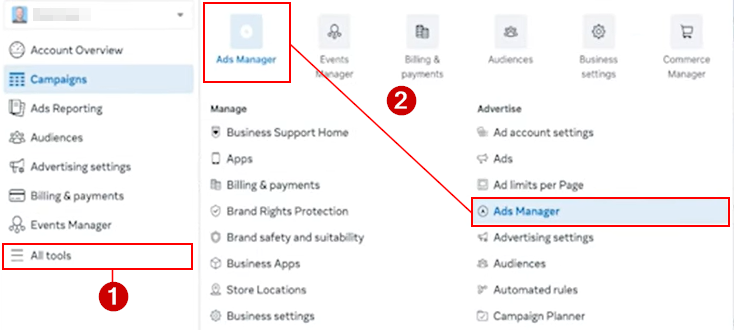
Log in to your Facebook account, then head to the Ad Manager to create a lead generation campaign.
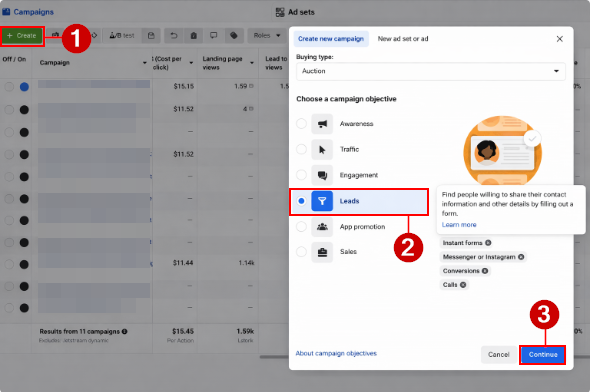
Once there, click create on the upper left-hand section and select leads from the available options.
Create a lead form for the ad that includes fields such as first name, last name, phone, and email.
Mapping Form Fields
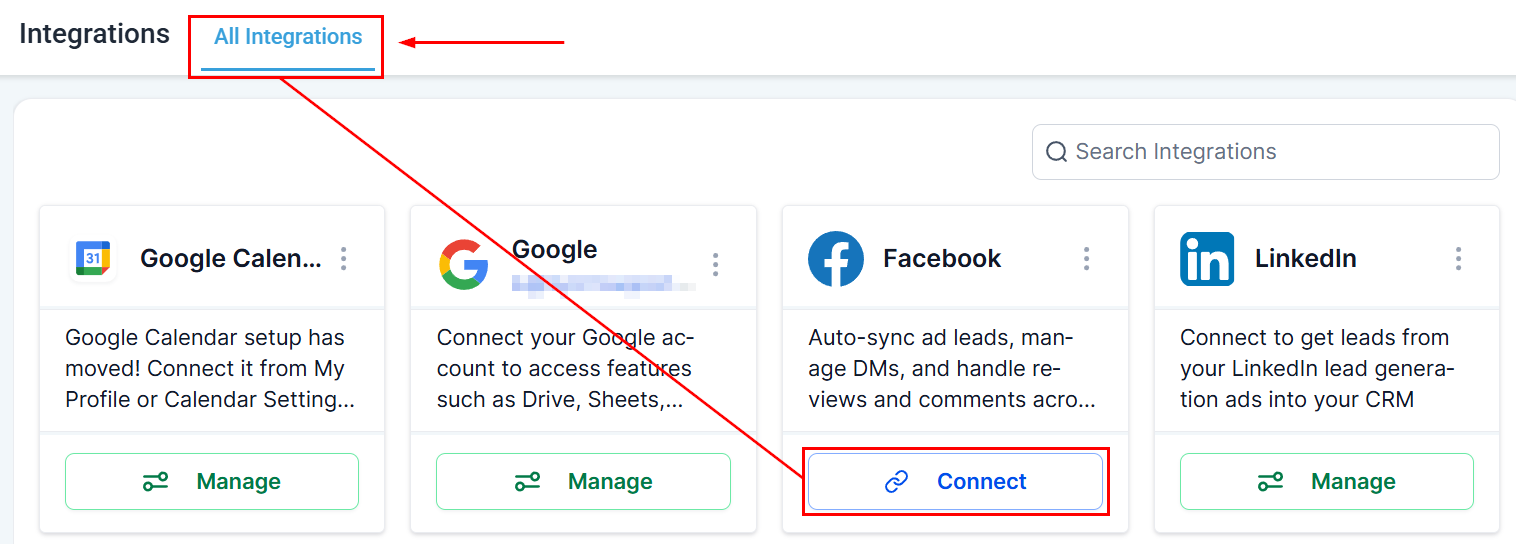
Now that you have your form set up, navigate to the CRM settings and go to the ‘Integrations’ section. Here, you will see the Facebook integration either connected already or waiting to be connected.
If you have not yet connected your account, click Connect and follow the prompts. For detailed guidance, refer to the “Connecting Facebook and Instagram” article in this section.
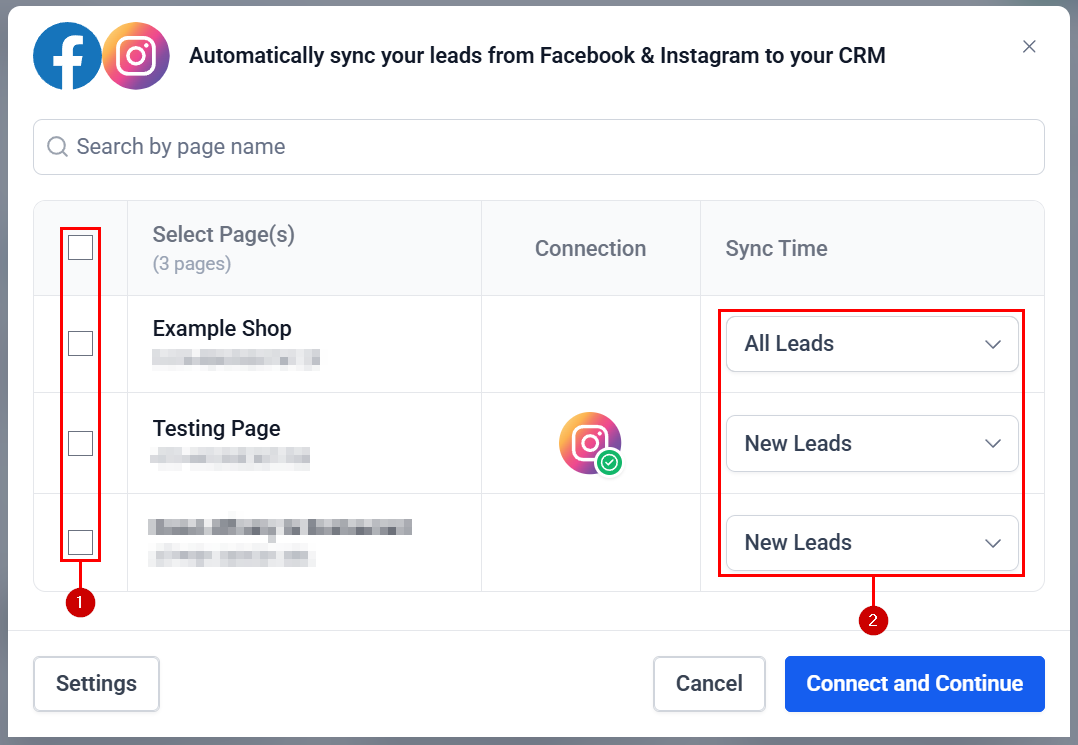
Select the pages you want to connect (1) and if you want to sync only new leads or all Facebook links upon connection (2), then click connect and continue.
Once your account is connected, proceed to managing the leads generated from Facebook by navigating directly to the Form Field Mapping section.
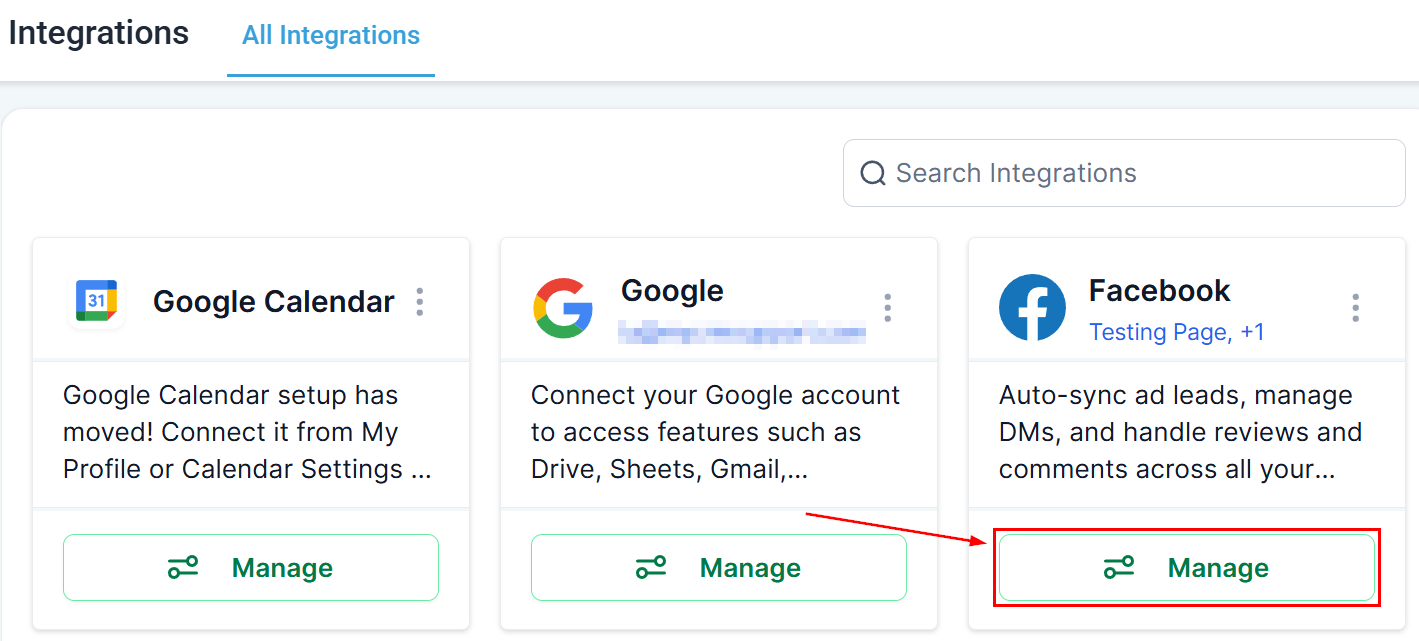
If you are completing the integration for the first time, this step will appear automatically as part of the setup process.
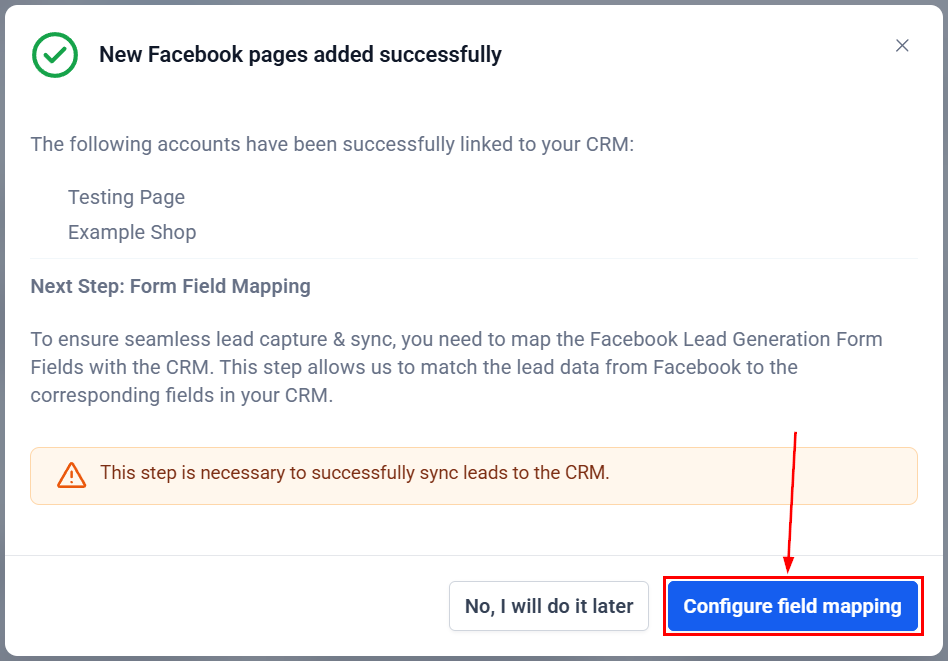
Edi
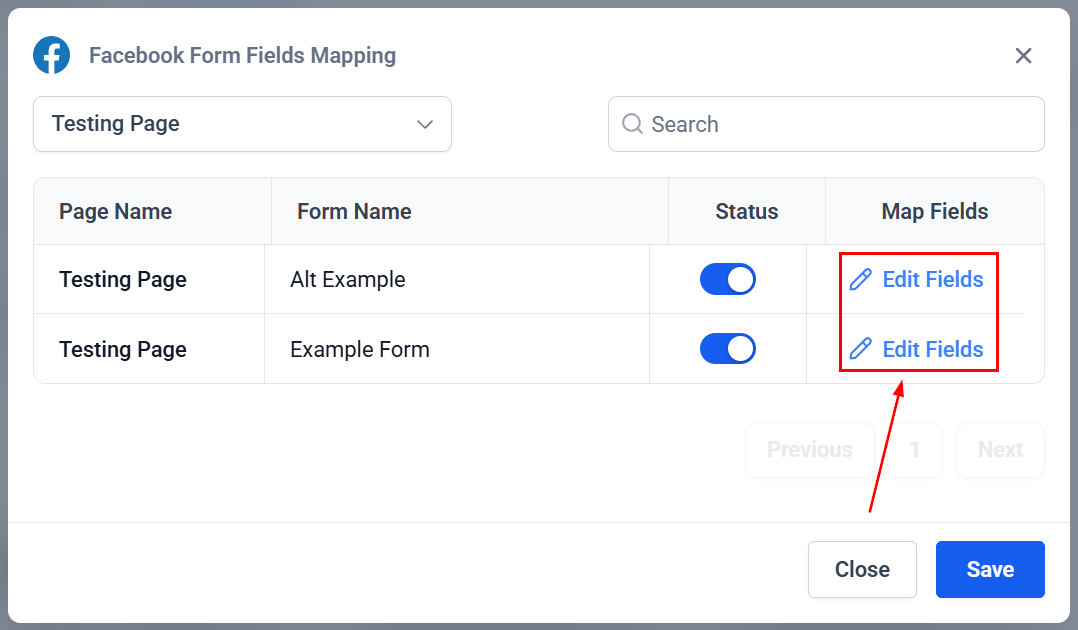
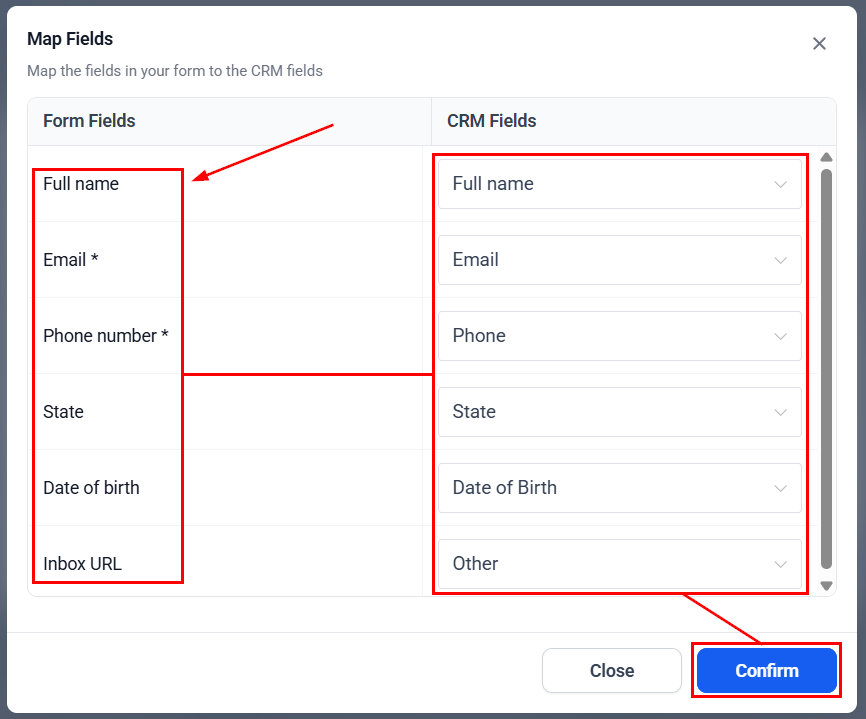
Ensure the field mapping is correctly configured to match the CRM fields to the form fields, then confirm your pairings.
Setting Up Automation
After mapping form fields, you can create automation to update opportunities, add a contact tag, and include the lead in a nurturing campaign when the Facebook form is submitted.
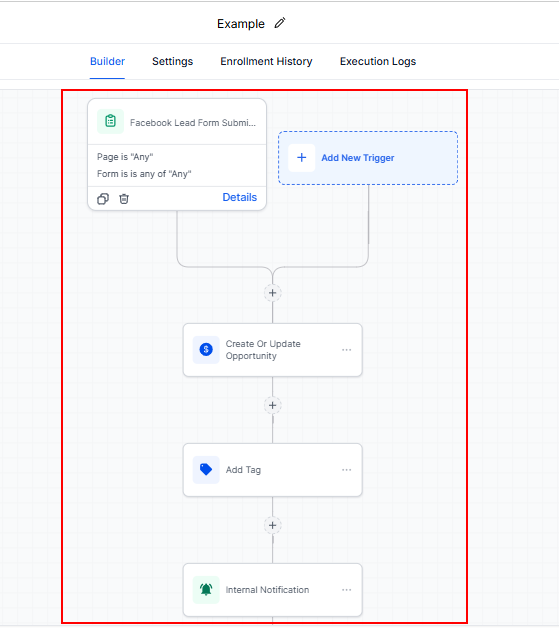
Once your Facebook integration is established and lead management processes are set up, you will be equipped to efficiently handle and nurture leads generated from your Facebook ad campaigns. Regularly verify the integration, map form fields accurately, and configure triggers and notifications to optimize your lead management.
Troubleshooting Tips
Integration Not Showing
- If the integration doesn’t appear immediately, try refreshing the page or rechecking your Facebook settings.
Form Mapping Issues
- Ensure that the form fields in Facebook match the fields in the CRM. Incorrect mapping can lead to data loss.
Not a Funnelbud customer yet?
Try our all-in-one CRM for sales and marketing — free for 7 days, no commitment.