How to import contact notes
You can import notes into a contact record, but there are two important limitations:
- You can import one note per import session
- Each note can be max 5000 characters
In order to import, therefore, follow the below steps:
Preparation
- Export all your notes from the other system. Ensure that you have one column with the contacts email or phone number as the unique identifier for each note.
- Using Excel formulas, merge all your notes for each contact so that you get a cell with this structure: Each row is one contact, where the contact’s email address is in one column and all notes for that contact merged into a single cell in the next column. You can use excel formulas to accomplish this, and to make formatting so that each note is separated by spacing and date stamps so that it has the structure you want. Make it so that the newest notes are at the top.
- Since there is a 5000 character limit, we need to separate longer notes into new cells. Use excel formulas to see if any individual cell is more than this, and if so, cut and paste (or use formulas) that to the “overflow” into the next column. Call this column “Notes 2” for example. Repeat this process again for this column until you have no more cells with over 5000 characters.
Importing
Import your sheet with the notes using the regular import function.
Map the Notes column to “Notes” in the import tool:
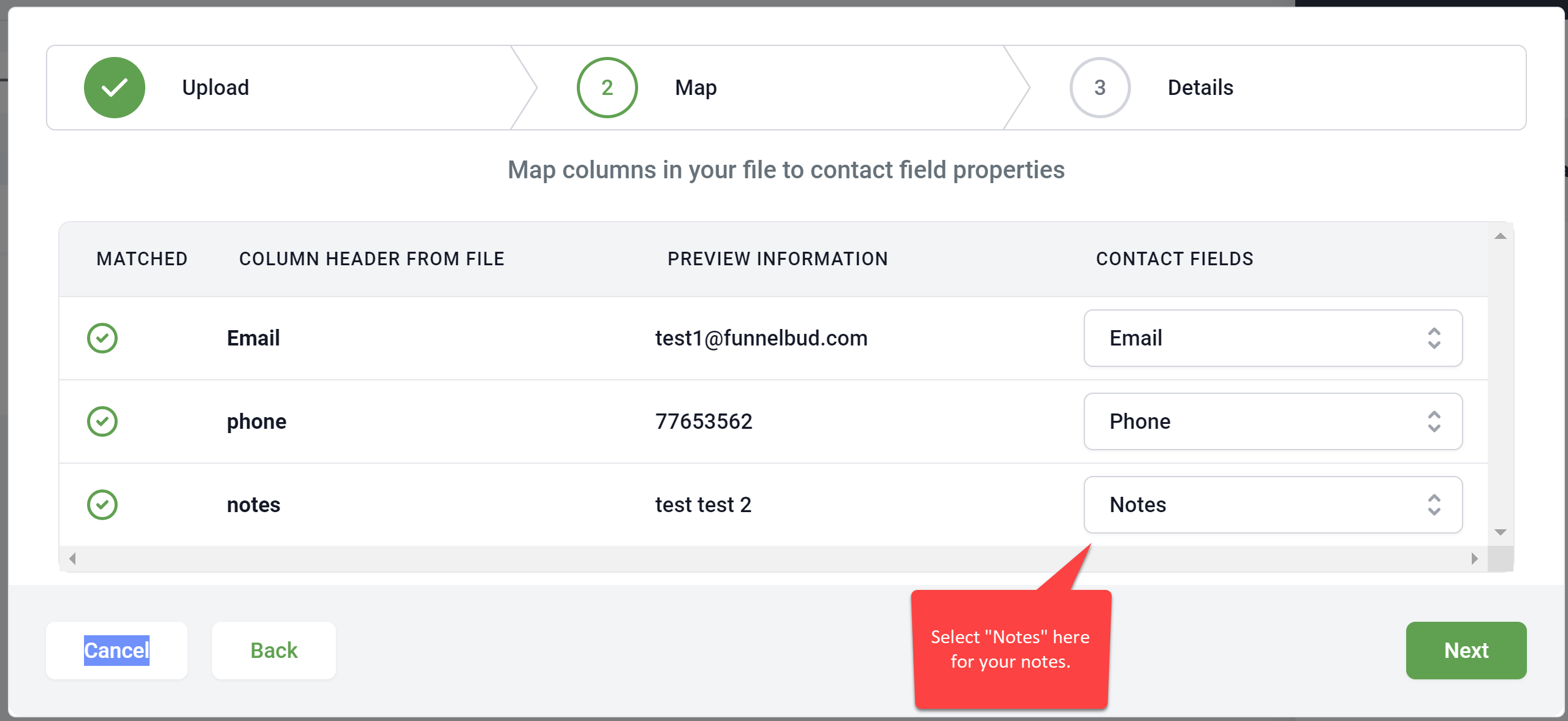
If you have multiple notes columns (because they exceeded 5000 characters), repeat the import but this time select the second column. Repeat this column until you have imported all columns.
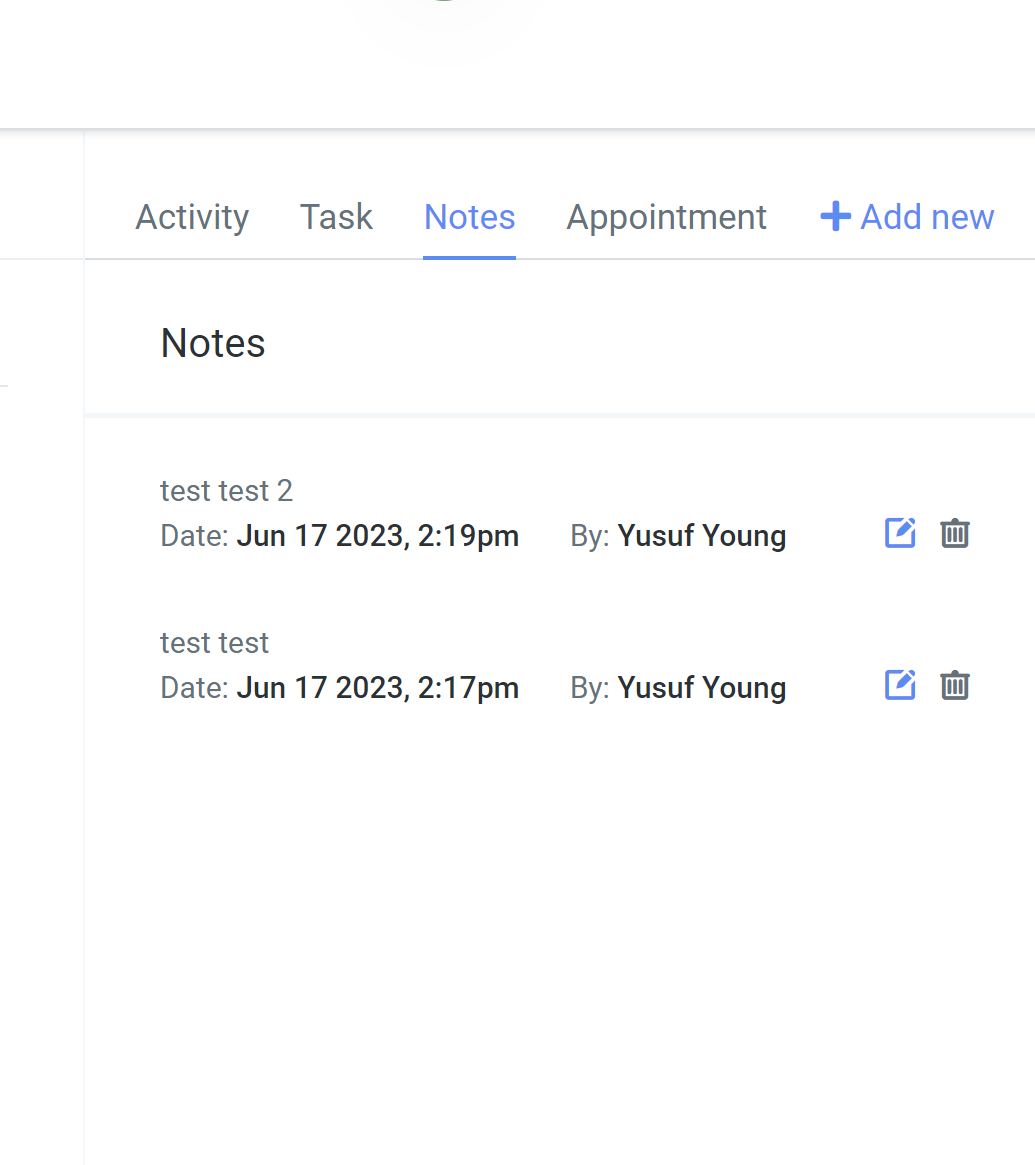
You have now imported all your old notes, and it will look something like this:
Not a Funnelbud customer yet?
Try our all-in-one CRM for sales and marketing — free for 7 days, no commitment.