Troubleshooting Importing Contacts
The Bulk Actions feature provides a streamlined way to monitor and manage your contact imports, including those that may have encountered errors. In this guide, we will walk you through the steps to navigate to the Bulk Actions section, check the status of your imports, and review error logs to address any issues. By understanding how to interpret and resolve common import errors, you can ensure a smooth and efficient data import process.
Navigating to Bulk Actions
Begin by navigating to the ‘Contacts’ section within the CRM, then proceed to the ‘Bulk Actions’ tab. Here, you will find a record of your recent CSV imports, including any that may not have fully succeeded.
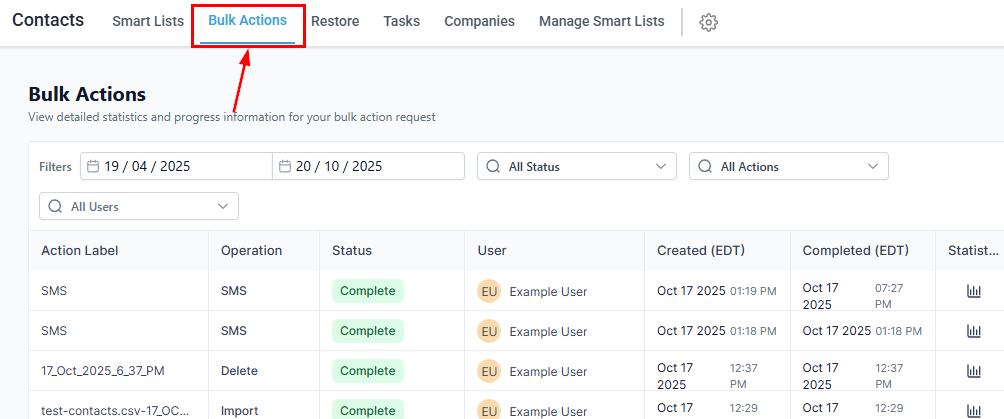
Checking Import Status
Locate the import and click Show Stats to review its results.
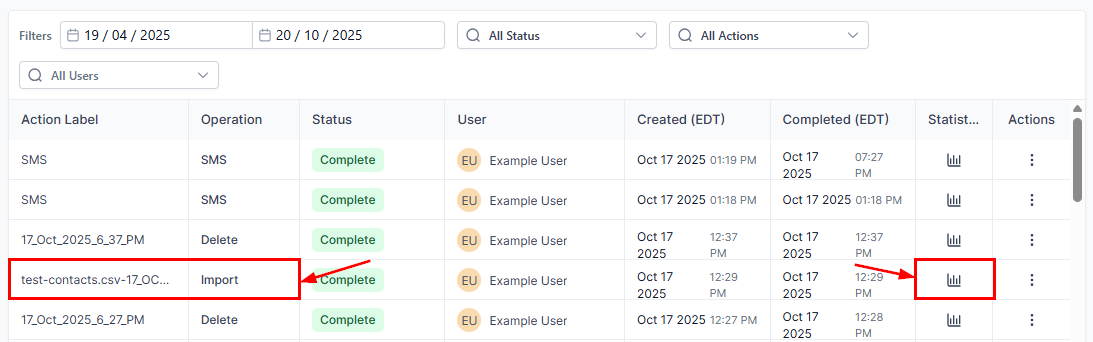
Reviewing Import Statistics
The Bulk Import Stats section provides an overview of the total contacts imported, along with a detailed breakdown of successful imports and any errors encountered.
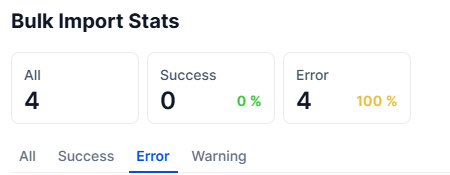
To delve into the specifics of what went wrong, click the Error tab. Errors are organized by line number, corresponding to the contacts in your CSV file. For instance, an error labeled as ‘Line 1’ refers to the first contact in your CSV.
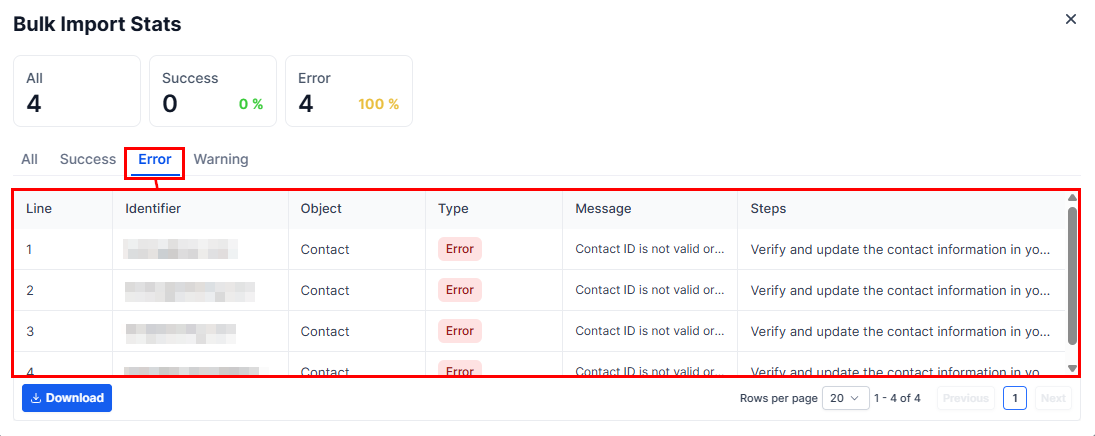
Understanding Error Logs
The error log is your key tool for identifying and correcting issues with your contact import. Here’s how to interpret the information it provides:
- Line Number: Indicates the specific contact (row in your CSV) that encountered an error.
- Error Description: Provides insight into what went wrong, such as formatting issues or missing required fields.
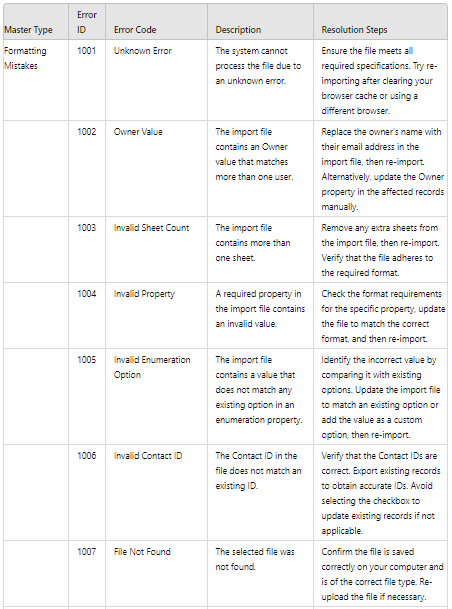
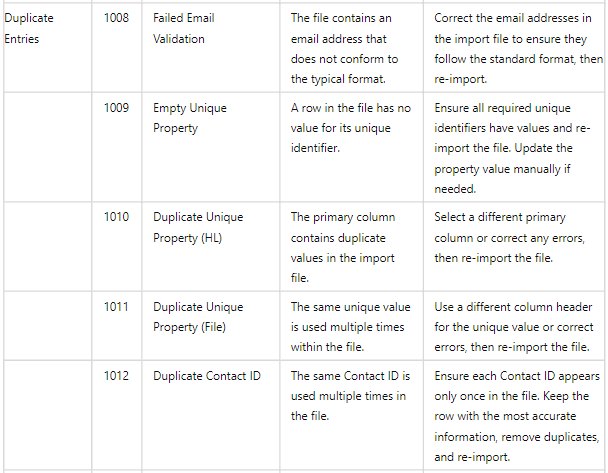
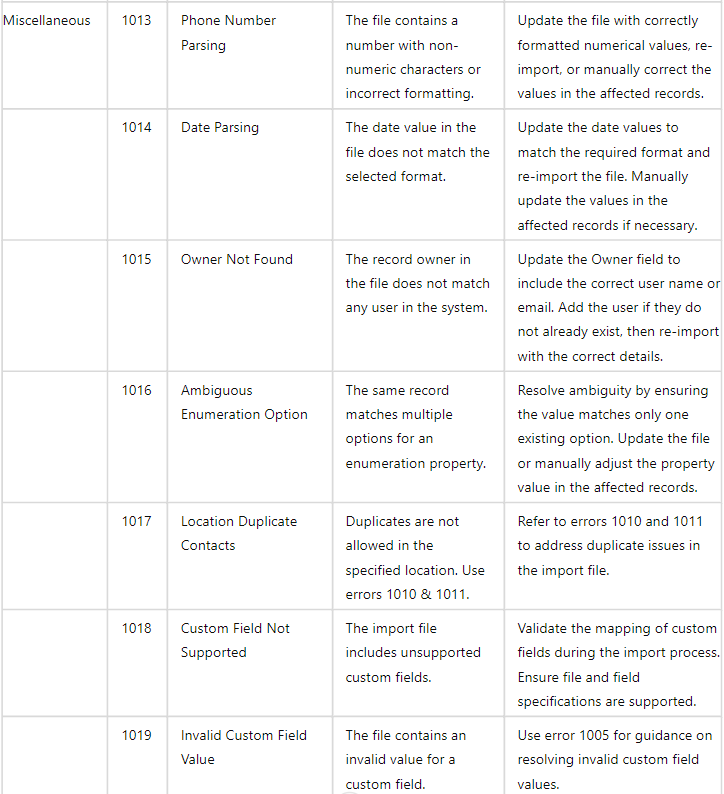
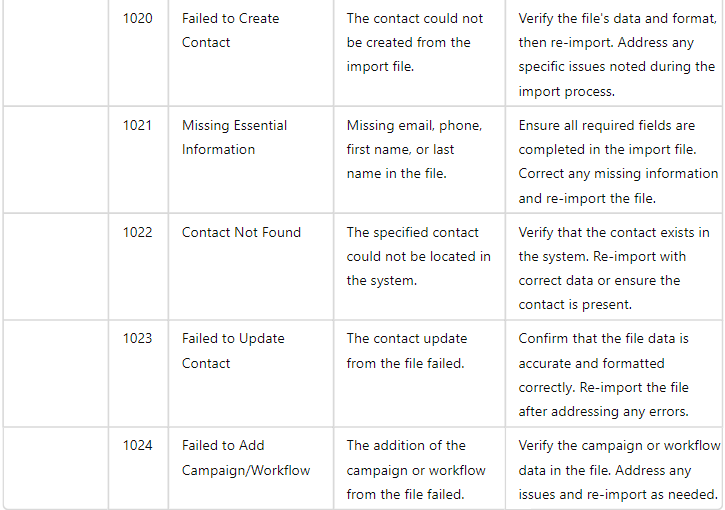
Error Codes and Resolutions
Common Errors and Solutions
While the CRM can encounter a variety of import errors, some are more common than others. Here are a few typical issues and how to resolve them:
- Formatting Errors: Ensure that your CSV file adheres to the required format, including correct column headers and data types.
- Missing Information: Some fields may be mandatory. Double-check that all required information is present for each contact.
- Duplicate Contacts: The CRM might reject contacts that appear to be duplicates of existing entries. Verify the uniqueness of each contact’s information.
Troubleshooting Tips
- Pre-Validation: Before importing, use spreadsheet software to clean and validate your data. This can help prevent common errors.
- Small Batches: If you’re encountering persistent issues, try importing a smaller subset of your contacts. This can make it easier to identify and correct errors.
Frequently Asked Questions
Q: What if my contacts still won’t import after troubleshooting?
- Double-check your CSV for any hidden formatting issues. If problems persist, consider reaching out to support for further assistance.
Q: Can I undo a contact import if I find errors later?
- Yes. You can revert the bulk-imported contacts and re-import them once the errors are corrected.
Not a Funnelbud customer yet?
Try our all-in-one CRM for sales and marketing — free for 7 days, no commitment.