Countdown Timer
A countdown timer visually counts down to a specific deadline, creating a sense of urgency that motivates users to act before time runs out. They are commonly used in marketing campaigns, sales promotions, and event reminders to encourage immediate action. This guide will explore the benefits, types, and best practices for using countdown timers effectively, as well as provide step-by-step instructions for creating one.
Benefits of Countdown Timers
- Creates Urgency: Encourages immediate action by displaying the diminishing time available.
- Increases Conversions: Timers can boost conversion rates by up to 27%.
- Promotes Exclusivity: Highlights limited-time offers, making them feel more exclusive and enticing.
- Enhances Engagement: This keeps users on your page longer and increases their interaction with your content.
When to Use a Countdown Timer
Countdown timers are versatile and can be integrated into various types of emails and campaigns to enhance effectiveness:
- Retail: Indicate the time remaining for special promotions or delivery deadlines.
- Media: Remind subscribers of the remaining time before their subscription expires.
- Events: Count down to an event or the end of ticket pre-sales.
- Transactional Emails: Build excitement for upcoming events, such as attendee notifications for conferences.
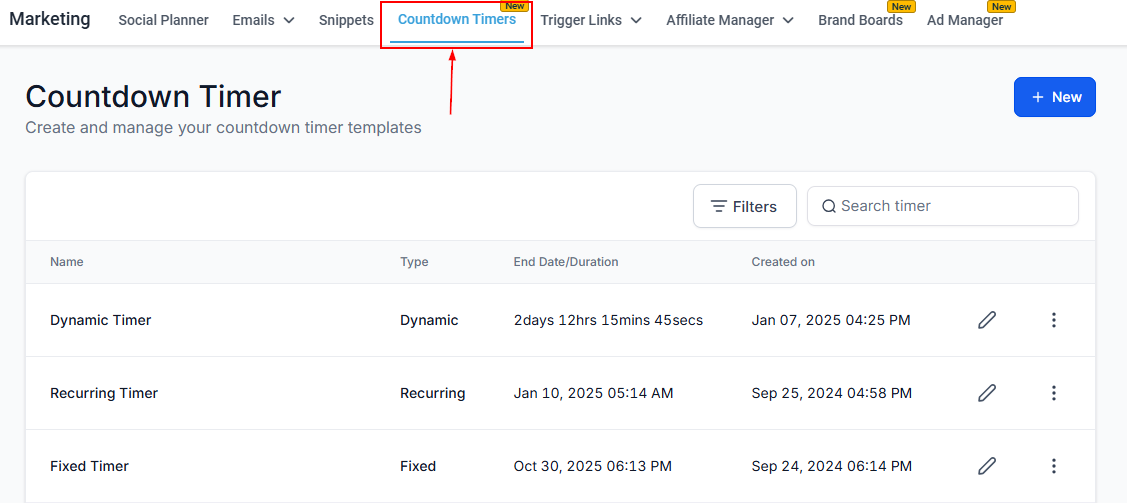
To begin, go to the “Marketing” section of your CRM, and select “Countdown Timers.”
Create a New Countdown Timer
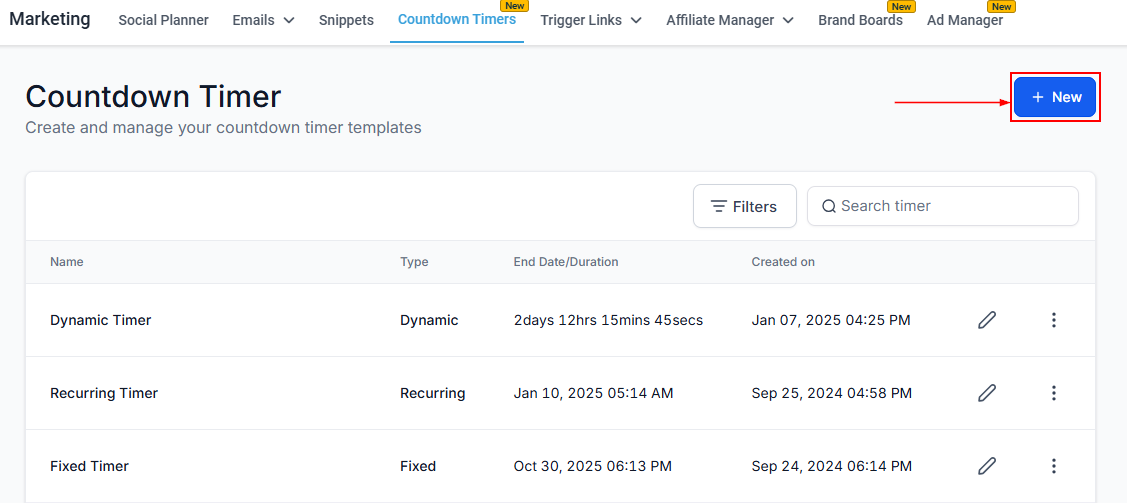
Click the “+ New” button in the upper right-hand corner to start creating your timer.
Select a Template
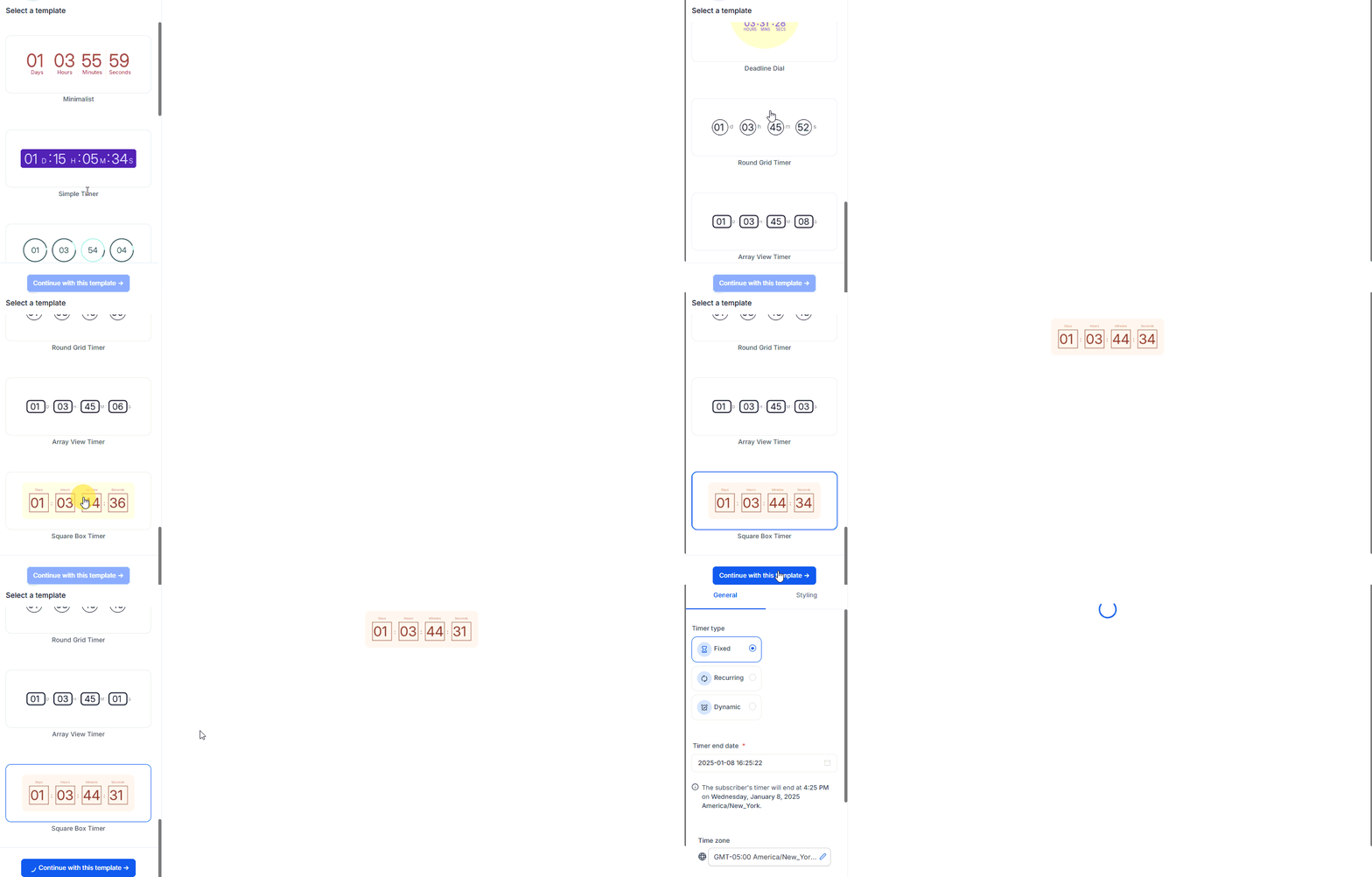
Choose a design template and click “Continue with this template.”
Rename Timer
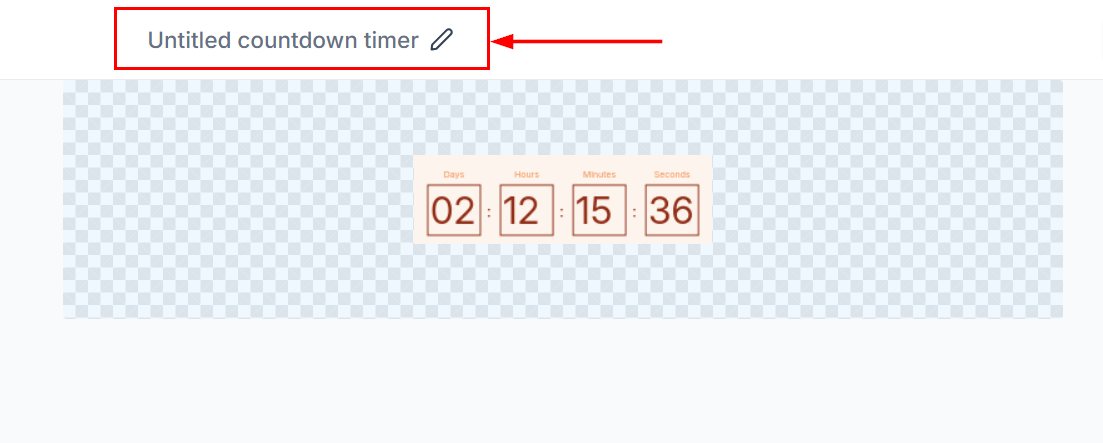
Give your timer a descriptive name by editing the name at the top.
Choose Timer Type
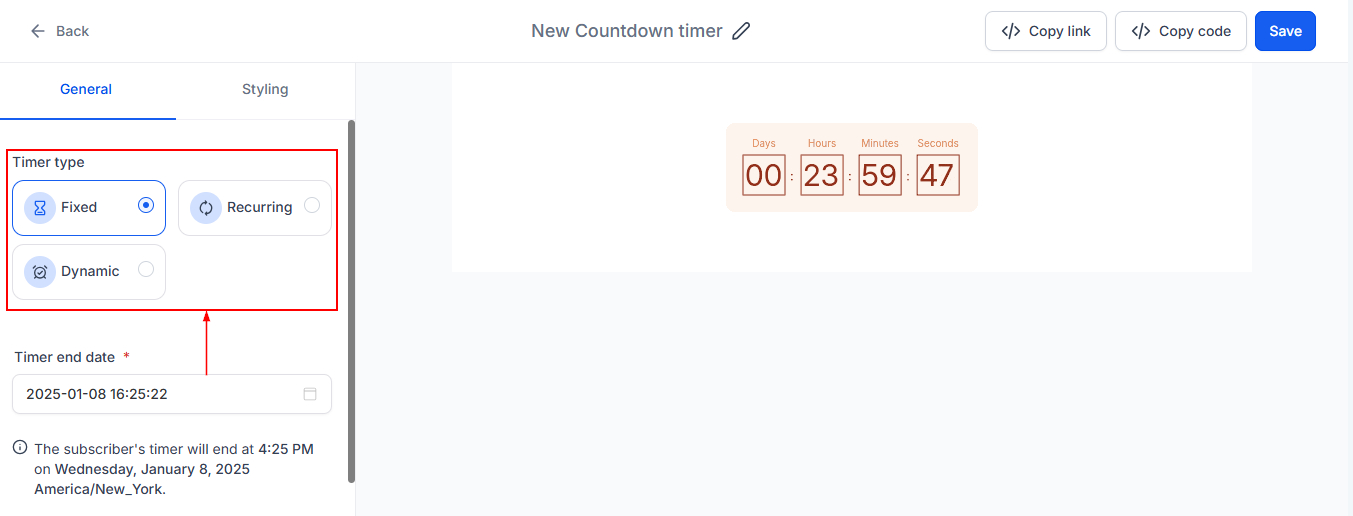
Select the type of timer you want: Fixed, Recurring, or Dynamic.
- Fixed Timer: Counts down to a set date and time. Ideal for holiday sales or product launches. For instance, “Sale ends in 2 days!”
- Recurring Timer: Resets after reaching zero, useful for ongoing promotions. For Example, “Weekly classes countdown” (resets weekly for the next class).
- Dynamic Timer: Personalizes the timer for each contact based on actions like email sent or opened. Example: “Your special offer expires in 1 hour” (based on individual user behavior).
Configure Timer Details
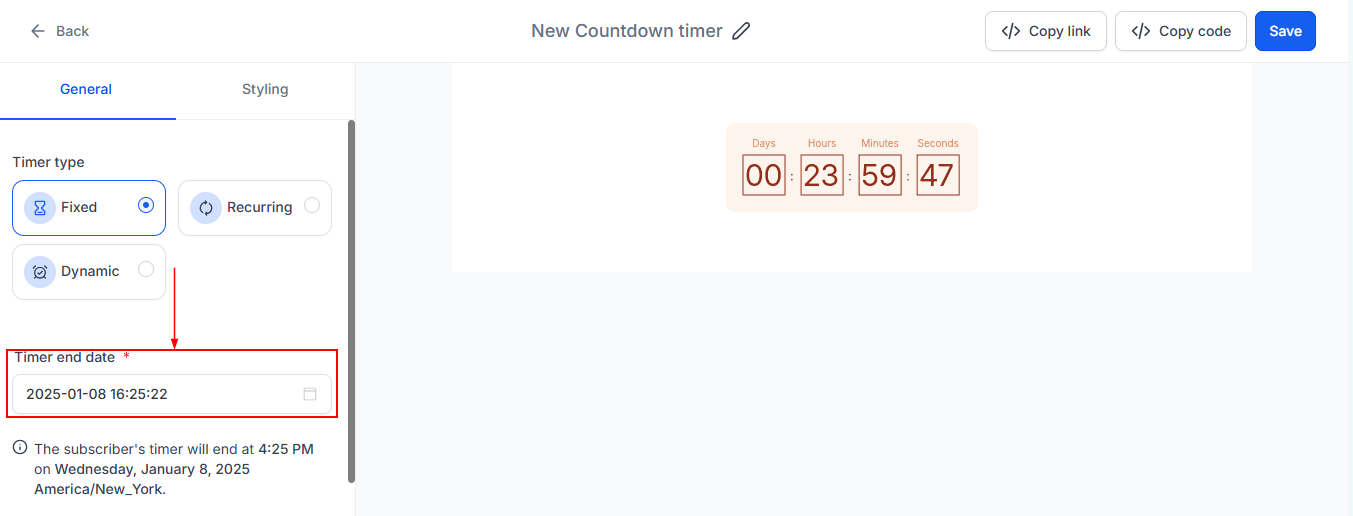
Fixed Timer
Set the end date and time.
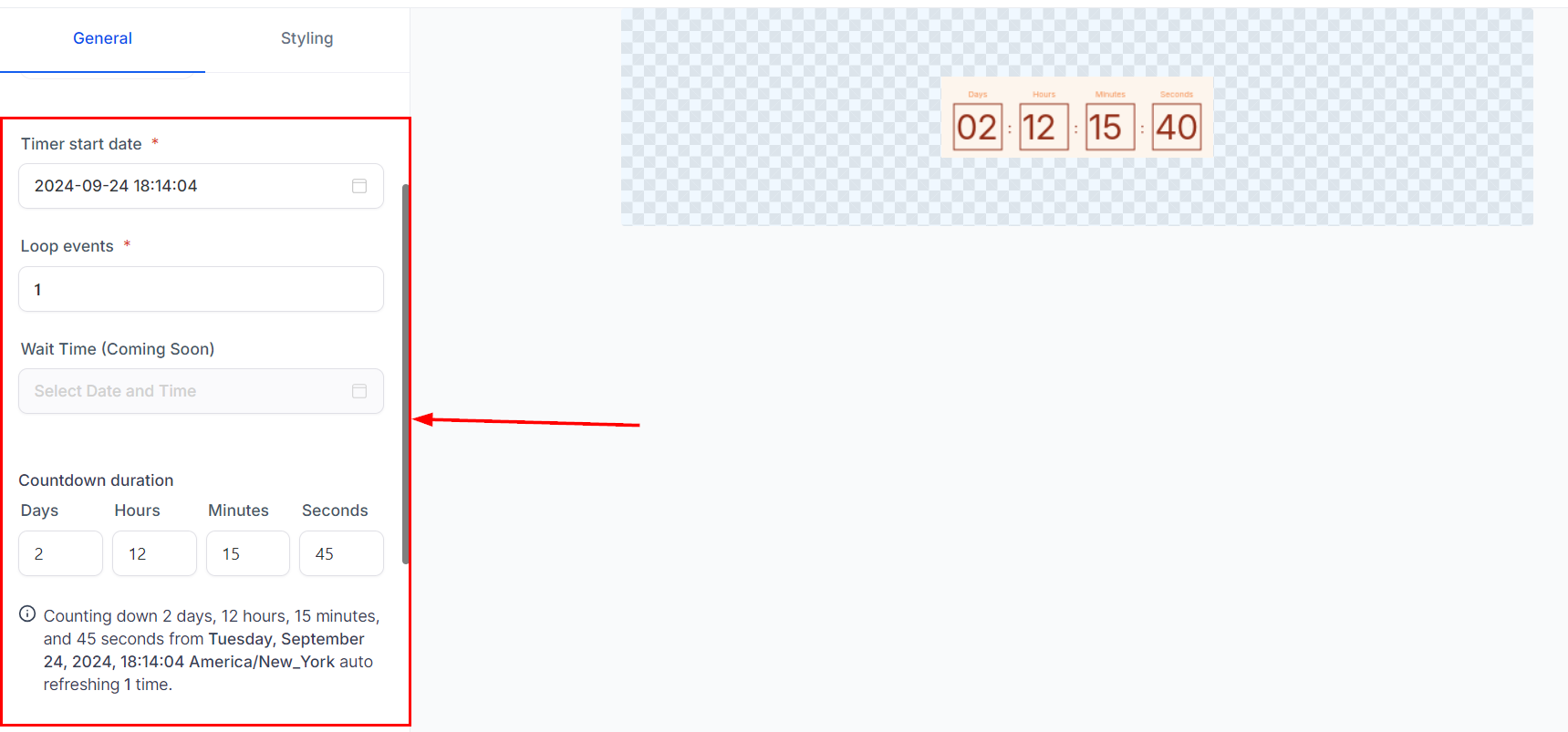
Recurring Timer
Define the countdown duration and the number of loops.
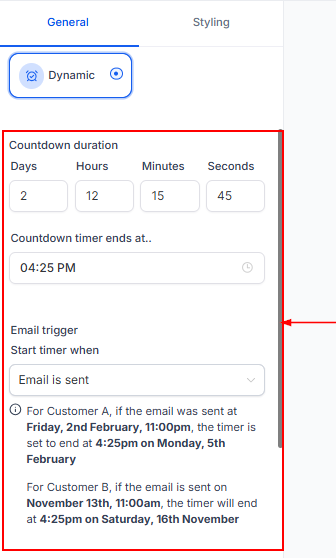
Dynamic Timer
Set a custom duration and end time based on user actions, such as when an email is opened. Personalized timers allow each contact’s countdown to begin and expire based on specific events. For example:
- Trigger the timer when an email is sent or opened.
- Specify a minimum duration and set a fixed end time (e.g., “Expires in 2 hours, but no later than noon”).
- Provide a dynamic and time-sensitive experience for each recipient.
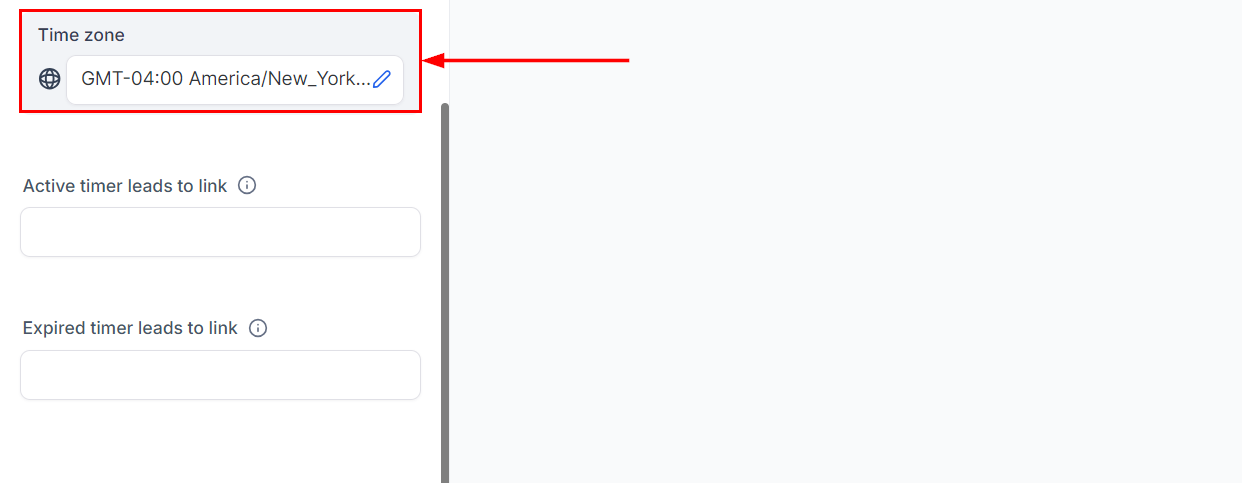
Time Zone
Select the time zone in which the timer should be displayed from the dropdown menu.
Add Links
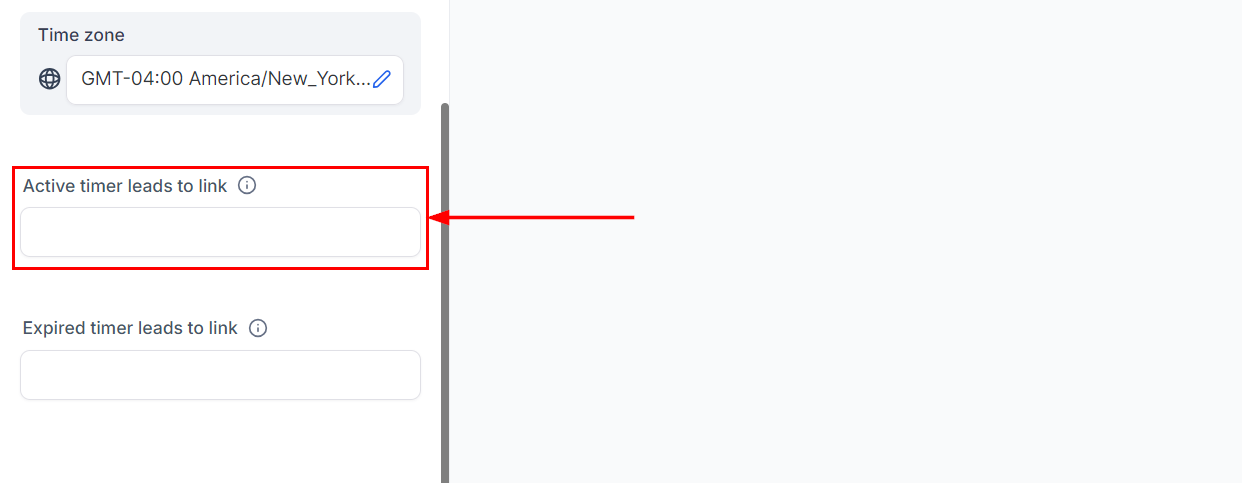
Active Link
The Active Timer Link directs users to a page where they can take advantage of the current offer, such as an offer or checkout page. It’s recommended to use the same countdown timer on this page so that users are automatically redirected to the expired page when the timer runs out.
Expired Link
The Expired Timer Link, on the other hand, takes users to a page indicating that the timer has expired. In emails, an expired image will appear, linking to the expired page, and in funnels, the expired page will display automatically once the timer ends.
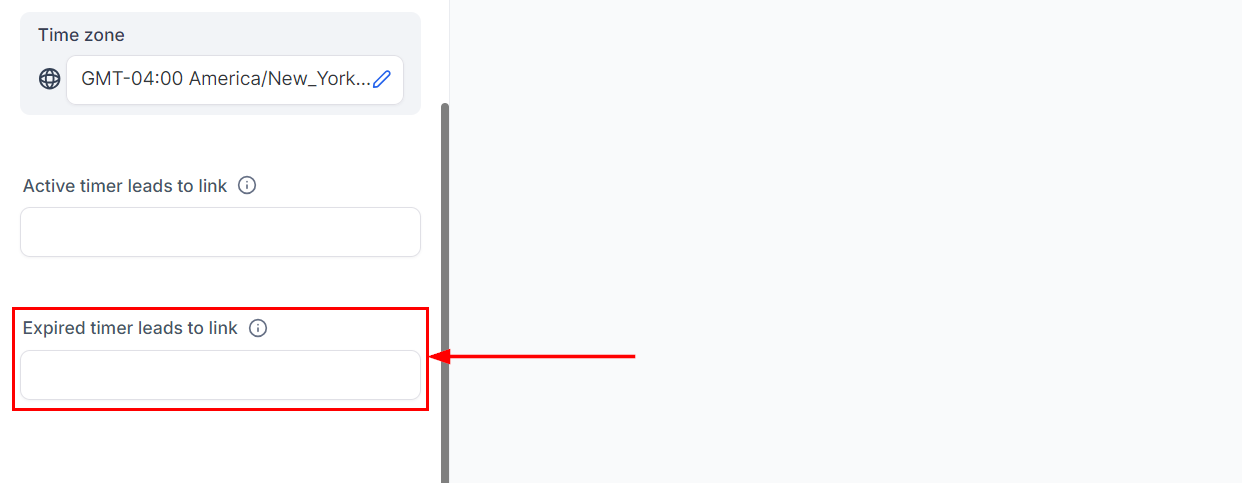
📌NOTE: Make sure to add both links before saving to ensure the dynamic links function correctly!
Customize Styling
Navigate to this tab to adjust the timer’s appearance, including colors, fonts, expiry images, and time display format.
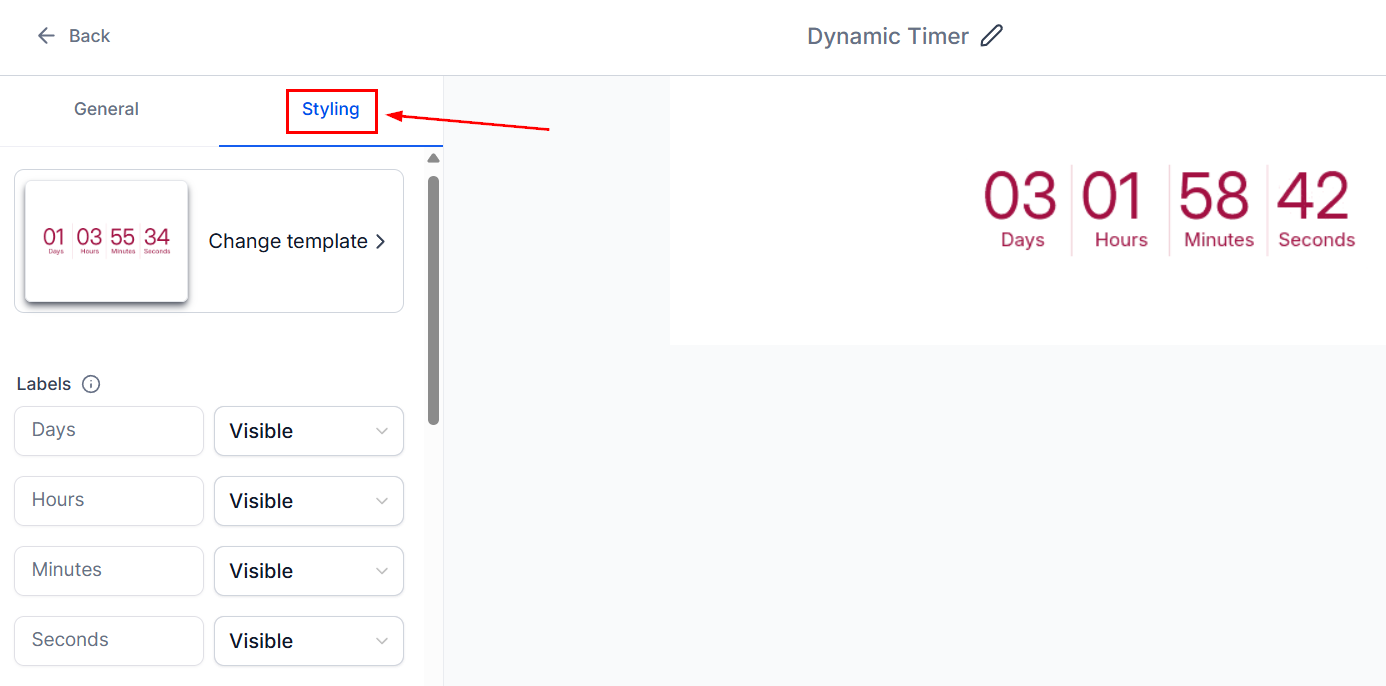
Labels
Choose which timer labels (seconds, minutes, hours, days) to display.
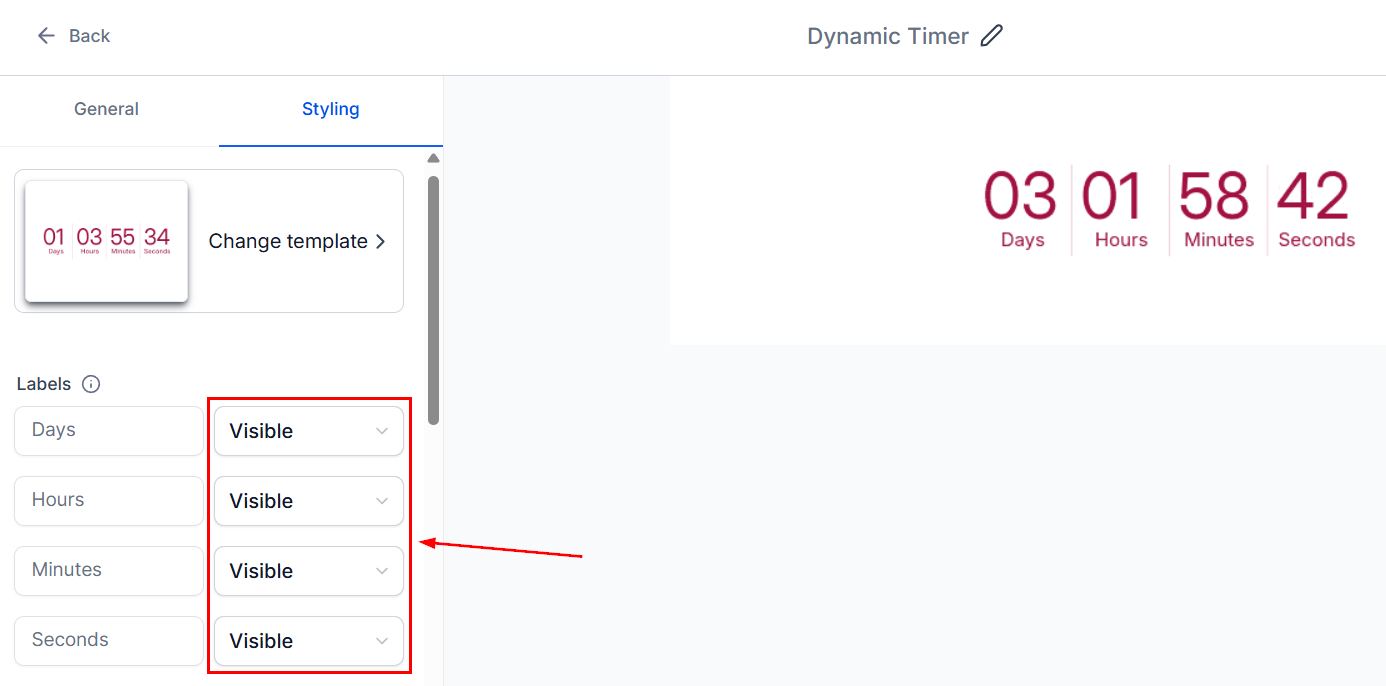
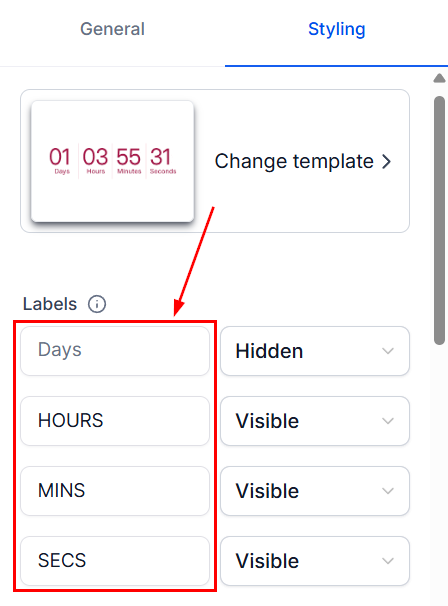
You can also edit the label displayed for each visible label.
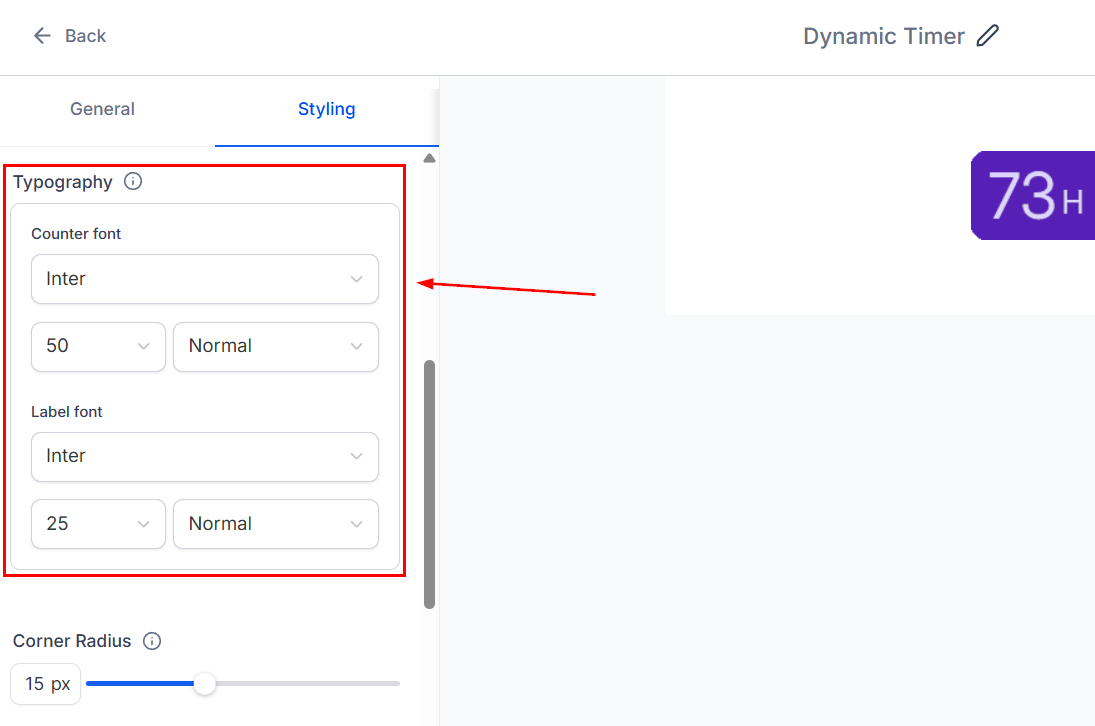
Typography
Edit the font styles used in the timer.
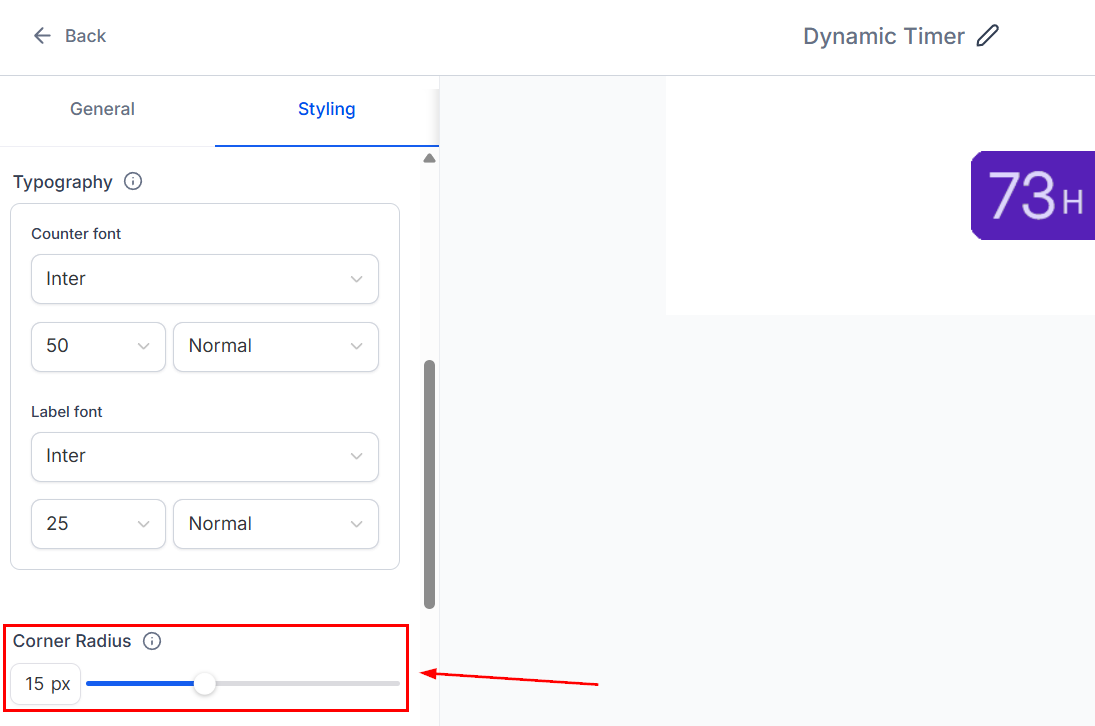
Corner Radius
Adjust the corner radius of the timer’s background.
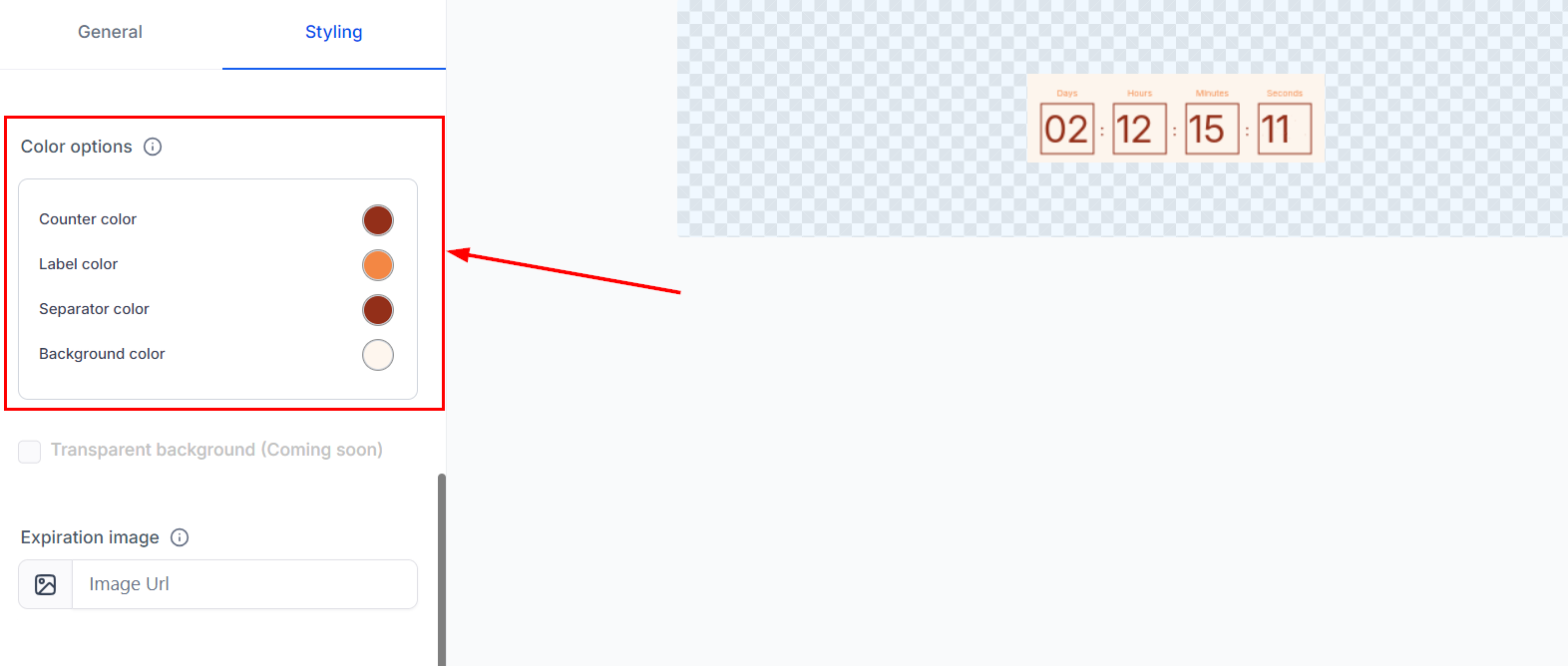
Color Options
Edit the colors used in the timer by utilizing the color selector or inputting the desired hex codes.
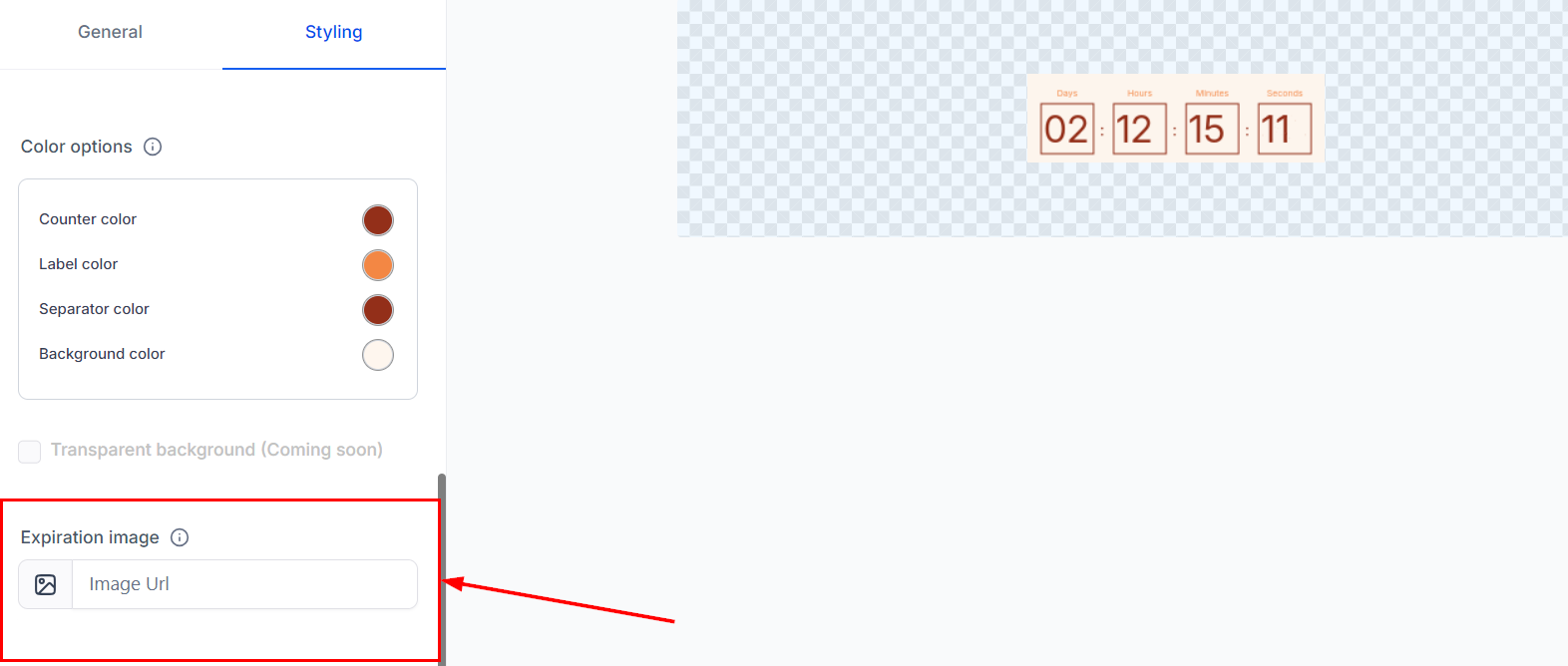
Expiration Image
Upload an image to replace the timer in your emails when it expires.
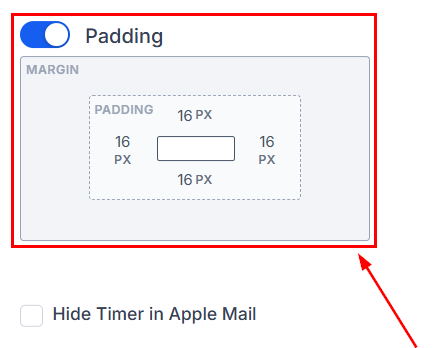
Padding
The Padding section ensures complete customization options for styling.
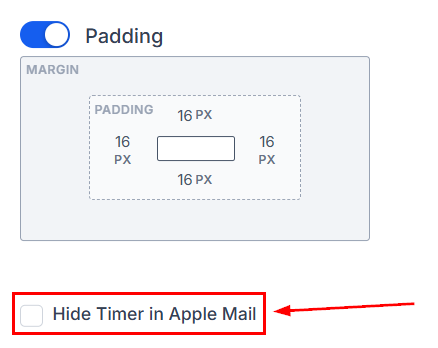
Apple Mail Execution
For contacts using Apple Mail on iOS 15+, countdown timers may be pre-cached, showing inaccurate countdowns when the email is opened. So, you can now hide timers for Apple Mail users to avoid showing incorrect countdowns.
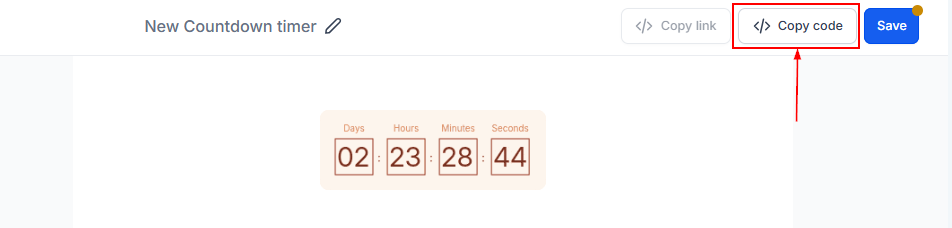
Copy Code
Copy the provided code for use in emails, funnels, or websites.
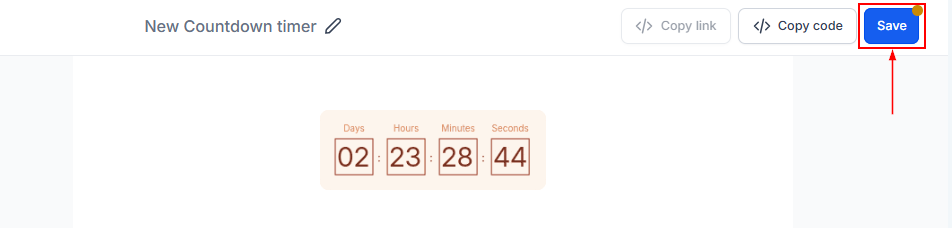
Save
Click “Save” to finalize and activate your countdown timer.
Countdown timers are a dynamic and effective way to boost user engagement and drive conversions by creating a sense of urgency. By understanding the different types of timers and best practices for implementation, you can leverage them to enhance your marketing efforts and achieve better results.
Key Considerations
- Design and Style: Ensure the timer aligns with your brand’s aesthetic.
- Placement: Position the timer prominently, such as at the top of an email or landing page.
- Redirections: Set up functional links for both active and expired states to manage user flow effectively.
- Consistency: Maintain consistent timers across emails and websites for authenticity.
- Expiry Image: Use an image or message to inform users when the timer ends.
Not a Funnelbud customer yet?
Try our all-in-one CRM for sales and marketing — free for 7 days, no commitment.