Image Feature
The Image Feature element allows you to add an image with a headline and text element. Utilize this option when adding team member highlights or product/service highlights to your funnel and website pages. On the right side of the page, you will see various customization options for your Image Feature, which we will review here.
General Settings
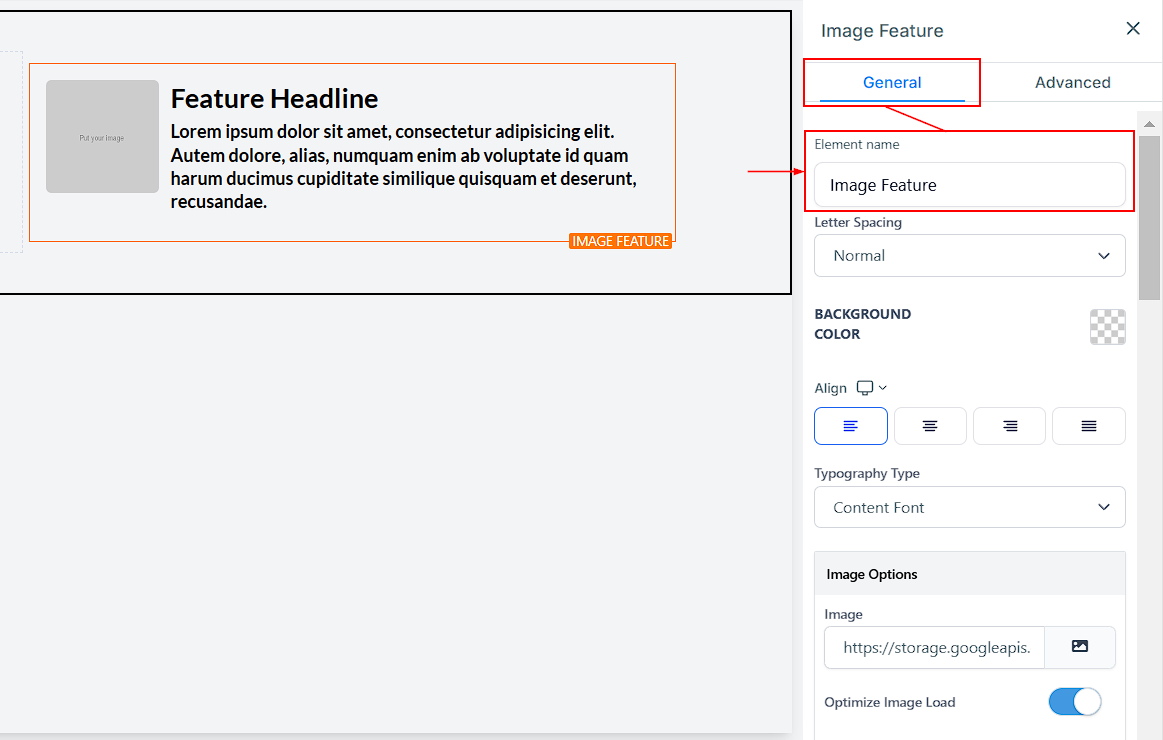
Element Name/Title
In the General Settings tab, you will first see the Element Name/Title. The default name will be listed as the element name. You can choose to leave it at the default value or rename it for easier identification as you build out your page.
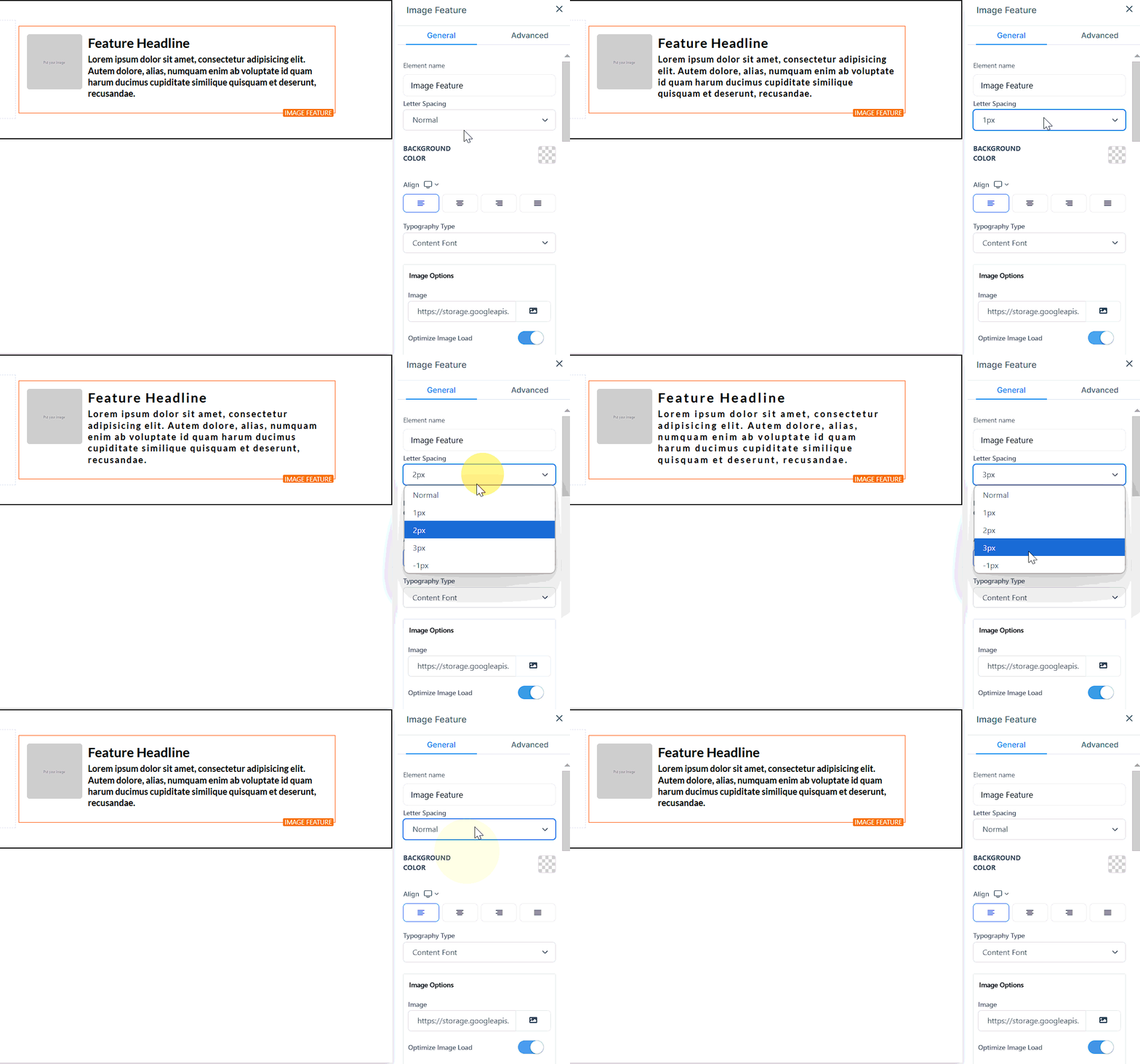
Letter Spacing
The letter spacing option gives you the ability to space out the letters in your text or use a negative value to push the letters closer together.
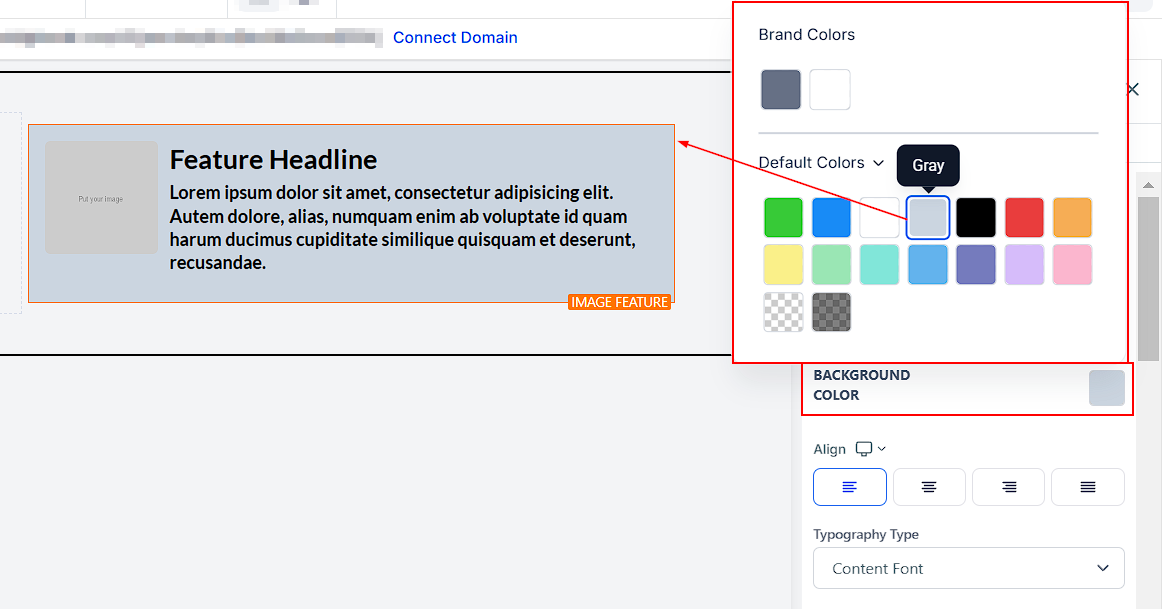
Background Color
To modify the background color of your Image feature, select the content you wish to adjust and click on it. From the options given, you can select a color or input a custom color code if you don’t find the exact shade you are looking for. Simply type in the code in the designated space and click Add color.
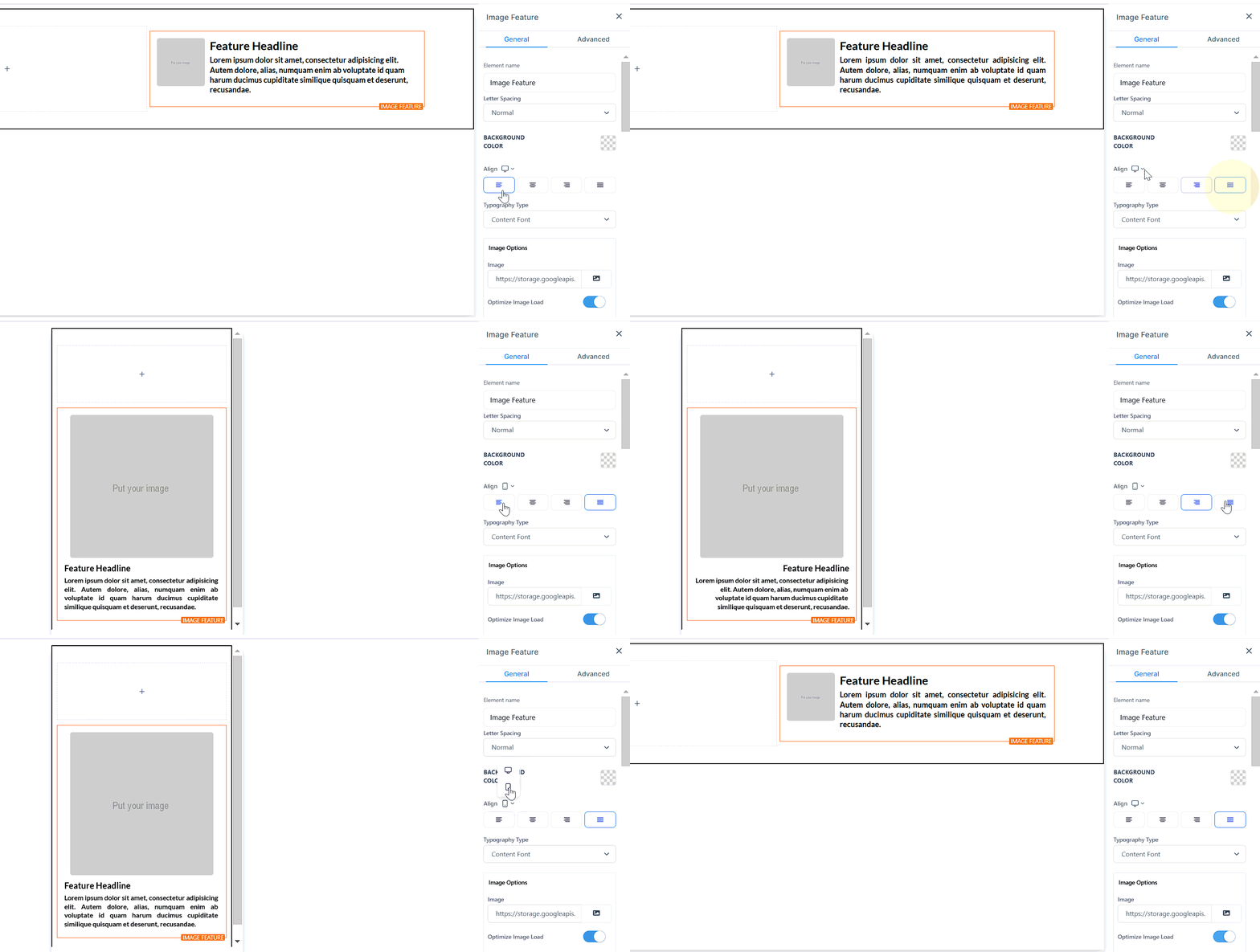
Align
You can align the text in your image feature box with the Align option, which allows you to position your text to the left, right, center, or as justified.
Typography Type
The typography type gives you three options for your font type, including the headline or content font you set up in settings, or choosing a custom font and selecting a font from the dropdown menu.
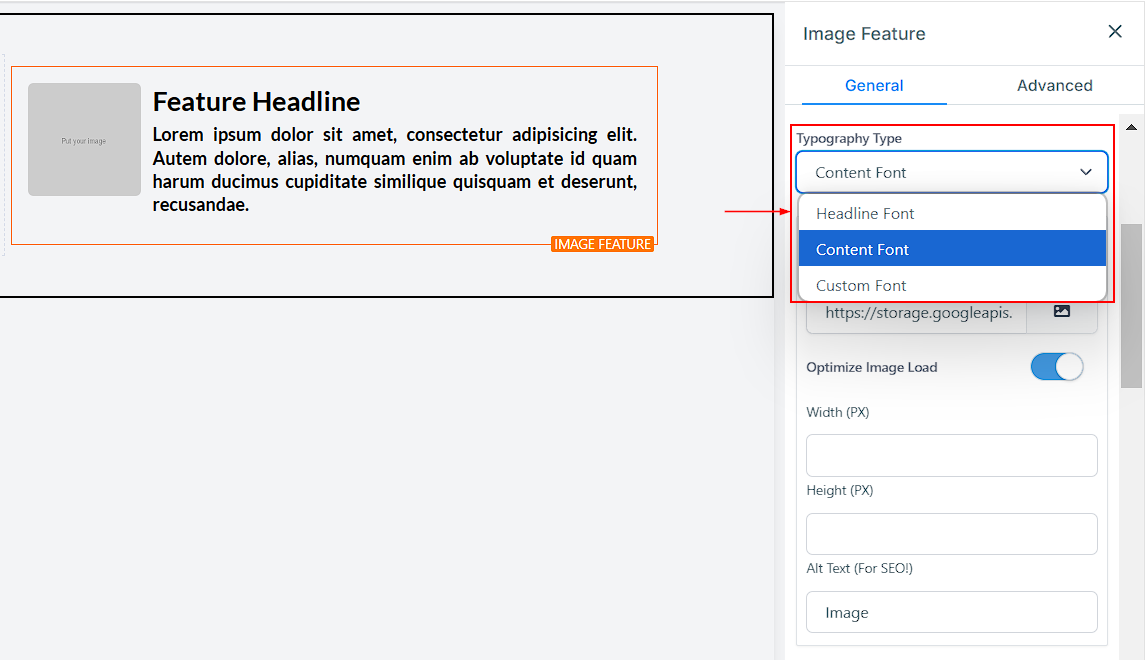
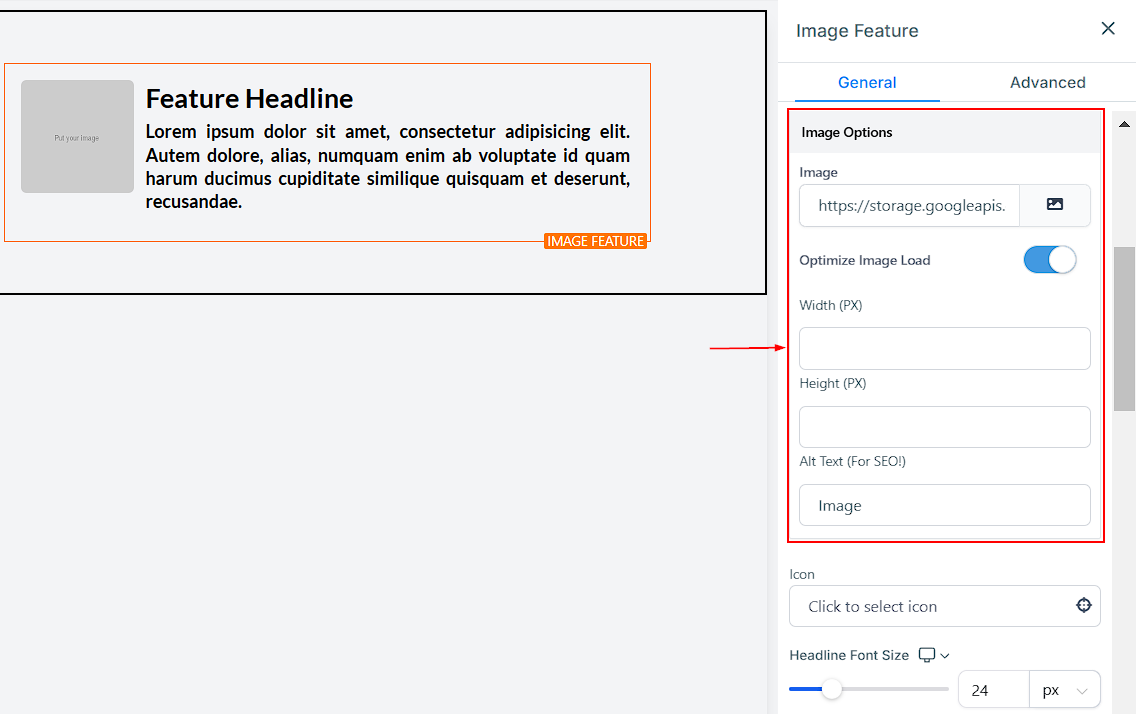
Image Option
- Image: When you click on the image icon on the right side of the space provided, it directs you to the storage page, where you can upload the image you want to use. Once you’ve uploaded the image, click on the image, and then click on the “copy to clipboard” icon on the right upper corner of the page, beside the “delete” icon, to copy the image URL. Click on the “Back” button to return to the Editors’ page, then paste the URL in the space provided. Your image will appear in the editor’s space.
- Optimize Image Load: To optimize image load, simply toggle it off. It comes with a warning. If you are sure you want to turn it off, click “Ok”.
-
- Warning: If you turn off image lazy loading, it might affect your page speed. Optimizing images for your website can reduce your total page load side by up to 80%.
- Width and Height (PX): You can decide the width and Height here by inputting your desired size in the space provided.
- Alt Text (For SEO): You can add the Alt text here.
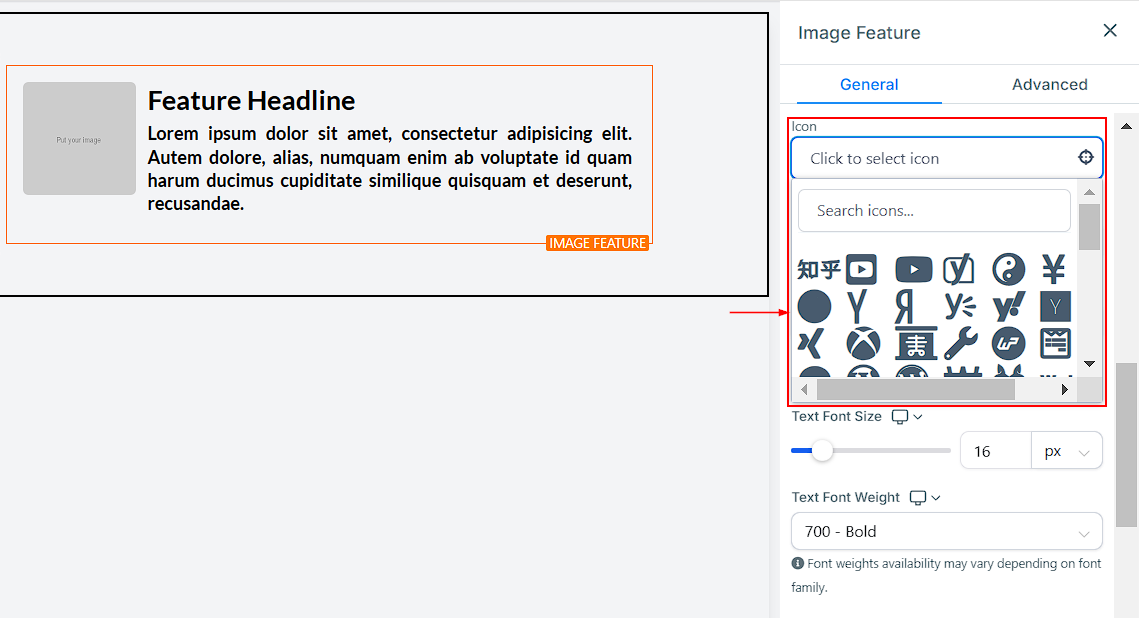
Icon
To add an icon to your Image Feature, simply select from the list of available icons. If you have a specific icon in mind, you can type it into the search bar to narrow down the options. This icon will appear next to the image feature headline text.
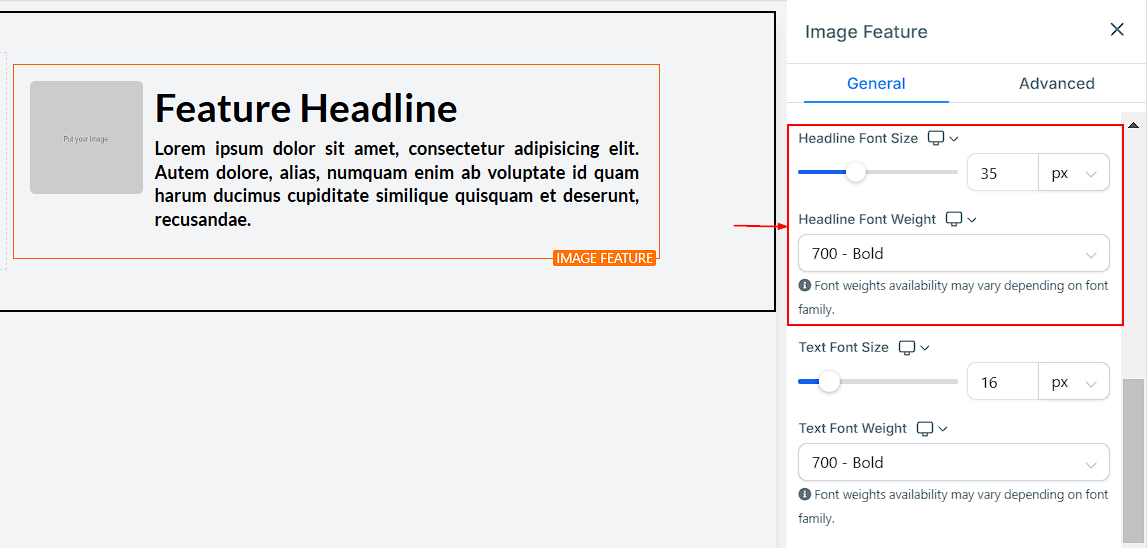
Desktop Headline Font Size and Weight
You can adjust the mobile and desktop headline font sizes of your minute timer simply by adjusting the size bars. Font Weight determines the thickness of the text, allowing you to make the headline bold, semi-bold, or light.
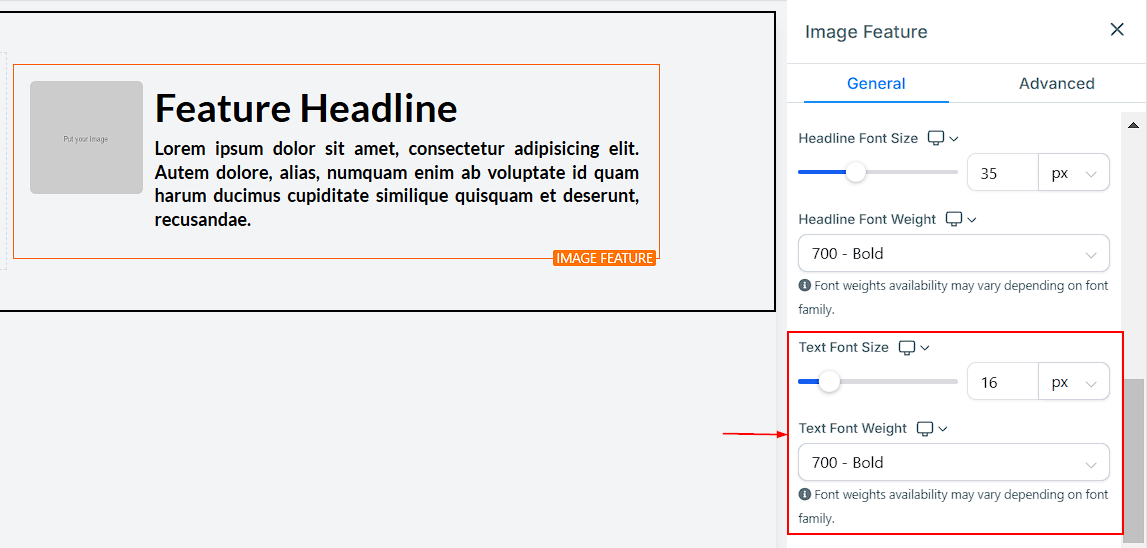
Desktop Text Font Size and Weight
You can adjust the mobile and desktop text font sizes of your minute timer simply by adjusting the size bars. The Font Weight controls the text’s boldness, helping to create a distinct visual hierarchy.
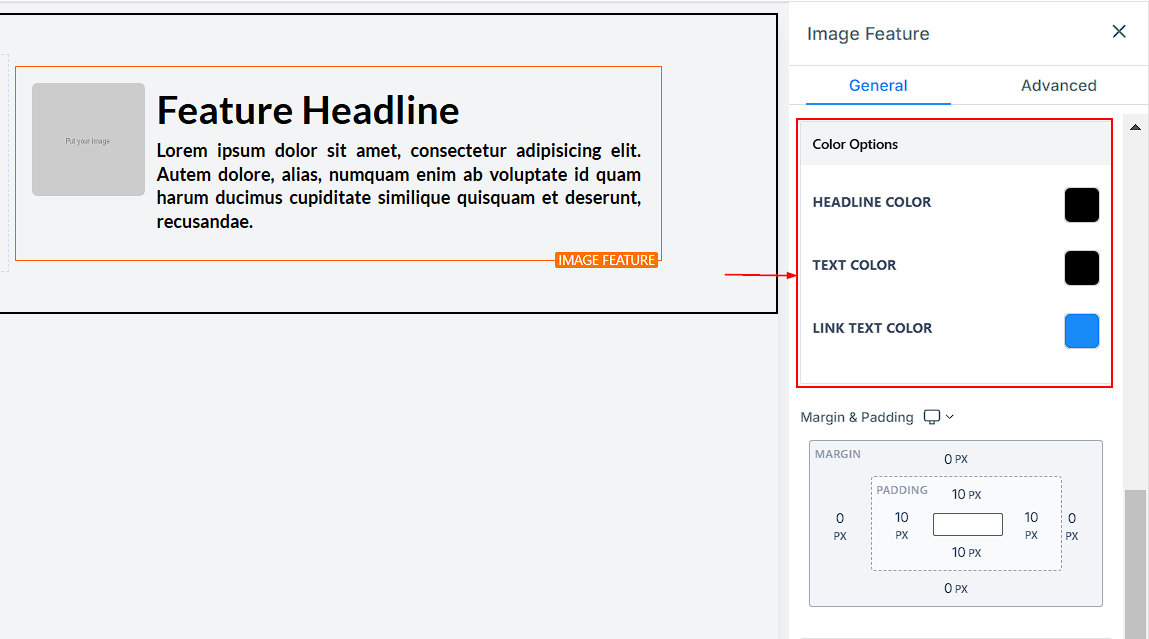
Color Options
- Headline Color: Under Headline Color, you can adjust only the color of the headline text for your image feature. For example, the Feature Headline text.
- Text Color: For the color of the text itself, you can only adjust it under Text Color when adding text to your image feature.
- Link Text Color: Additionally, for the color of the link text within your image feature, you can only adjust it under Link Text Color.
Spacing Options
Under Spacing Options, there are several ways to adjust the spacing of your video content.
- Padding Left, Right, Top, and Bottom: You can adjust the content’s placement by toggling the Padding Left, Padding Right, Padding Top, and Padding Bottom toggle bars. Each toggle bar moves the content either to the left, right, top, or bottom, depending on the bar clicked.
- Margin Top and Bottom: To adjust the top or bottom margin of your content, use the Margin Top or Margin Bottom toggle bars.
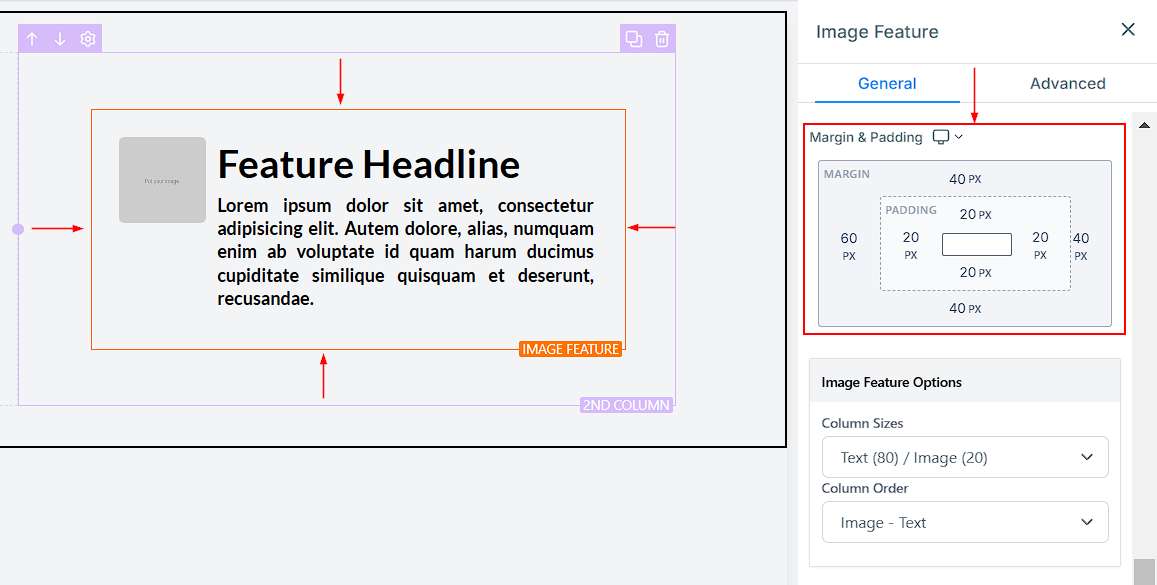
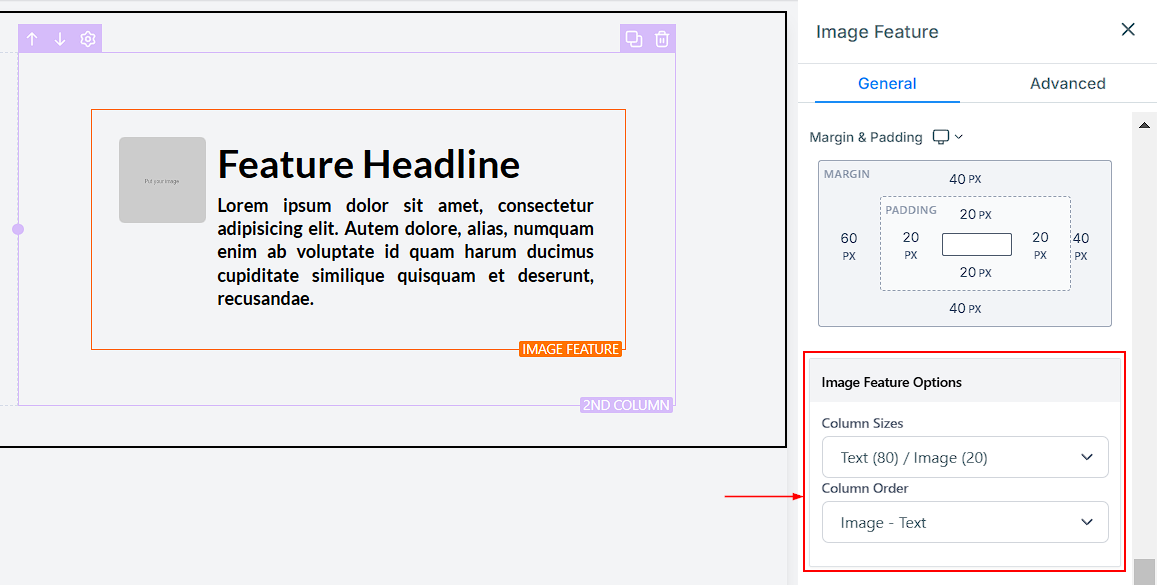
Image Feature Options
- Column Sizes: This will help you increase the size of the text and images.
- Column Order: You can decide to arrange your image feature as “text before the image” or “image before the text”.
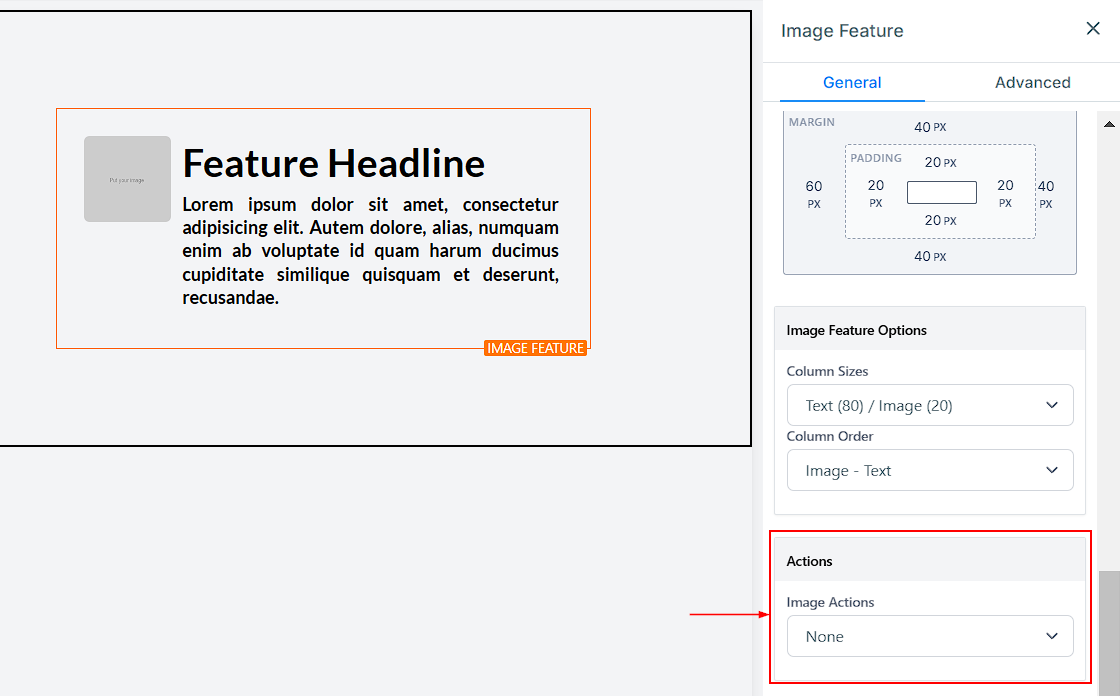
Actions
- Image Action: Under Actions, there’s the Image Action option that allows you to choose between Open the popup or Go to the website URL. When you select “Go to website URL” in the “Image Action” icon, it will require you to select which website page you will be setting. Open In New Tab. Additionally, you can toggle on Open In New Tab to direct visitors to a new tab when they execute an action.
Advanced Settings
Under Advanced Settings, you have options to make more specific adjustments to your element box.
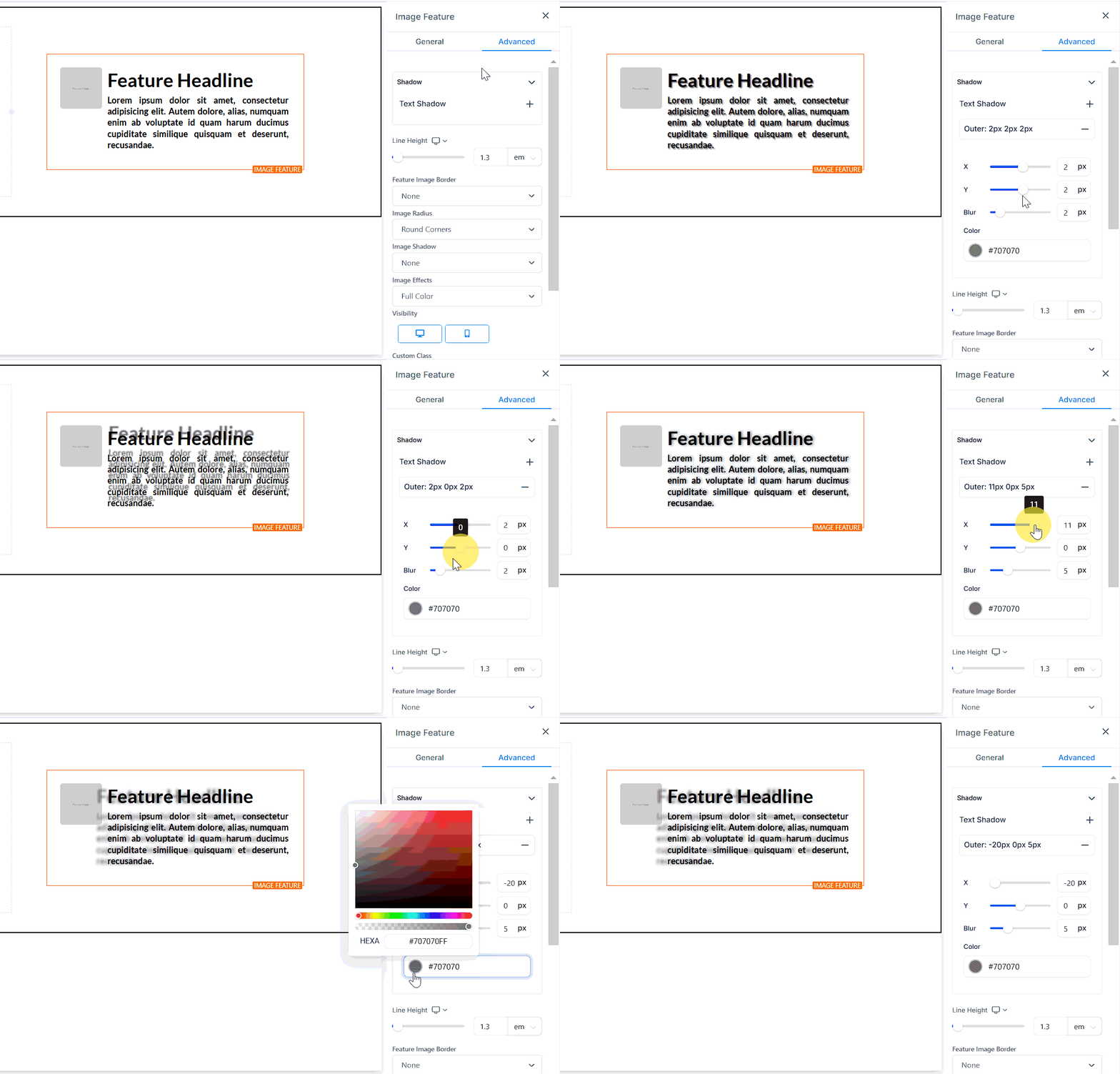
Shadow
Text Shadow: The Text Shadow option will allow you to add a shadow to your text. Here, your options are light fade, mid-shadow, and strong shadow.
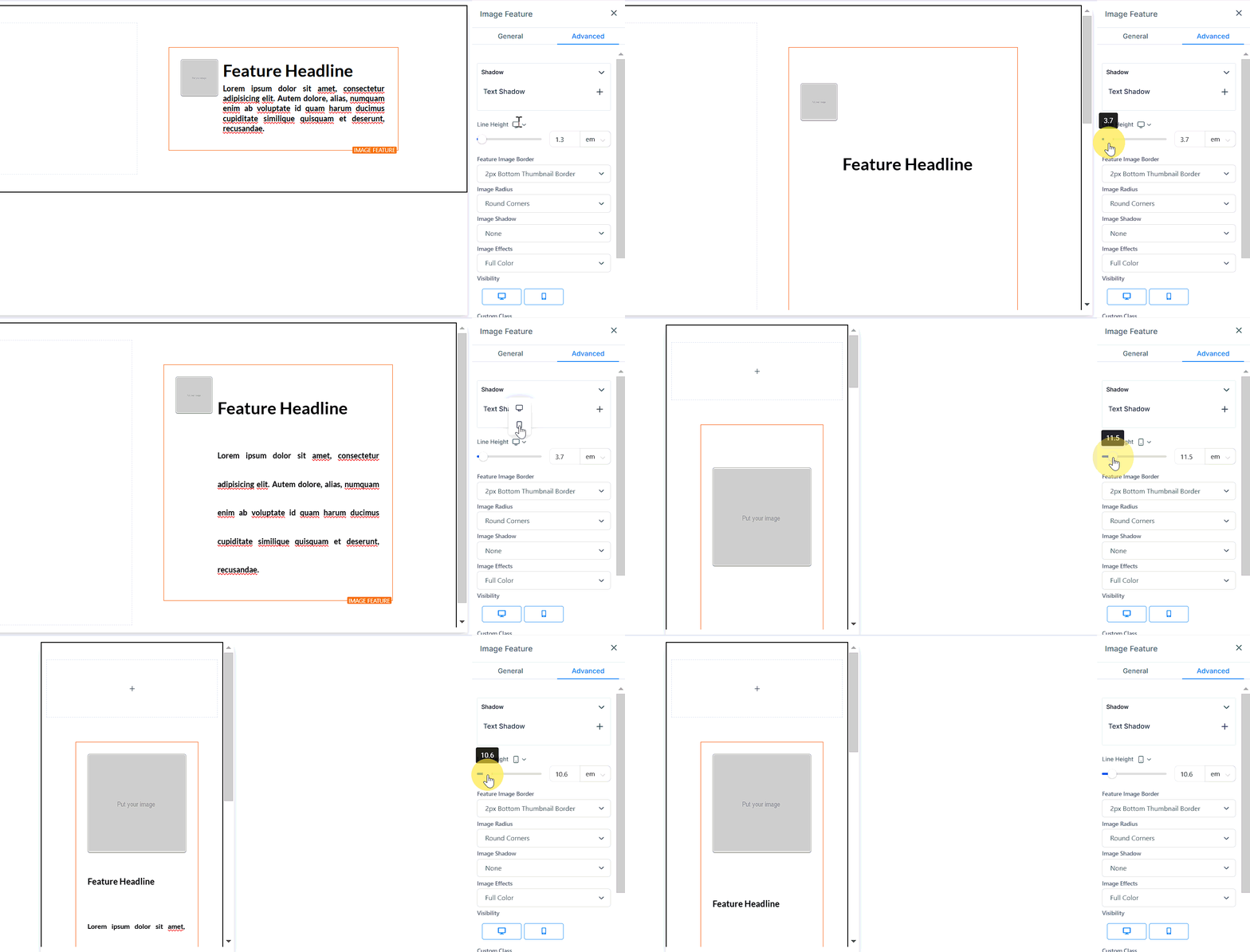
Line Height
By using the Height Line feature, you can adjust the height of the element box by moving the size bar to the desired height.
Feature Image Border
For the Feature Image Border, there are different types of border options available to choose from. Once you select one, a settings menu pops up.
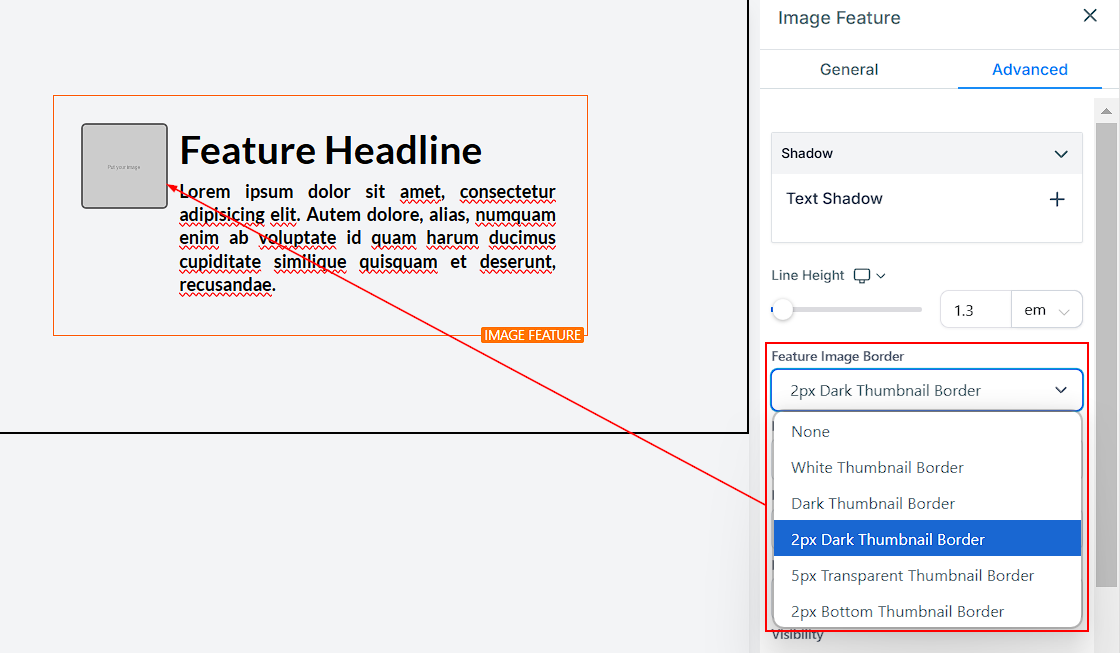
Image Radius
You can also adjust the border’s curve by using the Image Radius feature. By increasing the number, the edges become curvier.
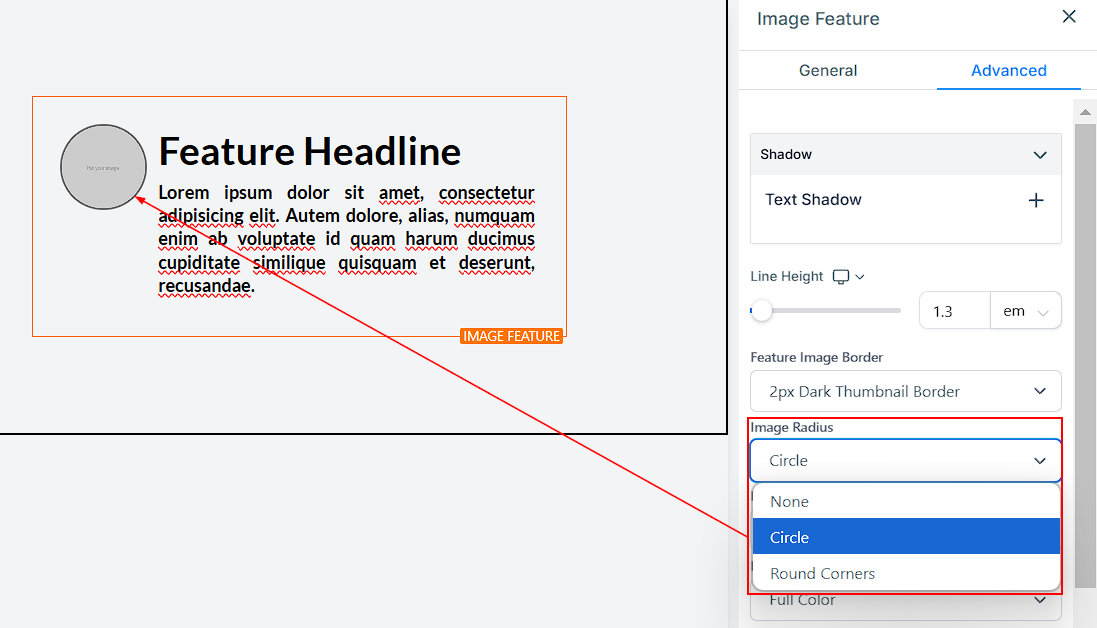
Image Shadow
If you want your image to have a shadow, you can adjust its strength using the Image Shadow feature.
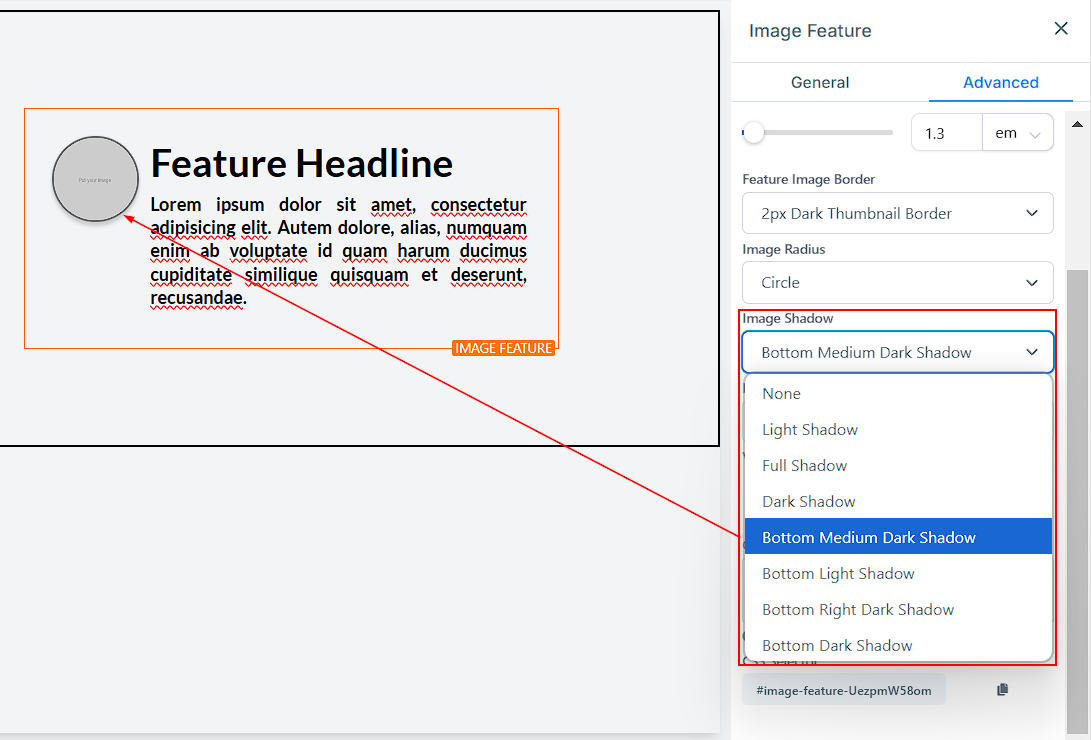
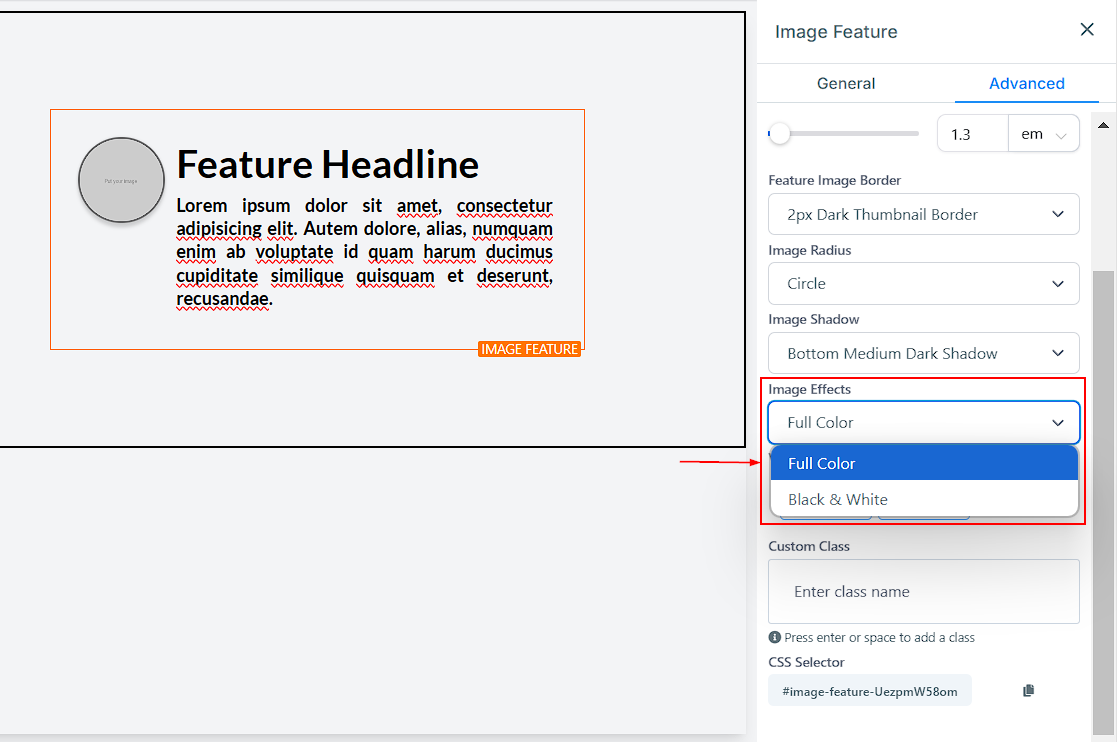
Image Effects
Additionally, you can add an effect to your image by selecting from the available options under Image Effects. You can choose to show the image in Full Color or Black & White.
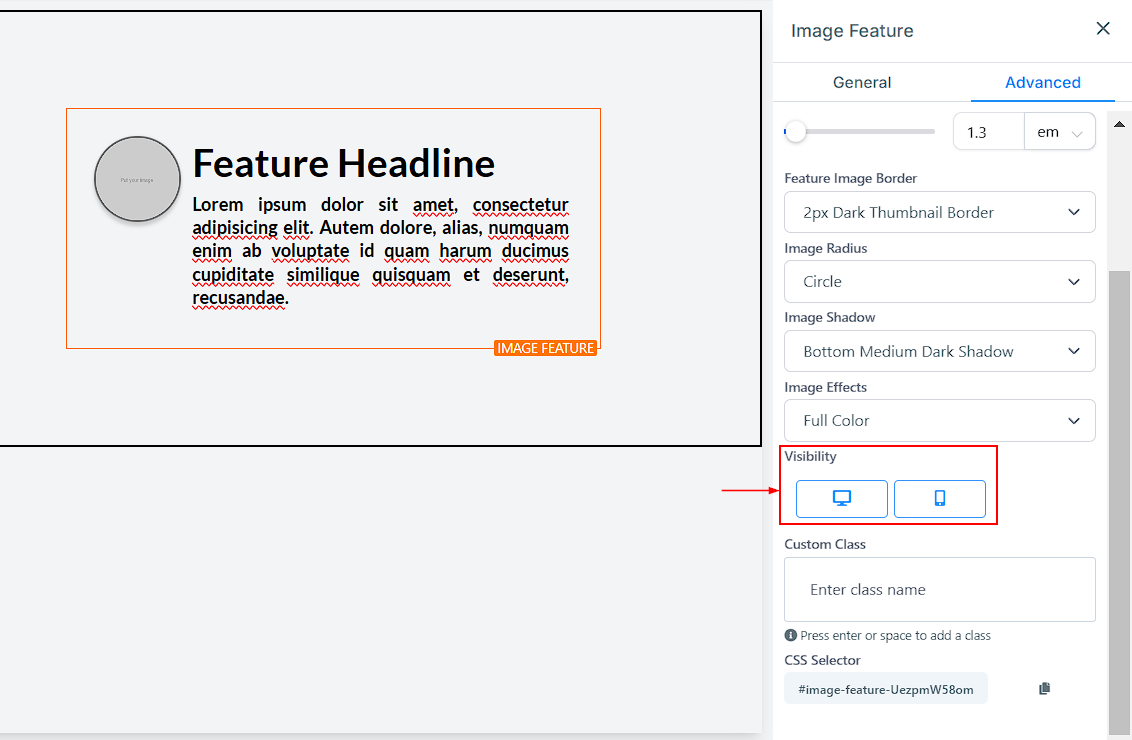
Visibility
Under Visibility, you can choose whether you want this specific editing option to be visible on mobile devices, desktops, or both. Simply click on the icon to highlight it based on your preference.
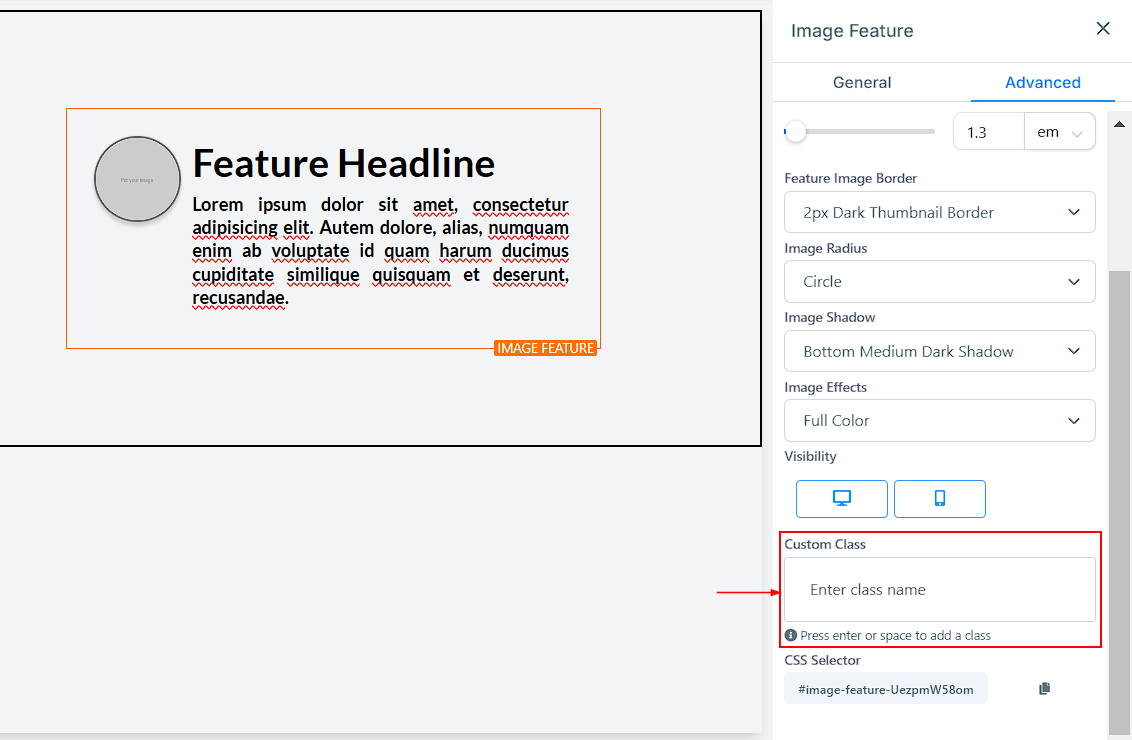
Custom Class
For Custom Class, you can input your preferred class in the space provided.
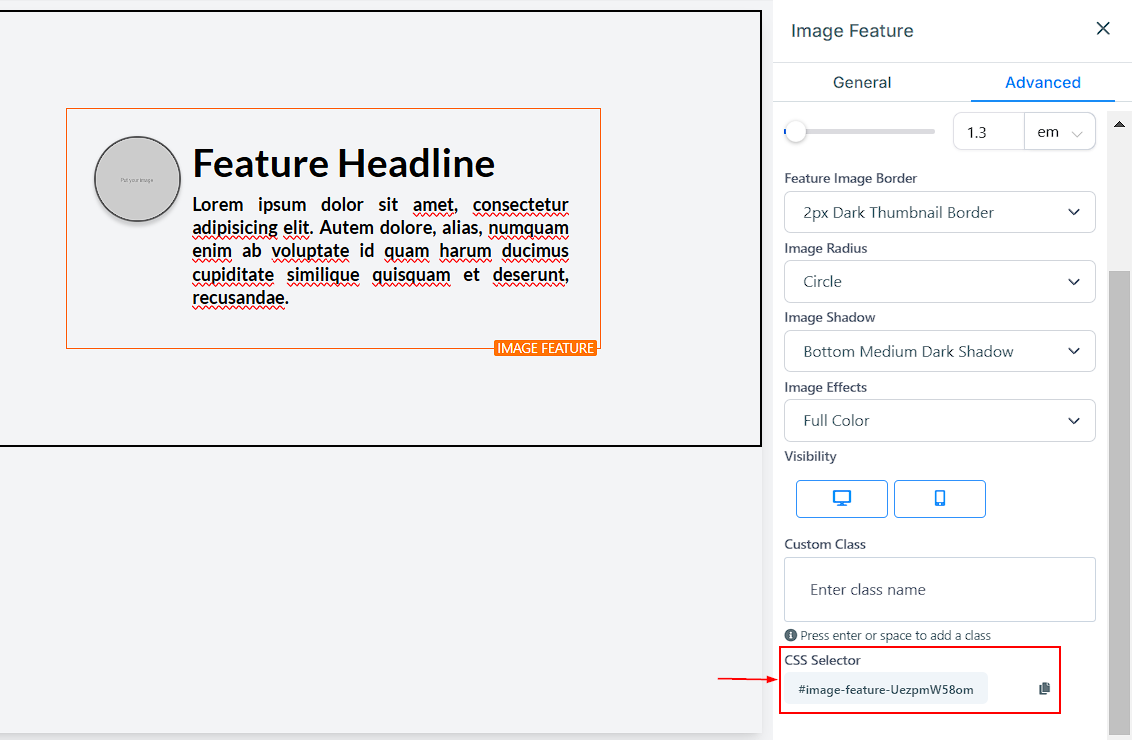
CSS Selector
If you need to copy the Custom CSS, just click on the “Copy” icon on the right side of the reference code.
The Image Feature element provides a versatile way to enhance your website or funnel pages with visually appealing content. With customizable text, colors, spacing, and effects, you can create a polished and engaging design that aligns with your brand.
Not a Funnelbud customer yet?
Try our all-in-one CRM for sales and marketing — free for 7 days, no commitment.