Payment Notifications
Payment notifications play a key role in keeping customers informed at important stages of their purchasing journey while also ensuring your team stays updated. By automating these communications, you can reduce cart abandonment, confirm completed transactions, and maintain clear, consistent engagement without manual effort.
To get started, navigate to Payments Settings and select the “Notifications” menu. The Customer Notifications tab opens by default, where you can manage customer-facing updates, and you can switch to the Team Notifications tab at any time to configure internal alerts.
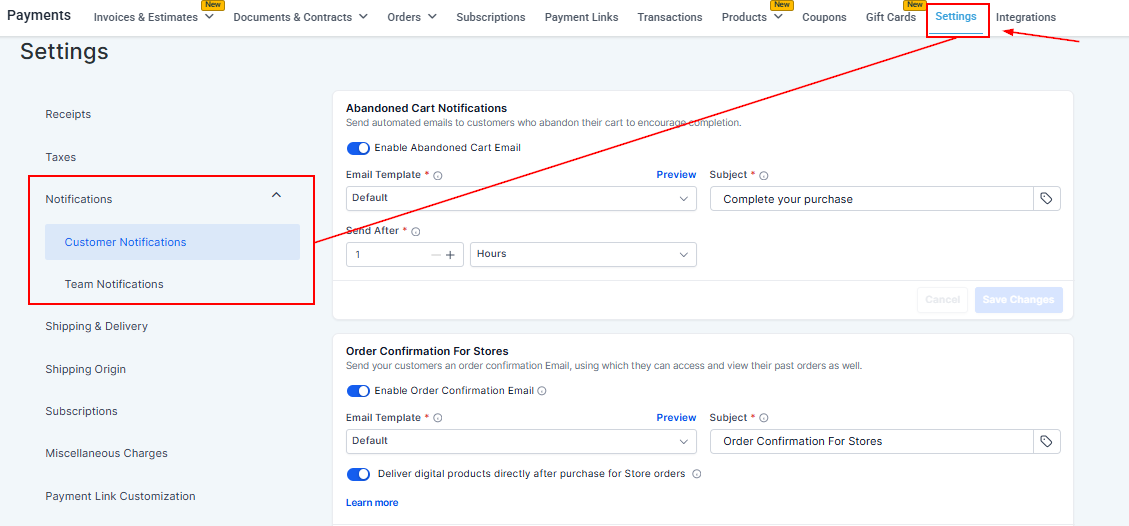
Customer Notifications
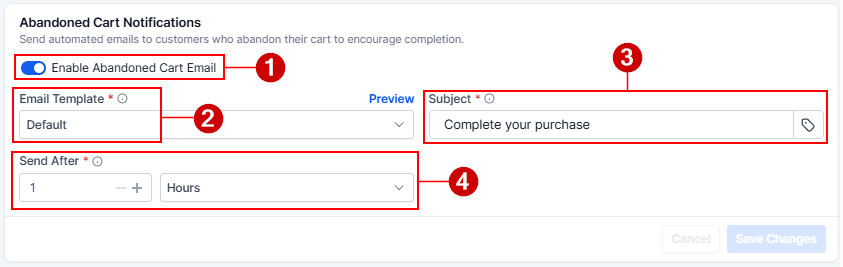
Abandoned Cart Notifications
- Enable Abandoned Cart Email: Toggle this switch to enable or disable automated emails sent to customers who leave items in their cart without completing a purchase.
- Email Template: Select an email template for the notification. Once selected, you can preview it to get a feel of how it will appear to your customers.
- Subject: Customize the subject line by entering a short and catchy text. Use custom fields for enhanced personalization.
- Send After: Define a delay period (e.g., hours) before the notification is sent
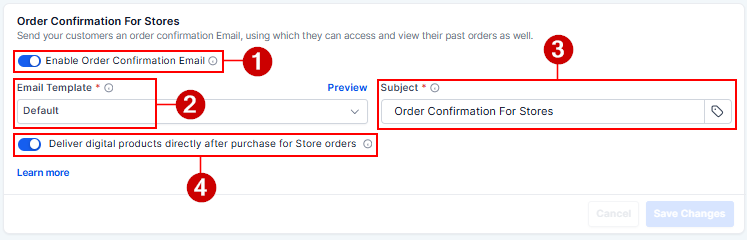
Order Confirmation for Stores
- Enable Order Confirmation Email: Enable or disable order confirmation emails for completed purchases
- Email Template: Choose an email template for confirmations
- Subject: Customize the subject line
- Deliver digital products directly after purchase for store orders: Option to automatically deliver digital products immediately after purchase for store orders.
📌Note: Files up to 20MB are automatically attached to order confirmation emails, while larger files are delivered via a secure download link within the email when the digital products switch is enabled. If direct delivery is disabled, all files are delivered via the Customer Access Center by default.
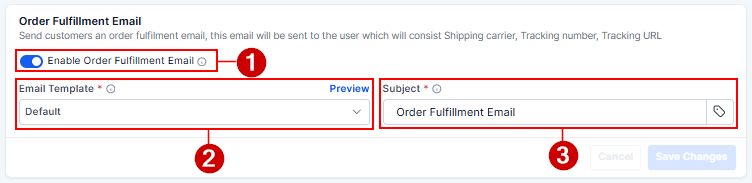
Order Fulfillment Email
- Enable Order Fulfillment Email: Toggle this switch to send an email to customers once their order has been fulfilled. This email will display the shipping carrier, tracking number, and URL for physical goods.
- Email Template: Choose the message that will be sent from the available templates in your account, or stick to the system default.
- Subject: Customize the subject line according to your preferences.
Team Notifications
Configure internal notifications to keep your team informed about payment and order activities
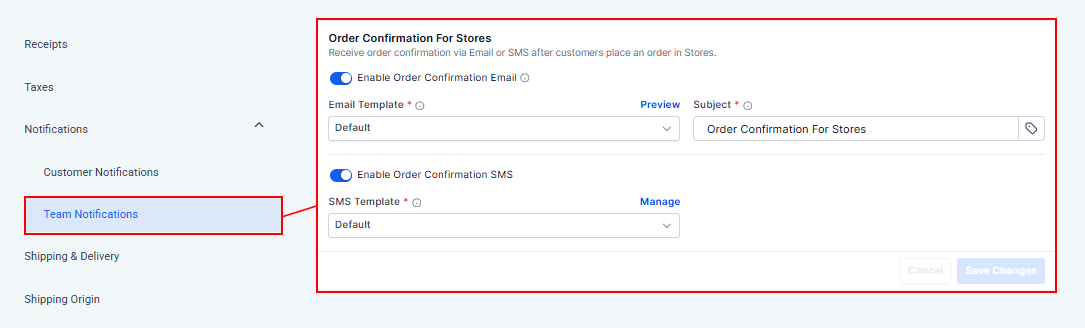
Order Confirmation for Stores
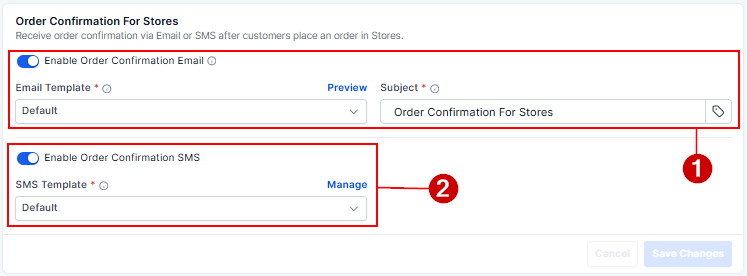
- Enable Order Confirmation Email: Activate this feature to send an email to teammates after customers place an order in your store. Once enabled, you can adjust the email template and subject line.
- Enable Order Confirmation SMS: Activate this feature to send an SMS notification to teammates after customers place an order in your store. Once enabled, you can adjust the SMS template used.
With payment notifications properly configured, you can create a more streamlined and reliable communication flow for both customers and your team. From recovering abandoned carts to confirming orders and sharing fulfillment updates, each notification type ensures that key touchpoints in the purchasing journey are consistently supported.
Not a Funnelbud customer yet?
Try our all-in-one CRM for sales and marketing — free for 7 days, no commitment.