Call Transcript Generated Trigger
The Transcript Generated trigger automatically launches a workflow when a recorded call is successfully transcribed. Once triggered, it passes detailed call data — including the full transcript, call duration, direction, caller location, timestamps, and more — into your automation, enabling immediate downstream actions.
Supported Call Types
- Voice AI Calls: Transcription is enabled by default.
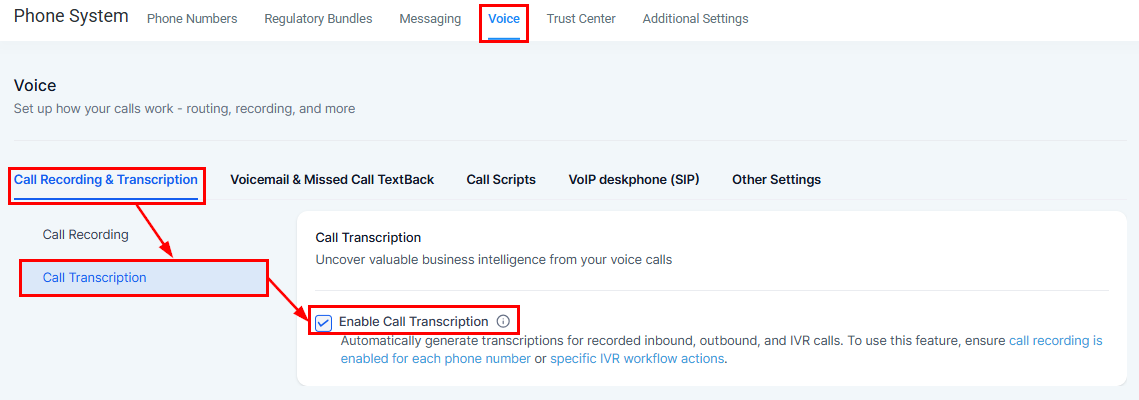
- LC Phone Calls: Requires transcription to be enabled in Phone Settings.
- IVR Calls: Requires transcription to be enabled in IVR Settings.
📌Note: Transcription must be enabled for the trigger to function. If transcription is not enabled, the workflow will prompt you to go to the appropriate settings and activate it.
Key Benefits
- AI-Powered Personalization: Use transcript data with AI Decision Maker or GPT Actions to customize responses based on sentiment, intent, or keywords.
- Actionable Insight Capture: Automatically log buying intent, objections, or important phrases directly into the contact record.
- Comprehensive Data Access: Leverage rich metadata — including call direction, timestamps, duration, and user details — to build precise workflow conditions.
How to Set Up the Transcript Generated Trigger
Create or Edit a Workflow
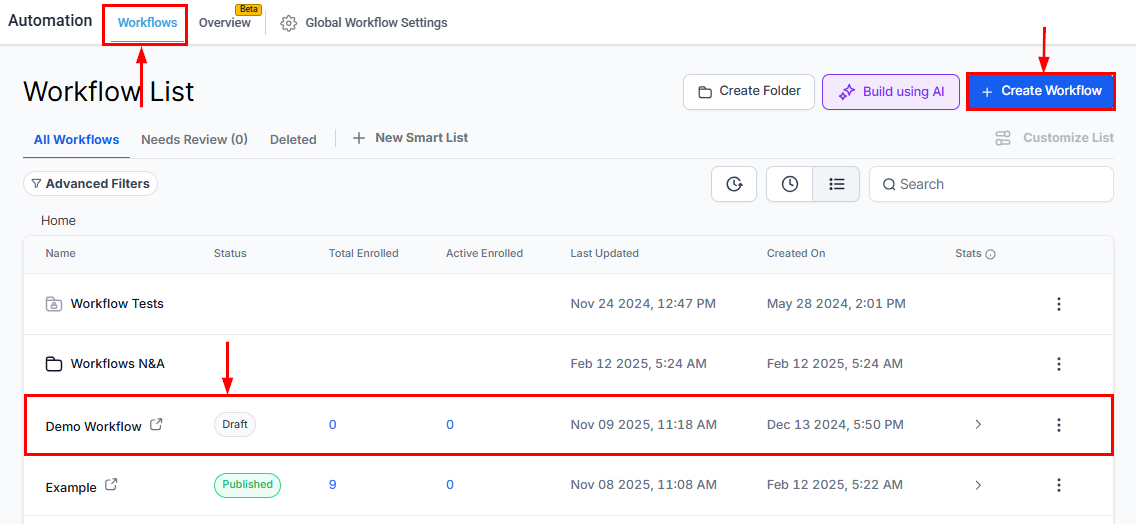
Navigate to Automation > Workflows.
Click + Create Workflow, then select Start from Scratch or open an existing one.
Add the Transcript Generated Trigger
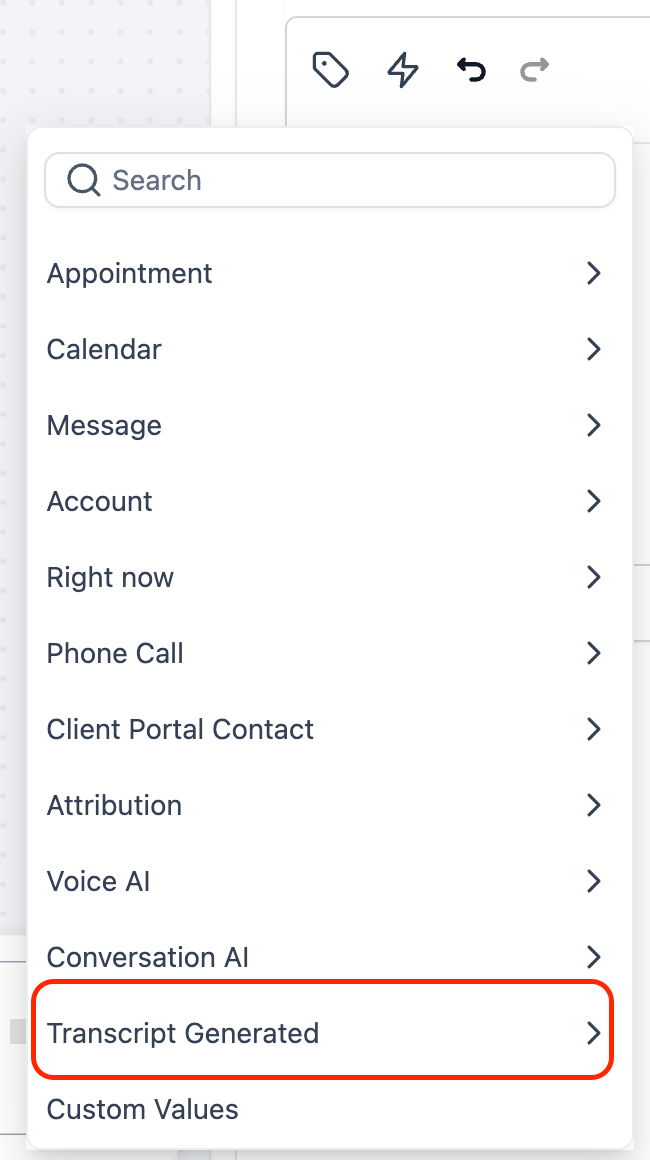
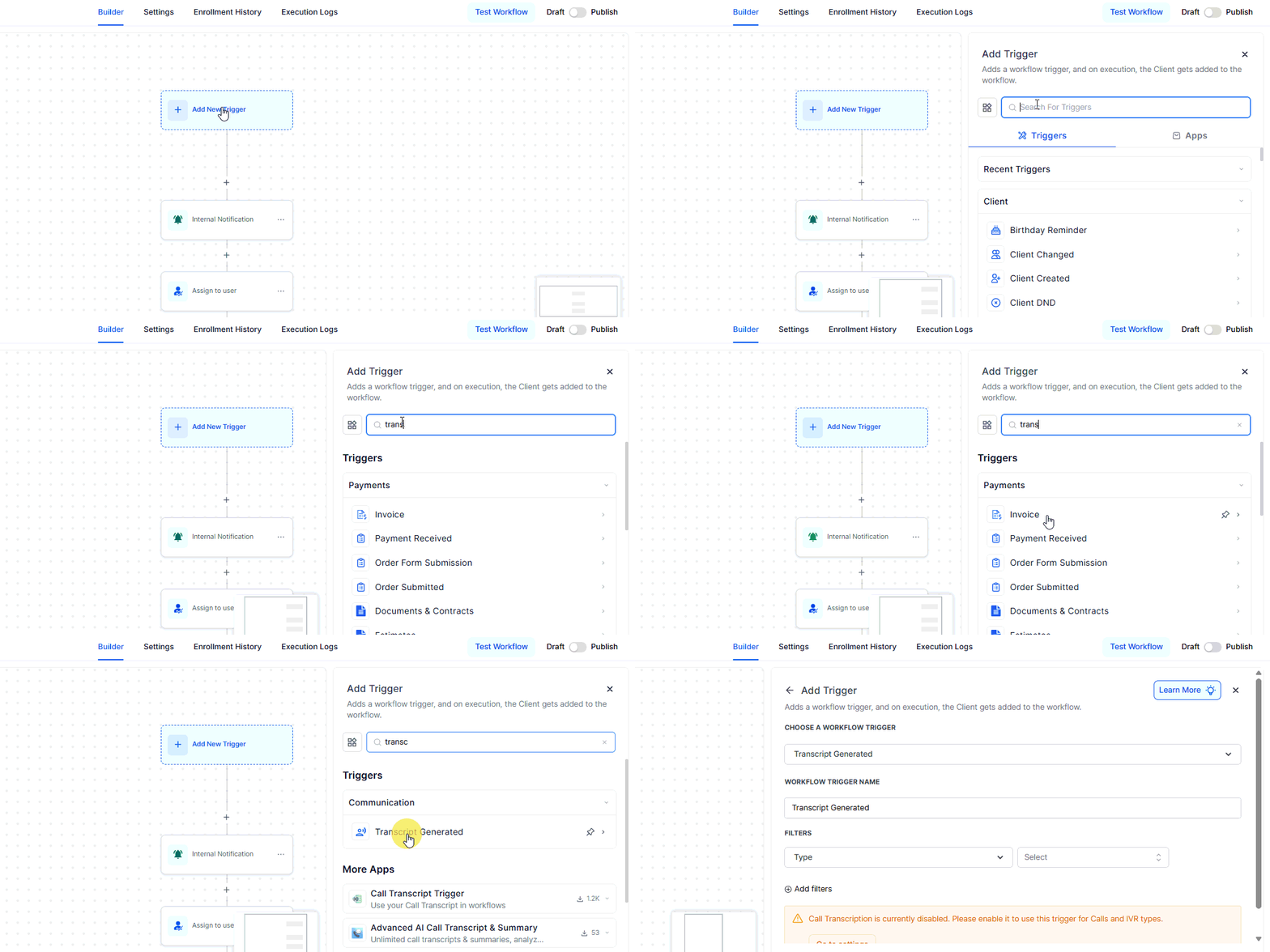
Click Add New Trigger, then select Transcript Generated from the trigger list.
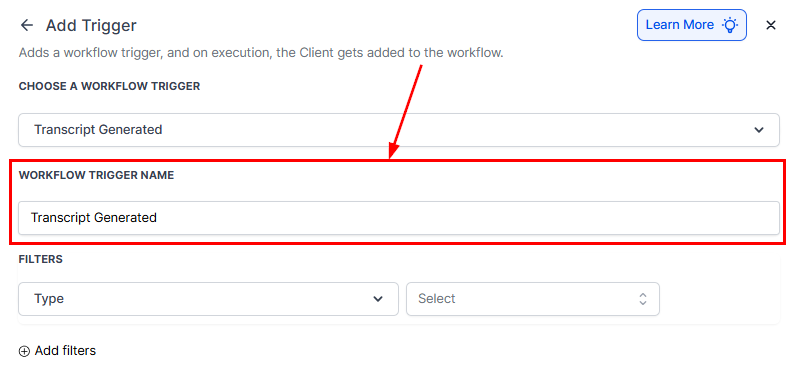
Workflow Trigger Name
Once it is added, update the trigger’s name if necessary.
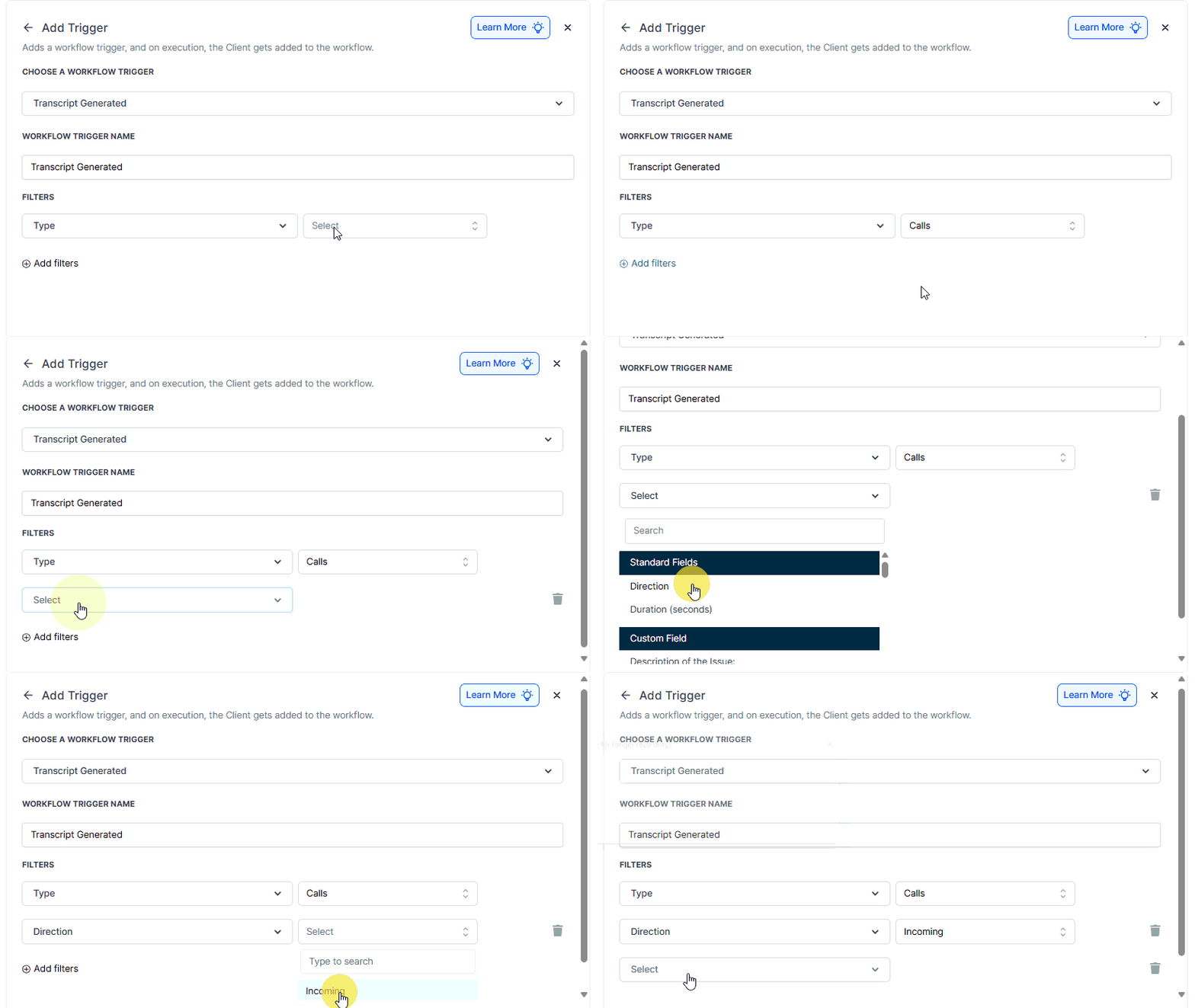
Apply Filters
Narrow down when the workflow should activate by setting filters such as:
- Call Type: Choose Voice AI, IVR, or Normal Calls.
- Call Direction (Optional): Filter by inbound or outbound calls.
- Call Duration (Optional): Exclude short or incomplete calls (e.g., greater than 30 seconds).
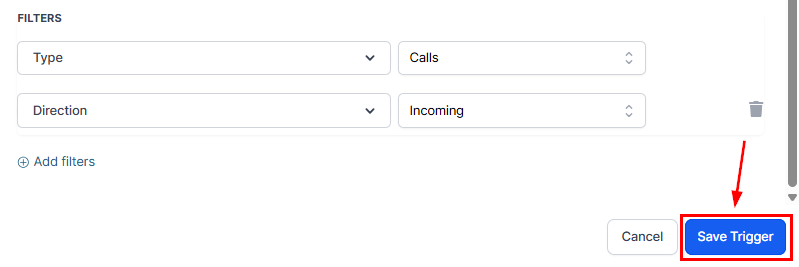
Save and Publish
Click Save Trigger to add the trigger to your workflow, then configure your workflow actions.
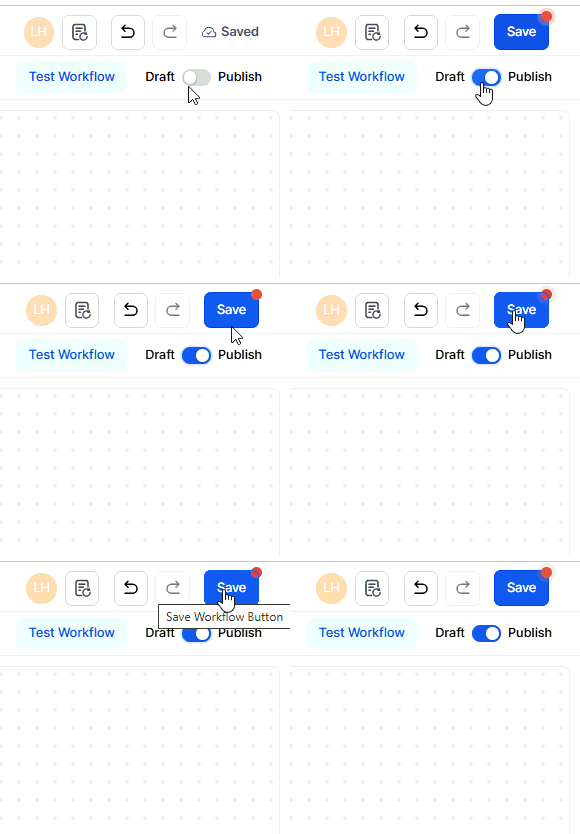
Finally, toggle the workflow from Draft to Publish to activate it.
The Transcript Generated workflow trigger turns real customer conversations into actionable automation. By combining transcription insights with workflow logic, your team can react instantly, personalize engagement, and eliminate manual post-call processes.
Start using the Transcript Generated trigger to unlock smarter, faster, and more efficient communication workflows across every call channel.
Frequently Asked Questions
Q: What happens if transcription fails or only partial audio is available?
- If a call fails to transcribe completely, the trigger will not activate. For partial transcripts, the workflow fires normally, but missing segments will appear as blank in the
{{full transcript}}custom value.
Q: Can multiple workflows respond to the same transcript event?
- Yes. Multiple workflows can be triggered by the same transcript event, as long as each workflow uses unique conditions. Use filters strategically to prevent duplicate or redundant actions.
Q: How is transcript data stored and secured?
- Transcripts are securely stored within the system’s infrastructure and tied to the associated contact record. Access is governed by user permissions. Administrators can view, delete, or export transcripts.
Q: Can this trigger be used with calls imported or synced from third-party systems?
- No. The trigger only works for calls recorded and transcribed within the native system. Imported call logs or externally transcribed data will not activate this trigger.
Q: Is there a limit to the transcript size for workflow processing?
- Yes. Transcripts up to 16 KB can be referenced in custom fields. For longer calls, store the transcript in a note field or link to it via webhook or file URL. The workflow can still process based on the complete transcript even if it exceeds field limits.
Not a Funnelbud customer yet?
Try our all-in-one CRM for sales and marketing — free for 7 days, no commitment.