Standard Builder Keyboard Shortcuts
Building workflows efficiently often comes down to how quickly you can move, edit, and navigate within the builder. While point-and-click actions work well, keyboard shortcuts provide a faster, more streamlined way to manage workflows—especially when handling repetitive tasks or larger structures.
This guide walks through how to use keyboard shortcuts in the standard workflow builder, along with a breakdown of the available commands and how they improve your workflow-building process.
How Keyboard Shortcuts Work
Keyboard shortcuts are organized into five functional groups:
- Essential – Core actions used frequently while building
- Edit – Modifying nodes and actions
- View – Adjusting the builder canvas
- Navigation – Moving between nodes and selections
- Tools – Utility actions like saving or opening panels
Depending on the shortcut, actions may apply to:
- A selected node
- All actions from a selected node onward
- The current view of the builder
Keyboard Shortcuts Reference
Edit
- Move Selected Node(s): ⌘ + X / Ctrl + X
- Copy Selected Node(s): ⌘ + C / Ctrl + C
- Paste Node(s): ⌘ + V / Ctrl + V
- Copy Actions From Selected Node Onward: ⌘ + Shift + C / Ctrl + Shift + C
- Move Actions From Selected Node Onward: ⌘ + Shift + X / Ctrl + Shift + X
View
- Zoom In: +
- Zoom Out: -
- Zoom to 100%: 0
- Fit View: 1
Navigation
- Select All Nodes: ⌘ + A / Ctrl + A
- Select All Actions: ⌘ + Shift + A / Ctrl + Shift + A
- Select All Triggers: ⌘ + ⌥ + A / Ctrl + Alt + A
- Move to Next Node: ↓
- Move to Previous Node: ↑
- Move to Right Sibling Node: →
- Move to Left Sibling Node: ←
- Select Upstream Nodes: Shift + ↑
- Select Downstream Nodes: Shift + ↓
Tools
- Delete Selected Node(s): Del
- Delete Actions From Selected Node Onward: ⌘ + Del / Ctrl + Del
- Open Trigger Panel: Shift + Tab
- Open Action Panel: Tab
- Save Workflow: ⌘ + S / Ctrl + S
How to Use Keyboard Shortcuts
Follow these steps to start using shortcuts effectively:
Open a workflow in the standard builder.
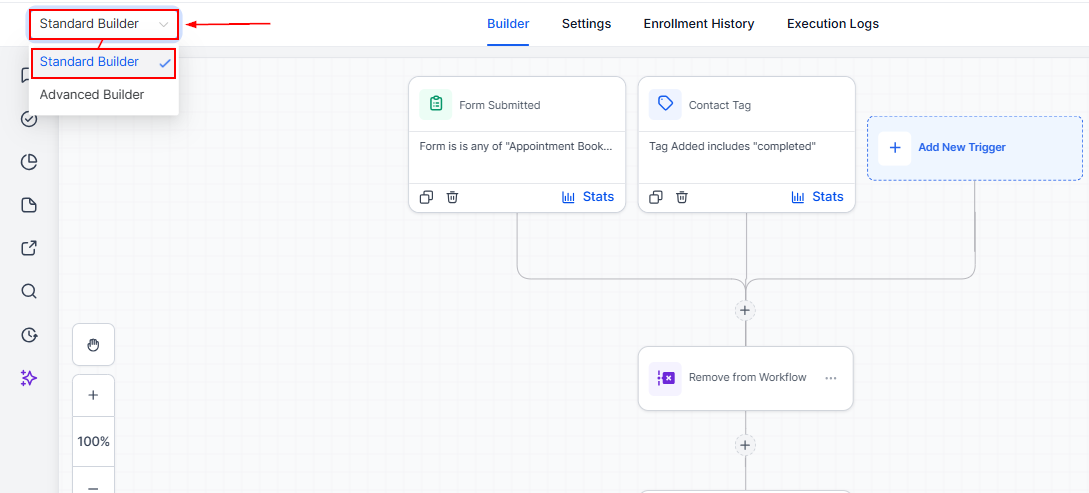
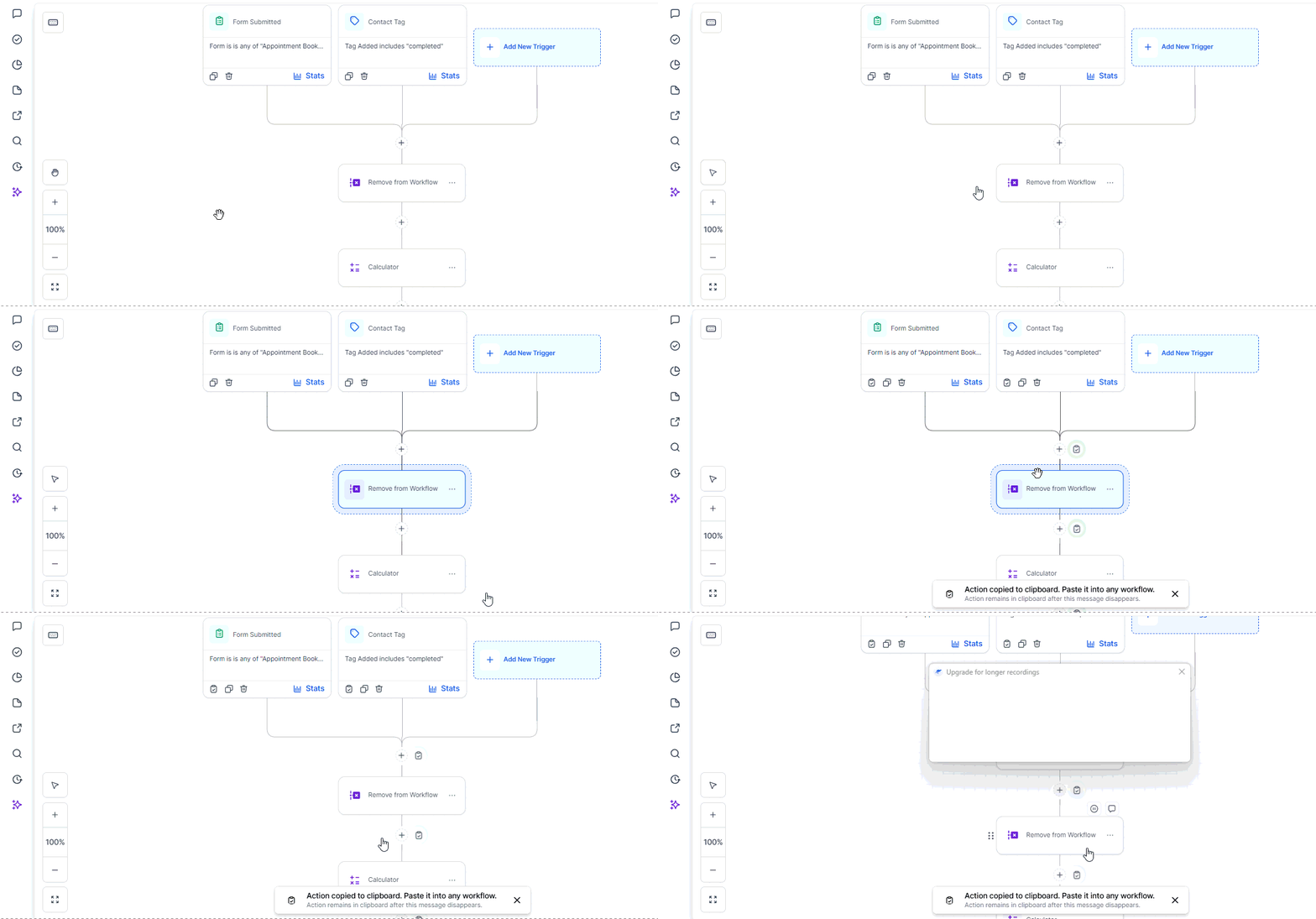
Select a node when required (some shortcuts depend on an active selection), then use the corresponding keyboard shortcut for the action you want to perform. This video demonstrates copying and pasting a node within the same builder.
Save your workflow periodically to retain changes.
Keyboard shortcuts are a practical way to improve speed and control within the standard workflow builder. By incorporating them into your workflow process, you can reduce manual effort, stay focused, and manage complex workflows with greater efficiency.
Not a Funnelbud customer yet?
Try our all-in-one CRM for sales and marketing — free for 7 days, no commitment.