Product List in Documents & Contracts
Enhancing the clarity and visual appeal of products in your documents and contracts is now easier than ever. With the Product List feature, you can display your catalog of products as an itemized list, helping recipients better understand what they’re purchasing and improving the overall presentation of your documents. Follow along to see how you can implement this feature in your documents and enhance your product offerings to clients.
How It Works
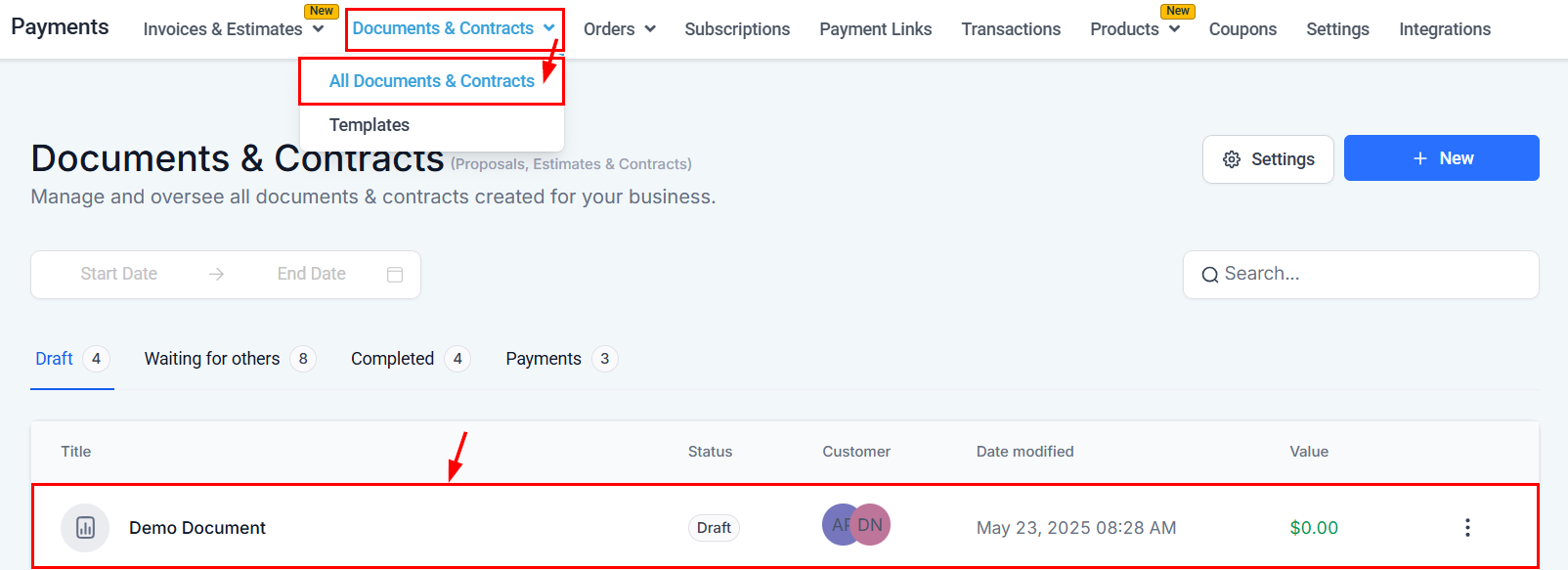
Begin by opening an existing document or creating a new one in the Documents and Contracts section of your account.
Add a Product List Block
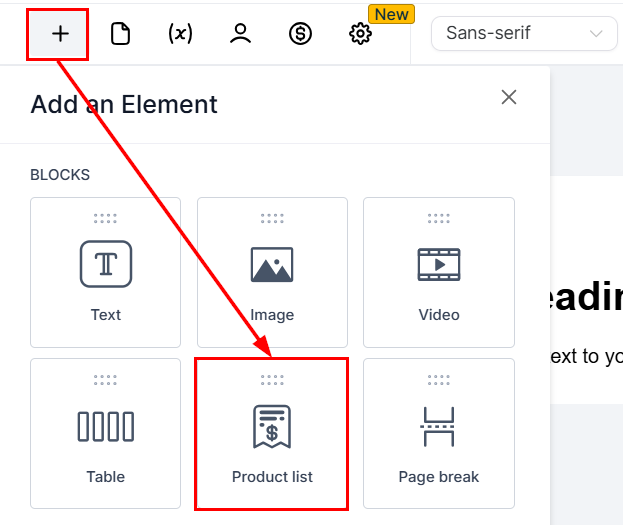
Click the ”+” button at the top of the document editor and drag and drop the Product List element to the desired section.
Add Products
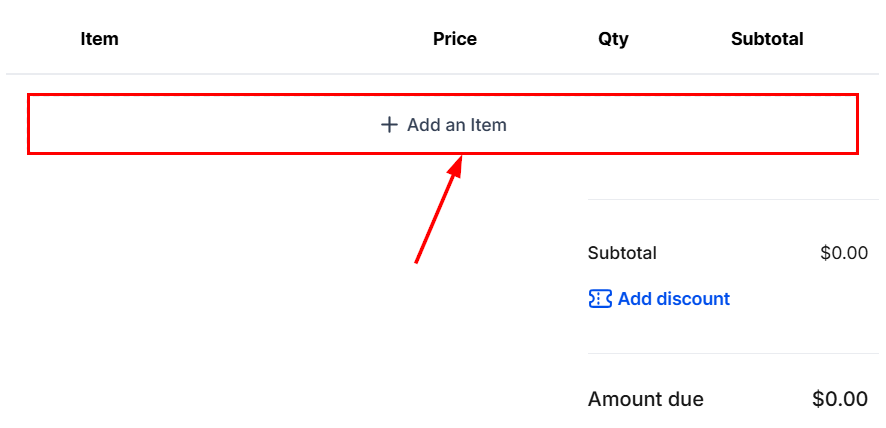
Next, click the “Add an Item” button to choose the products that should be included in the list.
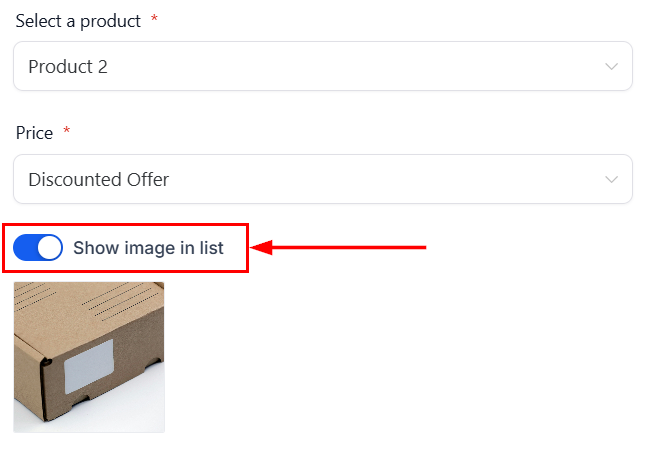
You can either choose an existing product with its associated price or click New Item to create a product directly within the editor.
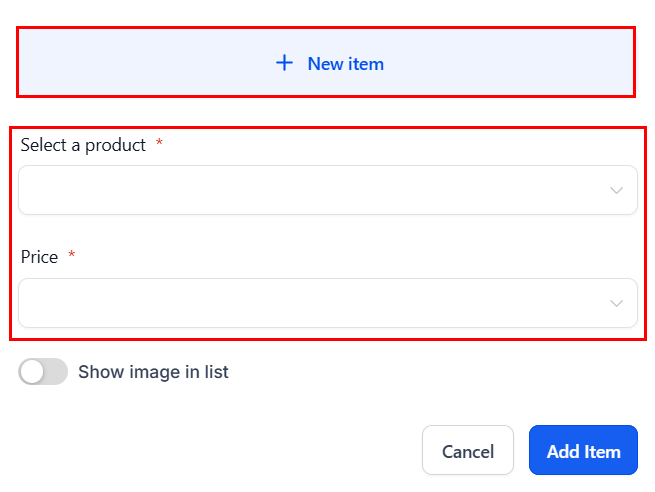
Enable the “Show image in list” switch to control whether the product image appears in the document.
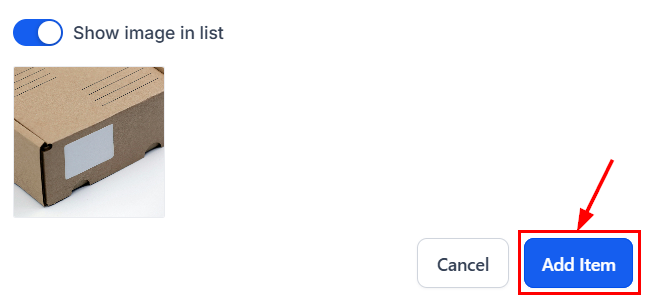
Finally, click “Add Item” to load the product into the list.
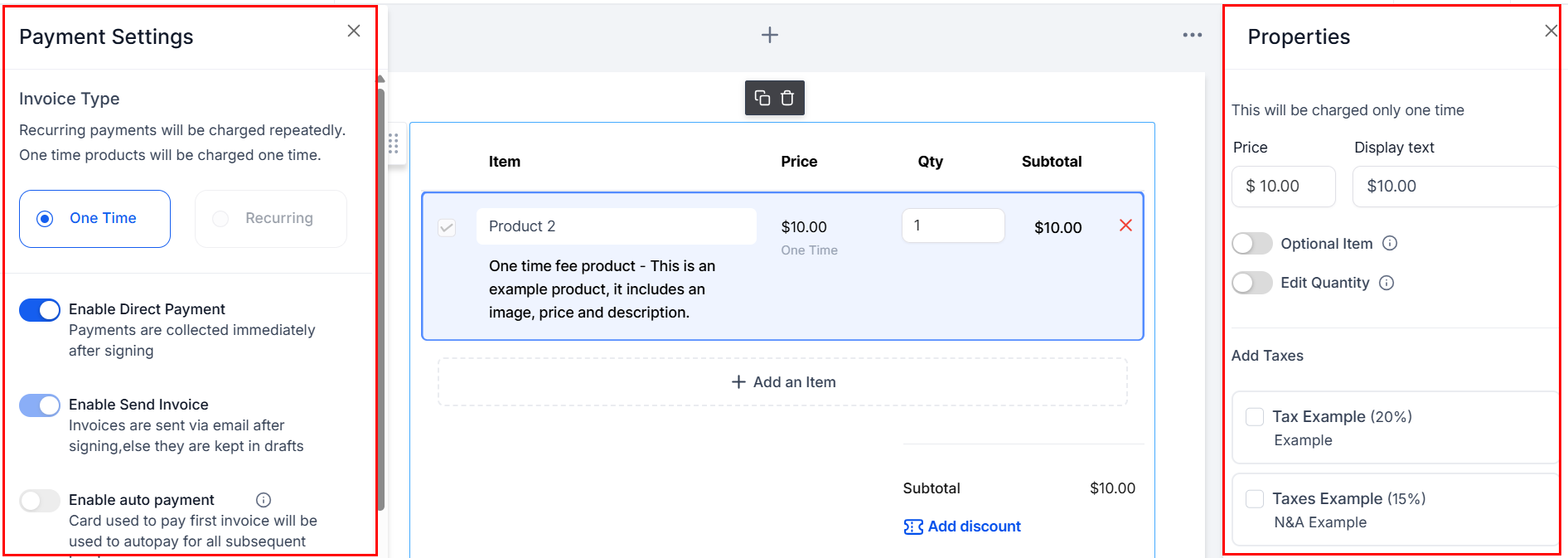
Repeat these steps as necessary to include multiple products, then preview your Payment Settings and Properties to ensure that they align with your needs.
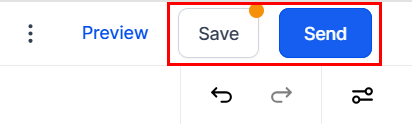
After reviewing your document, save and send it to the intended recipient(s). If you want to see how it will appear to the recipients before sending, utilize the preview feature.
By showcasing product details—complete with images and pricing—you create a more professional and engaging experience for recipients. Start incorporating Product Lists into your documents today to elevate the way you communicate value and close deals with confidence.
Not a Funnelbud customer yet?
Try our all-in-one CRM for sales and marketing — free for 7 days, no commitment.