Invoices: Payment Plans
When you have your own business, you become familiar with invoices, and if you have been using the system for a while, you might be used to the basics of how they work. You add your product or service, and the contact information, and they can pay for it.
However, what if you want to give them more flexibility while having control over the amounts you receive? Payment plans are a great way to implement this. They allow you to accept smaller payments over time while the system keeps track of the transaction being completed on time.
Setting the Invoice
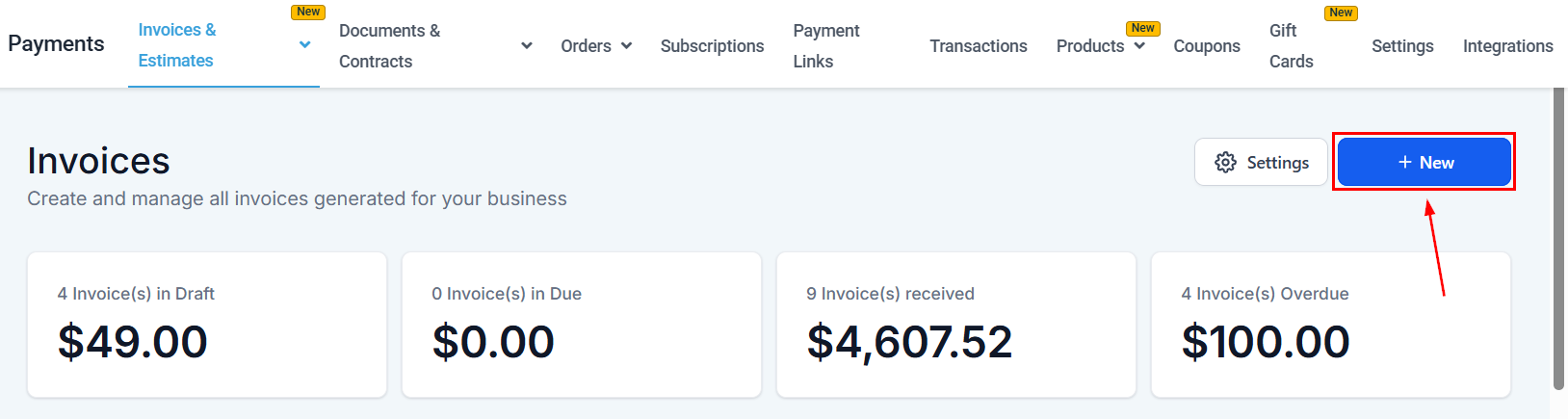
To send an invoice, go to the Invoices Tab in your Payments section and click on + New
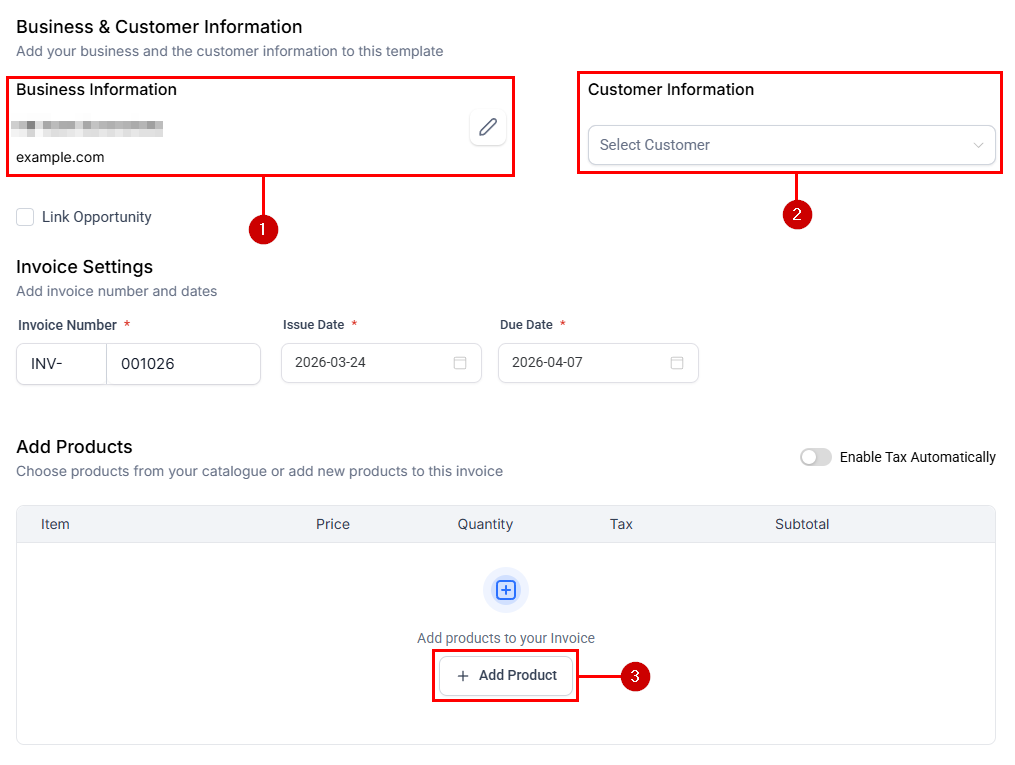
Add the business (1), client (2), and product information(3) as normal.
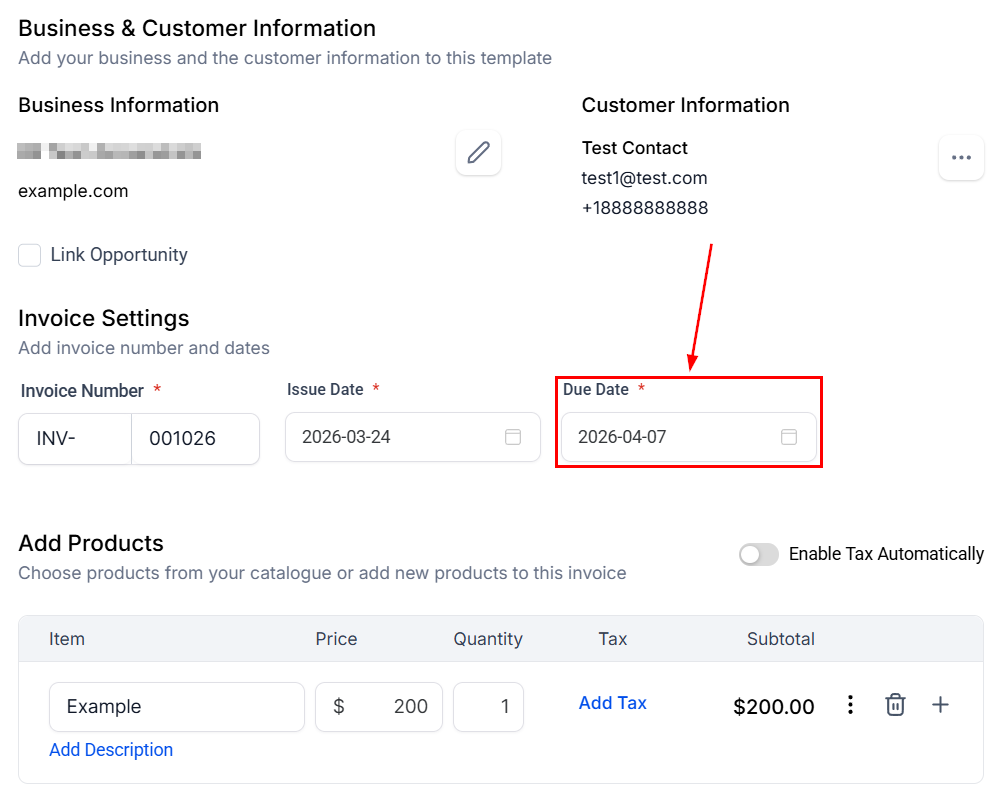
Fill out the Due Date for your invoice. This is necessary to schedule payments since their selected date must precede the invoice’s due date.
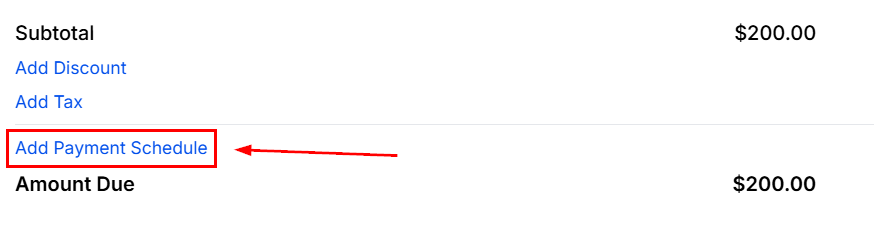
Click on Add Payment Schedule. This will open a window for you to set all the details of the payments.
Select between Percentage or Fixed Amount (1), and if the payment plan includes three or more payments, click on Add Payment for more fields (2).
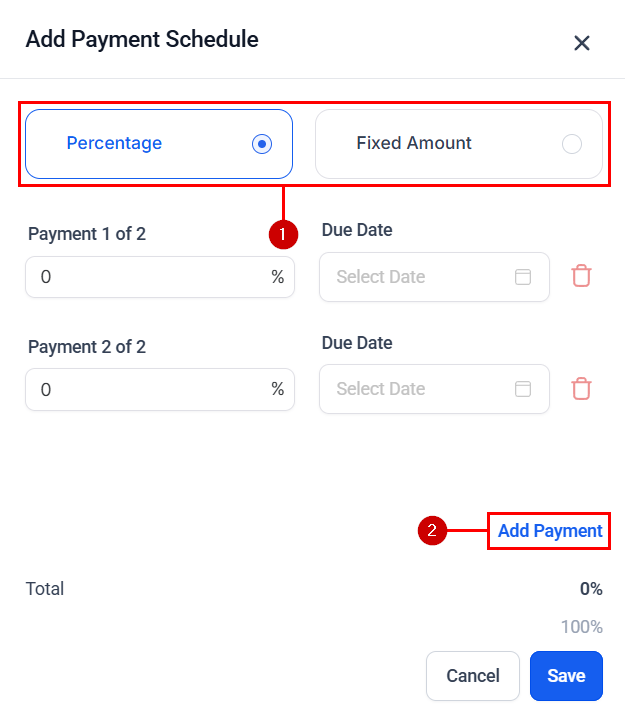
Set the amounts and dates for each payment. Please remember that the total has to equate to 100% for Percentage or the full cost of the product for Fixed Amount.
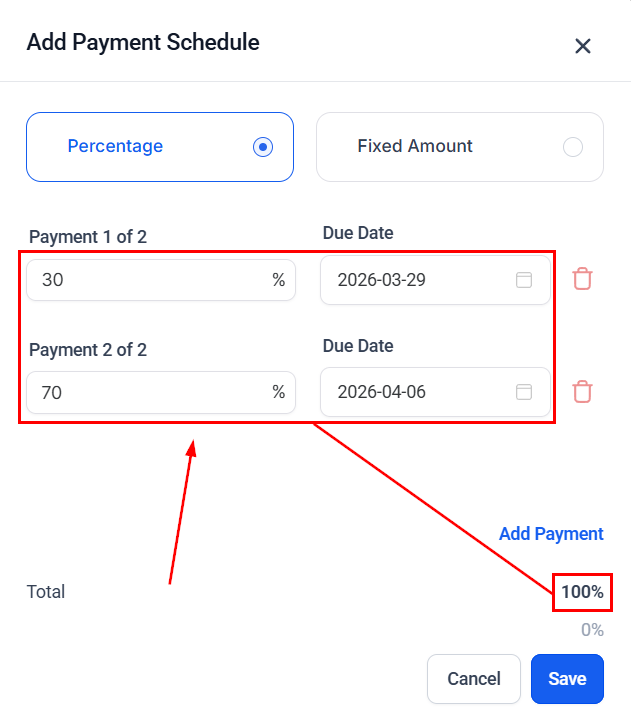
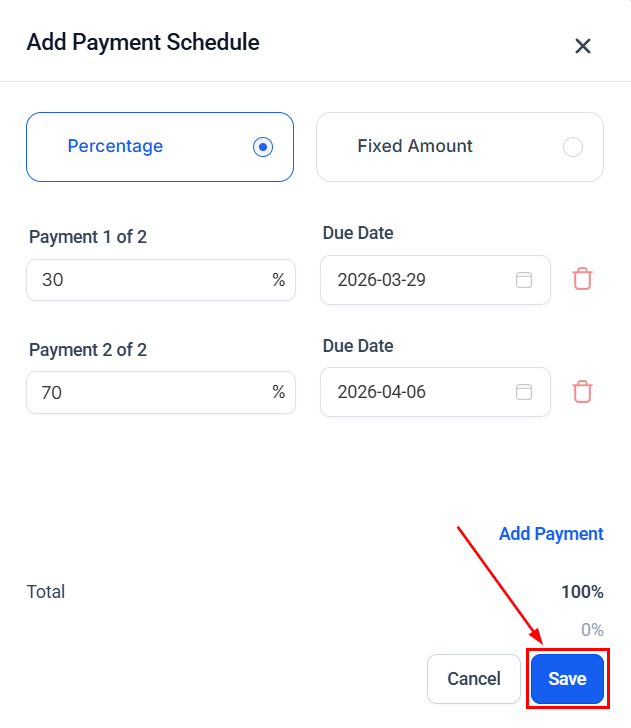
Click on the Save button.
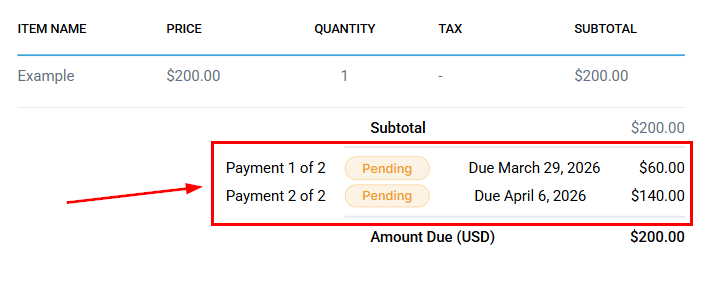
You should see the payment schedule reflected in your invoice.
After you’re happy with the invoice, click Send, select the channels to send it to, and click Send.
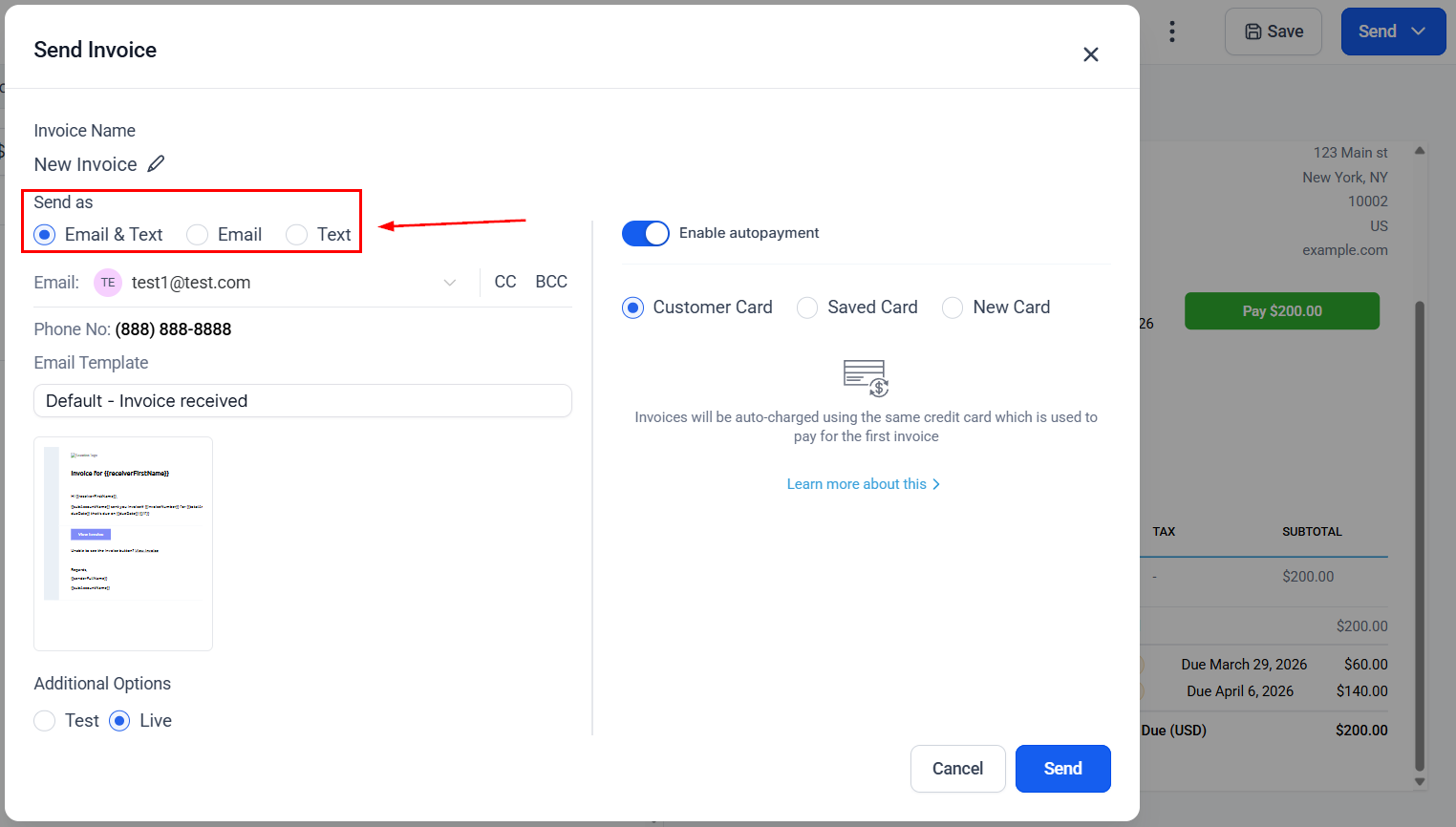
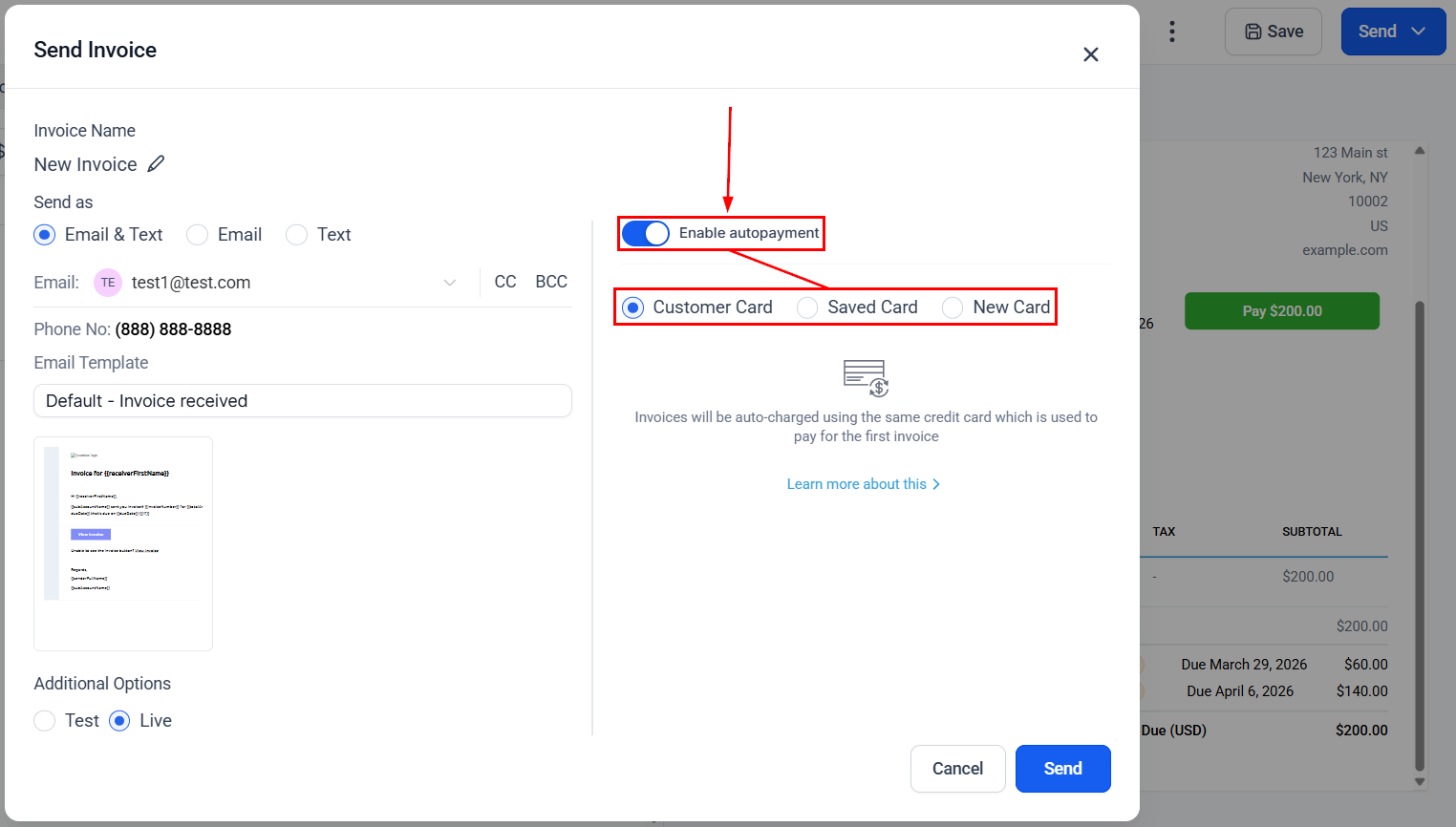
The option “Enable autopayment” is toggled on automatically, and it allows you to choose whether to receive payment from a Customer card, a Saved card, or add a New Card.
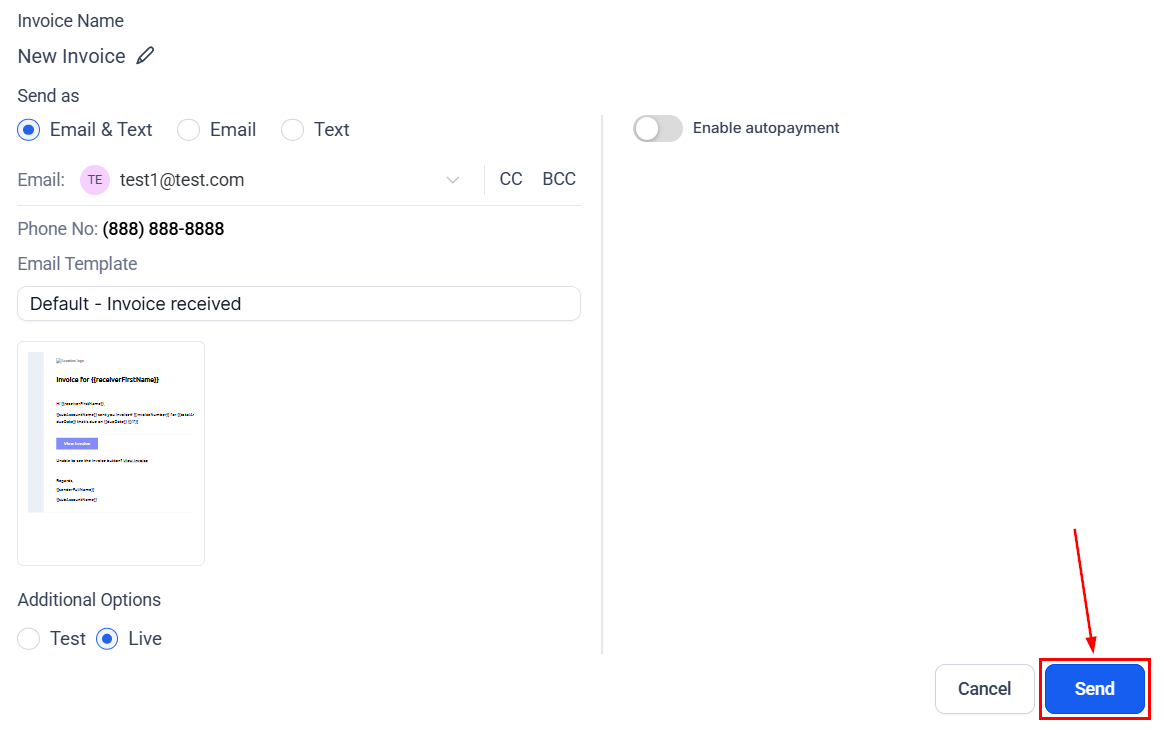
Click the Send button to finish this process.
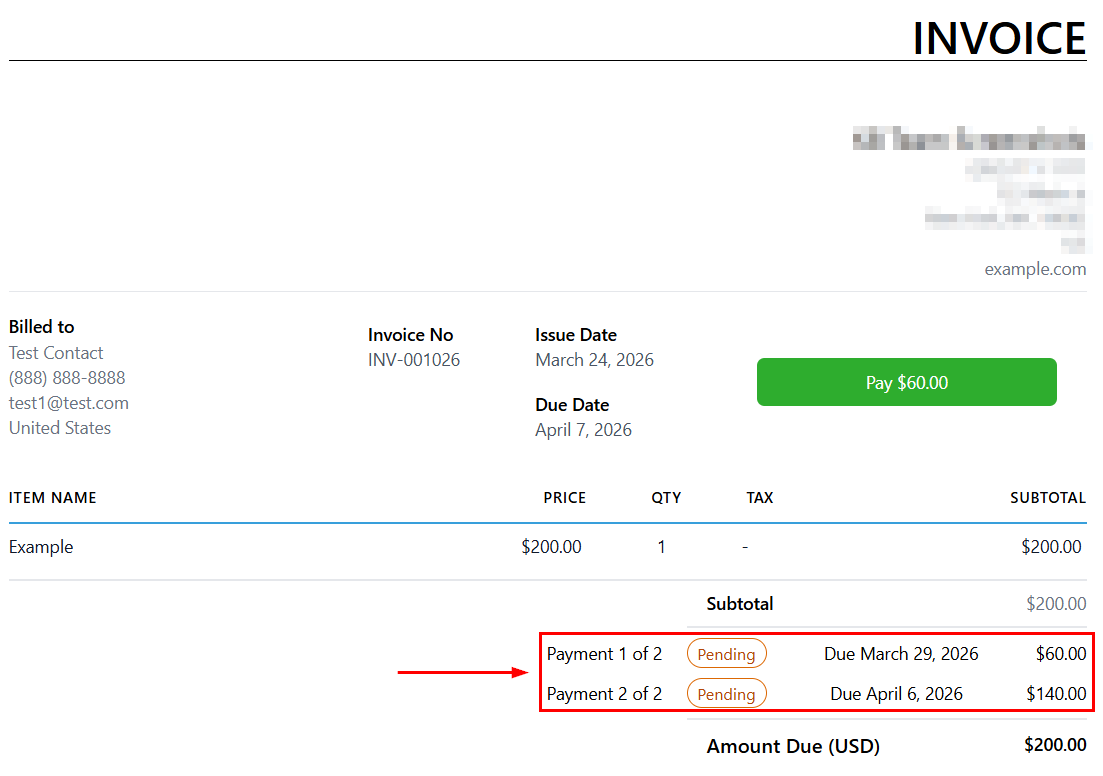
For the receiving client, the invoice will show them that they have different payments to complete with due dates for each.
When they click on Pay, they can either pay them one by one or add several to the Choose Payments bar.
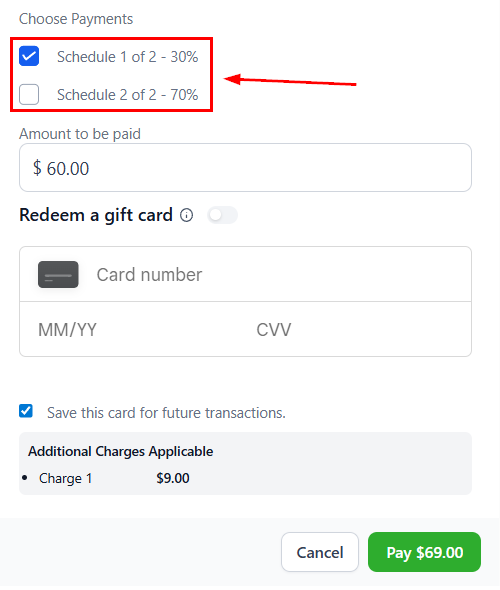
And, there you go. Now you can use the Payment Plans invoice to move your mid and high-ticket items faster without worrying about reminding the clients of the payment or keeping items that require a deposit and later payment under the same invoice.
Important Notes:
- Before sending any invoices, make sure you have a payment gateway connected to collect online payments.
- Verify you’ve set the invoice’s general due date properly before setting the individual payment due dates to avoid system errors.
Not a Funnelbud customer yet?
Try our all-in-one CRM for sales and marketing — free for 7 days, no commitment.