How to Navigate Your Team's Schedule with Ease
The Calendar is designed to streamline team scheduling and resource coordination. It allows users to view individual calendars side by side, making it easier to compare schedules and plan activities without constantly switching between views. This feature also facilitates efficient resource management by providing a clear overview of team members’ availability, enabling informed decisions on task assignments. With its user-friendly interface and simple checkbox system, navigating and selecting the calendars you wish to view becomes an intuitive and hassle-free process.
To take full advantage of the calendar, follow these simple steps:
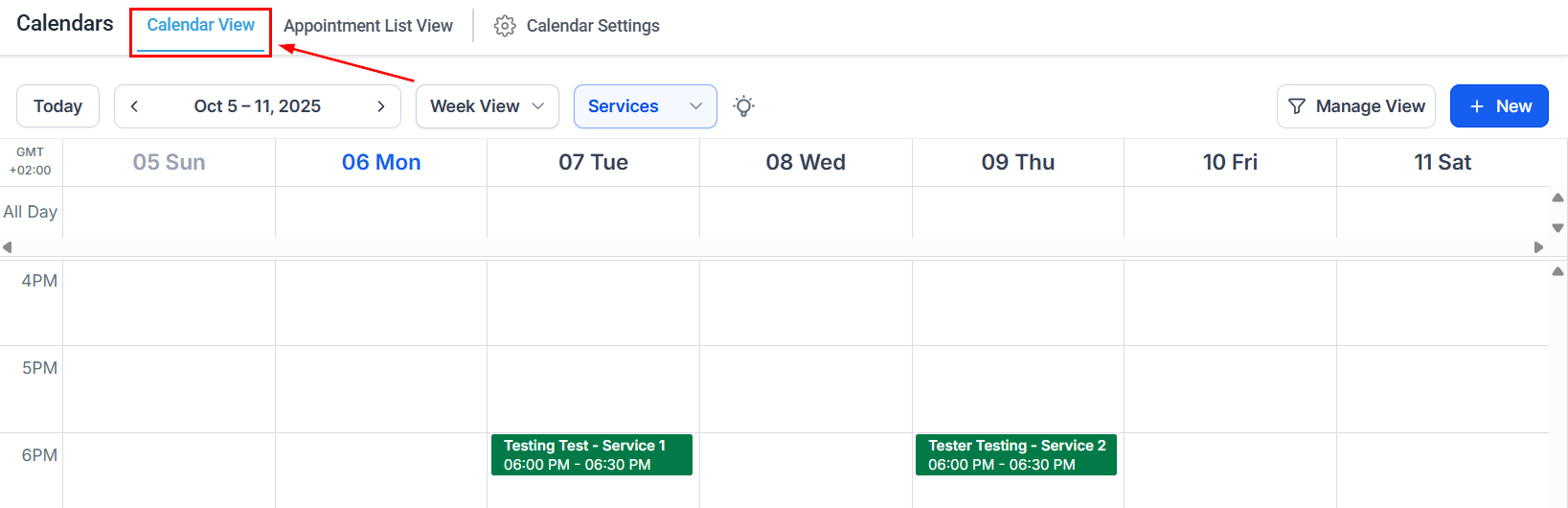
Accessing the Calendar
Navigate to the left sidebar menu and select the “Calendars” tab to access the calendar view.
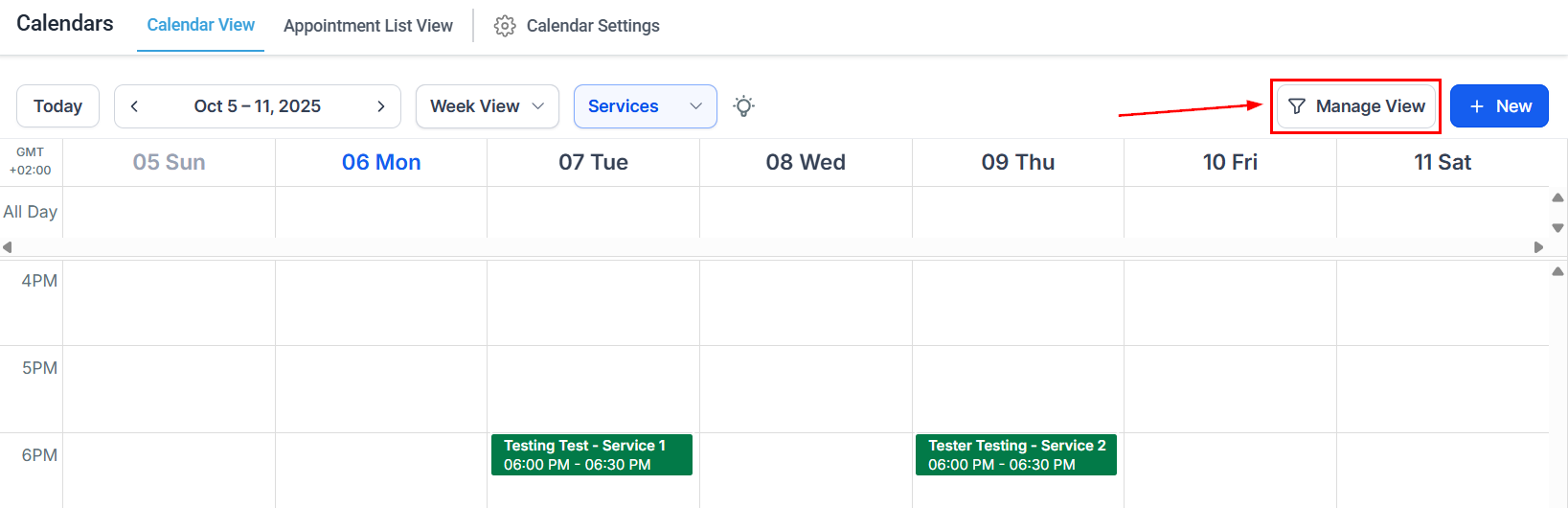
Selecting Calendars
Click Manage View to open the filters.
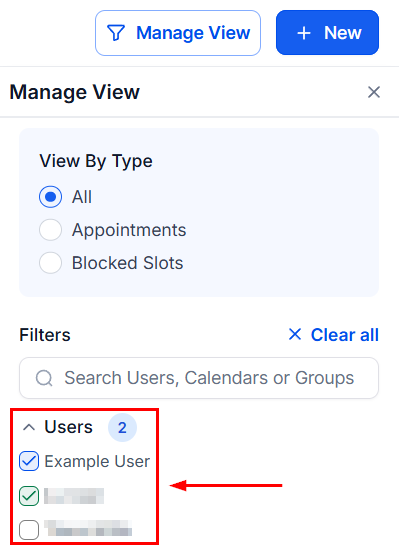
On the right-hand side of the screen, locate the Users/Staff section. Select the checkboxes next to the names of the individuals whose calendars you wish to compare.
Viewing Calendars Side by Side
After selecting the desired calendars, select Day from the dropdown menu.
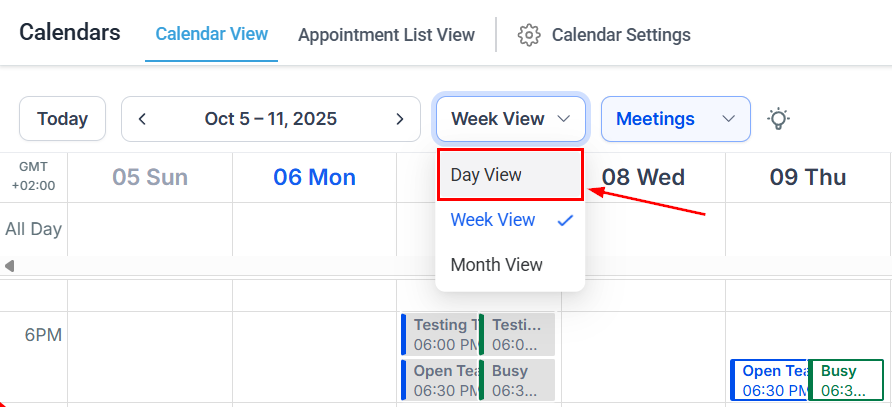
The chosen calendars will be displayed side by side in the resource view, facilitating easy comparison and scheduling.
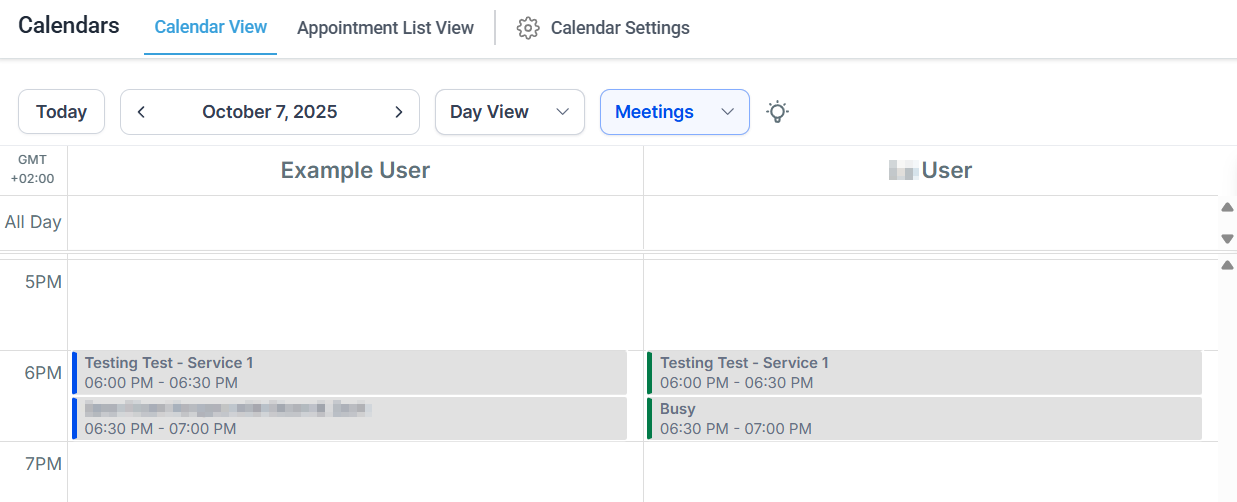
By enabling users to view multiple calendars side by side, it simplifies the process of comparing schedules and coordinating activities. This functionality supports efficient task assignment and decision-making, ensuring that resources are utilized effectively and deadlines are met.
Practical Examples and Use Cases
- Team Meetings: Quickly find a time slot when all team members are available for a meeting by comparing their calendars side by side.
- Project Assignments: Assign tasks based on team members’ availability, ensuring that deadlines are met without overloading any individual.
- Resource Allocation: Efficiently manage resources by having a clear overview of who is available and when, allowing for optimal task distribution.
Frequently Asked Questions
Q: What if I can’t see a team member’s calendar?
- Ensure that you have the necessary permissions to view their calendar.
Q: How can I view more than one day at a time?
- Currently, the resource view is designed for day-by-day comparison. For a broader view, use the week or month view, though these will not display calendars side by side.
Not a Funnelbud customer yet?
Try our all-in-one CRM for sales and marketing — free for 7 days, no commitment.