How to Cancel WhatsApp Subscription
If you are an Admin or Owner of an agency using WhatsApp Business services, you can cancel your subscription directly through the platform. Please note the following important information before proceeding:
- Note: Only Agency Admins and Owners have permission to cancel WhatsApp subscriptions.
- Note: A prorated refund will be issued based on the number of unused days remaining in the subscription, and refunds are typically processed within 7–8 working days.
With those considerations in mind, let’s dive into the steps to cancel the subscription.
How to Cancel Your WhatsApp Subscription
Start by navigating to the Settings section of the relevant sub-account, then open the WhatsApp section.
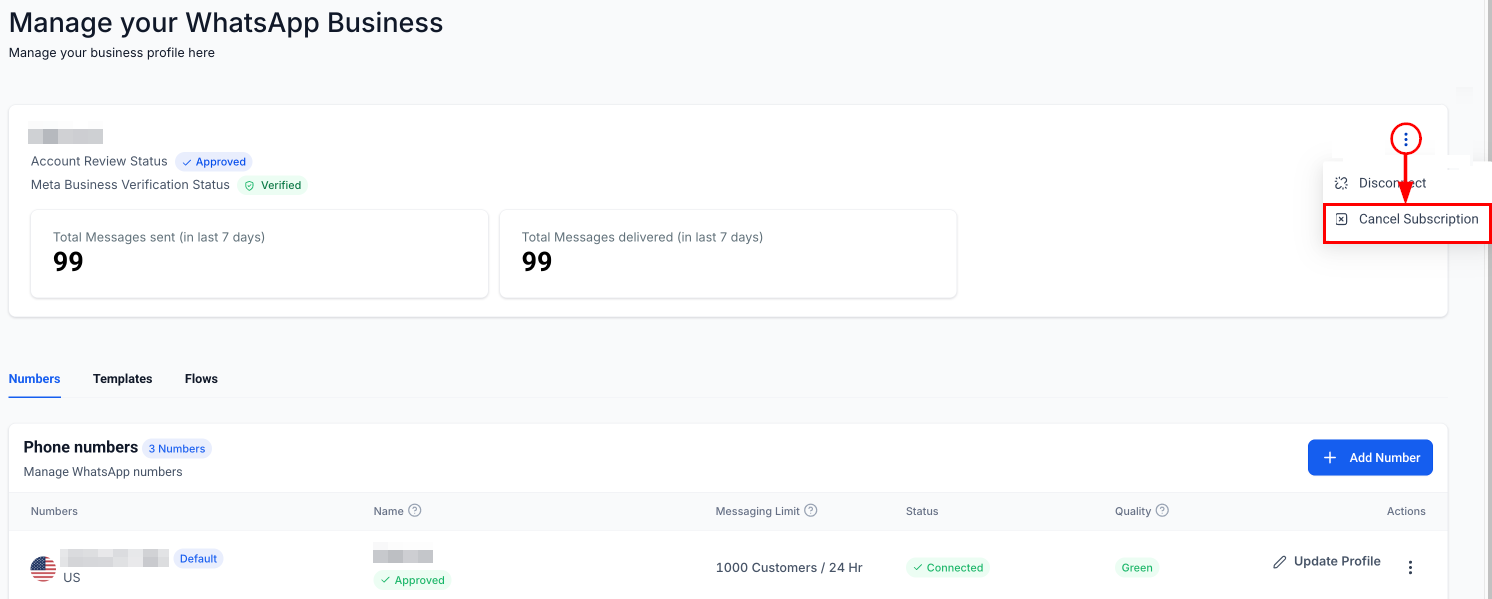
Next, tap the three-dot menu icon in the top-right corner and choose Cancel Subscription.
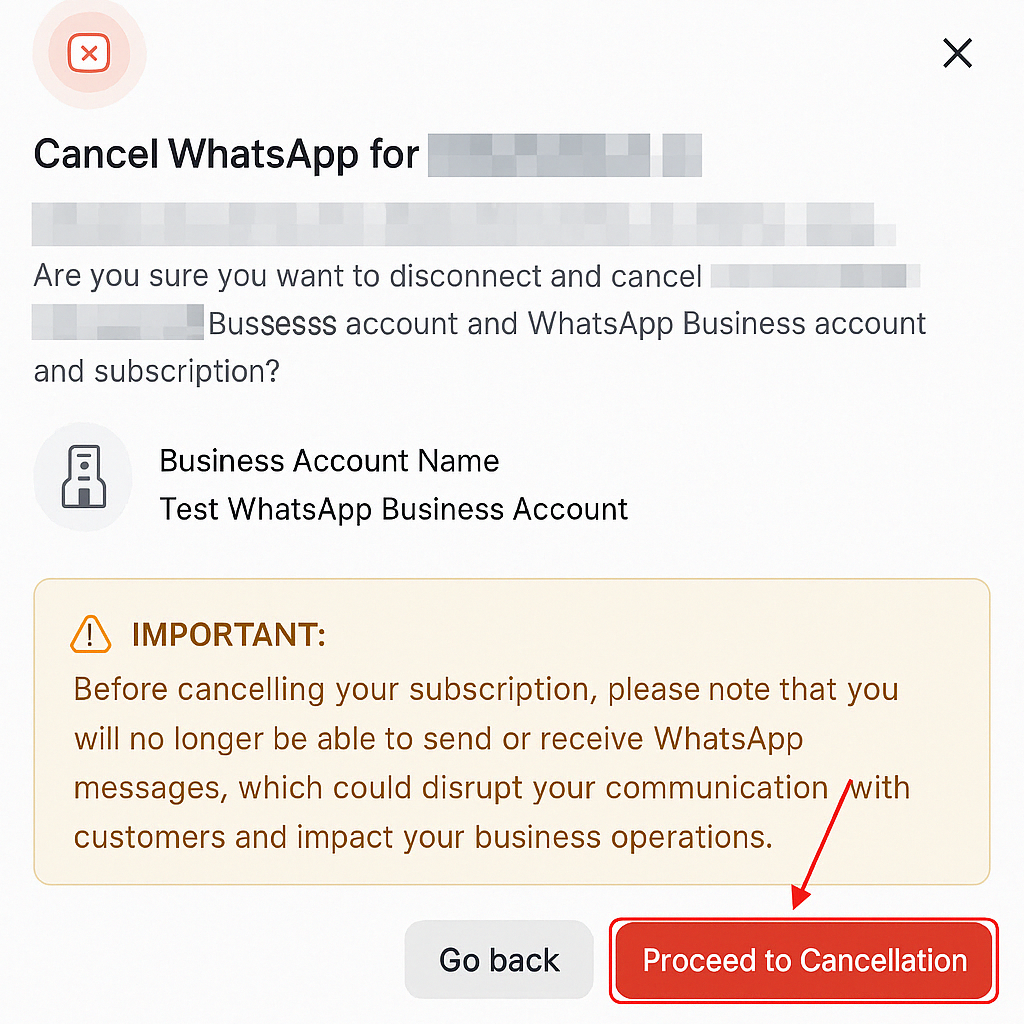
Review the name of the sub-account and read the important notes. If you would like to continue, click Proceed to Cancellation.
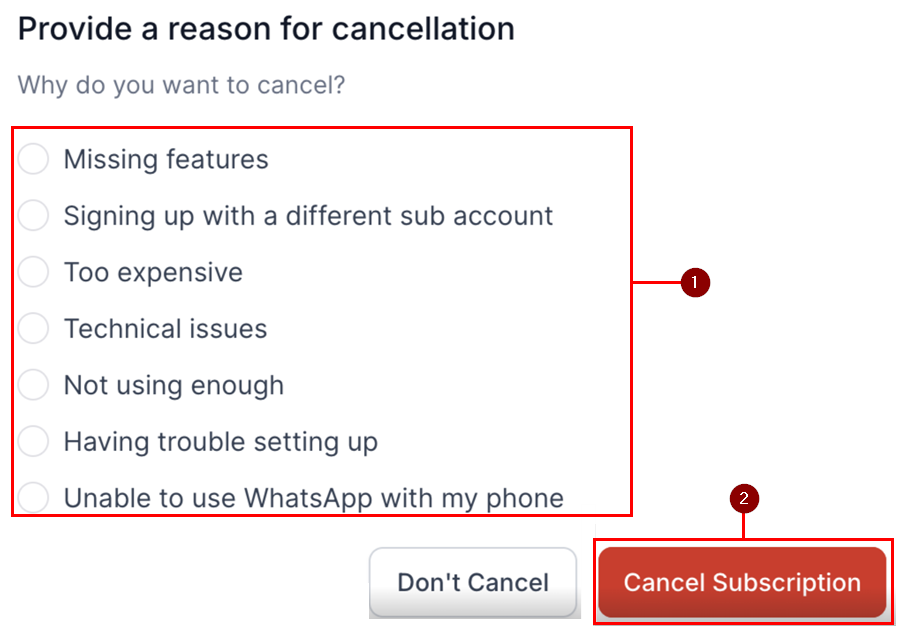
Finally, choose a reason for cancellation, then tap Cancel Subscription to confirm.
After you cancel,
- You will no longer be charged for the subscription.
- WhatsApp Business services may be limited or disabled.
- Access to certain features may be revoked, depending on your plan.
How to Disconnect WhatsApp
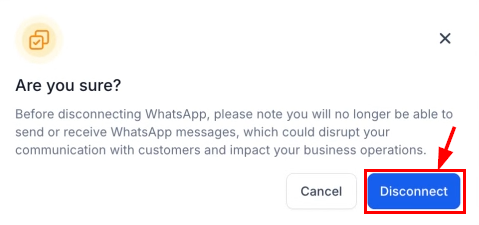
If you prefer to disconnect the integration instead of canceling the subscription, select the “Disconnect” option from the actions menu.
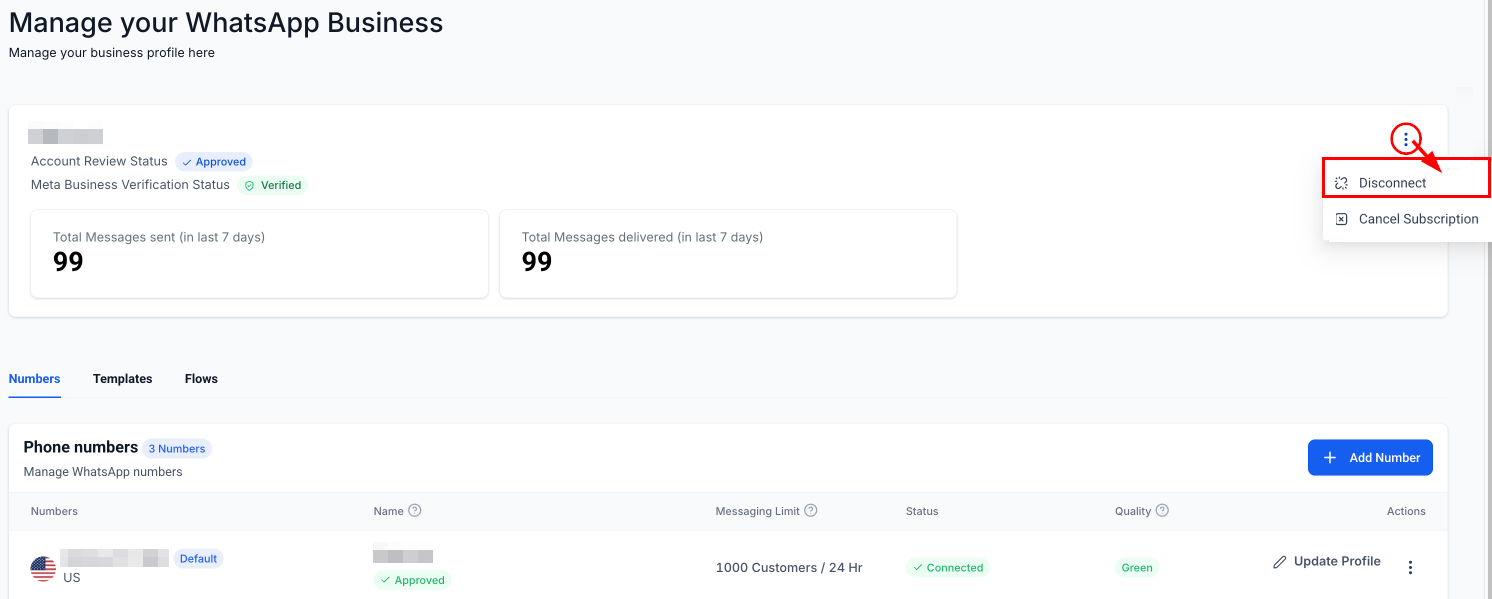
Carefully review the information presented in the confirmation dialog, and click “Disconnect****”**** to proceed if you agree.
Managing your WhatsApp Business subscription is straightforward when you follow the right steps. Whether you choose to cancel your subscription or simply disconnect the integration, it’s important to understand the implications for your business communications and account access.
Frequently Asked Questions
Q: Will I receive a confirmation after canceling my subscription?
- Yes, a confirmation message will appear once the cancellation is successfully processed.
Q: Can I reactivate my subscription after canceling it?
- Yes, you can subscribe again at any time by visiting Settings and selecting a new plan.
Q: Do I need to provide a reason for cancellation?
- Yes, selecting a reason for cancellation is required during the process.
Q: Will I receive a refund if I cancel my subscription?
- Yes, a prorated refund will be issued based on the number of unused days in your current subscription cycle.