Intelliplan sync with FunnelBud Flow
Overview
The integration syncs contact information between FunnelBud Flow and Intelliplan. This will help sync the needed information and enable you to plan better customer engagement strategies.
How it works
When any one of the below triggers occurs contacts are sent to Intelliplan
-
When a new contact is created.
-
When the custom field “Lead Source” is updated.
 contact lead o
Information sent to Intelliplan
- First Name
- Last Name
- Company Name
- CRM contact profile Url
- City
Information saved from Intelliplan
- Email.
- First Name.
- Last Name.
- Mobile.
- Company.
- Title.
- tag.
What is LeadSource
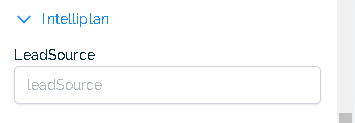
Leadsource means the source from which the Lead was captured. You can assign values to LeadSource as you would like to segment those in Intelliplan.
- When a Lead submits a form, you can save the form name as a lead source. Please refer to Optional Campaign - Form Submission as LeadSource in Automations>Flow- Intelliplan Integration.
- When contact is created, assign attribution source to LeadSource. Optional - Assign attribution source as LeadSource - Form Submission in Automations>Flow- Intelliplan Integration.
- When a lead is captured via your campaigns you can save the campaign name to the lead source field.
When contact is created, assign attribution source to LeadSource.
How to use Tags
- Tags can be used in the Smart Lists/Contacts to filter down to a specific group of leads/contacts that you want to see.
- Tags are also used to define a group of leads to send a Bulk Request (like Newsletter campaigns, Email Blast, etc.)
Things to remember
- When importing contacts via CSV from Intelliplan or other contacts that you do not want to be synced back to Intelliplan on creation, please add additional column in your CSV and name it as “CreatedFromIP -Do Not Edit” and set value as “Yes” for all contacts. This will ensure that these contacts do not sync back to Intelliplan unless an update happens.
- Any other contacts created via any source example form submission, or import when created will be sent to Intelliplan.
Integration Support
In case of any issues please fill in the form here.
For the fastest assistance, please include the following in your message.
- Description of the problem/question.
- What steps you have already tried to solve the problem.
- Add screenshots/video. It can be attached when you submit the form.
Add row aboveAdd row belowDelete rowAdd column to leftAdd column to rightDelete columnNote: This integration is for the purpose of continuous sync between Flow and Intelliplan. However, it is highly recommended to use Flow’s inbuilt import feature, for bulk contacts.
Not a Funnelbud customer yet?
Try our all-in-one CRM for sales and marketing — free for 7 days, no commitment.