Duplicating Conditional Branches
Workflows are an essential part of automating processes within your CRM, saving time and improving efficiency. In this guide, we’ll walk you through how to create and personalize workflows by adding conditions, duplicating branches, and customizing your setup to better suit your business needs.
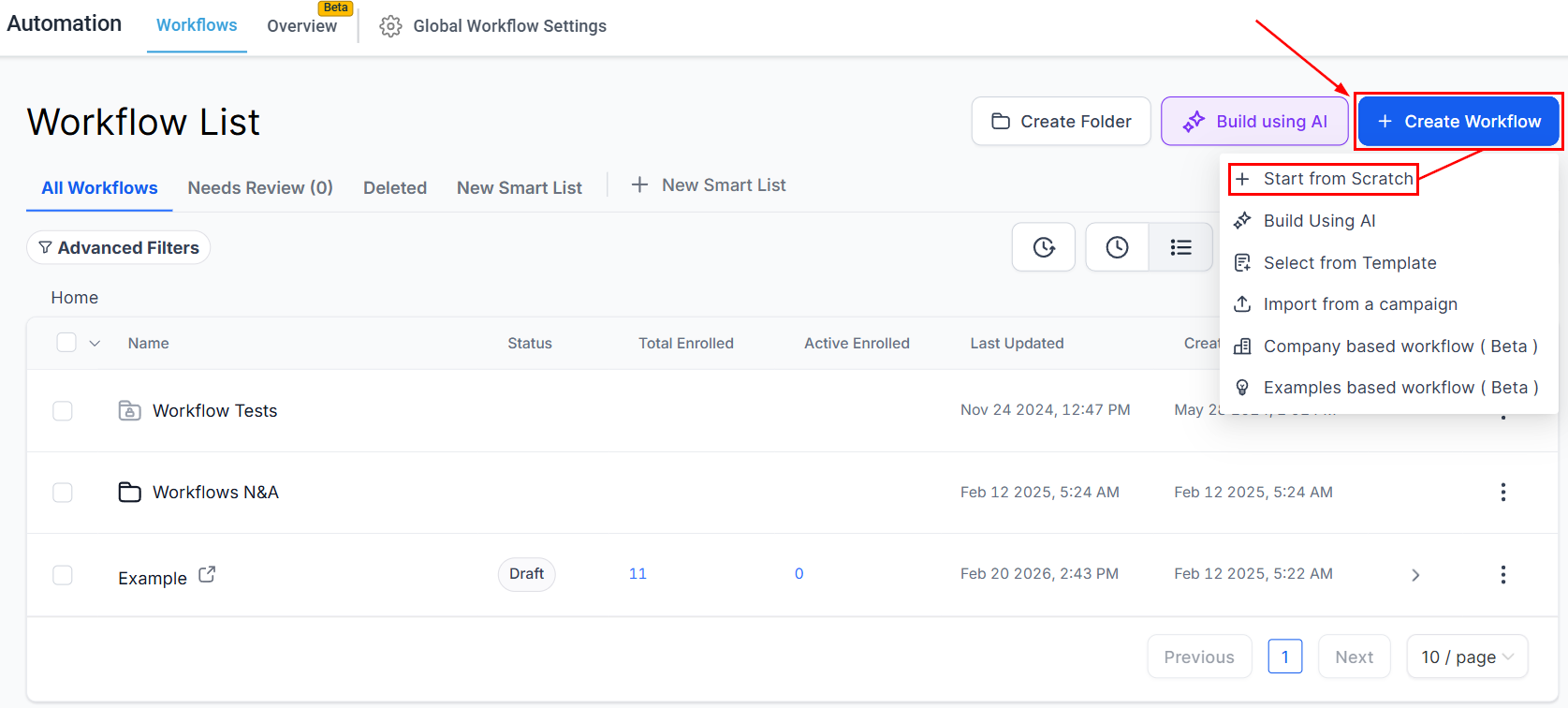
Go to the “Workflows” tab, select “Create New Workflow”, and click on “Start from Scratch”.
Adding Actions
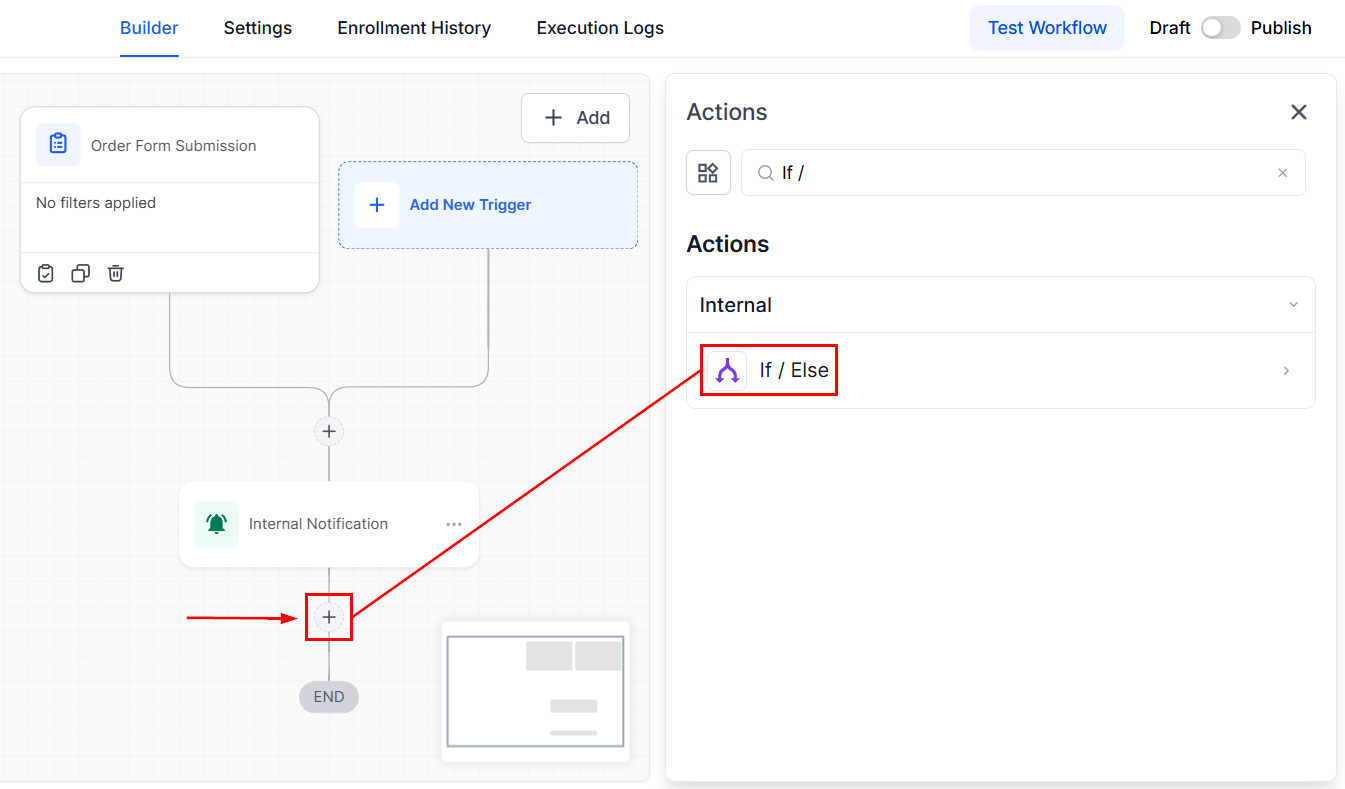
Click on the “+” symbol to search and add the If/Else action to your workflow.
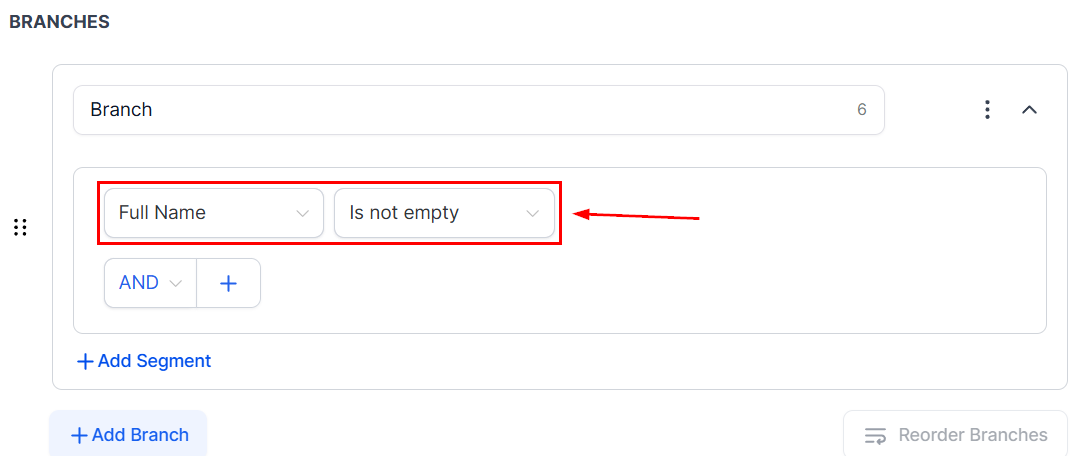
Then, go ahead and create branches based on your desired specific criteria.
Duplicating Branches
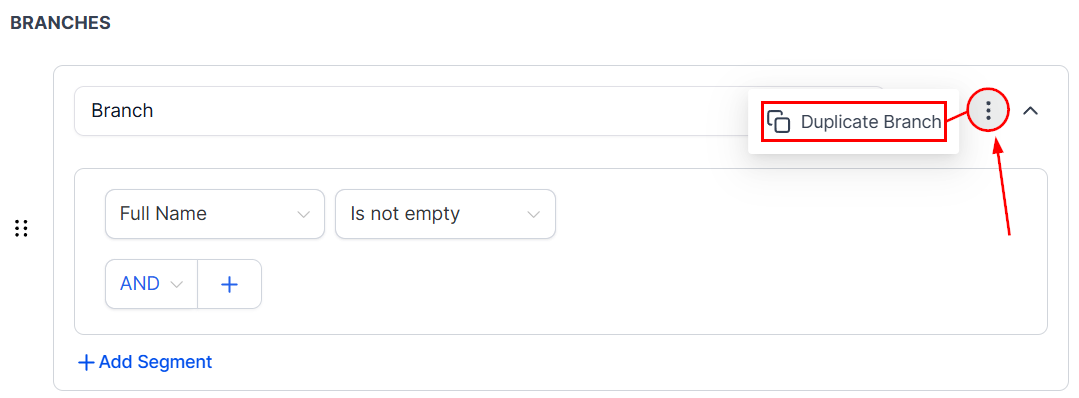
After setting your conditions, click on the three dots menu to find the “Duplicate Branch” option. The duplicated branch will appear next to the original, allowing for easy modification and customization.
Reordering and Personalizing
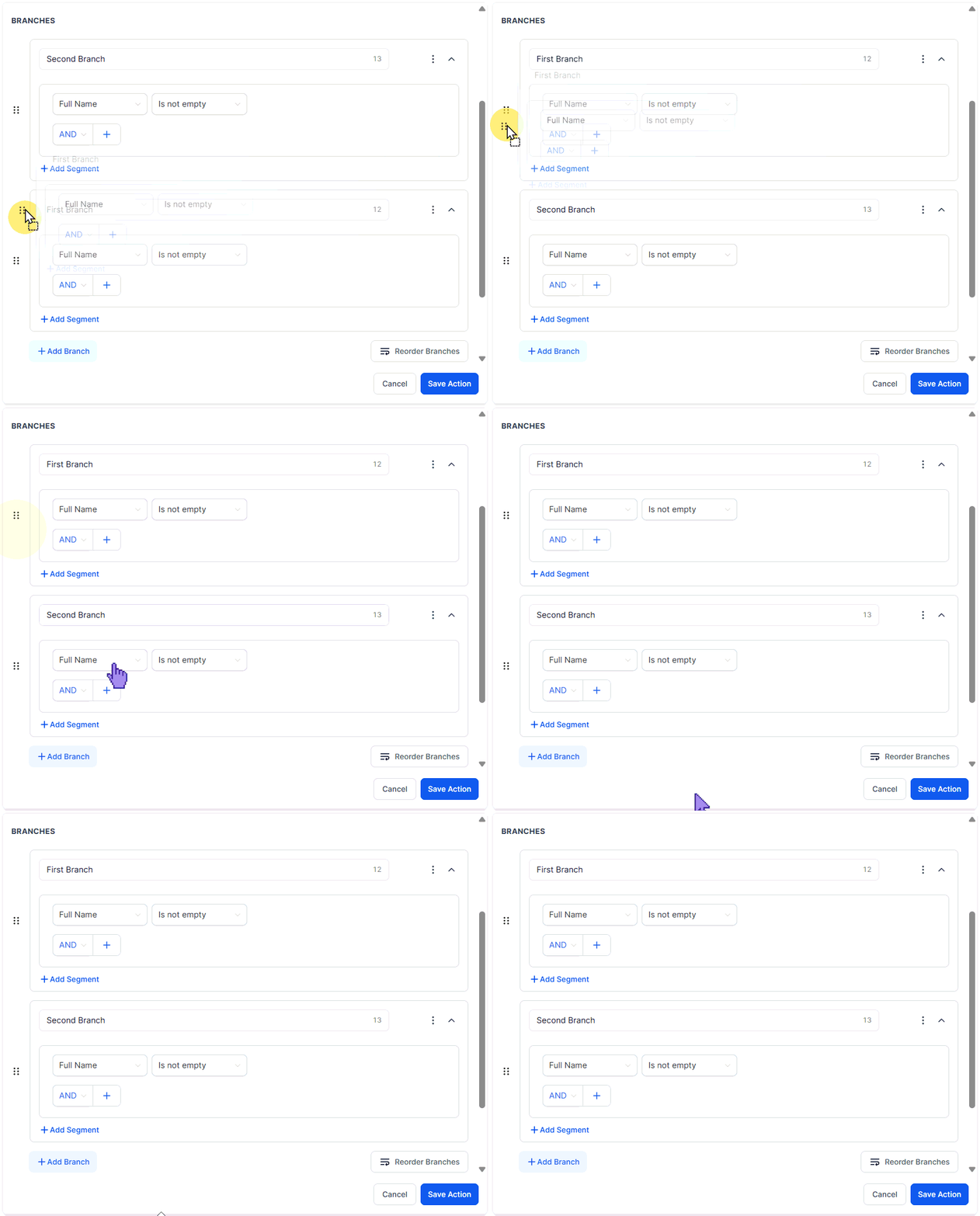
Organize your workflow visually by dragging and dropping branches to the desired order.
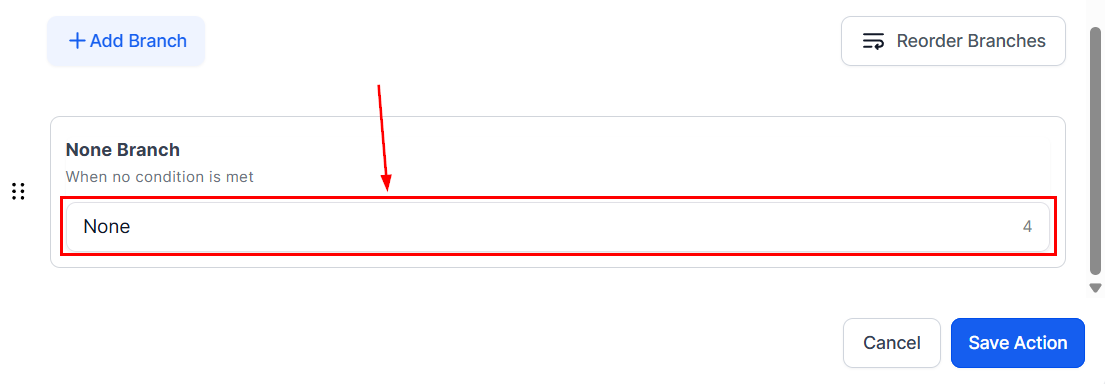
Rename the “None” branch to something more descriptive of its function, enhancing clarity and personalization within your workflow.
Finalizing Your Workflow
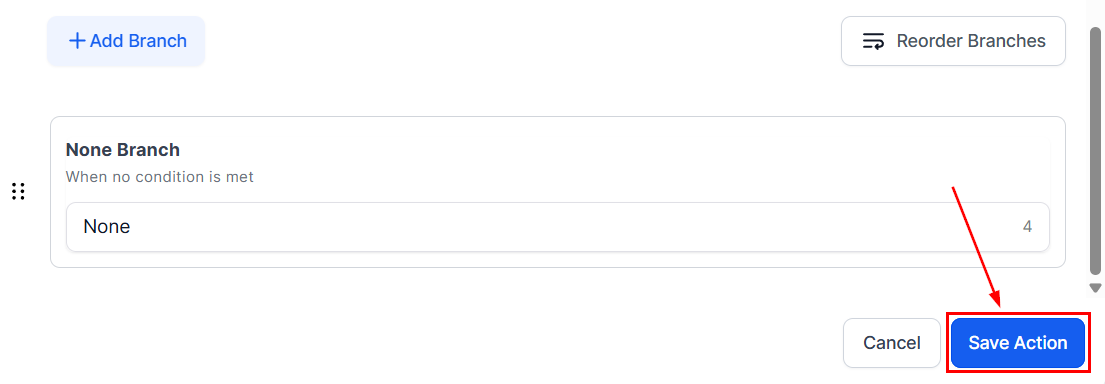
After duplicating and reordering branches and renaming for clarity, make sure to save your changes. Your workflow is now more tailored to your business needs and ready for implementation
Use Case
For example, in a workflow where tasks are categorized based on specific criteria, duplicating branches for each category and reordering them according to priority ensures that the most important tasks are handled first. Renaming branches for better clarity helps team members quickly understand the purpose of each, making the process more efficient and organized.
By following these steps, you can create a highly customized workflow that is tailored to your needs. Whether you’re duplicating branches, reordering them, or renaming them for clarity, these adjustments will help you with your processes and improve team productivity.
Troubleshooting Tips and FAQs
Q: What if I can’t see the option to duplicate a branch?
- A: Refresh your browser or contact support for assistance.
Q: How many branches can I duplicate?
- A: There’s no set limit, but it’s best to keep your workflows manageable and not overly complex for optimal performance.
Not a Funnelbud customer yet?
Try our all-in-one CRM for sales and marketing — free for 7 days, no commitment.