How to Create and Download a QR Code
QR codes make it easy to share information instantly with just a scan. Whether you’re directing customers to a website, collecting reviews, or providing contact details, creating a QR code takes just a few steps. Let’s check how to use this awesome tool.
Accessing the QR Code Generator
To create a QR code, go to the QR Codes tab inside the Sites section. Then, c`lick the Create QR Code button at the top right corner.

Creating a QR Code
Give your QR code a recognizable name so you can easily identify it later.
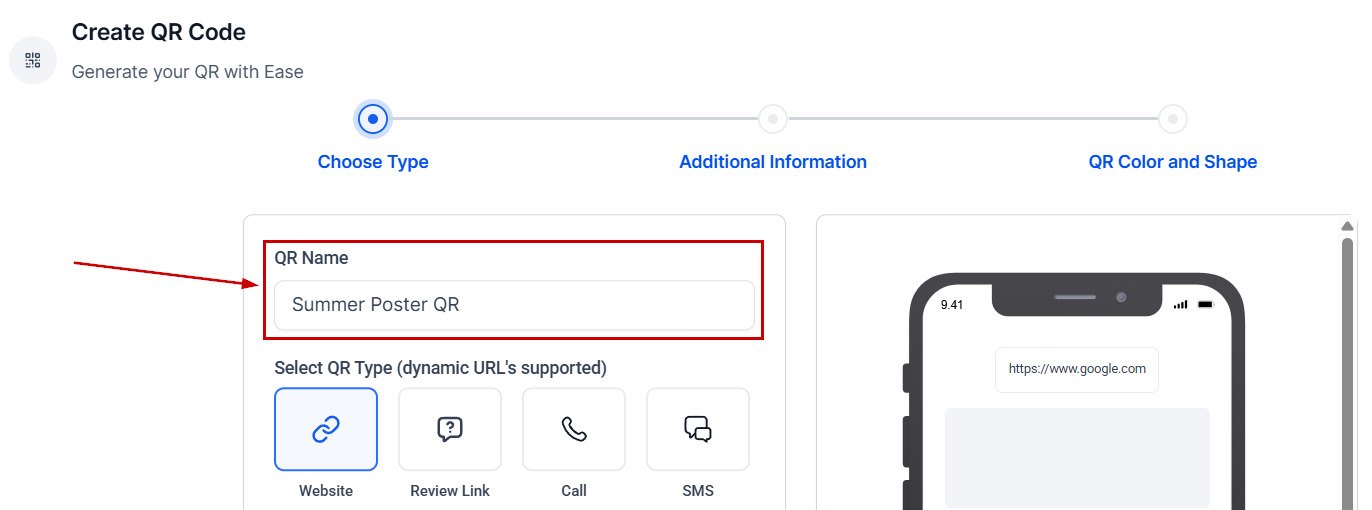
Select a Type that will define what the QR opens up to upon scanning. Available options include:
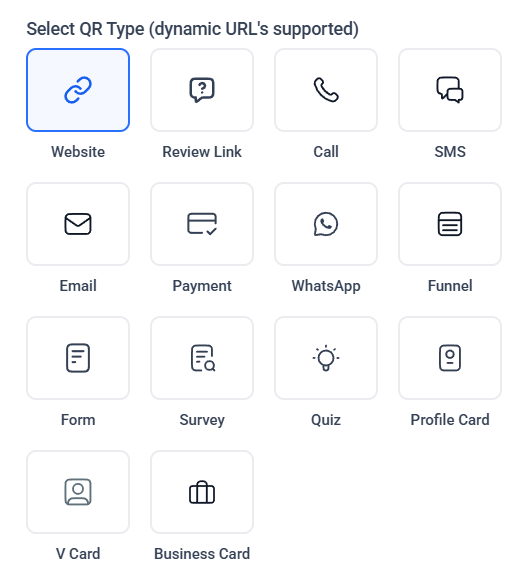
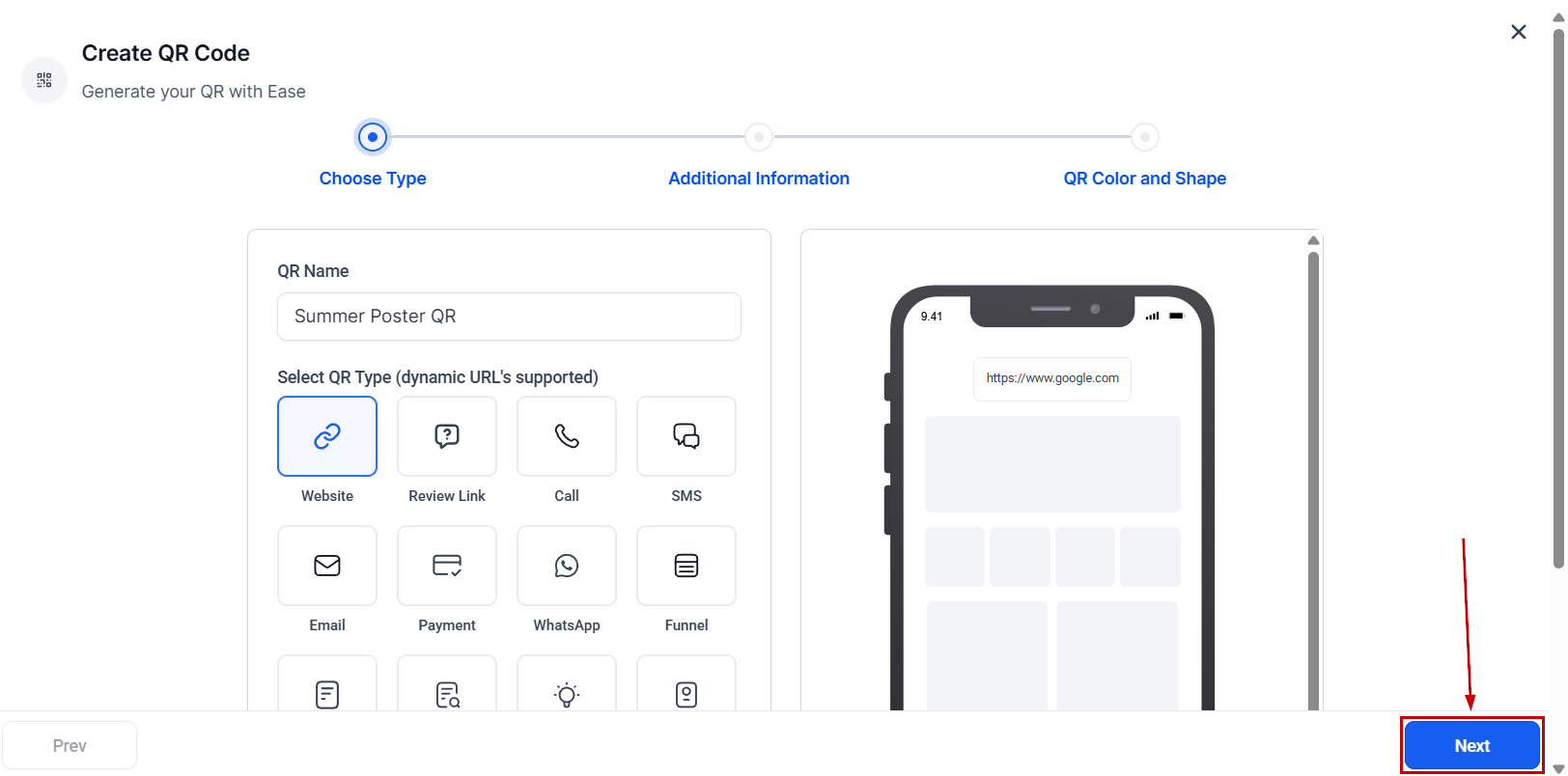
Once you’ve selected the one that best fits your needs, click Next to proceed.
Additional Information
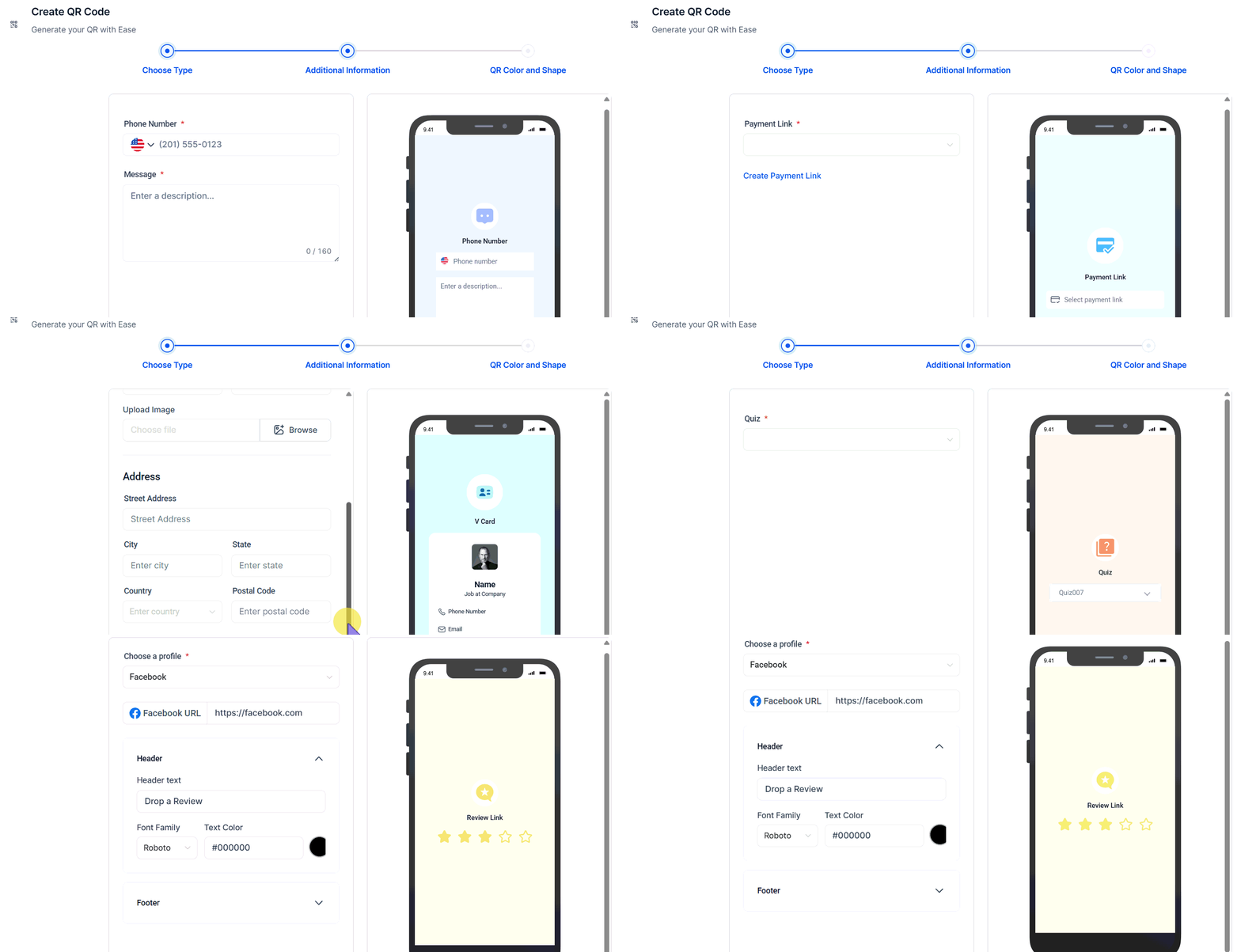
Each QR type has specific settings you must fill out based on its function. For example:
- A Call QR code requires a phone number.
- An SMS or WhatsApp QR code needs A recipient number and a predefined message.
- An Email QR code requires an email address, subject, and predefined message.
- A Form or Survey QR Code requires you to select an existing form or survey in your account.
Once the necessary details are filled in, click Next to continue.
Customizing the QR Code
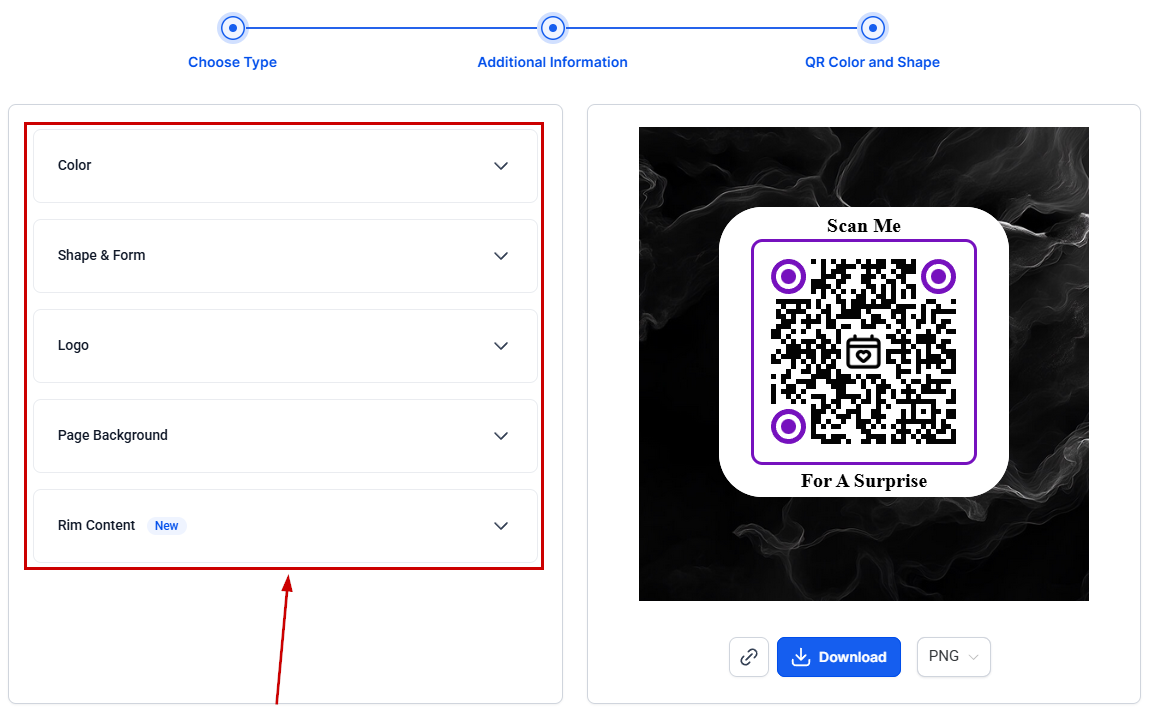
Make your QR code stand out by adjusting the following settings:
- Color: Choose a color or set of colors that fits your brand or style.
- Shape & Form: Adjust the QR code’s shape, dots, marker border and center, border or frame, and its color to match your design preferences.
- Logo: Add a logo for easy recognition.
- Page Background: Select a background color or pattern to enhance visibility.
- Rim Content: Add Call-To-Action text to the top and/or bottom of your QR code to make it clearer.
Saving and Sharing
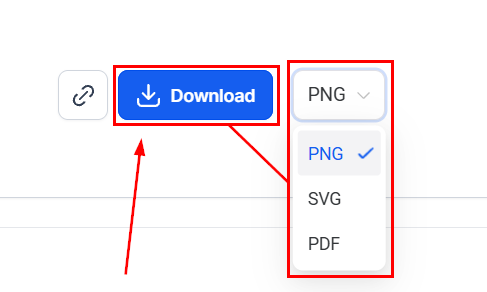
Once your QR code is customized, select a format (PNG, SVG, or PDF) to download your code in, which will save it immediately.
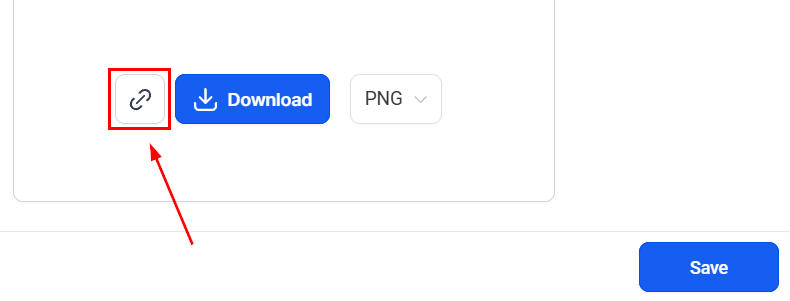
You can click the link icon to copy a smartlink and share QR Code links without needing to download or send the QR image file.
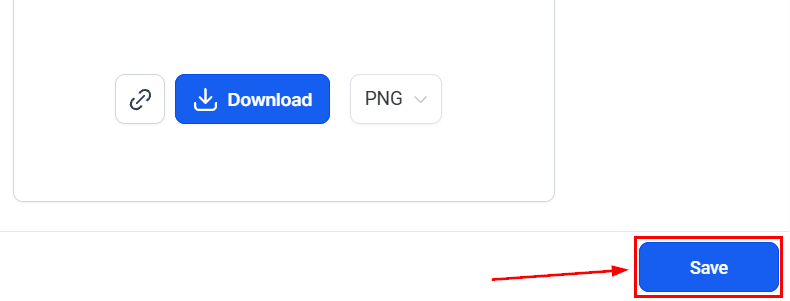
Click Save to store your QR code for future use.
This is what an existing QR code looks like in your CRM.
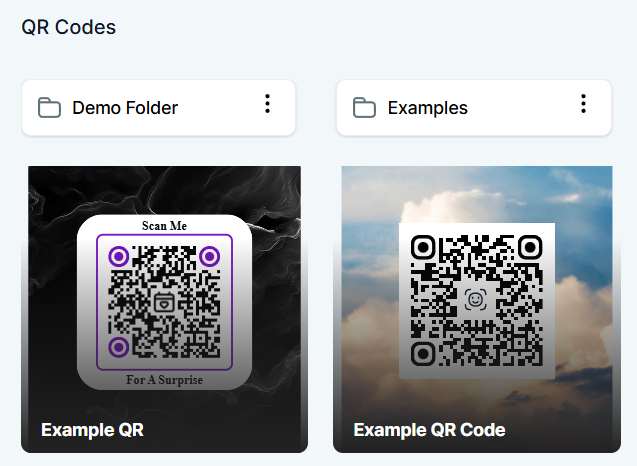
QR codes are a quick and effective way to connect with customers or share information. With just a few simple steps, you can create a customized QR code that suits your needs.
Frequently Asked Questions
Q: What is the SVG format, and why should I use it?
- A: The SVG format allows for infinite scaling without quality loss. This means you can resize your QR codes effortlessly without affecting their clarity. You can also modify their SVG QR codes using various editing tools.
Q: How does the PDF format help with printing?
- A: The PDF format is ideal for printing QR codes on A4-sized documents. If you need a high-quality, scalable version of your QR code for posters, flyers, or other printed materials, the PDF format ensures optimal clarity.
Q: How is the PNG quality?
- A: The PNG format has a higher PPI (pixels per inch), ensuring sharper, clearer QR codes. However, due to browser limitations, Safari may retain the previous quality.
Q: How do I choose the download format for my QR code?
- A: When generating a QR code, you can select the desired format—PNG, SVG, or PDF. These download options are conveniently available in the QR code listing.
Q: Are PNG quality enhancements applied automatically?
- A: All PNG QR codes have improved resolution by default when downloaded
Not a Funnelbud customer yet?
Try our all-in-one CRM for sales and marketing — free for 7 days, no commitment.