How to Use Brand Boards in Emails
Brand boards provide quick and organized access to your brand’s fonts and colors, streamlining the design process by eliminating the need to manually input codes or use custom values. With pre-set options in your email editor, you can effortlessly maintain consistency across all communications, reinforcing your brand identity and ensuring your messages are instantly recognizable.
Essential Information About Brand Boards
- Visibility of Fonts and Colors: Only the fonts and colors from the default brand board will be accessible in the color and font pickers within your email editor.
- Access to Logos You can view and utilize logos from all your brand boards through the media library, making it simple to incorporate these key branding elements into your emails.
Using Brand Boards in Emails
Navigate to an Email Campaign or Template
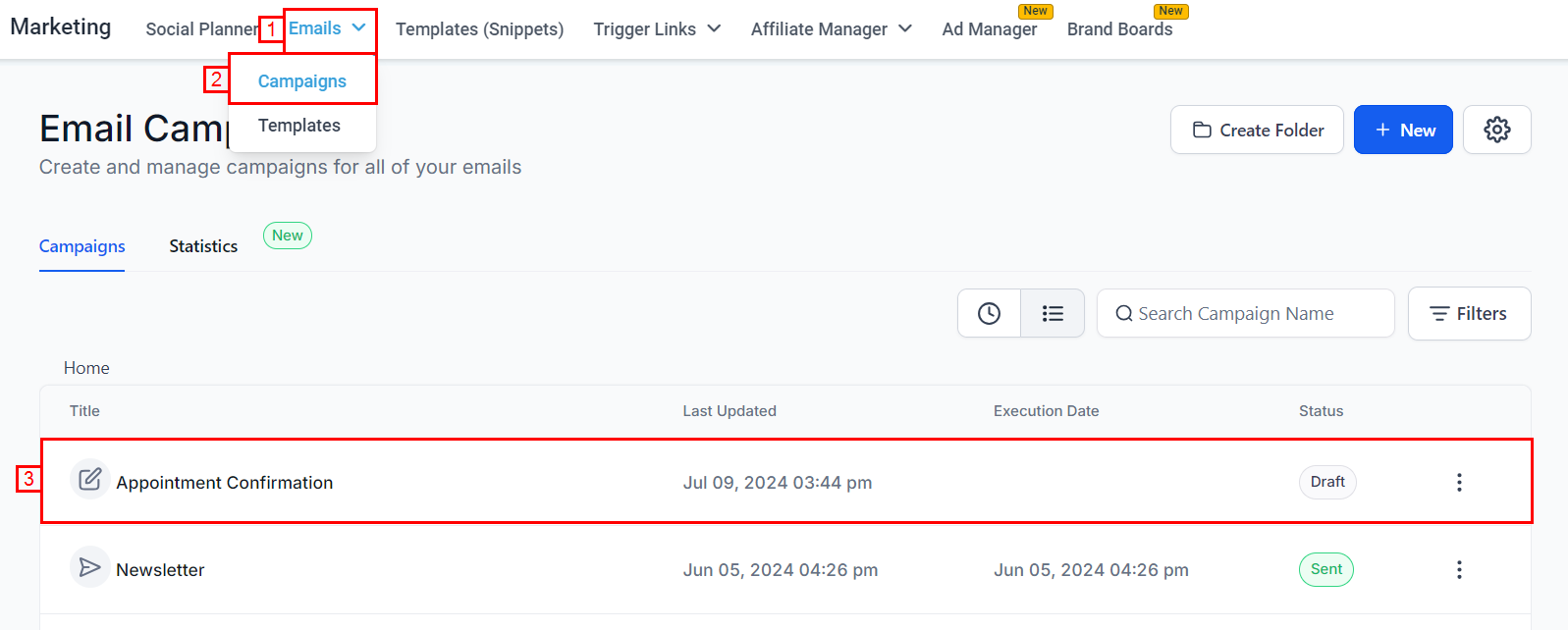
Go to the Marketing section in your platform’s dashboard, then click on Email Marketing and select any existing campaign or template you wish to edit.
Using the Color Picker
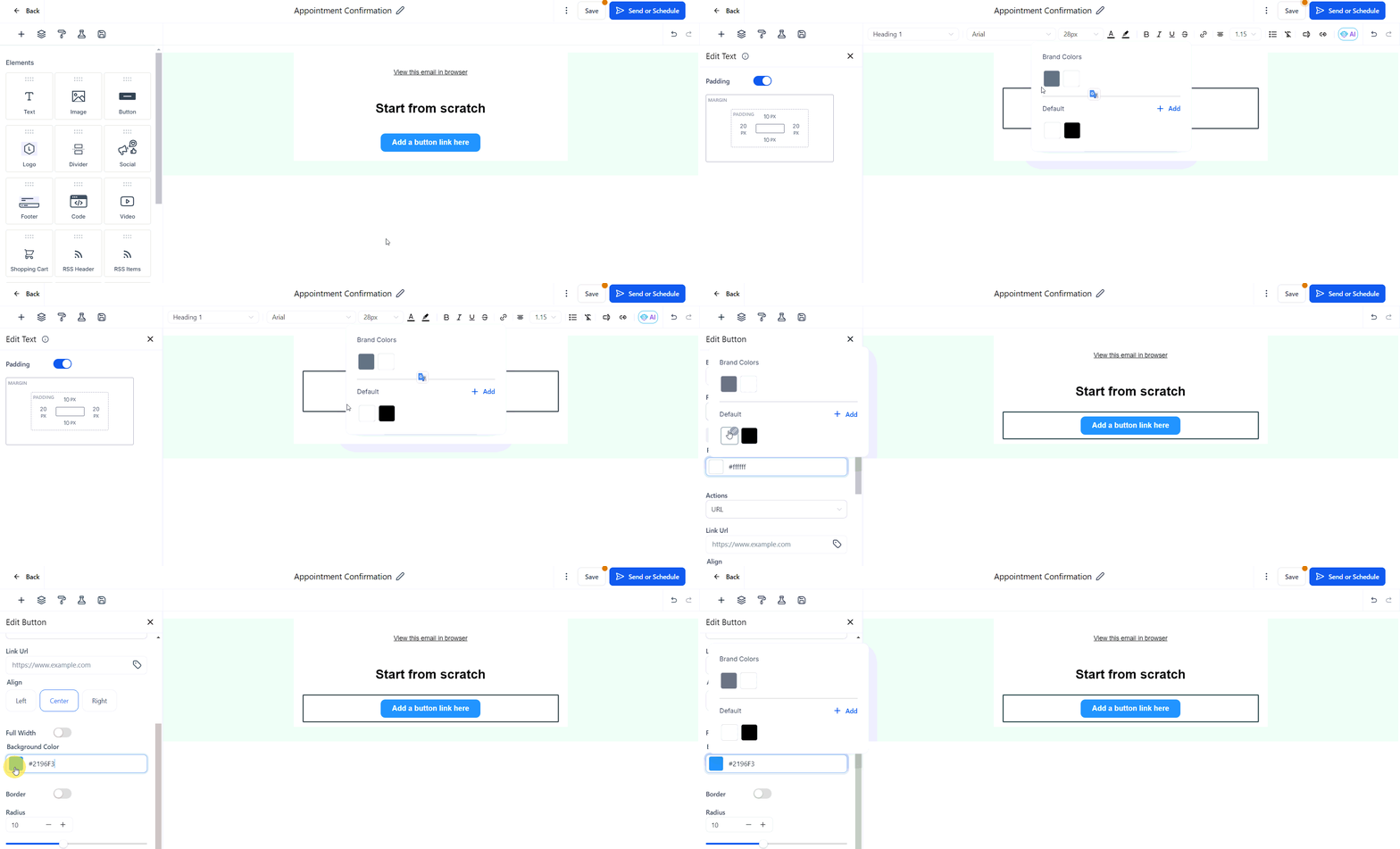
Edit a text block, adjust colors in the appearance settings, or modify button colors to access your brand colors. The brand colors will appear at the top of the color picker palette, with names set in the brand board.
Using the Font Picker
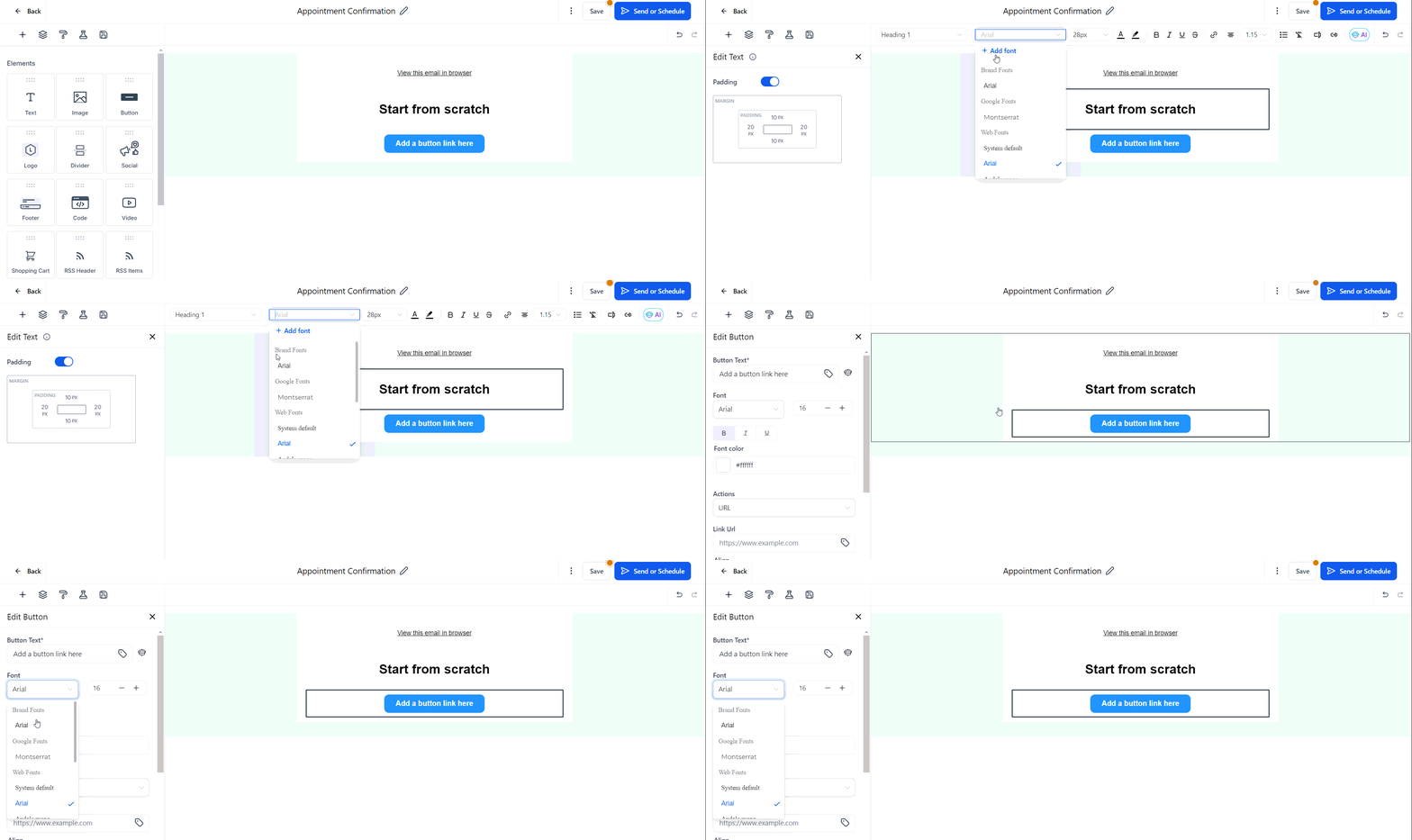
To select a font, open the font picker section. Your brand fonts will be displayed at the top of the list, allowing for easy selection.
Accessing Logos
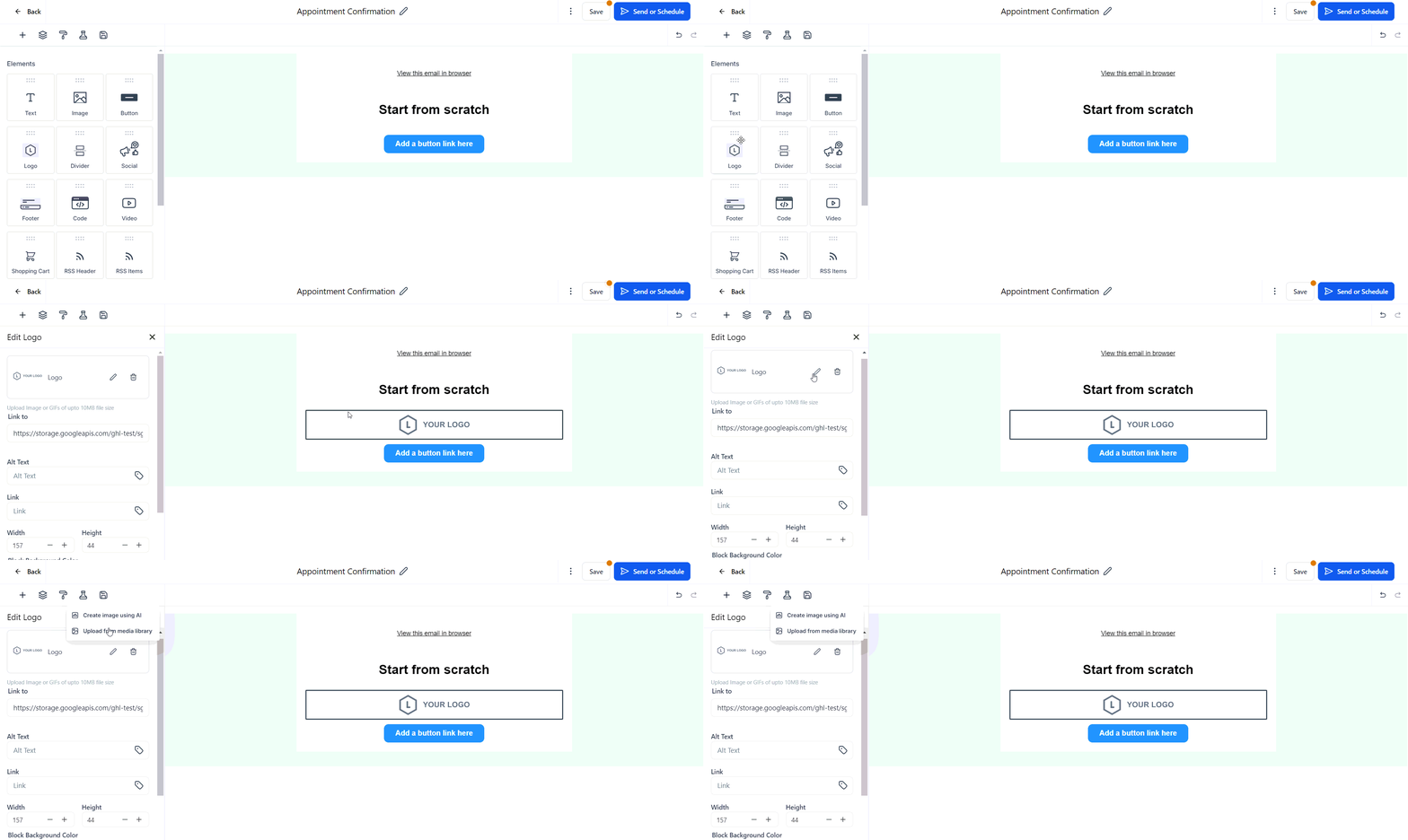
To add a logo, open the media library when inserting an image or logo.
You will be able to view all logos from your brand boards, making it simple to choose the correct one.
Using brand boards ensures all your email communications remain consistent with your brand’s identity. This organization of design elements enhances the efficiency and consistency of your email marketing efforts.
Not a Funnelbud customer yet?
Try our all-in-one CRM for sales and marketing — free for 7 days, no commitment.