How To Sort/Filter Opportunities
The Opportunities section offers an extensive range of sorting and filtering options designed to provide greater control and deeper insights into your pipeline stage performance. These advanced capabilities empower you to understand and manage your sales process more effectively. You can filter by various criteria, including date, pipeline, user, campaign, and opportunity status, among others. This allows for a more targeted and efficient analysis of your sales pipeline’s progress and effectiveness.
Sort By
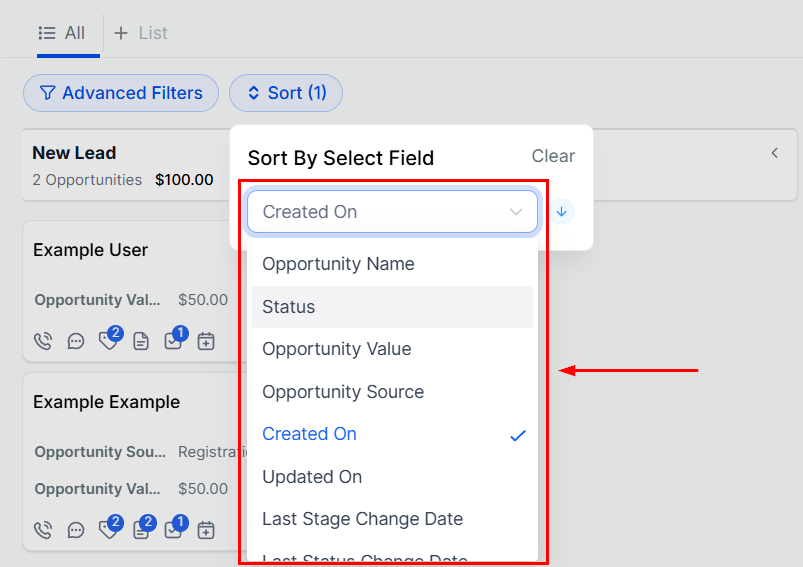
You have the option to organize your opportunities based on various criteria. You can sort by:
- Opportunity Name: Sort your opportunities alphabetically by their names.
- Status: Sort your opportunities by their current status.
- Opportunity Value: Sort opportunities by their monetary value to prioritize high-value prospects.
- Opportunity Source: Organize your opportunities based on their acquisition source for better tracking and analysis.
- Created On: Organize all opportunities based on the date they were initially added to your CRM.
- Updated On: Arrange your opportunities according to the most recent update date of the opportunity record.
- Last Stage Change Date: Sort your opportunities by the date of the most recent pipeline stage change.
- Last Status Change Date: Order your opportunities by the date when the opportunity status was last modified.
- Days Since Last Stage Change: Easily track the duration an opportunity has remained in its current stage, ensuring timely action.
- Days Since Last Status Change: Monitor the age of an opportunity’s status to ensure timely follow-ups and proactive engagement.
- Days Since Last Updated: Keep track of the last update made to an opportunity, helping you maintain up-to-date information and prioritize outreach.
- Custom Fields: You can sort opportunities with any custom field you’ve created or associated to Opportunities.
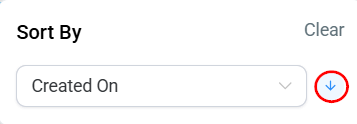
After selecting your preferred sorting method, click the arrow to toggle between descending and ascending order.
Filters
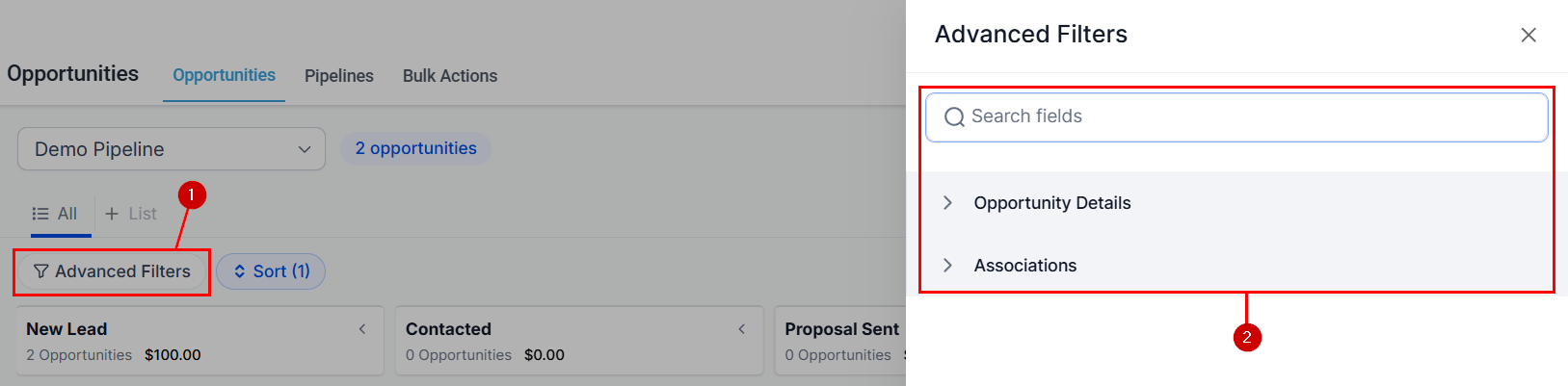
To limit the opportunity cards shown to those who meet your desired criteria, click “Advanced Filter” (1) to open the options (2).
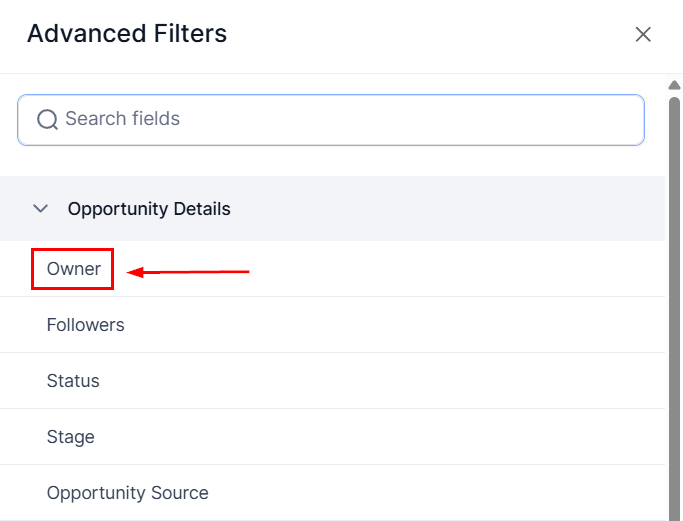
Owner
Opportunities can be designated to individual users so they are responsible for the opportunity’s progress. Use this filter to get results for opportunities assigned to specific team members.
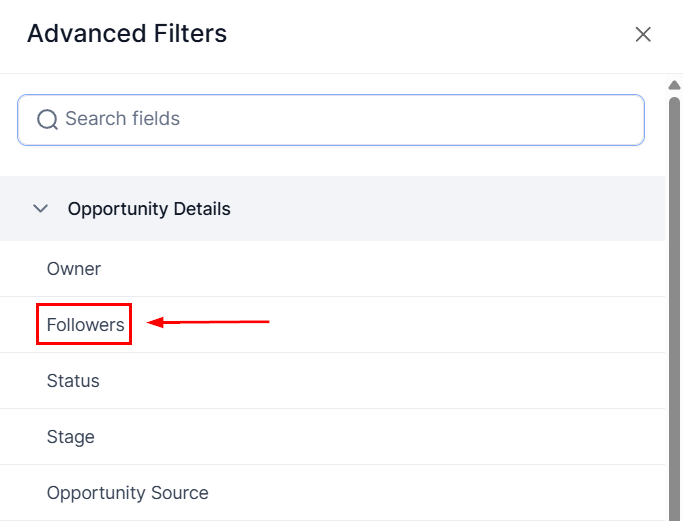
Followers
Filtering opportunities by followers sifts results based on the team members involved in their management, promoting better communication and teamwork within the sales process.
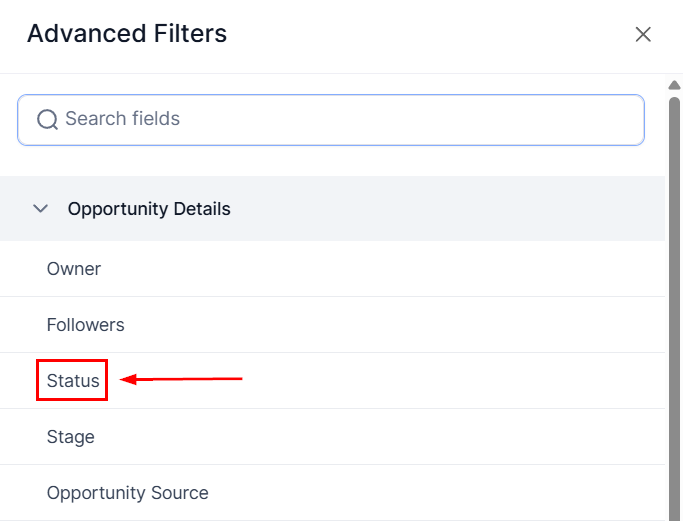
Status
Opportunities within the sales pipeline can be assigned various statuses, such as “Open,” “Won,” “Lost,” or “Abandoned,” depending on their current stage in the sales process. With the filtering feature, you can limit the view to opportunities in a specific status.
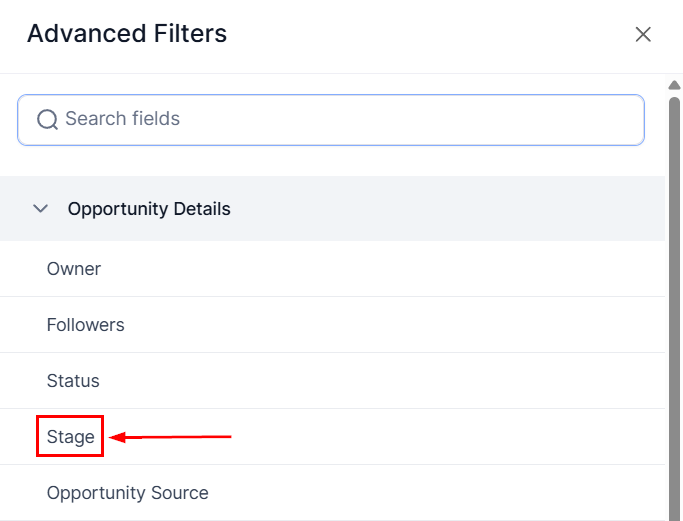
Stage
Opportunities within the sales pipeline can be assigned to various stages. The filtering feature lets you limit the shown opportunities to those in a specific stage.
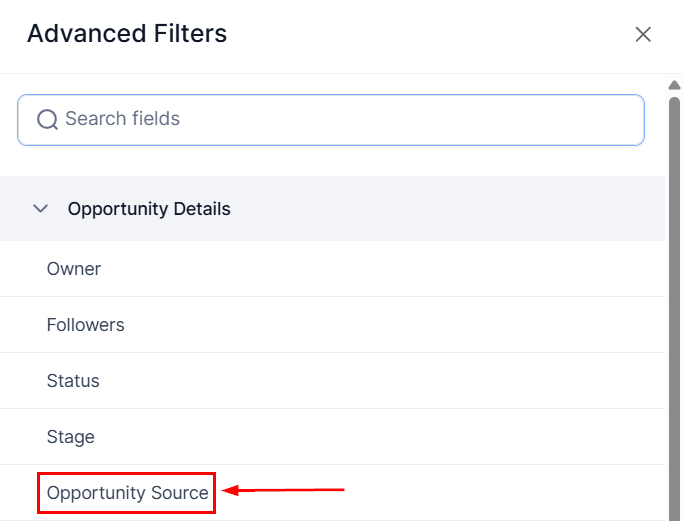
Opportunity Source
This filter helps you limit results to opportunities that entered the system through a specific channel, like a sales funnel or a service form.
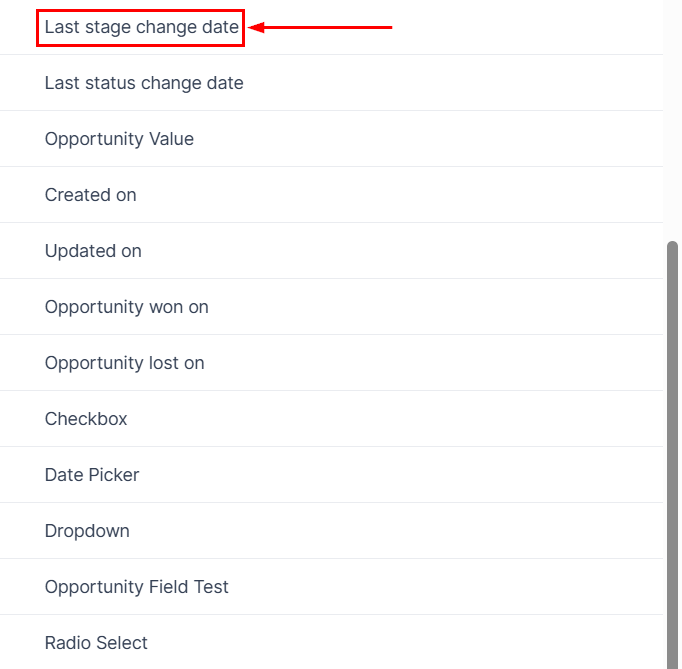
Last Stage Change Date
This filter and its operators let you define the relevant date for an opportunity’s stage last change before it’s included in your view.
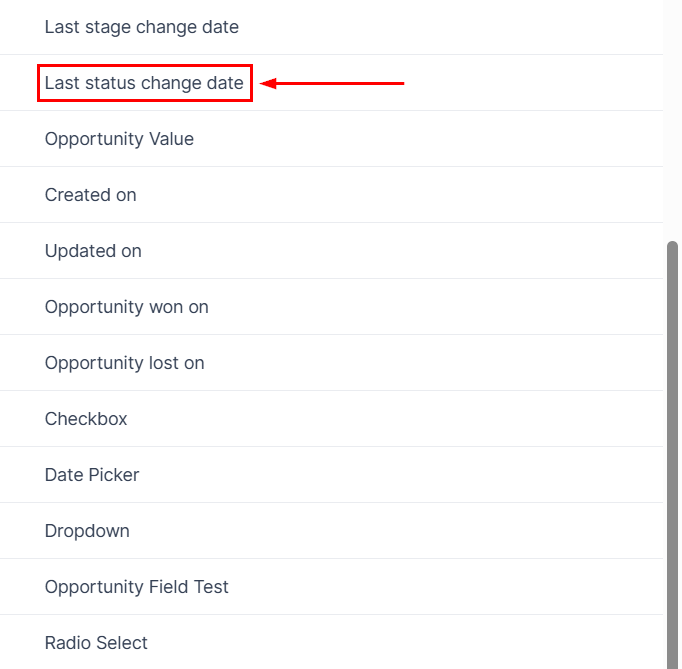
Last Status Change Date
The Last Status Change Date filter allows you to use operators to efficiently sort opportunities based on the date their status was last updated.
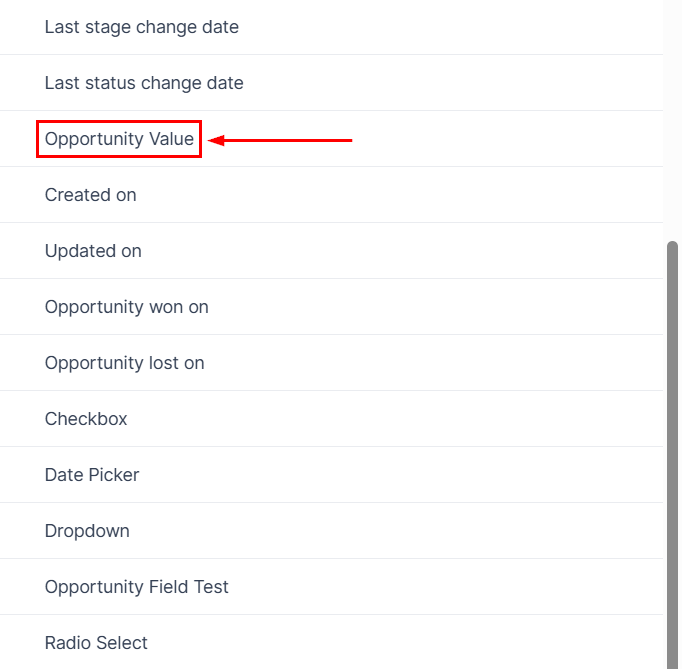
Opportunity Value
Filter opportunities based on lead value by selecting criteria such as “is,” “lesser than,” “greater than,” “not equal to,” “is empty,” or “is not empty.” For the first four options, enter the numerical value in the Value field.
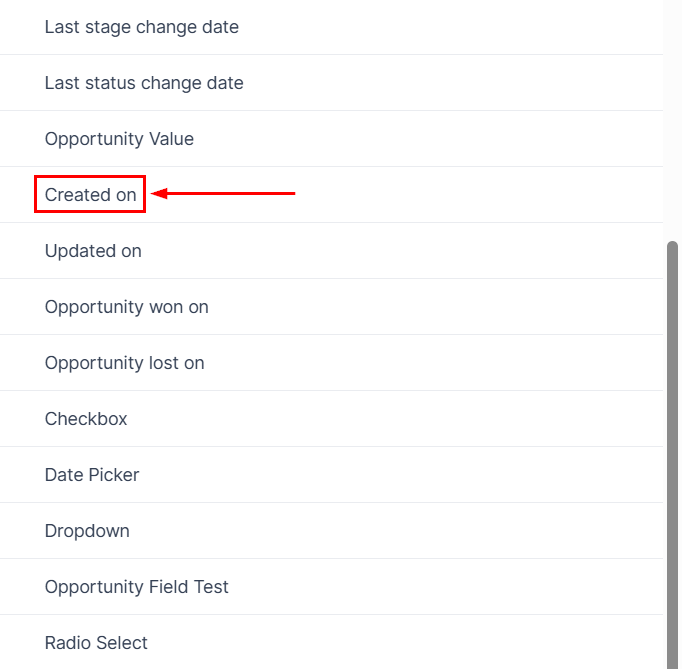
Created On
Filter opportunities based on the date range they were created, keeping on top of opportunities within important timeframes
Updated On
Filter opportunities by the date range they were last updated, allowing you to concentrate on opportunities that fall within crucial timeframes.
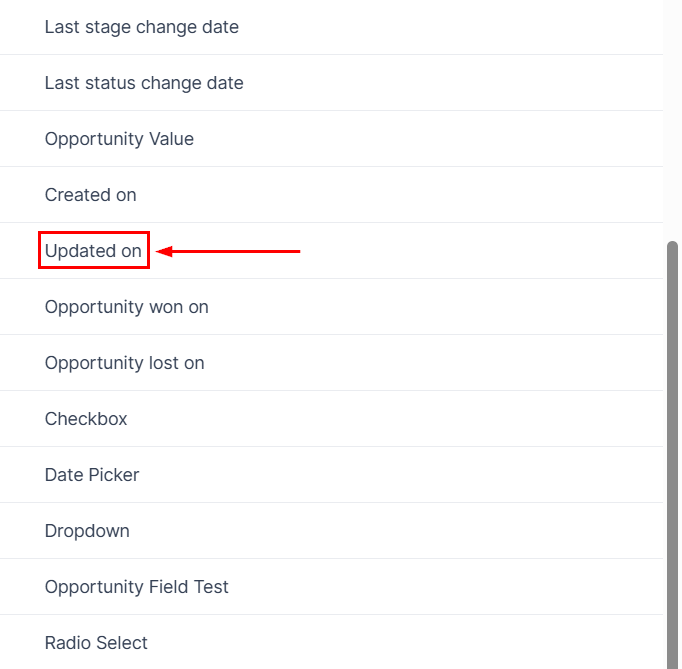
Opportunity Won On
Focus on opportunities that you converted into customers within the selected timeframe, facilitating easier management and evaluation of your sales pipeline progress.
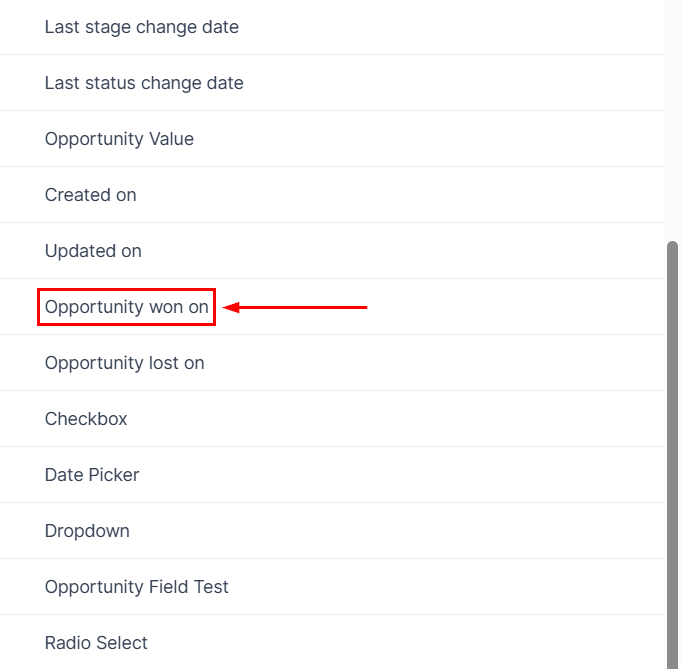
Opportunity Lost On
Narrow your focus to opportunities that were lost within the selected timeframe, making it easier to manage and evaluate your sales pipeline progress.
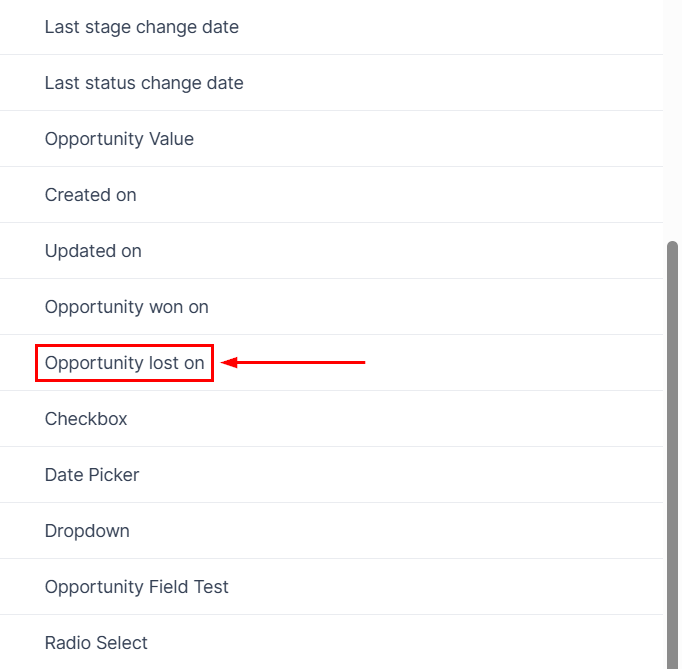
Opportunity Custom Fields
By creating and applying custom fields, you can categorize and filter opportunities based on criteria that are most important to your business, enhancing your ability to track and manage them effectively.
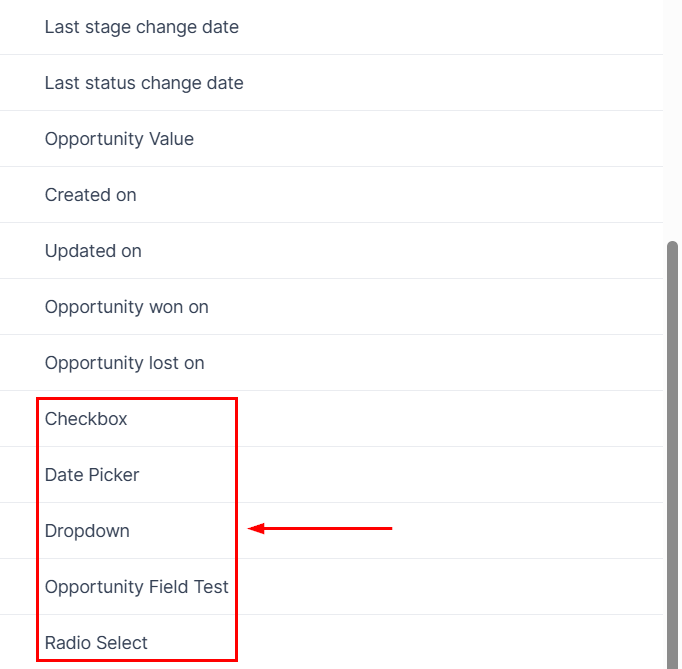
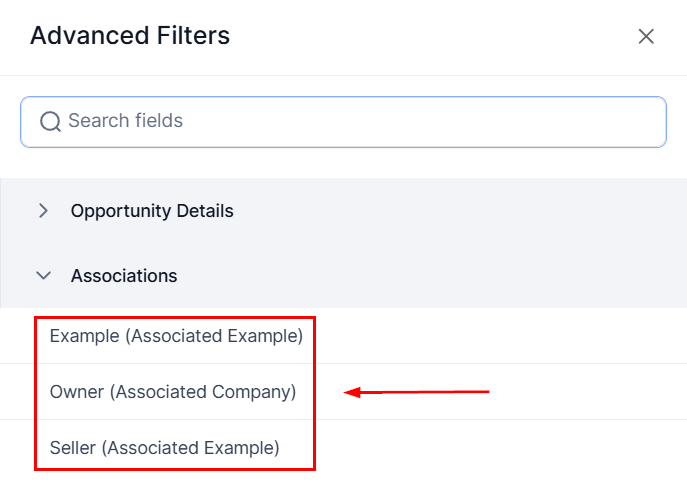
Associations
Opportunities can be connected to other objects in the system, such as a contact or custom object, so this filter allows you to specify the connections you wish to see.
Filter Operators
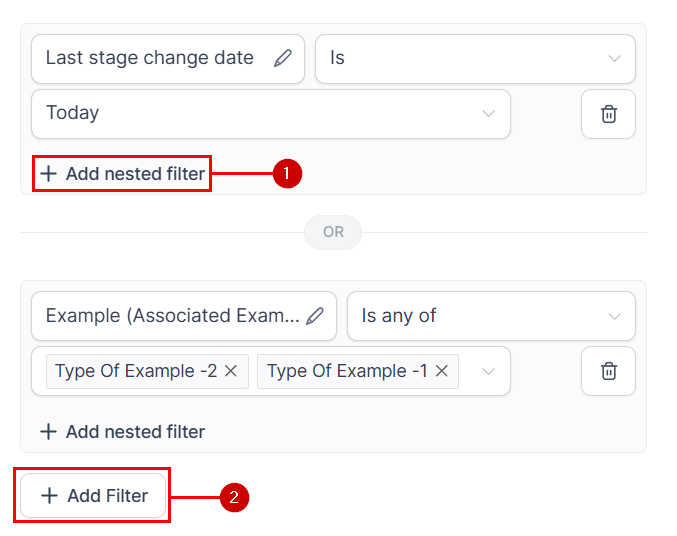
Filters can be combined using “Add nested filter” (1) for conditions that must be met simultaneously, or “Add Filter” (2) to set the requirement that only one of the conditions must be met to qualify.
Practical Use Cases and Examples
- Filtering by Owner: If you want to view opportunities assigned to a specific salesperson, you can filter by owner. This helps in assessing individual performance and workload.
- Status and Last Stage Change: By filtering opportunities based on their status (e.g., open or won) and the last stage change, sales teams can identify which deals need immediate attention or follow-up.
- Lead Value Filtering: For prioritizing high-value deals, you can filter opportunities based on their lead value, focusing your efforts on the most lucrative prospects.
Frequently Asked Questions
Q: What if my filters are not showing the expected results?
- Double-check the filter criteria and operators used. Ensure that the conditions set are not contradictory or too narrow.
Not a Funnelbud customer yet?
Try our all-in-one CRM for sales and marketing — free for 7 days, no commitment.