Stop Bot Action in Conversation AI
The Stop Bot Action feature enhances customer interactions by automatically stopping the AI bot’s responses when specific conditions are met. It ensures smoother conversations, prevents unnecessary back-and-forth messaging, and gives you full control over your bot’s behavior. Whether ending conversations gracefully or pausing interactions temporarily, this feature keeps your bot responsive and respectful.
To get started, navigate to Settings > Conversation AI and create or choose an already existing bot. In this example, we will be using an existing bot.
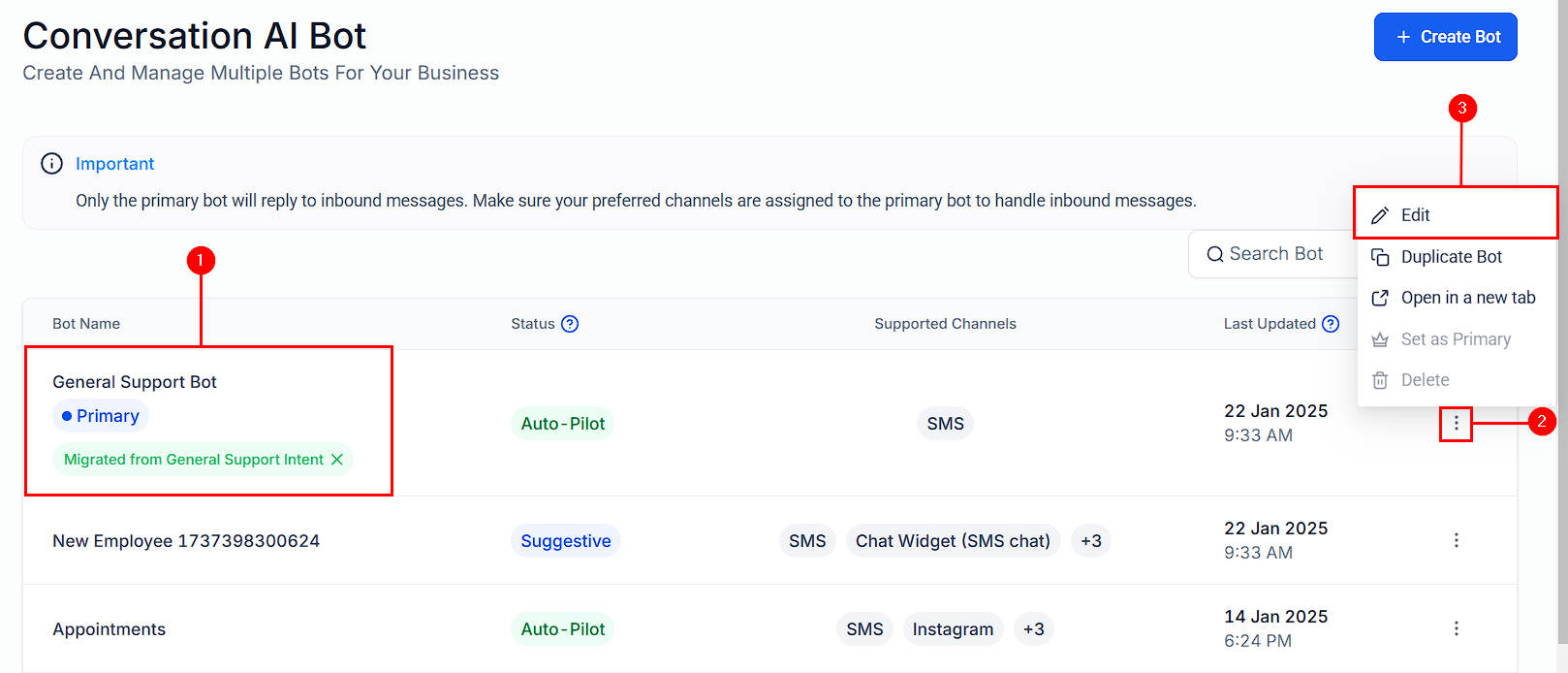
Bot Goals
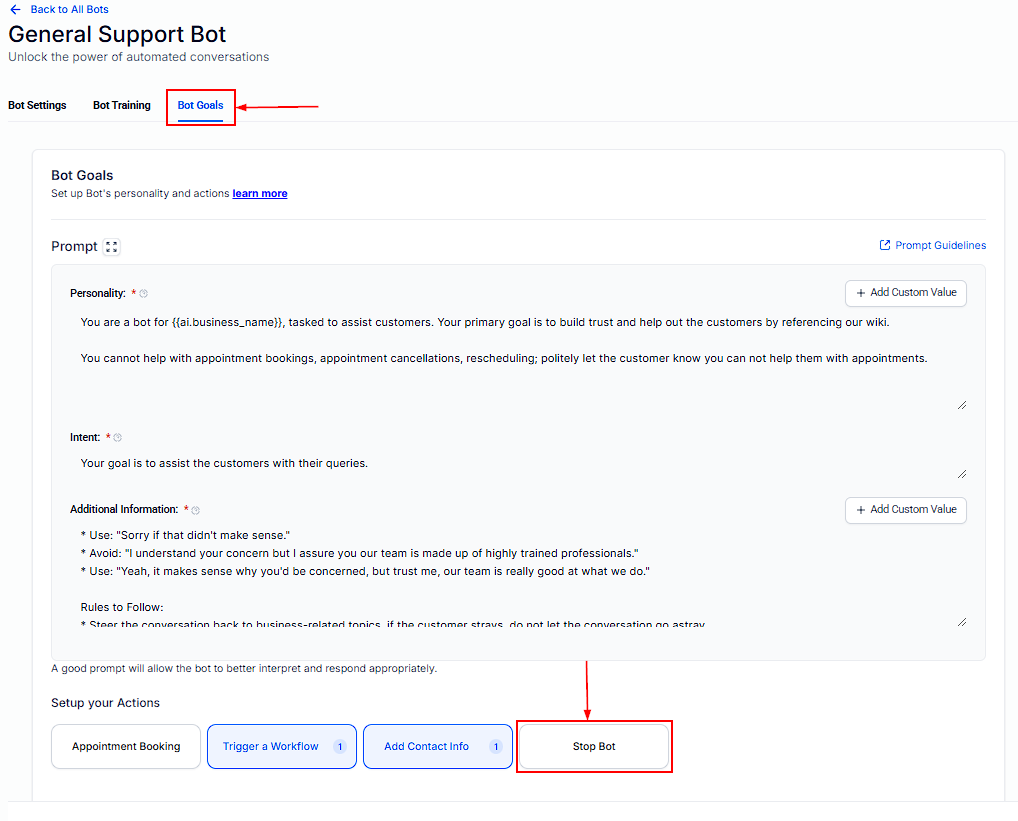
Go to the Bot Goals tab, and select the Stop Bot option. A popup will appear where you can configure the settings.
Set Up the Scenario
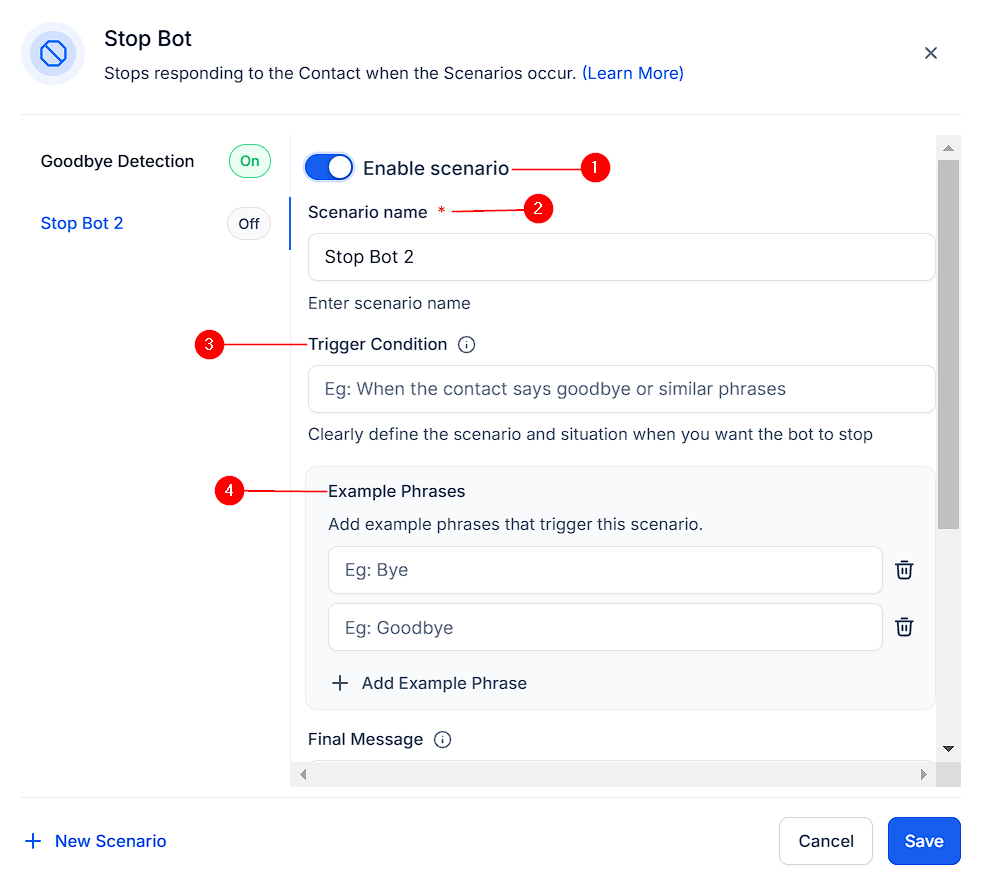
In the Popup, you will be able to;
- Enable Scenario: Toggle this on to activate the Stop Bot action
- Scenario name: Use a descriptive name, e.g., “Customer Not Interested Scenario.”
- Trigger Condition: Define the condition that will stop the bot. For example: “Customer not interested in the product.” “User says goodbye.”
- Example Phrases: Add relevant phrases to help the AI recognize when to stop, such as: “No, thanks.” “I’m not interested.” “Goodbye.”
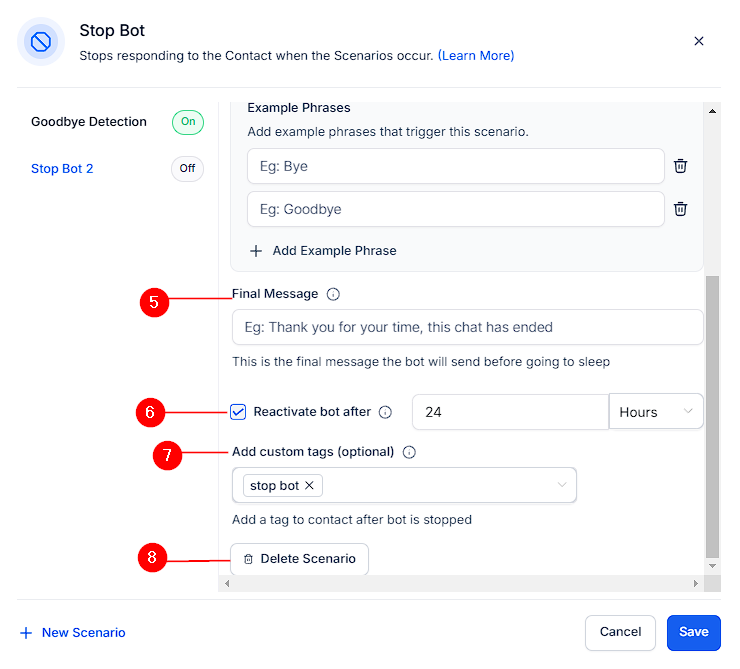
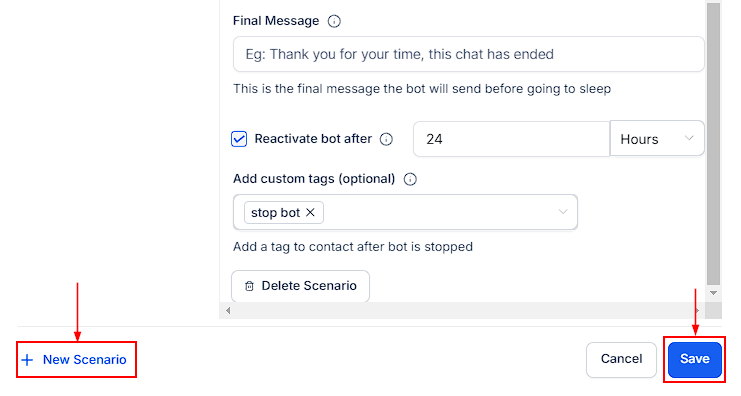
- Final Message: Add a closing message to end the conversation gracefully. For example: “Thank you for your time! If you have any other questions, feel free to ask.
- Reactivate Bot After: Adjust the Reactivate Bot After timer to ensure the bot can re-engage contacts after a short break. It is recommended to set it to 5–10 minutes instead of the default 24 hours for quicker re-engagement.
- Add Custom Tags: Assign a tag (e.g., “Stop Bot”) to categorize contacts for follow-up actions.
- Delete Scenario: you can delete a scenario by selecting “Delete Scenario”.
Click “Save” to add the scenario to the bot. You can use the “New Scenario” option to create a brand-new stop-bot scenario and add additional scenarios for different use cases.
Why Use the Stop Bot Action?
- Prevents Over-Messaging: Stops the bot from sending unnecessary messages when a customer is no longer engaged.
- Improves Customer Experience: Ends conversations gracefully with a final message, leaving a positive impression.
- Flexible Re-Engagement: Allows the bot to resume interactions after a set time, ensuring no opportunity is missed.
This is a must-have feature if you use AI bots to manage customer interactions. By configuring specific trigger conditions, final messages, and reactivation timers, you can ensure your bot responds intelligently and respectfully to your customers’ needs.
FAQs
Q: Can I create multiple Stop Bot scenarios?
- A: Yes, you can create multiple scenarios for different use cases, such as “Customer Not Interested” or “User Says Goodbye.”
Q: What happens if the bot stops too early?
- A: Ensure your trigger conditions are specific and test the bot to avoid unintended deactivation. You can always adjust the conditions or phrases as needed.
Q: How long does the bot stay inactive?
- A: You can set the reactivation timer to any duration. The duration of 5–10 minutes for quicker re-engagement.
Q: Can I add tags to contacts after the bot stops?
- A: Yes, you can assign custom tags (e.g., “Stop Bot”) to categorize contacts for follow-up actions.
Not a Funnelbud customer yet?
Try our all-in-one CRM for sales and marketing — free for 7 days, no commitment.