Custom Object Notes
Notes on Custom Objects let you add and manage important information directly within a Custom Object record. Instead of storing all notes only under contacts or opportunities, you can attach them right to the specific record they relate to.
You can:
- Add new notes directly to a Custom Object
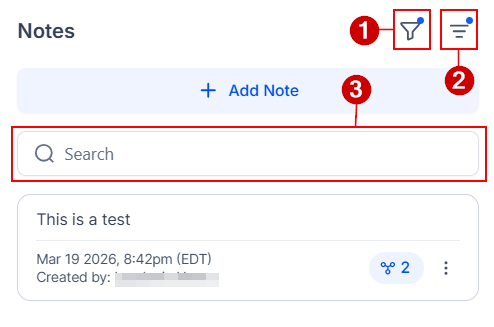
- Search through past notes using keywords
- Filter and sort notes for easier organization
Even better, notes created elsewhere (like on a contact or opportunity) can be linked to a Custom Object. This means the same note can appear in multiple places without needing to copy and paste it, helping your team stay aligned and avoid duplicate information.
How to Set Up Notes on Custom Objects
Getting started is simple. Open your Custom Objects tab and open the record where you want to add a note. The custom object in this guide is called “Examples”.

Find the Notes panel on the right side.
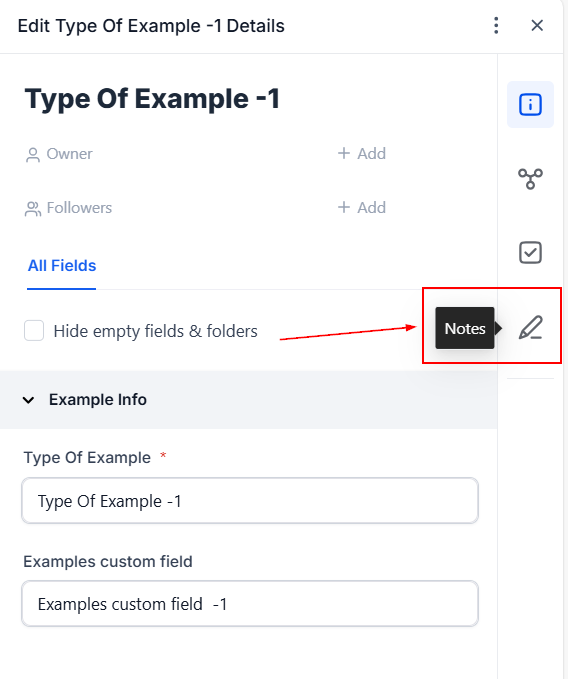
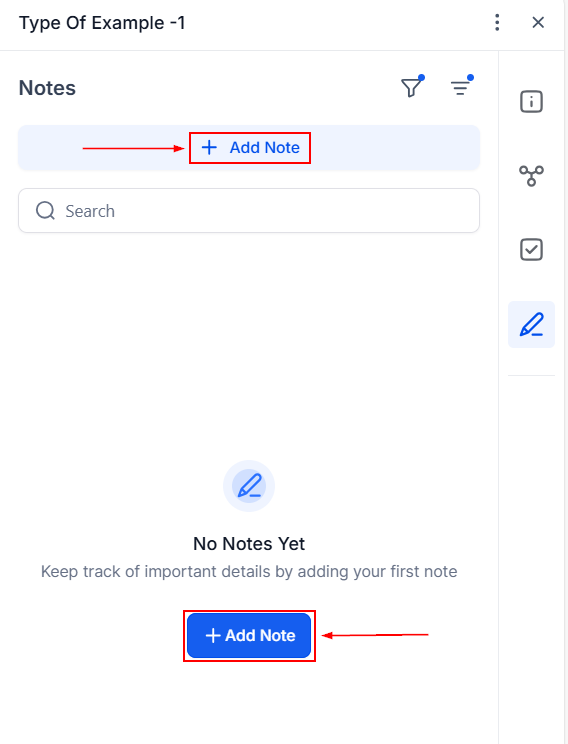
Next, click Add Note.
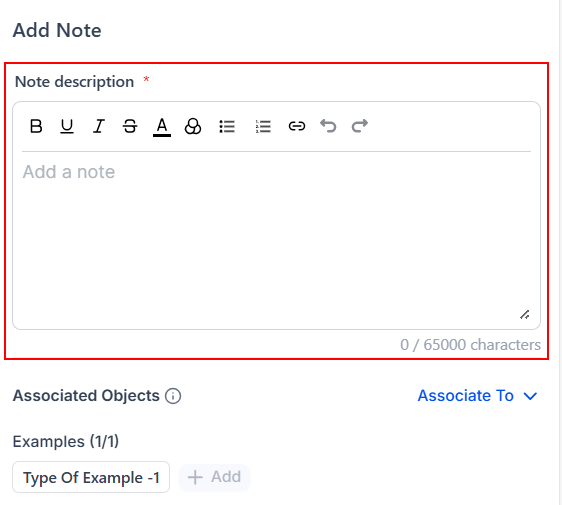
Enter your note details and utilize typography options such as bold, bullet listing, and hyperlinks to bring more life to your notes.
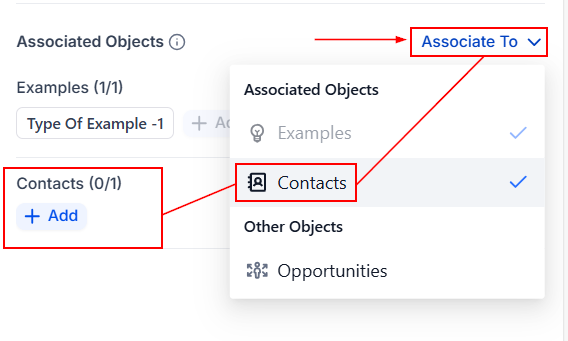
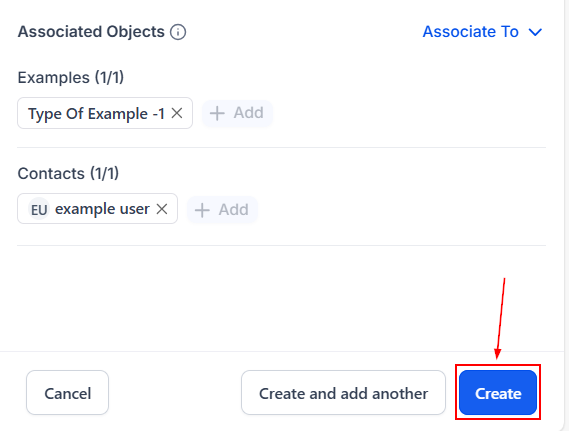
Associate other records by clicking the “Associate To” button then choosing the object from the list.
Click Create.
Once saved, the note will appear on that record and any other associated records. Filter (1), sort (2), and use keywords to locate notes (3) for optimal use.
Notes on Custom Objects make it much easier to keep your CRM organized, connected, and collaborative. By allowing notes to live directly on the records they relate to—and be shared across multiple records—your team can work more efficiently and stay on the same page. Whether you’re tracking updates, documenting key details, or collaborating with teammates, this feature helps ensure that nothing important slips through the cracks.
Frequently Asked Questions
Do notes create duplicates when linked to multiple records?
- No. A single note is shared across all linked records.
Can notes from other records appear here?
- Yes, notes from related records can be associated and displayed.
If I edit a note, does it update everywhere?
- Yes. Since the note is shared, any edits will appear across all linked records.
Can I remove a note from one record without deleting it entirely?
- Yes, you can remove the association while keeping the original note intact.
Not a Funnelbud customer yet?
Try our all-in-one CRM for sales and marketing — free for 7 days, no commitment.