Lesson Started Trigger
Following up with your students as they interact with your courses helps you greatly improve completion rates, keep engagement up, and help address any issues right away. And a great way to approach it is by using the Lesson Started trigger.
This trigger lets you automate actions or responses as soon as a contact begins a lesson within a course, helping your team stay informed about your contacts’ progress and making the outreach process smooth.
Setting Your Trigger
You can find this trigger in the Courses section of your workflow triggers. To add it, simply click “+ Add New Trigger” and select it.
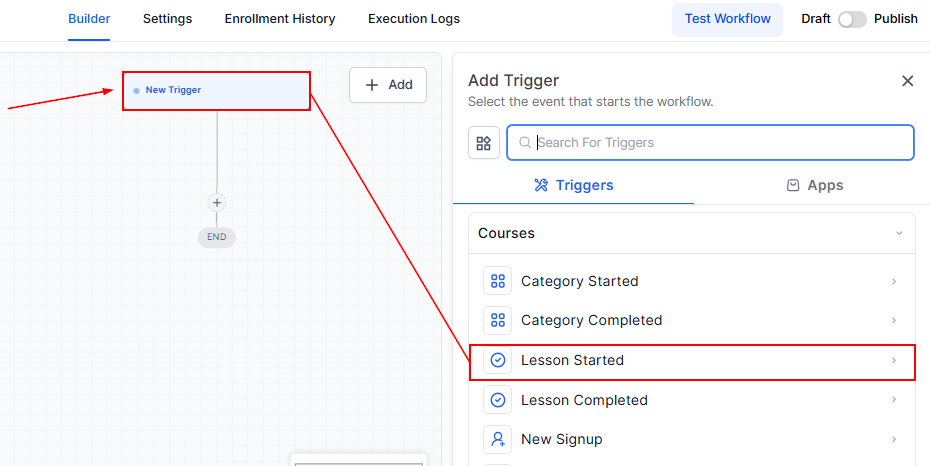
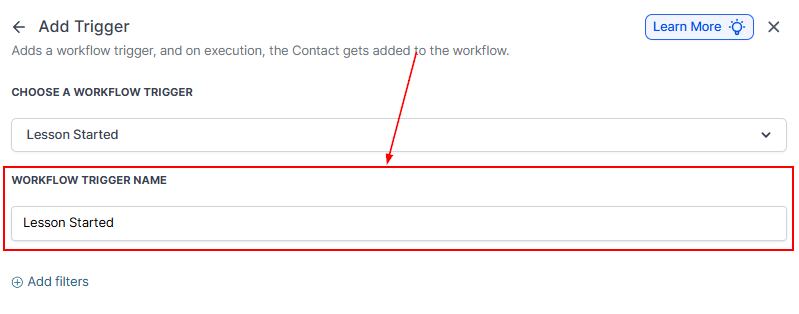
Workflow Trigger Name
Update the name that will be displayed in the builder.
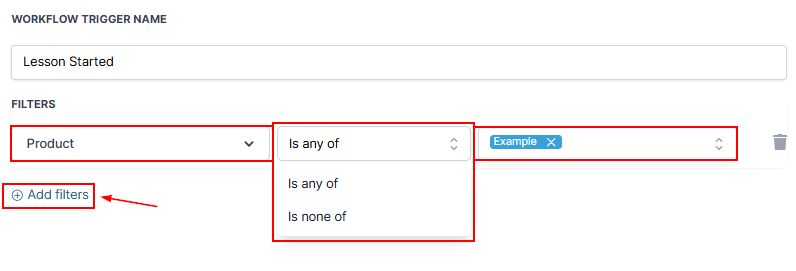
Filters
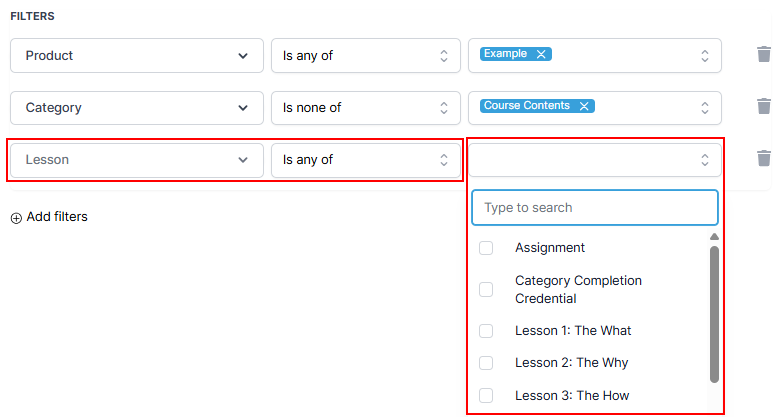
Define the contacts that should be added to the workflow by including filters based on the desired criteria. The main filters for this trigger will be:
Product
Select ‘Product’ from the Filters dropdown. Next, you will need to choose your operator. Finally, select the product(s) you want to trigger your workflow.
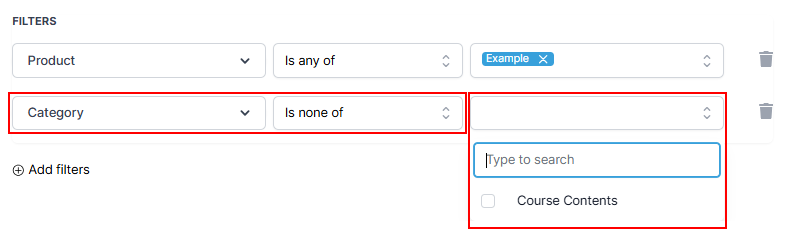
Category
To filter a single product by the available categories, add another filter, then choose ‘Category’ from the list. Again, you can select ‘Is any of’ or ‘Is none of’ and select the product category for your filter.
Lesson
To narrow down this trigger to specific lessons, add another filter, then choose ‘Lesson’ from the list. Again, you can select ‘Is any of’ or ‘Is none of’ and select the lessons for your filter. You can add multiple lessons with a single filter.
Once you are satisfied with your selections, save the trigger and your workflow!
This trigger gives you a way to effectively monitor your students’ progress and implement appropriate follow-up, such as sending congratulatory emails, answers to FAQs, and invitations for discussion that lead to enhanced user engagement.
Not a Funnelbud customer yet?
Try our all-in-one CRM for sales and marketing — free for 7 days, no commitment.