Documents and Contracts Trigger
The Documents and Contracts trigger enables the automation of actions based on changes in the status of a document or contract, or when new documents meet the specified trigger criteria.
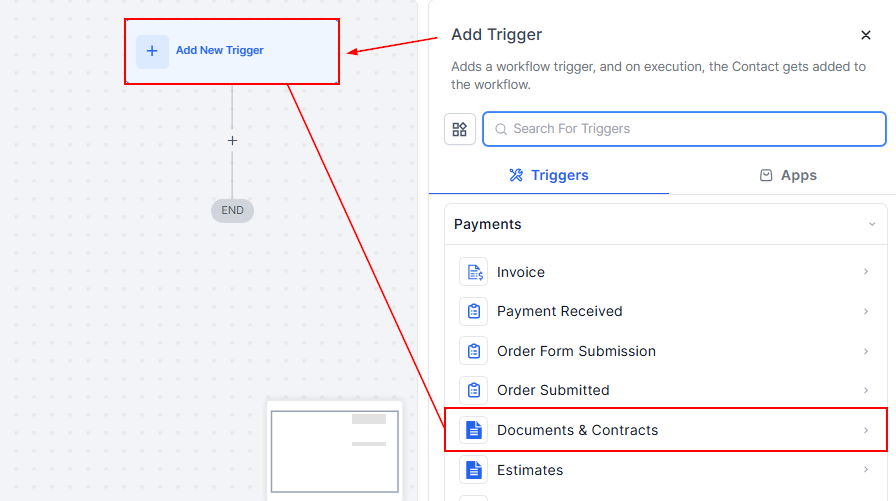
Let’s start by adding the trigger to a workflow.
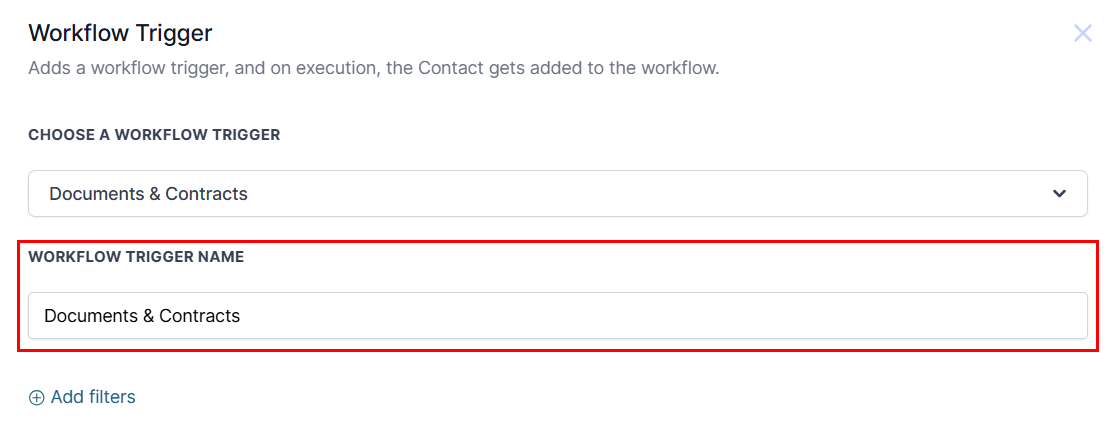
Workflow Trigger Name
Update the trigger name to accurately reflect the criteria for entry.
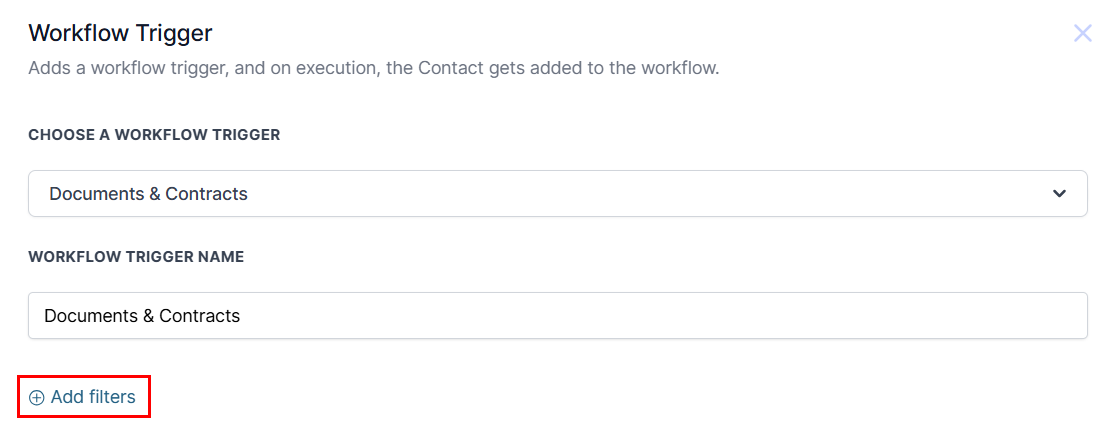
Applying Filters
Refine the trigger conditions by adding filters. This allows for more precise control over when and how the trigger is executed.
Filter the trigger based on specific conditions like the document status, value, or recipient type.
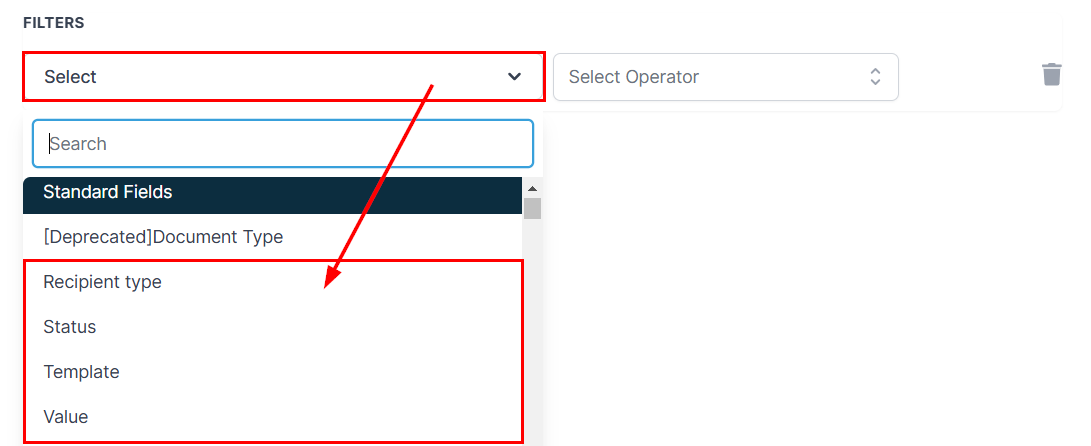
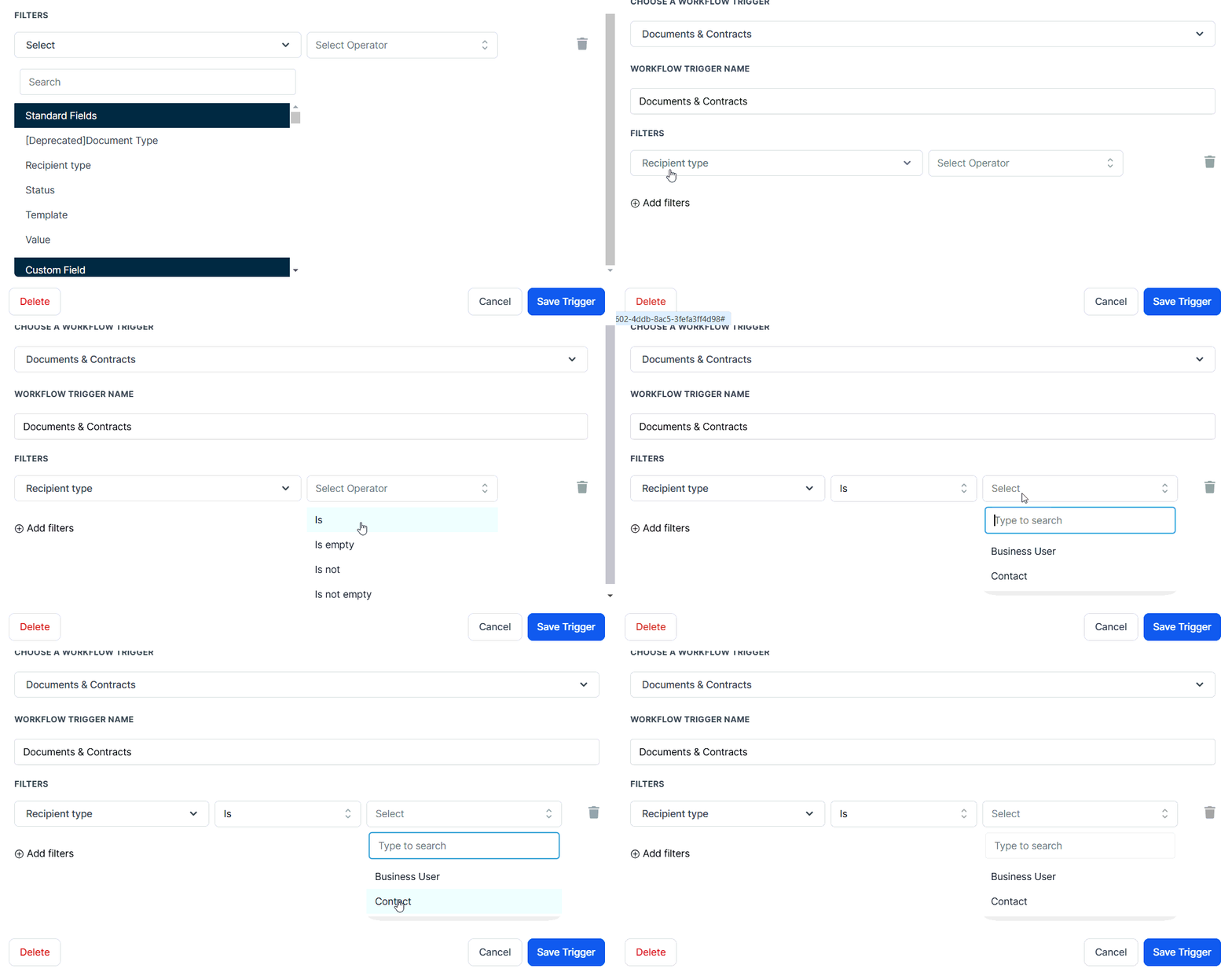
Recipient Type
Select the appropriate operator and choose the desired recipient type from the dropdown menu if prompted.
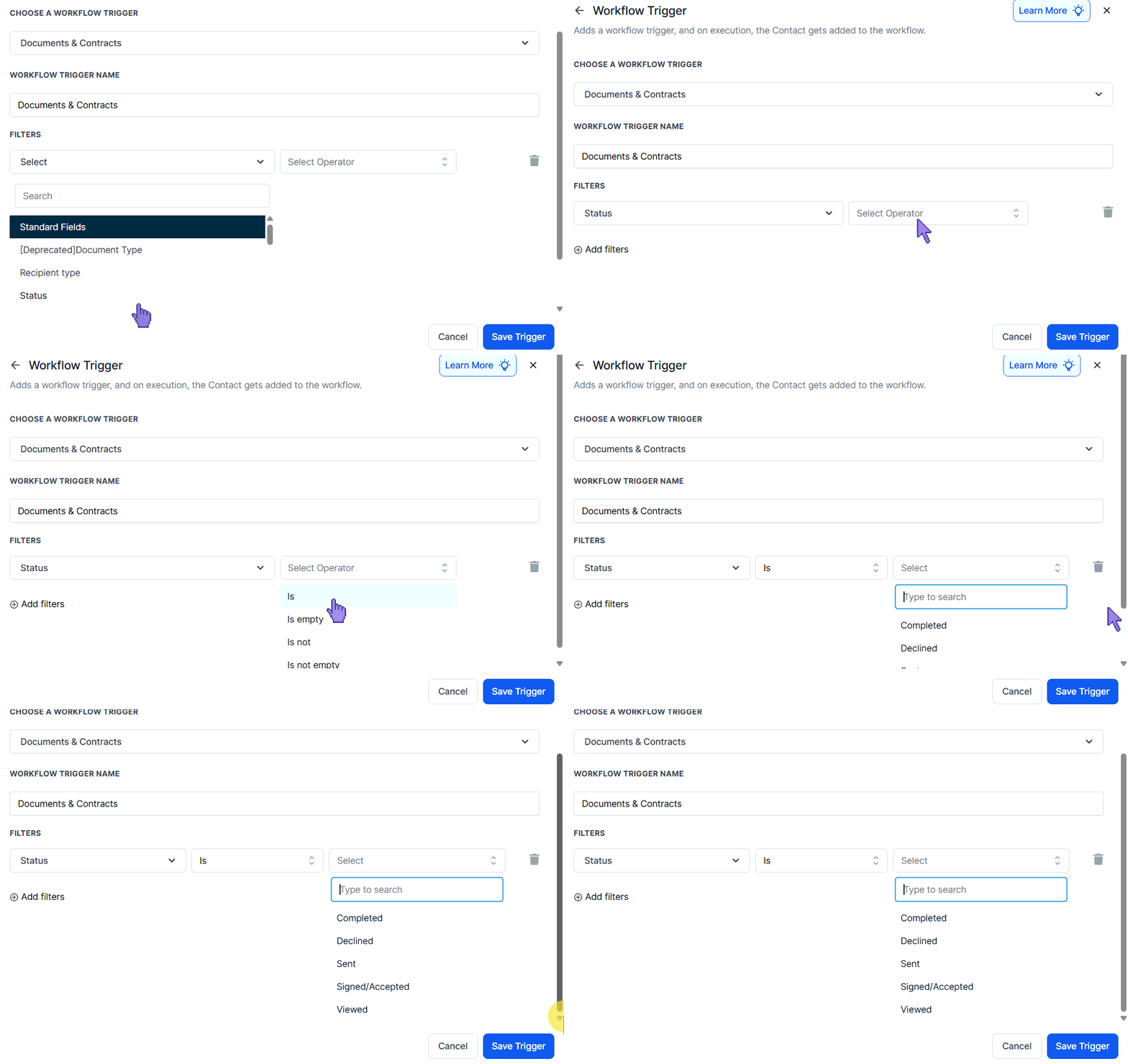
Status
The Status filter enables you to refine the trigger by selecting from the following options:
- Completed: Activates the workflow once the document has been signed by all recipients.
- Declined: Initiates the workflow when the document is rejected by at least one recipient.
- Sent: Triggers the workflow when the document is marked as “Sent.”
- Signed/Accepted: Initiates the workflow when the document is signed or accepted by at least one recipient (particularly useful when multiple recipients are involved, allowing you to track when an individual has signed or accepted the document).
- Viewed: Activates the workflow once the document is seen by anyone besides the user who sent it.
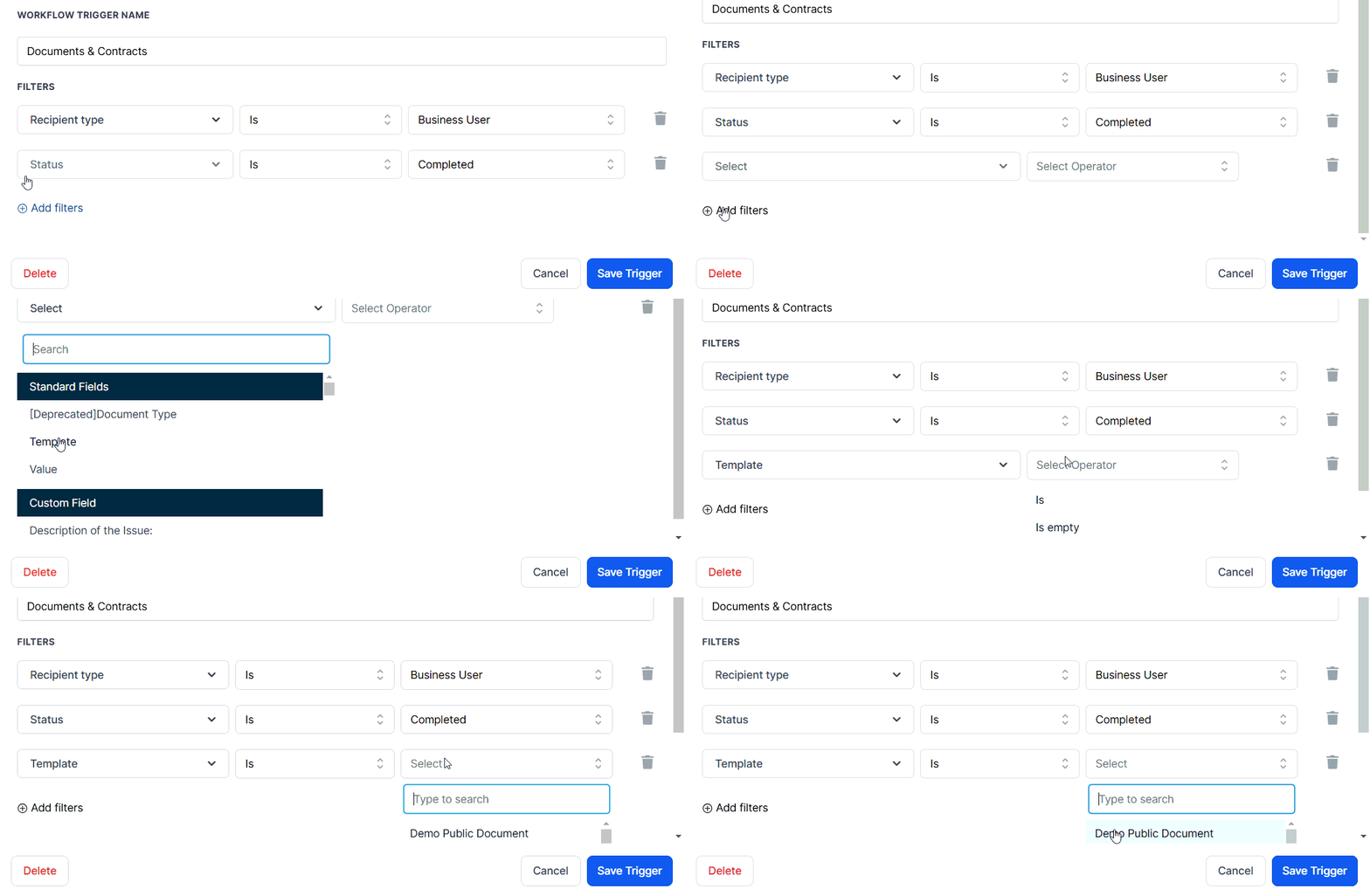
Template
Include this filter to specify the template that should activate the workflow.
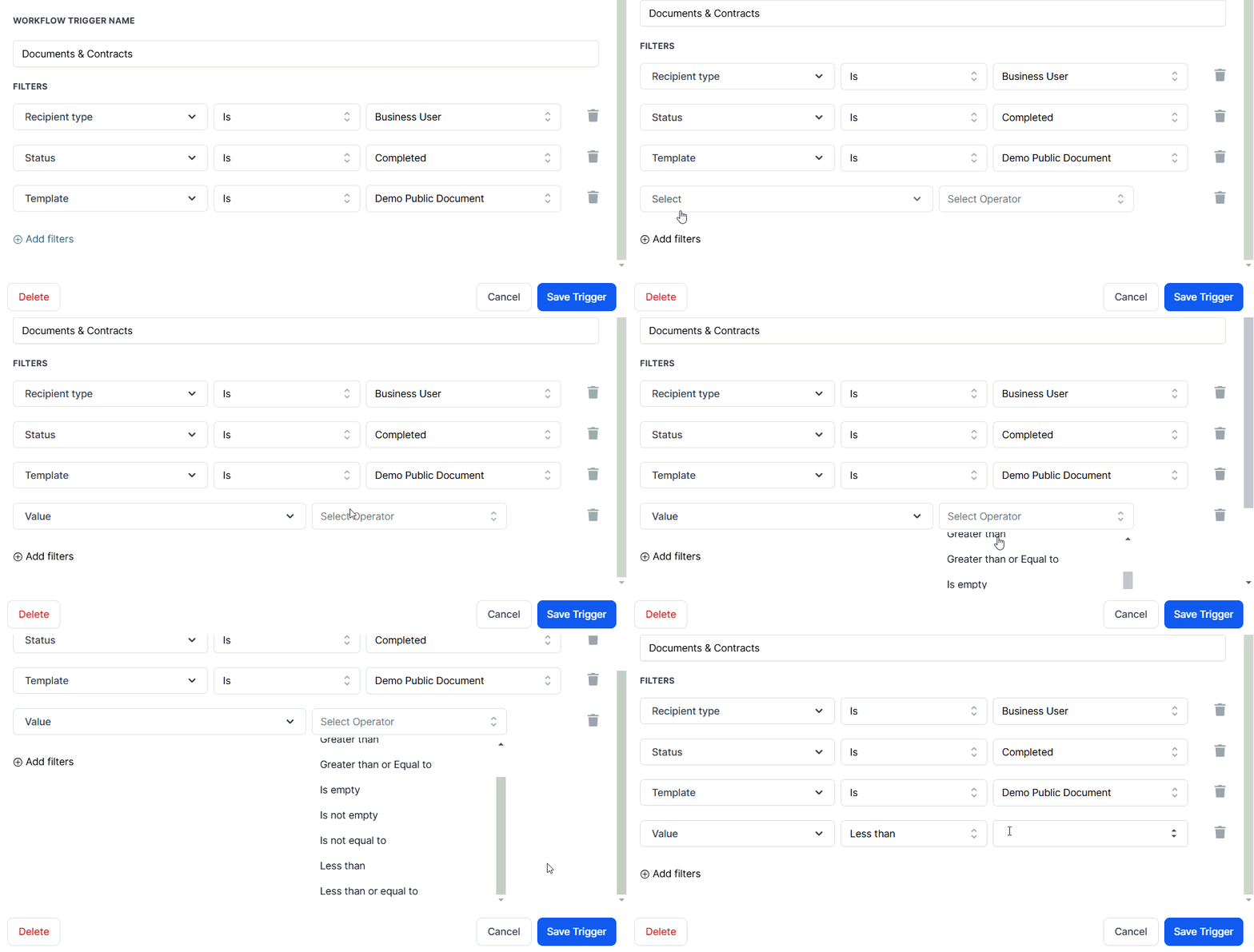
Value
Set a monetary threshold for the system to check before initiating the workflow. Use key operators such as “less than,” “greater than,” and “equal to” to filter documents and contracts within a specific monetary range.
Review your configurations, then save the trigger to add it to your workflow. Add the relevant actions, such as notifying a team member or sending an invoice, and then publish and save the workflow!
Not a Funnelbud customer yet?
Try our all-in-one CRM for sales and marketing — free for 7 days, no commitment.