How to Connect WooCommerce for Stores
The WooCommerce integration feature simplifies the process of migrating and managing WooCommerce store data, allowing store owners to efficiently import contacts, orders, and transactions. Use this feature to effortlessly import and synchronize your WooCommerce store data into your account.
Setting Up WooCommerce Integration
Access the Integration Settings
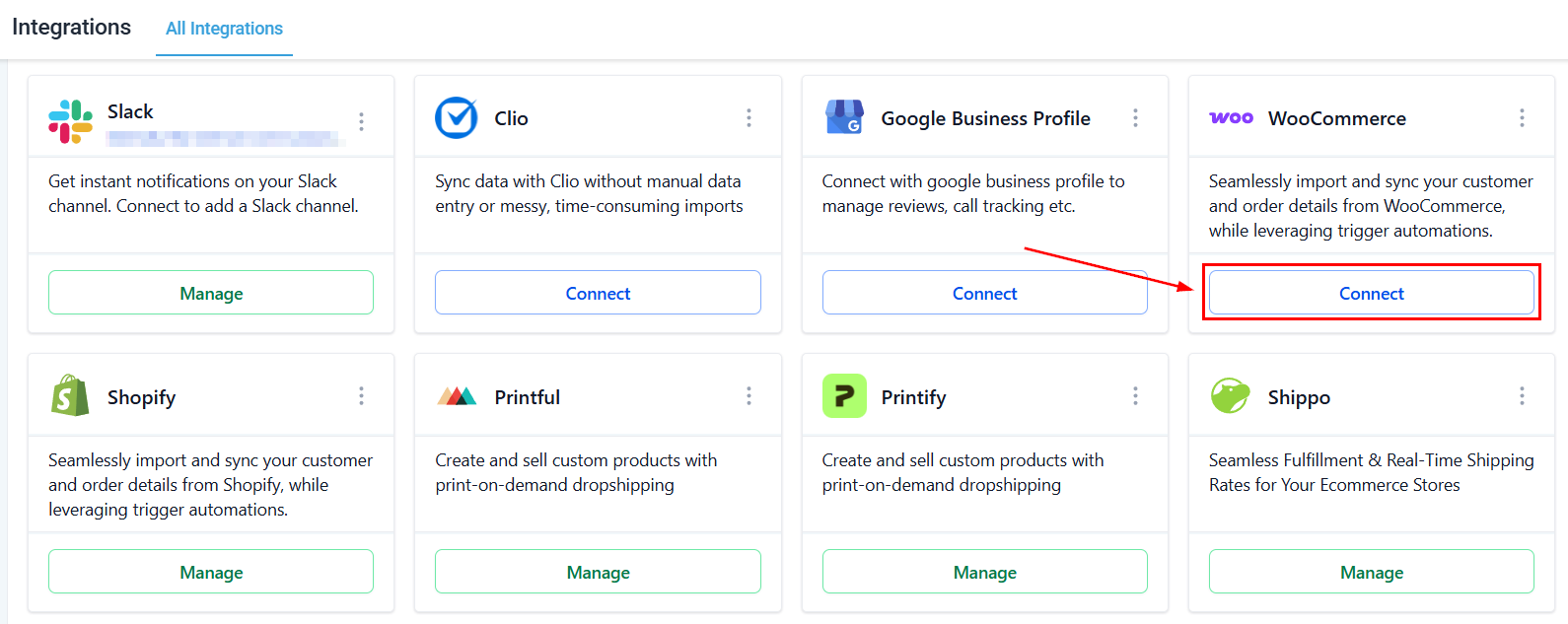
Navigate to the Settings section within your account, and locate the Integration tab. From there, click the Connect button within the WooCommerce tile to initiate the setup process.
Connect Your WooCommerce Store
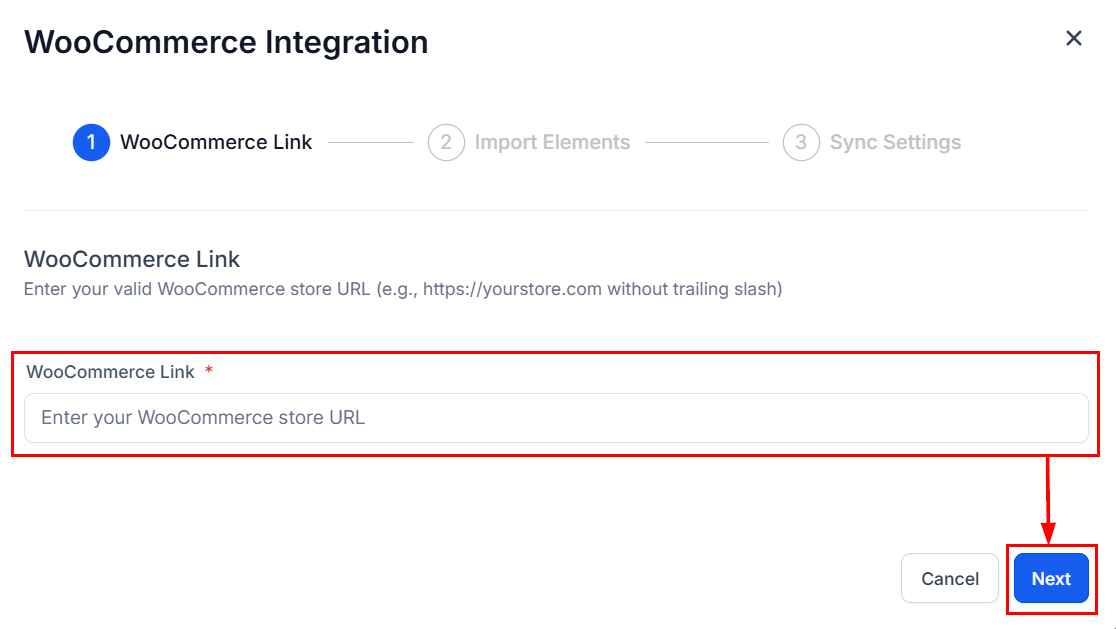
A pop-up modal will appear, prompting you to enter your WooCommerce store URL without a trailing slash (e.g., https://yourstore.com).
Select Data to Import
In the next step, you’ll be directed to the Import Elements screen, where you can choose which data to import from your WooCommerce store. The available options include:
- Contacts
- Orders
- Transactions
- Products and Collections
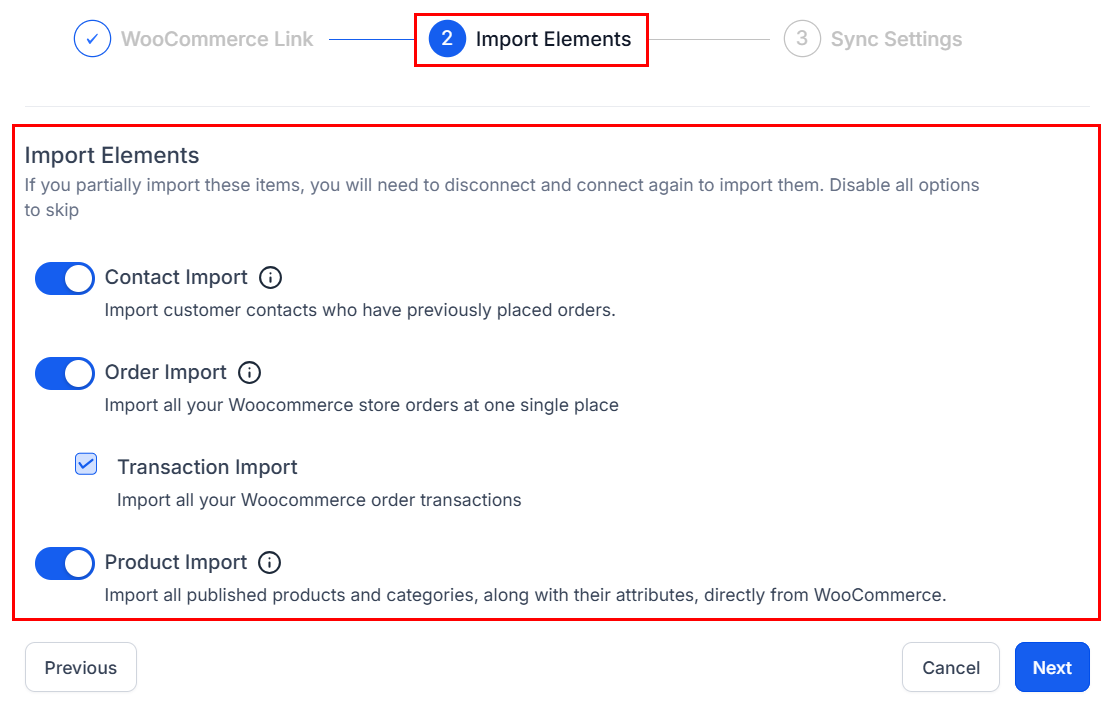
📌Note: If these items are partially imported, you will need to disconnect and then reconnect the integration to import them. Disable all options to skip this step.
Configure Syncing Settings
The final step takes you to the Sync Settings screen, where you can specify which data you wish to sync continuously in the future. Options available for syncing are:
- Contacts
- Orders
- Order Submitted Trigger
- Transactions
- Payment Received Trigger
- Products and Collections
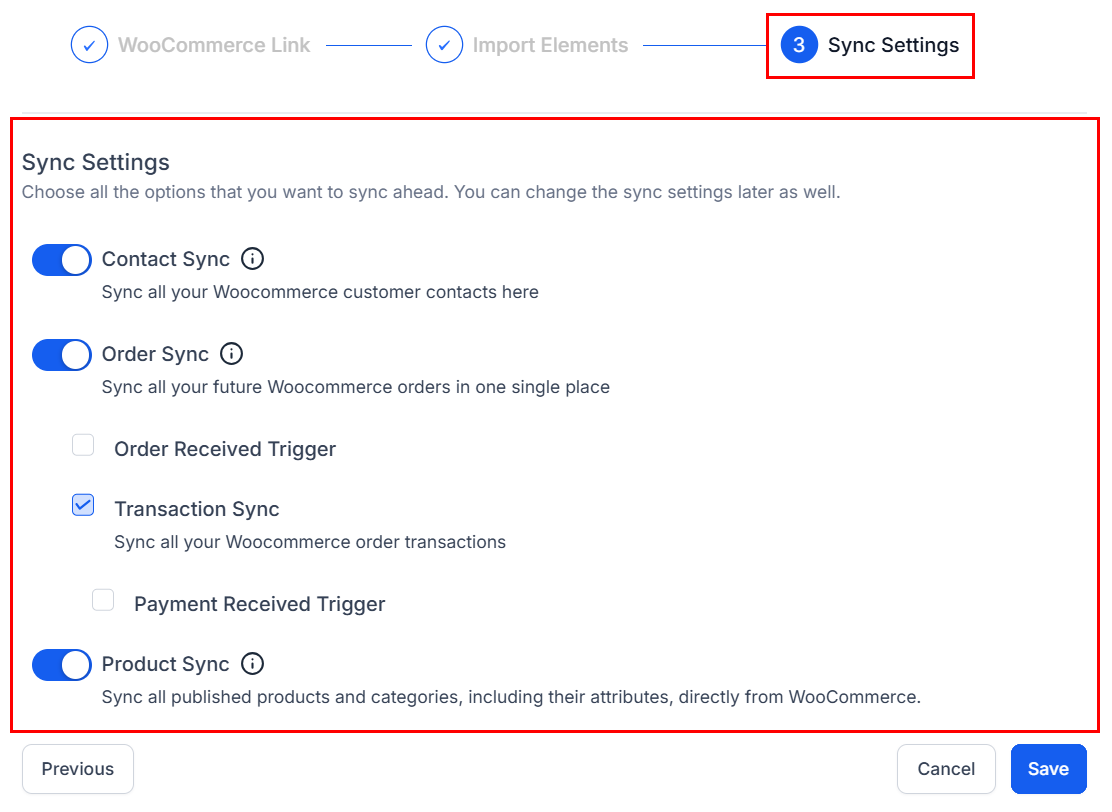
After configuring your desired import and sync settings, click Save. Please note that the import and sync process may take some time to complete based on the volume of data.

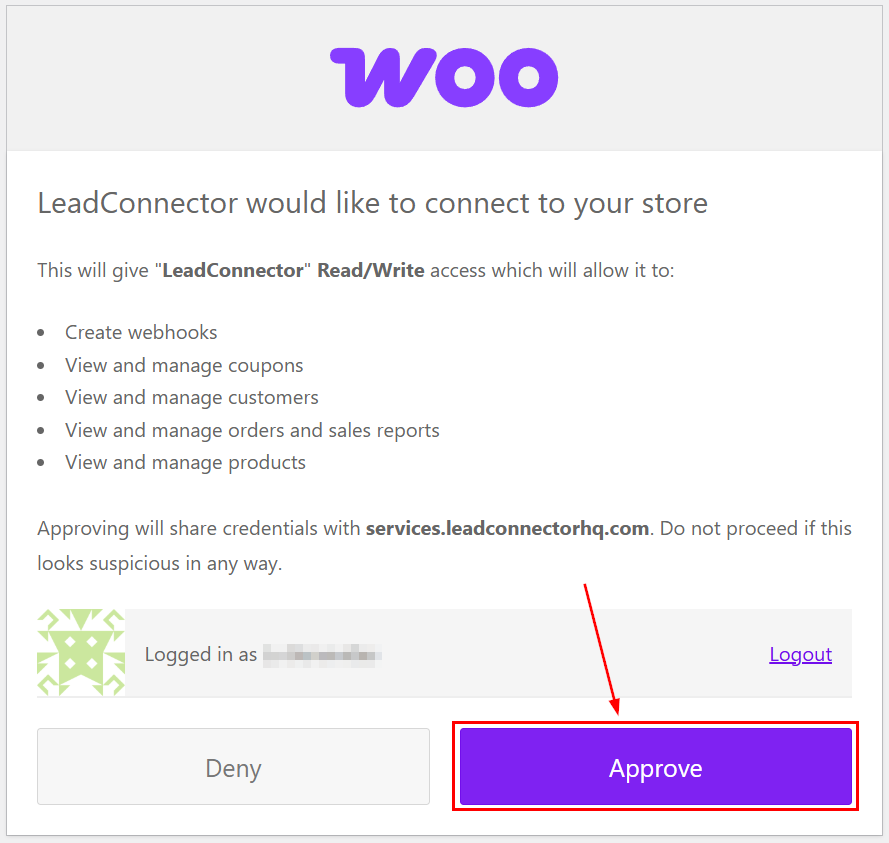
Click Approve to grant the permissions needed for the CRM connection.
Manage Sync Preferences
Once the WooCommerce integration is successfully connected, you can manage your settings to enable or disable syncing for specific elements as needed for future orders.
Start optimizing your WooCommerce store management today by setting up this seamless integration!
✍️Important Notes
- Only customers with the roles “customers” and “subscribers” will be imported.
- If the Contact Sync option is disabled but Order Sync is enabled, contacts will still be created for orders placed.
- Customers using the guest checkout option will be added as contacts, but no updates or future syncs will occur for these guest accounts.
- The following mappings apply when syncing order statuses:
-
- Completed or Refunded in WooCommerce → Completed
- Cancelled or Failed in WooCommerce → Cancelled
- All other statuses in WooCommerce → Pending
- Only Simple and Variable product types will be imported; all other product types will be excluded.
- Products with a price of 0 or no variants will not be imported.
- The “Include in Online Store” toggle will only be enabled for published products, while all other products will have it disabled.
- Only categories linked to products will be imported; unlinked categories will be excluded.
- Product and category deletions will not be synced.
Not a Funnelbud customer yet?
Try our all-in-one CRM for sales and marketing — free for 7 days, no commitment.