Microsoft Outlook
Synchronizing your Outlook account with your CRM enhances email efficiency and ensures accurate management of appointments and bookings boosting overall productivity. Follow the steps detailed in this guide to seamlessly integrate your Microsoft Outlook account with the platform.
Step 1: Access Your Profile
- Navigate to the My Profile section within the CRM platform. This is found in the Settings tab.
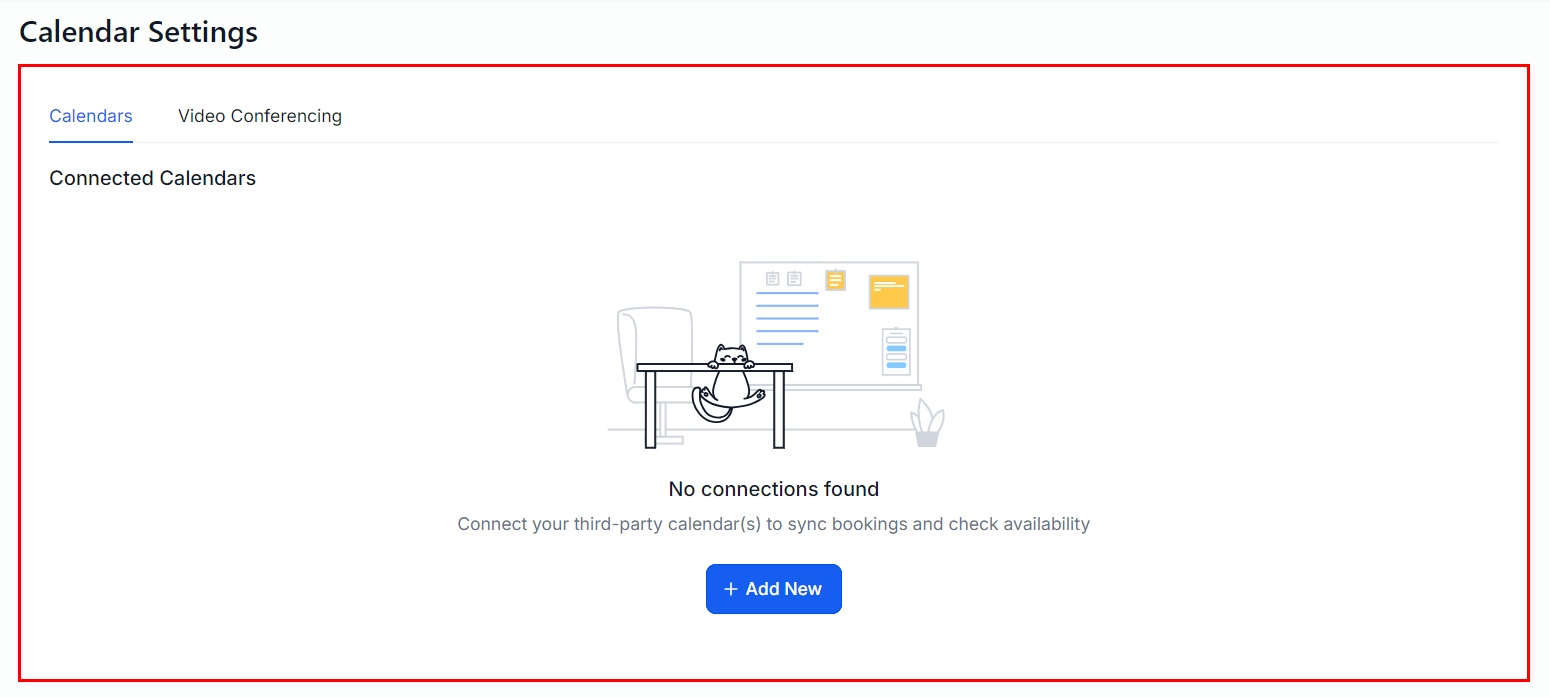
- Look for the Calendar Settings section where you can connect your calendar to sync bookings and check availability. If you have not connected any calendars to your account, you will see the screen below:
If a calendar was already connected, the Calendar Settings will look similar to the image below:
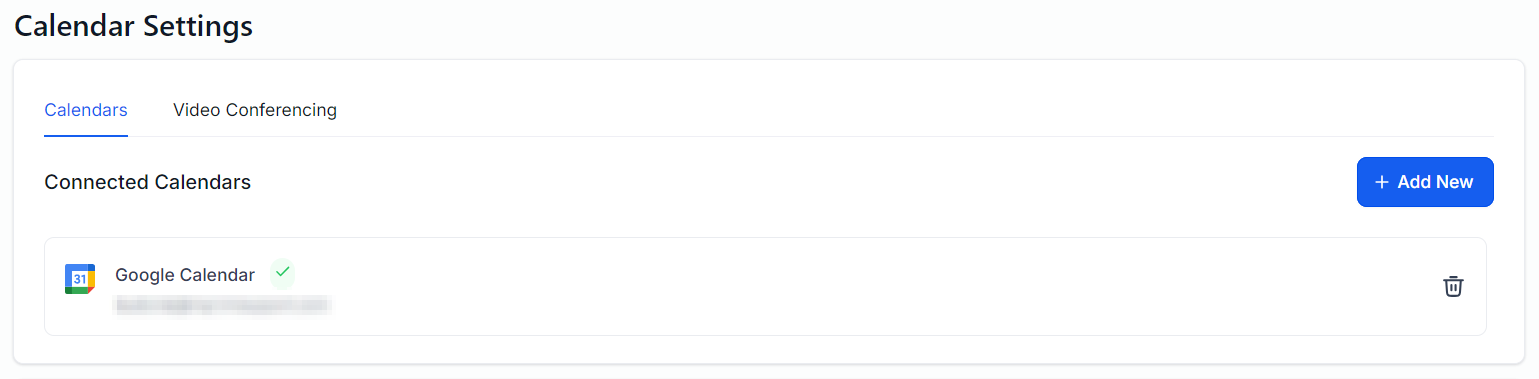
- Select the “+ Add New” button to begin.
Step 2: Initiate the Connection
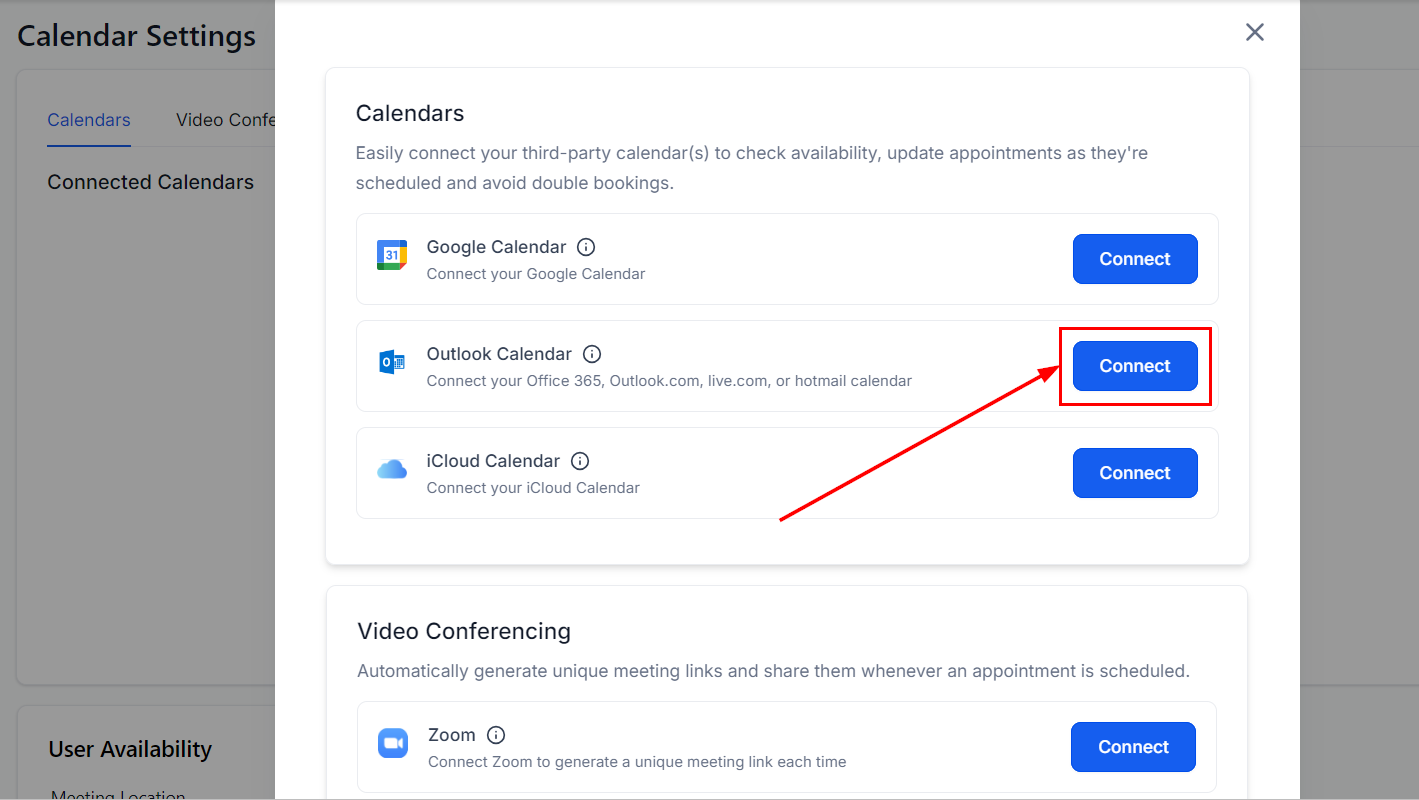
- Click on the ‘Connect’ button next to the Outlook calendar option. This action will redirect you to a Microsoft login page.
Step 3: Sign in to Your Microsoft Account
- On the Microsoft login page, enter your Outlook account credentials. Make sure the information is accurate to avoid any issues.
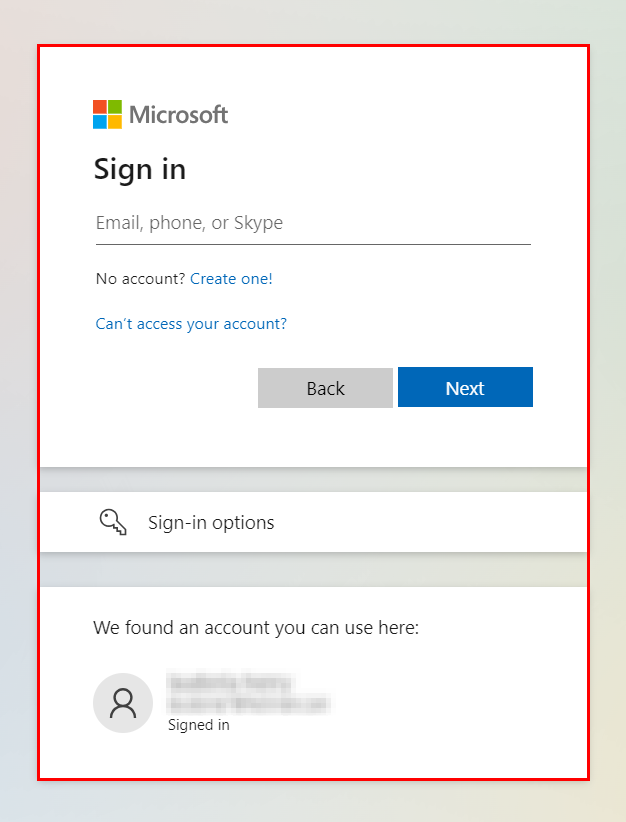
- Grant the CRM permission to access your Microsoft account information.
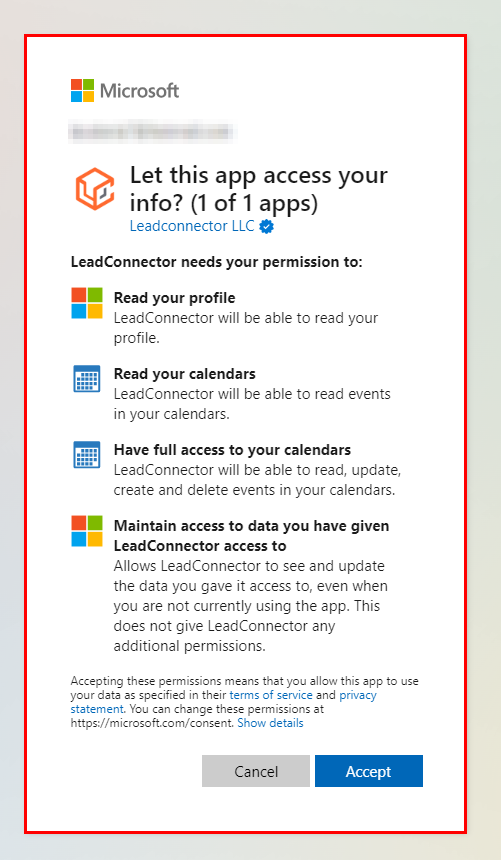
By integrating your Outlook account with your CRM, you enable a seamless synchronization of your Outlook Calendar for scheduling and appointment management. This connection streamlines the booking process, ensuring that all relevant events and appointments are accurately reflected in both systems, ultimately enhancing your organization’s efficiency and productivity.
Practical Examples and Use Cases
Integrating your Outlook with the CRM can significantly impact your daily operations. For instance, when a client books an appointment via your website, the information can automatically populate in both your CRM and Outlook calendar, ensuring you never miss a meeting. Additionally, it simplifies rescheduling and cancellations, as updates in one system are reflected in the other in real-time.
Frequently Asked Questions
Q: Can I connect multiple Outlook accounts to my CRM profile?
- No. The CRM allows for a single Outlook account to be connected per user profile for synchronization purposes.
Q: What happens if I change my Outlook password?
- If you change your Outlook password, you may need to reconnect your account to the CRM to ensure uninterrupted synchronization.
Troubleshooting Tips
Connection fails or does not initiate.
- Ensure you are using the correct Outlook account credentials. Also, check your internet connection.
Appointments are not syncing.
- Verify that you have granted all necessary permissions during the authentication process. Additionally, check if the CRM and Outlook accounts are correctly linked under your profile settings.
Not a Funnelbud customer yet?
Try our all-in-one CRM for sales and marketing — free for 7 days, no commitment.