How to Clone Elements & Slides
Designing forms and surveys often requires repeating similar fields, layouts, or design patterns. Instead of recreating everything from scratch, the Clone feature lets you duplicate elements or slides in just a few clicks. This not only saves time but also ensures a consistent look and feel across your projects.
📌Note: The option to clone slides is exclusive to the Surveys tool.
Why It Matters
- Speed: Eliminate repetitive work by duplicating elements or slides in seconds.
- Consistency: Preserve formatting, field settings, and styles without manual re-entry.
- Efficiency: Spend more time fine-tuning instead of rebuilding.
- Scalability: Quickly scale complex forms and surveys by reusing existing structures.
How to Clone an Element or Slide
Start by opening the relevant form or survey from the respective builder.
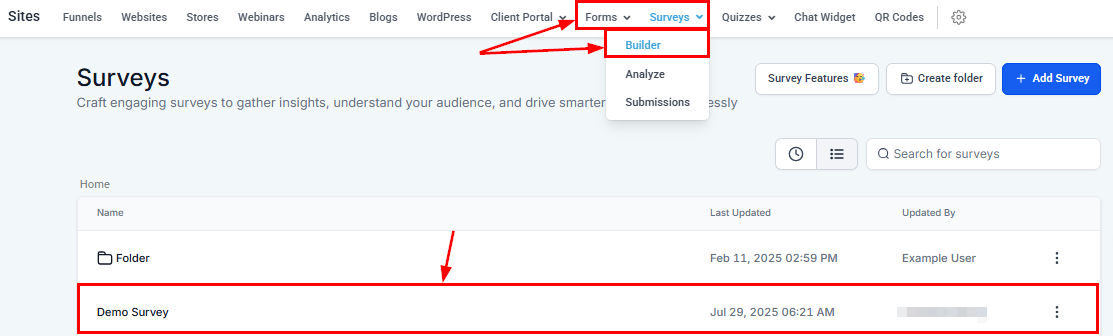
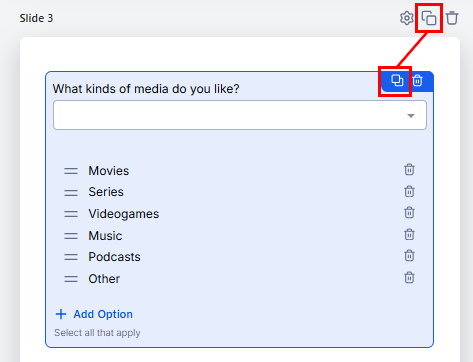
Hover over the element or slide you want to duplicate, then click the Clone icon at the top-right corner.
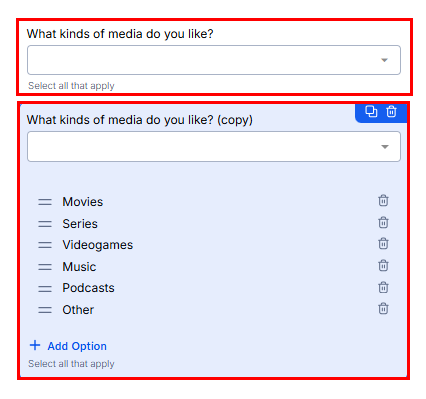
A duplicate is instantly created below the original, carrying over all styles, settings, and validations.
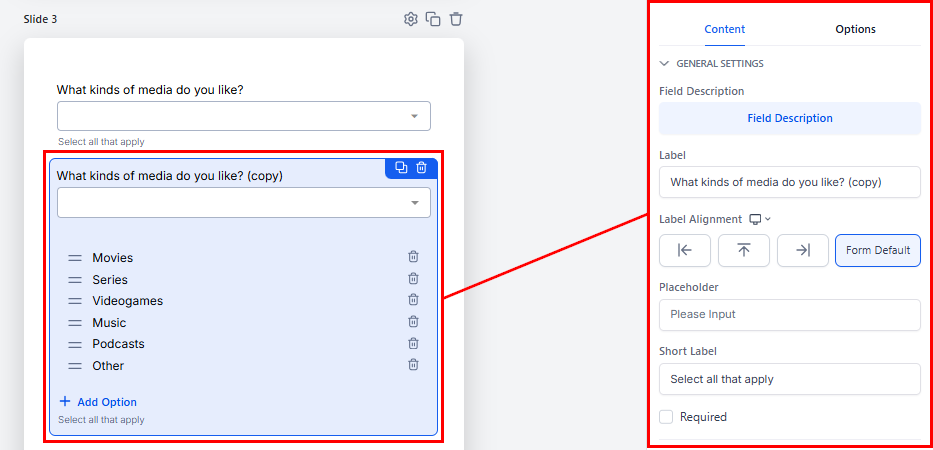
Edit the cloned element or slide as needed to customize it for your design. Be sure to update the label as desired!
Next time you’re building a form or survey, put the Clone feature to work. You’ll save time, keep your designs consistent, and free up energy to focus on what matters most — creating an experience your audience will love..
Not a Funnelbud customer yet?
Try our all-in-one CRM for sales and marketing — free for 7 days, no commitment.