Image
The image element provides a convenient way to incorporate visuals into your funnel or website page, enhancing the overall user experience. By integrating images that complement your content, you can create a more engaging and aesthetically pleasing site, capturing the attention of visitors and effectively conveying your message.
General Settings
When editing the image element on your funnel page, most adjustments can be made in the General Settings section located to the left.
Element Name
At the top of this section, you will find the element name, which is the default designation for the edit option you are working on. You have the option to retain this default name or to rename it for easier identification when building out your funnel page.
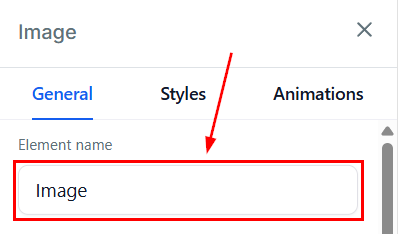
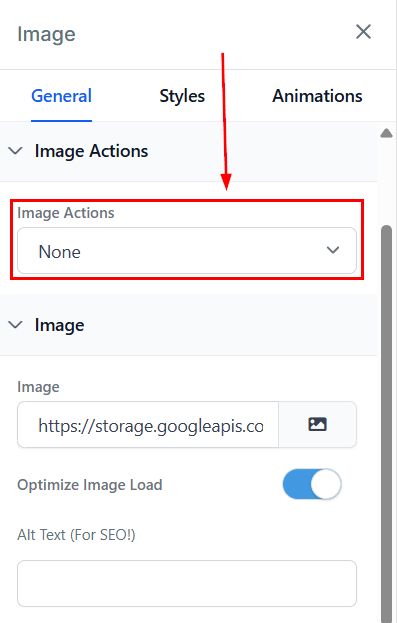
Image Actions
Select the desired redirect action for your image from the dropdown menu. Options include:
- None: Clicking the image will not prompt any actions.
- Download File: Upload or select a file from your media library to be downloaded upon clicking.
- Hide Element: Specify the elements that should be hidden when the image is selected.
- Show Element: Specify the elements to be displayed when the image is selected.
- Scroll to Element: Select the element to which the page should scroll when the image is selected.
- Step: Choose the step the image should display when clicked.
- Next Step: Redirects to the next step in the funnel or on the website.
- Call: Initiates a call to the selected number when the image is clicked.
- SMS: Initiates an SMS message to the configured number.
- Email Address: Initiates an email to the configured address.
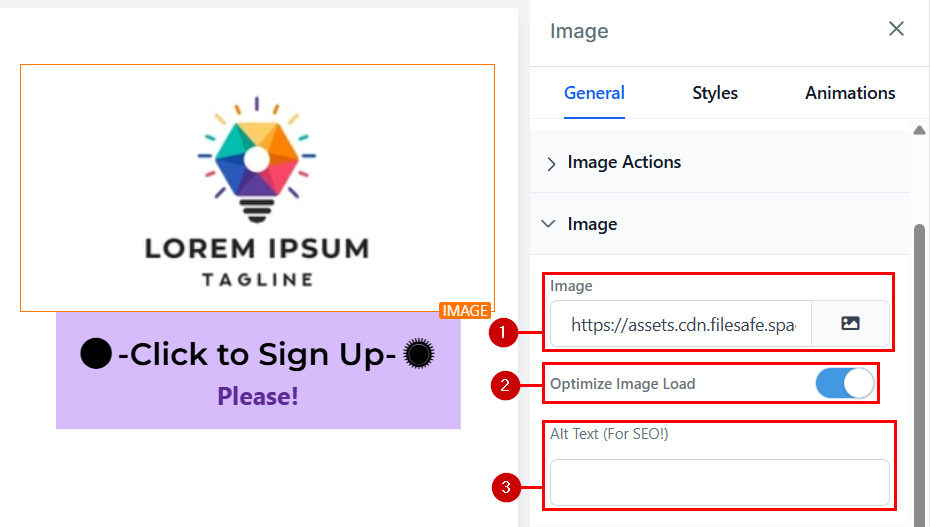
Image
This lets you manage the main aspects of the image. It will be divided into:
- Image: Clicking on the image icon directs you to the storage page, where you can upload your desired image. Once uploaded, double-click the image to load it into the editor’s space.
- Optimize Image Load: Optimizing images for your website can reduce your total page load size by up to 80%. However, with this toggle, you can enable or disable this option according to your preferences
- Alt Text: Ensure you add alt text for SEO purposes by providing a brief description of the image.
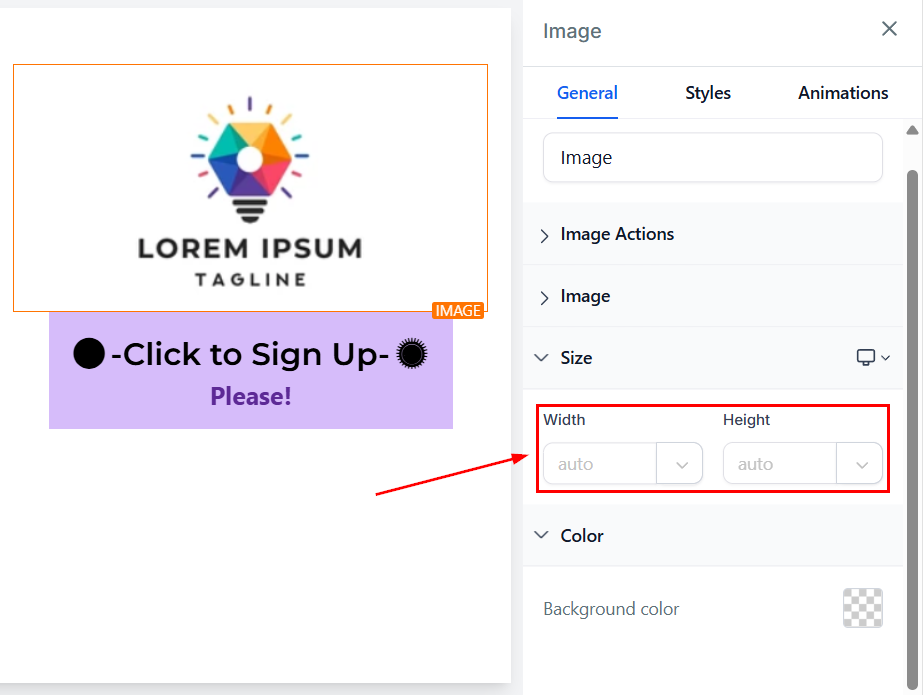
Size
Specify the width and height of the image by entering your desired dimensions in the designated fields.
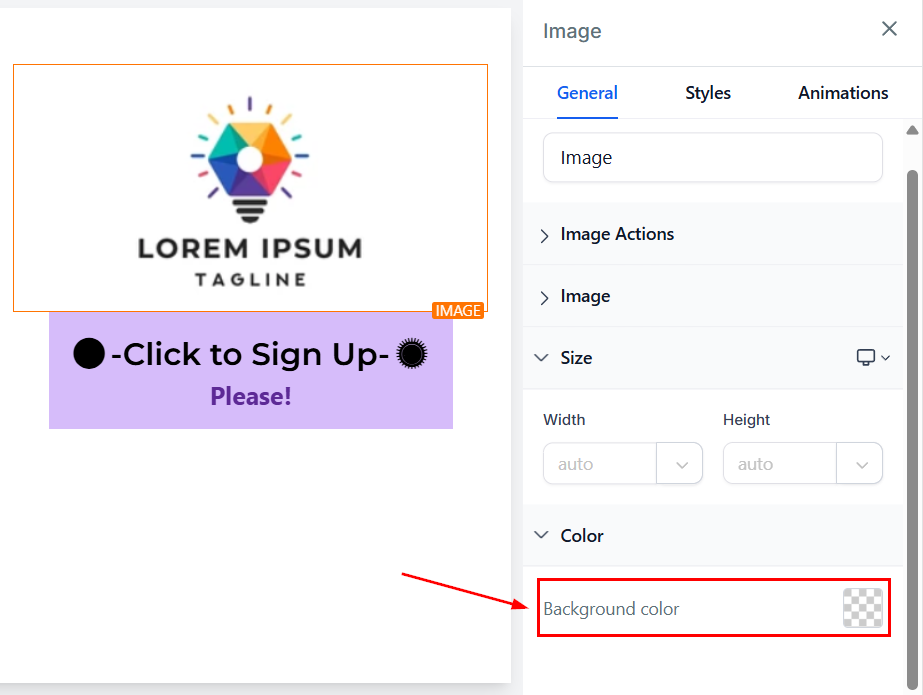
Background Color
To change the background color of your image element, click on the content area you wish to adjust. You can then select a color from the provided options or enter a custom color code to match your branding.
Styles
Under the Styles tab, you have additional customization options such as adding border-radius, adjusting visibility, adding a custom class, and copying the CSS code for later use.
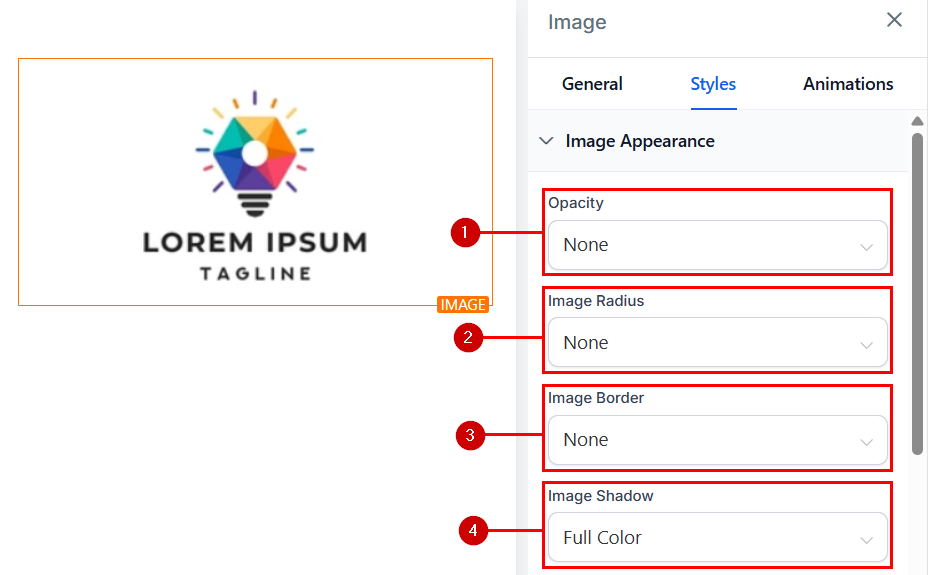
Image Appearance
-
Opacity: You can control the degree to which your text or content fades within each element box. The opacity options range from None, Light, and Half, to Heavy fade.
-
Image Radius: The Border Radius dropdown provides options to display your image in its original form, as a circle, or as an oval.
-
Image Border: You can select the desired border type for your image.
-
Image Shadow: You can enhance your image by adding a border shadow. To do this, select the border shadow dropdown and choose between the drop shadow and inner shadow options.
Spacing Options
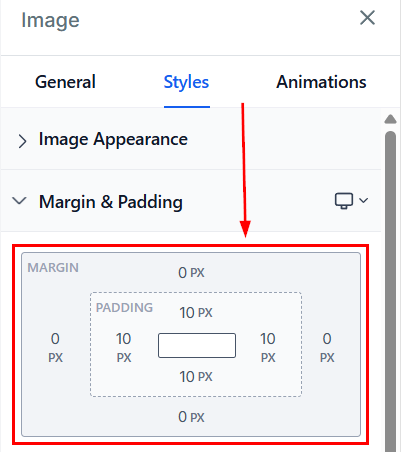
The spacing options in the General Settings section allow you to adjust the padding and margins for your image content.
- Padding (Left, Right, Top, and Bottom): These four toggle bars enable you to move the content in the specified direction (left, right, top, or bottom) depending on the selected toggle bar.
- Margin (Top and Bottom): Adjust the top or bottom margin of your content by toggling the corresponding bars.
Align
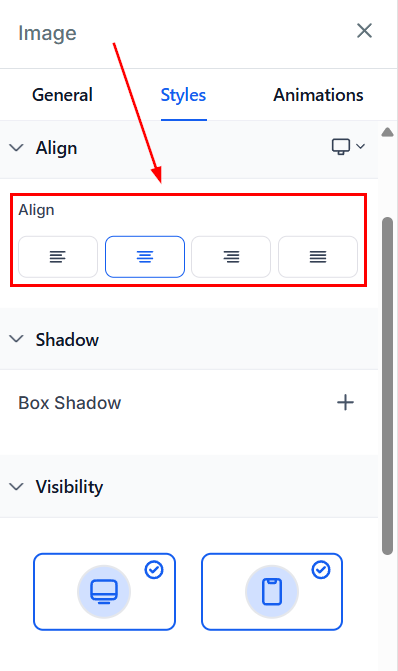
You can adjust the positioning of your text as desired, allowing you to align it to the Left, Center, Right, or justified.
Shadow
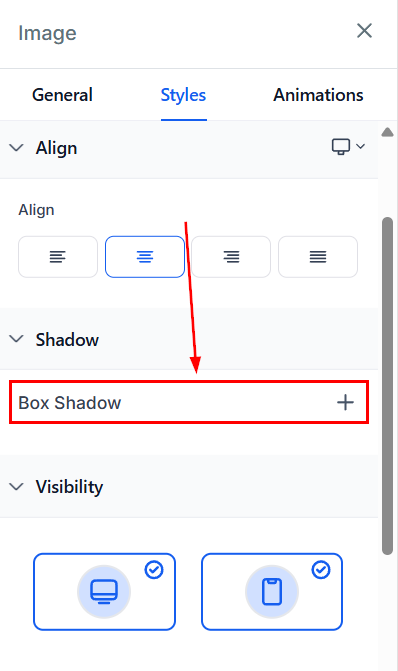
Apply box shadows to fit your design needs. Click the plus button to apply a default outer shadow with preset values, which can be further customized with specific settings.
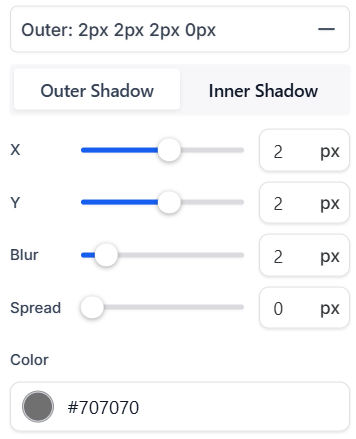
Add multiple shadows by clicking the plus button, allowing for more intricate designs. Modify each shadow by selecting between outer and inner types, and adjust parameters such as X value, Y value, Blur, Spread, and Color.
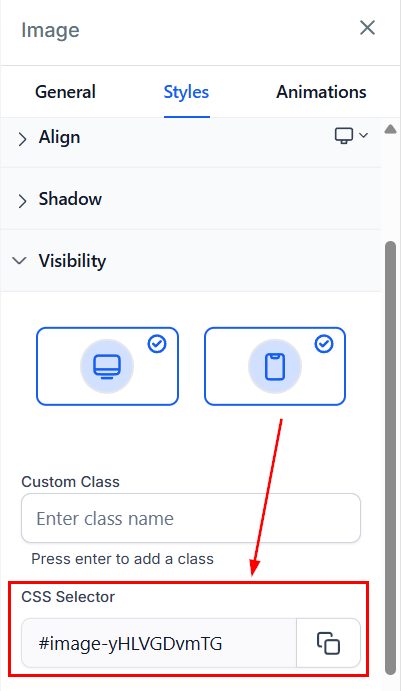
Visibility
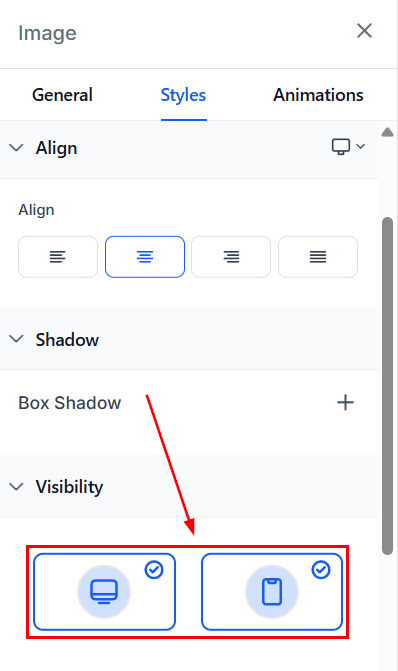
The Visibility section allows you to control the display of your image element, allowing you to toggle its visibility for either desktop or mobile devices according to your requirements. You can preview your changes using the desktop and mobile options in the top left corner of the funnel builder to see how it appears on different devices.
Custom Class
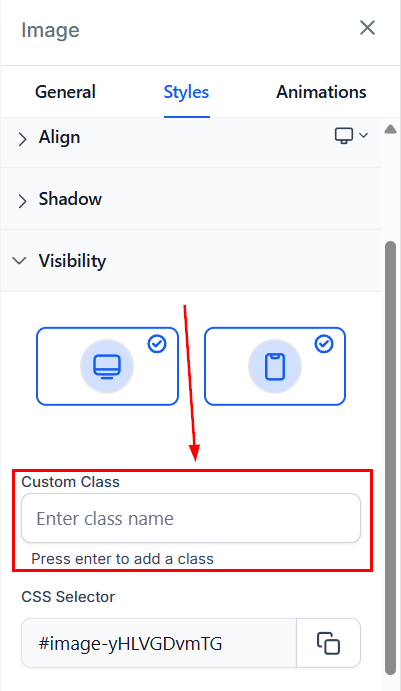
Enter or paste your custom class code in the provided field.
CSS Selector
To copy a CSS selector, click the “copy” icon located to the right of the reference number.
Animations
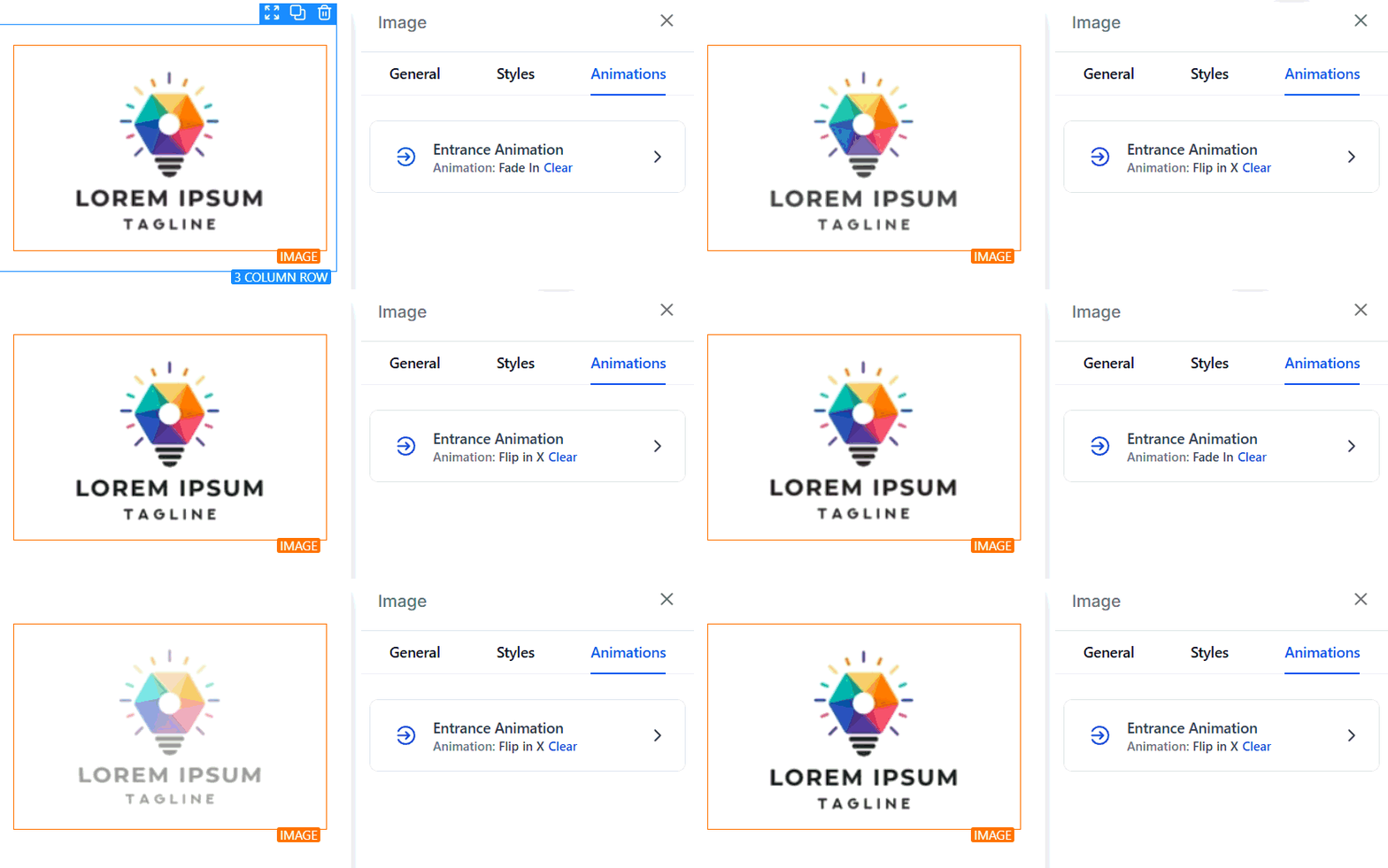
To add a splash of movement to your page, select the entrance animation option.
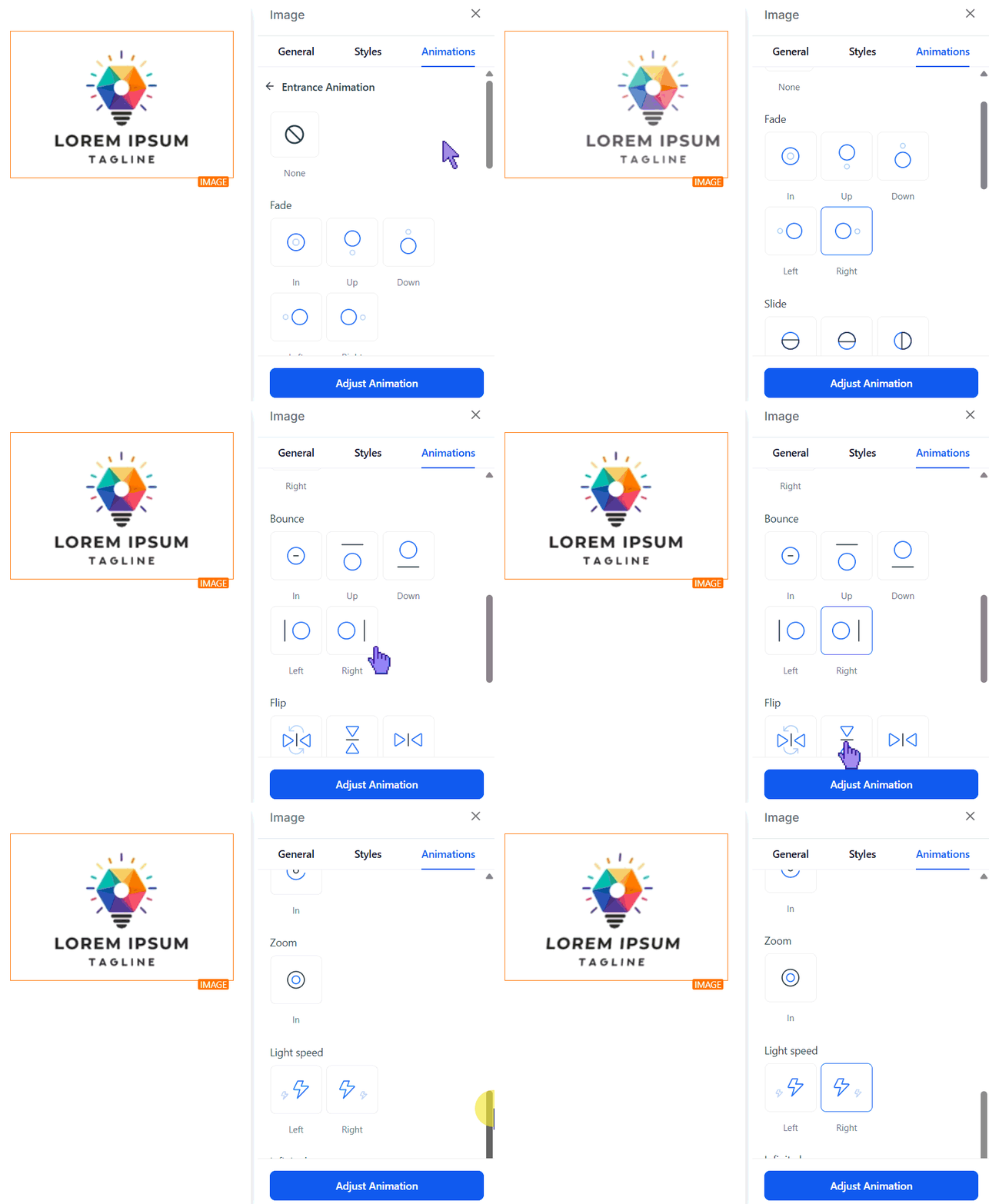
Choose from a variety of animation effects tailored to your content style and audience preferences.
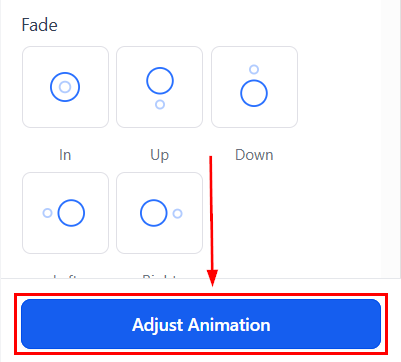
To customize the animation details, click Adjust Animation. This lets you modify the scale, duration, delay, and easing motion of your animation.
Use this element to add more visual interest to your pages. They say a picture is worth a thousand words, so use them to increase your brand’s presence and capture many leads!
Not a Funnelbud customer yet?
Try our all-in-one CRM for sales and marketing — free for 7 days, no commitment.