Subscriptions
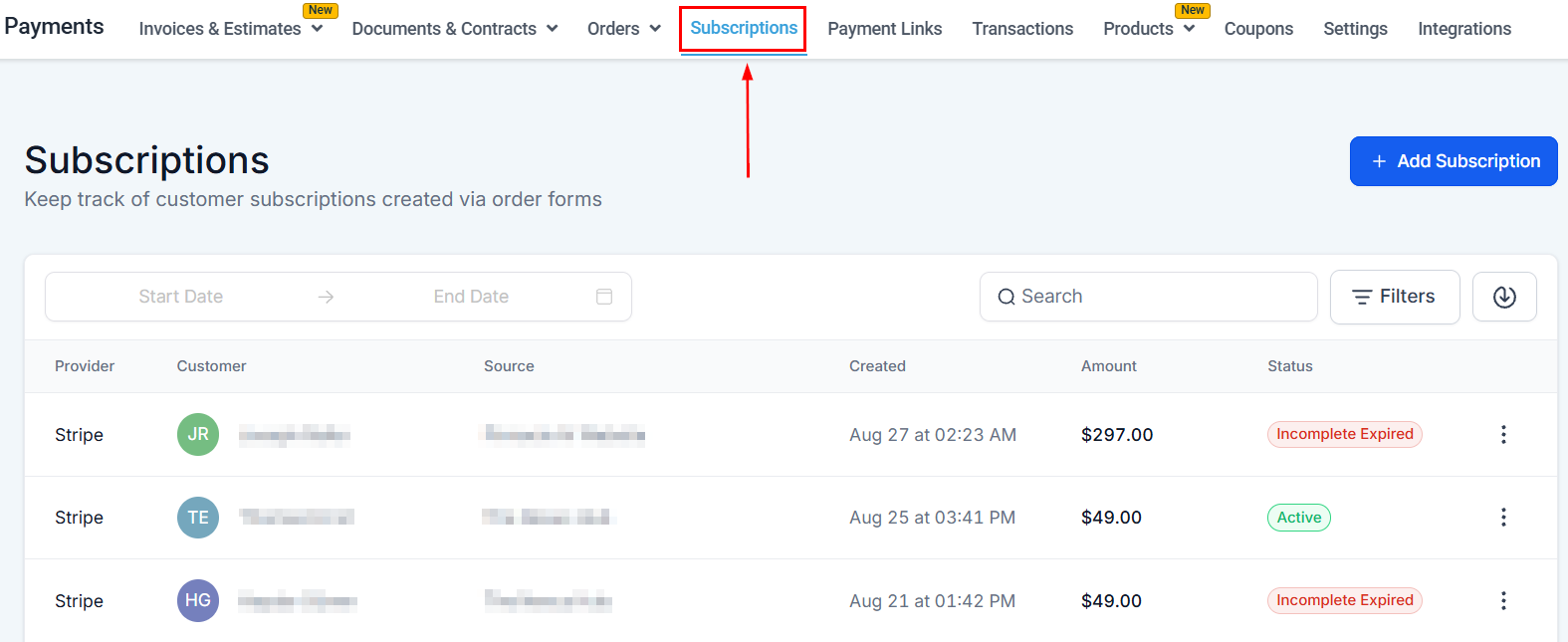
Subscriptions are a great source of steady income, so it’s key to stay informed about their lifecycle, their current status, and easily manage updates, billing changes, and cancellations. Managing customer subscriptions is essential for maintaining smooth operations, so let’s learn how to do it with the Subscriptions section of the Payments tab.
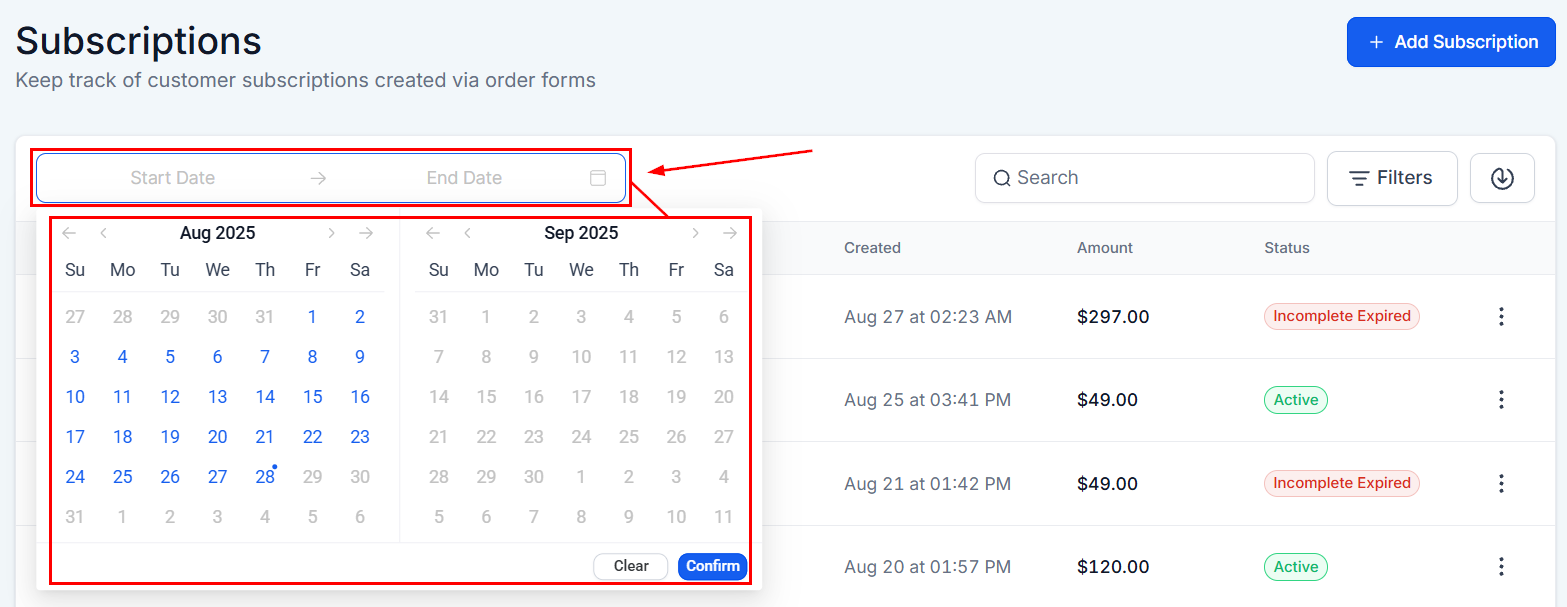
Date Range
With a calendar filter, you can find the subscriptions from a specific calendar period. Click on the calendar tab and select “from” and “to” periods, and the system will show the subscriptions from the calendar period set by a user.
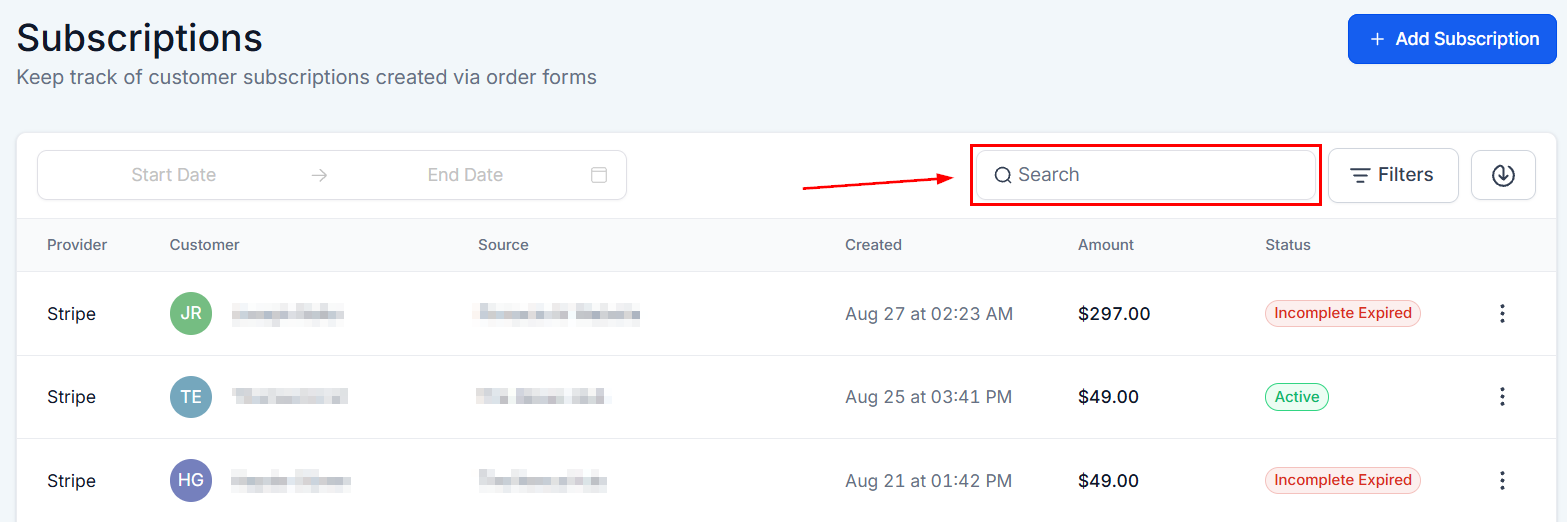
Search
Input the name of a specific customer to easily access their subscription information. This method allows you to quickly retrieve and review the details of a customer’s subscription, ensuring that you can efficiently manage and address any inquiries or concerns related to their account.
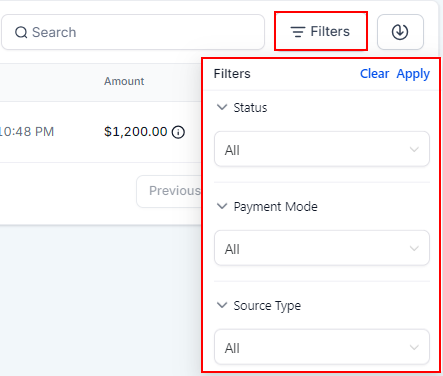
Filters
These filters allow you to view the subscriptions based on their status, payment mode, or Source type. A status can be active, overdue, canceled, etc, payment mode could be Live or test mode, and Status type could be Funnel or websites.
Download Subscription List
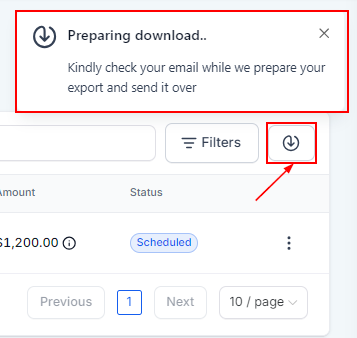
The download button allows you to export your subscription list. Just click the download icon, and the system will automatically send it directly to your email.
Subscription List
Provider
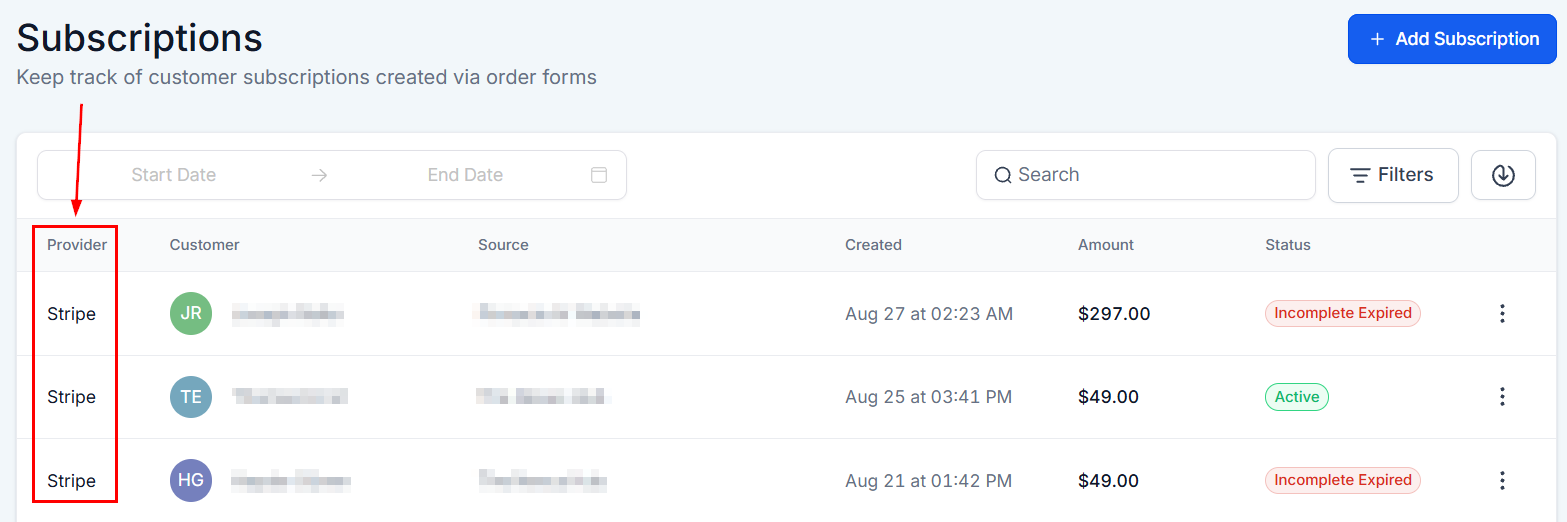
Viewing your list of subscriptions, you will see a variety of identifiers. In the far left column, you will see the provider. The subscription ID is unique to each subscription on the list and can help track and resolve any order issues.
Customer Name
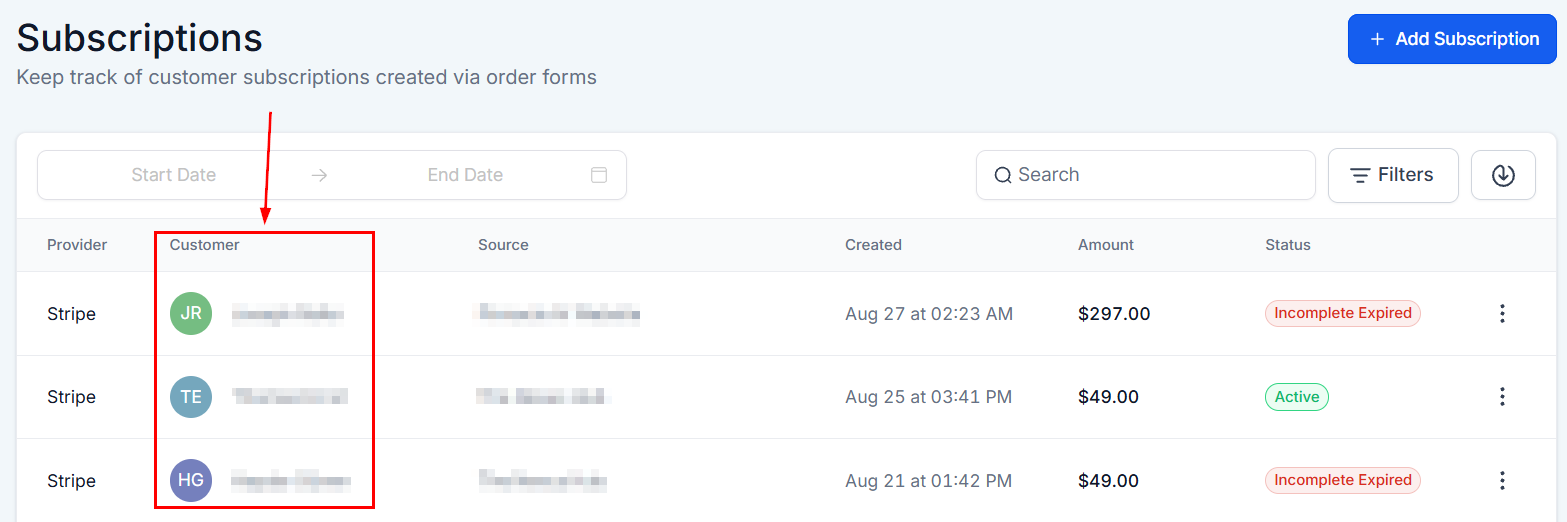
This column is to show the name of each customer who has opted for the subscription.
Source
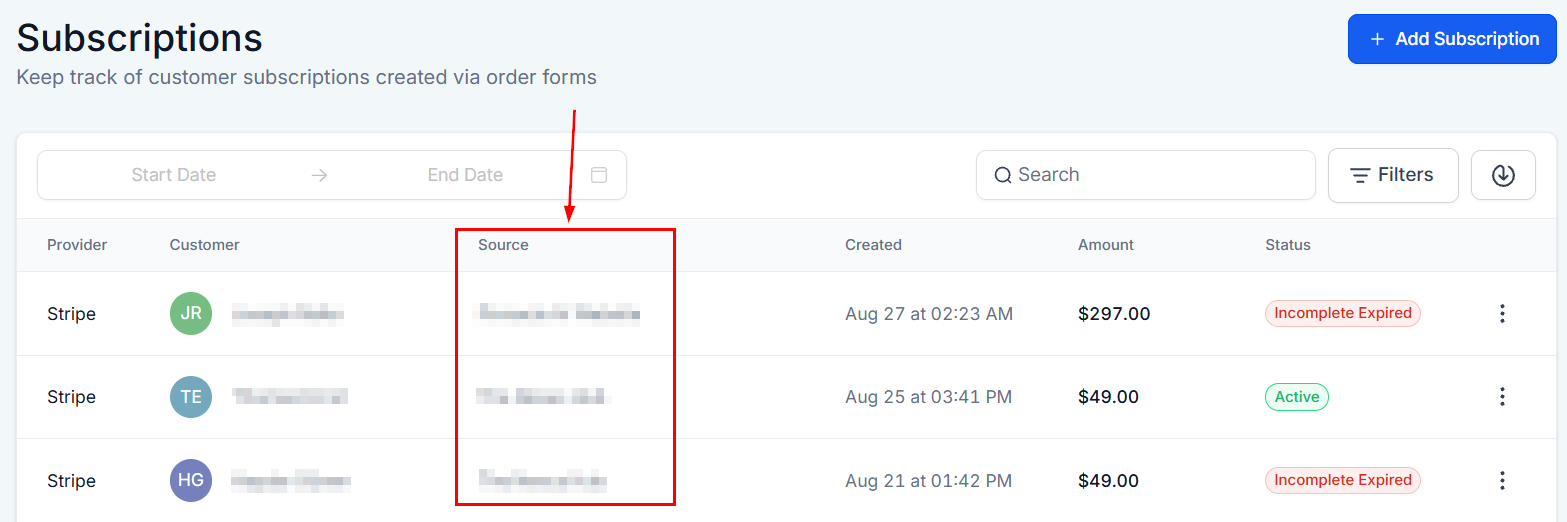
In the source column, you will see whether the subscription was created in a funnel or website, and the name of the funnel or website it came from.
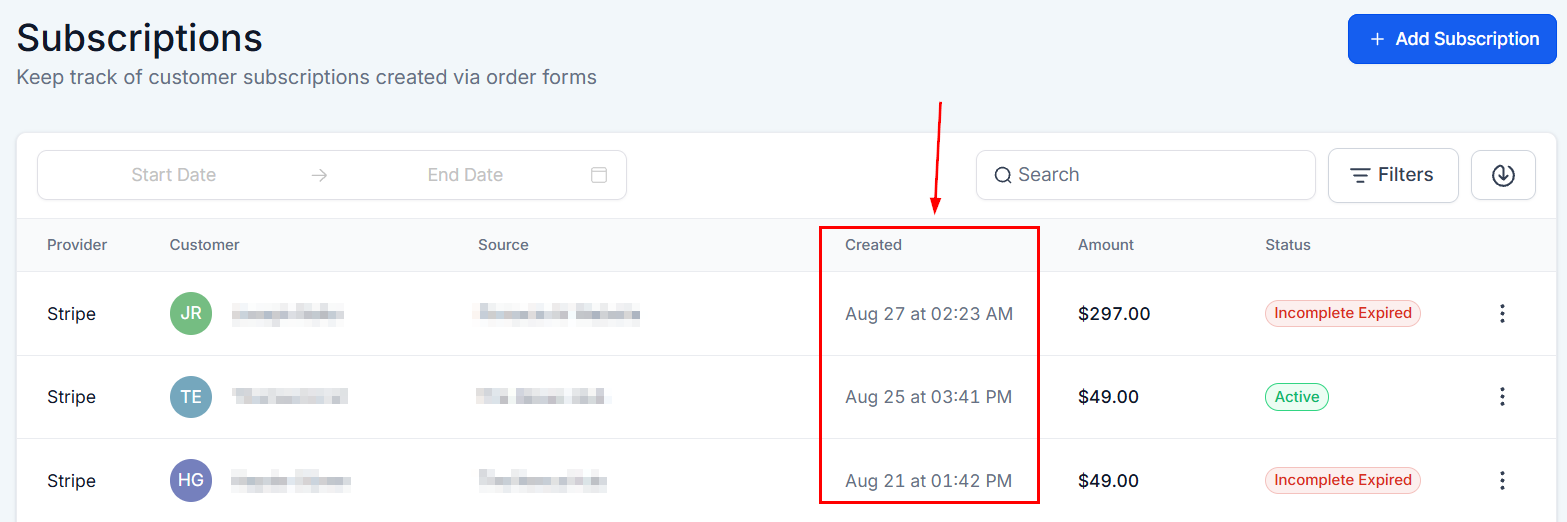
Created
The date and time the subscription was created is shown in the created column.
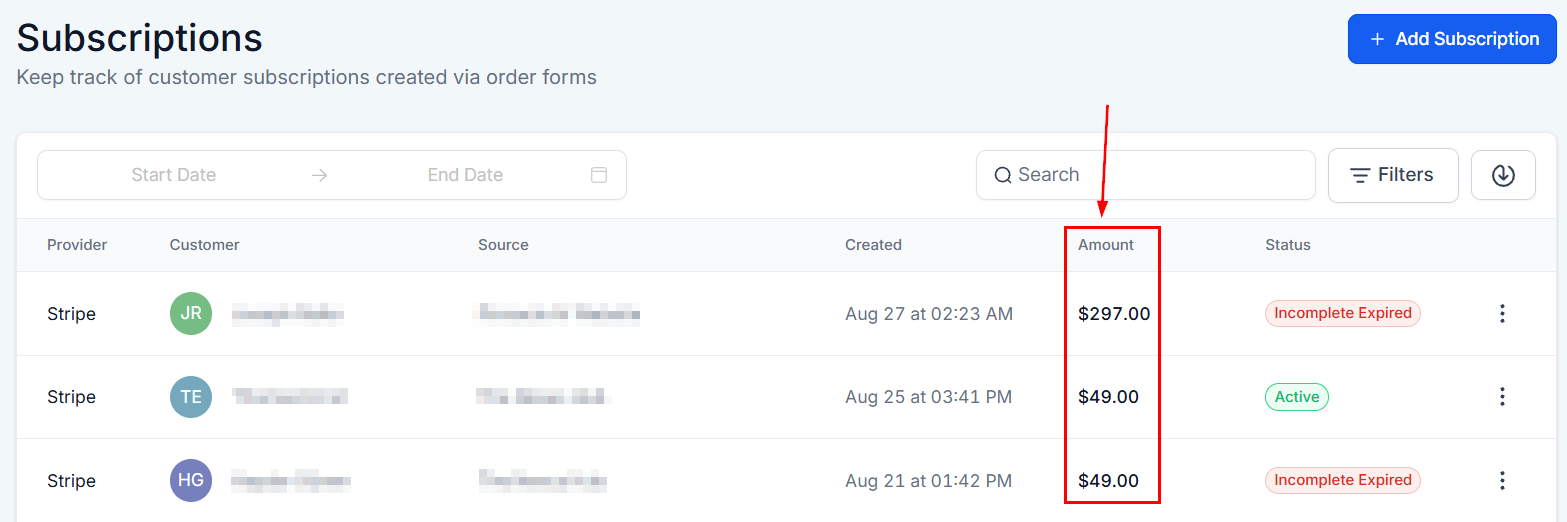
Amount
The dollar amount of the subscription will show in the amount column.
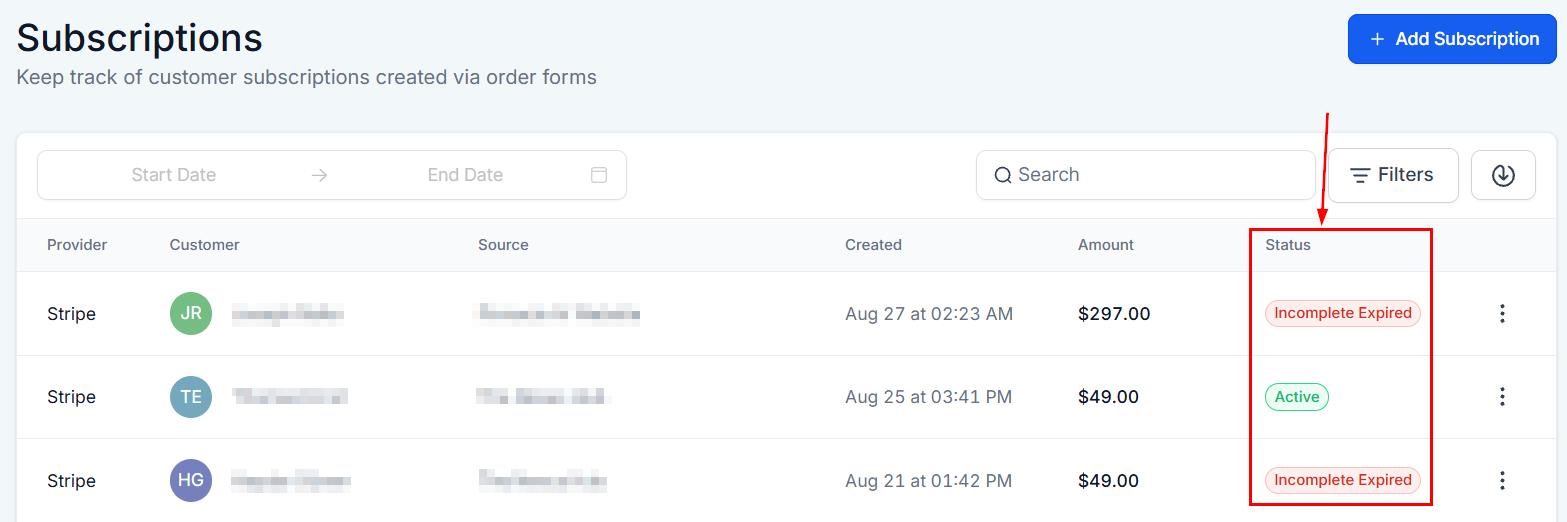
Status
The status of the subscription will be shown to the right which will show as trial, active, overdue, unpaid, canceled, failed, incomplete, or expired.
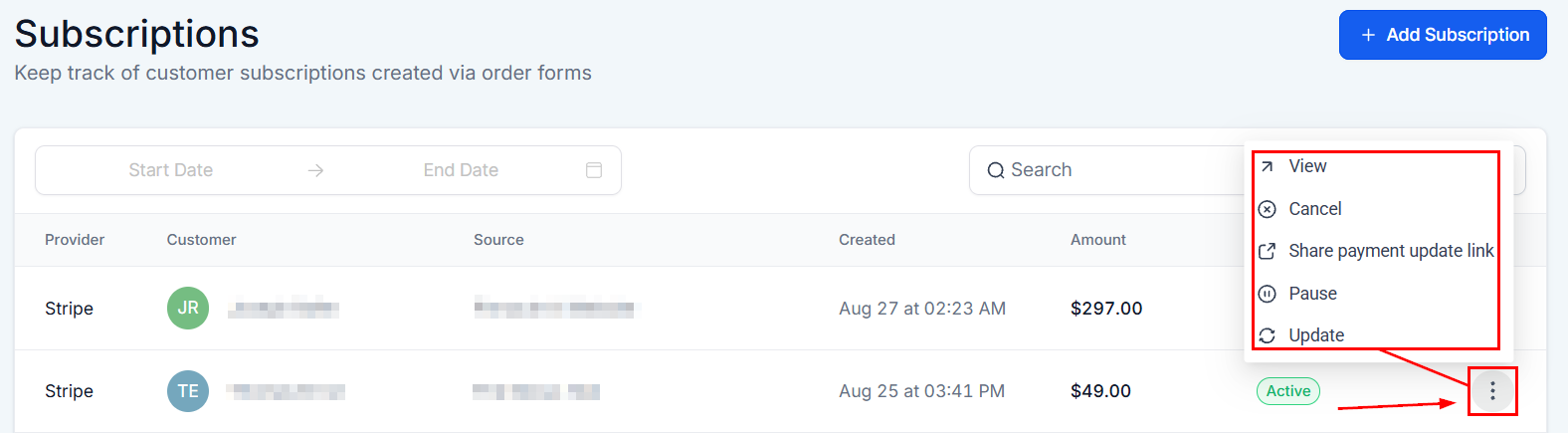
Actions Menu
To the far right of each subscription, click on the three dots to view the subscription or cancel the subscription.
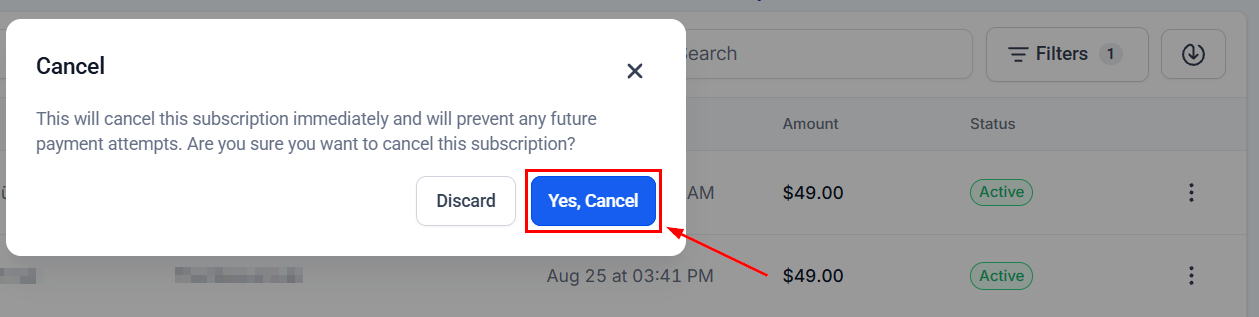
Clicking on Cancel Subscription will immediately cancel it and will prevent any future payment attempts. Be sure you want to cancel this subscription because it cannot be undone.
View Subscription
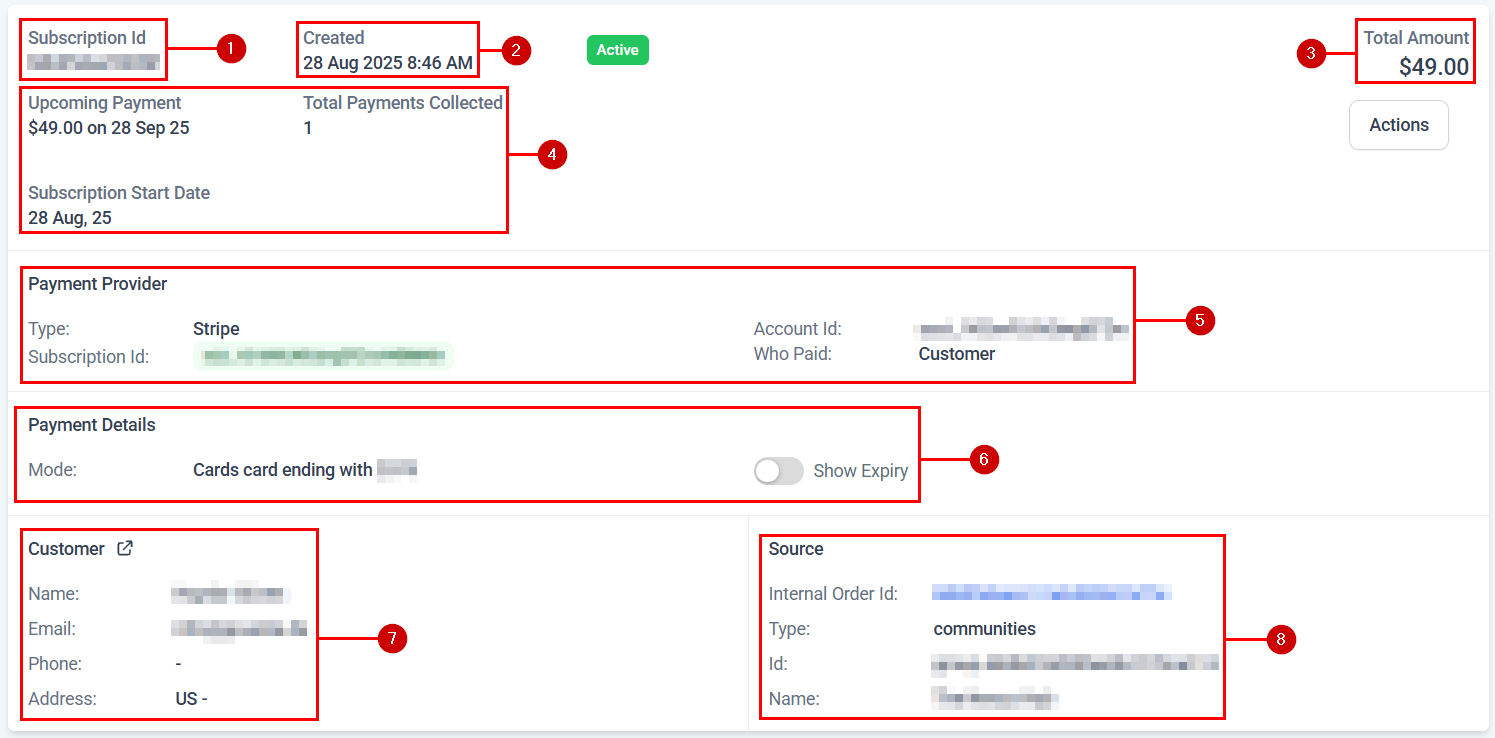
Clicking this option will open the order details for the selected customer. These details will be:
- Subscription ID: Here, we can see the identification number of the subscription made.
- Created: You can see the date and time the subscription was created.
- Total Amount: You can see the total amount charged for this subscription here.
- Payment History: Here, you can see the total payments, upcoming payment dates, and billing start date.
- Payment Provider: You can see the name of the payment provider type, ID, account ID, and who made the payment.
- Payment Details: In this section, you can check the connected card and expiry date.
- Customer’s Information: You can see the customer’s name and email. When you click on the URL arrow, it directs you to the Contact Details section.
- Source: You can see the internal order ID, source type, sub-type, identification (click on the ID to direct you to the Funnel the contact is linked to), name, step ID, and page ID.
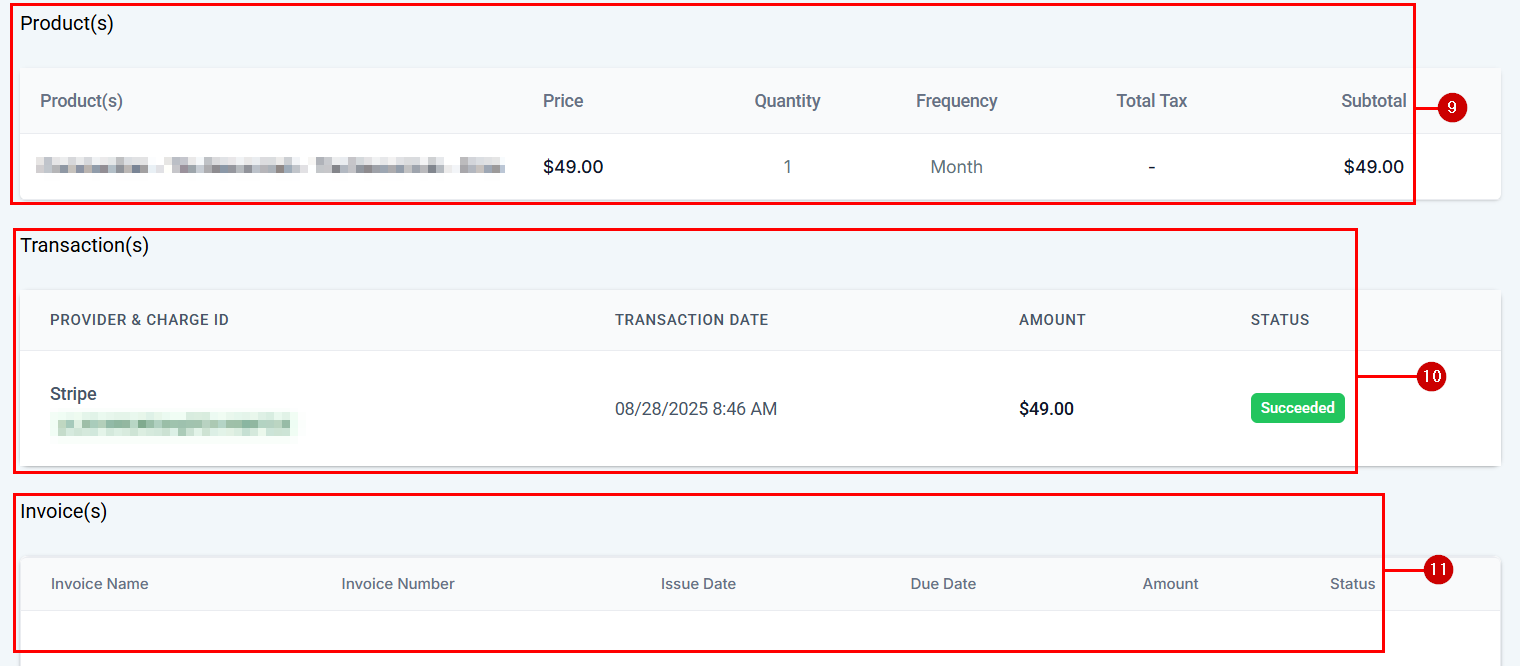
- Products: In this section, you can review all products the person is subscribed to, along with their price, quantity, and frequency.
- Transactions: You can see the provider & charge ID, the date and time the transaction was made, the amount, and the subscription status (succeeded). You can click on the stripe ID or status to direct you to the Transaction section.
- Invoices: This section will contain any invoices sent to the customer in relation to their subscriptions, along with all their relevant information.
Subscription Actions
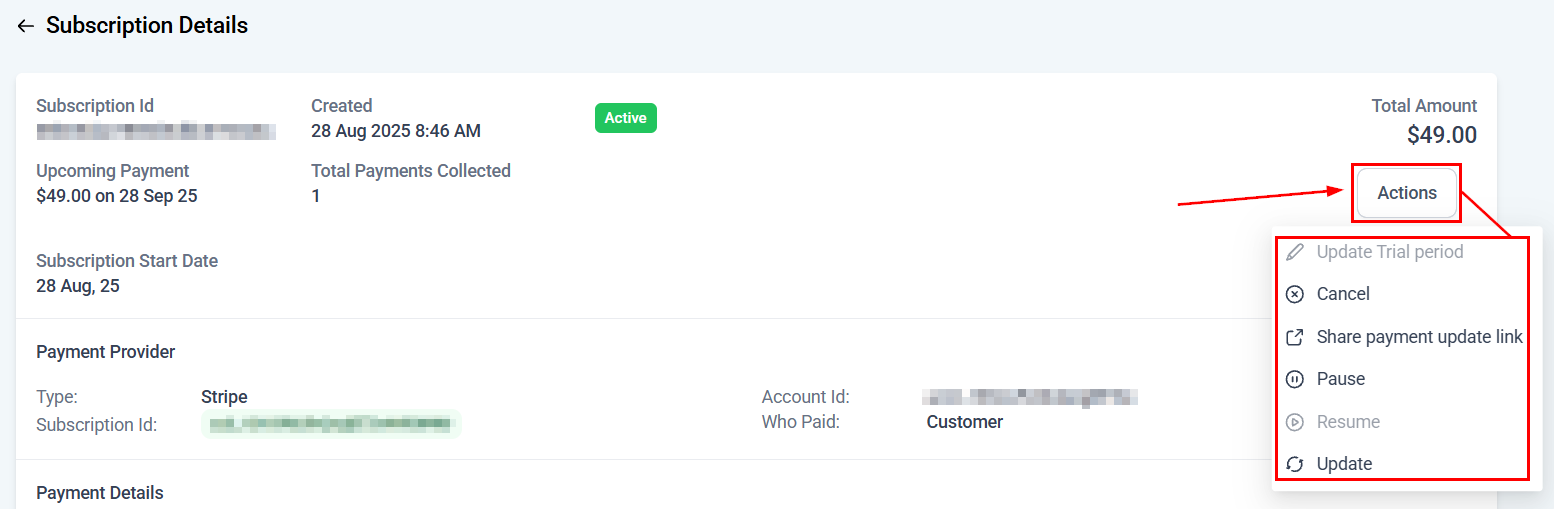
The Actions menu within the subscription details section, allows you to do more than cancel or share payment update links.
- Update trial period: If a customer needs more time to evaluate your services before starting the paid subscription, you can extend the trial period here.
- Pause subscription: This is useful in cases where a customer might need a break but doesn’t want to cancel their subscription entirely. Pausing a subscription allows you to temporarily stop billing for the customer. The subscription will remain paused until you decide to resume it.
- Resume subscription: If a subscription was previously paused, you can use this option to resume it. The customer will be billed according to the regular subscription schedule, starting from the date you resume the service.
Cancel Subscription
By clicking on the 3 dots, you can click the cancel button to end future customer subscription payments.
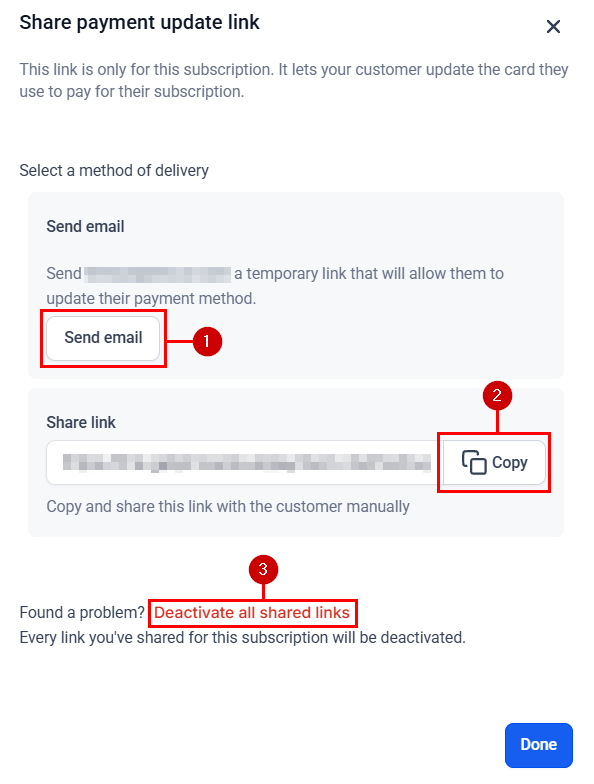
Share Payment Update Link
This allows you to update customer subscription payment details easily. There are two ways to send the update link to customers:
- You can automatically send a temporary link via email. This allows customers to update their payment method directly from the email. Just click the “Send email” button, and the system will handle the rest.
- Alternatively, you can manually share the link with customers. Copy the link by clicking the “Copy” button, then send it to your customer via the communication channel used.
- And if there’s ever any issue, you can deactivate all shared links, making sure that any shared links related to that subscription are no longer active.
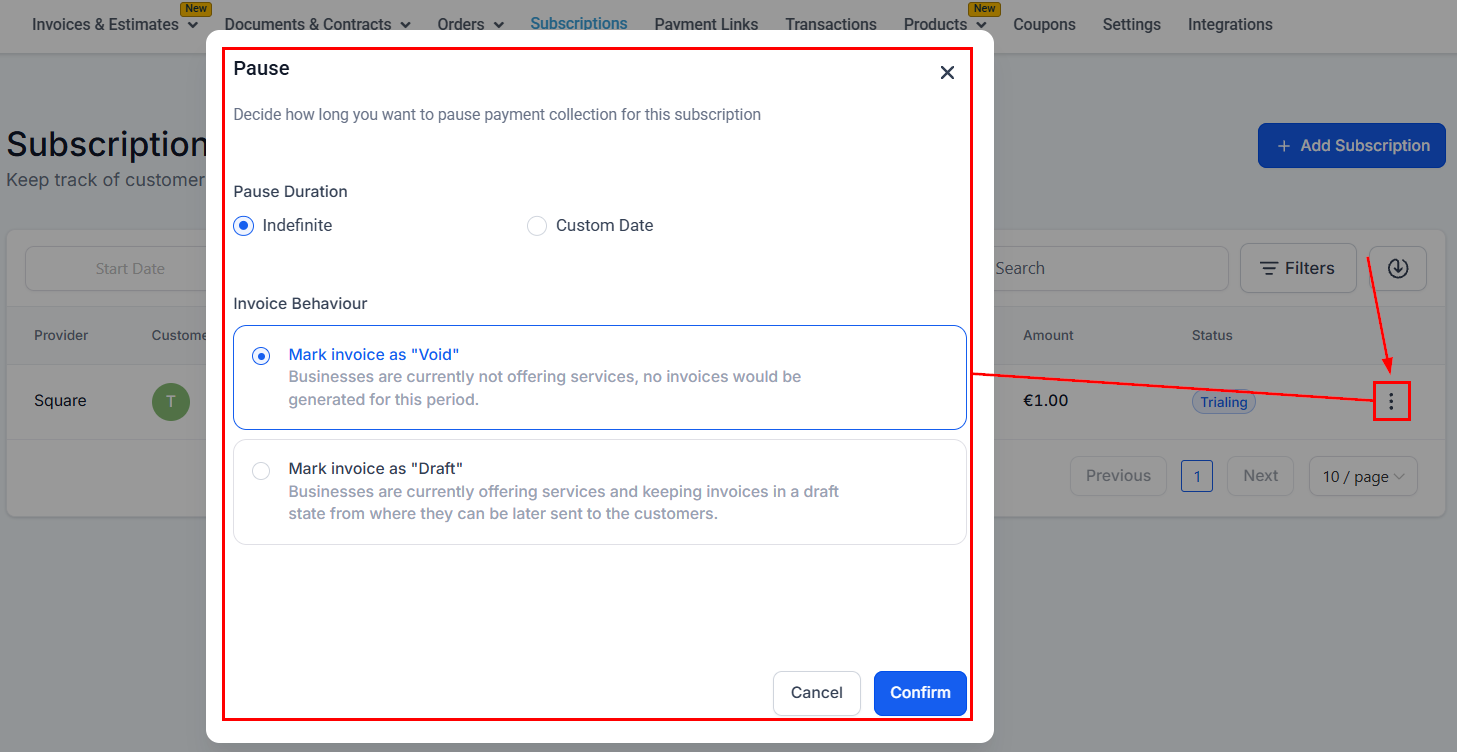
Pause Subscription
If you want to temporarily stop a subscription without losing the subscription’s data, select this option from the three-dot menu, then set the pause’s duration and invoice’s behaviour.
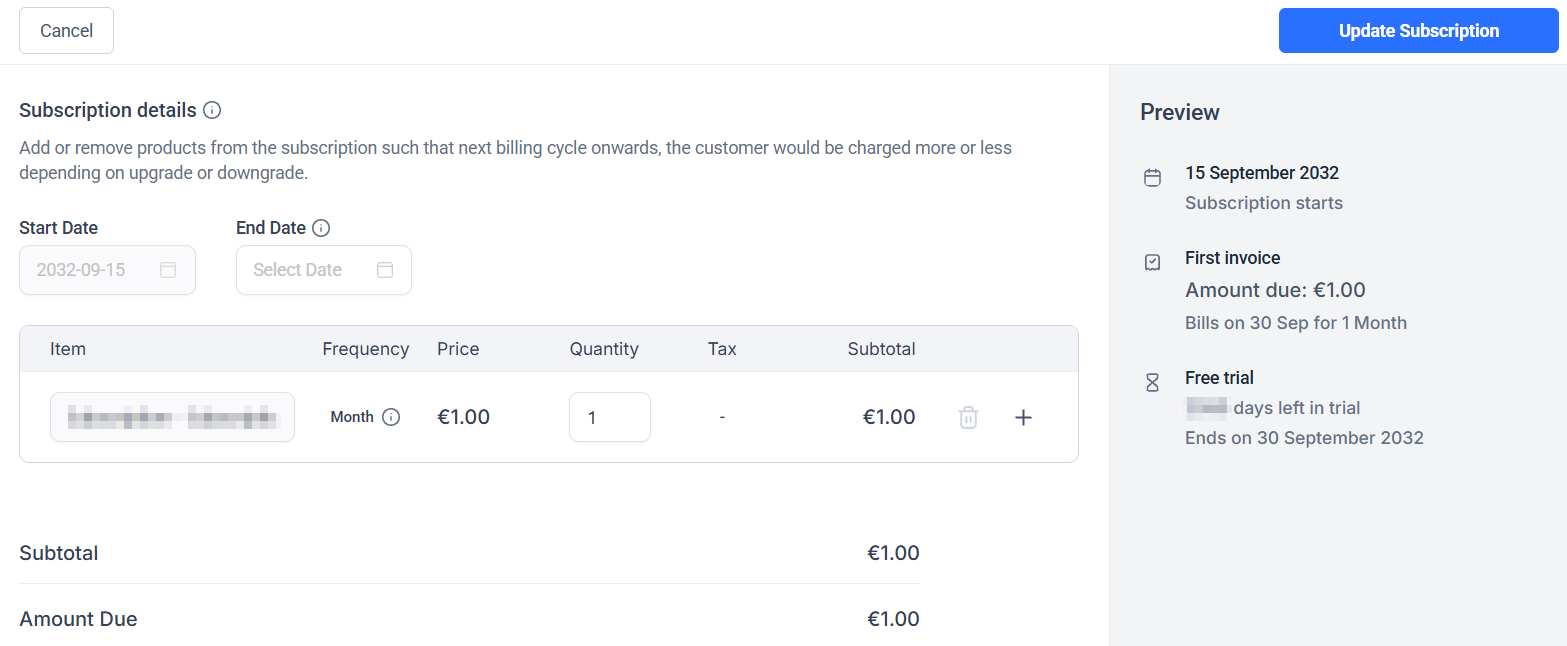
Update Subscription
Selecting this option from the three-dot menu will open a modal for you to change the subscription’s ending date and add or remove products to it.
So, there you have it. Managing subscriptions doesn’t have to be complicated. This tab helps you keep everything neatly in one place, making each subscription easy to find and handle. Just a few clicks, and you’re in control. It’s about making things simple, staying organized, and keeping your customers happy without the fuss.
Not a Funnelbud customer yet?
Try our all-in-one CRM for sales and marketing — free for 7 days, no commitment.