ClickUp Actions & Triggers in Workflows
The ClickUp integration provides seamless automation between your CRM workflows and ClickUp’s robust project management platform. Whether you are managing client deliverables, coordinating internal projects, or keeping tasks updated in real time, this integration ensures a smooth connection between your CRM automations and ClickUp’s task and documentation features.
Why It Matters
With this integration, you can:
- Automatically transform CRM events (such as form submissions or appointment outcomes) into ClickUp tasks.
- Keep project management activities aligned with client interactions.
- Reduce manual task creation and project updates, saving valuable time.
Triggers and Actions
Triggers (ClickUp → CRM)
ClickUp triggers use webhooks through ClickUp’s API. When a condition is met (such as a new task creation or a status change), the event is instantly sent to your CRM to initiate workflows.
Events in ClickUp that can initiate workflows:
Trigger Name | Description |
|---|---|
New Task | Fires when a new task is created. |
New Comment on a Task | Fires when a new comment is added to a task. |
New List | Fires when a new list is created. |
New Attachment Added to Task | Fires when an attachment is added to a task. |
Task Changes | Fires when a task is updated (status, due date, etc.). |
New Reaction Added to Chat Message | Fires when a reaction is added to a public channel message. |
New Folder | Fires when a new folder is created. |
New Reaction Added to Task Comment | Fires when a reaction is added to a task comment. |
New Time Entry | Fires when time is logged via ClickUp’s time tracking. |
Actions (CRM → ClickUp)
Tasks your CRM can execute within ClickUp workflows:
Action Name | Description |
|---|---|
Archive or Delete Task | Archive or delete a task. |
Create New Document | Create a document in a specified location. |
Create Space | Add a new workspace/team space. |
Create Folder | Organize tasks and lists with a new folder. |
Post a Task Comment | Add a comment to an existing task. |
Post Attachment | Upload a file or attachment to a task. |
Create Task | Generate a new task with details like name, due date, or assignee. |
Edit Document Page | Update an existing document page. |
Create New Document Page | Add a new page within an existing document. |
Create Custom Field | Add a custom field to a space, folder, or task. |
Create List | Create a new task list. |
Update Custom Field Value | Change the value of a custom field on a task. |
Update Task | Modify an existing task (status, due date, priority, etc.). |
Find Task by ID | Locate a task using its unique ID. |
Find Documents | Search for documents in ClickUp. |
Find Custom Fields | Locate a specific custom field. |
Find a List of All Tasks | Retrieve all tasks from a workspace or list. |
Find User by Name or Email | Look up users in ClickUp. |
Getting Started
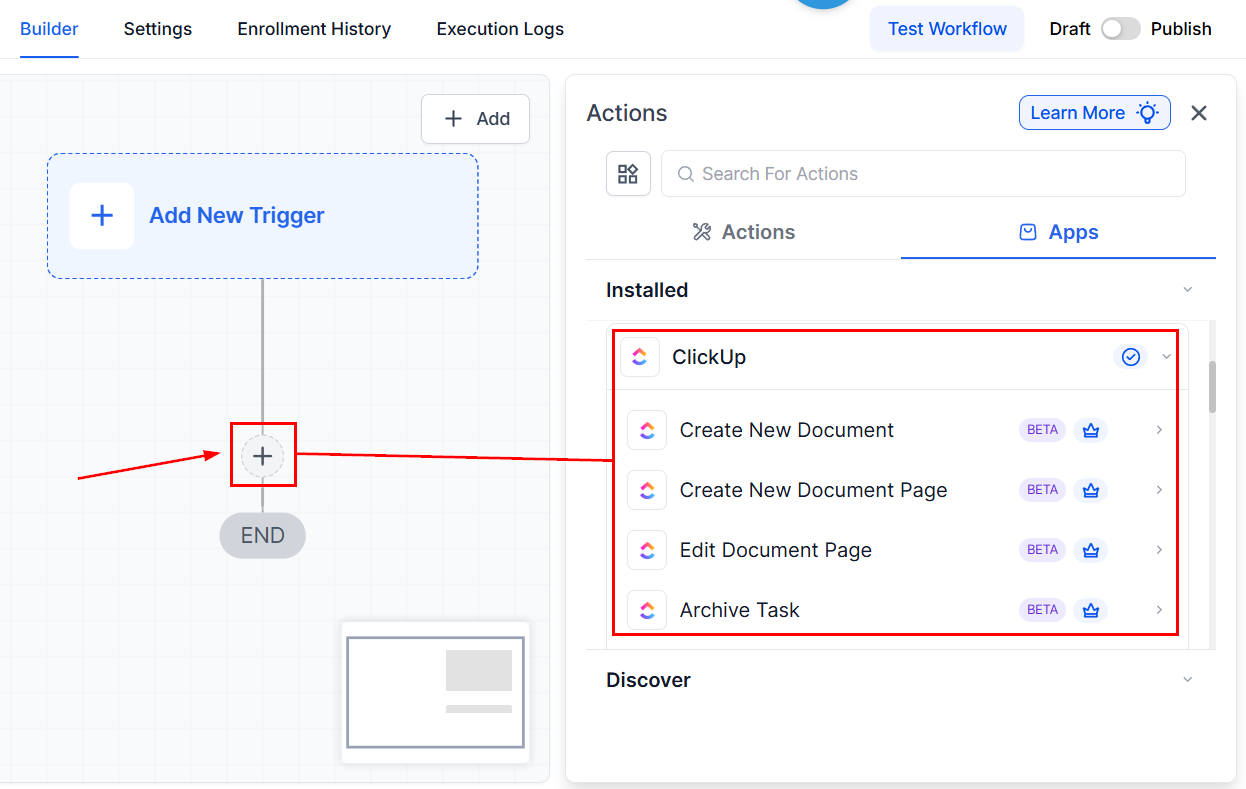
Search in Workflows
Open the workflow builder and search for any ClickUp actions or triggers you want to add.
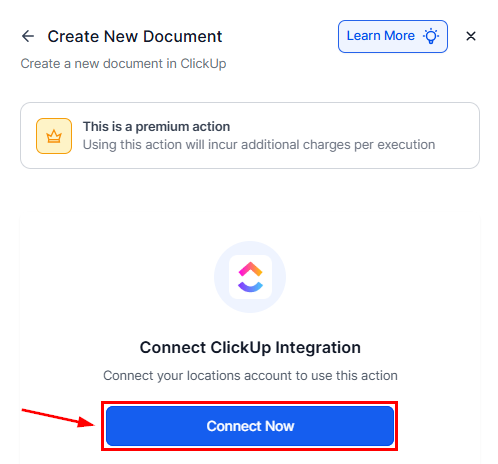
Connect Your Account
If your ClickUp account is already connected, configuration options will appear immediately.
If not, click Connect Now and complete the authorization process.
Alternatively, go to the Integration Settings, then click Connect within the ClickUp tile.
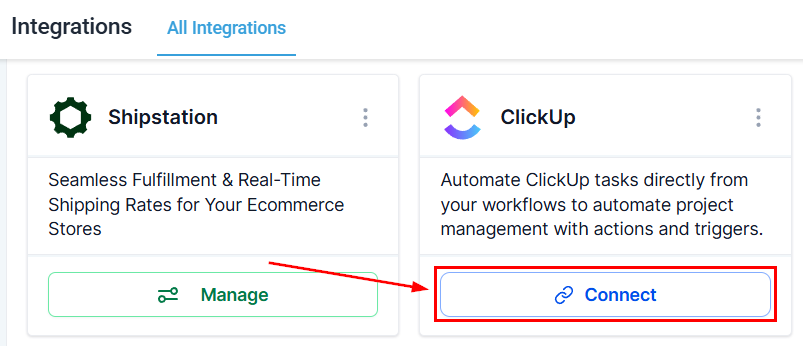
Once connected, you can begin adding ClickUp triggers and actions to your workflows.
Common Use Cases
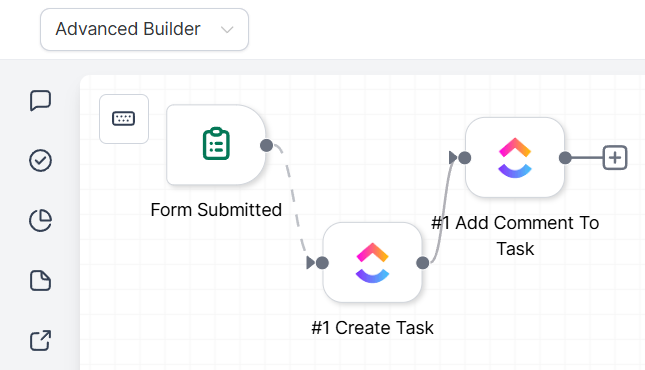
Create ClickUp Tasks from Form Submissions
Goal: Convert form submissions into actionable tasks.
- Trigger: Form Submitted
- Filter: Form Is = Client Onboarding Form
- Actions: Create Task and Add Task Comment
Example: A client submits the onboarding form, then a task is created in the Client Setup list and a comment is added with the client’s requirements.
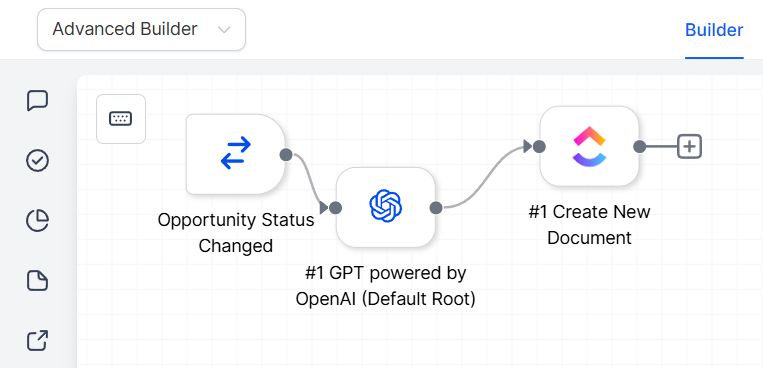
Auto-Generate Proposal Documents
Goal: Generate AI-powered proposals or briefs when opportunities change stages.
- Trigger: Opportunity Status Changed
- Filter: Stage = Proposal Request
- Actions: Generate Proposal Content (AI) and Create New Document in ClickUp.
Example: A deal moves to Proposal Sent, which prompts the AI to generate a proposal, and a new ClickUp document is created in the Sales Docs folder.
The ClickUp integration enhances collaboration and productivity by aligning your CRM workflows with ClickUp’s project management tools. From automating task creation to generating proposal documents and building full project spaces, this integration eliminates manual effort and ensures teams can focus on delivering results. With real-time triggers and flexible actions, you can keep client and project management in perfect sync.
Frequently Asked Questions
Q: Do I need a paid ClickUp plan to use this integration?
- A: No. It works with both free and paid accounts, though features like custom fields or time tracking may require a premium plan.
Q: How many workflows can I build with ClickUp?
- A: There are no workflow limits within the integration itself, though ClickUp API rate limits may apply.
Q: Are these actions and triggers premium features?
- A: Yes. They are billed at standard premium action rates.
Not a Funnelbud customer yet?
Try our all-in-one CRM for sales and marketing — free for 7 days, no commitment.