Send Internal Notification Action
To notify an assigned user in an active workflow, you can use the Send Internal Notification action. To begin, click the plus (+) button in the workflow action menu, then select Send Internal Notification. This feature allows you to send internal notifications to team members when specific events, such as the submission of a new lead form, are triggered.
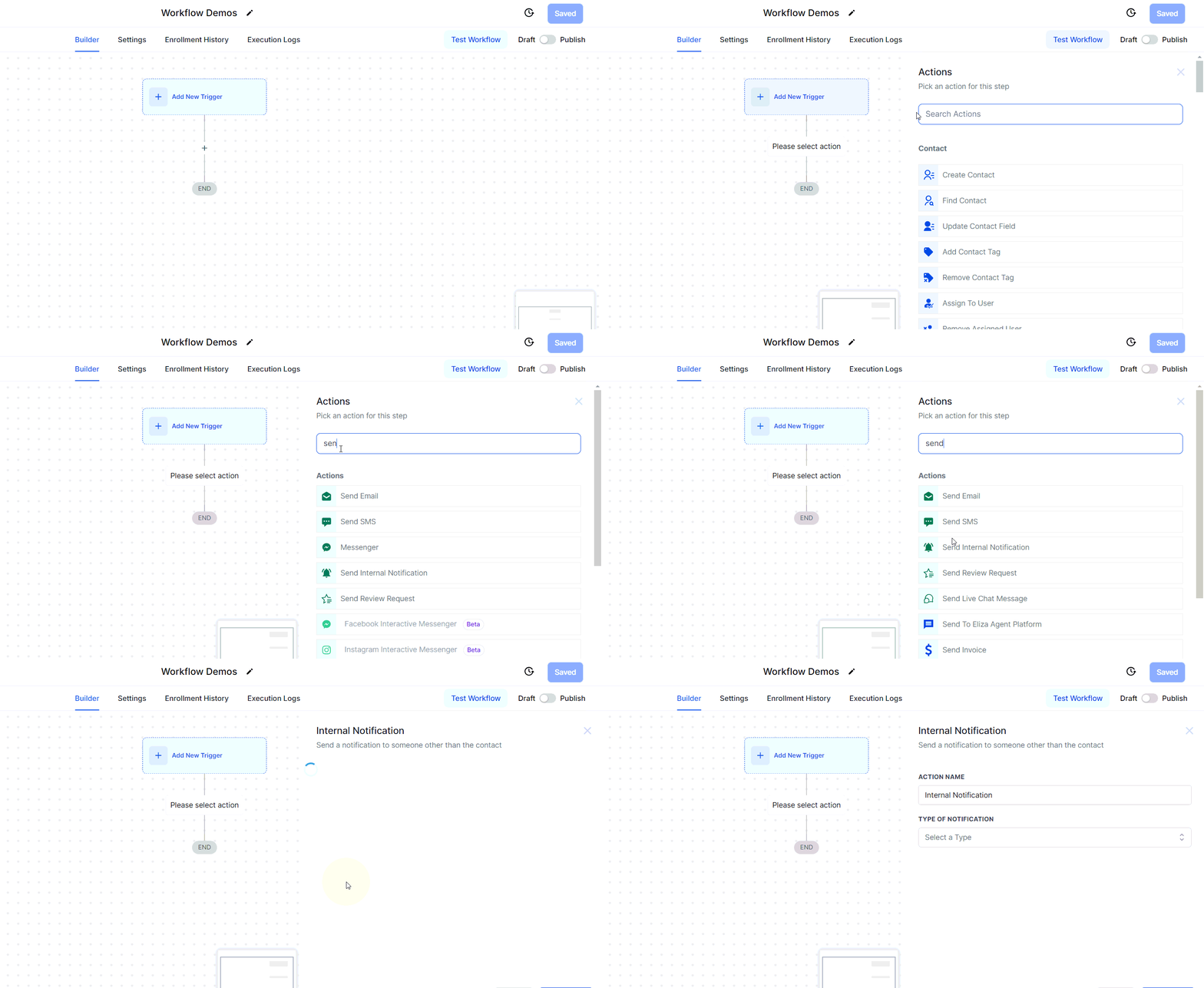
Notification Type
Four types of notifications can be sent to individuals other than the contact: Email, Notification, SMS, and WhatsApp. Select your preferred notification method from the dropdown menu to continue.
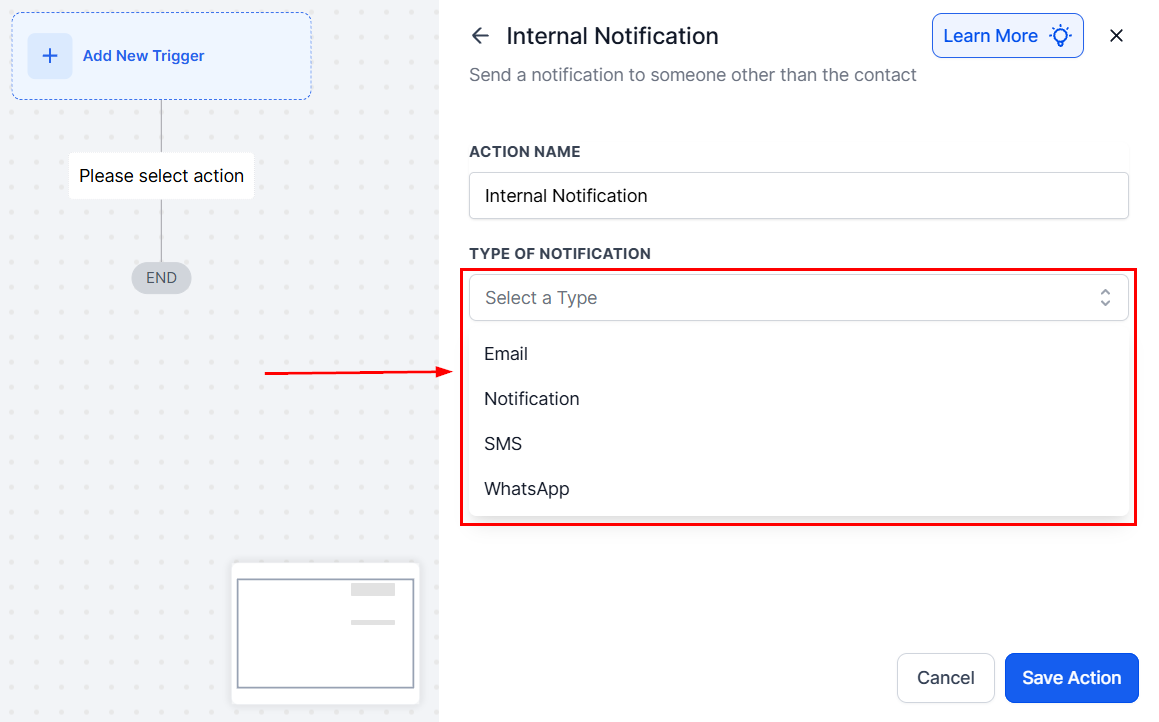
From Name
In the From Name field, input the sender’s name, or click the tag icon to insert a custom value.
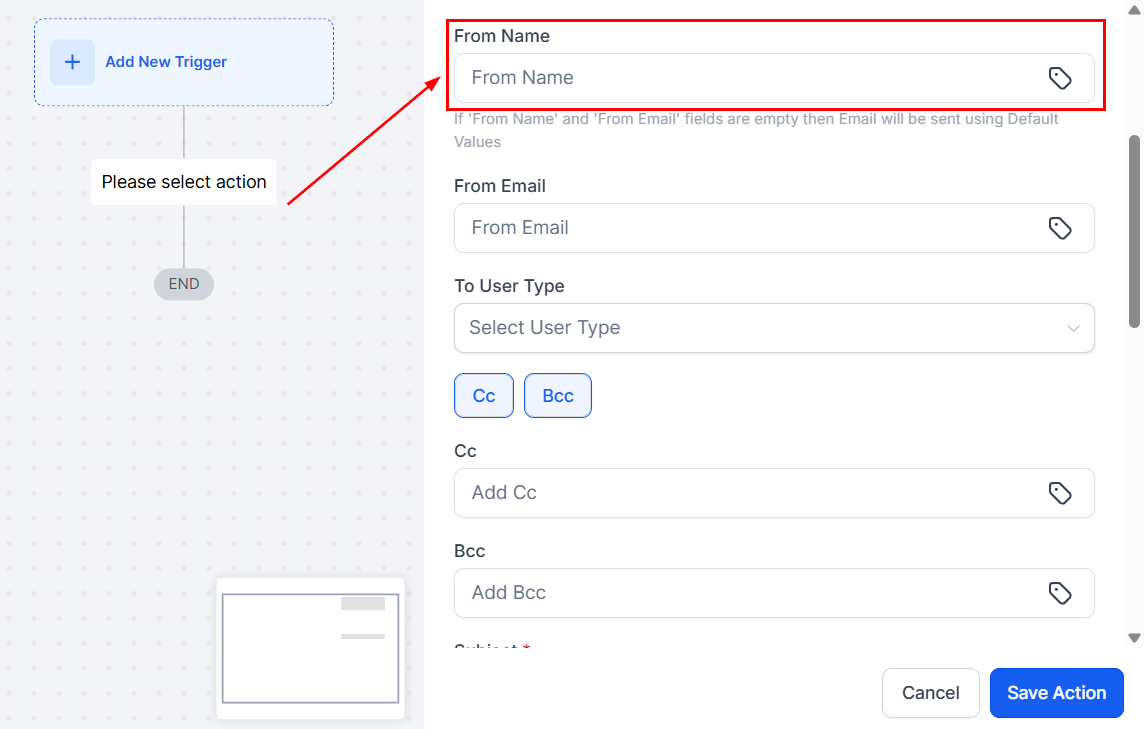
From Email
For the From Email field, enter the sender’s email address, with the option to use custom values if needed.
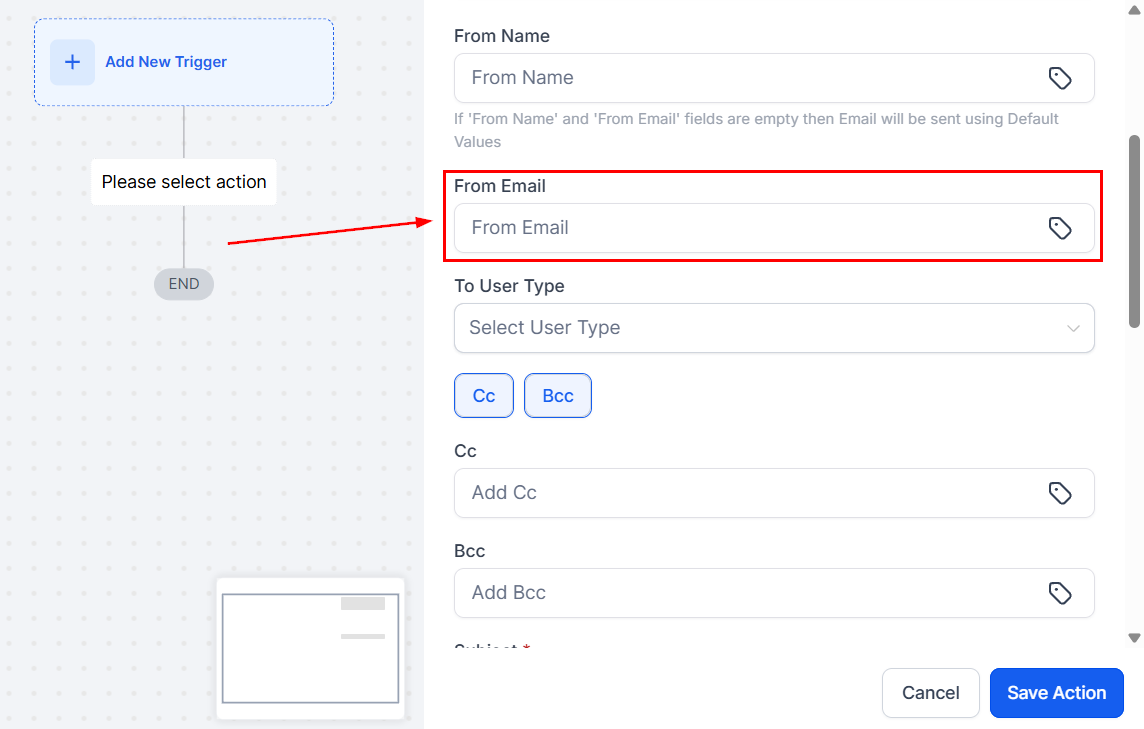
To User Type
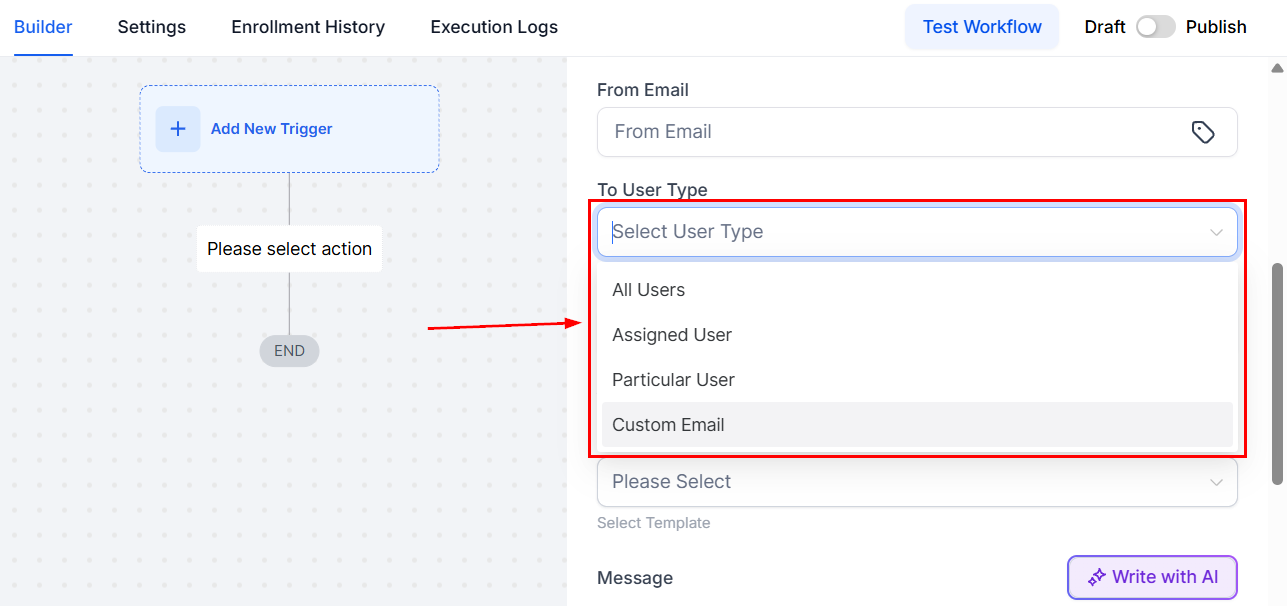
Under To User Type, select who will receive the email notification. You can send it to all users, the assigned user, a custom email address, or a particular user. If the contact has not been assigned, you can manually designate a specific user.
CC and BCC
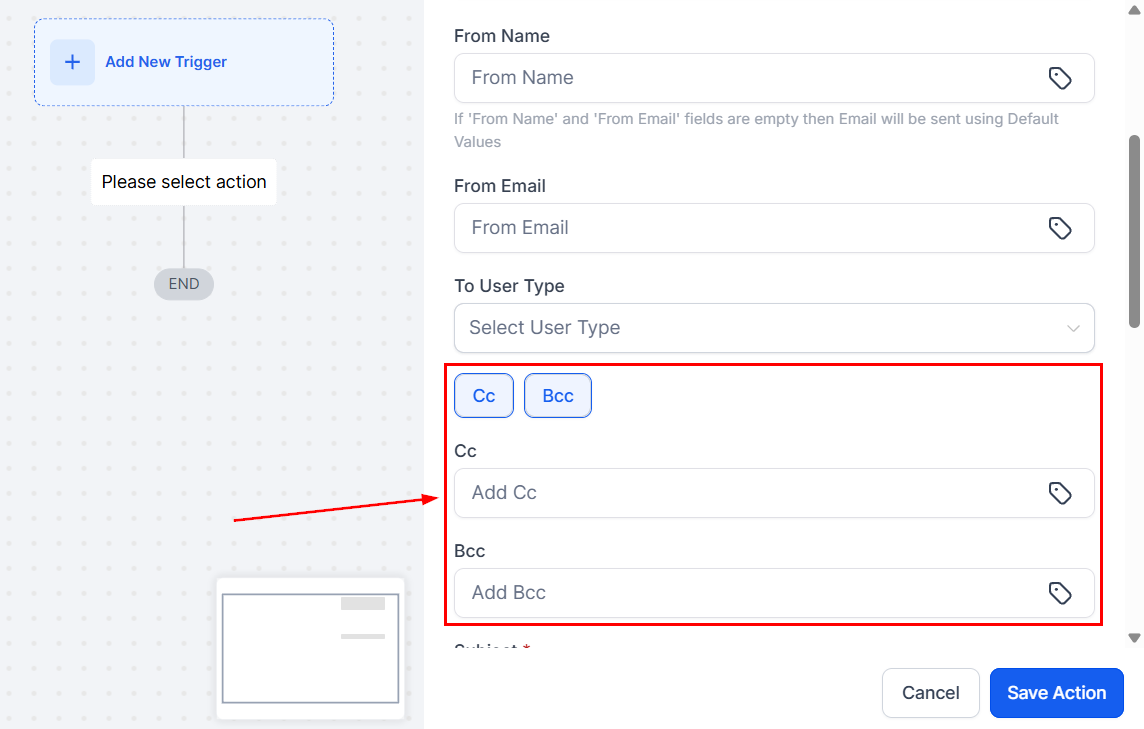
To add CC and BCC recipients to internal email notifications, select the appropriate option and enter their email, making internal communication faster.
Subject
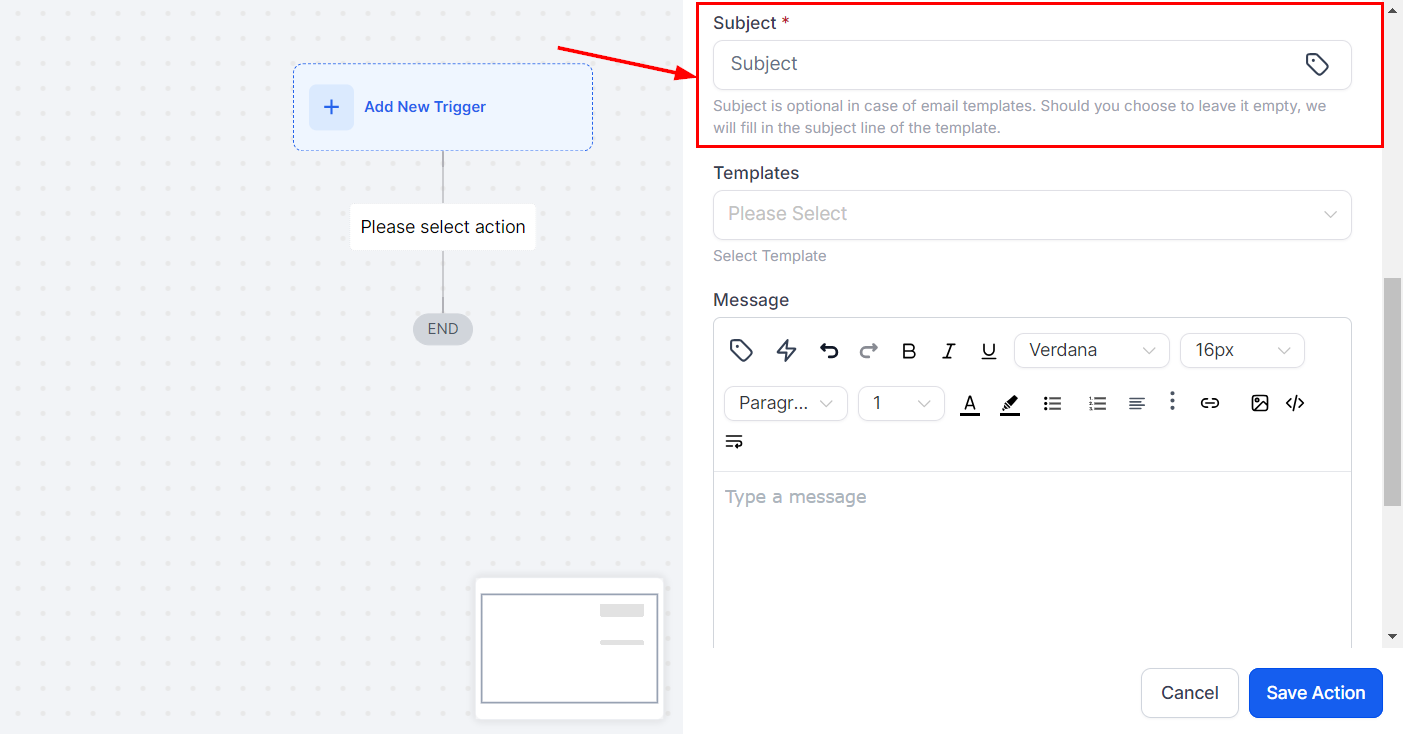
In the Subject field, enter the subject of the email.
Templates
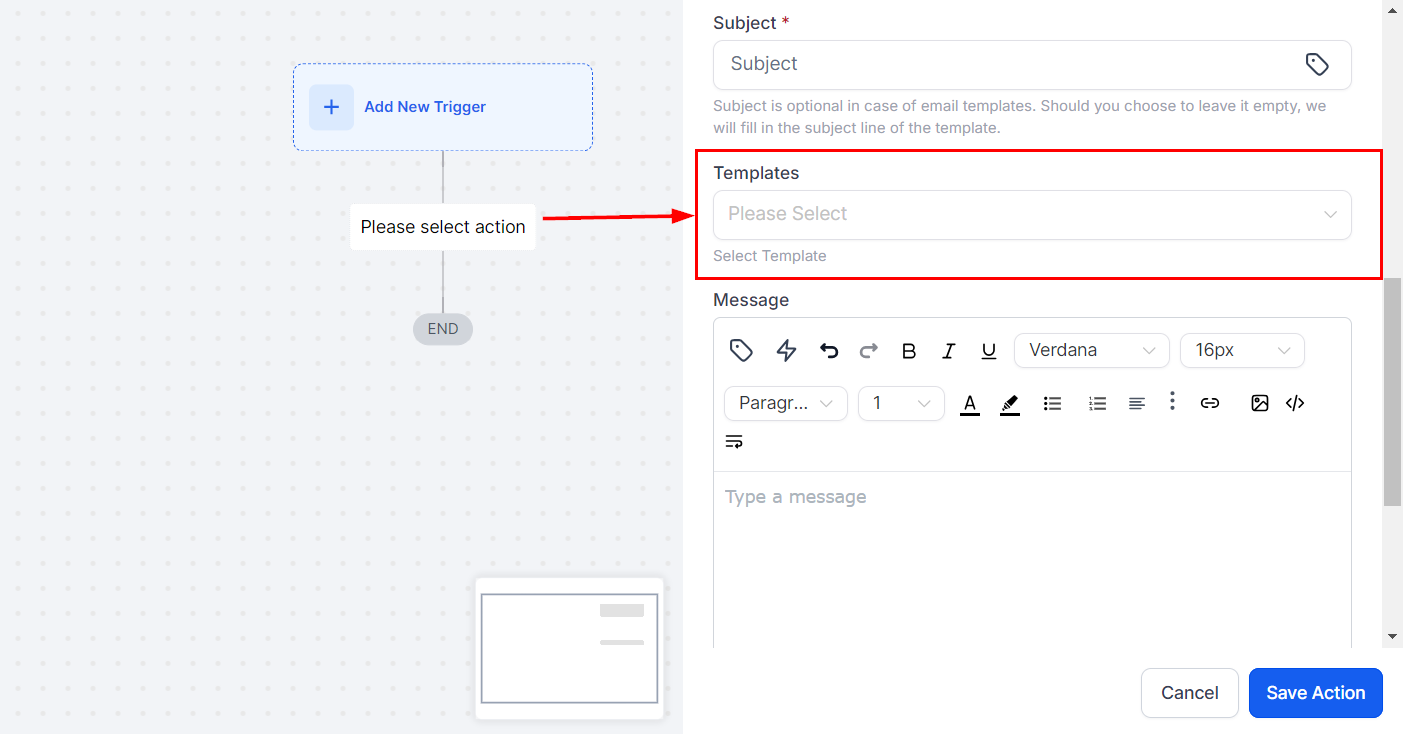
Choose a template from the Template section, or if you prefer to compose a custom message, select “None,” which will enable the Message Body field.
Message
In this section, you can write your message and include custom values or trigger links.
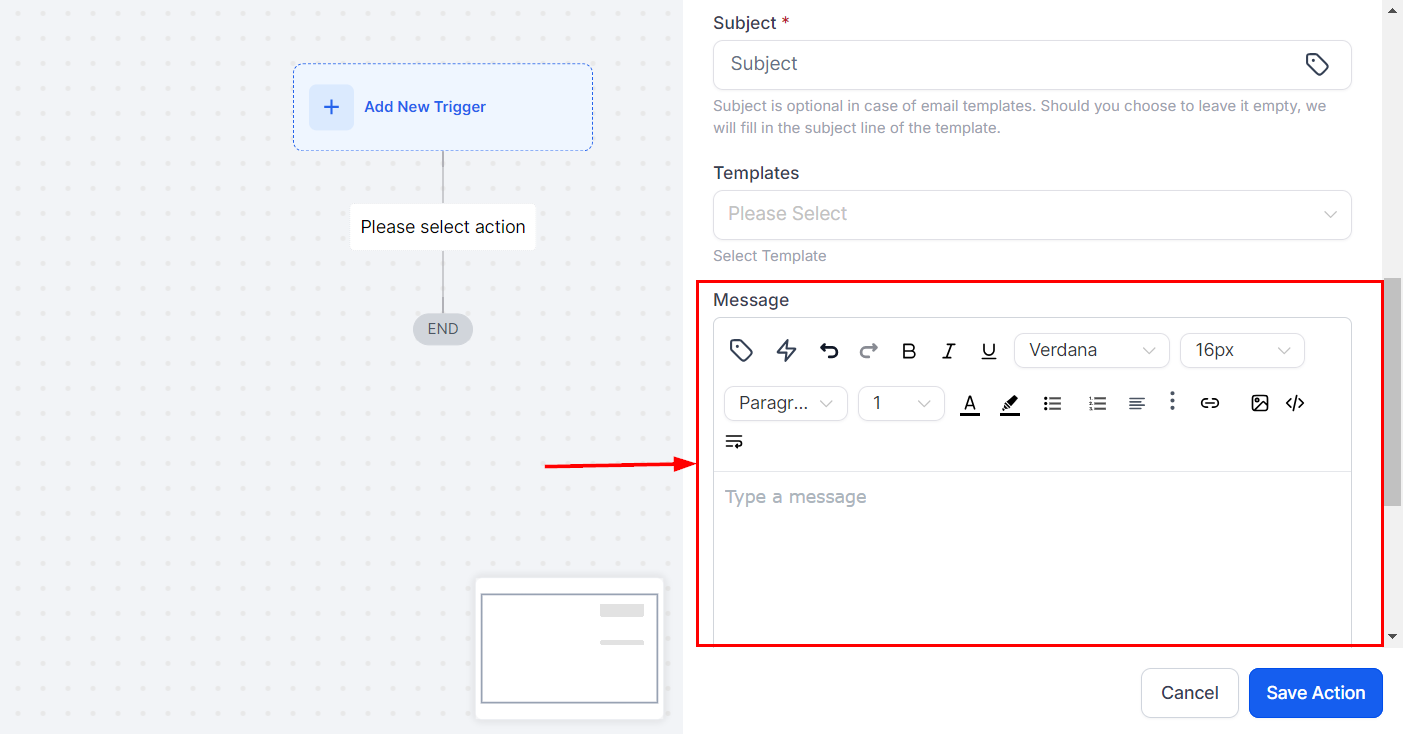
Add Attachment
To add attachments, click on the attachment icon and select the desired file from your device.
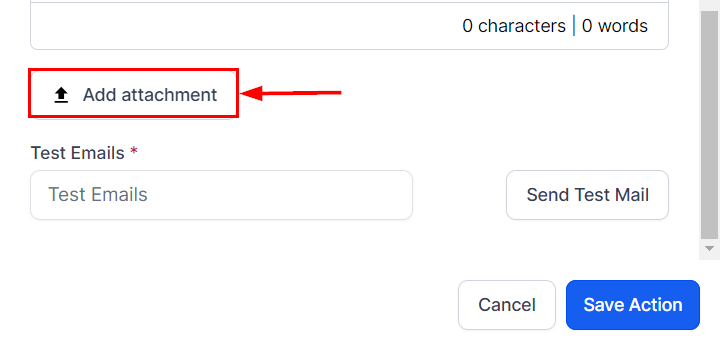
Test Email
To preview the email, use the Test Emails feature by entering a valid email address and clicking Send Test Mail.
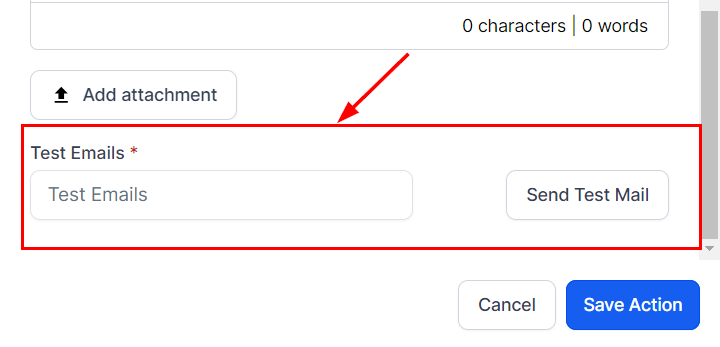
Notification
Title
Enter the notification title in the Title field. You may also insert custom values by clicking the tag icon.
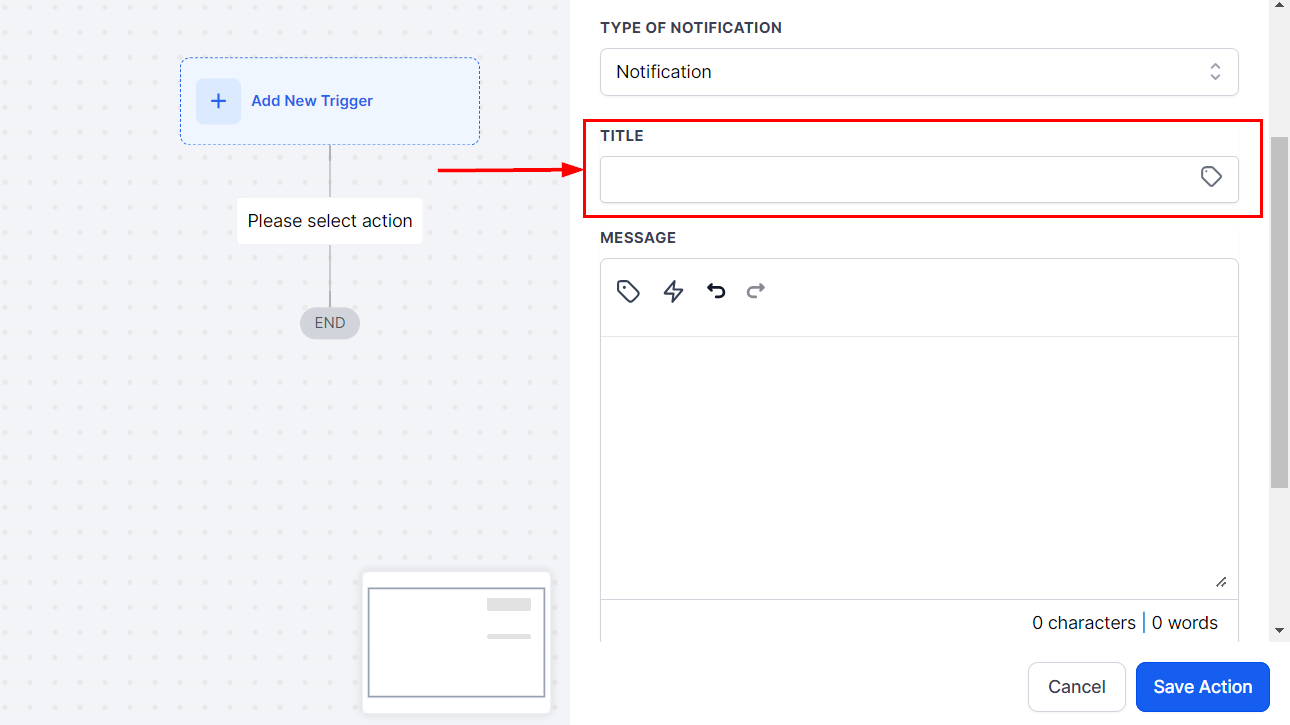
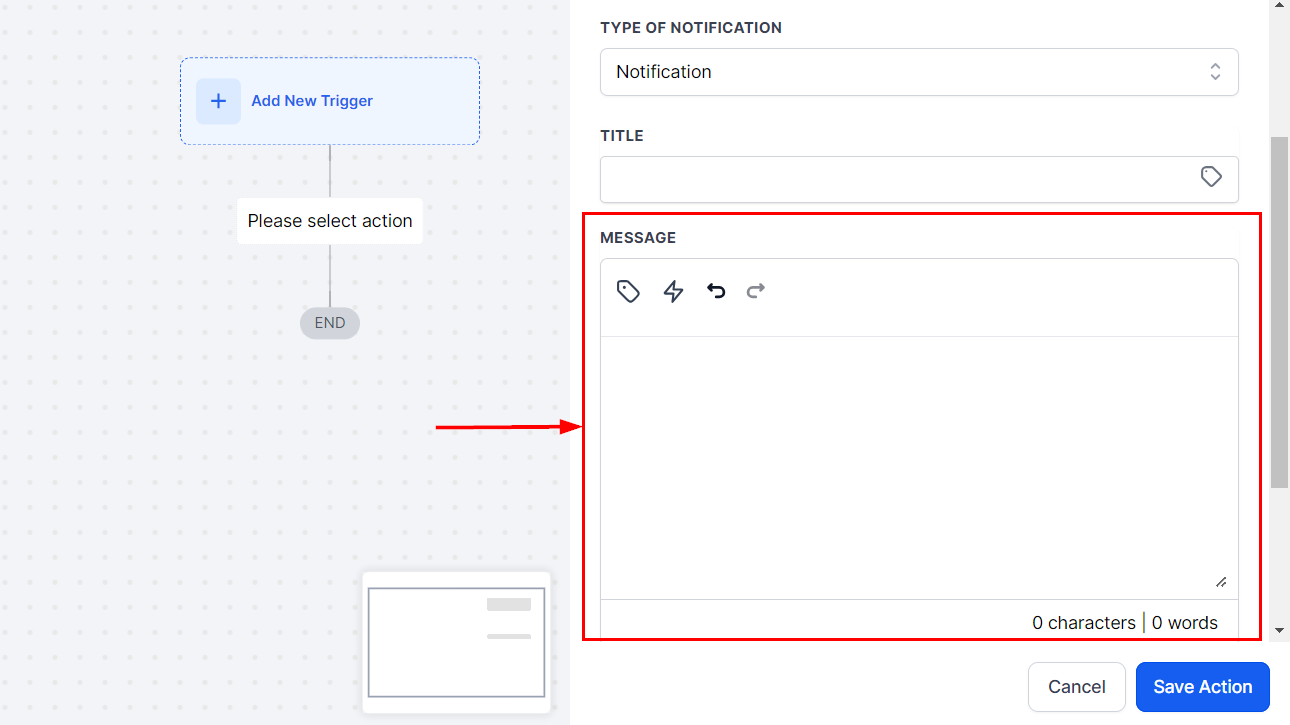
Message
In the Message Body field, input the content of the notification message, with the option to add custom values and trigger links.
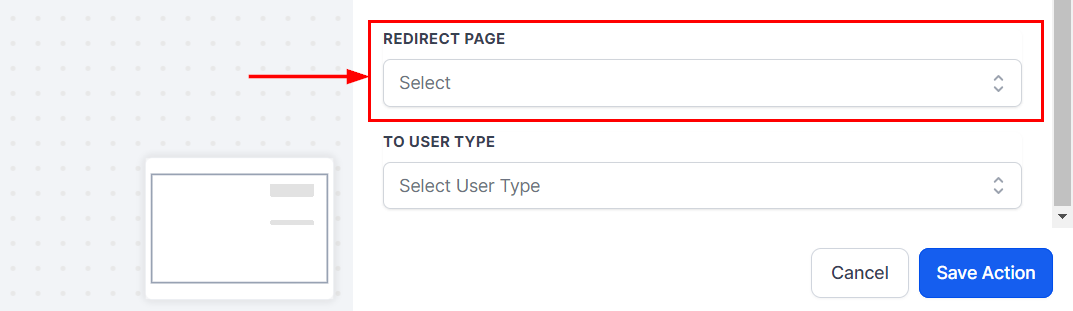
Redirect Page
Select the Page to which the notification should redirect the user.
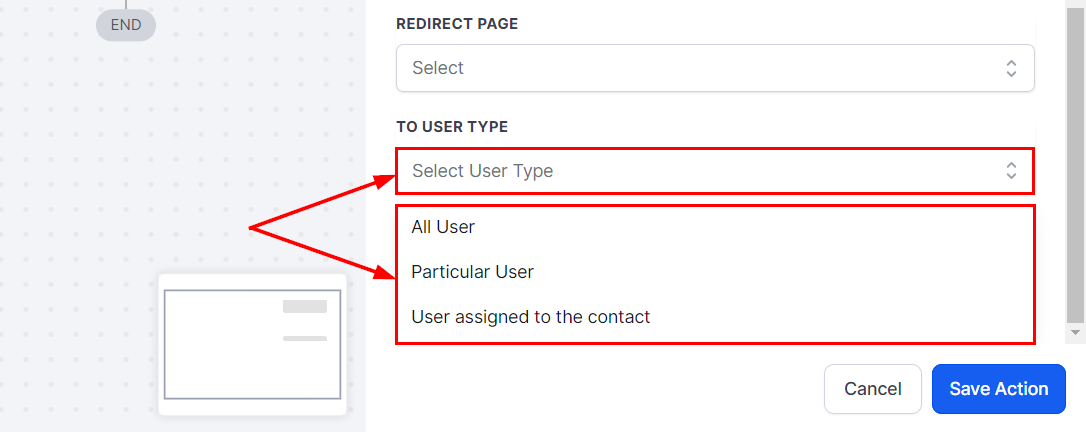
To User Type
Select who will receive the notification. You can send it to all users, the assigned user, or a particular user.
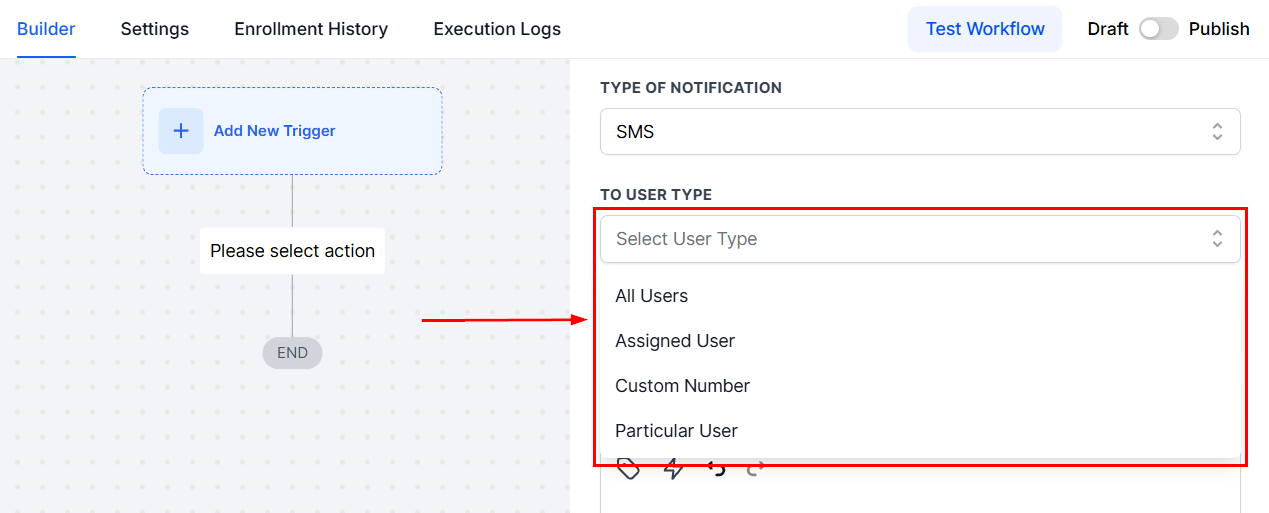
SMS Notifications
To User Type
Select the recipient in the To User Type field.
Template
Choose a template from the Template section, or if you prefer to compose a custom message, select “None,” which will enable the Message Body field.
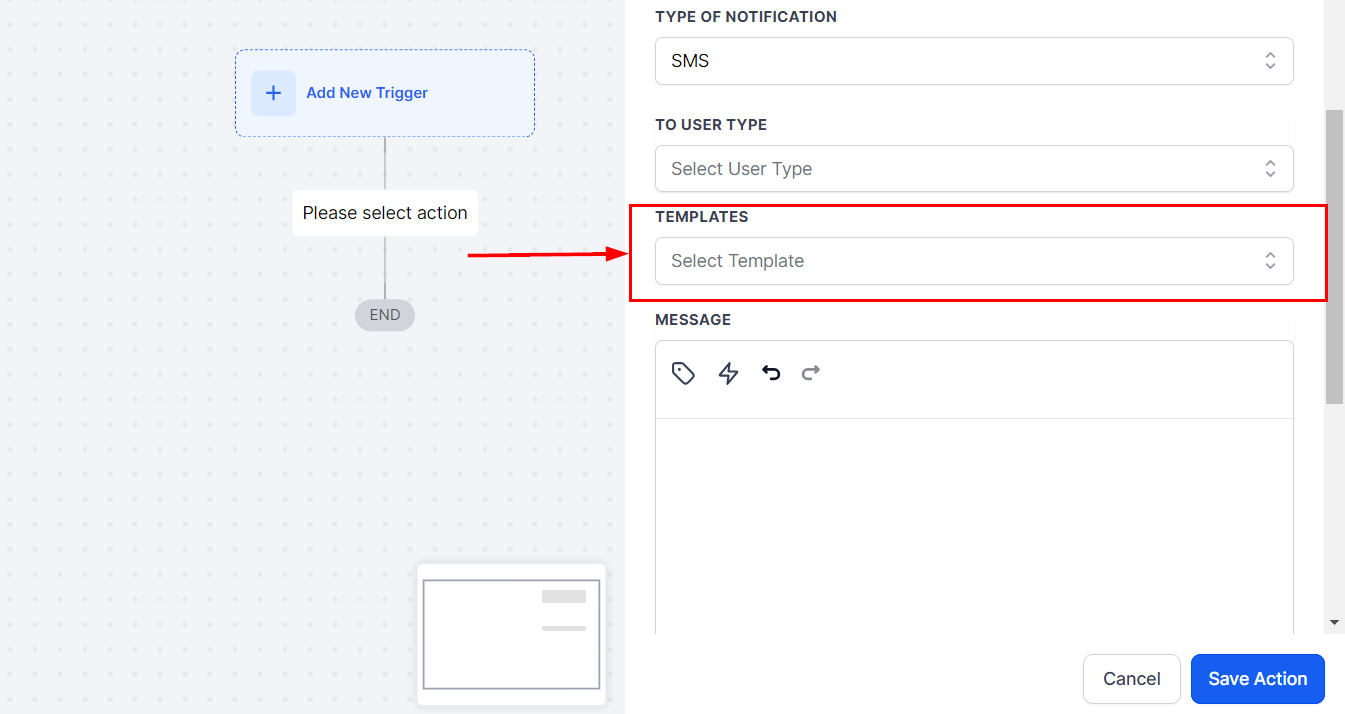
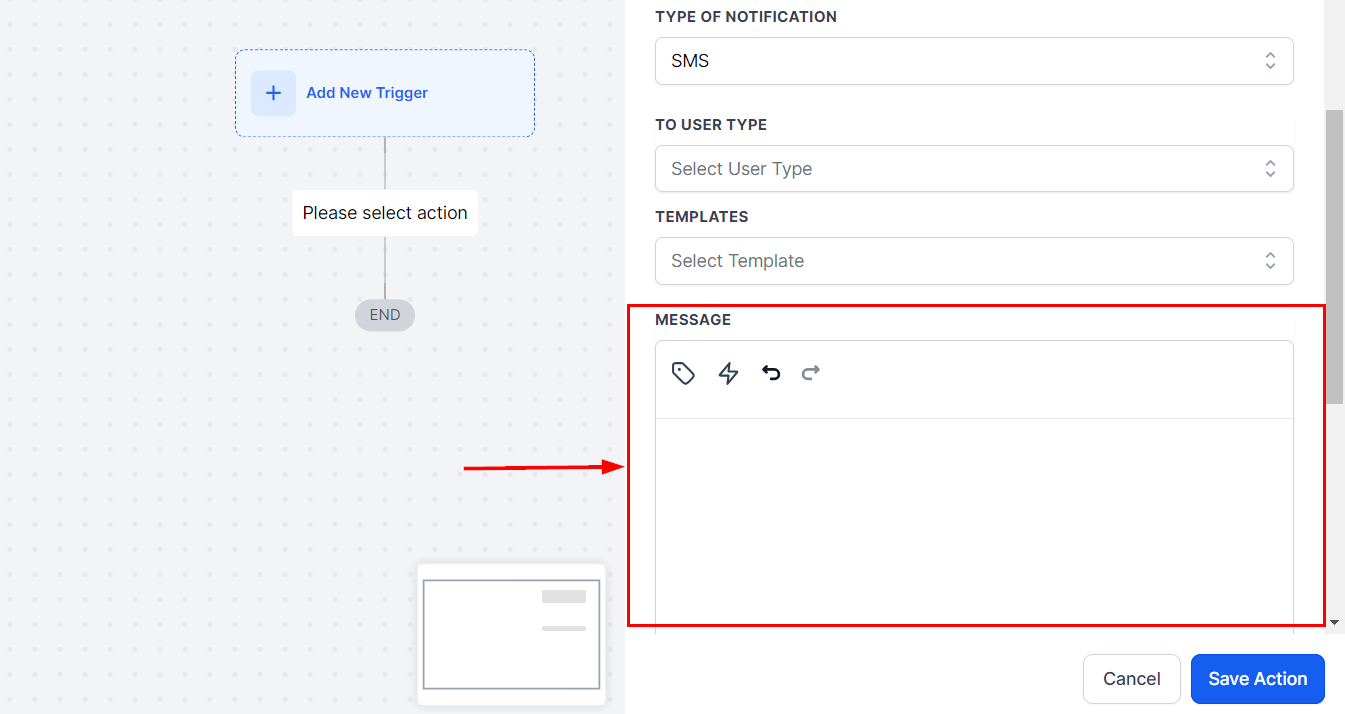
Message
In this section, you can write your message and include custom values or trigger links.
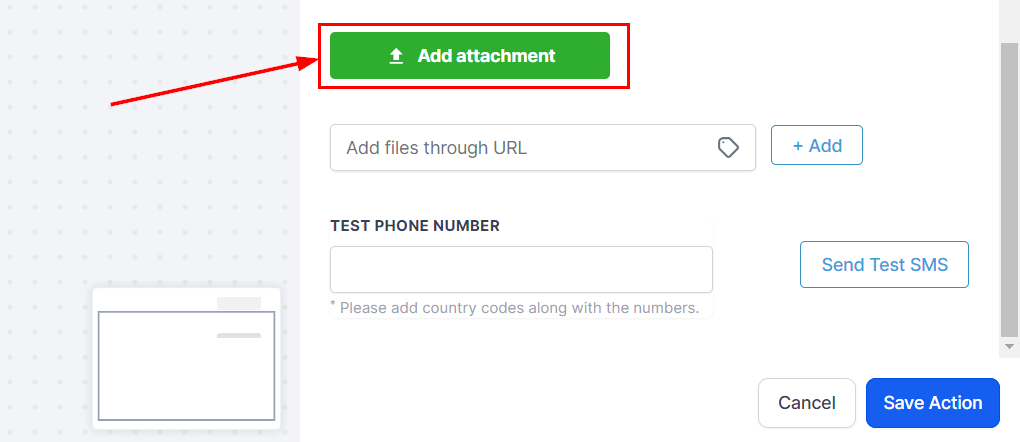
Add Attachment
If needed, attach files by clicking the attachment icon.
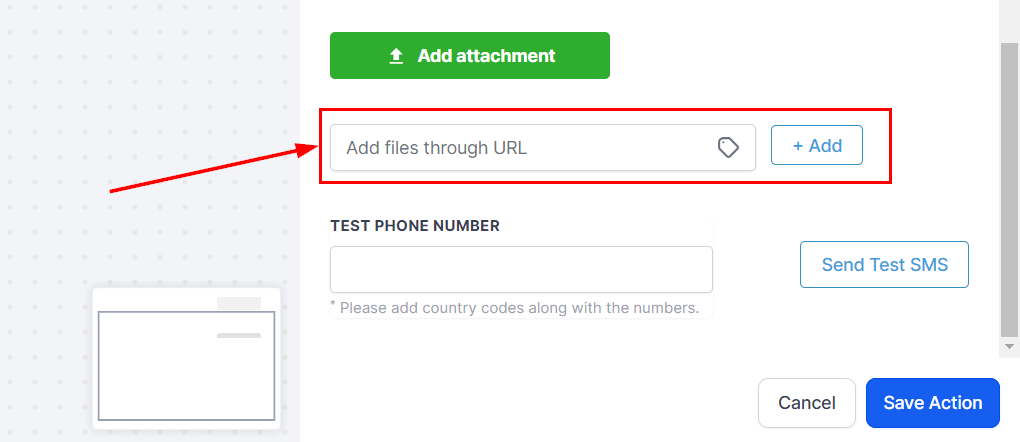
Furthermore, you can add files via a URL by entering the link and clicking +Add.
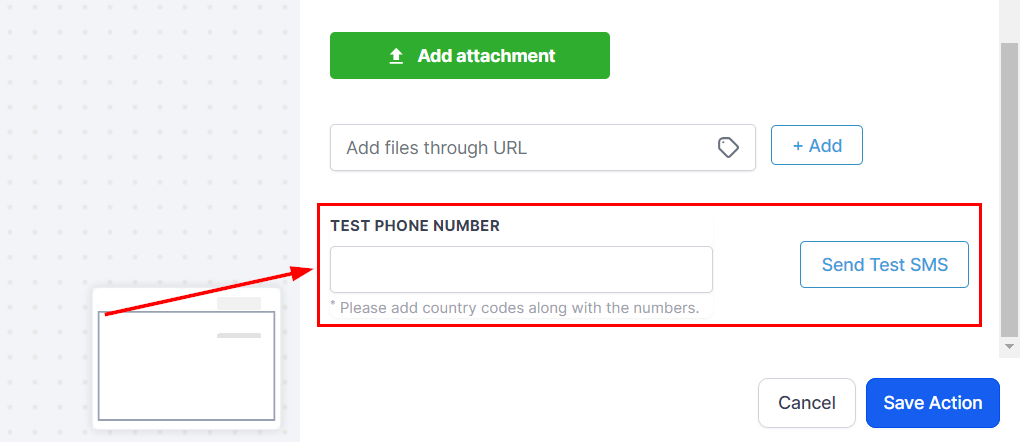
Test Phone Number
To test the SMS, input a demo phone number and click Send Test SMS. You can use your own phone number for testing.
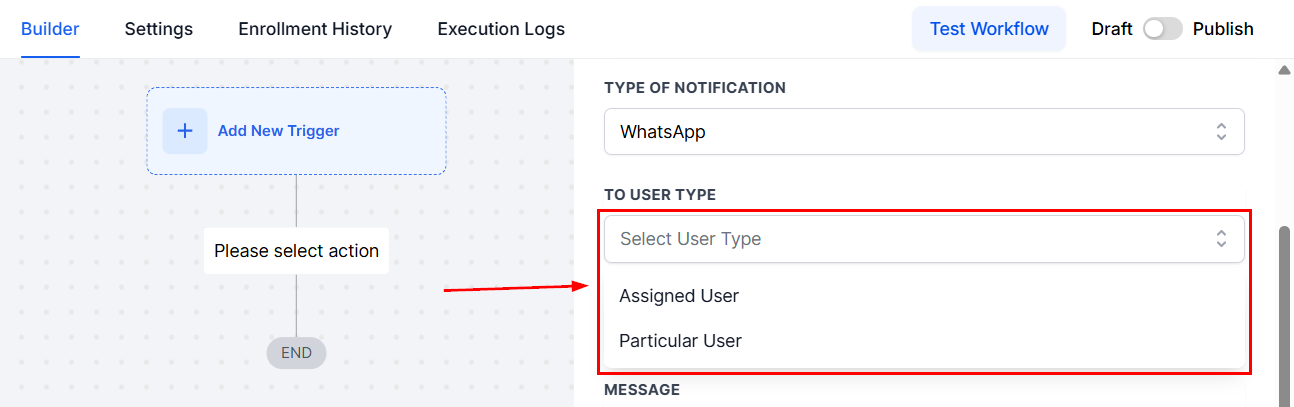
To User Type
Select the recipient in the To User Type field.
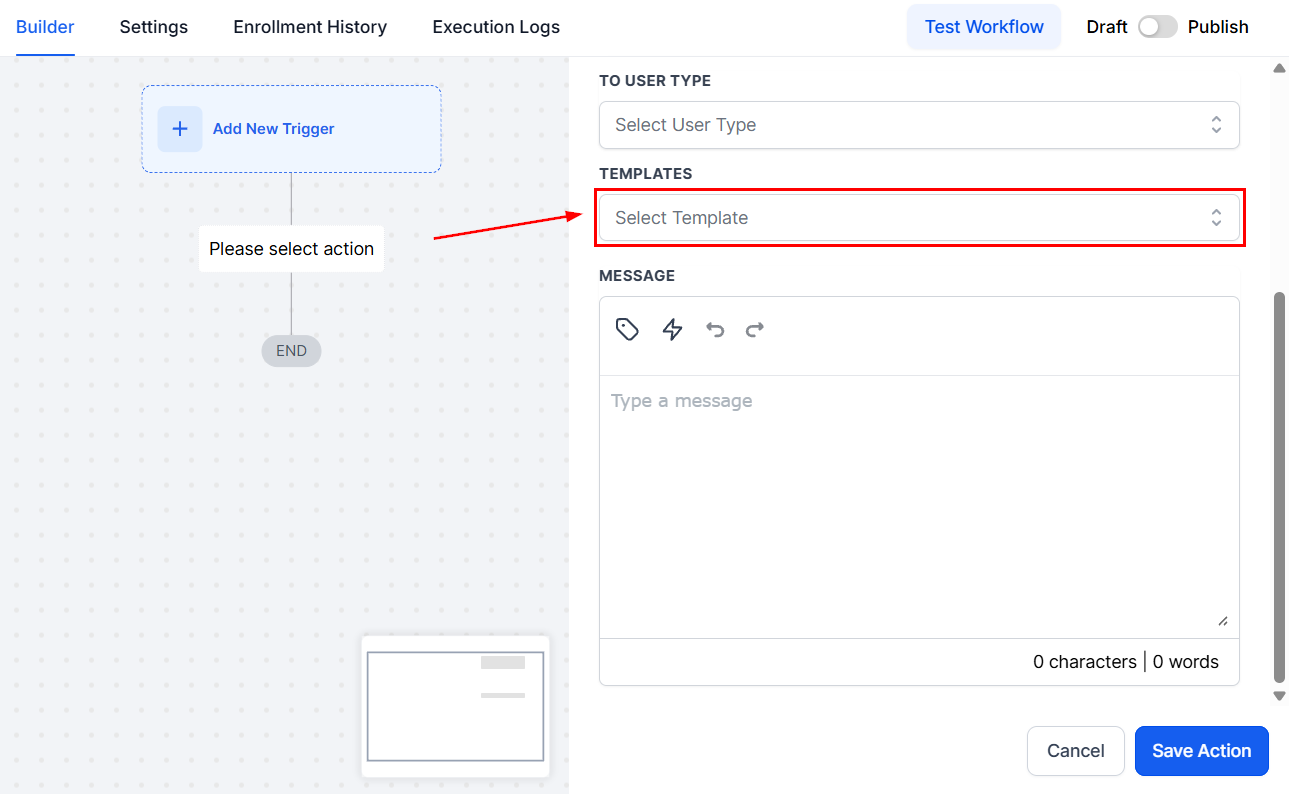
Template
Choose a template from the Template section, or if you prefer to compose a custom message, select “None,” which will enable the Message Body field.
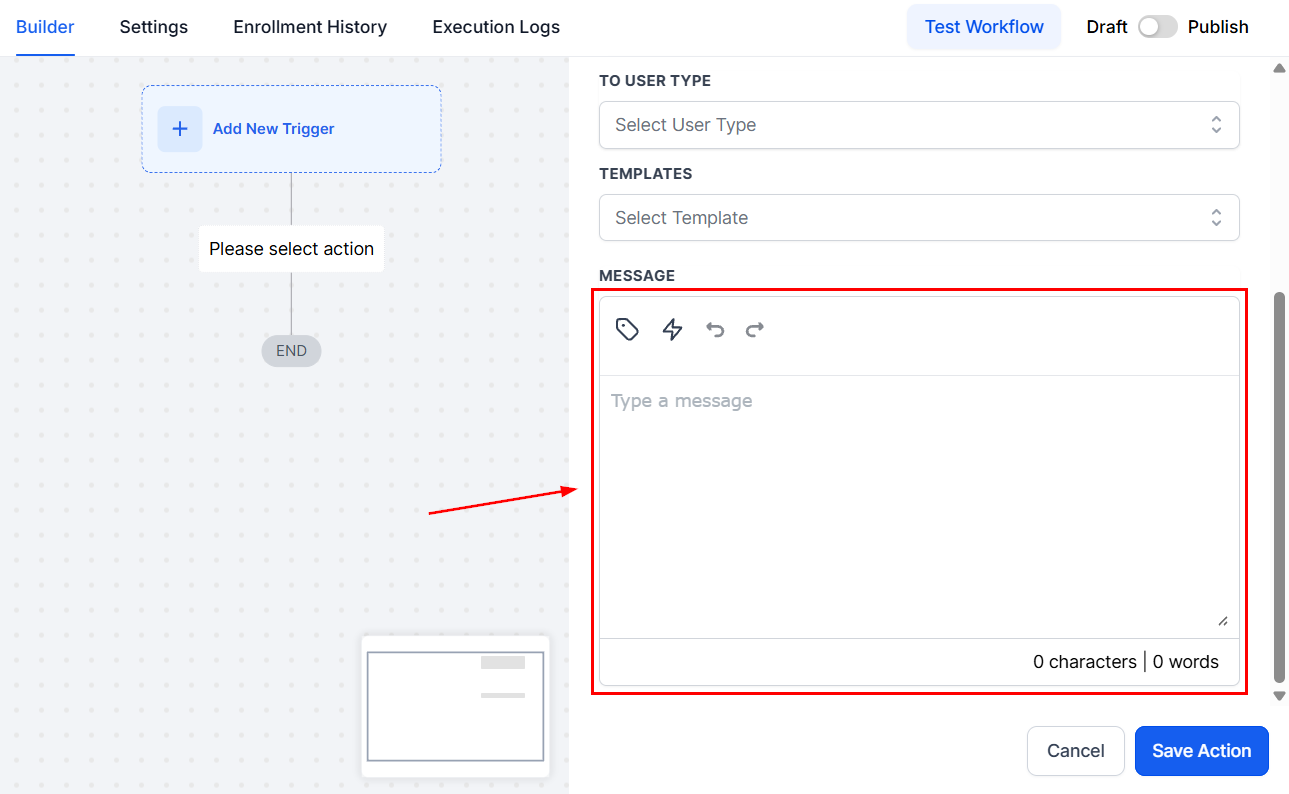
Message
In this section, you can write your message and include custom values or trigger links.
Statistics
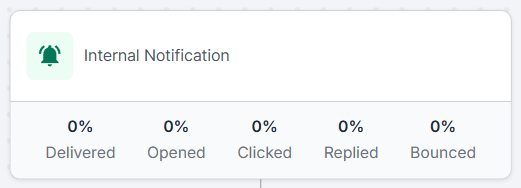
To see how successful your internal notification sending has been, access the “Stats View” by clicking the pie-chart icon.
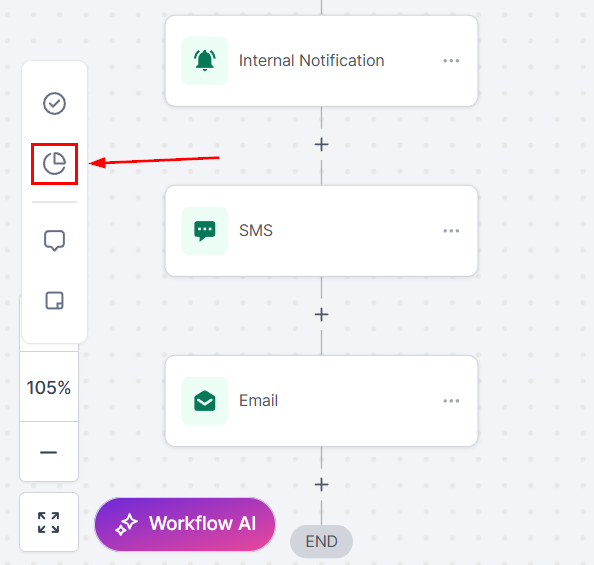
This will give you an overview of the stats from the last 30 days.
After configuring the action according to your preferences, click the “Save Action” button to add it to your workflow. This functionality ensures your workflows remain organized and responsive. Explore the other articles in this section to discover more about the available workflow actions.
Practical Examples and Use Cases
- Update Notifications: Keep your team informed by sending updates to assigned users.
Troubleshooting Tips
Emails Not Sending
- Ensure that you have correctly entered email addresses and separated them with commas. Also, check if the trigger condition is met.
Workflow Not Triggering
- Verify that the initial trigger is correctly set up and relevant to the action you want to perform.
Frequently Asked Questions
Can I use this workflow to email external contacts?
- Yes, by using the custom emails option, you can enter any email addresses, including those of external contacts.
How many recipients can I email at once?
- While the CRM allows emailing multiple recipients, it’s essential to adhere to best practices and limitations to avoid being marked as spam.
Can I personalize the emails sent through the workflow?
- Yes, you can use templates and dynamic fields to personalize emails for each recipient.
Not a Funnelbud customer yet?
Try our all-in-one CRM for sales and marketing — free for 7 days, no commitment.