Estimates on the Mobile App
Estimates are vital to managing client interactions and project proposals, allowing businesses to provide detailed cost breakdowns before services are rendered. Users can create, track, and manage estimates in the Estimates section of the Mobile app, ensuring easy access to meet their business needs.
Begin by opening the mobile app, then tap the apps icon in the lower-right section of the screen. Click the Estimates option to access the Estimates Dashboard.
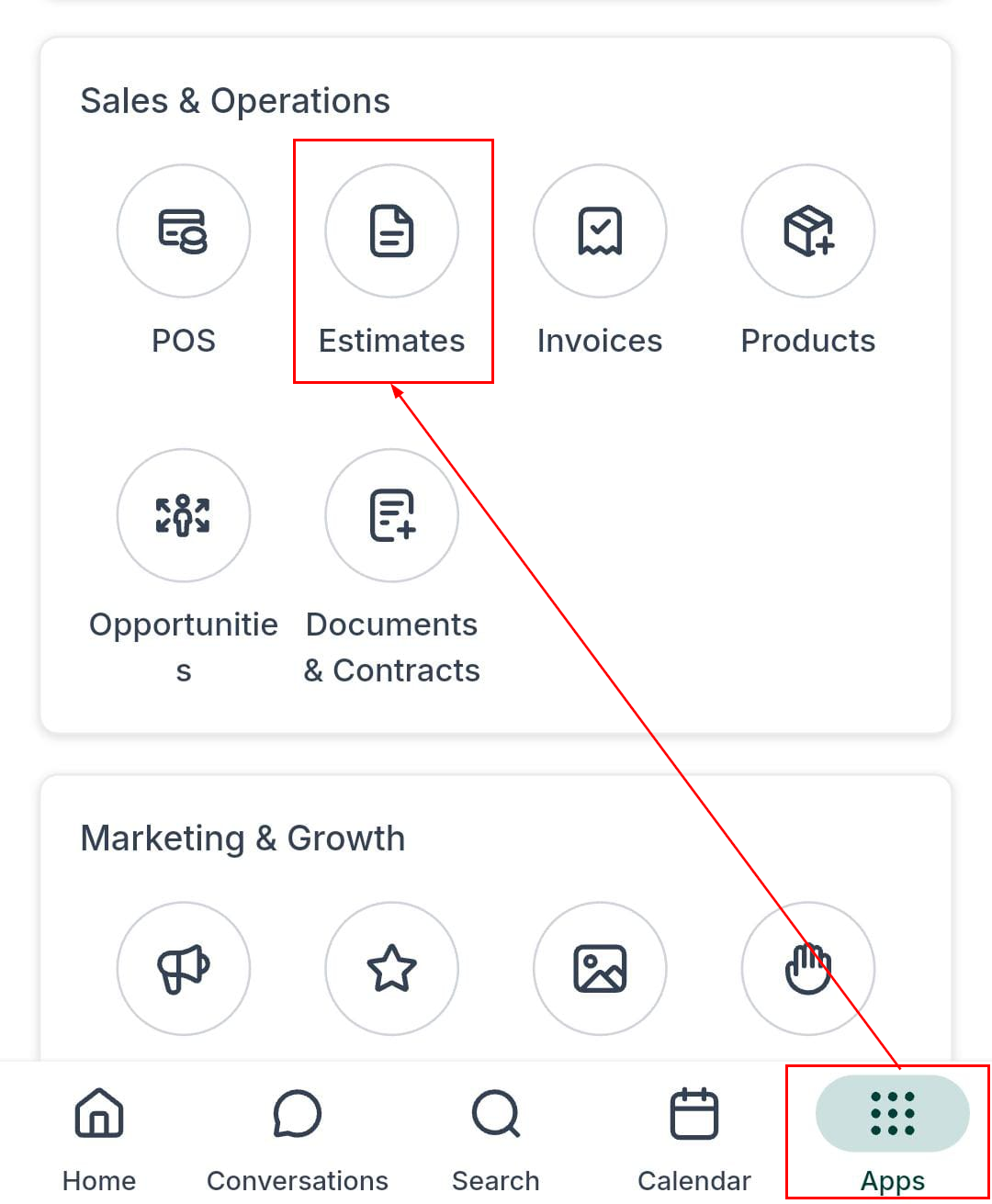
Estimate Dashboard
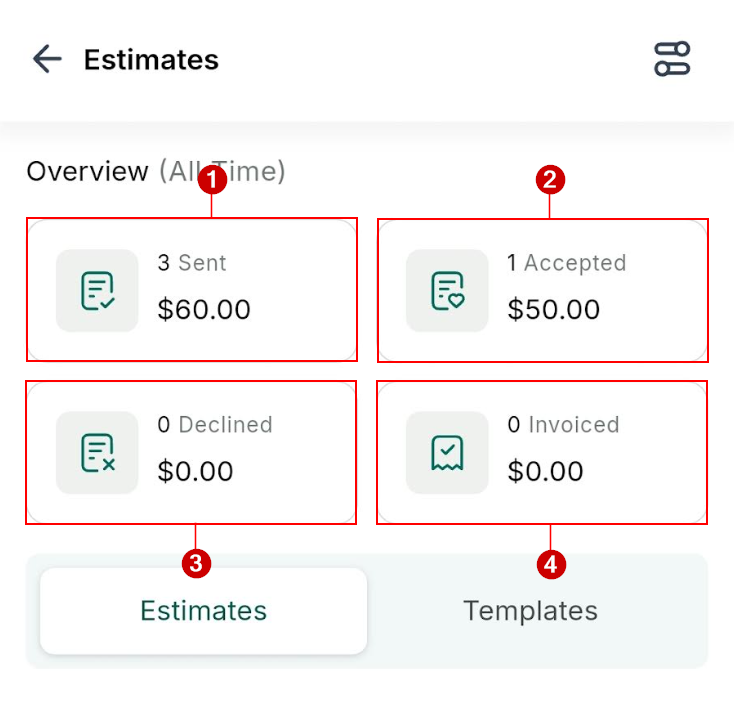
The Estimate Dashboard provides a comprehensive overview of your estimates, helping you stay organized and efficient.
Overview
Access estimates in every state created on either the web or the mobile platform.
- Sent Estimates: Track all estimates that have been sent to customers.
- Accepted Estimates: View estimates that customers have approved.
- Declined Estimates: Monitor estimates that have been rejected.
- Invoiced Estimates: Manage estimates that have been converted into invoices.
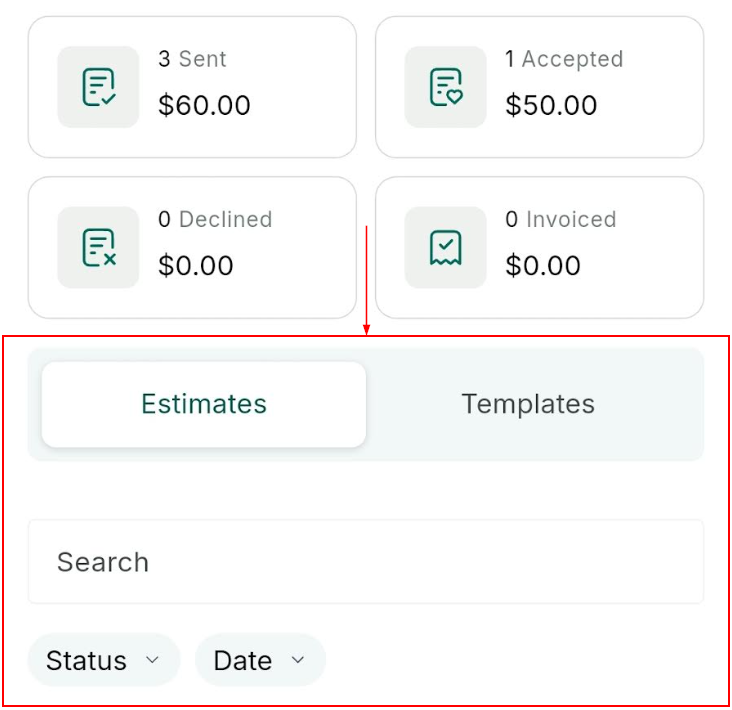
Filters
The main selector lets you switch between Estimates and Templates. Additionally, you can use the search bar, status filters, and date range filters to narrow your search and find specific estimates.
Estimate Management
The Estimate Dashboard supports intuitive interactions for managing estimates:
- Tap: Click an estimate to access the estimate editor.
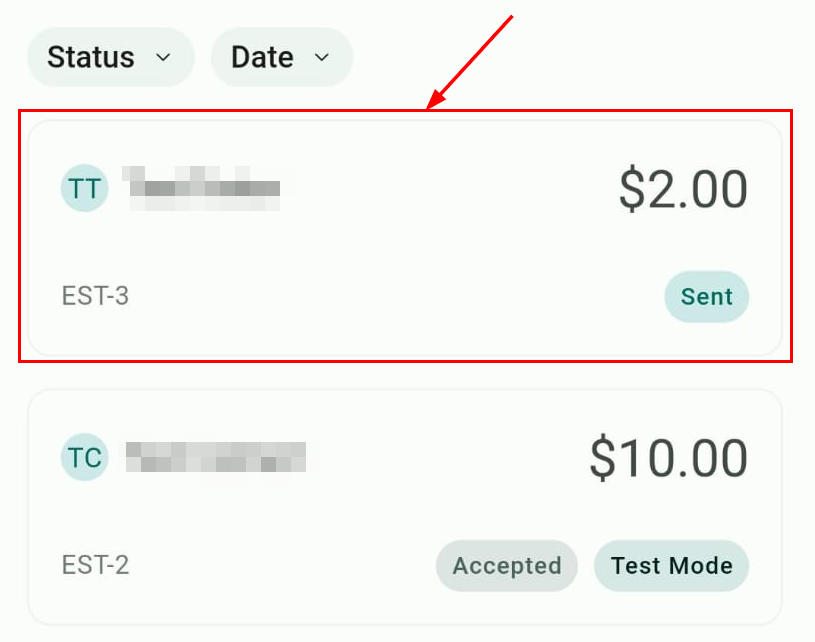
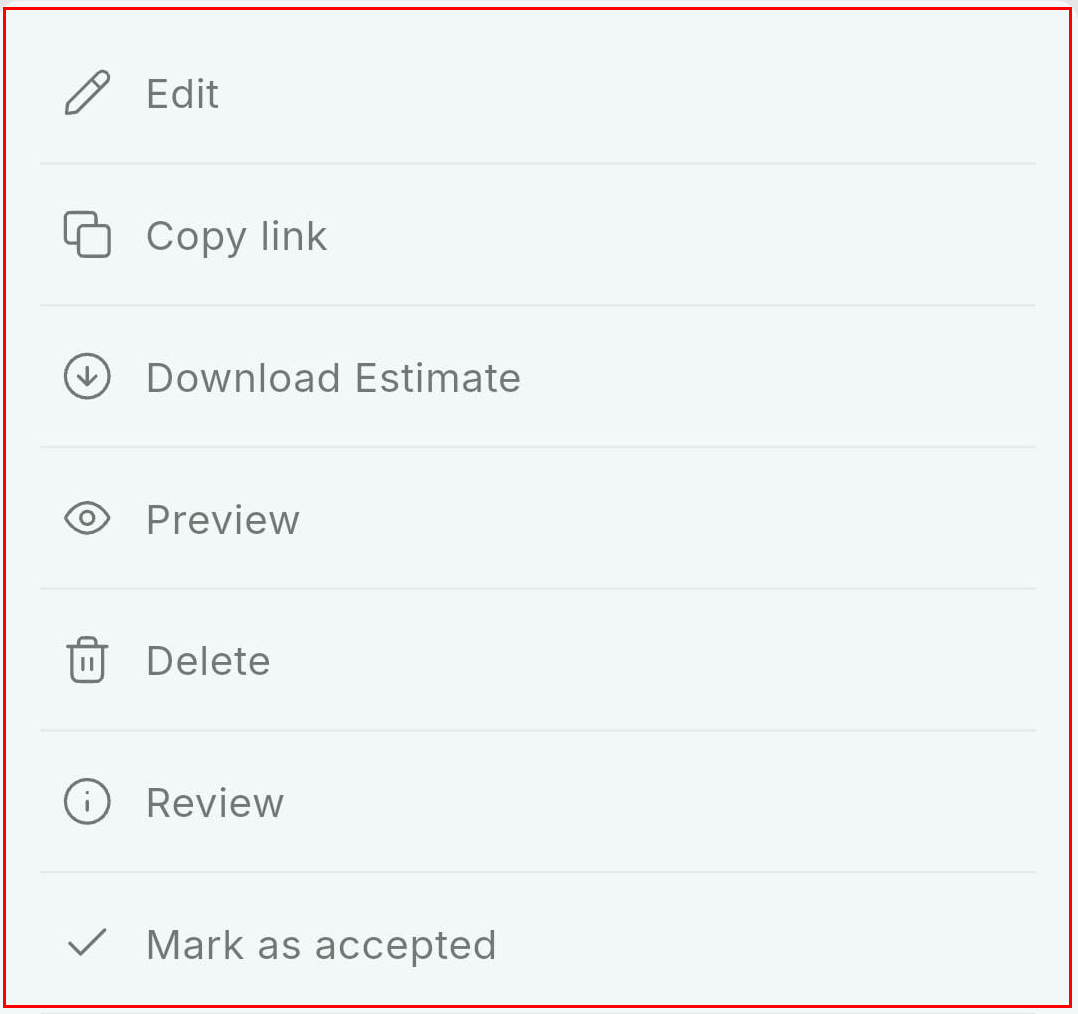
- Long Press: Press and hold an estimate to access additional actions, such as copying a link or marking an estimate as accepted. Estimates in the drafted stage cannot be downloaded or accepted.
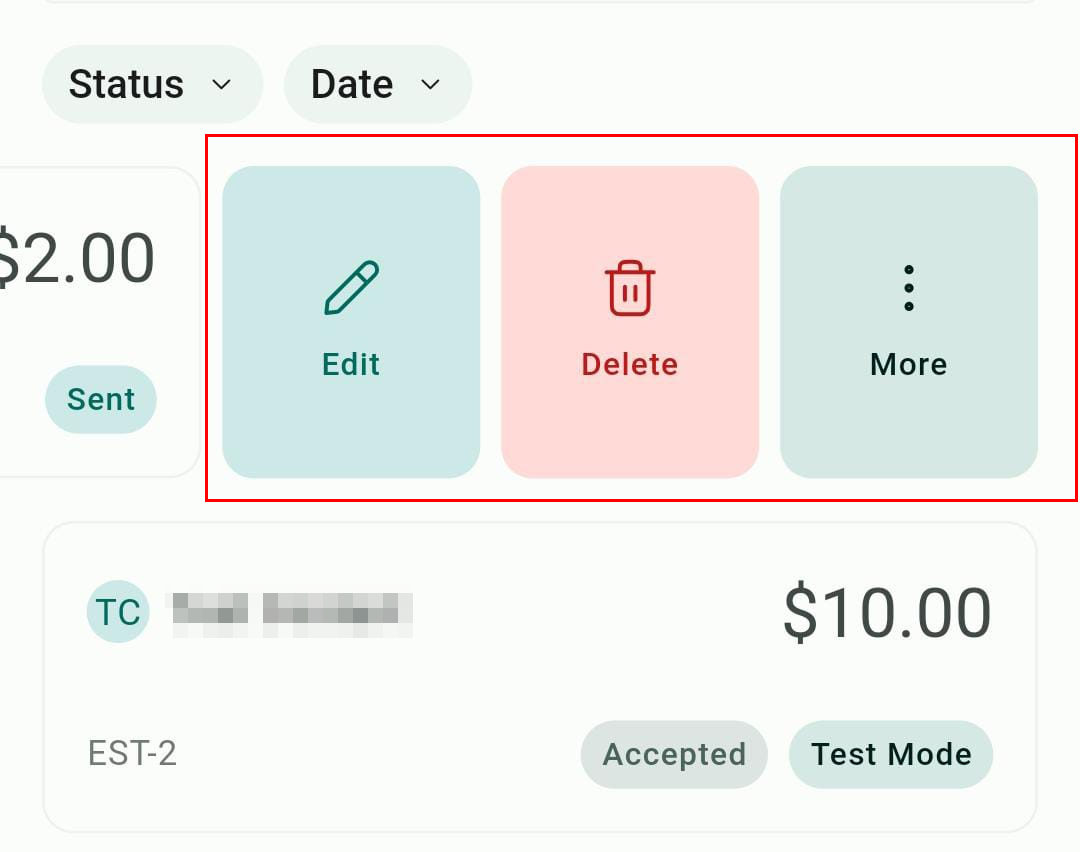
- Left Swipe: Reveal the two most important actions for an estimate, editing or deleting, along with an option to view more actions.
Create New Estimate
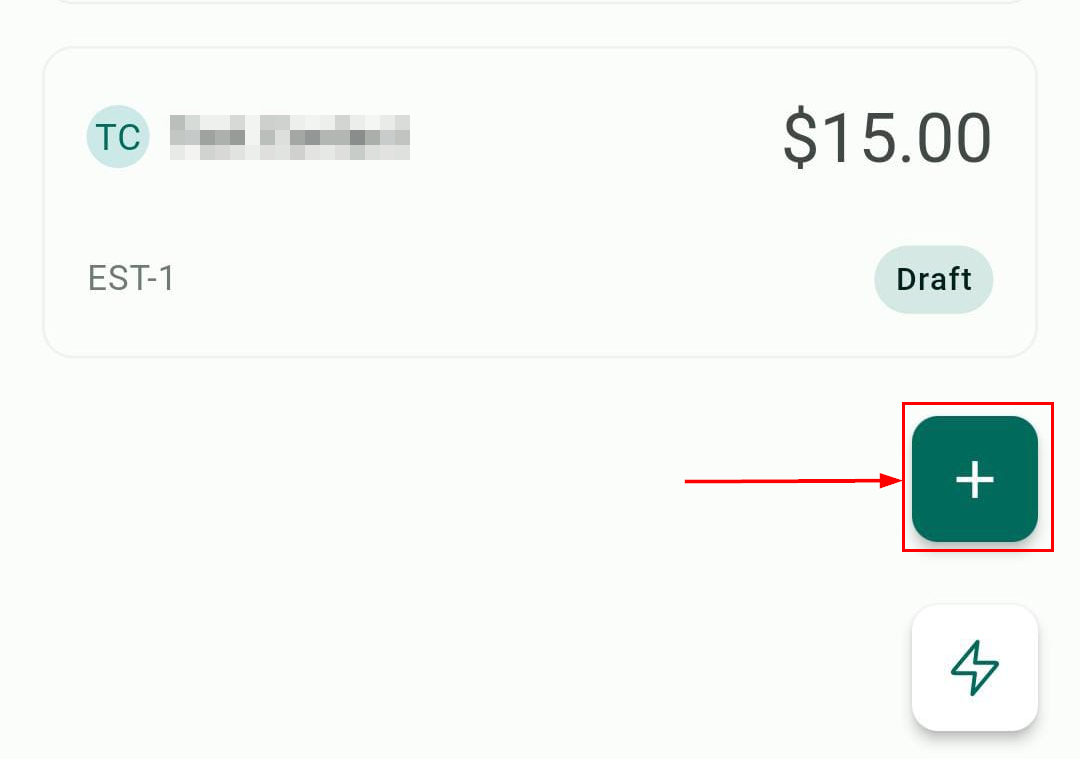
To create a new estimate, click the ”+” button.
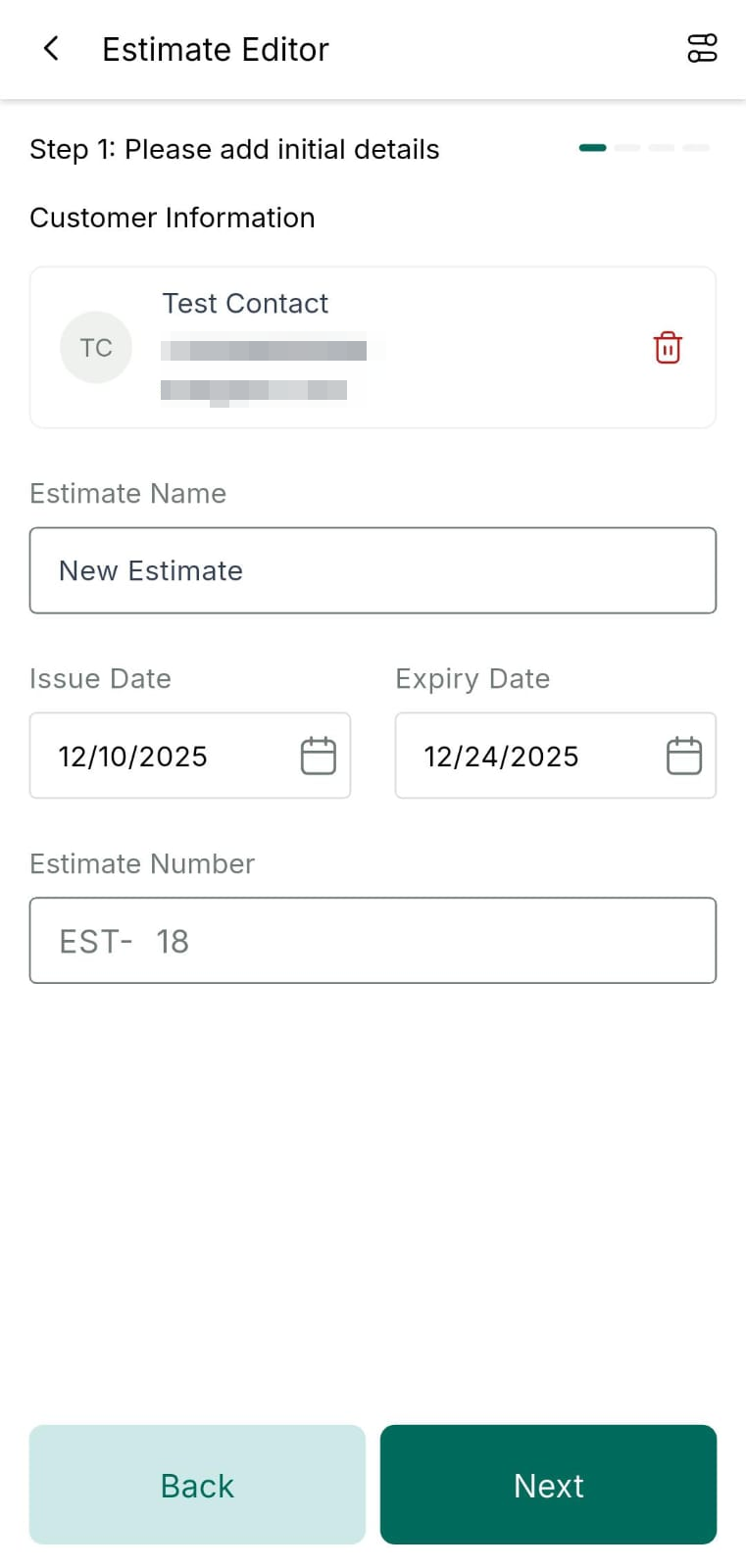
You will then be prompted to link the estimate to a contact and provide the estimate name, issue date, due date, and number.
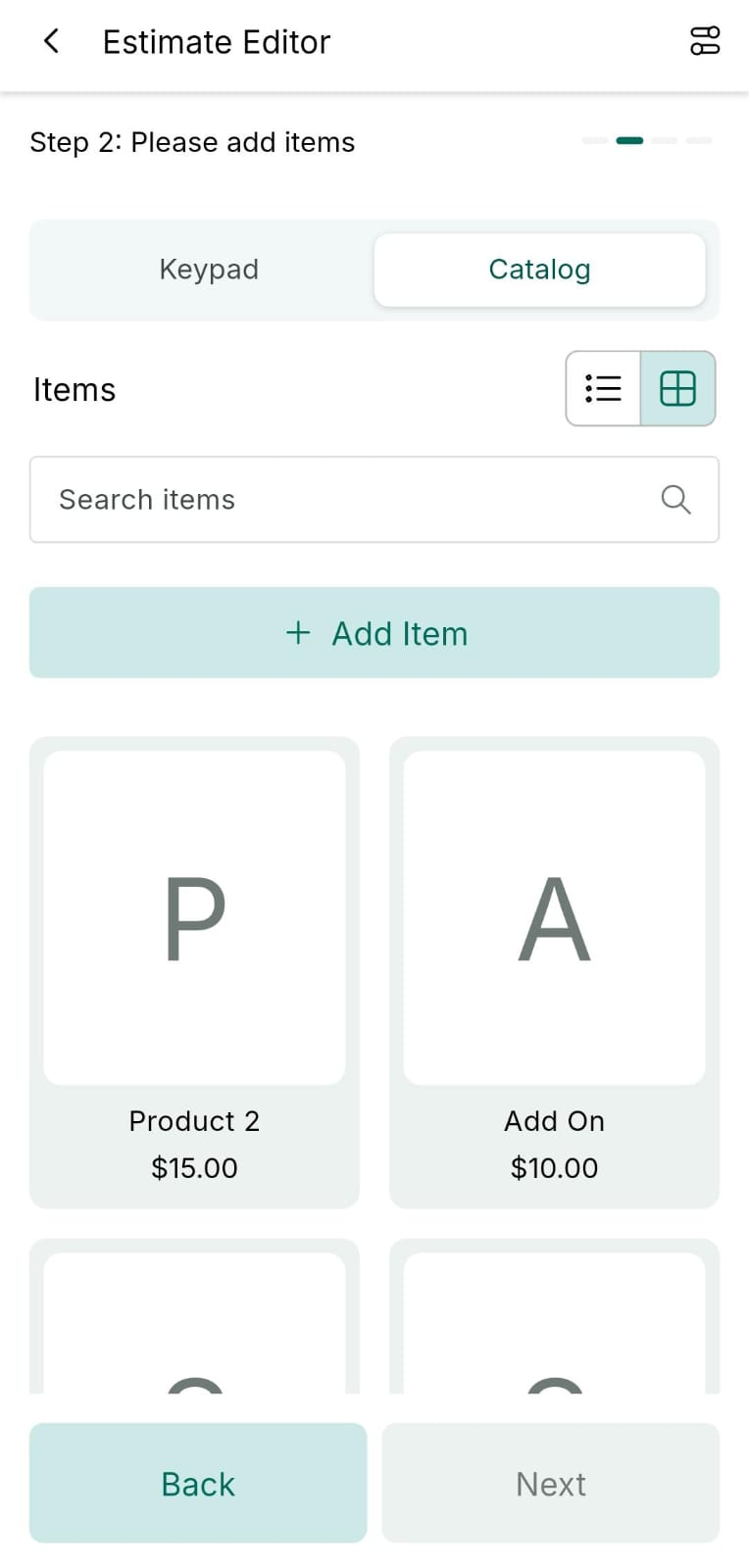
Proceed to the next step to include custom and/or catalog items. Taxes can be linked to products, and you can select appropriate variant combinations.
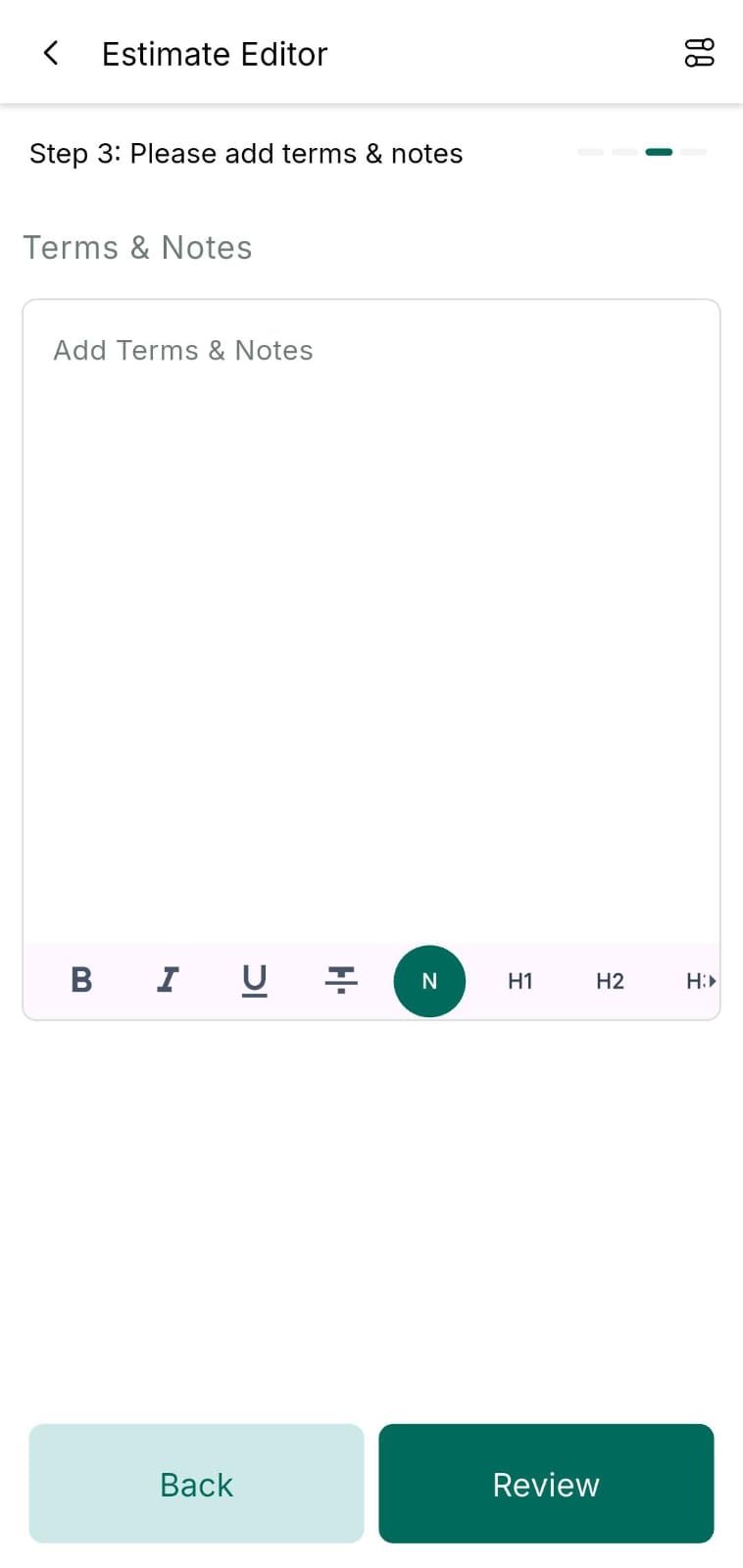
Clearly outline the terms and additional notes for the estimate in the next step.
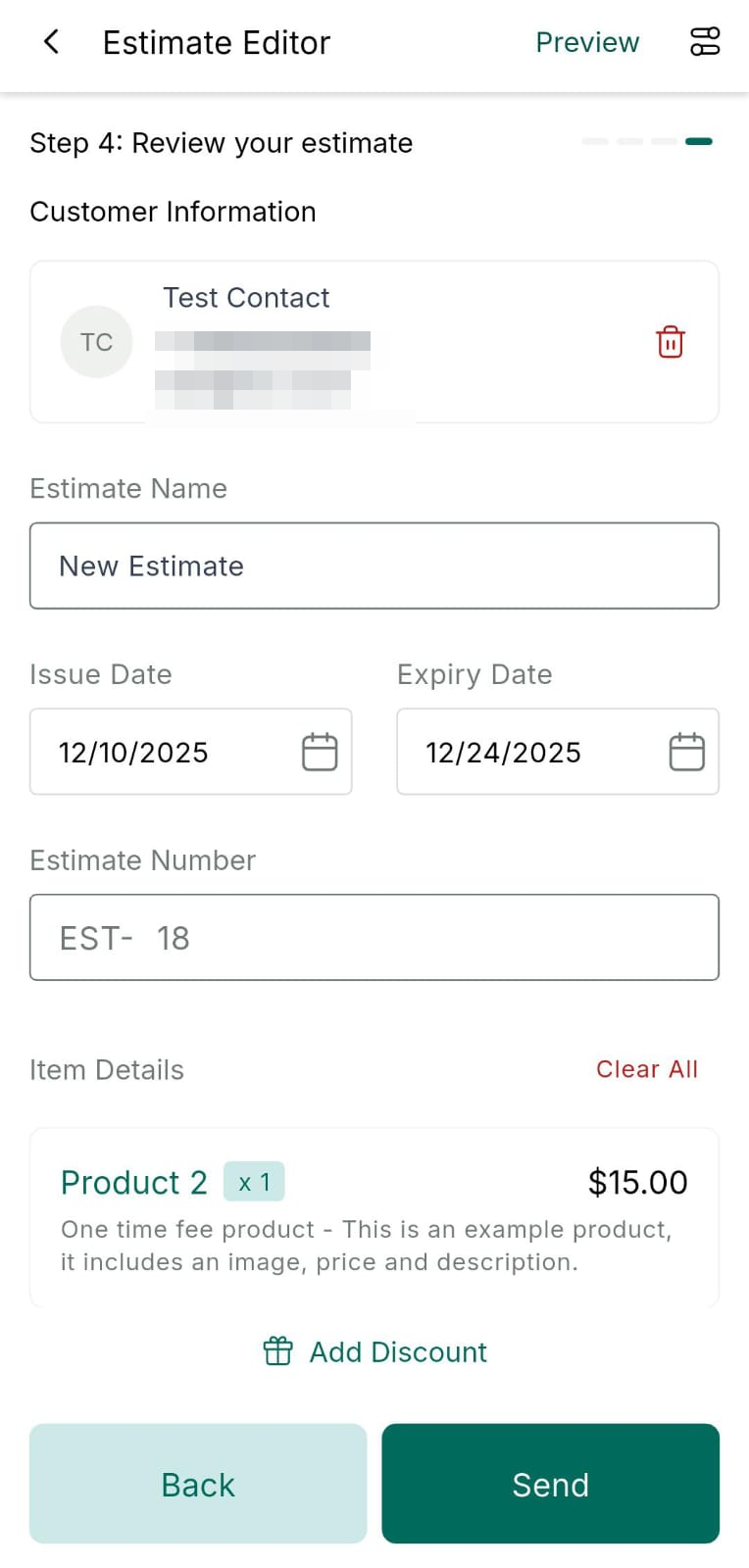
Verify the contact details, issue and due dates, item descriptions, and discounts.
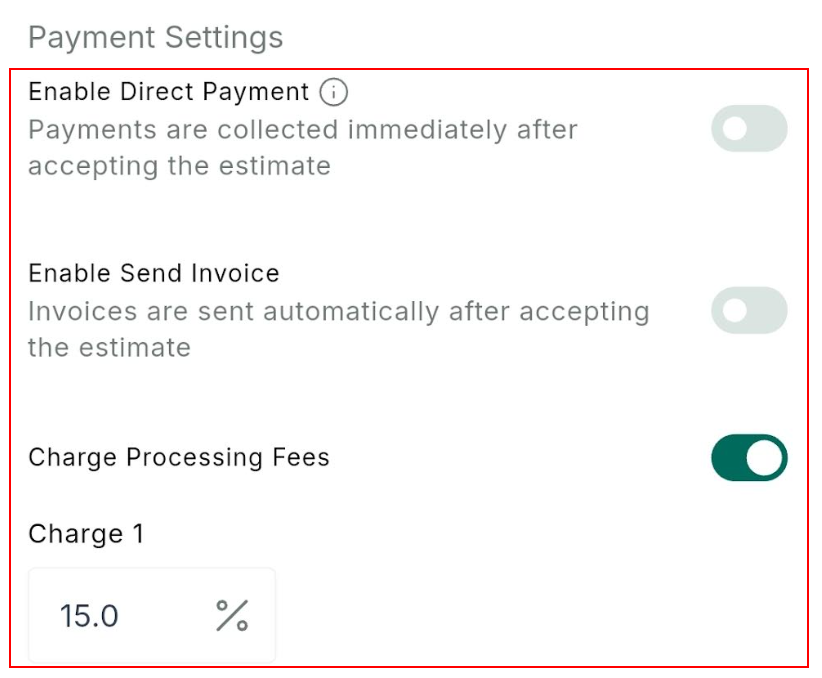
Scroll down to the payment settings to enable the direct payment, send invoice, or processing fees features. If the processing fees toggle is activated, you will have the option to set the percentage that should be added to the total.
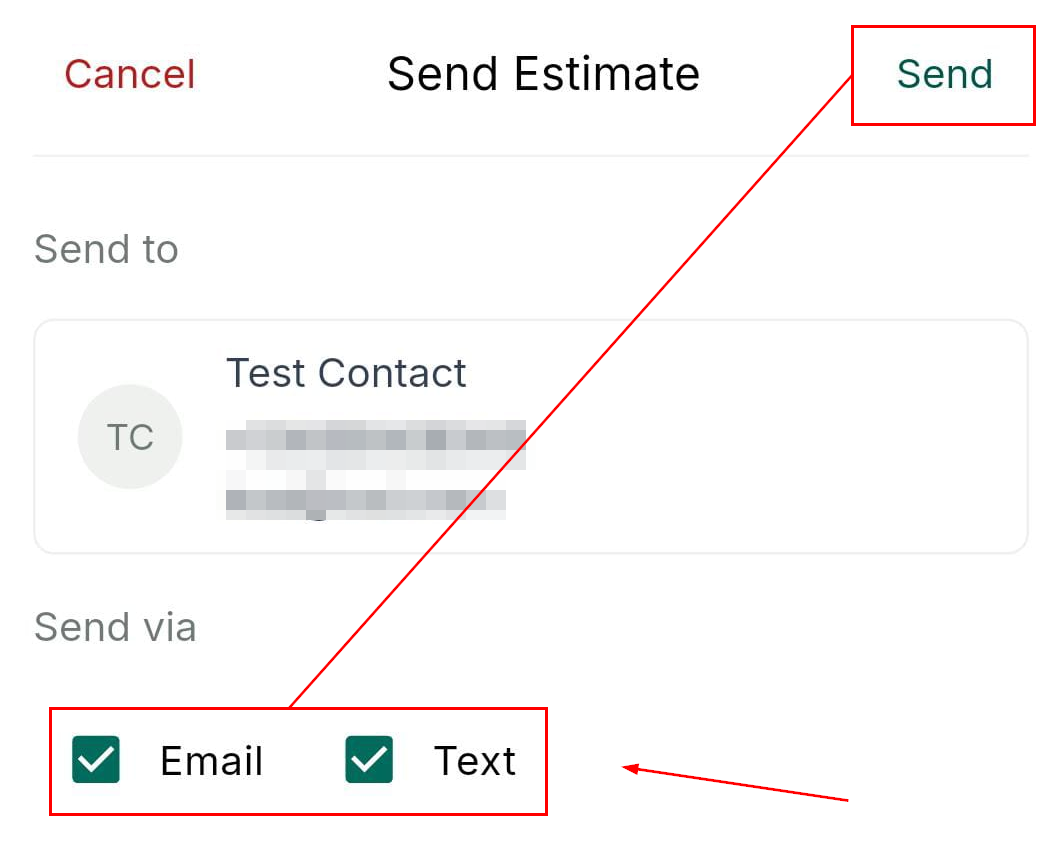
Share the estimate with the customer via email, text, or both.
Customer Interaction
After receiving the estimate, the customer can either accept or reject it. Accepted Estimates can be easily converted into invoices to collect payments, while rejected estimates for revision or further discussion with the customer.
By utilizing a mobile estimate management system, you can streamline the process, save time, and ensure accuracy in real time.
Not a Funnelbud customer yet?
Try our all-in-one CRM for sales and marketing — free for 7 days, no commitment.