Calendars Overview
This section gives you a quick yet decluttered view of your calendar. It also allows you to switch seamlessly between all created calendars in your CRM, whether you need to look at your or your sales team’s calendars.
Remember, these calendars are synced to your Google or Outlook account and can be controlled/edited using your Google or Outlook calendars outside the CRM.
📌Note: Depending on your user permissions, you may not have access to all of the components.
In-App Calendar view
Streamline your calendar view by filtering to only what you need; with multiple calendars connected, look at the blue My Calendar drop-down tab and pick which one works best for you. Simply click the button and choose the primary calendar, a specific user calendar, a group calendar, or other calendars created in your CRM. When you click on the calendar you would like to view, it will automatically populate the calendar on the same page.
Change Date Range
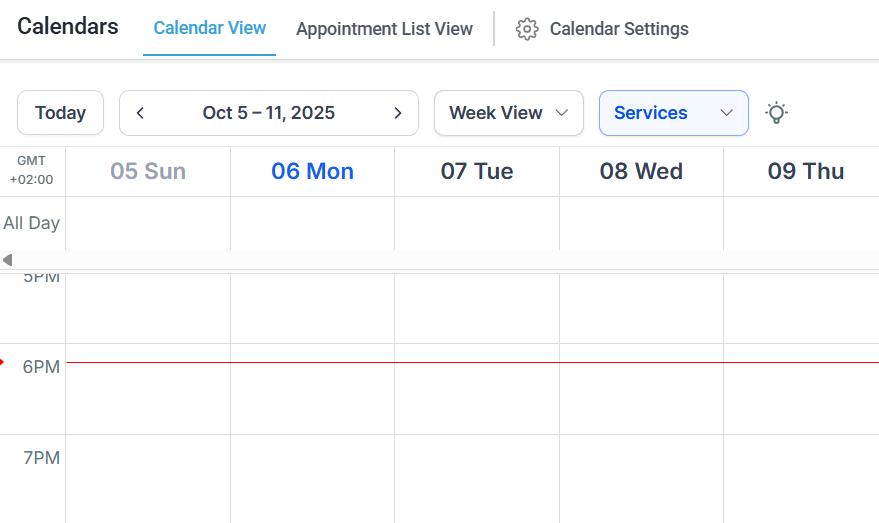
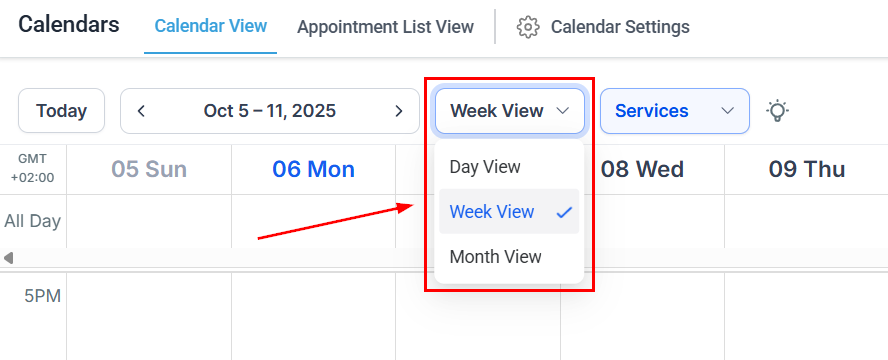
You can keep track of upcoming appointments with ease by adjusting the date range on your calendar. View scheduled events for this month, week, or even day! The calendar is automatically set to show the week view. To change to a month or day view, simply click on the blue button labeled Weekly and choose the view you want to use.
Quick Action - Today
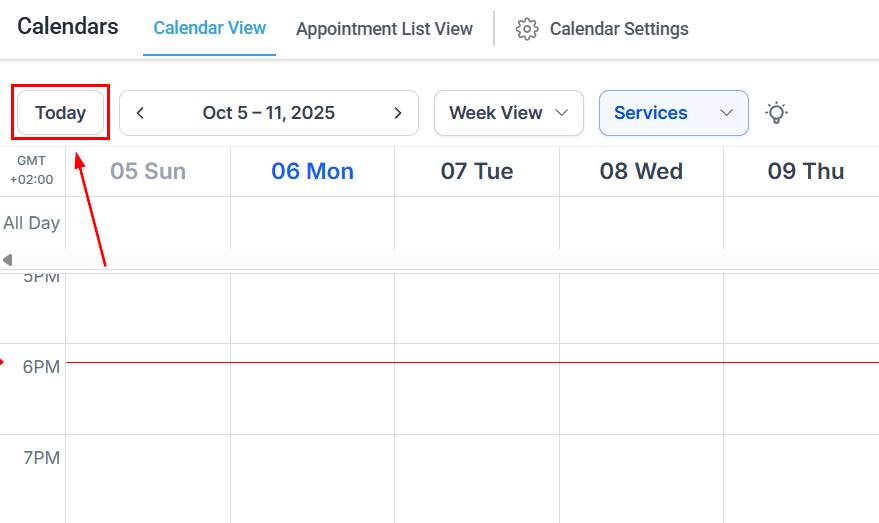
To quickly switch back to a daily view of what your daily schedule looks like, simply click on the Today button on the top left of the page. When you click on the button, you will see the present day highlighted to quickly view your current schedule.
Cycle Date Range
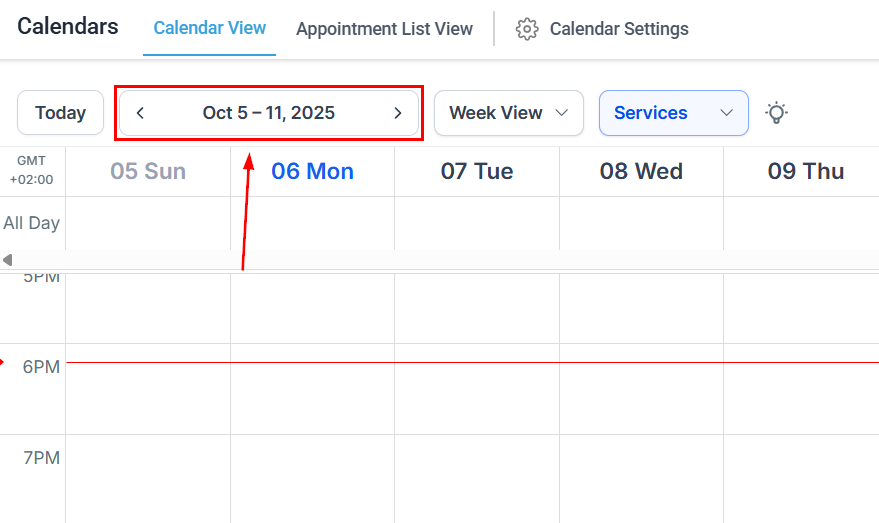
To cycle through the days, weeks, or months on your schedule, click on the right or left arrows on the top left of the page, to the right of the Today button. Here you can easily view past or future events on your calendar, depending on which button you choose.
Calendar Annotation
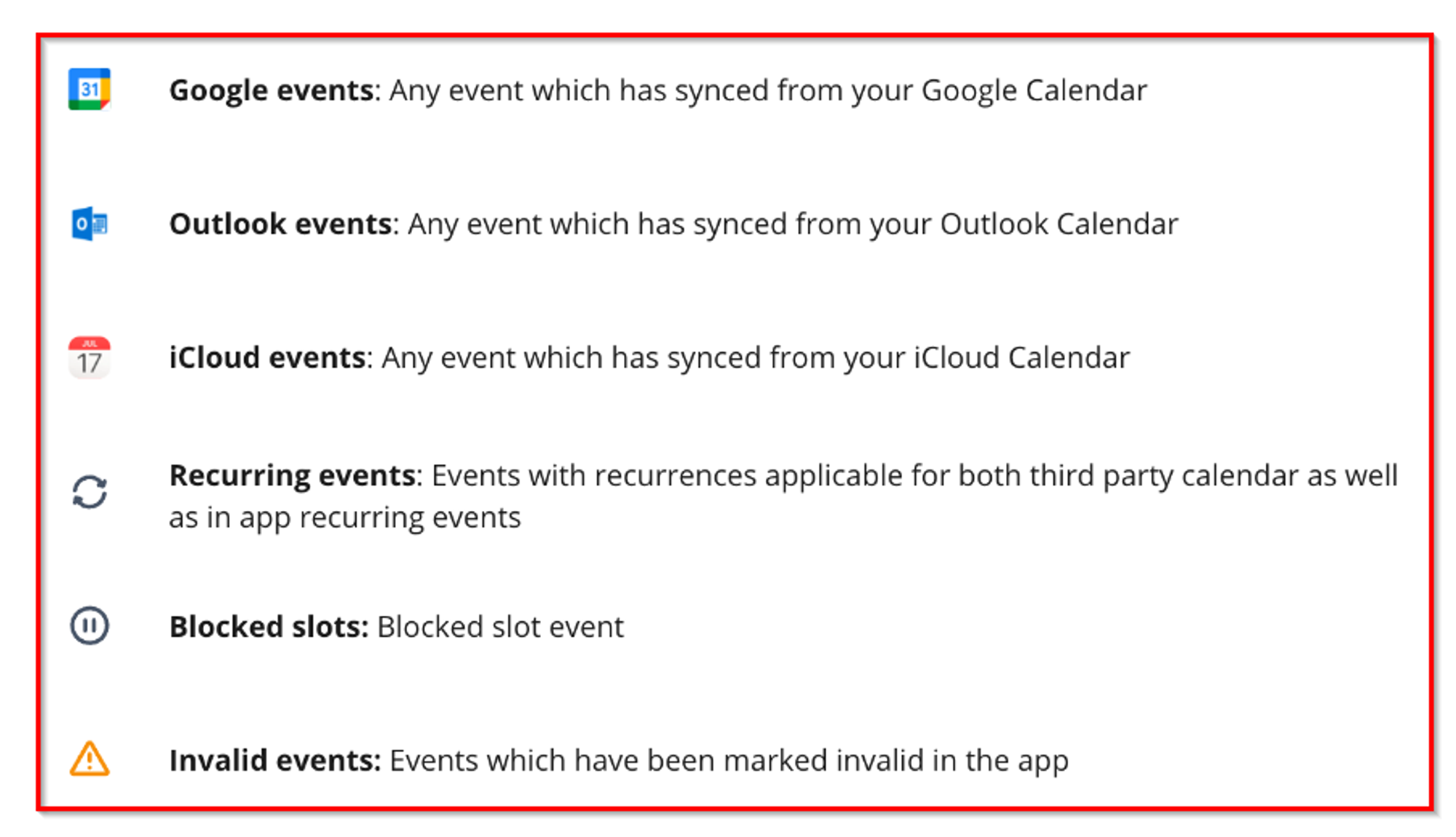
You will find all the different calendar patterns and icons that your CRM calendar uses. These are meant to give you a quick and easy analysis of your calendar so you do not need to click into each event and look for specific data.
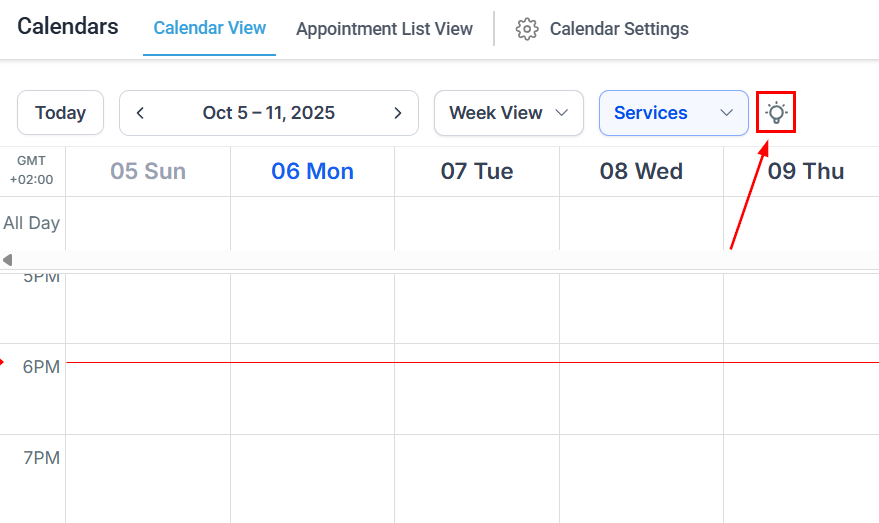
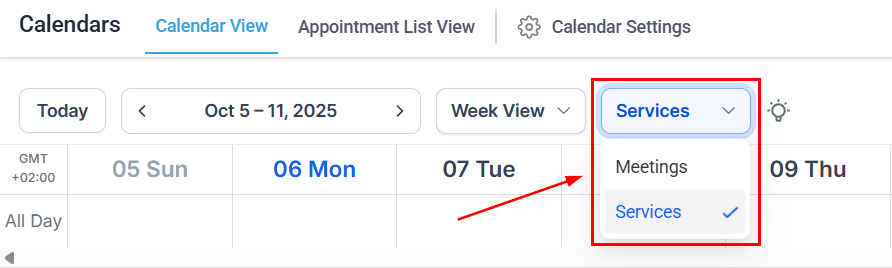
Calendar Type
To change whether you’re viewing regular calendar appointments or service calendar appointments, use this drop-down menu. The option you select will change the available filters and the way results are displayed.
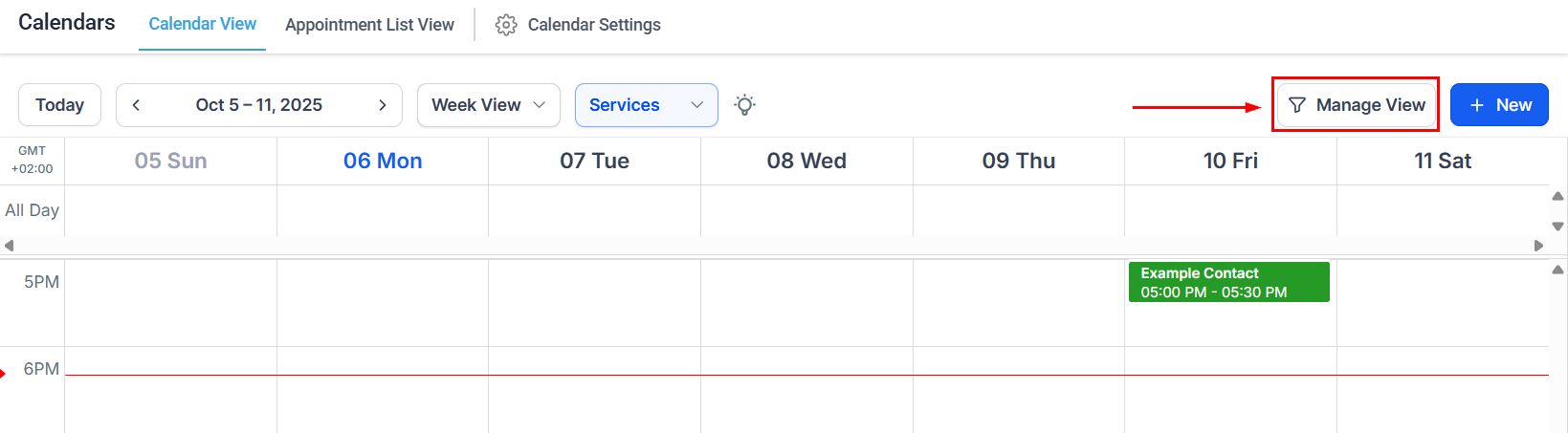
Filtering Options
To filter the results, click Manage View to open the filters on the right side.
The general filters are:
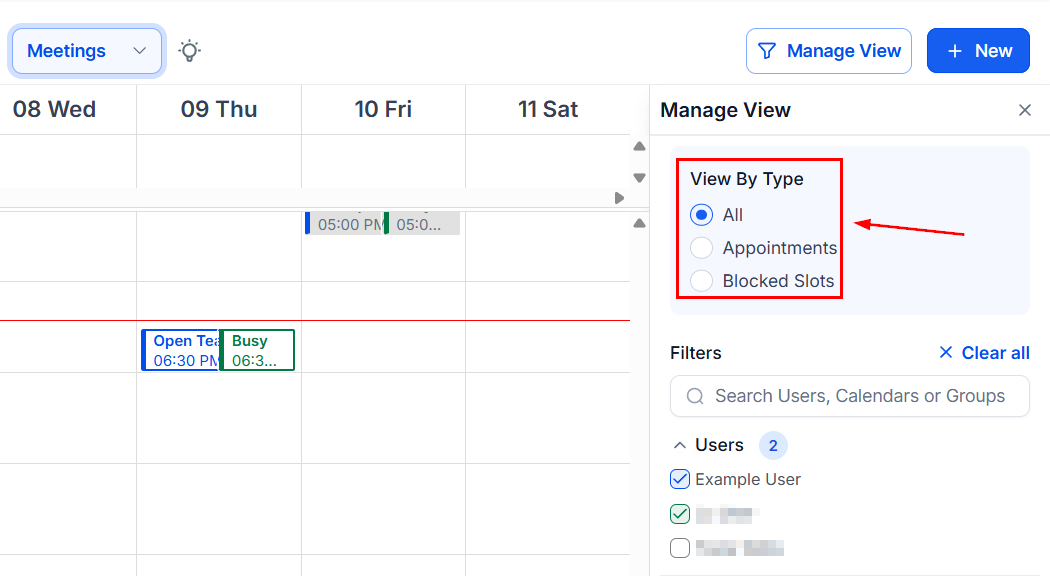
By Type
You can filter your calendar view to show all, appointments, or blocked slots. The calendar is automatically set to show all events on the calendar.
By User
Here, you can filter your calendar by selecting the team member’s calendar you want to see.
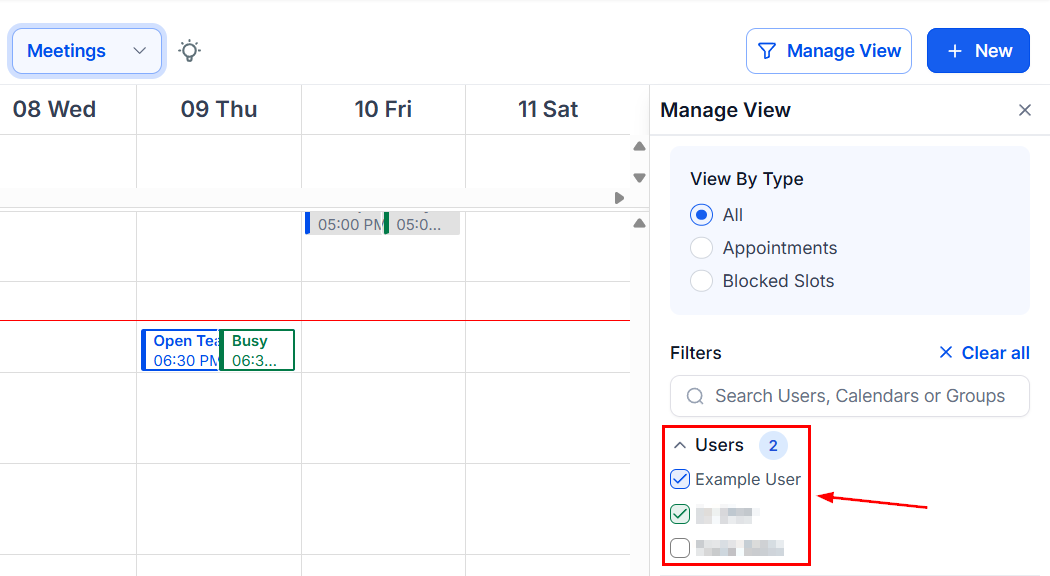
Meetings - Calendars
If you’ve selected the Meetings option, you will view appointments from regular calendar types (personal, round robin, collective, class). Filtering by calendar helps you narrow down the events of each calendar for a particular duration.
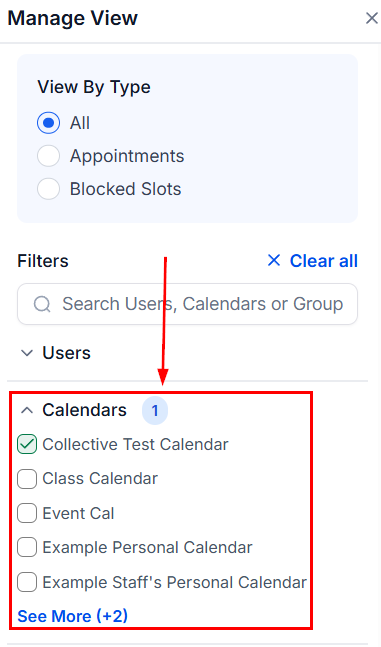
Meetings - Groups
This option lets you filter the events based on the calendar group they are part of in your Meetings calendars. To only see events for a group calendar, check the box next to it.
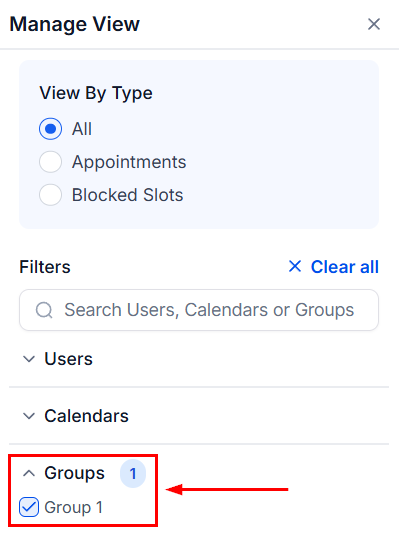
Services - Services
If you’ve selected the Services option, you will view appointments from the Service v2 calendars. Filtering by services helps you narrow down the events of each service calendar for a particular duration.
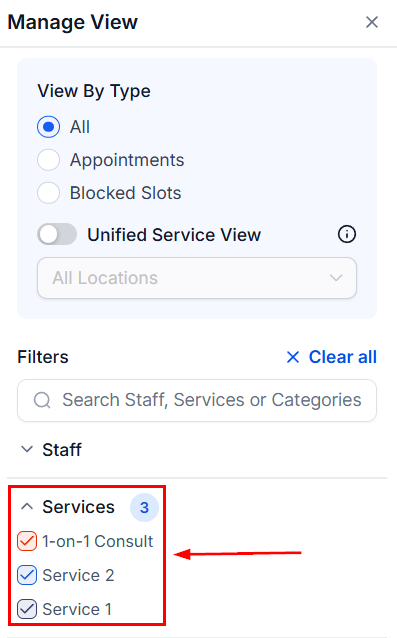
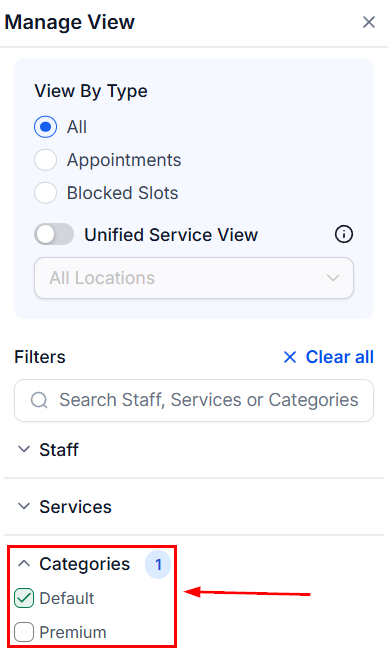
Services - Categories
This option lets you filter the events based on the service group they are part of in your Service calendars. To only see events for a service category, check the box next to it.
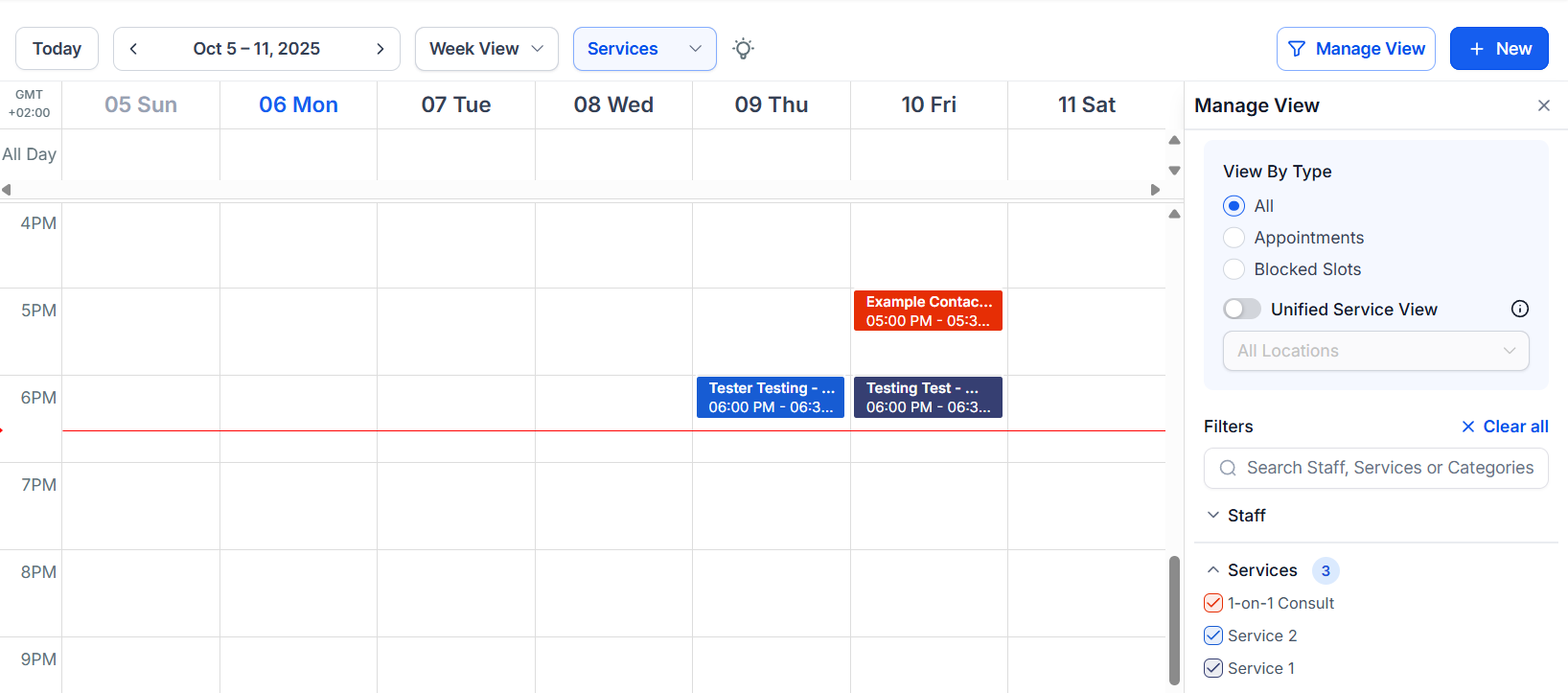
Color Coding for Clarity
- Users: Each user’s appointments are color-coded, allowing quick and easy identification.
- Origin: Appointments are displayed in colors for each calendar, group, service, or category based on your customized settings, ensuring identification clarity.
Intuitive Icons
Instantly recognize events with our new set of intuitive icons.
Persistent Multi-Select
Your selected calendars and users are remembered, ensuring your preferred view is just a click away when you return.
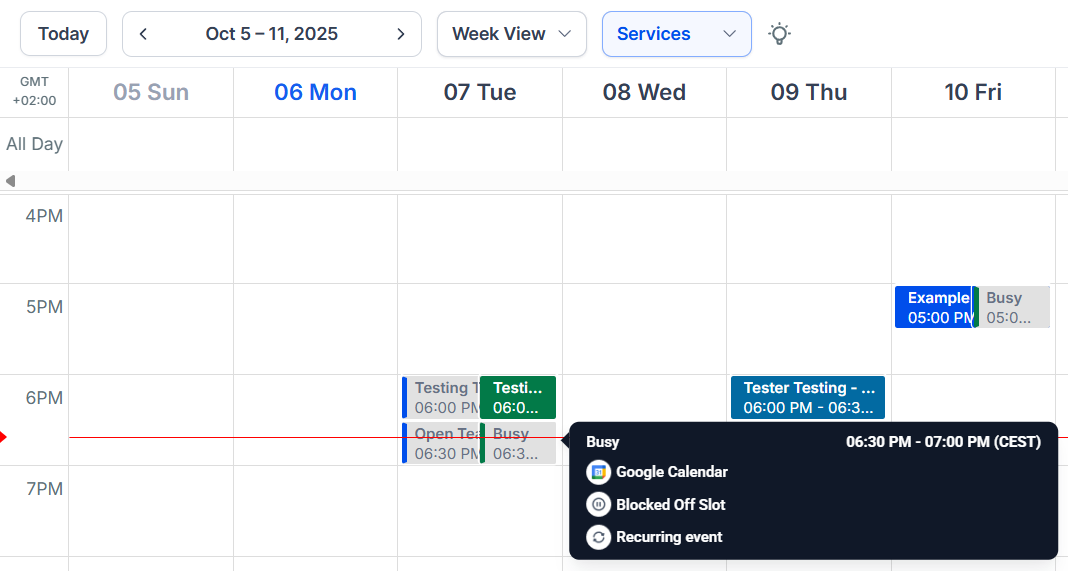
Additional Info on Hover
Hover over any appointment for a detailed snapshot, including event type, title, start, and end times. Stay informed with a simple hover—no need to click.
And there you have it! Now you know the basis of the CRM calendars and how they work. If you’d like to learn more, please check the other articles in this section!
Not a Funnelbud customer yet?
Try our all-in-one CRM for sales and marketing — free for 7 days, no commitment.