Invoices Overview
Invoice functionality within your CRM allows you to seamlessly generate and manage invoices for your business. This integrated feature enables you to issue invoices directly to your customers or clients, utilizing the products you have established in your sub-account. The invoicing dashboard offers real-time multi-currency support, ensuring accurate financial insights. This converts invoice values from multiple currencies into your account’s base currency before displaying the stats on the dashboard.
By centralizing invoice creation and management within your CRM system, you can streamline your billing process, enhance customer communication, and easily maintain accurate financial records.
If you are using invoicing without Stripe Connect, you can view your status through these steps:
Go to the Invoices & Estimates tab > All Invoices, where you will see the list of invoices and their statuses.
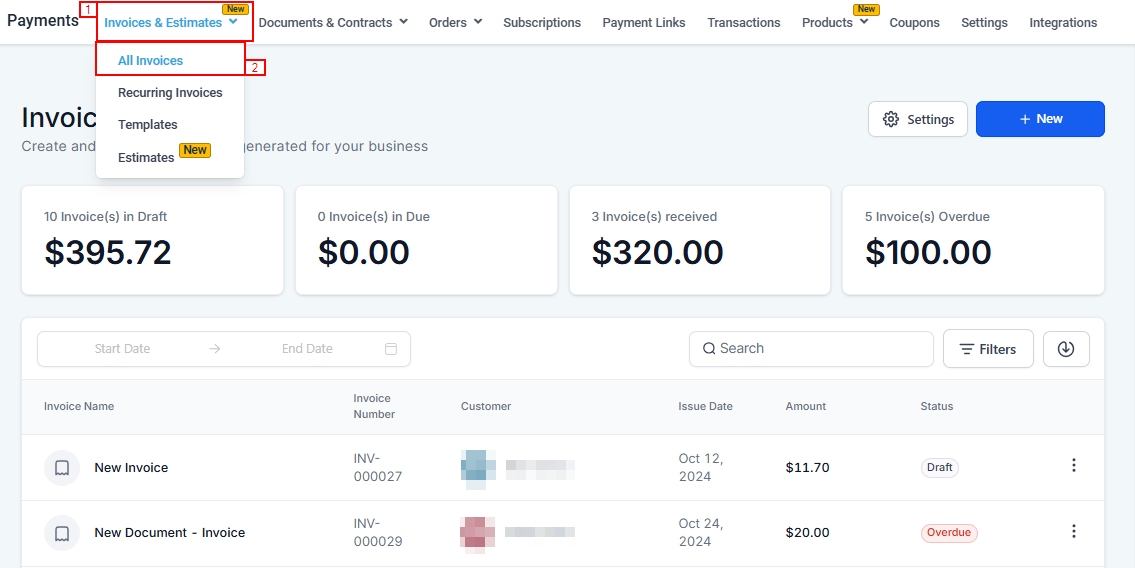
📌Note: The limitation to using invoicing without Stripe Connect is that the user will need to record the payments manually.
Creating a New Invoice
Use this option to create a new invoice. In the next screenshot, we will go through every element of the Invoice creation process.
One-time Invoice
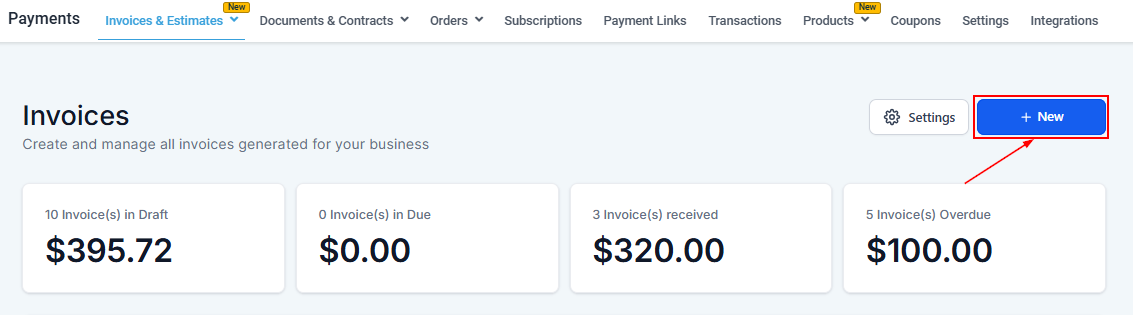
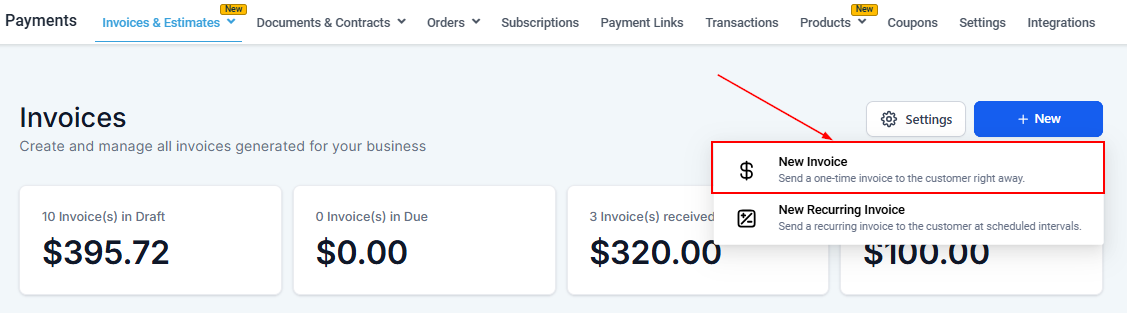
To create a one-time Invoice click on the +New button and then click New Invoice.
Recurring Invoice
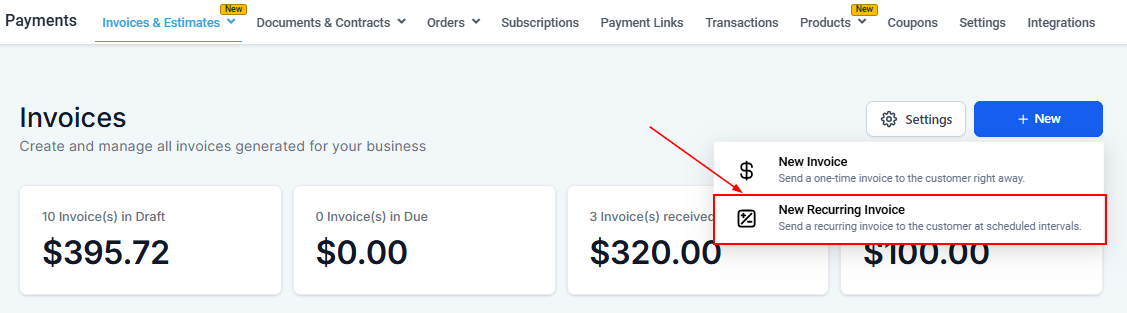
This is an invoice that allows you to schedule the billing of a customer regularly.
Navigating Invoices
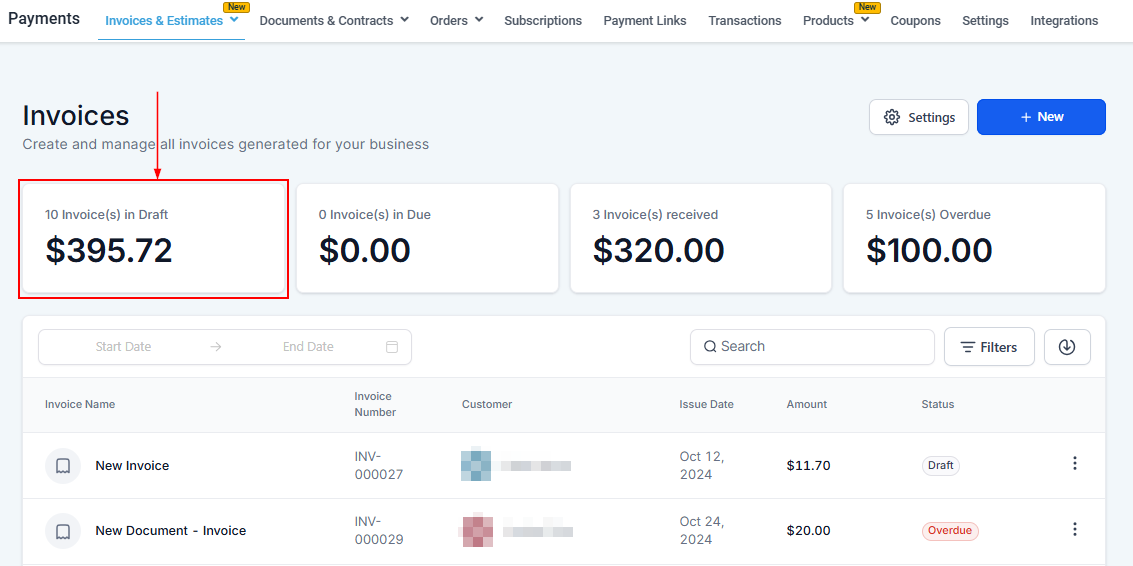
Draft
You can conveniently view the count of invoices currently in draft mode, as well as the cumulative sum generated from these invoices, in the designated section.
This provides you with a clear snapshot of your pending transactions, allowing you to easily monitor and manage your invoicing process, ensuring timely completion and improved financial tracking for your business.
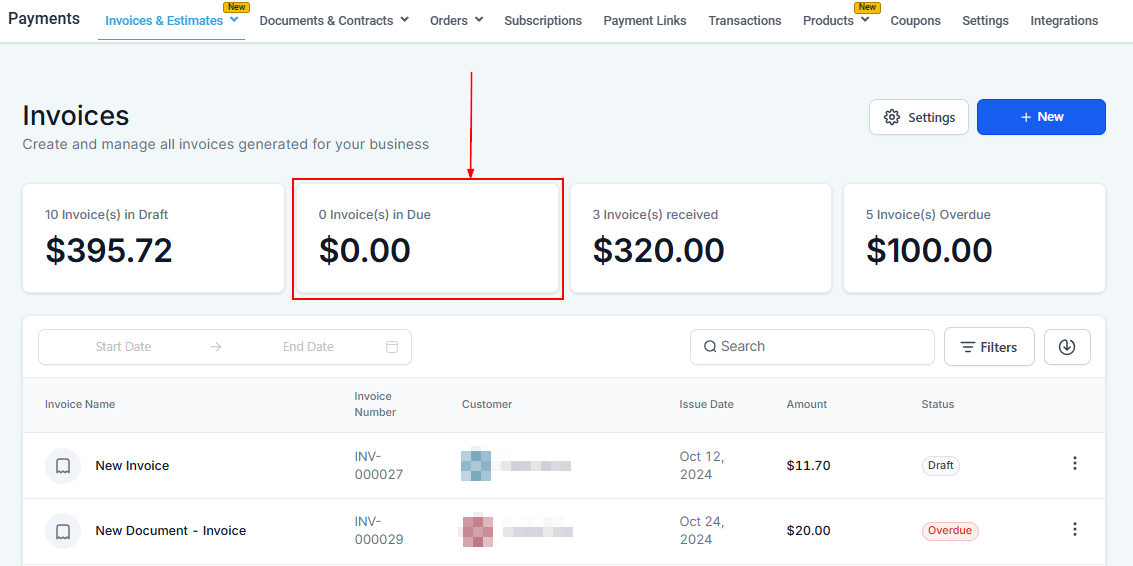
Due
This section displays the quantity of invoices awaiting payment and the combined value derived from these outstanding invoices.
By presenting this information, businesses can effectively track and manage their accounts receivable, facilitating prompt follow-ups with customers and ensuring a steady cash flow for smooth operations.
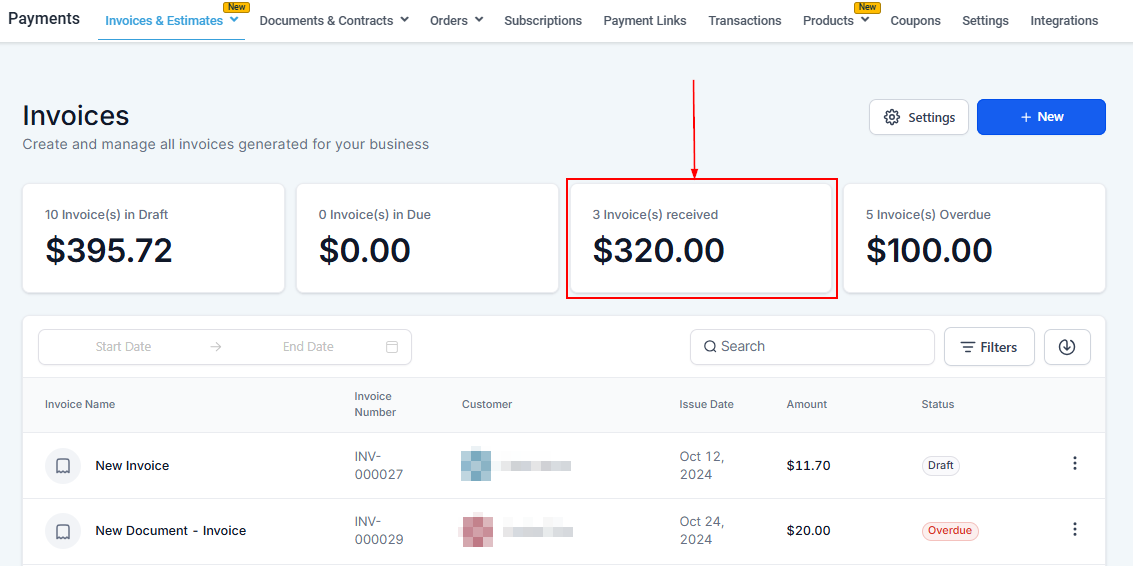
Received
In this particular section, you can view the total count of invoices that have been successfully paid, along with the accumulated amount received from these transactions.
Having access to this data enables businesses to efficiently monitor their income, assess financial performance, and make informed decisions regarding future strategies and growth opportunities.
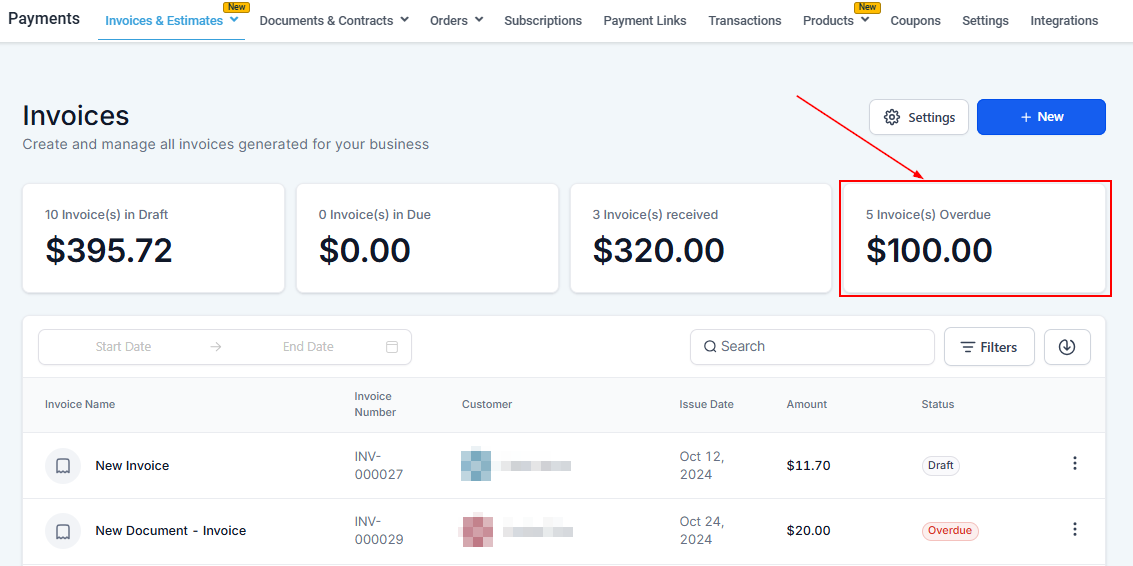
Unpaid/Overdue
This section presents the number of invoices that have surpassed their payment due dates, as well as the outstanding balance yet to be received from these overdue transactions.
By displaying this crucial information, businesses can effectively manage their accounts receivable, identify potential cash flow issues, and take appropriate actions to recover the pending payments and maintain financial stability.
Invoice Filters
Filters allow you to quickly narrow down your invoice list to find exactly what you need. Here’s how to use them:
By Date Range
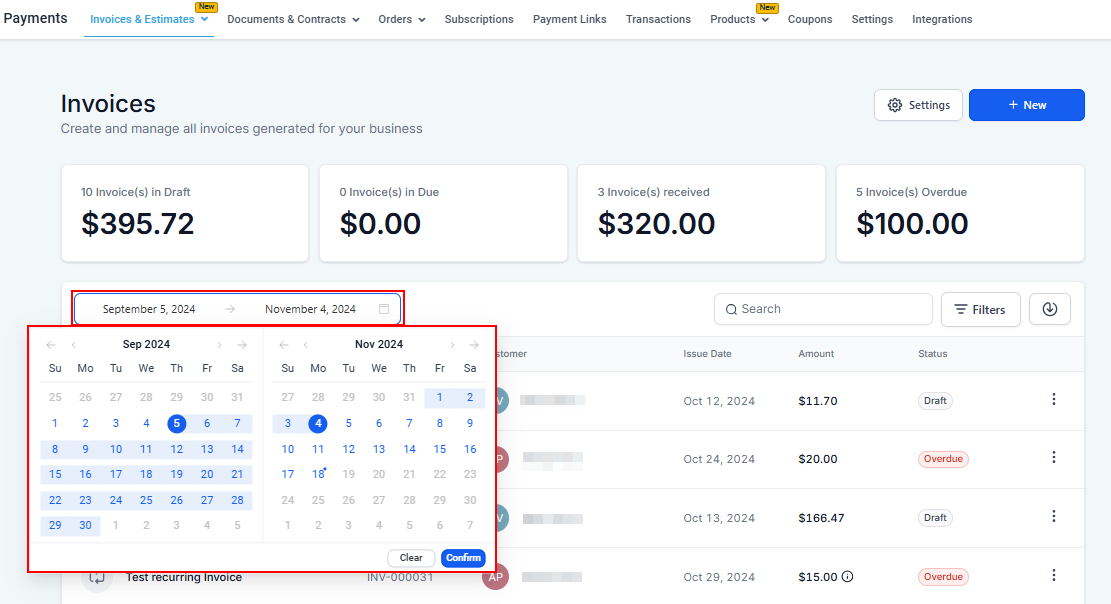
To filter by date range, simply select from and to date to view invoices within a specific calendar period.
Search Bar
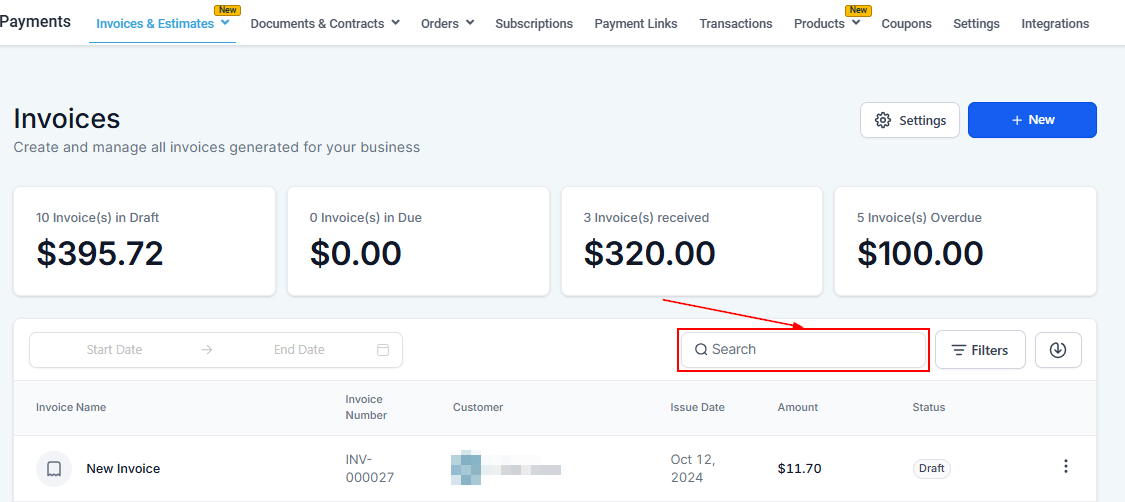
To further refine your search, use the search bar to find specific invoices by entering details such as the invoice number, invoice name, or customer name.
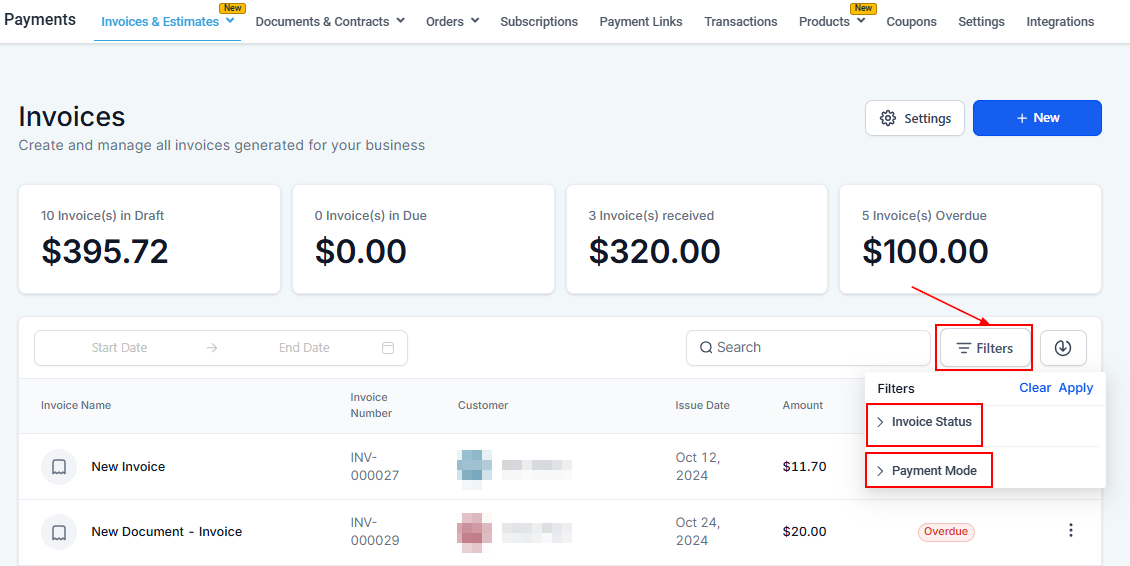
You can easily filter your invoices using various criteria to quickly access the information you need by clicking on the FILTER dropdown button.
There you’d find two dropdown arrows,
- Invoice Status and,
- Payment Mode.
By Invoice Status
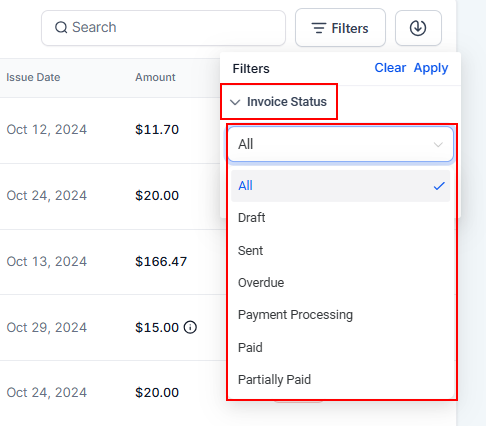
Additionally, you can filter invoices based on their status, such as All, Draft, Sent, Overdue, or Paid. This allows you to quickly review and manage invoices in different stages of the payment process.
- All: When selected, this option will show all of the invoices you have created in your CRM location.
- Draft: Selecting this option will open up all of the invoices that are in Draft mode.
- Sent: Use this when you want to view only sent invoices.
- Overdue: Quickly see how many of the sent invoices are overdue for payment.
- Payment Processing: View invoices that are currently being processed for payment.
- Paid: Use this when you want your system to show the invoices that are “Paid”.
- Partially Paid: Displays invoices that have been partially paid but still have an outstanding balance.
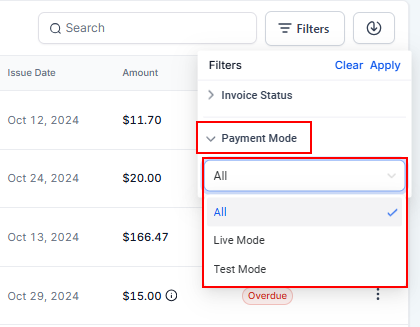
By Payment Mode
You can also filter invoices by payment mode, choosing between Live or Test mode.
Invoice Table
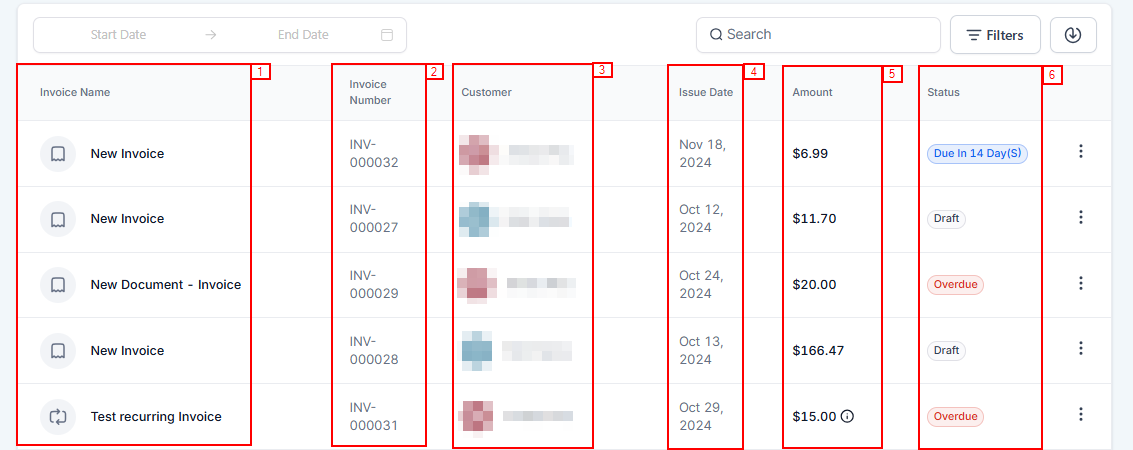
This shows useful information related to each invoice.
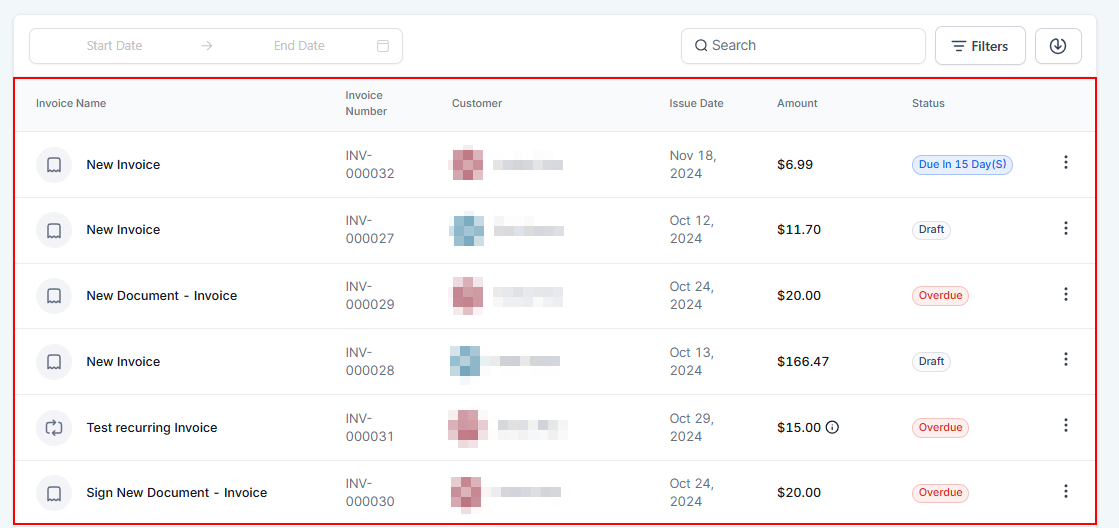
- Name: This also shows the name you have given to each Invoice.
- Invoice Number: Shows the system-generated number for each invoice
- Customer Details: Shows the customer name and the contact information you have saved in your CRM.
- Issue Date: This shows the date when the particular invoice was created.
- Amount: See the amount for each of the Invoices in the list.
- Status: Shows the status of each invoice in the list; Overdue, Paid, Draft, etc.
Actions Menu
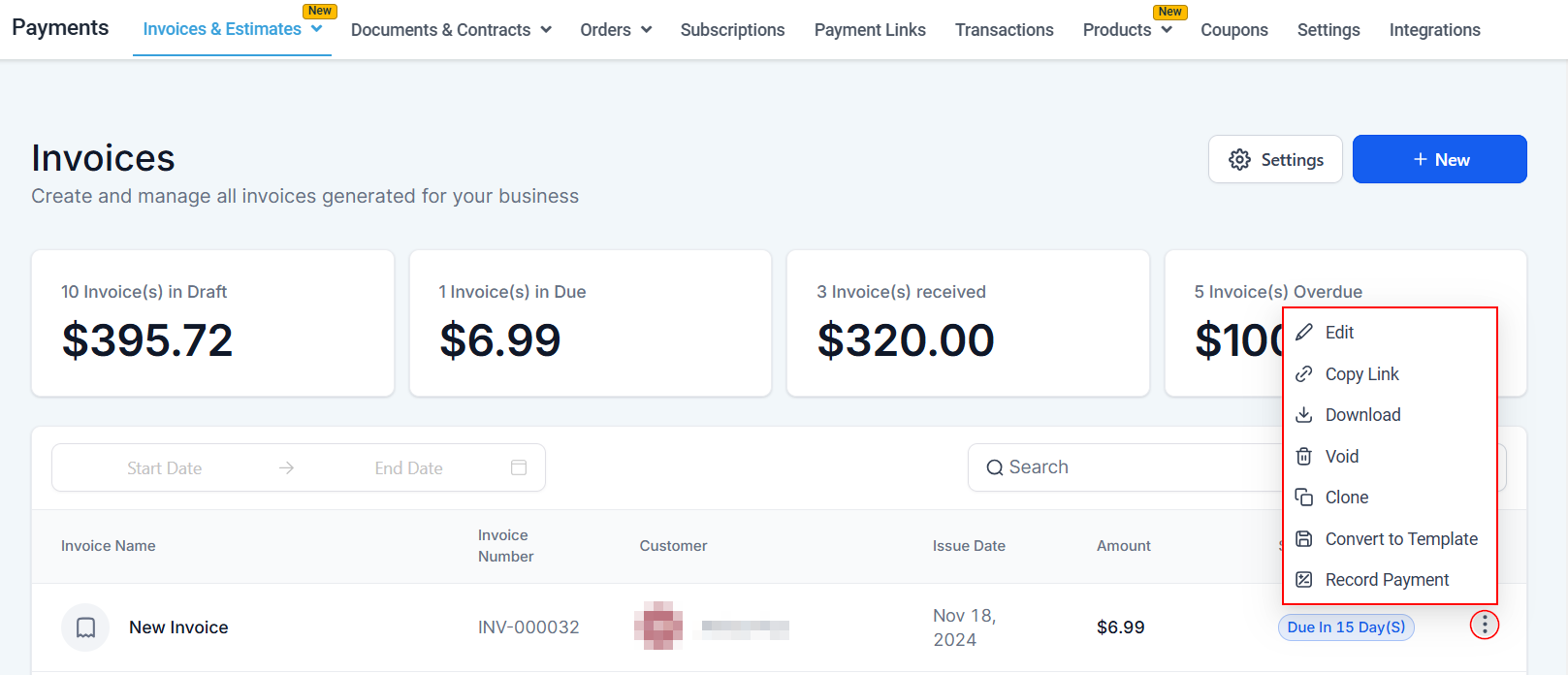
The Actions Menu allows you to perform various tasks for individual invoice items listed in your invoice management system.
On the right side of your preferred invoice, click on the three-dotted button to reveal a dropdown menu containing:
- Edit: Before sending a draft invoice, change the details, such as item descriptions or amounts, to ensure accuracy.
📌Note: You can only edit invoices saved as drafts, which are due in the future.
- Copy Link: It lets you copy the link for the selected Invoice in the list. The link will be copied to the clipboard, where it can be posted. Sharing payment links with the client helps them make the payment more conveniently.
- View Recurring Template: You can view your invoice template by clicking on this button.
- Download: This lets you download the selected Invoice to your local computer store.
- Void: Let’s you mark the invoice as non-collectible and change the status to void
- Clone: Use this to duplicate one of the invoices so you don’t have to start from scratch.
- Convert to Template: Turn a completed invoice into a reusable template for future use
- Record Payment: Mark an invoice as paid once you receive payment. You can record payments made with the contact’s credit or debit card, as well as manually enter payments received in cash, check, or other methods.
To wrap it up, the invoice feature in your CRM makes billing straightforward and efficient, allowing you to keep your cash flow steady and strengthen your customer relationships.
If you’re eager to dive deeper, explore our other articles on creating and optimizing invoices. They’re full of insights to help you navigate this essential aspect of your business!
Frequently Asked Questions
Q: What is the real-time multi-currency feature?
- A: The dashboard now supports real-time currency conversion, converting all invoices into the subaccount’s base currency before collating totals.
Q: How does real-time currency conversion work?
- A: If your base currency is USD, any invoices in other currencies, like CAD, are converted to USD in real time using current exchange rates. This ensures accurate stats on the dashboard.
Q: Why is this feature important?
- A: Previously, stats were inaccurate because values were summed without proper currency conversion. Now, discrepancies are eliminated, providing precise financial data.
Q: Where can I see the real-time multi-currency stats?
- A: Navigate to the Invoices & Estimates dashboard to view the updated stats.
Q: Does the system automatically update currency conversions?
- A: Yes, all conversions happen in real time, ensuring that your dashboard reflects the most accurate totals.
Not a Funnelbud customer yet?
Try our all-in-one CRM for sales and marketing — free for 7 days, no commitment.