How To Add Multiple Contacts To an Automation
Adding multiple contacts to an automation has never been easier. With just a few simple steps, you can select contacts from the Contacts tab and add them to your desired workflow. Whether you choose to add contacts immediately, at a scheduled time, or in drip mode, this feature offers flexibility to suit your needs. Follow this guide to quickly and seamlessly integrate contacts into your automation, saving you time and effort while maintaining control over the process.
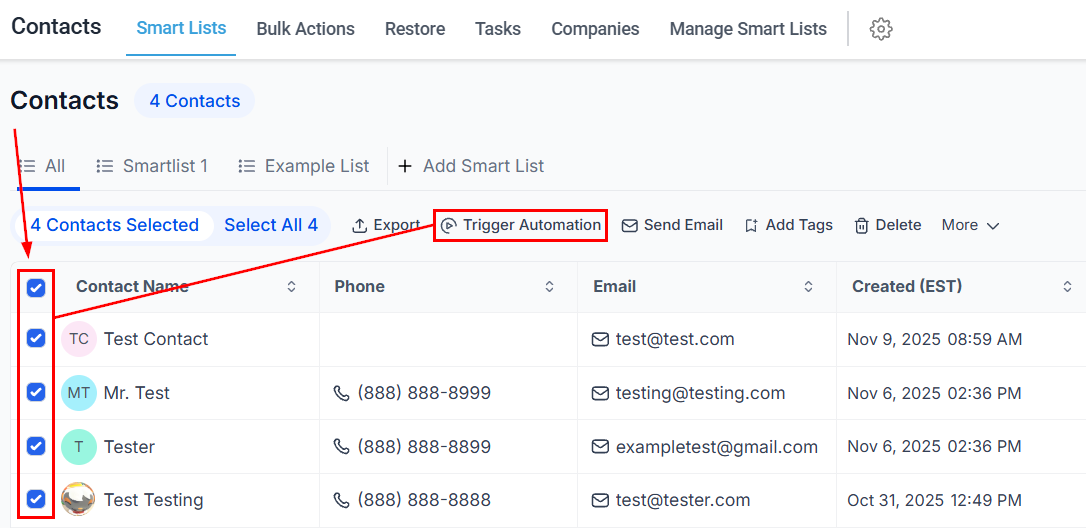
Start by selecting the relevant contacts from the list, then click the Add to Automation bulk action.
Naming Your Action
This will open a window where you can first enter a name for the action to be shown in the action report. Ensure that this name is well-suited for the action in case you need to track progress reports or follow-up with another team member.
Selecting Your Workflow
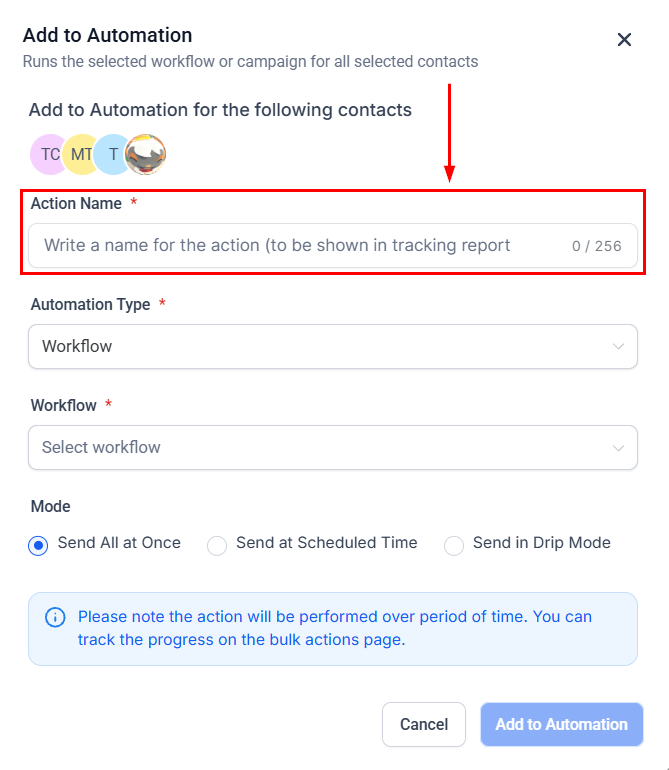
Next, choose the relevant workflow from the dropdown menu.
Mode
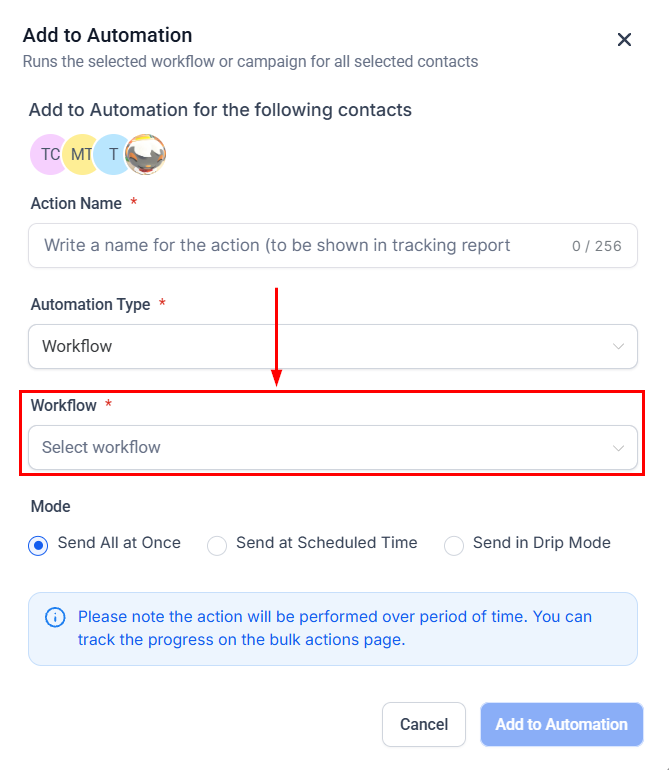
Once you have done so, choose how contacts should be added to the workflow. You can add contacts all at once, at a scheduled time, or in drip mode.
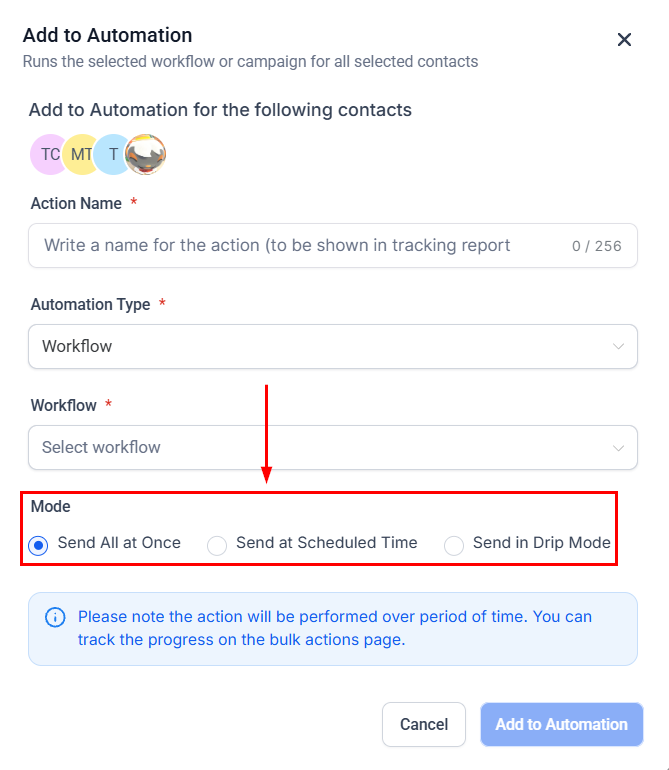
- Send All at Once: Immediately add all selected contacts to the chosen automation.
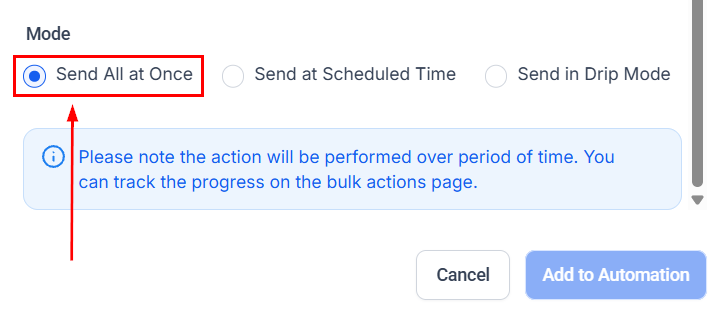
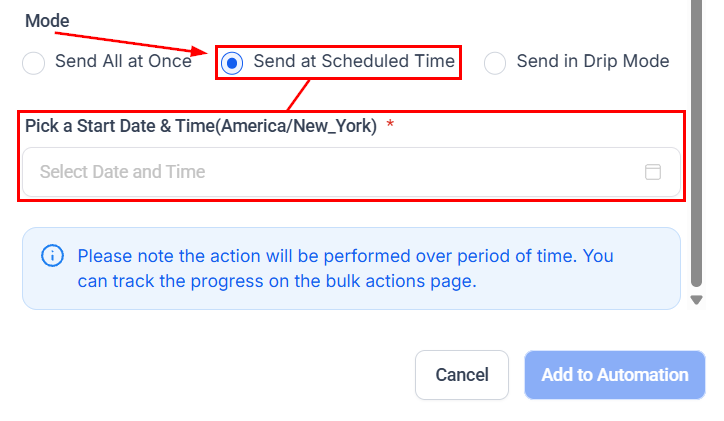
- Send at a Scheduled Time: Schedule the contacts to be added at a specific date and time.
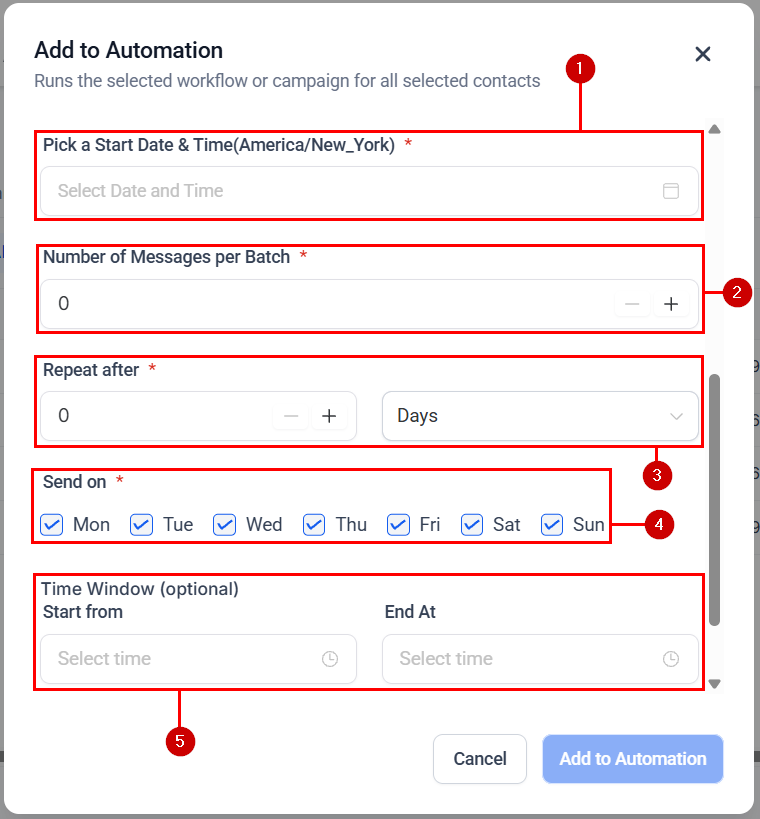
- Send in Drip Mode:
-
- Start Date & Time: Schedule the addition to begin on a specific date and time.
- Batch Quantity: Specify the number of contacts per batch.
- Repeat After: Set the interval between batches, from seconds to days.
- Send On: Select the days of the week to send batches.
- Process Between Hours (Optional): Define the time frame for processing the batches.
Completing the Addition
After verifying your selections, click the Add to Automation button to begin processing the Bulk Action.
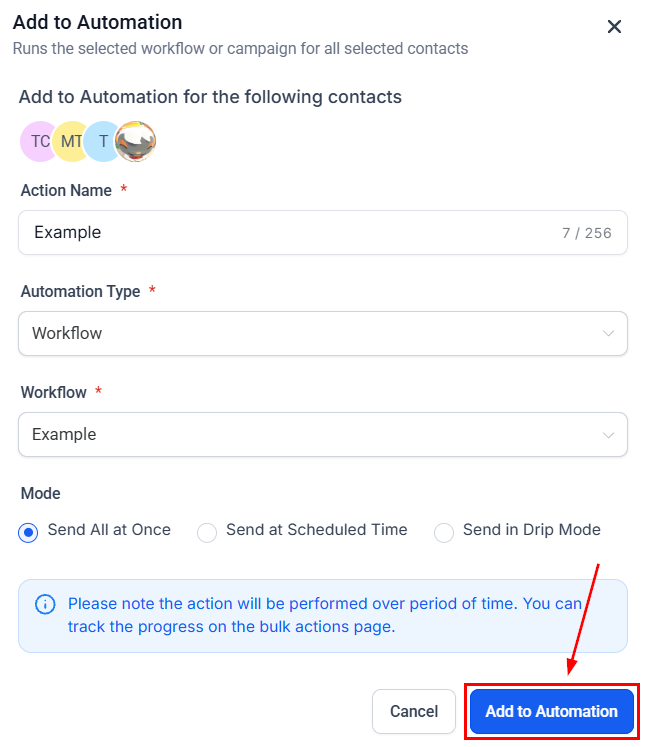
This action will be executed over time and can be monitored on the Bulk Actions page. This streamlined feature allows you to add contacts to automation quickly, saving you valuable time.
Not a Funnelbud customer yet?
Try our all-in-one CRM for sales and marketing — free for 7 days, no commitment.