Bulk Prospecting Flow
Bulk Prospecting provides a faster, more efficient way to discover, evaluate, and capture multiple local leads directly from Google Maps—without manual copying, spreadsheets, or repetitive searches. With enhanced filters, higher-volume results, duplicate detection, and batch saving, this process helps teams accelerate lead generation and streamline outreach. This guide walks you through how to run effective searches, customize your view, and save prospects in bulk with confidence.
Key Benefits of Bulk Prospecting
- Smarter search controls: Use keywords, specific business names, locations, and radius targeting to refine your search.
- Higher result volume: Access up to 60 leads per search—triple the legacy limit.
- Batch saving: Select and save up to 15 prospects at a time, with selection preserved across result pages.
- Duplicate detection: Instantly identify prospects already saved or in progress.
How To Set Up Bulk Prospecting
Follow these steps to run your first search and save leads efficiently:
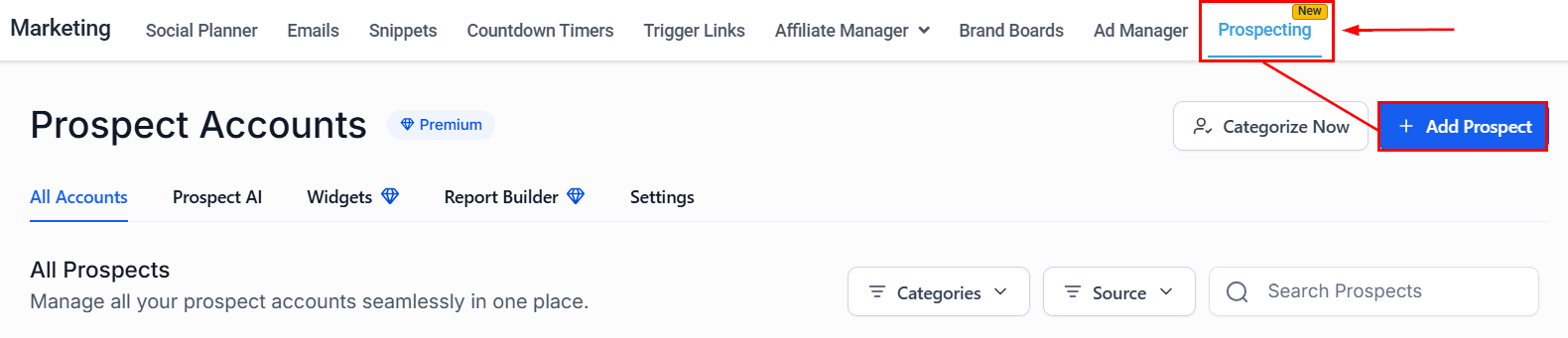
From your account dashboard, navigate to Marketing → Prospecting, then click Add Prospect.
Enter a Search Keyword / Business Name, define the Location, set the Radius (up to ~30 miles / 49 km), and click Search.

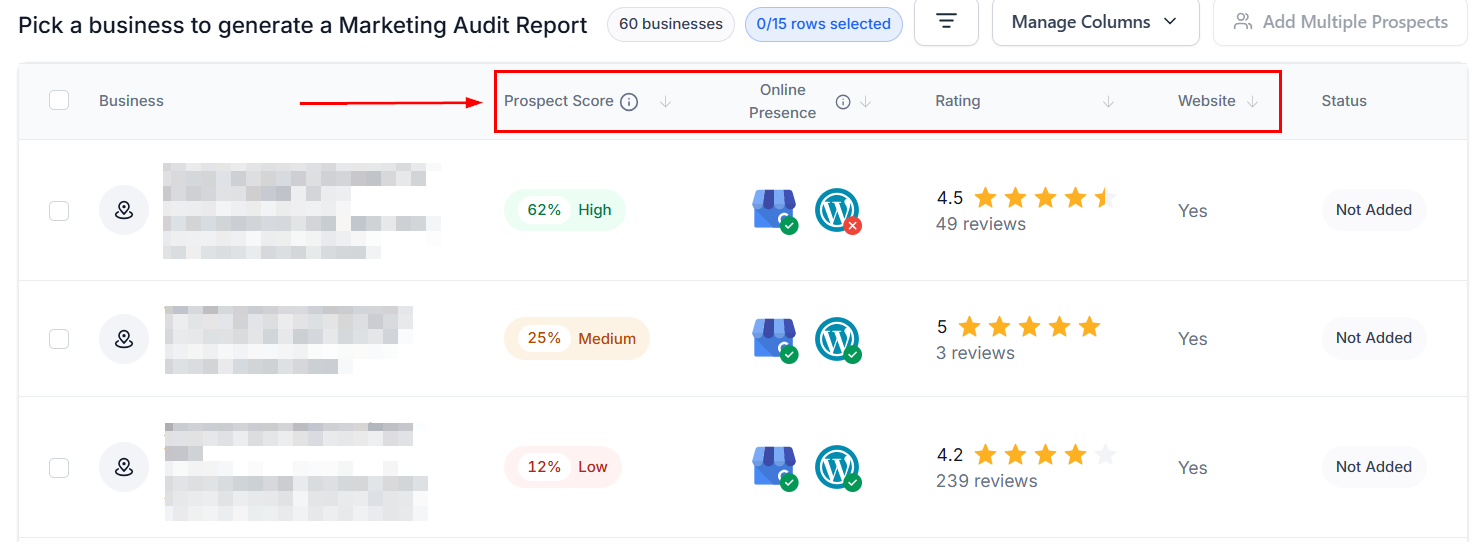
Review results in the list and map. You can sort fields such as Prospect Score, Website, or Rating in ascending or descending order.
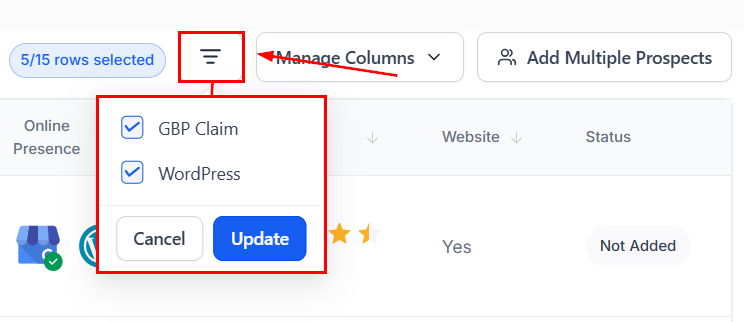
Use the Filter tool to refine results based on your ideal criteria.
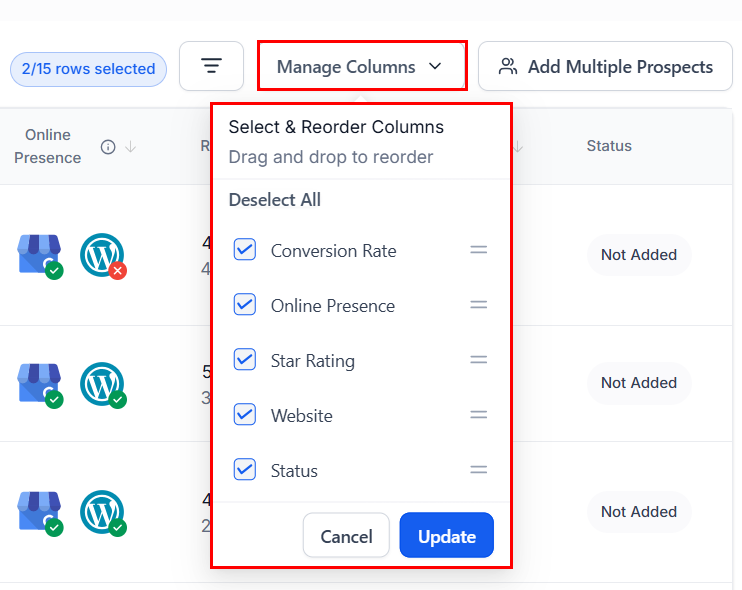
Click Manage Columns to show, hide, or reorder fields such as Prospect Score, Online Presence, Website, and Status.
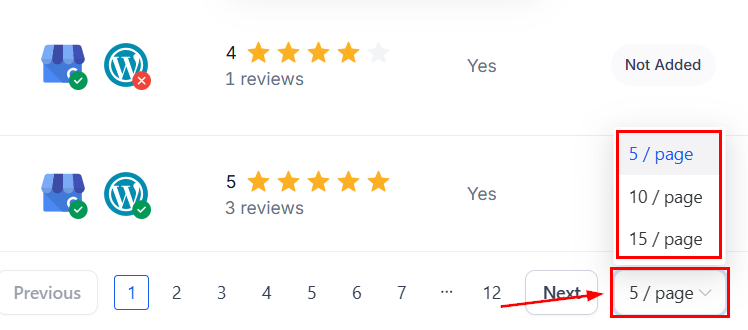
Choose Rows per page (5, 10, or 15) for faster processing during high-volume searches.
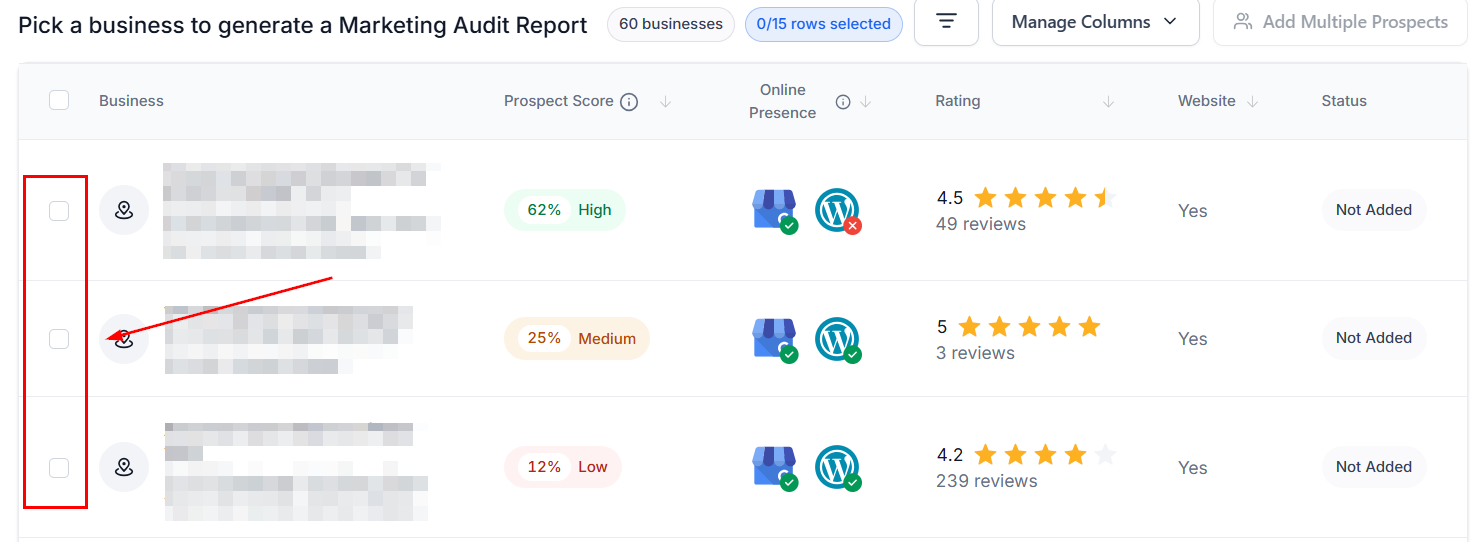
Select up to 15 leads per batch. Selection carries across pages to streamline bulk actions.
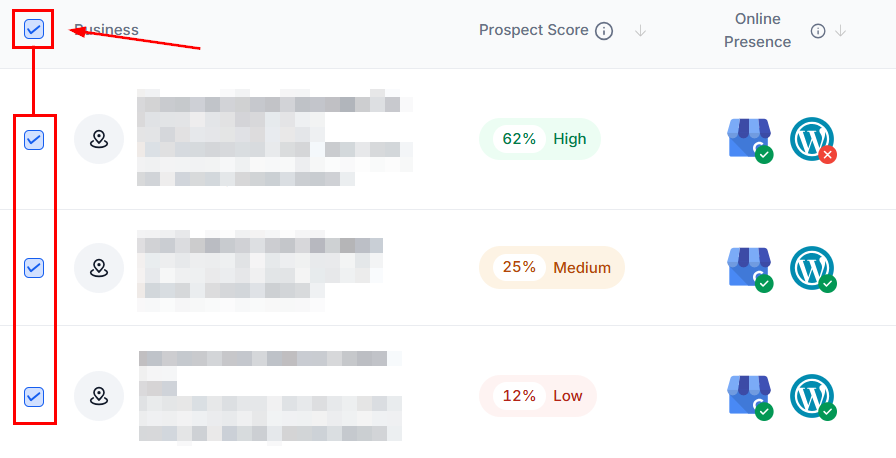
Use Select All / Unselect All on the current page for quick adjustments.
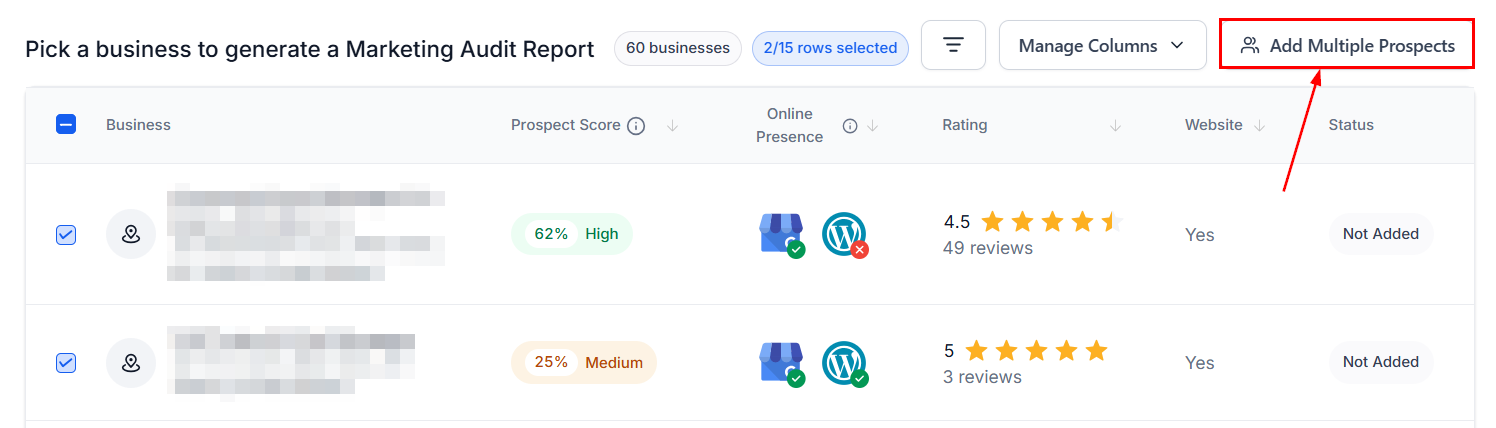
Once you are satisfied, click Add Multiple Prospects.
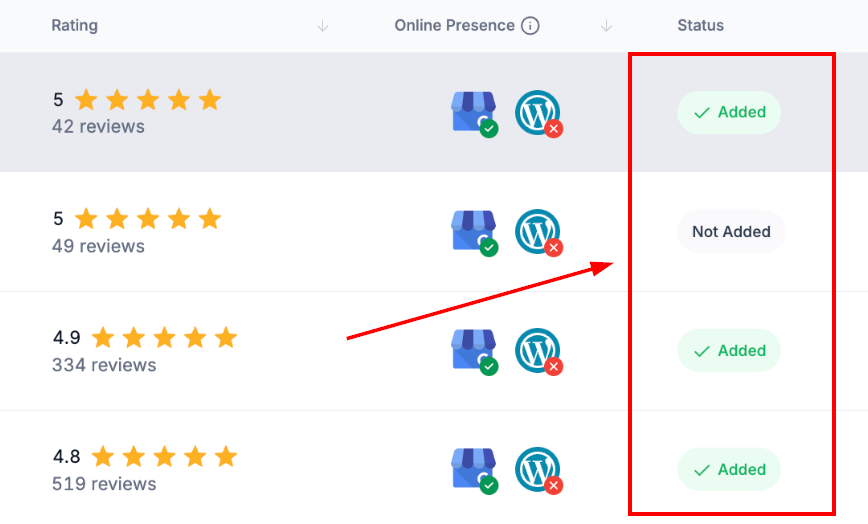
Monitor the Status column until entries show Added and use View to access each prospect’s Marketing Audit and record details.
Statuses help avoid errors and ensure clarity in your workflow.
- Not Added: The prospect has not yet been saved.
- Added: The prospect already exists in your system.
- Generating Prospect (xx%): The system is creating the record and running its Marketing Audit.
If Premium Prospecting features are enabled and connected, corresponding Contacts may also be created automatically in the linked account for outreach workflows. Marketing Audit Reports can be opened directly from each saved record.
Bulk Prospecting equips teams with the speed, precision, and process controls needed to scale local lead generation efficiently. From smart search filters to batch saving and automated duplicate detection, this workflow streamlines prospecting end-to-end—allowing you to focus more on qualified outreach and less on manual research.
Tips for Better Searches
- If you hit the 60-lead limit, expand the radius, vary keywords, or shift the search location.
- If near me gives unexpected results, verify VPN or network settings or enter the location manually.
Frequently Asked Questions
Q: What does “Generating Prospect (xx%)” mean?
- The system is creating the record and preparing its Marketing Audit.
Q: How does duplicate detection work?
- Prospects already saved display Added in the Status column. Select View to open the existing record.
Q: Can I filter to businesses without a website?
- Yes. Sort or filter by the Website column and target businesses marked No.
Q: Does “near me” use my exact location?
- It relies on IP-based geolocation, which may vary due to VPNs or network routing. Enter an address for more accuracy.
Not a Funnelbud customer yet?
Try our all-in-one CRM for sales and marketing — free for 7 days, no commitment.